How to fix
Win32u.dll was not found error
on Windows
Resolve the win32u.dll not found error on Windows 10 or Windows 11 easily with our expert-tested solutions. Get back to smooth operation in minutes!

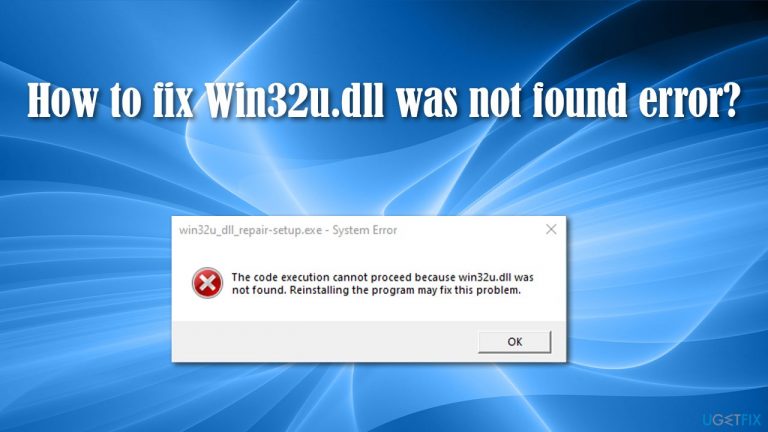
What causes How to fix win32u.dll was not found error on Windows?
- System file corruption
- Missing DLL file
- Issues with Windows Store downloads
- Malfunctioning applications
- Incompatibility with certain programs
Repairs Windows system files, removes malware, and restores a clean OS state — without reinstalling.
Hello, I have a problem with opening some applications. Some of them simply don't open, and instead, the error message says, "win32u.dll was not found." The same thing happens when I try to download apps from the Windows store (not all of them are affected, it seems like). Please help - I can't use half of the programs on my PC.
Win32u.dll was not found is an error that occurs exclusively on Windows systems, usually when users are trying to open or download apps from the internet. As evident, the mentioned DLL[ref en-3] file is missing, hence the problem occurs. Unfortunately, that does not explain why does that happen, or how to fix Win32u.dll was not found error in the end. In this article, we will try to help you just with that.
Win32u.dll is a Dynamic Link Library file that acts similarly to an EXE (executable), although it cannot be launched without a "shell." In other words, DLL holds a code that is called up whenever it is needed, although it can not function without launching and EXE file first.
Simply put, these data files are extremely important to any Windows operating system, and if something happens to them due to one reason or another, an operating system is bound to malfunction.
When users try opening a program as per normal, they receive the following error message:
file name.exe - System Error
The program can't start because win32u.dll is missing from your computer. Try reinstalling the Program to fix this problem
It is likely that the win32u.dll was not found error is caused by system file corruption. While some sources might hint at downloading this particular file and installing it manually, it is not recommended due to security risks.
Instead, we recommend trying running a scan with a trusted PC repair tool [d1] - it holds a database of valid Windows files that can fix win32u.dll was not found, BSODs,[ref en-2] and similar errors on a computer.
Missing DLLs are fairly common occurrences, as users frequently experience errors on Windows 10 or other Windows versions. The most common such missing files are:
Below you will find solutions for the win32u.dll was not found error, although keep in mind that it might take you several tries before you find a fix that works for you.
Fix 1. Run SFC and DISM scans
System file corruption is one of the main reasons for the DLL missing errors, hence running a System File Checker should help you resolve the issue:
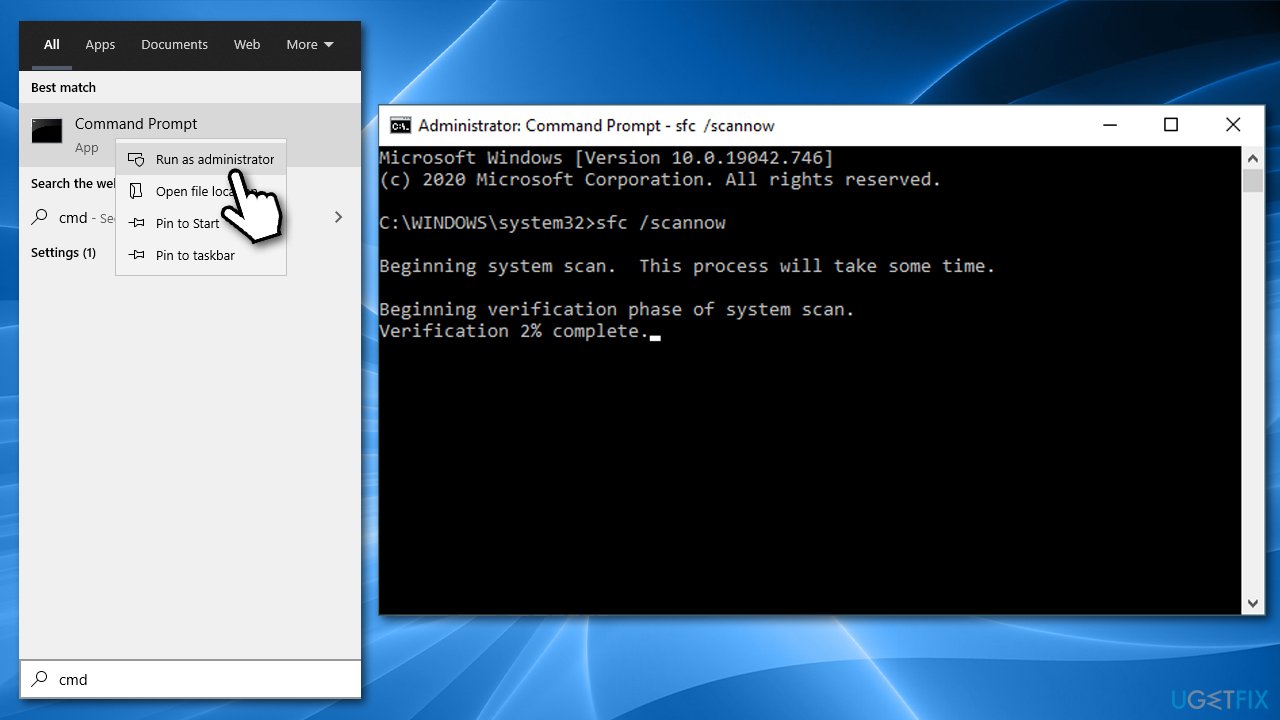
- Type in cmd in Windows search
- Right-click on the Command Prompt result and pick Run as administrator
- Press Enter after pasting in the following command:
sfc /scannow
- Wait till SFC scan is completed and then reboot your PC
- If SFC was not able to repair system file corruption, you should run DISM to repair Windows image files. For that, paste in the following commands, pressing Enter after each:
Dism /Online /Cleanup-Image /CheckHealth
Dism /Online /Cleanup-Image /ScanHealth
Dism /Online /Cleanup-Image /RestoreHealth - You can then run another SFC scan to ensure all the issues were addressed.
Fix 2. Re-register win32u.dll file manually
- Open Command Prompt as administrator as explained above
- Type in the following command:
regsvr32 win32u.dll
- Press Enter

- Reboot your computer and see if that helped you solve the problem.
Fix 3. Reinstall the app in question
If you are experiencing the Win32u.dll was not found error only when trying to open a certain app, you can try reinstalling it:
- Right-click on Start and pick Apps and Features
- Scroll down to the app that does not work properly
- Click Uninstall and then confirm with Uninstall
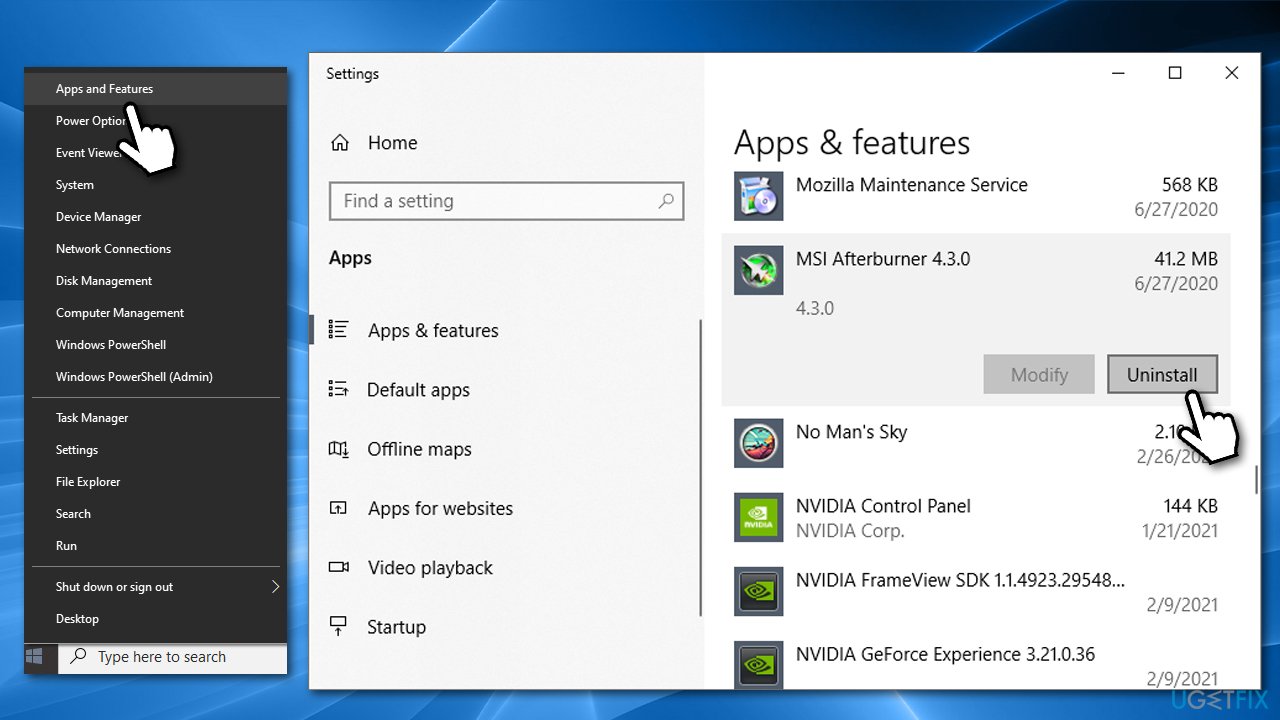
- Go to the official website of the app in question, download and install it once again.
Fix 4. Temporary suspend or uninstall your third-party antivirus
It is known that Norton and McAfee security programs could be preventing certain programs from running as intended. Therefore, we recommend temporarily uninstalling the third-party antivirus and checking whether that fixes the problem. If that is the case, you should either make an exception for the affected apps within your antivirus or switch to a different provider altogether.
Fix 5. Install all the available Windows updates
It is vital to ensure that your Windows is running on the latest version, as patches are there to fix various software bugs.[ref en-1]
- Type in Updates in Windows search and press Enter
- Click Check for updates
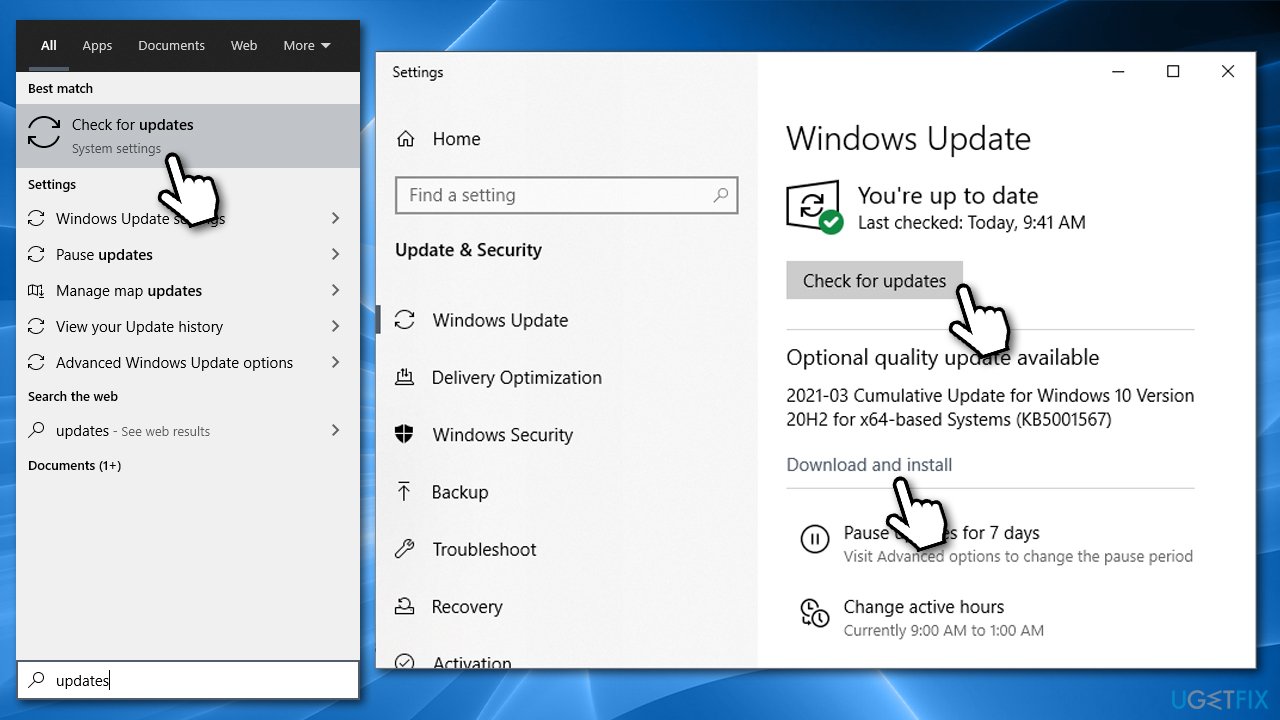
- Wait till all available updates are downloaded
- Install all the updates (optional included) and restart your PC.
Fix 6. Use System Restore
If none of the above solutions helped you, you should make use of the System Restore feature. You will have to reinstall some of the programs, although you won't lose any personal files:
- Type in Create a Restore Point in Windows search and hit Enter
- Go to System Protection tab
- Click on System Restore
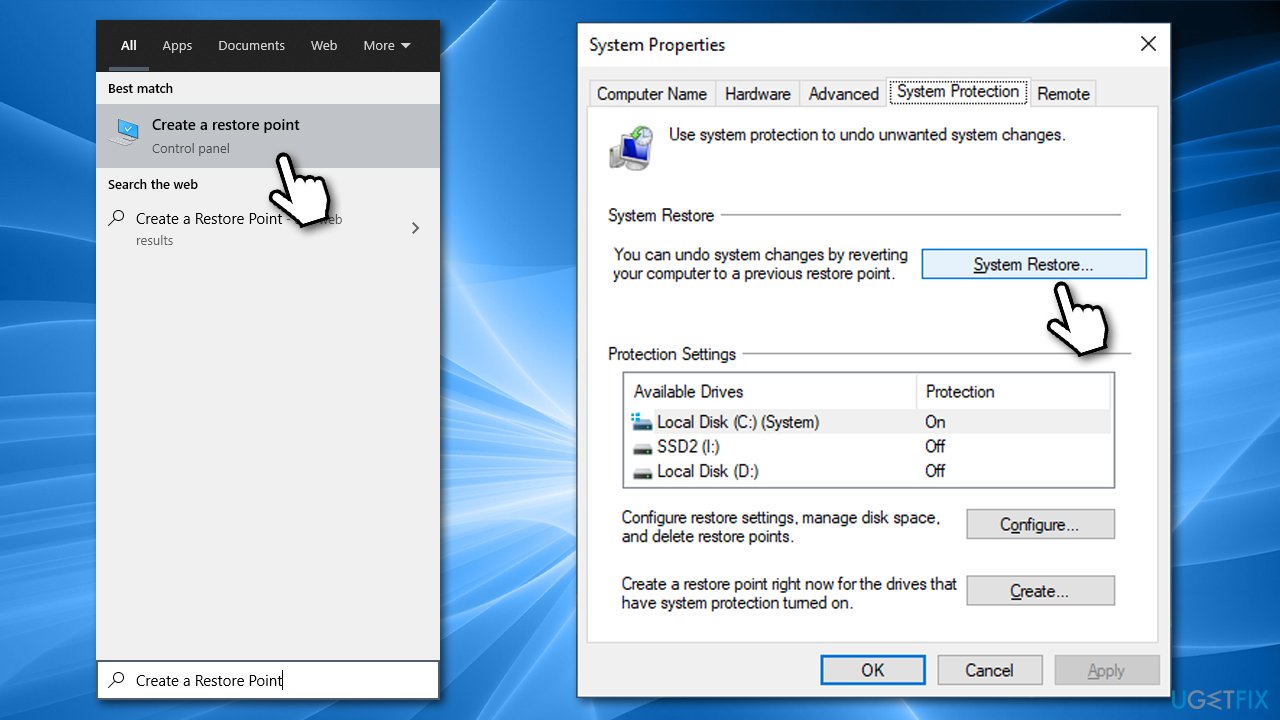
- Here, pick Choose a different restore point (if available)
- Tick Show more restore points
- Select the point in time when the problem did not exist
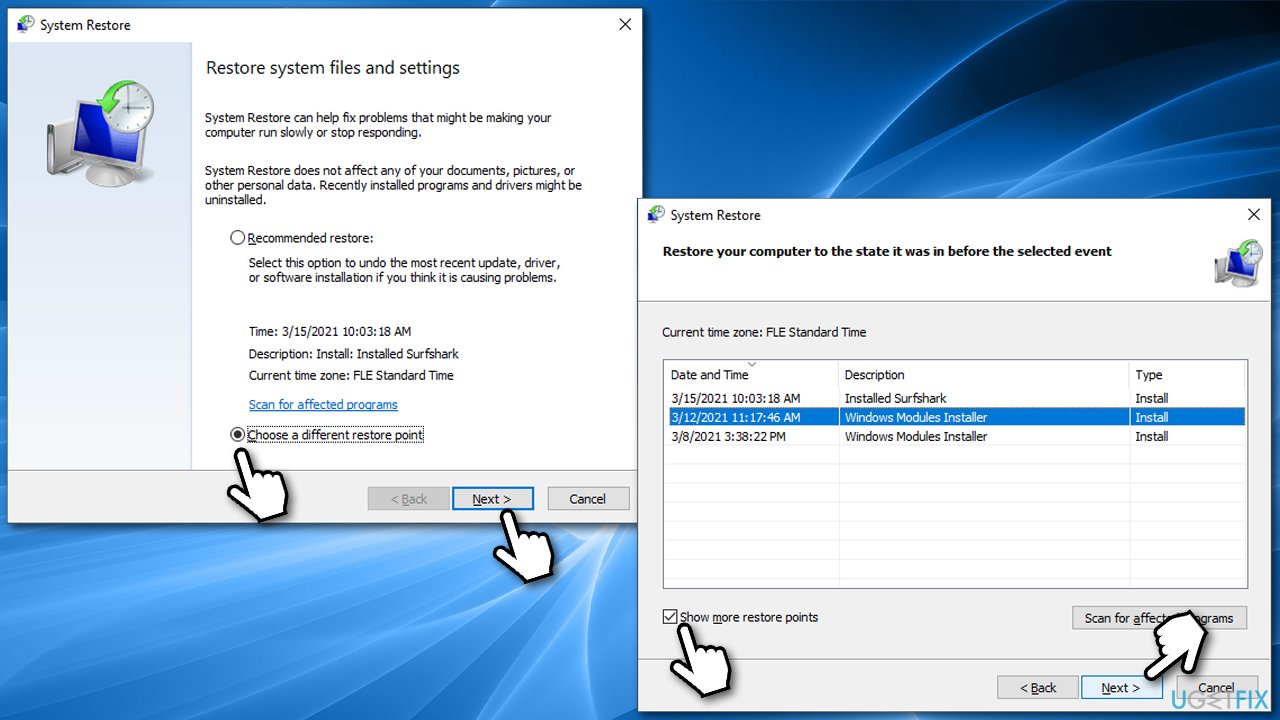
- Click Next and then finalize with Finish.
Bottom line
To fix the win32u.dll was not found error, you can try running a scan with a trusted PC repair tool or reinstalling the affected programs. If these solutions do not resolve the issue, consider seeking further assistance or exploring additional repair options.
Frequently asked questions
This error often occurs due to a missing or corrupted win32u.dll file, which can result from improper software installation or malware infections on Windows 10.
You can restore the win32u.dll file by running the System File Checker tool; simply open Command Prompt as an administrator and type 'sfc /scannow'.
No, reinstalling Windows 10 is not the only solution; you can also try repairing the system, updating drivers, or restoring the file from a trusted source.




Report an issue
What's wrong with this guide? We review every report and update or remove content.
Report received — thank you. We'll review and fix it.
You need a free account to submit a report.
Be the first to comment