How to fix
Finder won’t show icon previews
on Windows
Resolve icon preview issues on Windows 10 or Windows 11 effortlessly with expert-tested solutions that get your system running smoothly again.

What causes How to fix Finder won’t show icon previews in macOS Big Sur?
- Thumbnails and icon previews not visible after Big Sur upgrade
- DS_Store file corruption
- Application compatibility issues
- Third-party applications causing preview problems
- Corruption of various files and settings
Repairs Windows system files, removes malware, and restores a clean OS state — without reinstalling.
Hello. I have a problem with my Mac that appeared after a Big Sur upgrade. Thumbnails and icon previews are not visible anymore. It happens with Finder directly and the Dropbox app. I tried rebooting, but the issue persists. Can you say anything about this?
Finder won't show icon previews in macOS Big Sur is the issue that people report[ref en-1] as annoying. It is frustrating when the preview thumbnails disappear, and you can see the generic jpeg icon only. Various issues can appear after the particular macOS update, so Big Sur problems are not entirely new.[ref en-2]
Upgrades of the operating system often have bugs and other problems that need fixing, so upgrading to the latest version can solve this issue too, if you notice the relation between the recent macOS upgrade to Big Sur and this Finder preview issue. There are many issues with the macOS Big Sur version that we have already covered: camera not working in macOS Big Sur, Mac crashing after Big Sur update, display not recognized after Big Sur update.
Corruption of various files and settings can trigger such issues. One of the possible triggers for the Finder won't show icon previews in the macOS Big Sur problem.DS_Store file corruption. This is the piece that contains such settings related to previewing options.
This problem can also be the result of application compatibility because applications that are associated with files cannot render certain data. Third-party applications might cause this preview problem, so you may need to switch back to Finder instead of other programs and fix Finder won't show icon previews in macOS Big Sur this way.
Finder won't show icon previews is the problem that shouldn't be related to any cyber infections[ref en-3] or security issues. But mac malware is a real thing, and the damage caused by the infection can lead to file corruption and alterations in settings. [d1] is the program that should help with PUPs, traces of unwanted applications, and act as a security or damage fixing application.
We recommend running this app as a first step in the procedure. Other methods include more in-depth instructions and steps, so following them is important. The quickest one is the OS's update, but the issue might be related to more difficult settings than that.
Method 1. Relaunch Finder to fix Finder won't show icon previews in macOS Big Sur
- Go to the Home.
- Then click Library and choose Preferences.
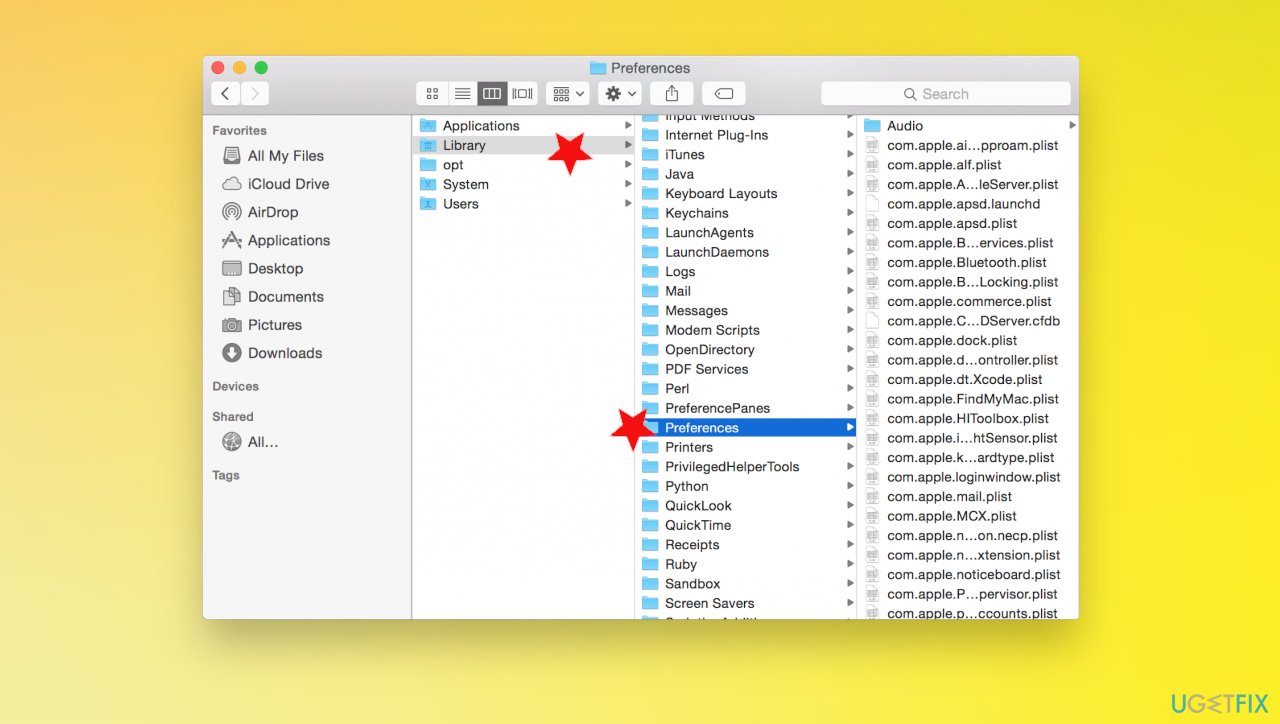
Finder preview missing big sur fix library preferences - Delete the com.apple.finder.plist.
- Right-click Finder and select Relaunch.
Method 2. Enable Show Preview option
- Go to Finder.
- Click View.
- Choose Show View Options.
- Select Show icon preview.
- Close the window.
Method 3. Change default app settings to fix Finder won't show icon previews in macOS Big Sur
- Right-click the file.
- Choose Get info.
- Under the Open with select Preview app.
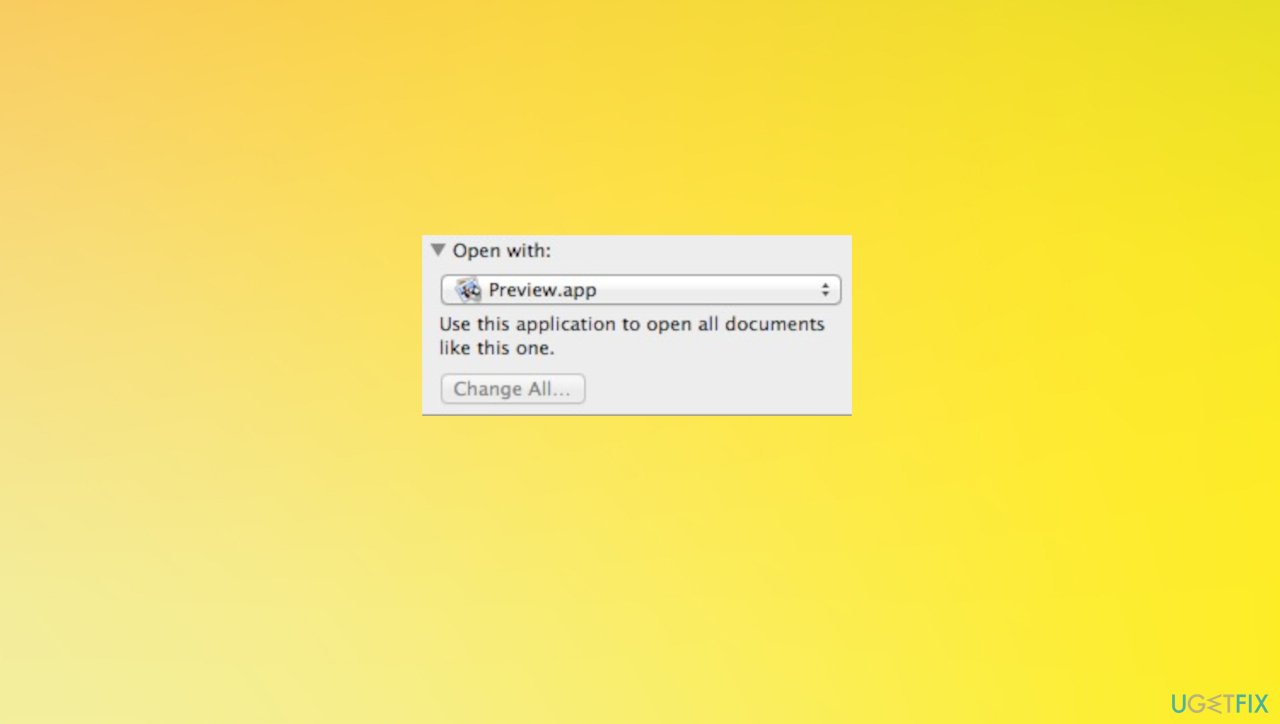
Finder preview missing big sur fix preview
Method 4. Update to the latest Big Sur version
- Go to the System Preferences.
- Click Software Updates and check for the newest ones.
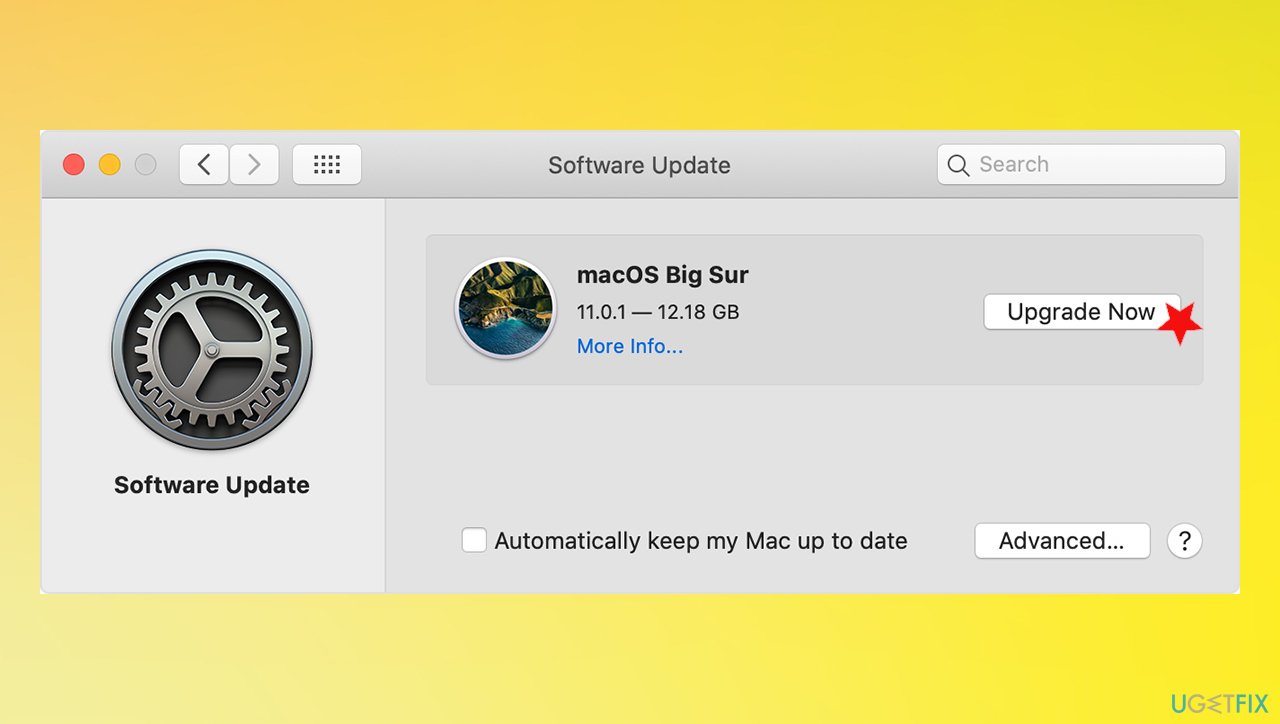
Finder preview missing big sur fix updates - If any are available - Update now.
- Install the update and follow the wizard.
Bottom line
To fix the Finder won't show icon previews issue, consider upgrading to the latest macOS version, checking for DS_Store file corruption, and switching back to Finder from other applications. If these methods do not resolve the problem, running a security application to check for malware may be necessary.
Frequently asked questions
To enable icon previews, open File Explorer, go to the 'View' tab, and select 'Large icons' or 'Extra large icons' for better visibility of image previews.
Make sure that the 'Always show icons, never thumbnails' option is unchecked in the Folder Options under the 'View' tab.
This could be due to a corrupted thumbnail cache; you can fix it by running the Disk Cleanup tool and selecting 'Thumbnails' to clear and rebuild the cache.




Report an issue
What's wrong with this guide? We review every report and update or remove content.
Report received — thank you. We'll review and fix it.
You need a free account to submit a report.
Be the first to comment