How to fix
Windows update error 0x8024ce0e
on Windows
Resolve Windows update error 0x8024ce0e quickly with our expert-tested solutions. Ensure your Windows 10 or Windows 11 runs smoothly, fixed in minutes!

What causes How to fix Windows update error 0x8024ce0e?
- Improper installation
- Corrupted files
- Missing files
- External devices or drivers
- Issues with folders and files
Repairs Windows system files, removes malware, and restores a clean OS state — without reinstalling.
Hello. I would like to know what is the Windows update error 0x8024ce0e and how to solve this issue. I have a fairly new PC, and the code appears during the upgrade of the OS. I try to find answers online, but no luck.
Windows update error 0x8024ce0e is the problem that keeps annoying users[ref en-1] from time to time. A quick reboot of the PC can fix the issue, so the system keeps updating normally after that. However, other reports show that the solution is more difficult than that. You might need to change the internet connection, connect to the wifi, or switch to the cable and check if the problem is still persisting.
In general, Windows operating system updates create various issues on machines,[ref en-2] according to reports that we have already covered on this site. Windows update error 0xc190012e; Windows update error code 0x80070026; Windows update error 0x80070541 and many other issues that have surfaced for years resemble the error with this 0x8024ce0e code.
We can surely confirm that your device's security is not at risk, and malware[ref en-3] is not responsible for any of these issues. The particular error is more likely caused by improper installation, corrupted or missing files. Of course, those files can get altered or damaged by cyber threats, but if you want to fix Windows update error 0x8024ce0e properly, anti-malware tools or virus removal is not the way to go.
You can repair affected data with a tool like [d1], so running this program as the troubleshooting step is one of the first steps we recommend. External devices or drivers can also cause this problem to appear, so we have added a few fixes to tackle this reason too.
Particular issues with folders and files can cause windows update error 0x8024ce0e. Software Distribution is one of the update components, so resetting the folder can help too. You can find how in the guide below alongside other solutions for this frustrating issue.
Option 1. Make sure to have enough space
- Open File Explorer.
- Go to This PC.
- In the Devices and drivers section, check the remaining storage space on your drivers.
Option 2. Update drivers to fix Windows update error 0x8024ce0e
You can automatically update various drivers with [rev id="DriverFix"] that quickly improves the performance and can solve driver-related problems. Damage caused by incorrect installations or wrong versions of drivers can lead to various error messages and additional issues like Windows update error 0x8024ce0e. This application quickly scans the system and recommends new drivers, updates pieces, and keeps them up to date, making a difference with compatibility issues.
- Press the Win and R keys to open the Run window.
- Enter devmgmt.msc.
- Hit Enter and open Device Manager.
- Double-click Display adapters and right-click the display adapter.
- Choose to Update driver.
- Select Search automatically for driver software.
- You can repeat that with various drivers that have an exclamation point near them. This indicates issues.
Option 3. Troubleshoot Windows Update
- Type Troubleshoot in Windows search and press Enter.
- Here, click Additional troubleshooters (otherwise, you should see them listed on the right side of the window).
- Find Windows Update.
- Click on it once and select Run the troubleshooter.
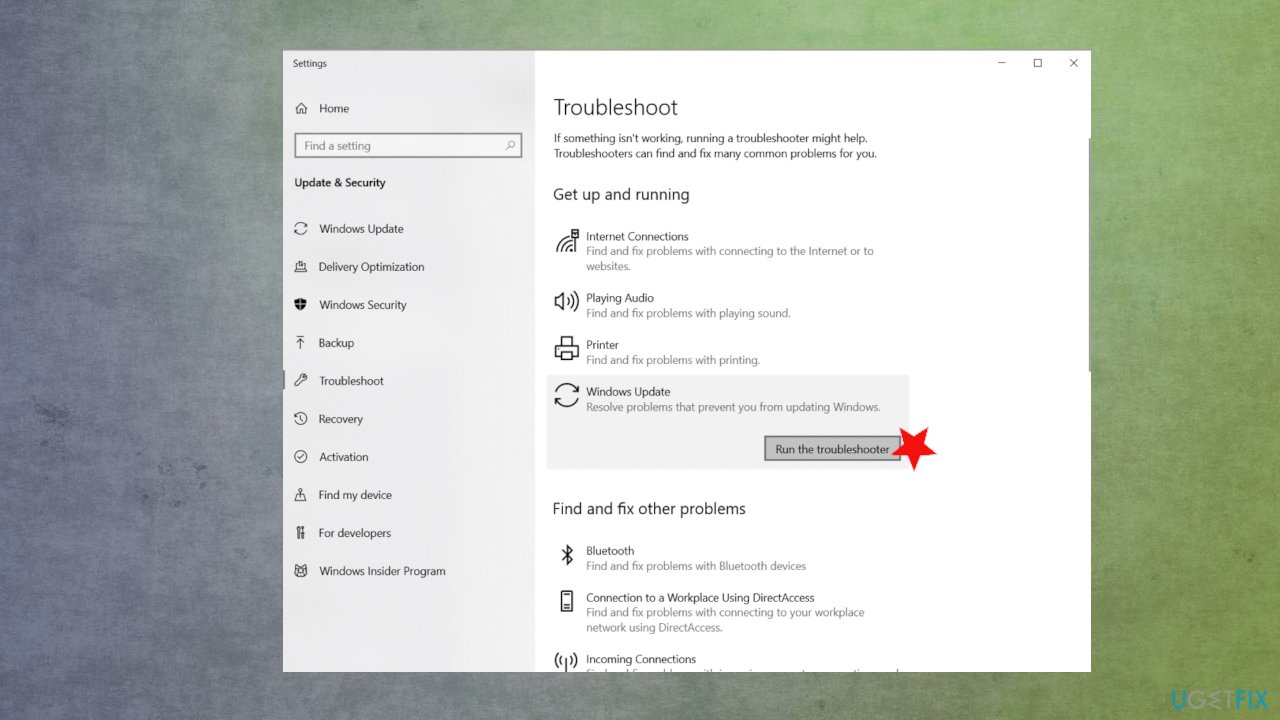
Windows update error 0x80070541 fix troubleshooting - Wait till Windows completes the scan and offers automatic solutions.
Option 4. Reset Software Distribution folder to fix Windows update error 0x8024ce0e
- Start Command and Prompt with admin rights.
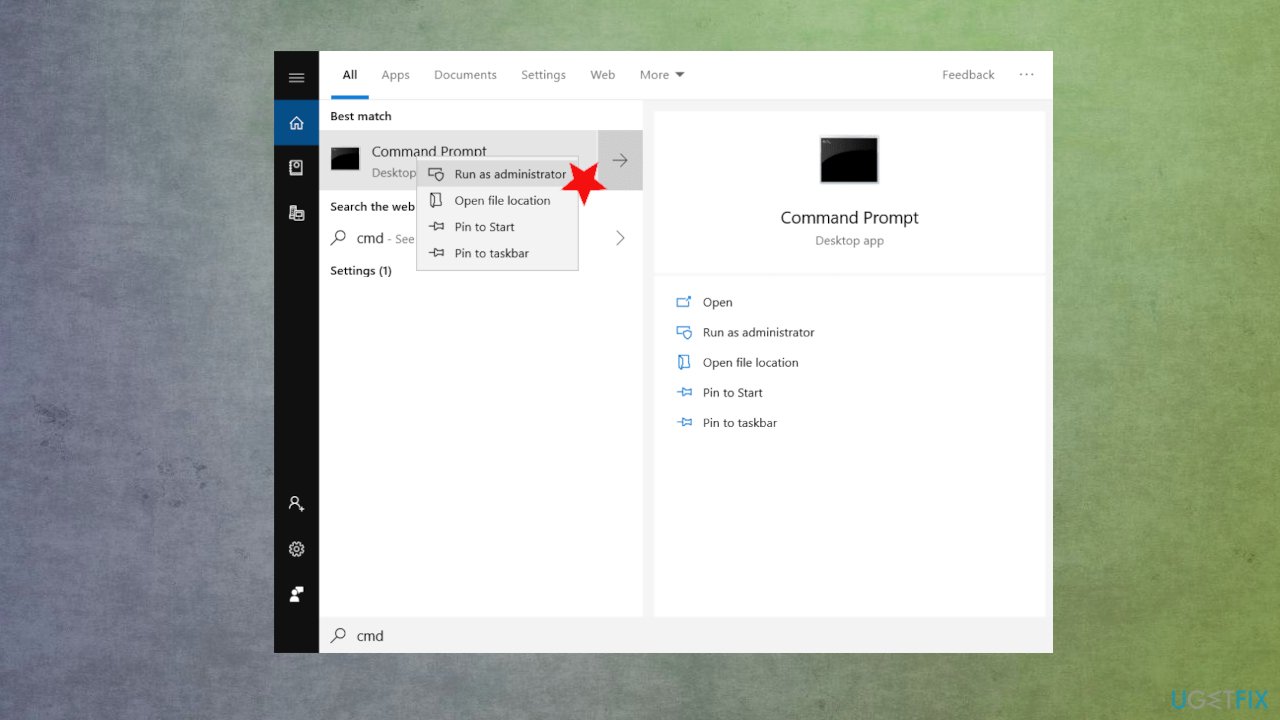
Windows update error 0x80070541 fix command prompt - Type commands and hit Enter after each one:
net stop bits
net stop wuauserv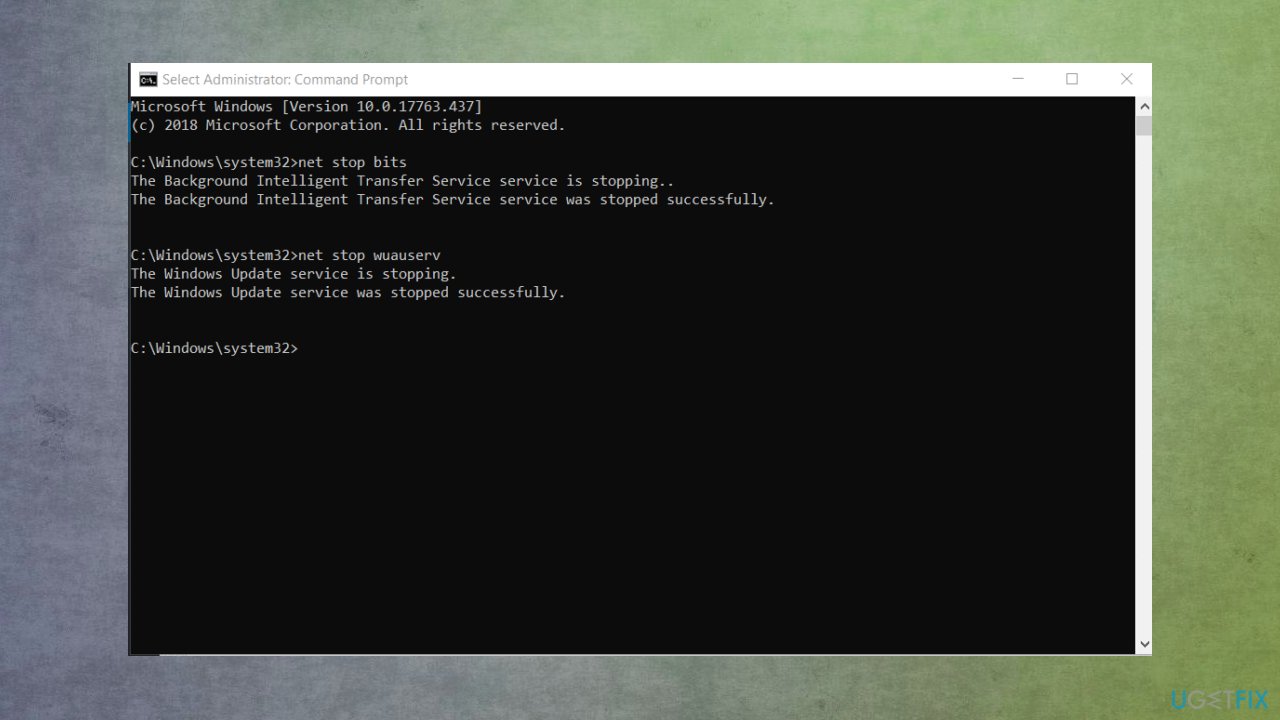
Windows update error 0x80070541 fix commands - Open Run box with Win + R keys.
- Put in C://Windows/SoftwareDistribution.
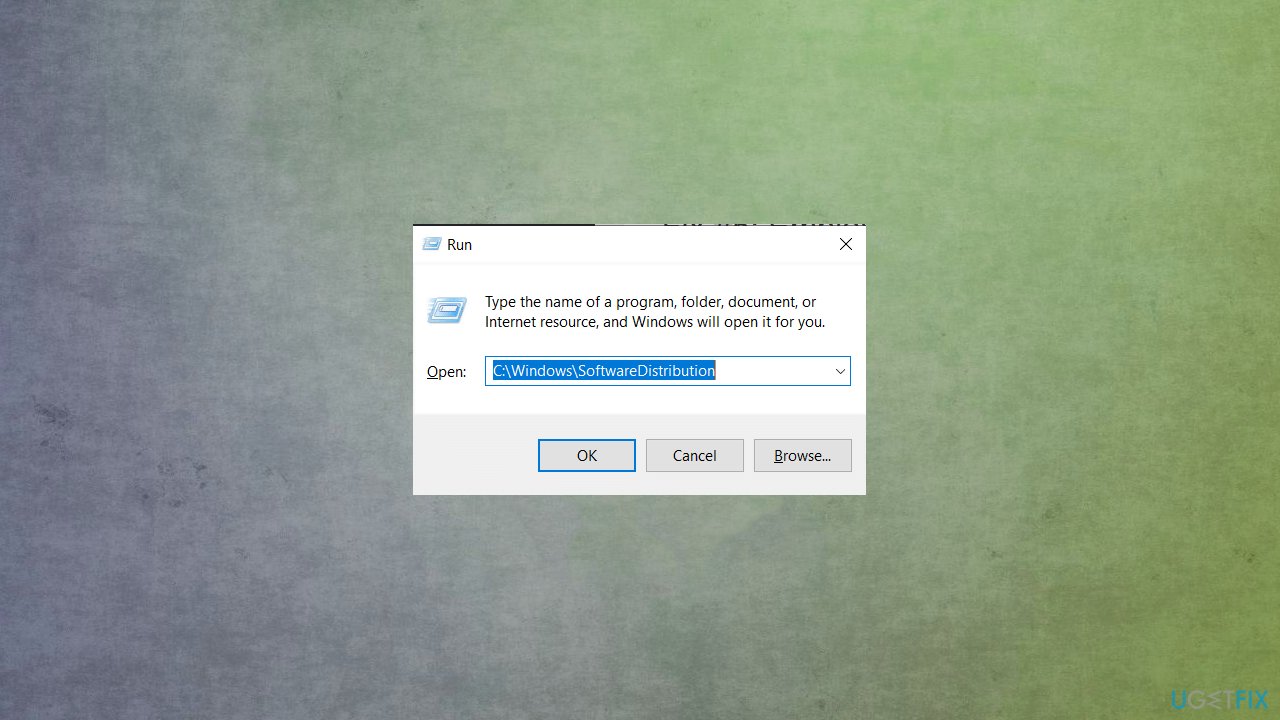
Windows update error 0x80070541 fix software folder - Choose the data in the folder and delete all.
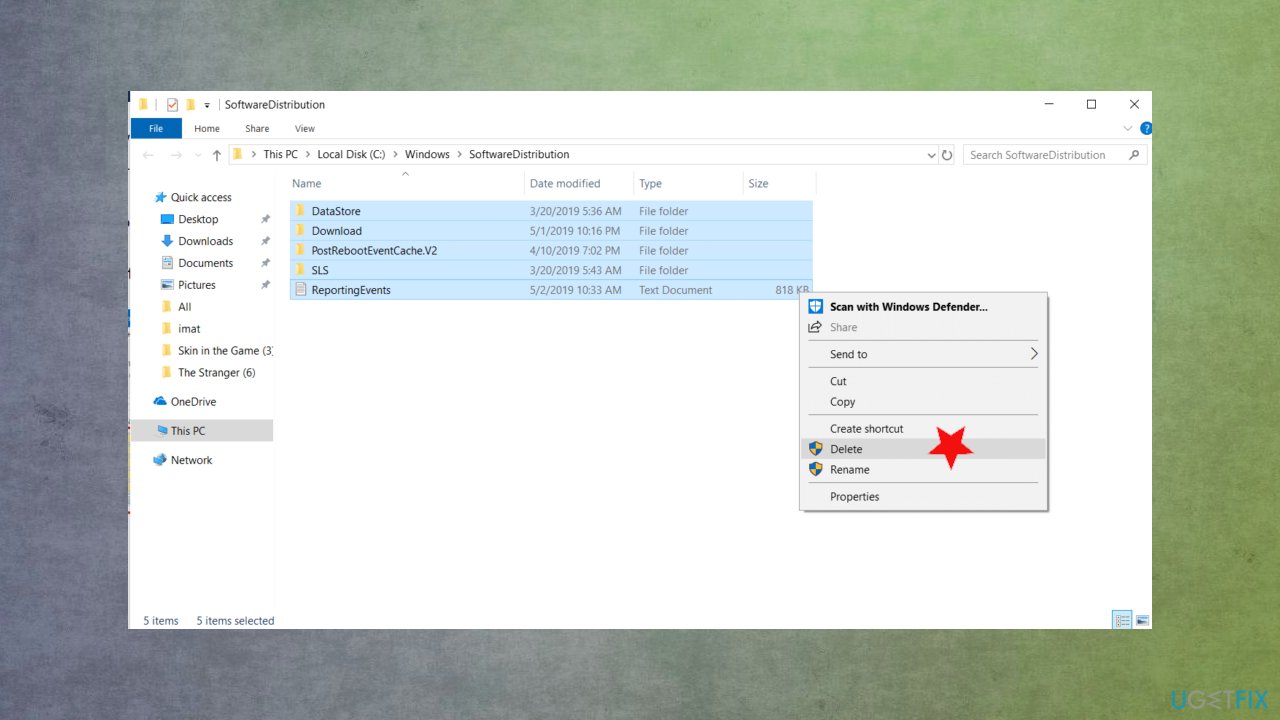
Windows update error 0x80070541 fix folder delete - Check the same commands in Command Prompt.
- Restart.
Option 5. Run DISM tool
- Open Command Prompt (Admin),
- Copy and paste
DISM.exe /Online /Cleanup-image /Scanhealth - Press Enter.
- Now copy and paste the
DISM.exe /Online /Cleanup-image /Restorehealth - Don’t forget to press Enter to execute it.
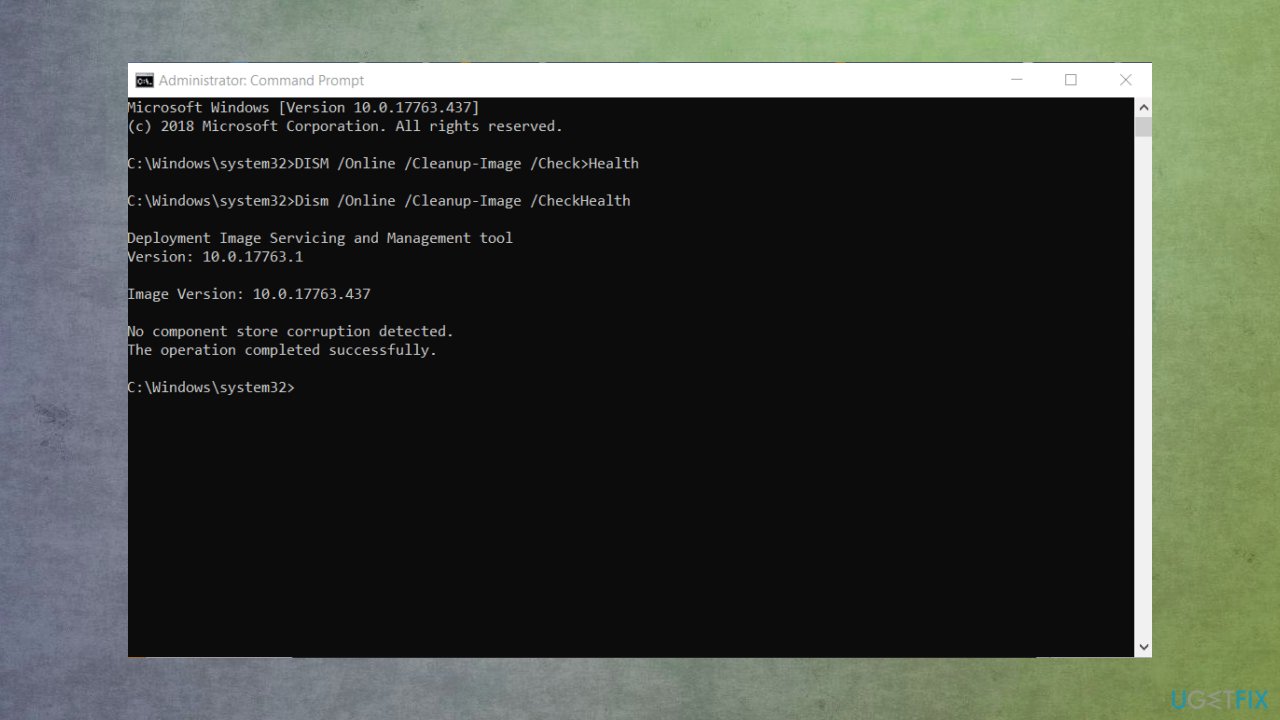
Windows update error 0x80070541 fix dism - Finally, close Command Prompt and restart the system.
Bottom line
To fix Windows update error 0x8024ce0e, you can try rebooting your PC, changing your internet connection, or resetting the Software Distribution folder. If these steps do not resolve the issue, consider using a repair tool for affected data.
Frequently asked questions
The error 0x8024ce0e typically indicates that there is a problem with the Windows Update service, preventing updates from being installed properly.
To resolve this error, you can try running the Windows Update Troubleshooter, resetting the Windows Update components, or performing a system file check.
Yes, you can use the command 'sfc /scannow' in the Command Prompt to scan and repair corrupted system files that might be causing the error.




Report an issue
What's wrong with this guide? We review every report and update or remove content.
Report received — thank you. We'll review and fix it.
You need a free account to submit a report.
Be the first to comment