How to fix
Atidxx64.dll crash error
on Windows
Resolve the atidxx64.dll crash error on Windows 10 and 11 with proven solutions. Get back to smooth performance, expert-tested fixes inside!


What causes How to fix atidxx64.dll crash error in Windows?
- Missing or corrupted atidxx64.dll file
- Corrupt Windows system files
- Incompatible or damaged drivers
- Missing Visual C++ Redistributables
- Access violation error 0xc0000005
Repairs Windows system files, removes malware, and restores a clean OS state — without reinstalling.
Hello. I have recently been getting crashes while playing Final Fantasy XIV. The message says that an unexpected error has occurred and lists plenty of lines consisting of atidxx64.dll + some random characters. Any idea of what I should do to fix this?
An unexpected error atidxx64.dll can occur at any time while playing video games, which forces the application to crash and exit. It also interrupts everything that users were doing immediately. Without a doubt, errors that result in program crashes are particularly annoying, but we are here to help you find a fix.
Users described that the error could occur at any time when playing a game on a Windows computer; for example, some said that they couldn't go one minute without it crashing with atidxx64.dll error, while others said it occurs just once a day of even more rarely. Some also claimed that the error indicated access violation error 0xc0000005.[ref en-3]
The scope of games this issue affects is also quite wide - players of Final Fantasy XIV, Genshin Impact, Dirt, Serious Sam 4, and many more. Therefore, a particular game can hardly be blamed for these crashes. It also affects AMD and Nvidia GPUs, although the former is more likely to be associated with this error.
Here is the error code message that most users would see after a game crash:
An unexpected error has occurred. Exiting [Gamename].
atidxx64.dll + [string]
atidxx64.dll + [string]
<...>
This can be rather confusing, as the information is not enough to pinpoint what is causing the issue and how to find a solution for it. Just like with any other Windows error, however, there could be a few different causes for this one to occur. As evident, the message points at a DLL file that is misbehaving and causing the crash.
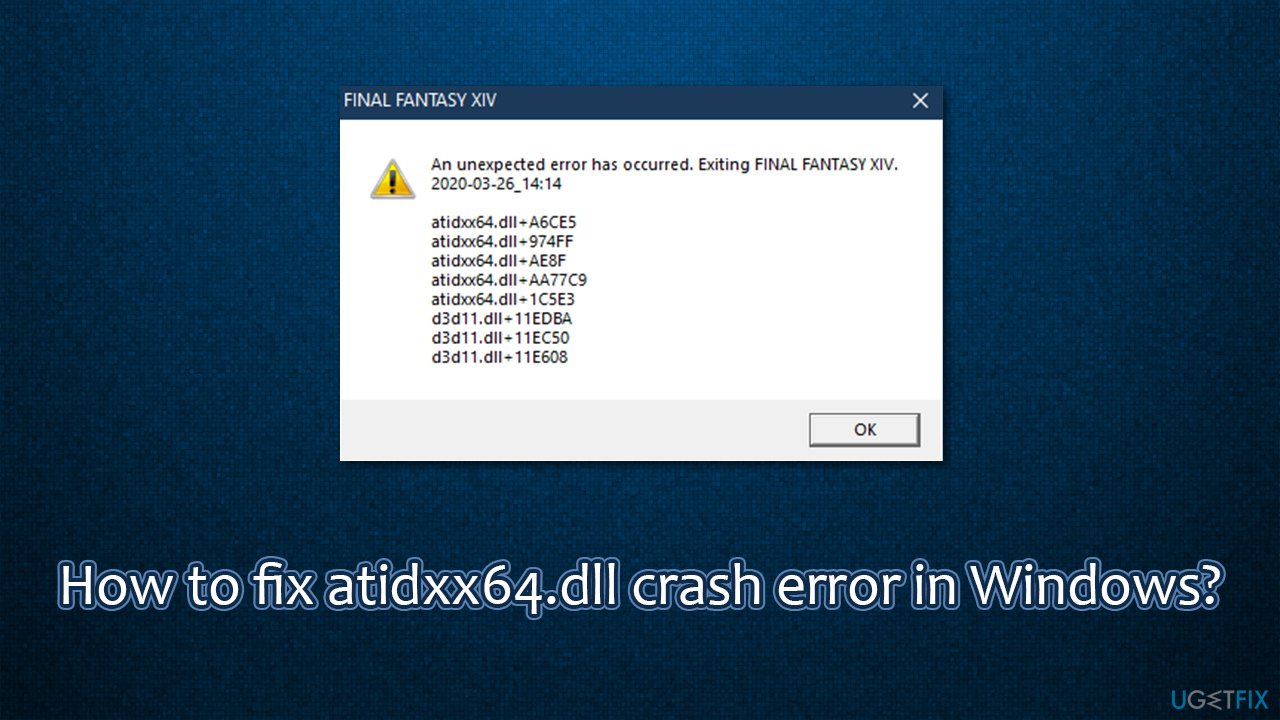
Missing or corrupted DLL files, such as VCRUNTIME140 or MSVCP140, are often causing games to crash, and atidxx64.dll works similarly. Missing or corrupted DLL fines can often cause problems; the reason for such behavior is commonly related to corrupt Windows system files, incompatible or damaged drivers,[ref en-2] missing Visual C++ Redistributables, and much more.
Therefore, to fix atidxx64.dll crashing while playing games, you will have to perform several steps listed below. If the cause of this problem is corrupt system files, [d1] automatic repair tool can diagnose Windows problems and fix them for you within just a few minutes.
Fix 1. Apply all the available Windows updates
- Type Updates in Windows search and press Enter
- Click Check for updates on the right
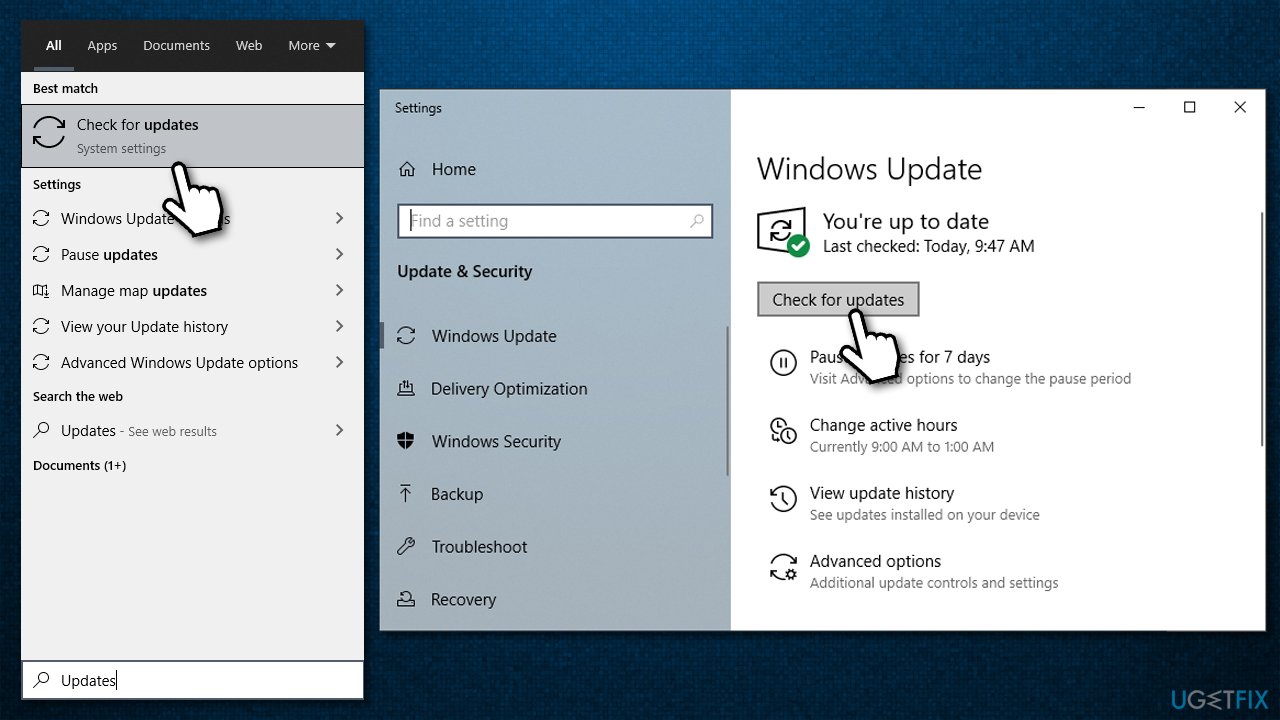
How to fix atidxx64 dll crash error in windows apply all updates - Wait till all the available updates are downloaded and installed (install optional ones as well)
- Restart your system.
Fix 2. Try fixing corrupted system files
Running an SFC scan can help you find file integrity violations and fix them. For that, you need to open Command Prompt as administrator:
- Type cmd in Windows search
- Right-click on Command Prompt and select Run as administrator
- Paste the following command and press Enter:
sfc /scannow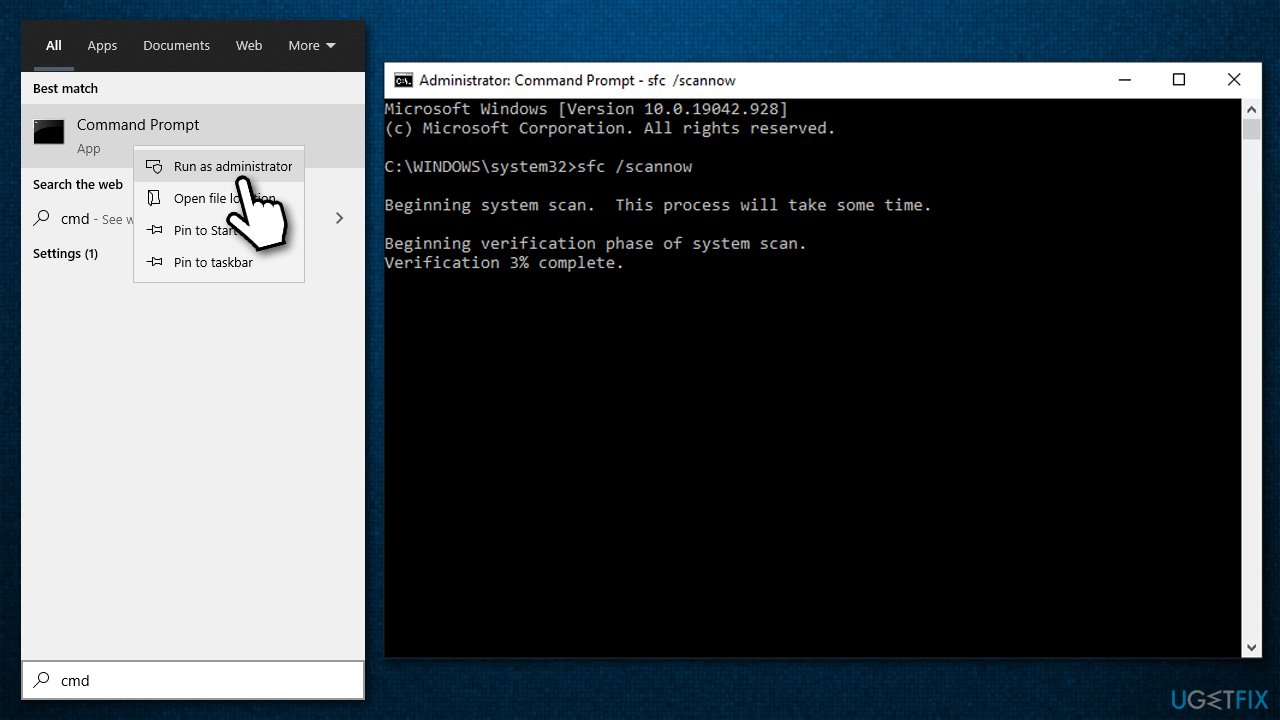
How to fix atidxx64 dll crash error in windows run sfc scan - Wait till Windows finishes repairing damaged files and restart your PC.
If the SFC scan returned an error, you should run DISM to repair the Windows image:
- Open Command Prompt (admin) and paste these commands, pressing Enter after each:
dism /online /cleanup-image /scanhealth
dism /online /cleanup-image /checkhealth
dism /online /cleanup-image /restorehealth
Fix 3. Stop overclocking
If you are overclocking your CPU or GPU while experiencing crashes, you should stop it and see if that helps. Overclocking is a great way to push your hardware to the limits, but that often comes at the cost of its stability and might start causing games to crash.
To disable overclocking, access BIOS like you did before and set your clock speeds back to the default settings.
Fix 4. Do a clean install of your GPU drivers
One of the main reasons for the atidxx64.dll crash error is incompatible or corrupted video drivers. Therefore, you should reinstall your GPU drivers as follows:
- Right-click on Start and pick Device Manager
- Here, expand the Display adapters section
- Right-click on your GPU and select Uninstall device
- In the prompt, make sure you mark the Delete the driver software for this device option
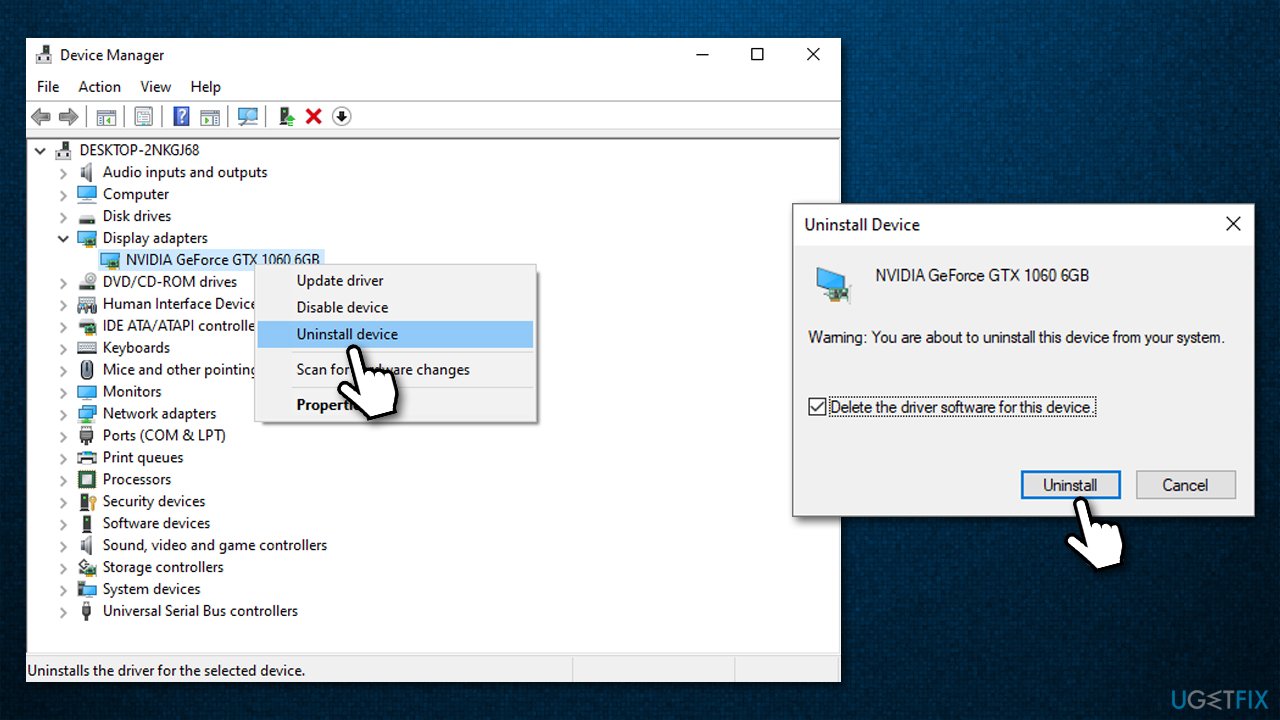
How to fix atidxx64 dll crash error in windows reinstall gpu drivers - Once done, restart your computer.
After this, you should install the newest drivers available for your GPU. Device manager is not an ideal option to do that, so you should rather visit your hardware manufacturer websites (AMD, Nvidia, Intel, etc.) and install them from there. Alternatively, you could simply rely on an automatic driver updater such as [rev id="DriverFix"].
Fix 5. Reinstall the game in question
This step should be self-explanatory. You can remove the game that is crashing in many ways - via the Control Panel, Apps & Features section in Windows settings, or use the built-in functionality in a gaming platform such as Steam. Keep in mind that larger games will require some time to re-download, so it might take quite some time.
Fix 6. Reinstall Visual C++ Redistributable package
- Type Control Panel in Windows search and hit Enter
- Go to Programs > Uninstall a program
- Find Visual C++ redistributable you want to reinstall, right-click and select Uninstall
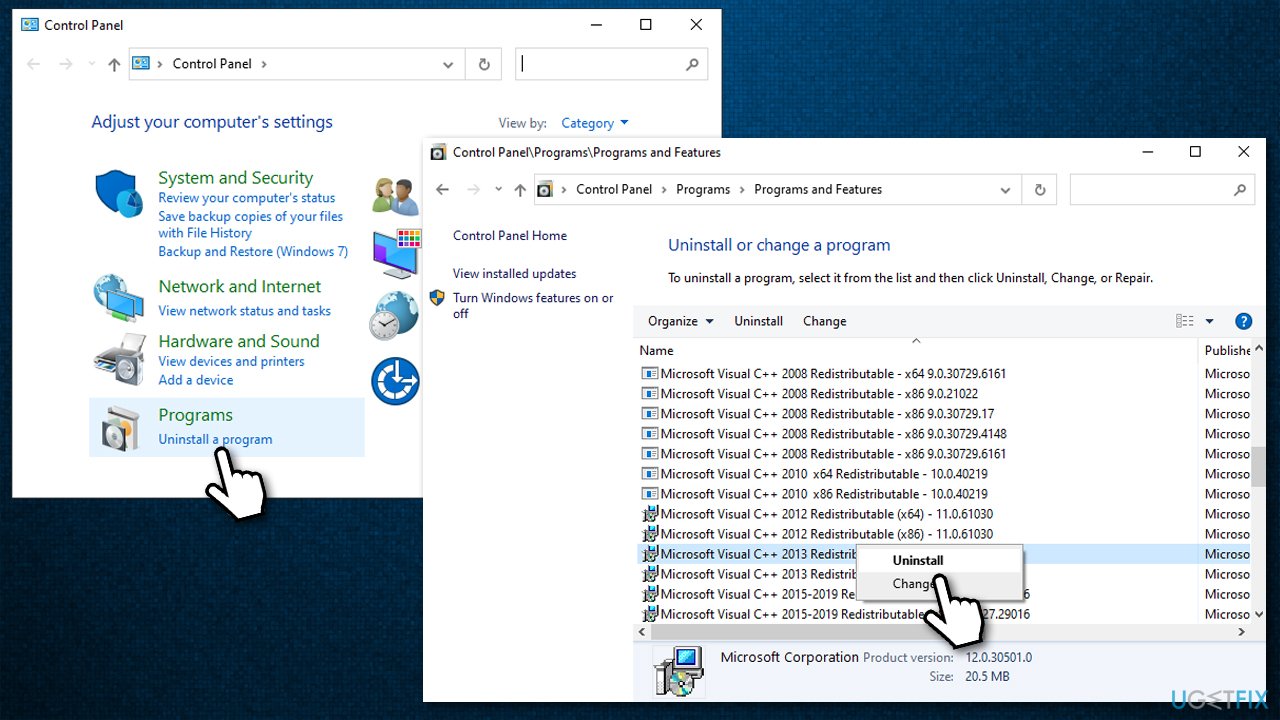
How to fix atidxx64 dll crash error in windows reinstall visual c plus plus package - Follow on-screen instructions to remove the package
- Go to the official Microsoft site
- Download and install the latest Visual Studio (install vc_redist.x86.exe (32-bit) and vc_redist.x64.exe (64-bit) versions)
- Reboot your PC.
Fix 7. Tweak in-game settings
In some cases, in-game settings might simply not be correct for your hardware. For example, if you are using an older processor or GPU, you should not try setting your visuals to "Ultra" quality. Here are a few things to try:
- Disable Vertical Sync (VSync)
- Cap your frame rate (FPS) at 60
- Lower or disable Anti-aliasing (AA)[ref en-1]
- Lower resolution.
Bottom line
To fix the atidxx64.dll crashing issue, users can try reinstalling the Visual C++ Redistributables, updating their graphics drivers, or repairing corrupt system files. If none of these solutions work, further investigation into system settings or hardware compatibility may be necessary.
Frequently asked questions
The atidxx64.dll crash error is often caused by outdated or corrupted graphics drivers, particularly for AMD graphics cards, or conflicts with other software applications.
To update the atidxx64.dll file, you should download the latest graphics driver from the AMD website and install it, which will replace the outdated DLL file.
If reinstalling the driver doesn't resolve the issue, try running the System File Checker tool or performing a clean installation of the driver to eliminate any conflicts.




Report an issue
What's wrong with this guide? We review every report and update or remove content.
Report received — thank you. We'll review and fix it.
You need a free account to submit a report.
Be the first to comment