How to fix
Your Device is Missing Important Security and Quality Fixes
on Windows
Resolve the "Your Device is Missing Important Security and Quality Fixes" error on Windows 10 and 11 quickly and effectively. Expert-tested solutions aw…

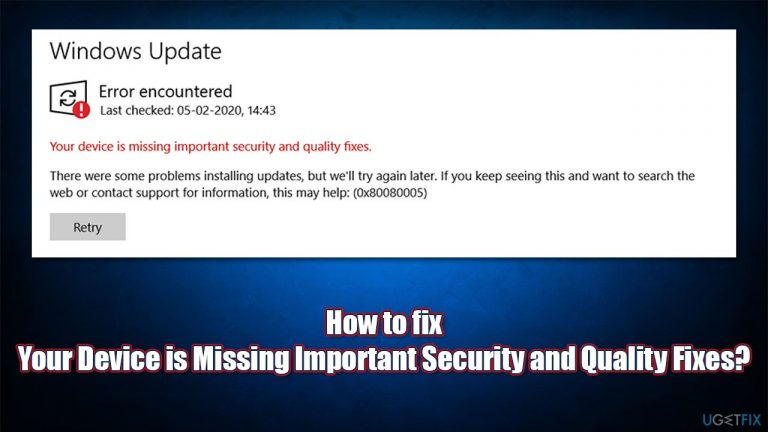
What causes How to fix Your Device is Missing Important Security and Quality Fixes?
- Incompatibilities within the update
- Bugs in the update itself
- Missing update files
- Update service shutting down
- Installation process problems
Repairs Windows system files, removes malware, and restores a clean OS state — without reinstalling.
Hello, I am having trouble installing the latest update on Windows 10. I receive the following error: "Your Device is Missing Important Security and Quality Fixes." The error code is 0x80080005. I tried waiting a few days, hoping that the issue would resolve itself, but it didn't. Any suggestions on how to approach this? Tips appreciated.
One of the best features of the Windows 10 operating system is that it's a service, meaning updates happen regularly to keep everything fresh and secure - security patches are extremely important to prevent cyberattacks from happening. Patch Tuesday happens every month on either the second or fourth Tuesdays - whichever falls later in your calendar year.
At the time of the writing, we received 13 major OS upgrades,[ref en-1] each of which includes UI[ref en-2] changes, implementation of new features, bug[ref en-3] fixes, etc. Not always everything goes smoothly, however, as many users have encountered issues when trying to upgrade Windows to the latest version. "Your Device is Missing Important Security and Quality Fixes" is the most common error which users can encounter during the update process of the OS.
The error is not really tied to a particular error code and other peculiarities, which means that you may receive several different error codes when encountering this error, for example:
- 0x80080005
- 0x80073712
- 0x80070424, etc.
It is also important to note that the error message might differ from user to user, although it mostly explains why the update failed, e.g., some problems during the installation process, some update files are missing or that the update service was shutting down.
In most cases, these issues are related to incompatibilities or bugs within the update itself, and not necessarily with your PC hardware or software, although the latter should not be dismissed. Despite this, the reason is very important when trying to find the solution that would help you fix the "Your Device is Missing Important Security and Quality Fixes" error.
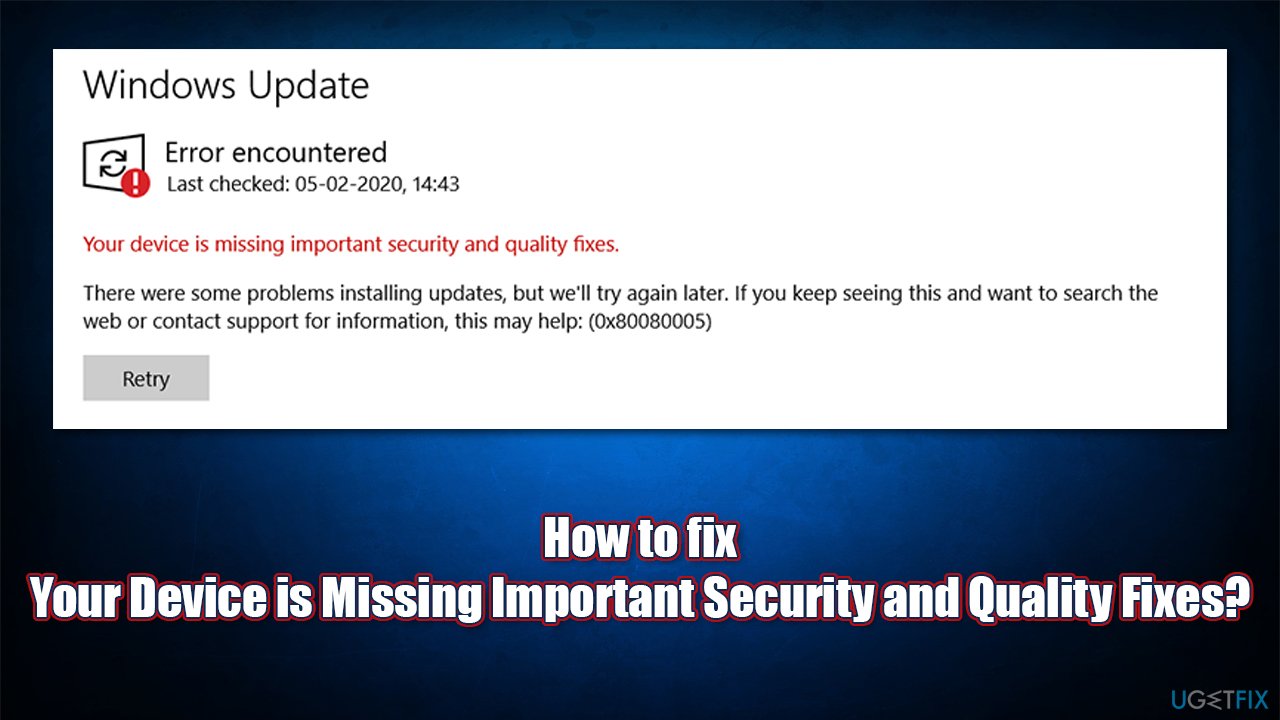
Since there could be many reasons for the error to show up, there are also many ways of fixing it. Below you will find multiple solutions - from the easiest to more complicated ones at the end. You can always try to avoid more difficult methods with the help of a PC repair and maintenance tool [d1], as it is designed to find damaged or missing Windows sectors and repair them automatically.
Fix 1. Run Windows Update troubleshooter
As already mentioned, let's start with the easier solutions first. If you still haven't done so, please run the built-in troubleshooter:
- Type Troubleshoot in Windows search and press Enter
- Click the Additional troubleshooters option on the right
- Find Windows update section
- Click Run the troubleshooter and wait
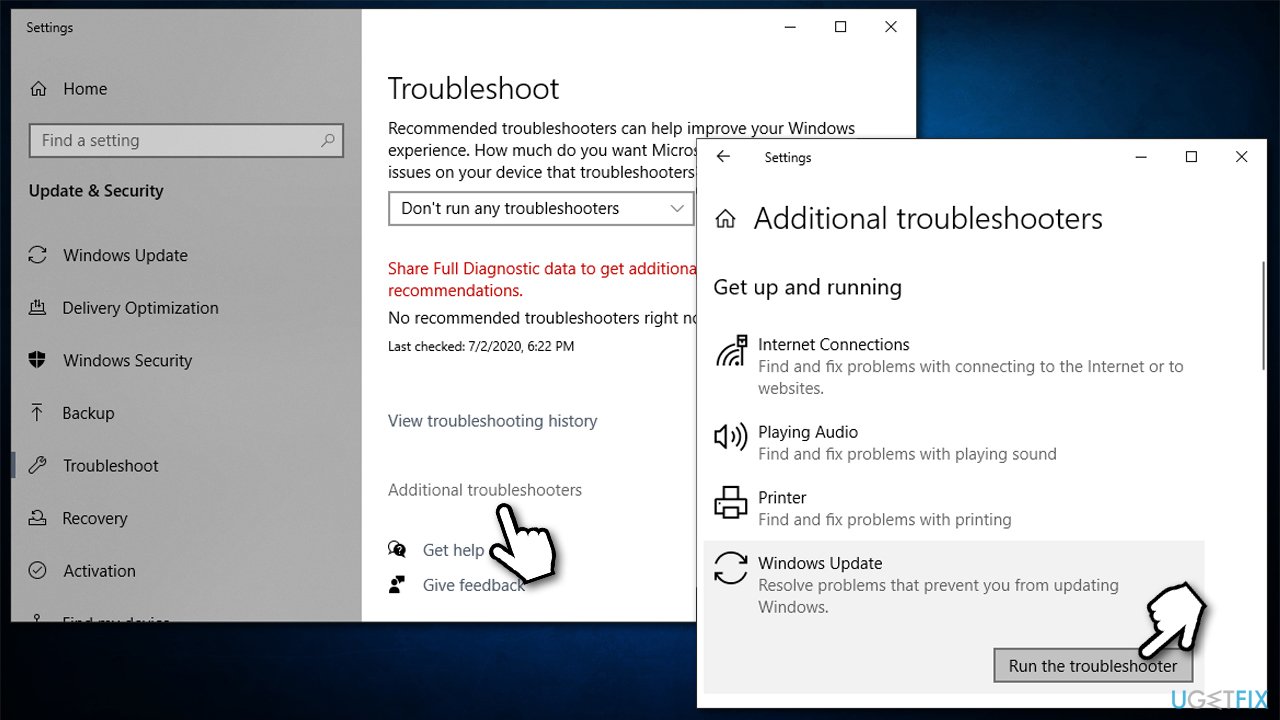
How to fix your device is missing important security and quality fixes run troubleshooter - Once finished, Windows will offer you ways of solving the problem.
Fix 2. Run SFC and DISM scans
Corrupted system files might be causing Windows updates to fail. You can fix that by running System File Checker:
- Type cmd in Windows search bar
- Right-click on Command Prompt result and select Run as administrator
- When User Account Control (UAC) shows up, click Yes
- Use the following command and hit Enter:
sfc /scannow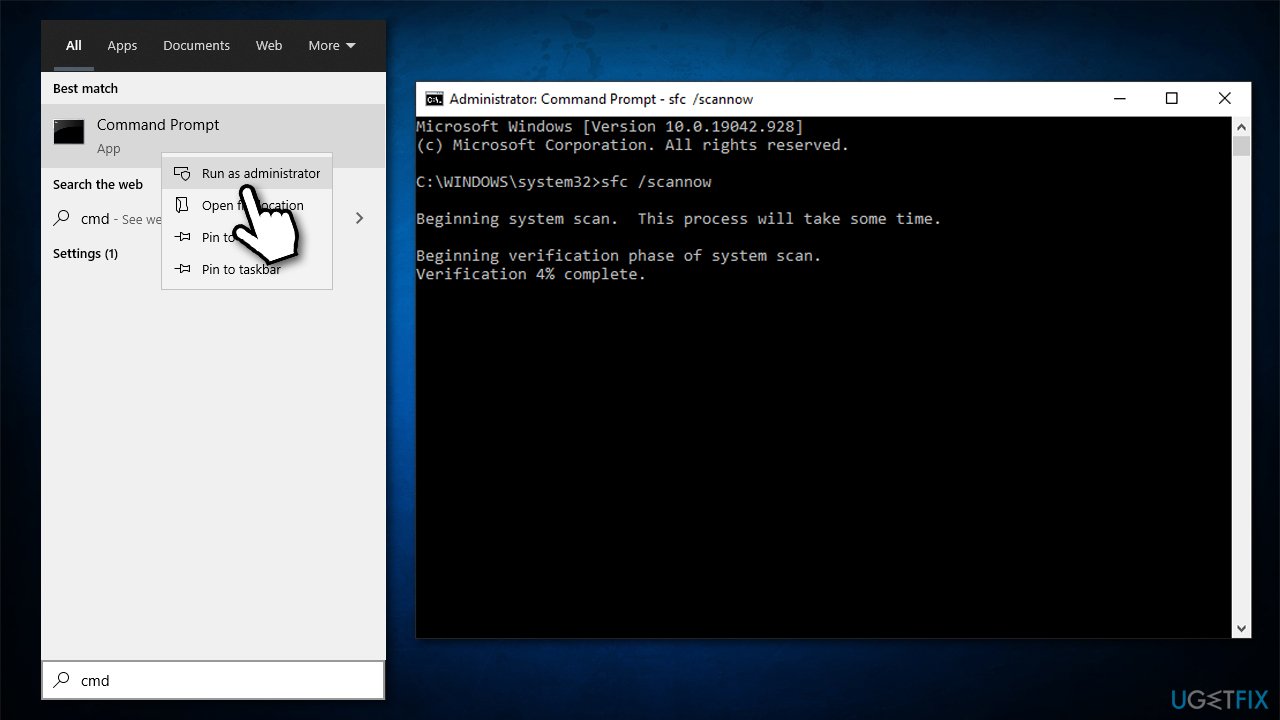
How to fix your device is missing important security and quality fixes run sfc scan - If the scan reports that it managed to fix integrity violations, reboot your system and see if that helped to resolve the issue. If not, copy and paste the following commands into Command Prompt, pressing Enter after each:
DISM /Online /Cleanup-Image /CheckHealth
DISM /Online /Cleanup-Image /ScanHealth
DISM /Online /Cleanup-Image /RestoreHealth - Finally, restart your PC.
Fix 3. Reinstall Windows updates
If the most recent Windows updates were not installed correctly, you might experience a "Your Device is Missing Important Security and Quality Fixes" error. You can easily uninstall the latest updates and then initiate the update install process once again:
- Type Control Panel in Windows search and hit Enter
- Go to Programs > Uninstall a program
- Select View installed updates
- From the list, uninstall the most recent Windows update (right-click > Uninstall)
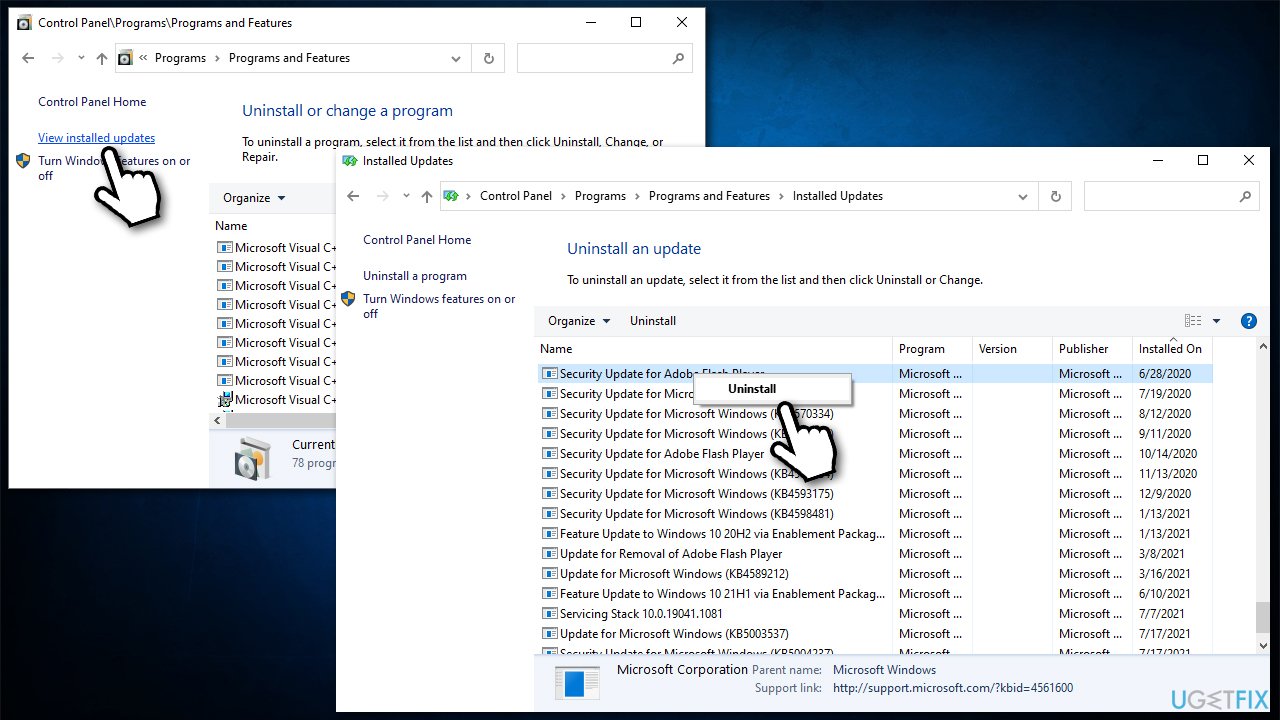
How to fix your device is missing important security and quality fixes uninstall the recent updates - After a reboot, try updating Windows again.
Fix 4. Reboot relevant services
- Type in Services in Windows search and hit Enter
- Scroll down to find Background Intelligent Transfer Service (BITS) and double-click it
- If the service is not running, select Automatic from the drop down menu and click Start
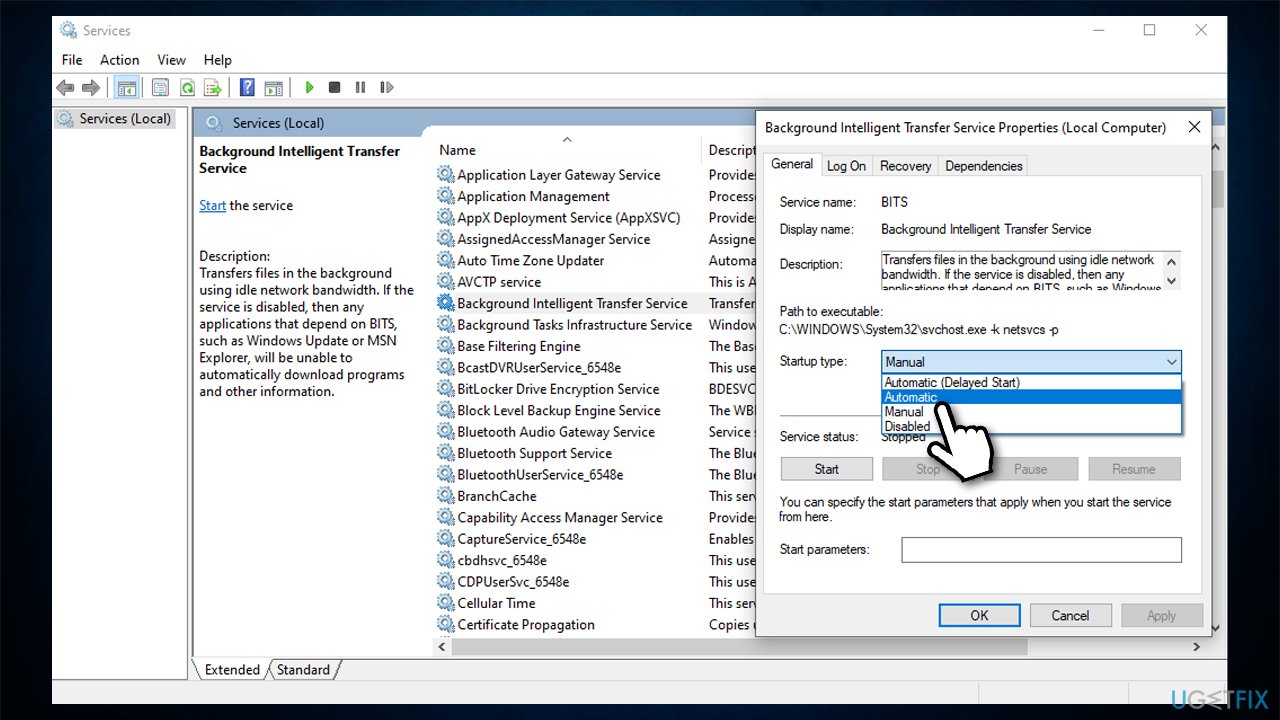
How to fix your device is missing important security and quality fixes restart update services - Finish up with Apply an OK
- If the service is already running, right-click on it (from the list) and select Restart
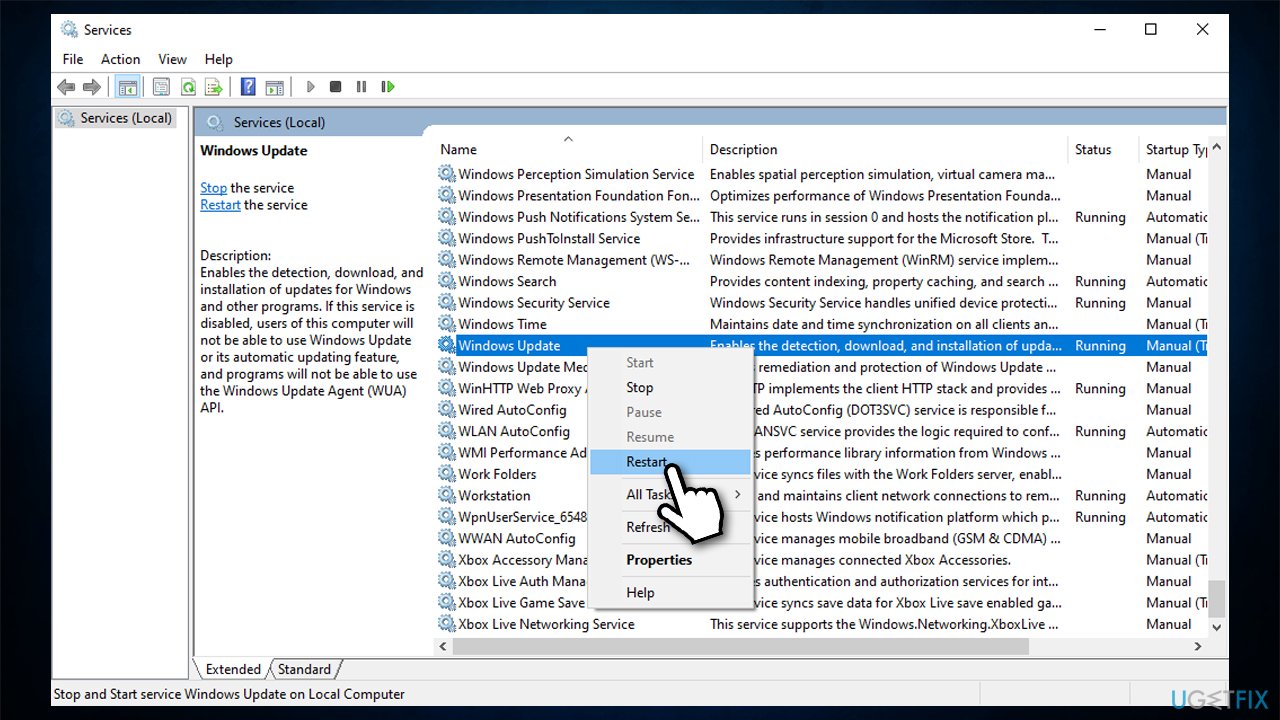
How to fix your device is missing important security and quality fixes restart update services2 - Do the same for Windows update service.
Fix 5. Reset Windows update components
If the above method did not help (you might not have sufficient permission to (re)start certain services), you can try using Command Prompt instead, also deleting the remnant Windows update files which could be causing the problem in the first place:
- Open Command Prompt as administrator as explained above
- Copy and paste each of these command lines, pressing Enter each time:
net stop bits
net stop wuauserv
net stop appidsvc
net stop cryptsvc
Del “%ALLUSERSPROFILE%\\Application Data\\Microsoft\\Network\\Downloader\\*.*”
rmdir %systemroot%\\SoftwareDistribution /S /Q
rmdir %systemroot%\\system32\\catroot2 /S /Q
regsvr32.exe /s atl.dll
regsvr32.exe /s urlmon.dll
regsvr32.exe /s mshtml.dll
netsh winsock reset
netsh winsock reset proxy
net start bits
net start wuauserv
net start appidsvc
net start cryptsvc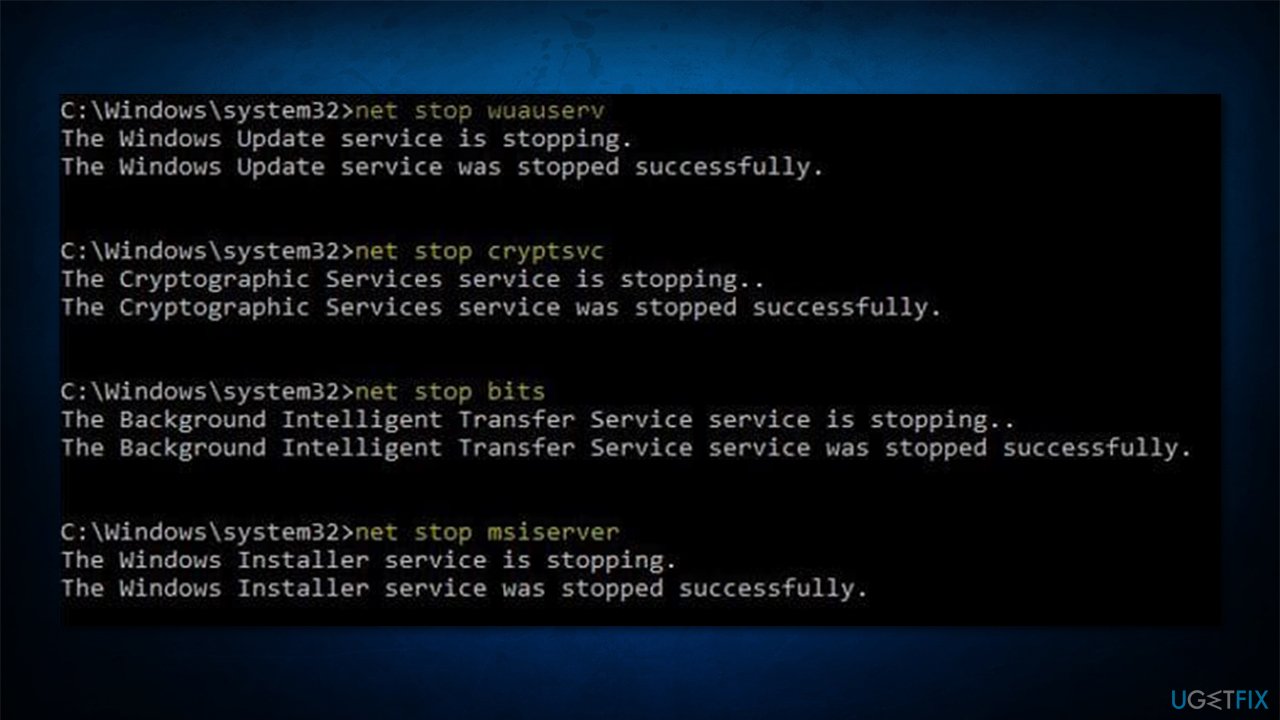
How to fix your device is missing important security and quality fixes reset update components
Fix 6. Install the update manually
- Type Updates in Windows search and hit Enter
- Click View update history
- Here, note down the KB number which failed to be installed, for example, KB5004237
- Go to the official Microsoft Update Catalog website
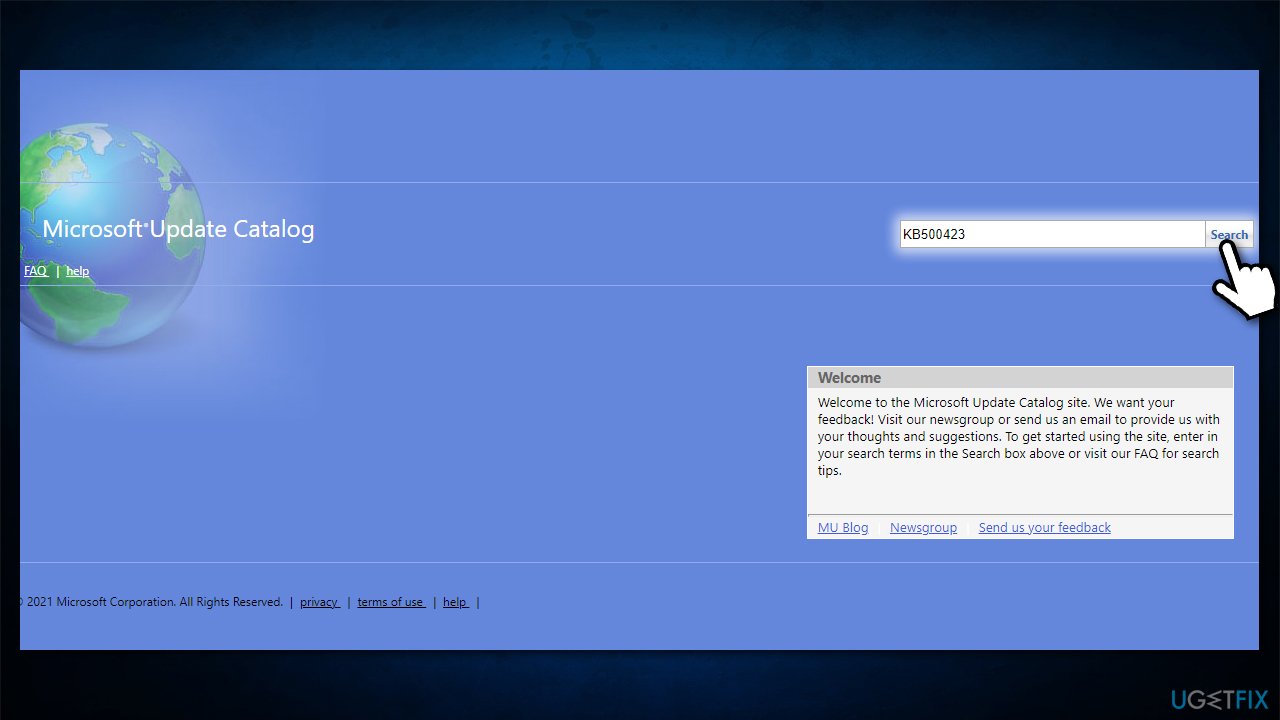
How to fix your device is missing important security and quality fixes install the update manually - Type the KB number into search bar and press Enter or click Search
- You will find many different versions on the update - you need to find the one that matches your PC specs and Windows version (as a home user, ignore Windows server versions)
- Right-click on Start and pick System
- Under Device specifications, check the System type section: it should either be 64-bit or 32 bit
- Now, scroll down to Windows specifications and check the Version section
- With all this information, pick the correct version for your device
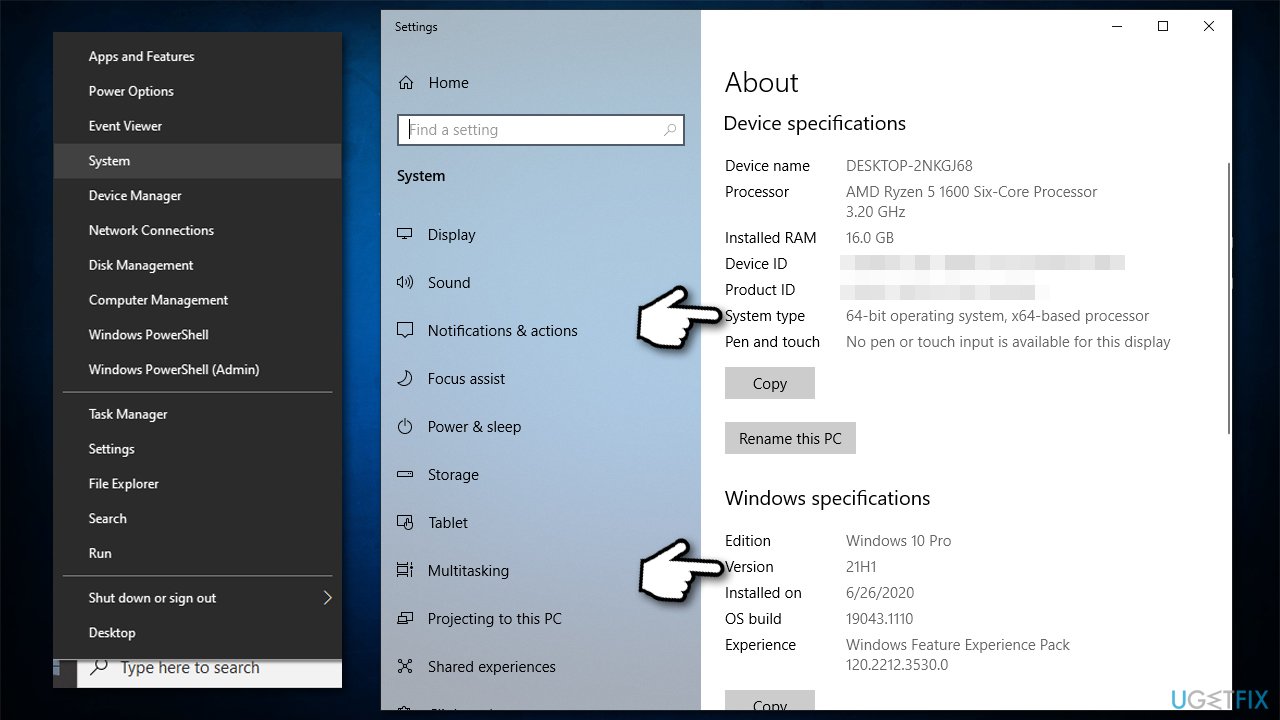
How to fix your device is missing important security and quality fixes install the update manually2
Fix 7. Perform in-place upgrade using Media Creation Tool
- Go to the official Microsoft website and download Media Creation Tool
- Launch the installer, agree to terms and click Next
- Select Upgrade this PC now, click Next
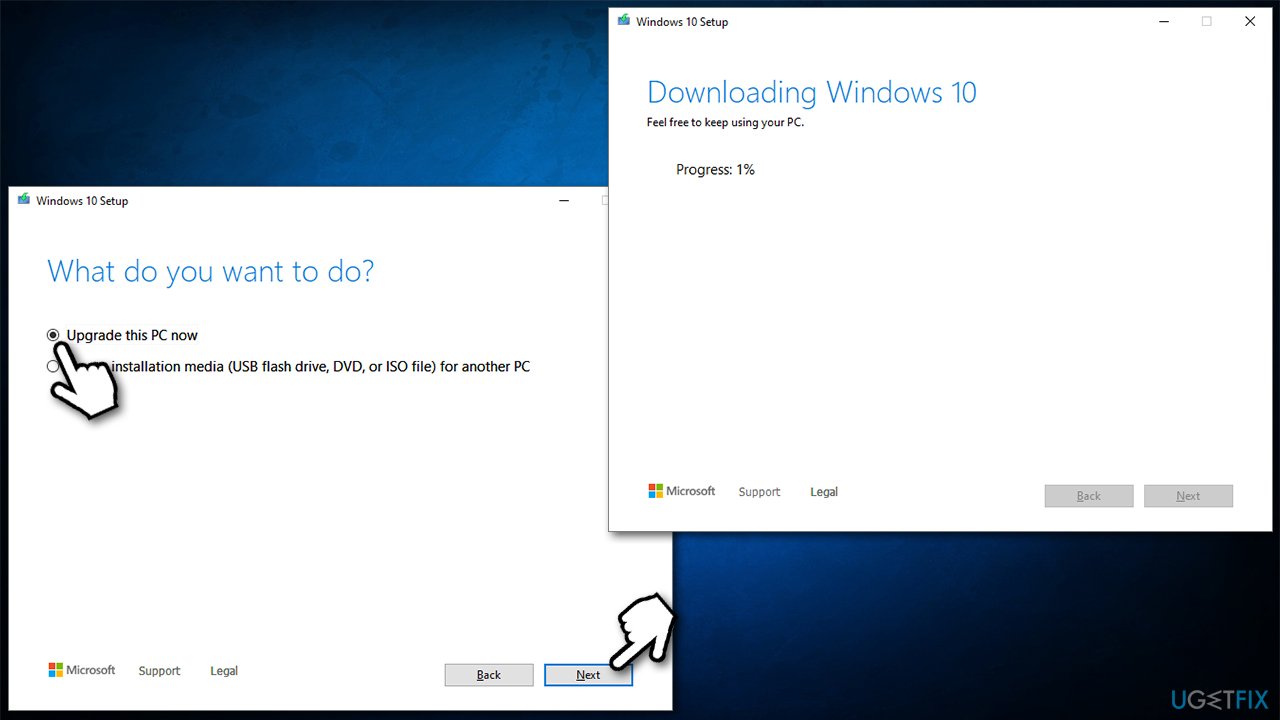
How to fix your device is missing important security and quality fixes use video creation tool - Wait till Windows downloads all the necessary files
- Reboot your system.
Bottom line
To fix the 'Your Device is Missing Important Security and Quality Fixes' error, you can try several solutions such as checking for missing files, ensuring the update service is running, and troubleshooting any installation issues. If none of these solutions work, consider seeking further assistance or exploring additional resources.
Frequently asked questions
You can resolve this issue by running the Windows Update Troubleshooter, which can be accessed through Settings > Update & Security > Troubleshoot. After running the troubleshooter, check for updates again in the Windows Update section.
To manually install updates, visit the Microsoft Update Catalog website, search for the specific KB number associated with the missing fixes, and download the appropriate update for your Windows 11 version.
Yes, outdated or incompatible drivers can lead to this error; make sure to update your drivers via Device Manager or the manufacturer's website to ensure system compatibility.




Report an issue
What's wrong with this guide? We review every report and update or remove content.
Report received — thank you. We'll review and fix it.
You need a free account to submit a report.
Be the first to comment