How to fix
Steam Client WebHelper high CPU usage
on Windows
Resolve high CPU usage issues with Steam Client WebHelper on Windows 10 and 11 effortlessly. Expert-tested solutions for a smoother experience.


What causes How to fix Steam Client WebHelper high CPU usage?
- High CPU usage by Steam Client WebHelper
- Memory leakage from steamwebhelper.exe
- Opening friends list with animated profile features
- New Windows updates causing issues
- Multiple background processes for Steam Store and Community tab
Repairs Windows system files, removes malware, and restores a clean OS state — without reinstalling.
Hello, during games this process "Steam Client WebHelper" will start using lots of CPU and memory causing my game to lag. How can I fix this, if possible?
Steam is a video game digital distribution service for PC gaming, holding around 75% of the market share in 2013. Steam offers server hosting, video streaming, and social networking services. It also provides the user with installation and automatic updating of games, and community features such as friends lists and groups, cloud storage, and in-game voice and chat function.
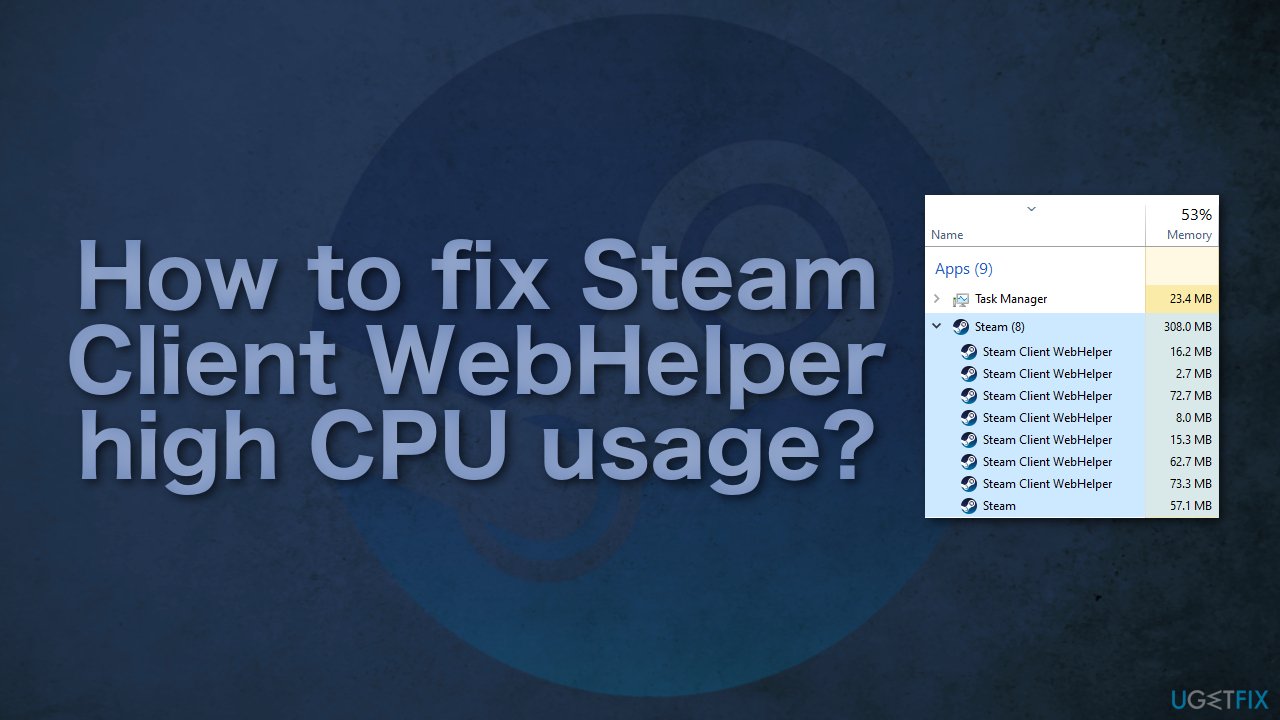
Recently, there have been reports about Steam games lagging. When users went to investigate, it turns out that the problem was Steam Client WebHelper which for some of them at times used the CPU power up to 70%. That is Steam's built-in web browser which launches multiple processes in the background needed to display the Steam Store, game Library, and the Community tab. It seemed to spike up or down at random times making them confused and unable to identify the exact cause.
Steamwebhelper.exe is the name of the file causing memory leakage.[ref en-1] While playing games, users noticed that at times they used 100% of their memory. It prevented some from opening games at all. This means that the computer is trying to do more work than it has the capacity for. This is usually fine, but the programs may slow down a little. If the processor is running at maximum capacity for a long time, this could make the PC annoyingly slow.
It is important to have proper cooling on your PC or laptop as high CPU usage can increase the temperature and make the device overheat[ref en-2] if it runs like that for a long time.
Video game enthusiasts were left unable to enjoy playing because the games were laggy and kept crashing. They noticed that the issue kept repeating when they had the friends list open with the animated profile features. For some, it kept appearing after new Windows updates, so it seems to be different things causing it for different people.
If you want to avoid doing changes to your computer and Steam and going through all of the possible solutions, you can try using the [d1] optimization tool. It can find the underlying Windows issues, automatically fix BSODs,[ref en-3] missing DLL errors, registry errors, and more.
Solution 1. Turn off Animated Avatars
Animated Avatars are moving frames, backgrounds, and pictures that users can get through the points shop. This is a fun feature and lets people customize their profiles even more. But this process is controlled by the built-in browser so it might be causing the issue. Try disabling it and see if it helped:
- Go to Settings next to the Friends List
- On the bottom of the page, you will see Enable Animated Avatars & Animated Avatar Frames in your Friends List and Chat
- Disable the option

- Save your settings
- Open the Task Manager and check your GPU usage
Solution 2. Disable Steam overlay
The Steam overlay is a piece of the Steam user interface that can be activated over the top of almost any game launched through Steam. It lets the user access the friends list, web browser, chat, and in-game DLC purchasing. This could use a decent amount of RAM so try turning it off:
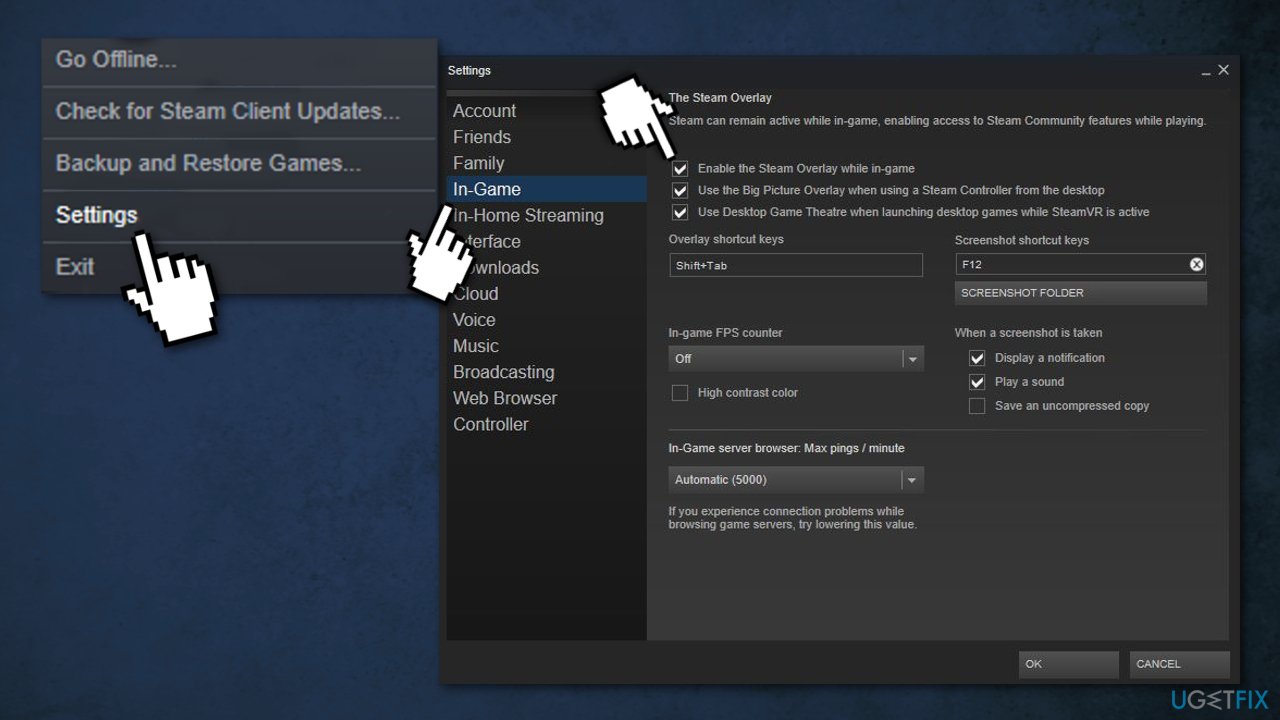
- Go to Settings
- Select In-Game and uncheck Enable the Steam Overlay while in-game
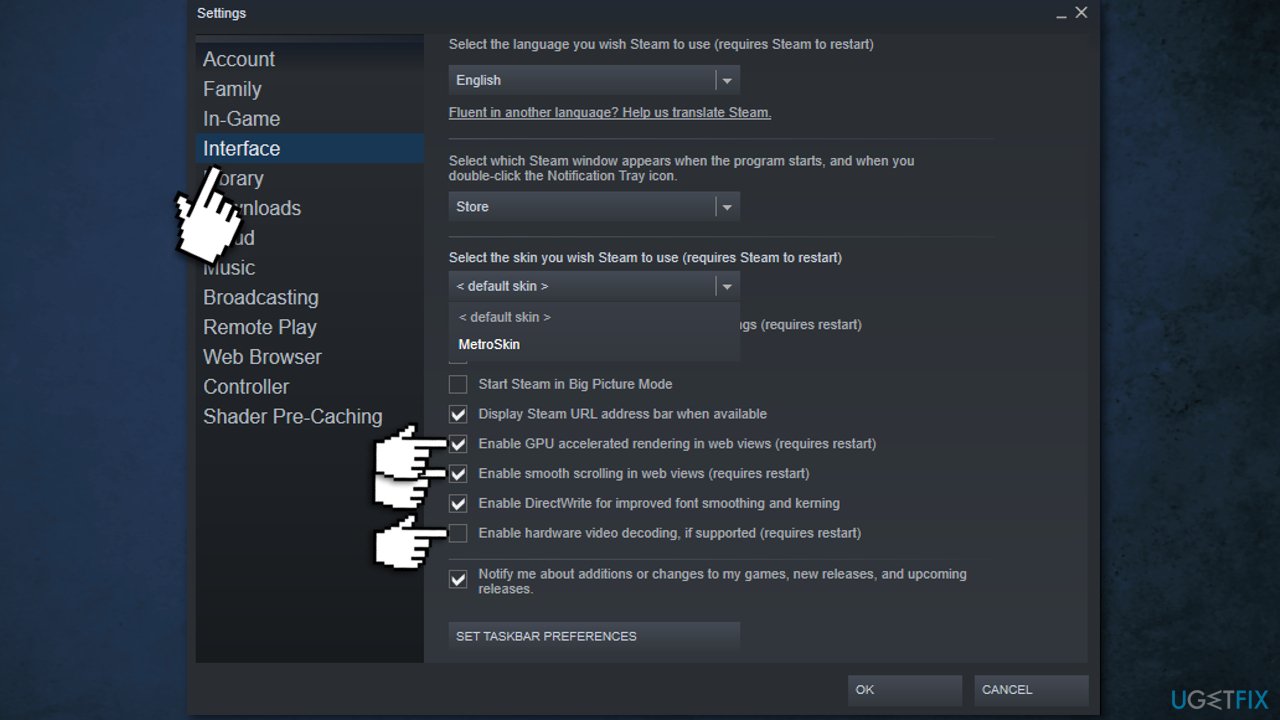
- Choose Interface
- Disable the following options:
- Smooth scrolling in web views
- GPU accelerated rendering in web views
- Hardware video decoding
Solution 3. Uninstall last Windows updates
There have been cases where a Windows update has created more problems; some have led to certain pieces of software no longer working at all. You can roll back your device to its previous state, and see if Windows is at fault. You will be able to reinstall the same updates if it will become clear they have nothing to do with it:
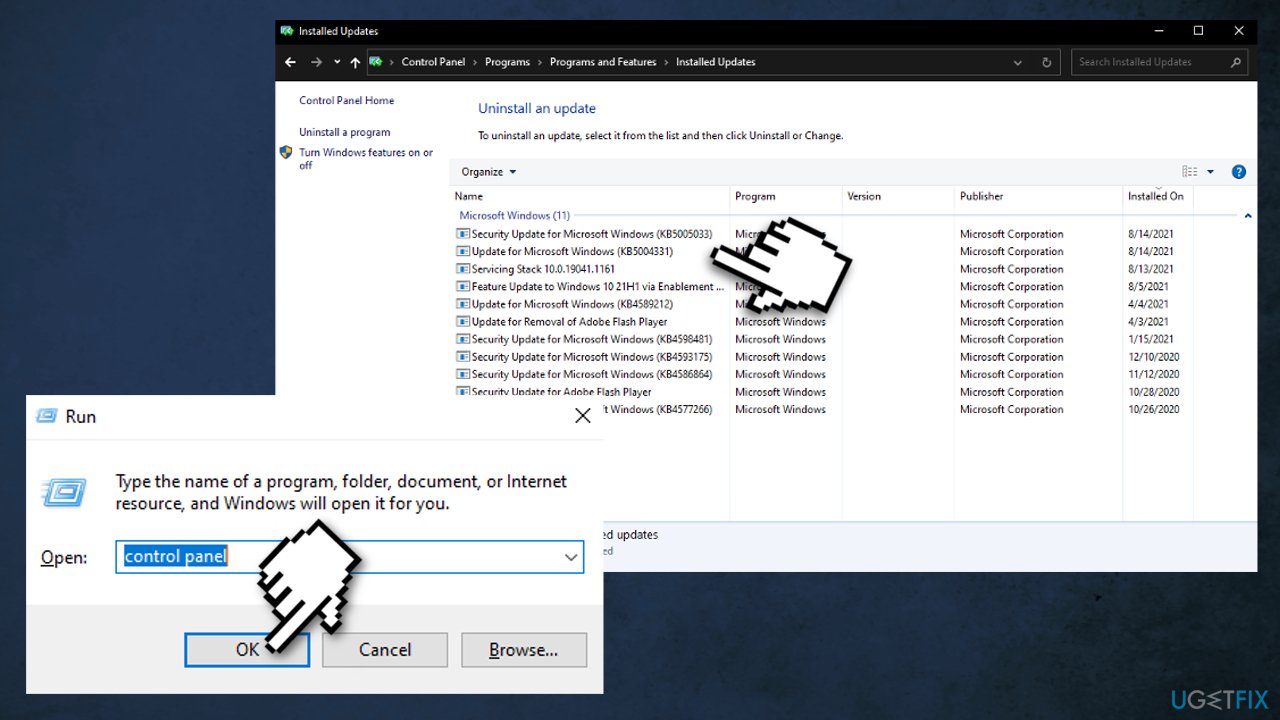
- Press Windows + R
- Type "Control Panel"
- Select Programs
- Press View installed updates
- Uninstall the last 2-3 updates from Windows
- Restart
Solution 4. Open Steam without WebHelper
If none of the methods listed above did help, you can disable the browser completely. Keep in mind that this will make Steam open in Small Mode. After disabling steamwebhelper.exe some users reported a boost of 10-15+ fps which eliminated the stuttering problem:
- Exit Steam
- Find the location of the steam.exe file on your PC
- Press Windows + R to open the Run dialog
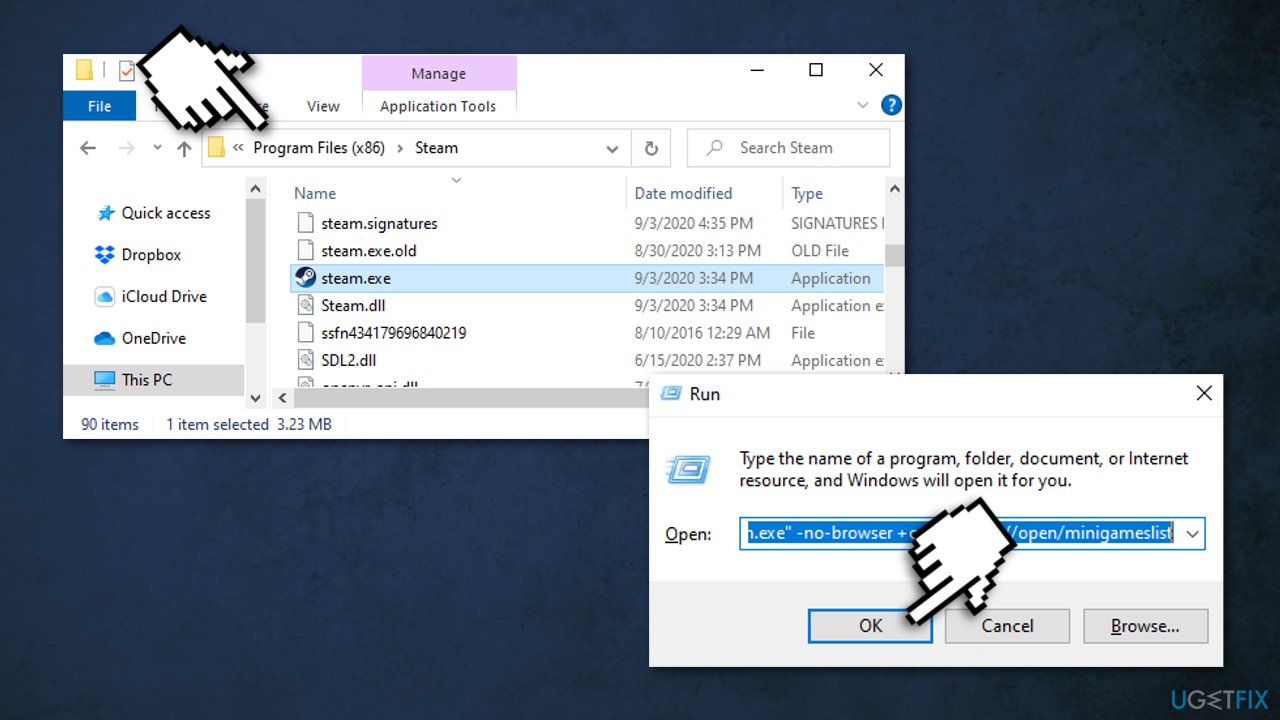
- Type the following text into the Run dialog:
(File location)\\Steam\\steam.exe" -no-browser +open steam://open/minigameslist
For example: C:\\Program Files (x86)\\Steam\\steam.exe" -no-browser +open steam://open/minigameslist
Steam will launch in Small Mode without web browser components. Check the Task Manager if this helped reduce the CPU usage. You can use Steam in a more minimal view even when the browser is enabled but WebHelper processes will still be running in the background.
Other topics you might be interested in:
Bottom line
To fix high CPU usage, users can try closing the friends list, limiting background processes, or ensuring proper cooling for their PC. If these solutions do not resolve the issue, consider checking for updates or reinstalling Steam.
Frequently asked questions
You can try disabling the WebHelper by going to Steam Settings, then the Interface tab, and unchecking the option to run Steam when the computer starts. Additionally, closing unnecessary background applications can help reduce CPU load.
Yes, you can fix it by clearing the download cache in Steam's settings under the Downloads tab, which often resolves performance issues.
High CPU usage from Steam Client WebHelper is typically caused by background updates, heavy downloads, or corrupted files, which can affect both Windows 10 and Windows 11 systems.




Report an issue
What's wrong with this guide? We review every report and update or remove content.
Report received — thank you. We'll review and fix it.
You need a free account to submit a report.
Be the first to comment