How to fix
Windows update error 0x80240016
on Windows
Resolve Windows update error 0x80240016 quickly and efficiently. Expert-tested solutions ensure your Windows 10 or 11 runs smoothly. Fixed in minutes!


What causes How to fix Windows update error 0x80240016?
- Corrupted system files
- Glitch
- Overprotective firewall
- Incorrect user input
- Accidentally deleted registry files
Repairs Windows system files, removes malware, and restores a clean OS state — without reinstalling.
Hello. I tried updating Windows, but every time I receive an error with a code 0x80240016. I have tried restarting my PC and trying again, but that did not work. Do you know what could fix this problem?
Although Windows is one of the most popular operating systems around the world, it does not come without any issues. Windows needs to be constantly updated, to receive the necessary security patches[ref en-1] and other fixes. If that fails, users might experience performance issues like lags and crashes. Sometimes the cause of system issues is the updates themselves.
Some of them can corrupt system files, that later need to be fixed manually. Microsoft has created built-in automatic troubleshooters that that can fix many errors themselves, but that is not the case with the 0x80240016 update error. Users encounter the 0x80240016 error when they need to install a critical, cumulative, or feature update on their Windows 10 computer. This issue is reported to occur with a variety of different KB updates. Some of the examples could be KB5005565, KB3198586, and KB4056892.
The thing is, a lot of different things could be blocking an update from a successful installation, and the troubleshooting can be frustrating. One of the most common causes is corrupted system files, as we mentioned above, a glitch, or an overprotective firewall. No matter what it is, we will guide you through this process step-by-step.
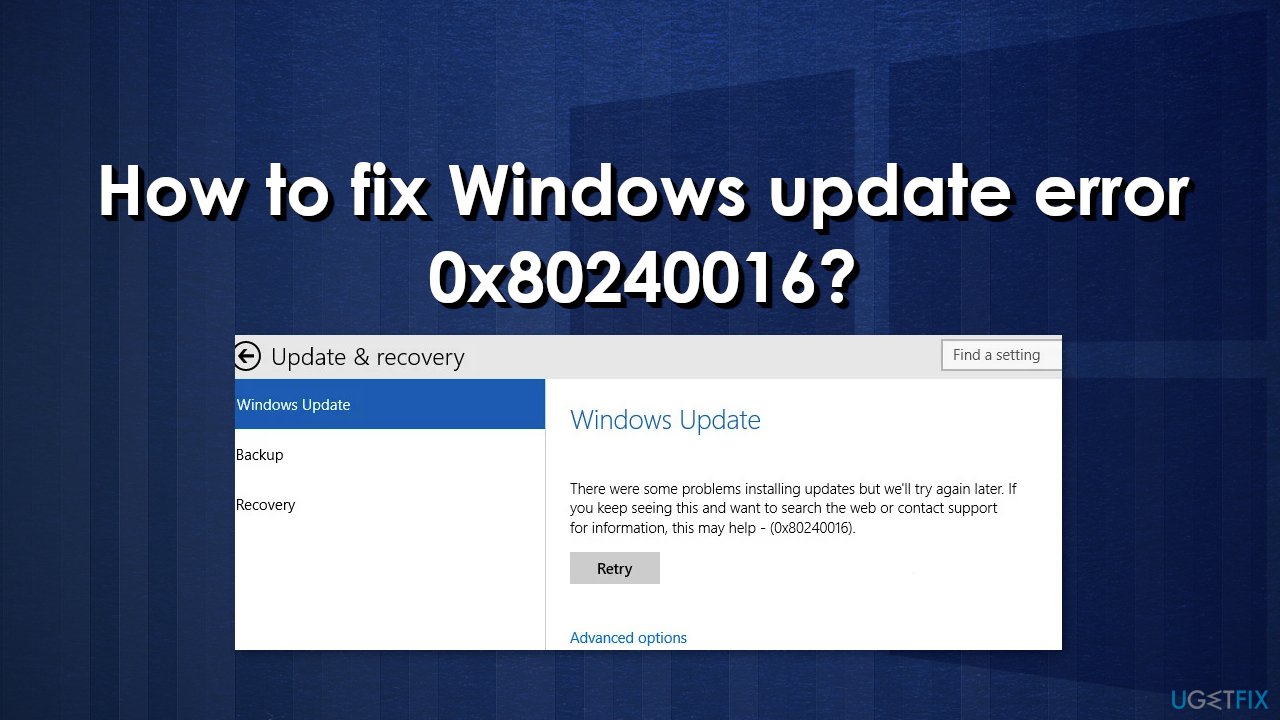
Most often, error 0x80240016 indicates that Windows is missing some files required by Windows Update to perform the update. When an error code such as this appears, Windows cannot finish updating the operating system. Other common reasons may include incorrect user input and accidentally deleted files from the registry that now cause system malfunctions.
Troubleshooting manually could take a while because it is unclear what is causing the issue, so you can try using an automatic solution [d1] to avoid going through all of the possibilities. The repair tool can identify the damaged system components, fix BSODs,[ref en-2] and registry issues by scanning the system. This software could also be used to free up space by clearing cookies and cache,[ref en-3] which should boost the device's performance.
Below you will find a few manual methods that could fix the Windows update error 0x80240016 and let you update your system. Note that this will take a while, so please follow all of the steps very carefully:
Method 1. Run Windows Update Troubleshooter
One of the first things you should do is use the built-in Windows Update Troubleshooter to see if it can take care of the problem for you:
- Select Start and go to Settings
- Choose Update & Security
- Click Troubleshoot and Additional troubleshooter
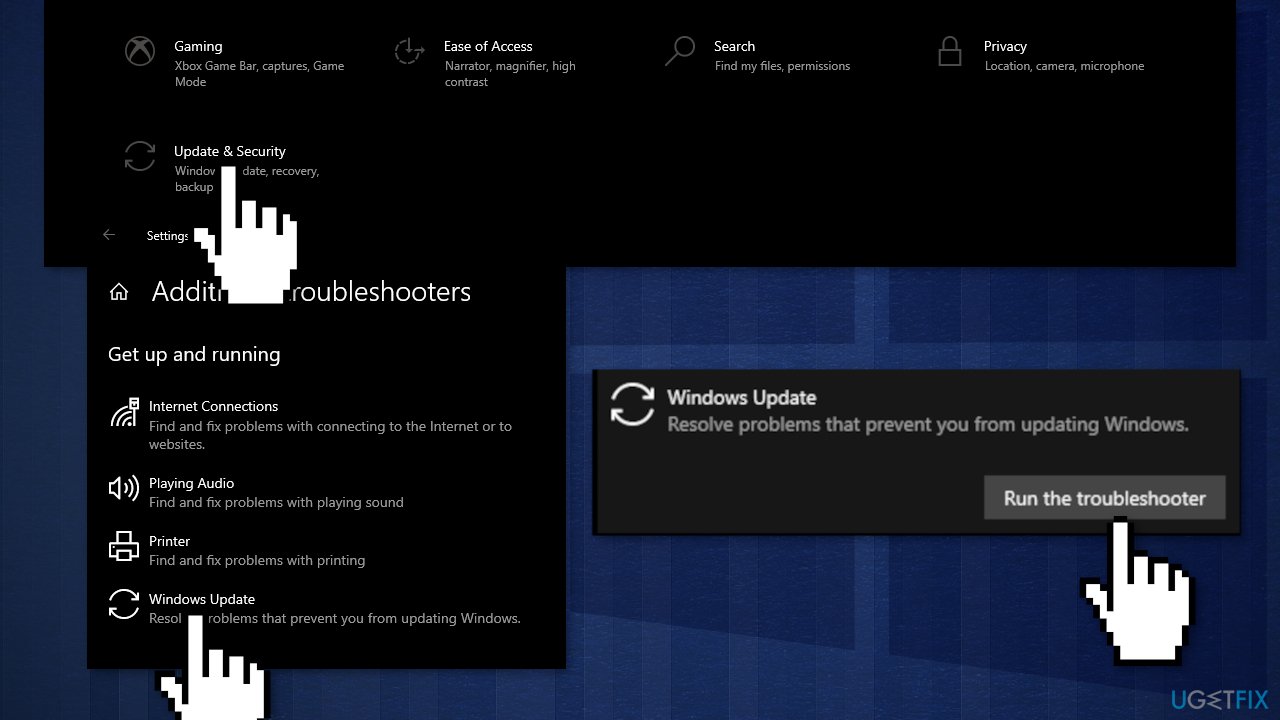
- Select Windows Update and Run the troubleshooter
- Restart
Method 2. Repair Corrupted System Files and Check Disk
Use Command Prompt commands to repair system file corruption:
- Open Command Prompt as administrator
- Use the following command and press Enter:
sfc /scannow
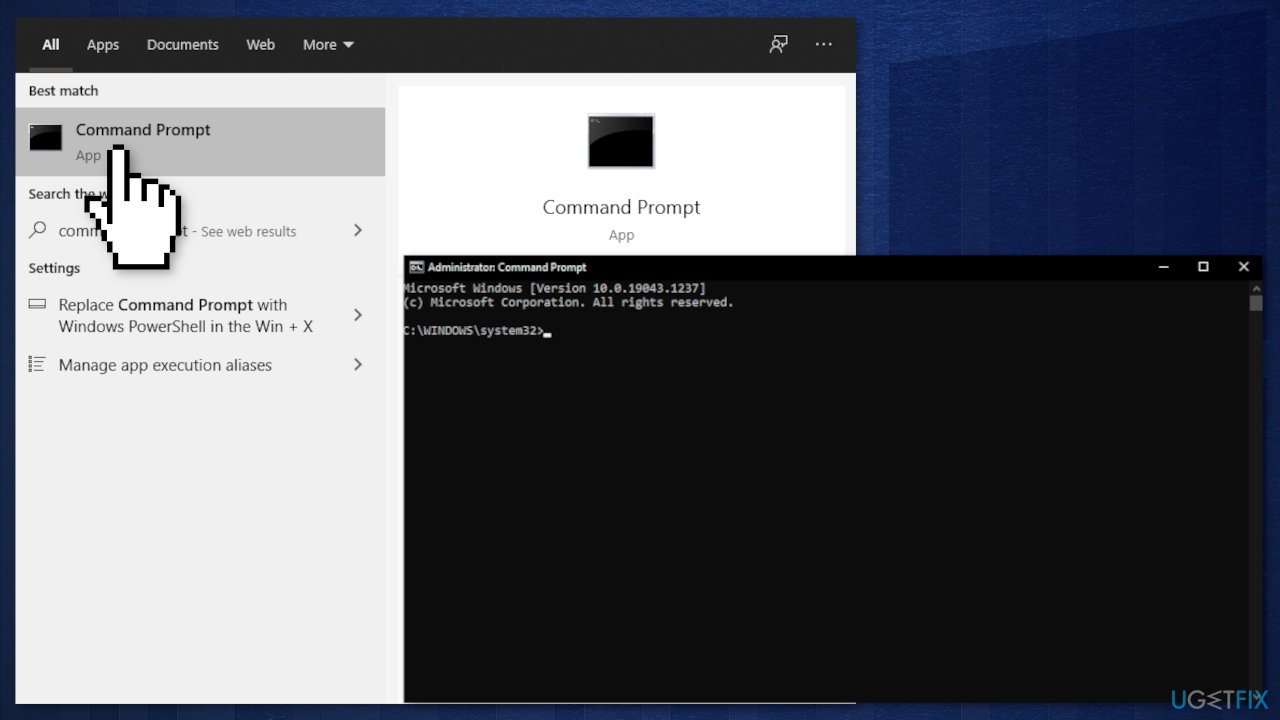
- Reboot your system
- If SFC returned an error, then use the following command lines, pressing Enter after each:
DISM /Online /Cleanup-Image /CheckHealth
DISM /Online /Cleanup-Image /ScanHealth
DISM /Online /Cleanup-Image /RestoreHealth
Ensure that your disk is not damaged. You can perform checks using Administrative Command Prompt:
- If you are using an HDD as your main driver (where your operating system is installed - C: by default), use the following command and press Enter:
chkdsk c: /f - If you are using SSD, use this command:
chkdsk c: /f /r /x - If you receive an error, type in Y and hit Enter
- Restart your device to perform the check
Method 3. Reset every Windows Update Component
- Open Command Prompt as administrator again
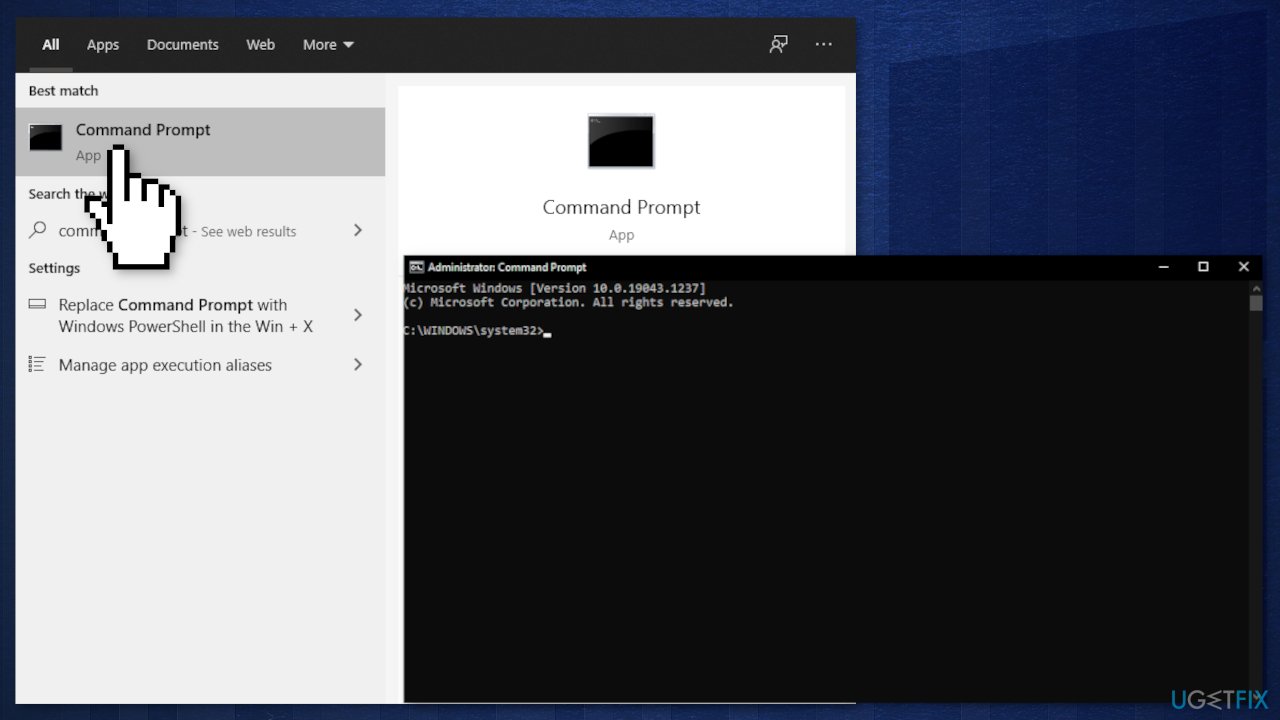
- Copy and paste the following commands, pressing Enter after each:
net stop bits
net stop wuauserv
net stop appidsvc
net stop cryptsvc
Del “%ALLUSERSPROFILE%\\Application Data\\Microsoft\\Network\\Downloader\\*.*”
rmdir %systemroot%\\SoftwareDistribution /S /Q
rmdir %systemroot%\\system32\\catroot2 /S /Q
regsvr32.exe /s atl.dll
regsvr32.exe /s urlmon.dll
regsvr32.exe /s mshtml.dll
netsh winsock reset
netsh winsock reset proxy
net start bits
net start wuauserv
net start appidsvc
net start cryptsvc - Restart your PC.
Method 4. Use System Restore
If this error started to occur after a Windows Update installation, you can revert your system to a healthy point before the botched installation occurred. To do this, you can use the System Restore tool:
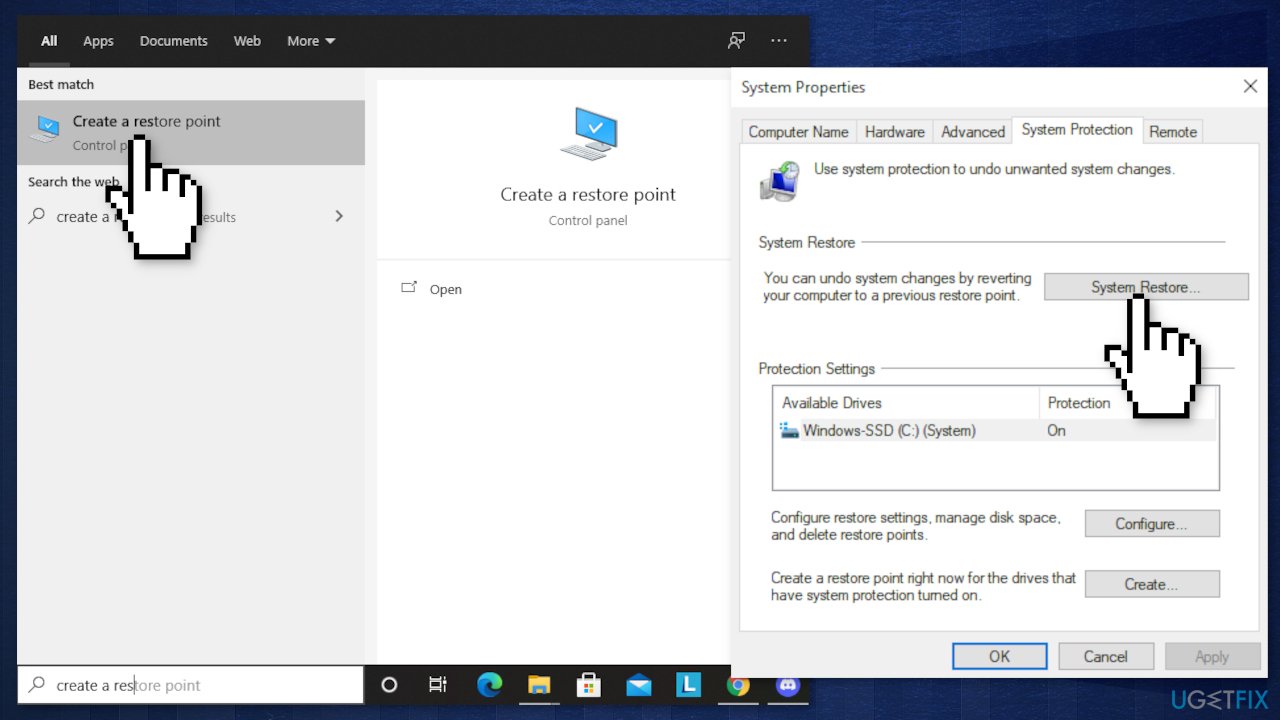
- Go to the search field in your taskbar and type system restore, and press on Create a restore point
- You will be taken to the System Properties window and the System Protection tab
- Click on System Restore...
- Restore system files and settings will pop up, click on Next
- Choose a restore point
- Click on Scan for affected programs (this will give you a list of which programs will be deleted and which might be automatically restored)
- Close the windows and then click on Next
- The final confirmation window will show the restore point you chose, click on Finish to begin the process
Method 5. Turn off Windows Defender Firewall
Certain security Windows Updates will fail to install if Windows Firewall is currently performing a background security check. Try temporarily disabling it:
- Press Windows key + R to open up a Run dialog box
- Type windowsdefender in the text box and press Enter to open up the Windows Security menu
- Scroll down and click on the Virus & threat protection tab, then go ahead and click on the Manage settings hyperlink
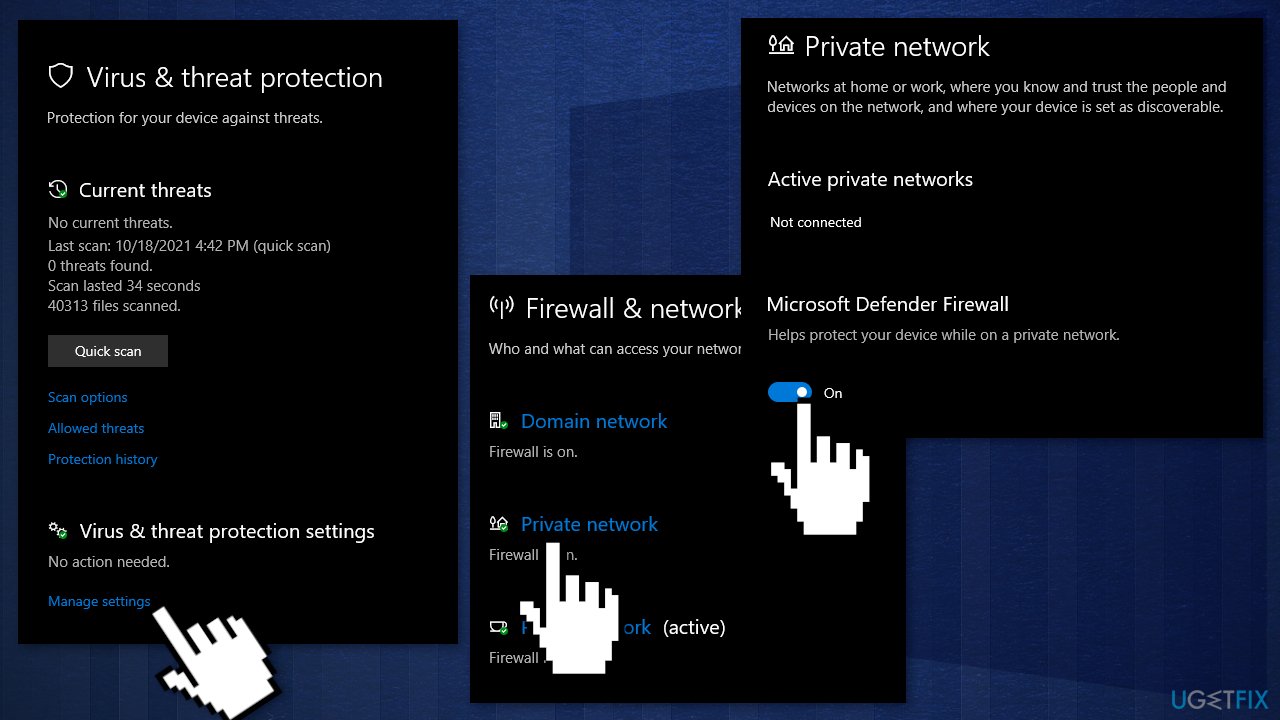
- Disable the toggle associated with Firewall & Network protection
- Go all the way back to the first Windows Security window, then click on Firewall & Network Protection
- Disable the toggle Windows Defender firewall
- Restart your PC
Method 6. Perform a Repair Install
- Download the Windows 10 ISO file
- Now mount the ISO file
- Double-click on the file setup.exe to start the repair, install from the mounted drive
- When the installation provides the License Terms, read them and click Accept
- Windows 10 will now check for updates and will install the ones available
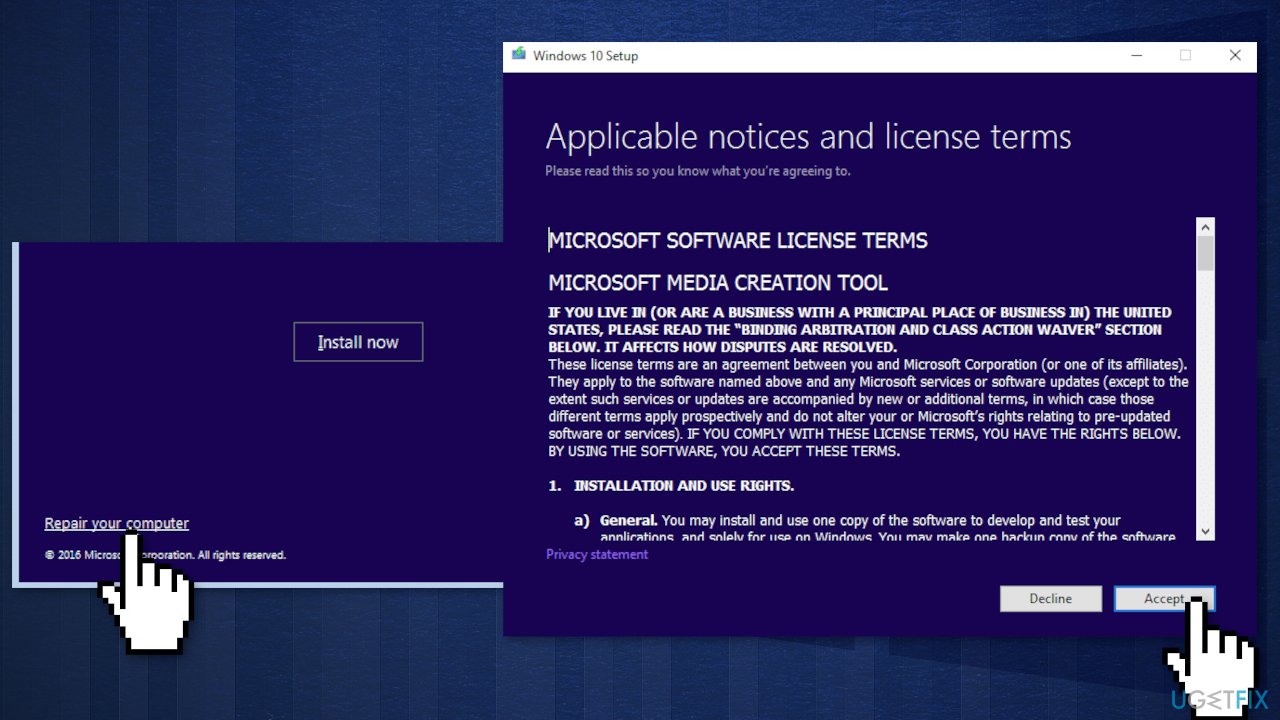
- When all is set, click Install
- When the installation is complete, follow the on-screen instructions
Bottom line
To fix the Windows update error 0x80240016, you can use built-in troubleshooters, a repair tool to identify and fix damaged system components, or manually check for corrupted files and registry issues. If none of these solutions work, consider seeking further assistance or using an automatic solution.
Frequently asked questions
The error 0x80240016 typically indicates that there's a problem with the Windows Update service or that the update components are corrupted in Windows 10 or Windows 11.
To reset Windows Update components, you can use the Command Prompt to stop the Windows Update services, rename the SoftwareDistribution and Catroot2 folders, and then restart the services.
Yes, you can use the Windows Update Troubleshooter found in Settings > Update & Security > Troubleshoot, which can automatically detect and fix issues related to Windows Update.




Report an issue
What's wrong with this guide? We review every report and update or remove content.
Report received — thank you. We'll review and fix it.
You need a free account to submit a report.
Be the first to comment