How to fix
SPLwow64.exe system error
on Windows
Resolve the SPLwow64.exe system error on Windows 10 or 11 easily. Follow our expert-tested solutions to get your PC running smoothly again!

What causes How to fix SPLwow64.exe system error in Windows?
- Missing x2utilVH.dll file
- Corrupted A.dll file
- Issues with system components
- Registry issues
- BSODs
Repairs Windows system files, removes malware, and restores a clean OS state — without reinstalling.
Hello. I have tried to use a printer from my Windows PC, but every time I receive a pop up window with the name "SPLwow64.exe system error". I have tried to restart my computer multiple times, but it still does not work. I used the printer recently and it was completely fine. I would appreciate any insight into what the problem could be.
Windows is an extremely complicated operating system that has thousands of processes working in the background keeping everything running smoothly. Unfortunately, if something goes wrong with at least one of the components of the system, users can experience various issues while trying to use it.
One of the most prominent problems users face is when they cannot launch applications, or use their printer. Windows errors can be very frustrating as the messages often do not provide any solutions. Also, not all errors can be fixed automatically with built-in troubleshooters. In those cases, users are left stranded looking for ways to fix the problem themselves.
The error message that people seem to be encountering quite often says:
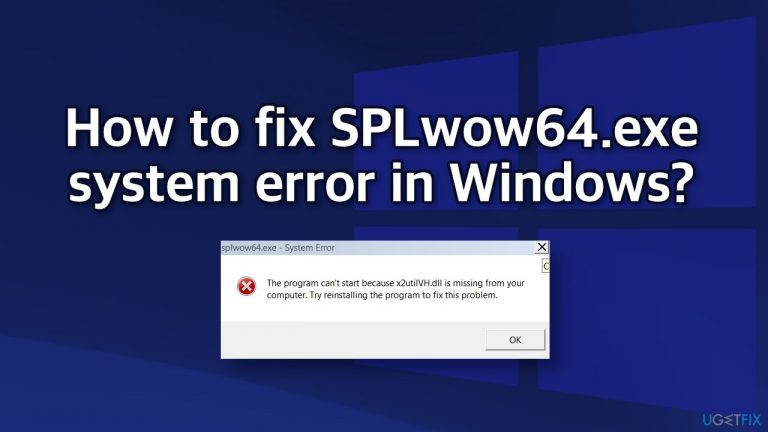
splwow64.exe – System Error
The program can’t start because x2utilVH.dll is missing from your computer. Try reinstalling the program to fix this problem
Users report receiving this message when trying to open applications or use the printer. The error says that the system is missing a specific file, that's why it cannot perform the action. A.dll file, (Dynamic Link Library)[ref en-1] is a type of file that contains instructions that other programs can call upon to do certain things. So of course, if it is missing, or got corrupted users may experience trouble trying to perform certain tasks on their computer.

Troubleshooting manually could take a while because it is unclear what is causing the issue, so you can try using an automatic solution [d1] to avoid going through all of the possibilities. The repair tool can identify the damaged system components, fix BSODs,[ref en-2] and registry issues by scanning the system. This software could also be used to free up space by clearing cookies and cache,[ref en-3] which should boost the device's performance.
Below you will find a few manual methods that could fix SPLwow64.exe system error and let you open applications or use the printer with no trouble again. Note that this will take a while, so please follow all of the steps very carefully:
Solution 1. Run the Printer Troubleshooter
- Press the Windows key + R to open the Run box
- Type ms-settings:troubleshoot and press Enter
- Inside the Troubleshooting tab, scroll down to the right-hand side and click on the Printer icon
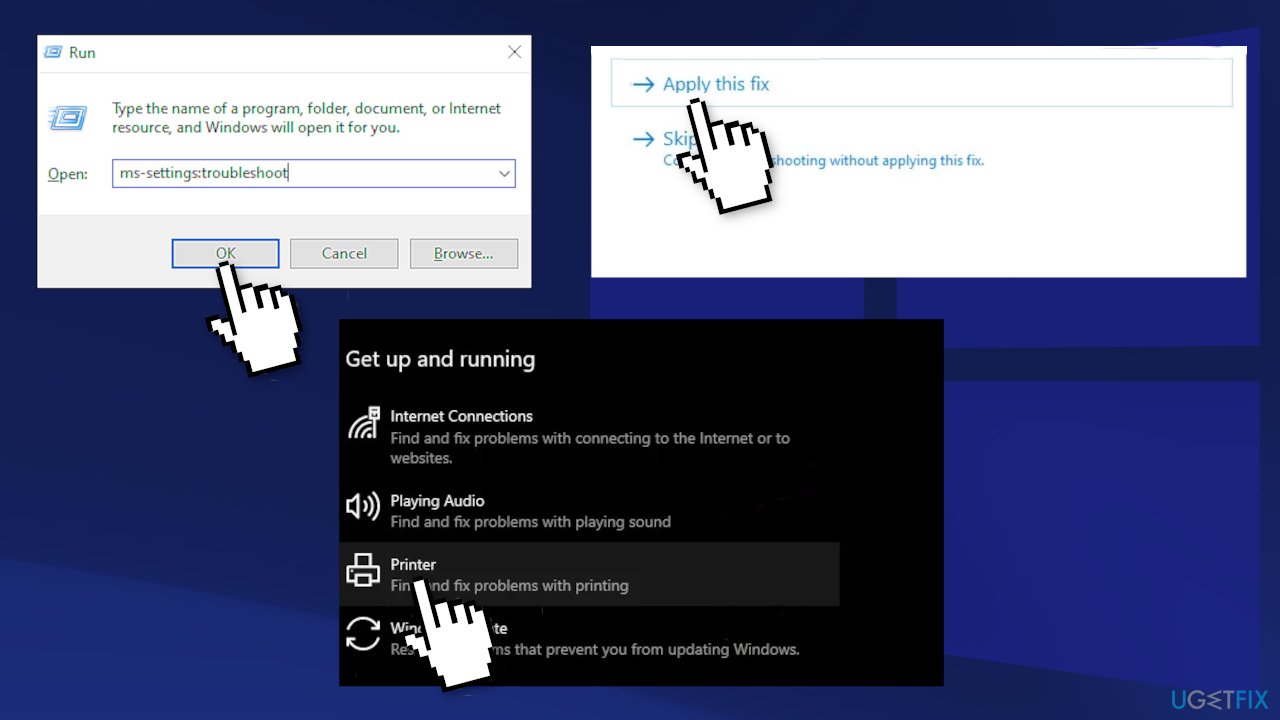
- Click on the Run the Troubleshooter button
- Select your printer from the list of available options, then wait for the scan to complete
- Click on the Apply this Fix utility to deploy the fix if there is one
- Restart your PC
Solution 2. Update Printer Drivers
- Press the Windows key + R to open the Run box
- Type devmgmt.msc and press Enter to open the Device Manager (if you’re prompted by the UAC, click Yes to grant admin access)
- Scroll down through the list of installed devices and expand the menu associated with Print queues
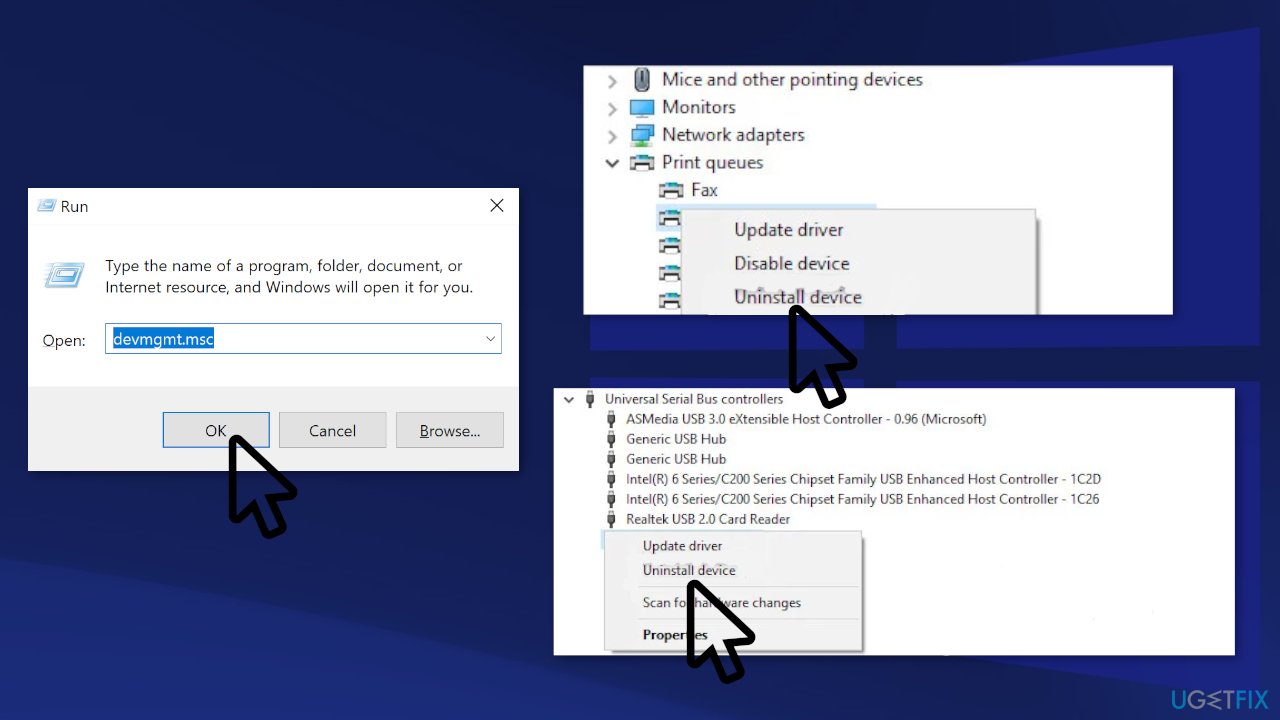
- Right-click on every installed printer driver that you found under Print Queues, then choose Uninstall from the newly appeared context menu
- Next, expand the drop-down menu of Universal Serial Bus controllers
- Uninstall every Printer port by right-clicking on every entry and choosing Uninstall from the menu
- Now Restart your computer and check if the issue is still there
Solution 3. Restart Print Spooler
- Type in services in the Taskbar search box, and click on the result.
- Find out the Print Spooler service and double-click on it
- By default, it keeps running automatically. To stop this service, click on the Stop button visible under the Service status label
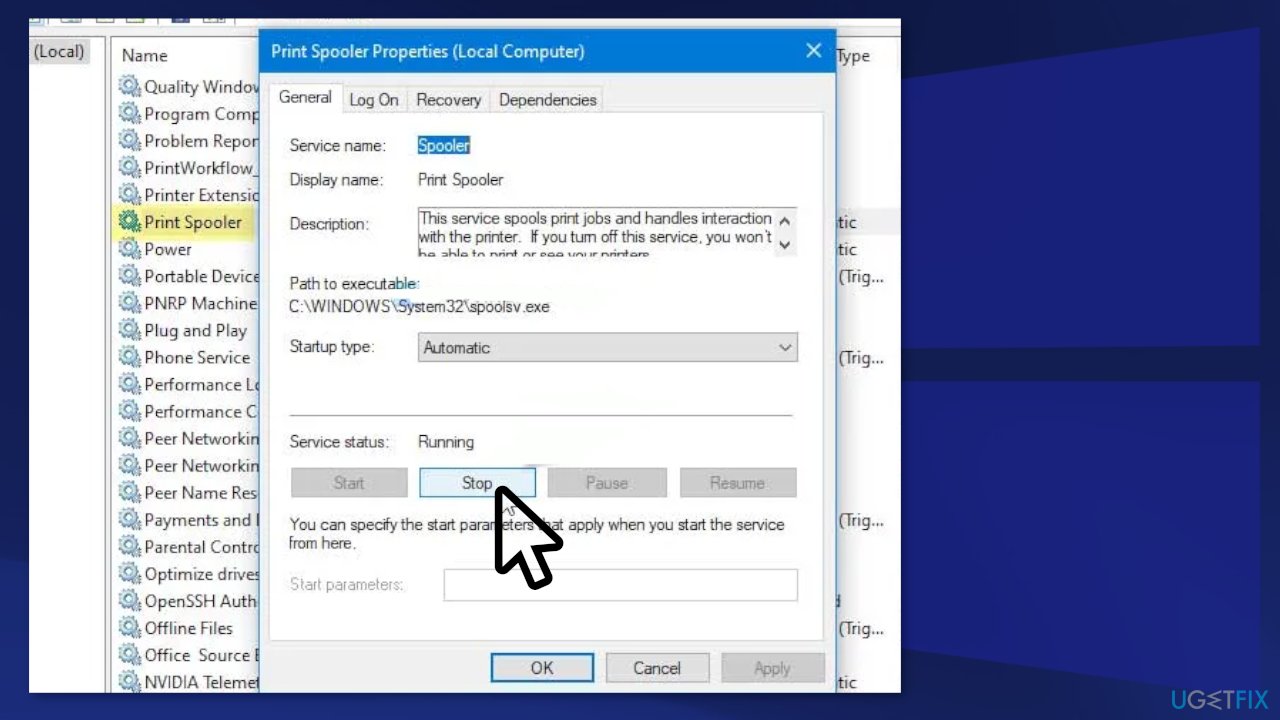
- Once done, you can click on Start
- Check if the error is still there
Solution 4. Change splwow64.exe Timeout Value
- Press the Windows key + R to open the Run box
- Type regedit and hit the Enter button (if the UAC prompt appears, click the Yes option)
- Navigate to the following path:
HKEY_LOCAL_MACHINE\\SYSTEM\\CurrentControlSet\\Control\\Print
- Right-click on Print and select the New > DWORD (32-bit) option to create a REG_DWORD value
- Name it SplWOW64TimeOutSeconds
- Double-click on SplWOW64TimeOutSeconds
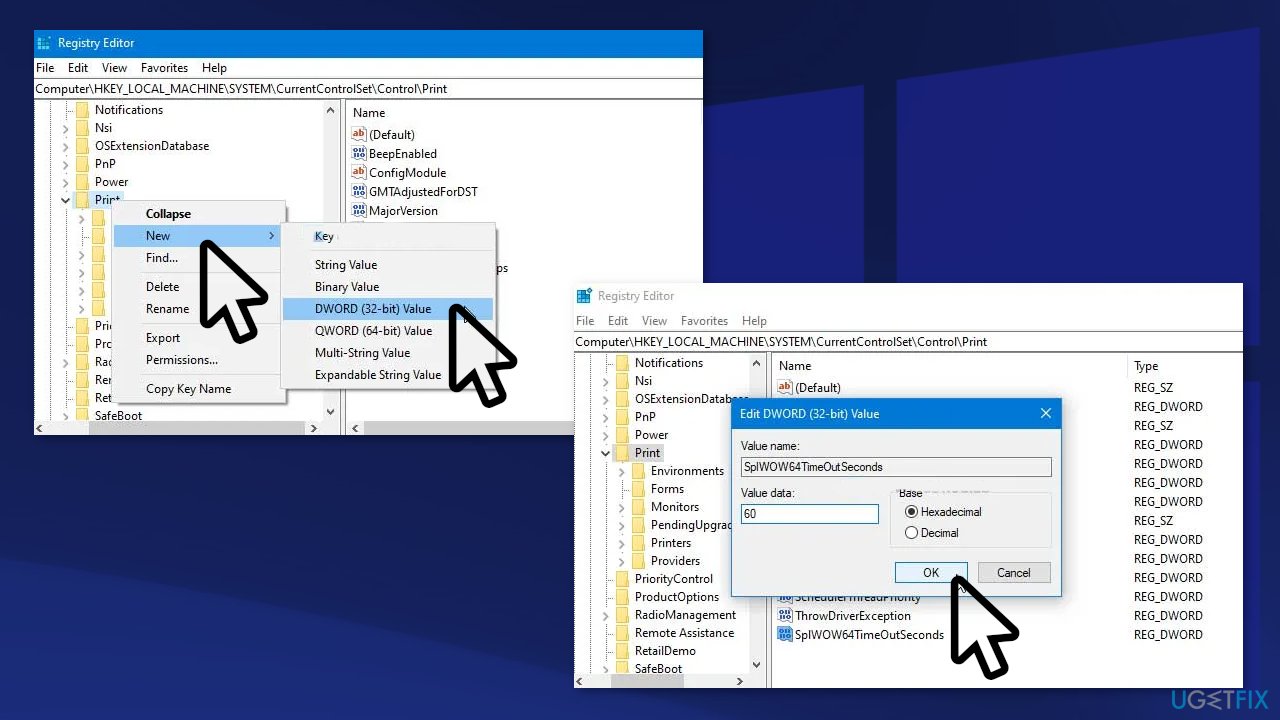
- The default value data is 120, but it is recommended to set something less than 120; you can enter 60 and check if it solves your issue
- If it doesn’t, try entering a lower value. At last, click the OK button
Solution 5. Disable Rendering Print Jobs on Client Computers
- Search for Control Panel and open it
- Make sure the view is set as Large icons
- Click on the Devices and Printers option
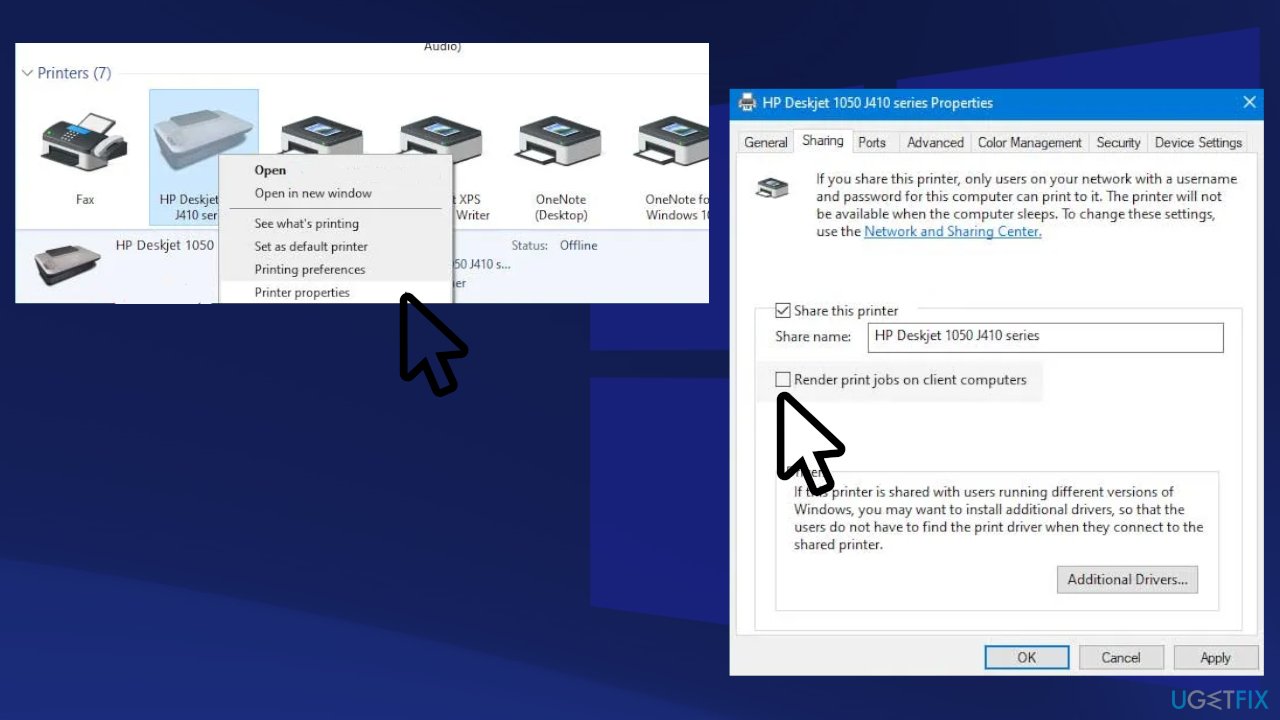
- Right-click on the printer, which is creating the issue, and select the Printer properties option
- Switch to the Sharing tab and uncheck the Render print jobs on client computers box
- Click the Apply and OK buttons to save changes
You might also be interested in these topics:
Bottom line
To fix the SPLwow64.exe system error, you can try reinstalling the program, using a repair tool to identify and fix damaged system components, or clearing cookies and cache to free up space. If these solutions do not work, consider seeking further assistance or exploring additional troubleshooting options.
Frequently asked questions
SPLwow64.exe is a Windows process responsible for handling 32-bit print jobs on a 64-bit version of Windows. Errors can occur due to corrupted drivers or system files.
You can troubleshoot the SPLwow64.exe error by updating your printer drivers and running the System File Checker tool to repair any corrupted system files.
Disabling SPLwow64.exe is not recommended as it may prevent your 32-bit applications from printing properly; instead, focus on fixing the underlying issues.




Report an issue
What's wrong with this guide? We review every report and update or remove content.
Report received — thank you. We'll review and fix it.
You need a free account to submit a report.
Be the first to comment