How to fix
0x800704C8 error when copying files
on Windows
Resolve the 0x800704C8 error when copying files on Windows 10 or 11 effortlessly. Get expert-tested solutions and fix issues in minutes!

What causes How to fix 0x800704C8 error when copying files on Windows?
- Lack of permissions
- Third-party application interference
- Missing file ownership
- Lack of administrator privileges
- Damaged or corrupted system files
Repairs Windows system files, removes malware, and restores a clean OS state — without reinstalling.
Hello. I'm having a problem with my Windows. When I try to copy a file from a hard disk to another, I get a message saying that the file is in use. I tried to log off and log in again and do the same thing and nothing changes. I have run out of ideas about what could be causing this. Looking for any tips.
Windows has thousands of processes running in the background keeping the system running smoothly. If one of those processes goes rogue, users can experience issues when trying to perform certain tasks. The operating system has many built-in troubleshooters for different types of processes in the machine but even they are sometimes helpless and leave users frustrated because they have to go looking for solutions themselves.
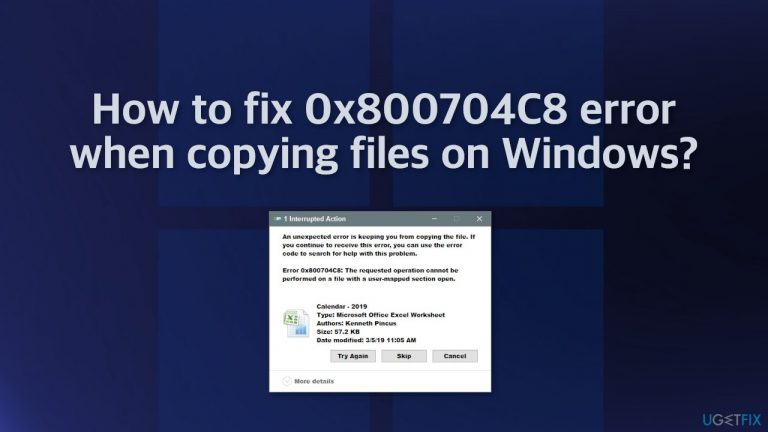
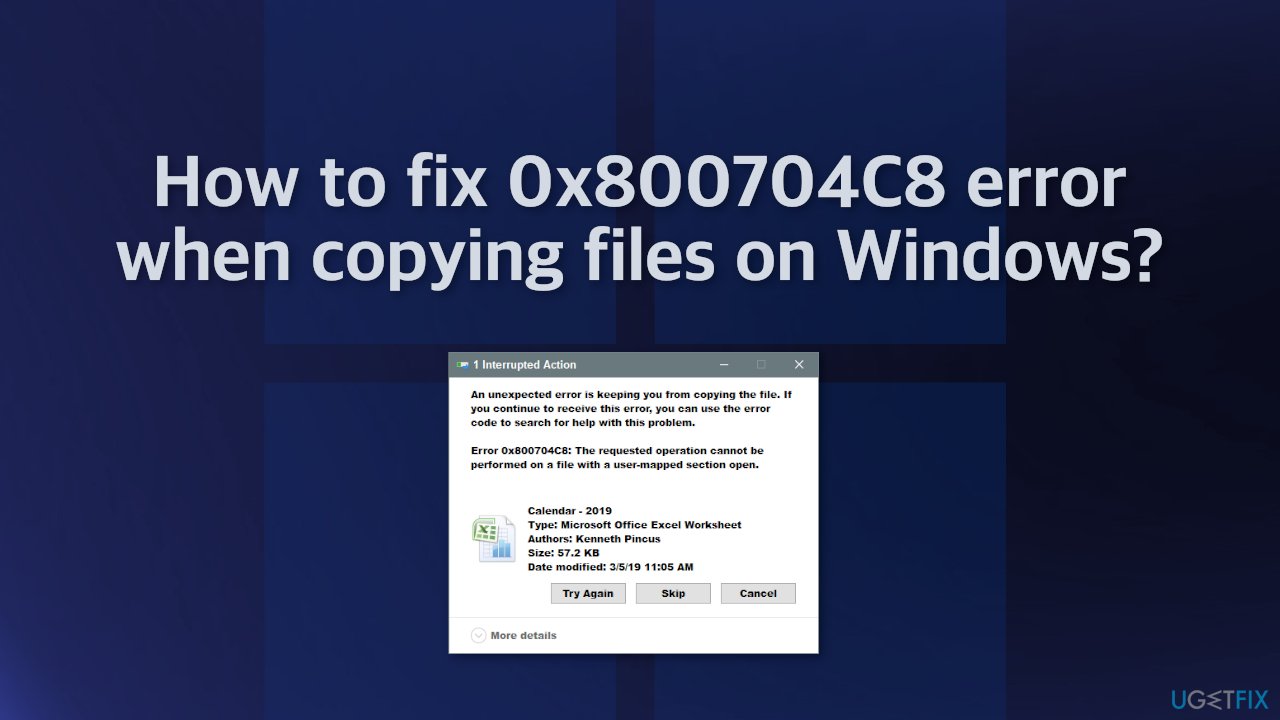
Sometimes users randomly receive an error when trying to copy a file. The full message in the pop-up says:
An unexpected error is keeping you from copying the file. If you continue to receive this error, you can use the error code to search for help with this problem.
Error 0x800704C8: The Requested operation cannot be performed on a file with a user-mapped section open.
As you can see, the error says that users should be looking for a way to resolve the problem themselves. It can be very frustrating when you have trouble performing the most basic tasks in your machine and you do not know what could fix it.
This error usually appears because of a lack of permissions or if a third-party application is interfering with the action. More complicated things that could be causing it could be missing file ownership, administrator privileges, or when the system files are damaged or corrupted.[ref en-1] We provide solutions to all of these problems in this article.
Troubleshooting manually could take a while because it is unclear what exactly is causing the issue, so you can try using an automatic solution [d1] to avoid going through all of the possibilities. The repair tool can identify the damaged system components, fix BSODs, and registry[ref en-2] issues by scanning the system. This software could also be used to free up space by clearing cookies and cache,[ref en-3] which should boost the device's performance.
Below you will find a few manual methods that could fix the 0x800704C8 error when copying files and let you perform basic tasks without trouble again. Note that this will take a while, so please follow all of the steps very carefully:
Solution 1. Run File and Folder Troubleshooter
- Download the File and Folder troubleshooter from the official Microsoft page
- Click to open the tool and then in the File and Folder Troubleshooter window, click on Advanced
- Check the box next to Apply repairs automatically and click Next
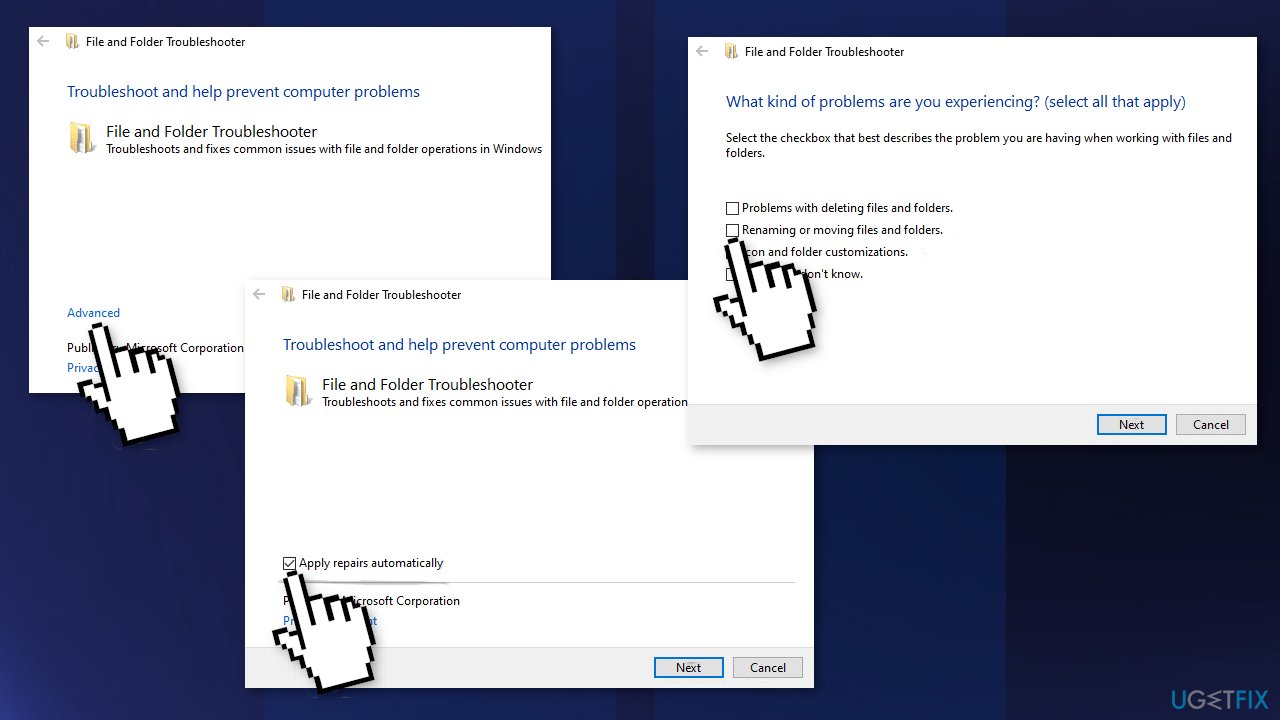
- Select the problem you are facing and press Next
- After the scan, try performing the action again
Solution 2. Disable Antivirus Software
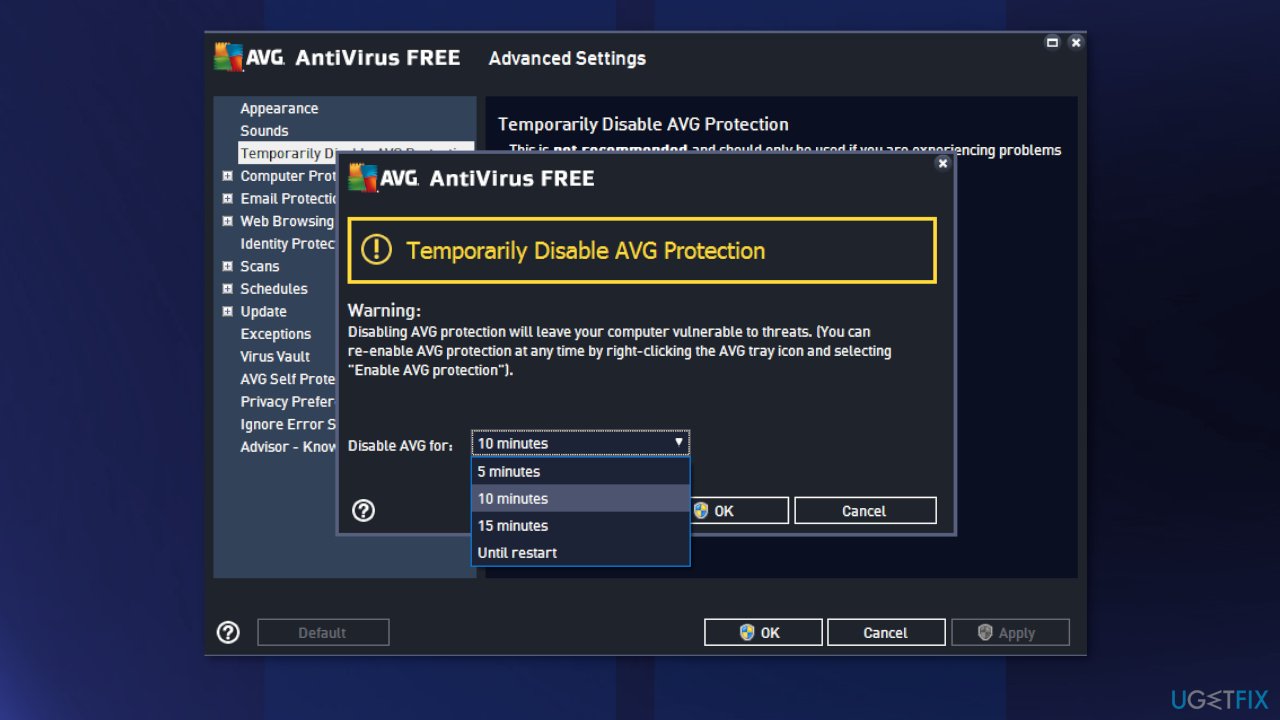
If you have any third-party antivirus software installed on your system, you should try disabling it and then giving the copy-paste action a shot. In case you are successful with the antivirus software disabled, it’ll become obvious that the issue was caused by it. In such a scenario, it is best to just uninstall it.
Solution 3. Take ownership of the File
- Right-click on the file or folder you want to take ownership of, go to the Security tab
- From Groups and other users check if you have permission
- If not, select the User and click Edit
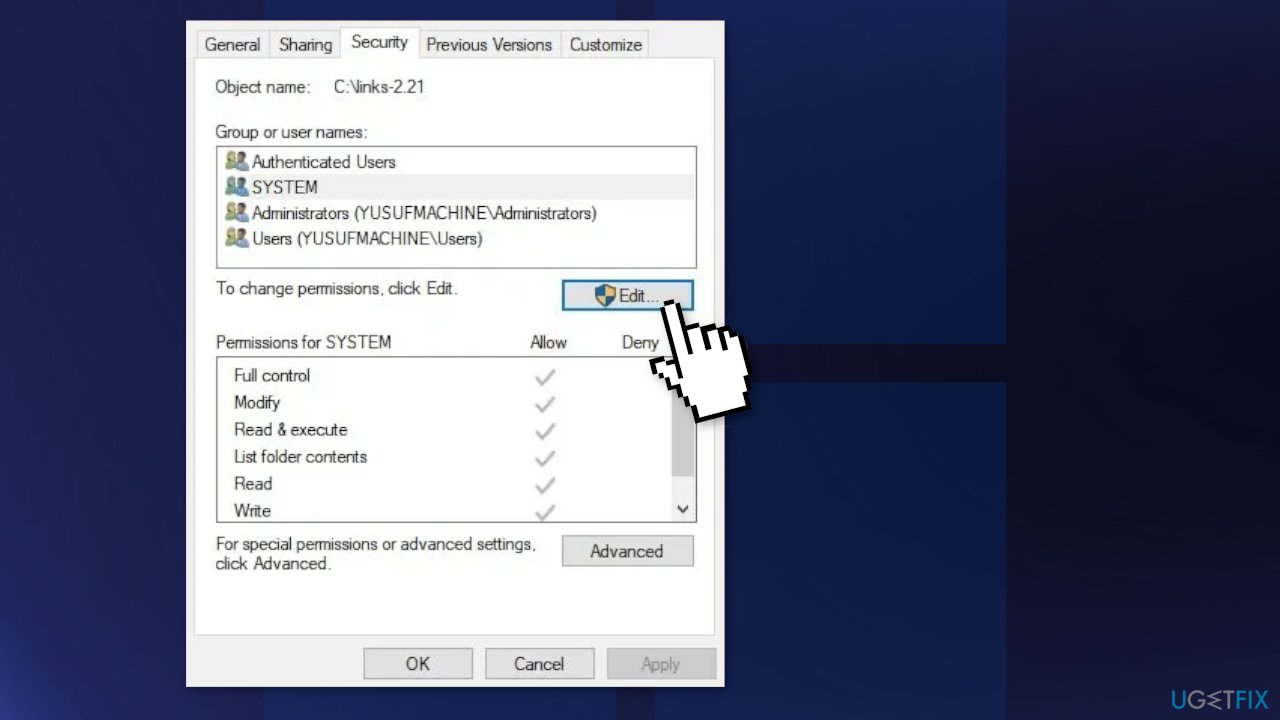
- Tick Allow of Full Control
- Try copying the file now
Solution 4. Repair corrupted files
Use Command Prompt commands to repair system file corruption:
- Open Command Prompt as administrator
- Use the following command and press Enter:
sfc /scannow
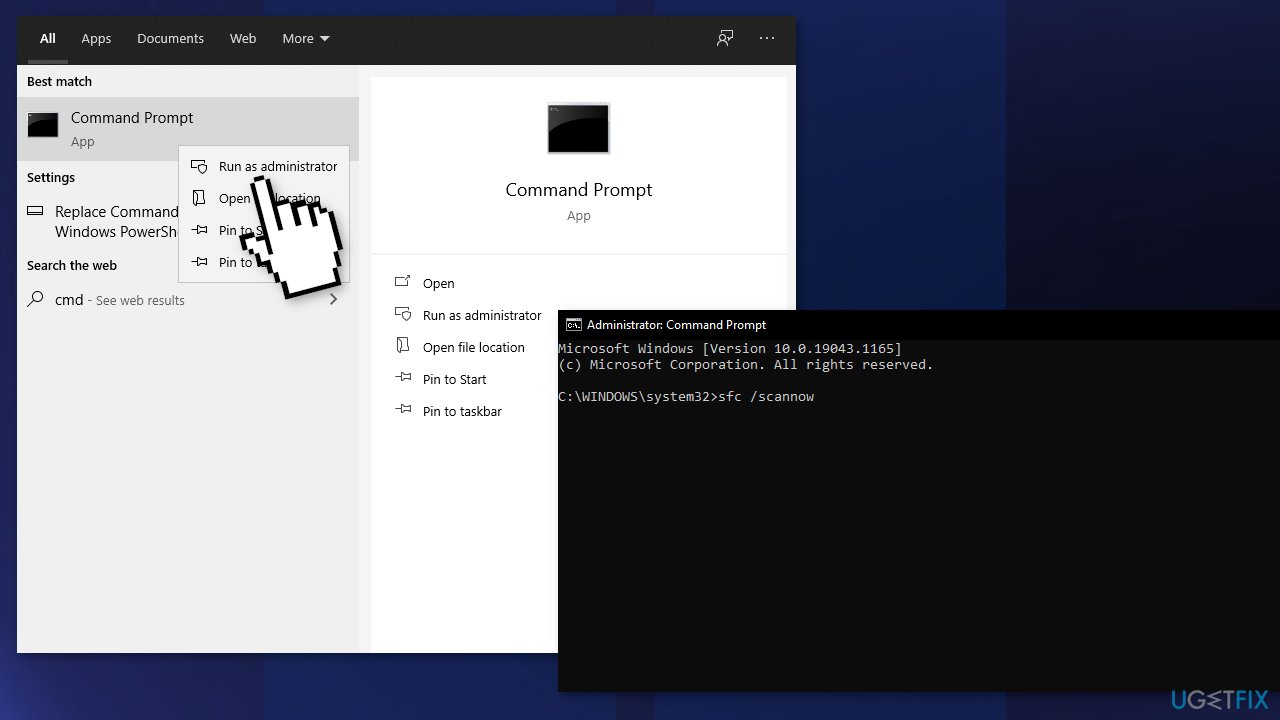
- Reboot your system
- If SFC returned an error, then use the following command lines, pressing Enter after each:
DISM /Online /Cleanup-Image /CheckHealth
DISM /Online /Cleanup-Image /ScanHealth
DISM /Online /Cleanup-Image /RestoreHealth
Solution 5. Run Visual Studio as an administrator
If you’re encountering this issue while attempting to move a file that is currently part of a Visual Studio project, the program might be lacking the required administrative permissions to move files freely while the project is loaded:
- Ensure that Visual Studio is closed and no associated process is running in the background
- Open My Computer or File Explorer and navigate to the location where Visual Studio is located
- Usually, it is in the following path:
C:\\Program Files (x86)\\Microsoft Visual Studio\\2019\\{editionName}
- Right-click on VisualStudio.exe and then click on Properties from the menu
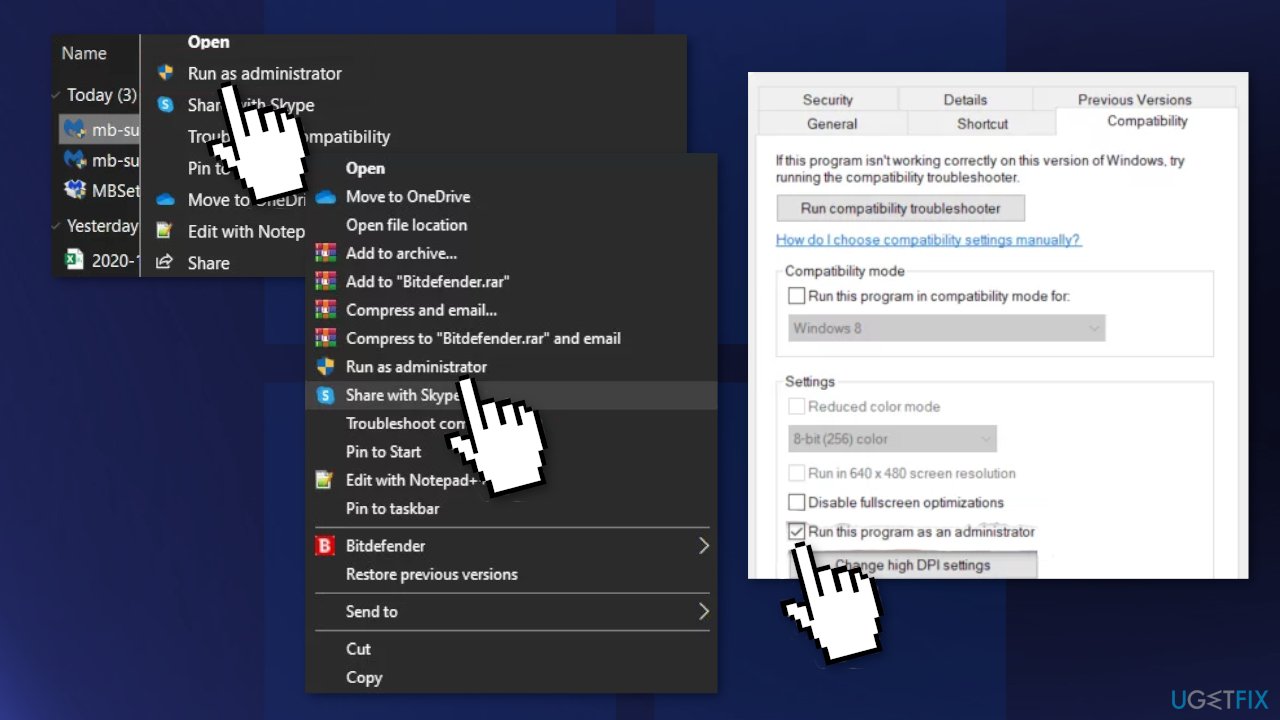
- Access the Compatibility tab from the ribbon menu at the top
- Move down to the Settings category and check the box associated with Run this program as an administrator
- Click on Apply to save the changes
Solution 6. Reset every Windows Component
- Open Command Prompt as administrator again
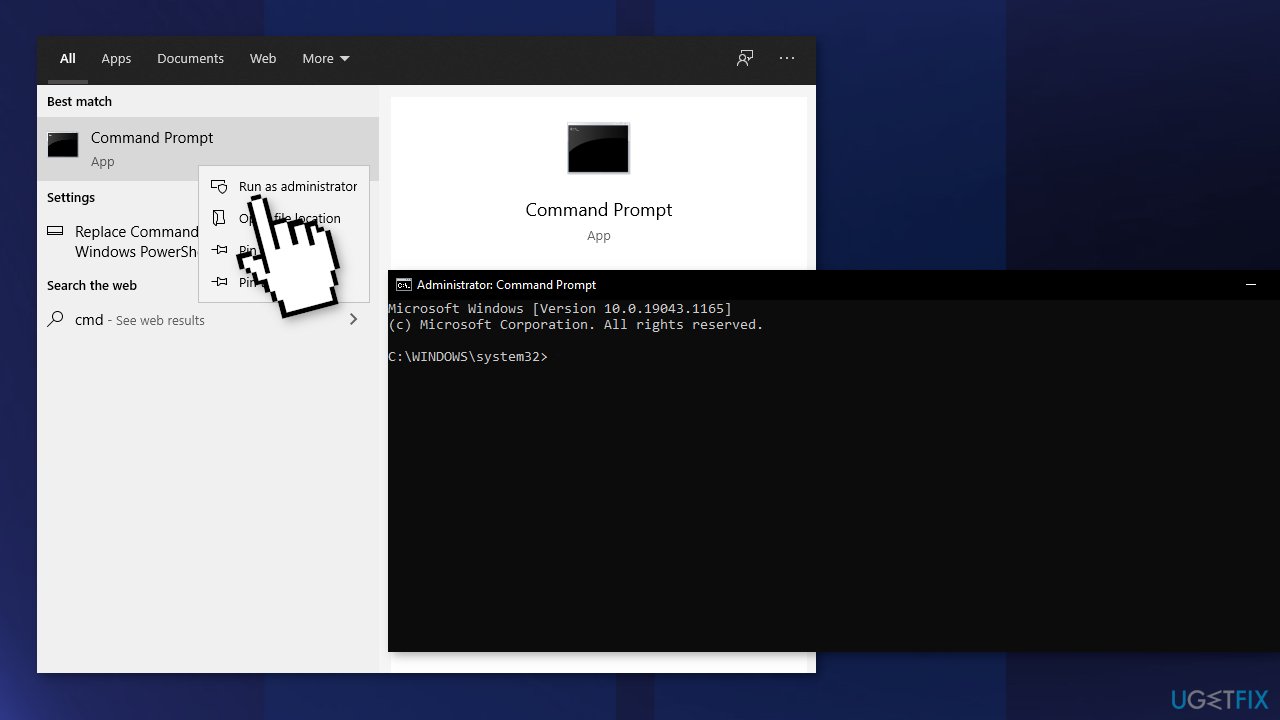
- Copy and paste the following commands, pressing Enter after each:
net stop bits
net stop wuauserv
net stop appidsvc
net stop cryptsvc
Del “%ALLUSERSPROFILE%\\Application Data\\Microsoft\\Network\\Downloader\\*.*”
rmdir %systemroot%\\SoftwareDistribution /S /Q
rmdir %systemroot%\\system32\\catroot2 /S /Q
regsvr32.exe /s atl.dll
regsvr32.exe /s urlmon.dll
regsvr32.exe /s mshtml.dll
netsh winsock reset
netsh winsock reset proxy
net start bits
net start wuauserv
net start appidsvc
net start cryptsvc - Restart your PC
You might also be interested in these topics:
Bottom line
To fix the 0x800704C8 error, you can check and adjust file permissions, ensure you have the necessary administrator privileges, and investigate any third-party applications that may be causing interference. If these solutions do not resolve the issue, consider using an automatic repair tool to identify and fix any damaged system components.
Frequently asked questions
The 0x800704C8 error indicates that there is an issue with file permissions or system file corruption preventing the copy operation from completing successfully.
To resolve the 0x800704C8 error on Windows 11, you can try running the System File Checker tool by executing 'sfc /scannow' in the Command Prompt as an administrator.
Yes, updating Windows 10 or Windows 11 can help fix the 0x800704C8 error by ensuring that all system components are up-to-date and free from known bugs.




Report an issue
What's wrong with this guide? We review every report and update or remove content.
Report received — thank you. We'll review and fix it.
You need a free account to submit a report.
Be the first to comment