How to fix
Windows File System Error (-2147163893)
on Windows
Resolve Windows File System Error (-2147163893) quickly and effectively. Get back to smooth performance with expert-tested solutions that work!

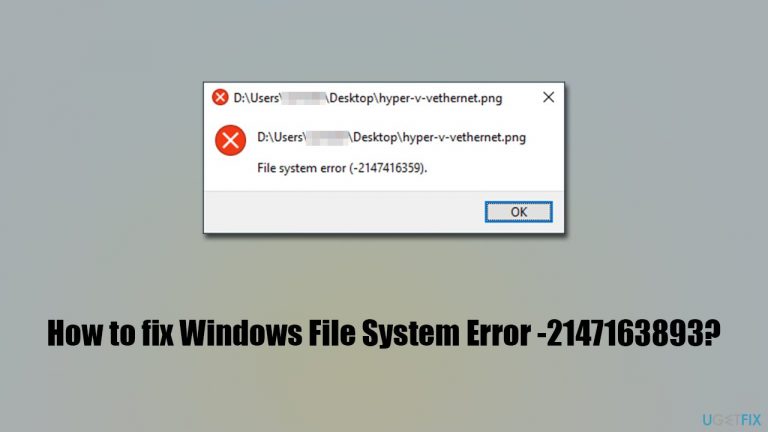
What causes How to fix Windows File System Error (-2147163893)?
- Corrupted Microsoft Store
- Damaged system files
- Bad sectors of a hard drive/SSD
- Corrupted Xbox app
Repairs Windows system files, removes malware, and restores a clean OS state — without reinstalling.
Hello, I tried to download a game from Microsoft Store, but I couldn't, so I was advised to reset the app. Needless to say, it didn't go as planned, and I received another error - Windows File System Error (-2147163893). Please advise on what to do next - any tips are appreciated.
Windows is an intricate operating system - it had numerous versions released since the 80s, with Windows 11 being the newest Microsoft innovation. Despite the new iterations and improvements with each of the new versions, users continue to have problems with different aspects of it. Updates can't be downloaded, apps don't open, UI elements don't work as intended, etc.
While these occurrences are not prevalent and not applicable for everyone, there are plenty of issues that are experienced more often than not. File System Error "-2147163893" is one of the errors that users have been dealing with for quite some time now, and there is still no universal solution for the problem.
In most cases, the error shows up when users are trying to download or update an application through Microsoft Store. Likewise, some reported that they faced the -2147163893 error when trying to repair or reinstall the Store altogether. The message itself doesn't provide much insight into the problem, as it only shows the path of the file and the error code.
This makes it rather difficult for people to troubleshoot and solve the problem once and for all. This is especially true because the issue could come from many different aspects of the OS, for example:
- Corrupted Microsoft Store
- Damaged system files
- Bad sectors of a hard drive/SSD[ref en-1]
- Corrupted Xbox app, and more.
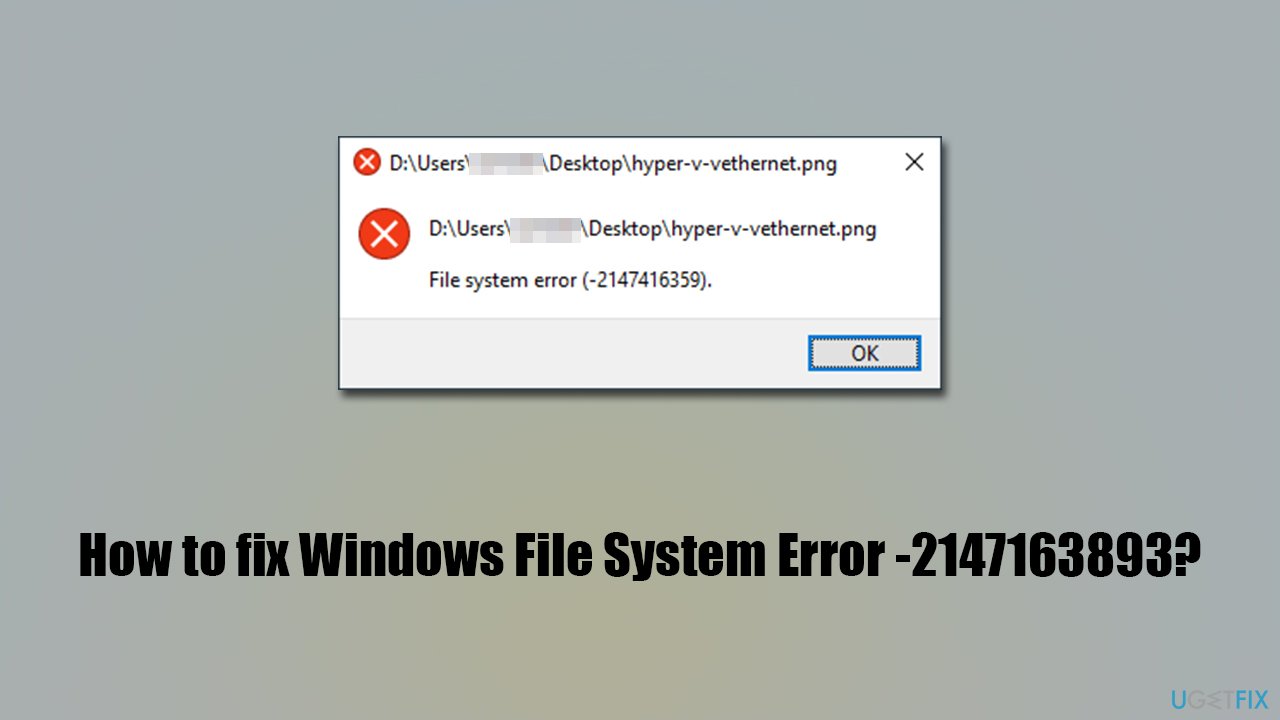
Below we provide several methods that address all of these situations and show how to fix File System Error "-2147163893." Nevertheless, before you proceed with the manual methods below, we strongly recommend you run a scan with PC repair and maintenance software [d1]. It can resolve the most common Windows issues, repair damaged system files, and stop Blue Screen[ref en-3] crashes for good. Likewise, it can fix the damage that was caused by malware[ref en-2] infection.
Fix 1. Run Windows Store app troubleshooter
If you get the error when trying to download or update apps on MS Store, you should start with running the built-in troubleshooter. While it might not always be able to solve all the related issues, it's a great thing to start from.
- Type Troubleshoot in Windows search and hit Enter
- In the new window, on the right side, click Additional troubleshooters
- Scroll down to find the Windows Store Apps entry
- Select it and click Run the troubleshooter
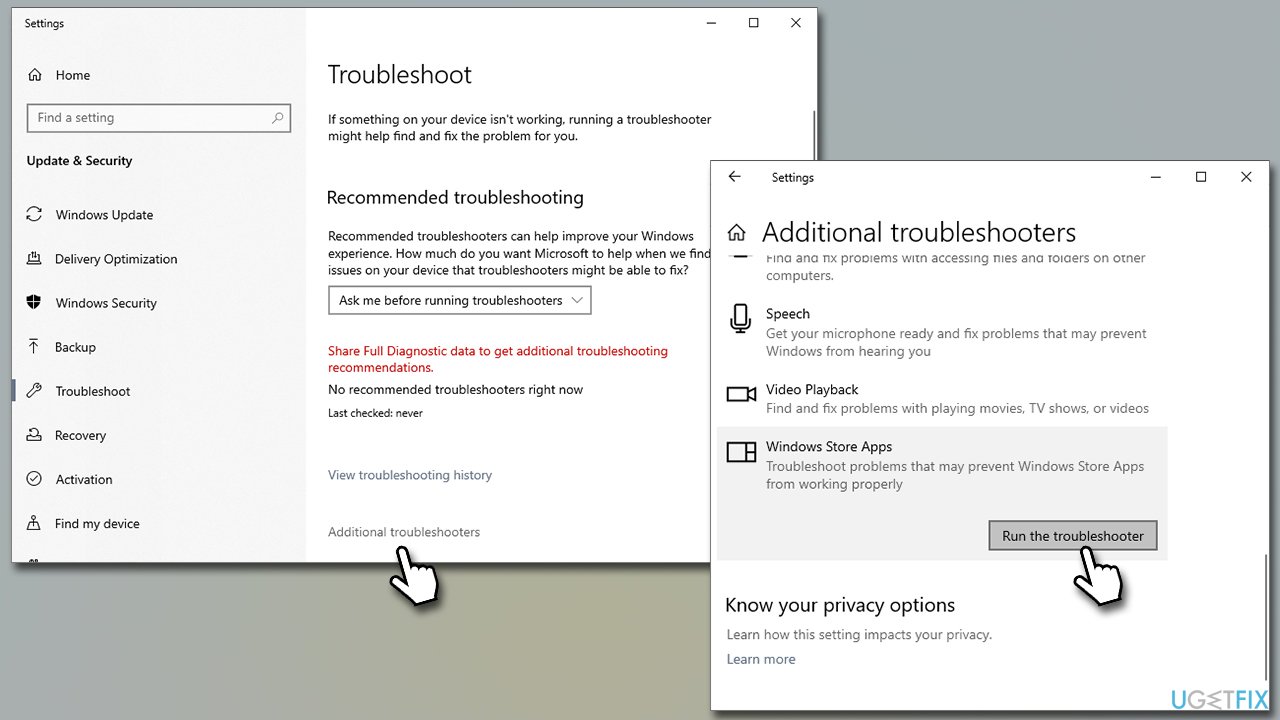
How to fix windows file system error 2147163893 run troubleshooter - Wait till all the fixes are applied and restart your computer.
Fix 2. Check your disk
Damaged sectors within your hard drive might cause the 2147163893 error. Running the CHKDSK command via Command Prompt might help you with this problem.
- Type in cmd in Windows search and press Enter
- Right-click Command Prompt result and select Run as administrator
- When User Account Control shows up, click Yes
- In the new window, type in the following command and press Enter after:
chkdsk c: /fNote: if you are using SSD as your main drive, use chkdsk c: /f /r /x command instead
- At this point, you might receive an error that says that volume is used by another process
- Type in Y and hit Enter
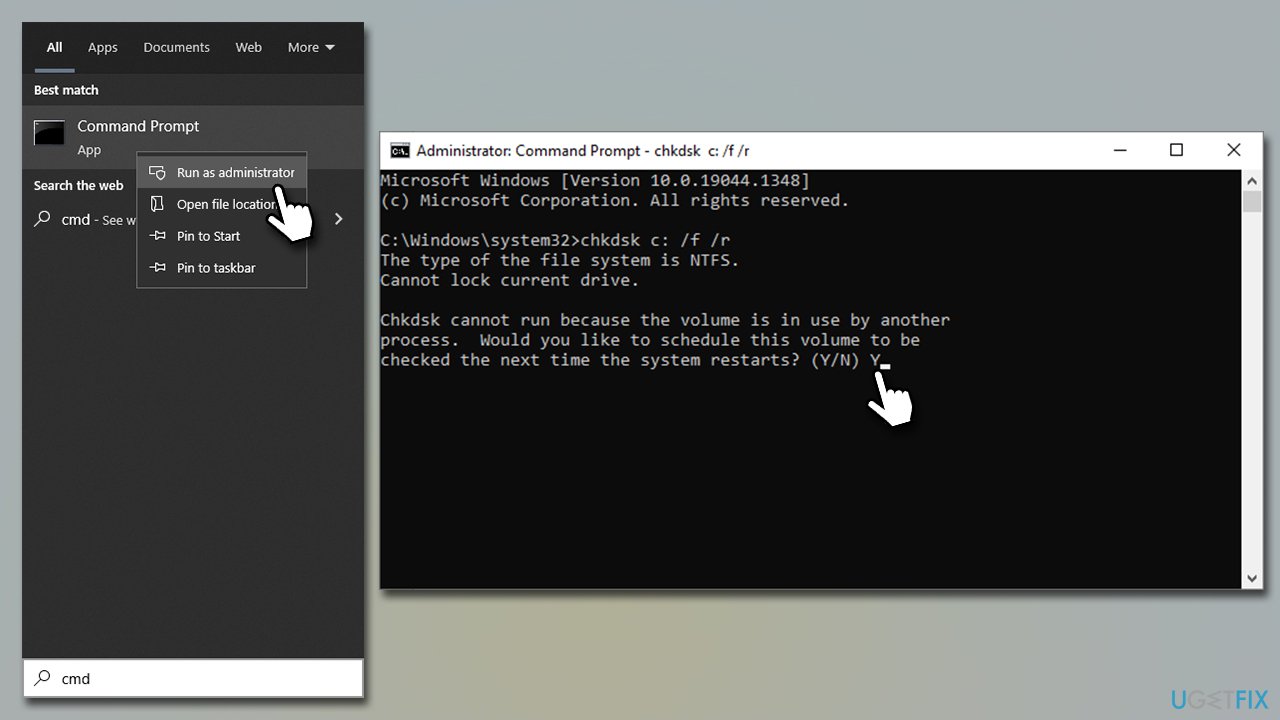
How to fix windows file system error 2147163893 check disk - Restart your computer to start check
- The results will be displayed after the reboot.
Fix 3. Run SFC and DISM
System file corruption can be one of the main reasons for many issues, including system file errors.
- Open Command Prompt as administrator as explained above
- Use the following command and press Enter:
sfc /scannow - Reboot your system
- If SFC returned an error, then use the following command lines, pressing Enter after each:
DISM /Online /Cleanup-Image /CheckHealth
DISM /Online /Cleanup-Image /ScanHealth
DISM /Online /Cleanup-Image /RestoreHealth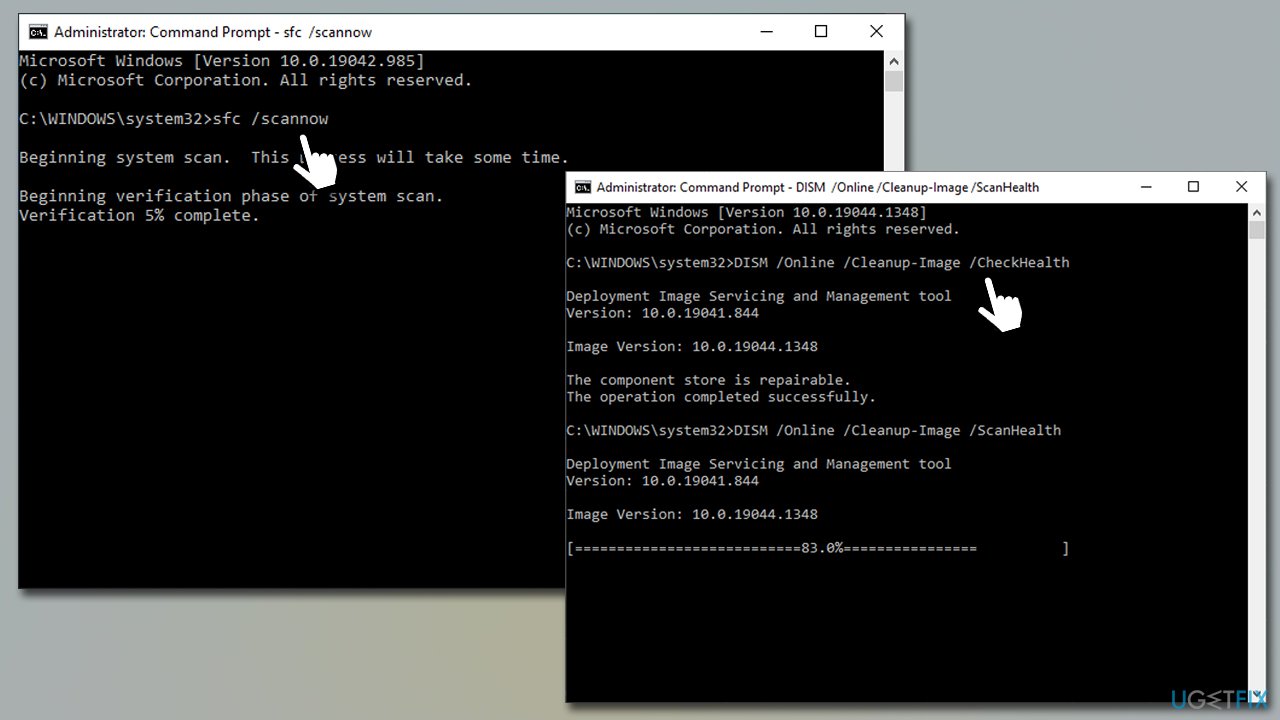
How to fix windows file system error 2147163893 run dism sfc
Fix 4. Reset or repair Windows Store App / Xbox app
If your store app is misbehaving, try repairing or resetting it via the Apps and Features section.
- Right-click on Start and pick Apps and Features
- Scroll down and click on Microsoft Store
- Pick Advanced options
- Here, scroll down and click Terminate
- First, try using the Repair option and check if the problem is gone
- If it is still not working for you, try using Reset instead
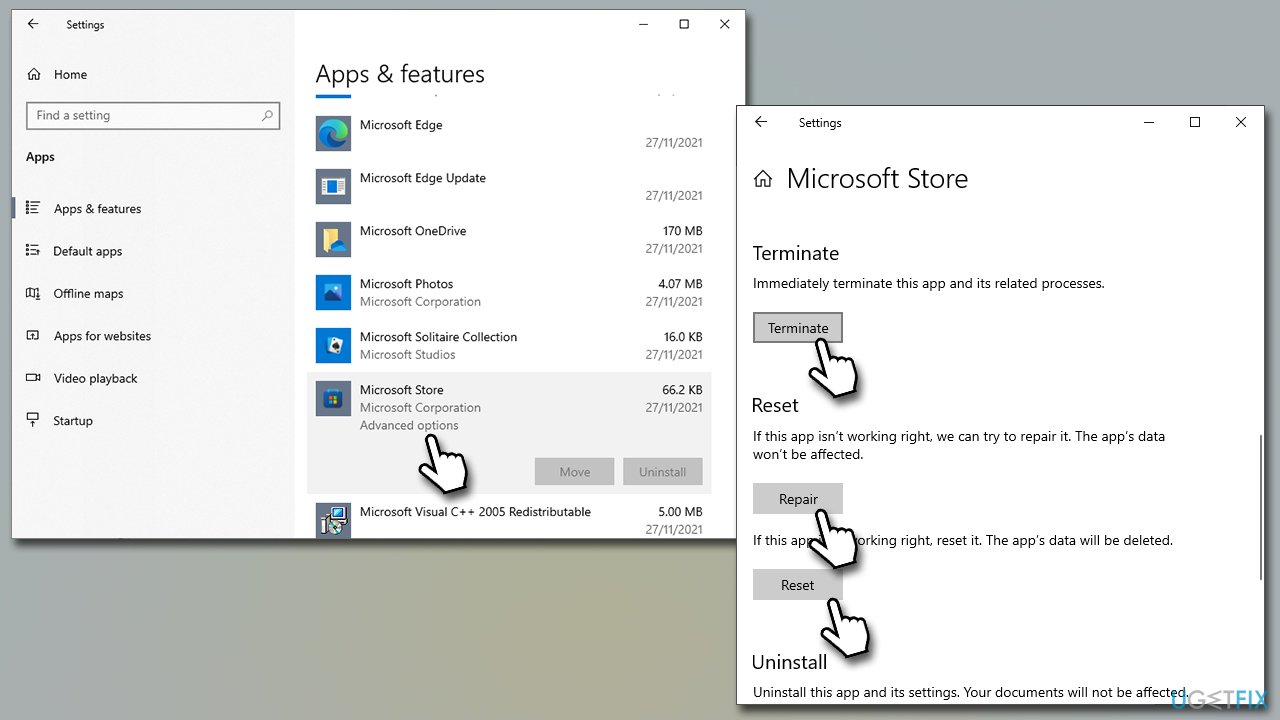
How to fix windows file system error 2147163893 reset repair ms store - Do the same with the Xbox app as well.
Fix 5. Reinstall Windows
If none of the steps above helped, you can try using the Media Creation tool to reinstall Windows without losing any personal files. It is true that your applications will be removed and settings gone, so you'd have to redo that. As a precautionary measure, you should make data backups and don't forget to copy important files from your main drive (C: by default).
- Download the Windows installation media from the official Microsoft website
- Double-click the installer to initiate the process
- Agree to terms
- Pick Create installation media (USB flash drive, DVD or ISO file) for another PC option and click Nex
- Select the Use Recommended options for this PC checkbox and click Next
- Choose ISO file and click Next
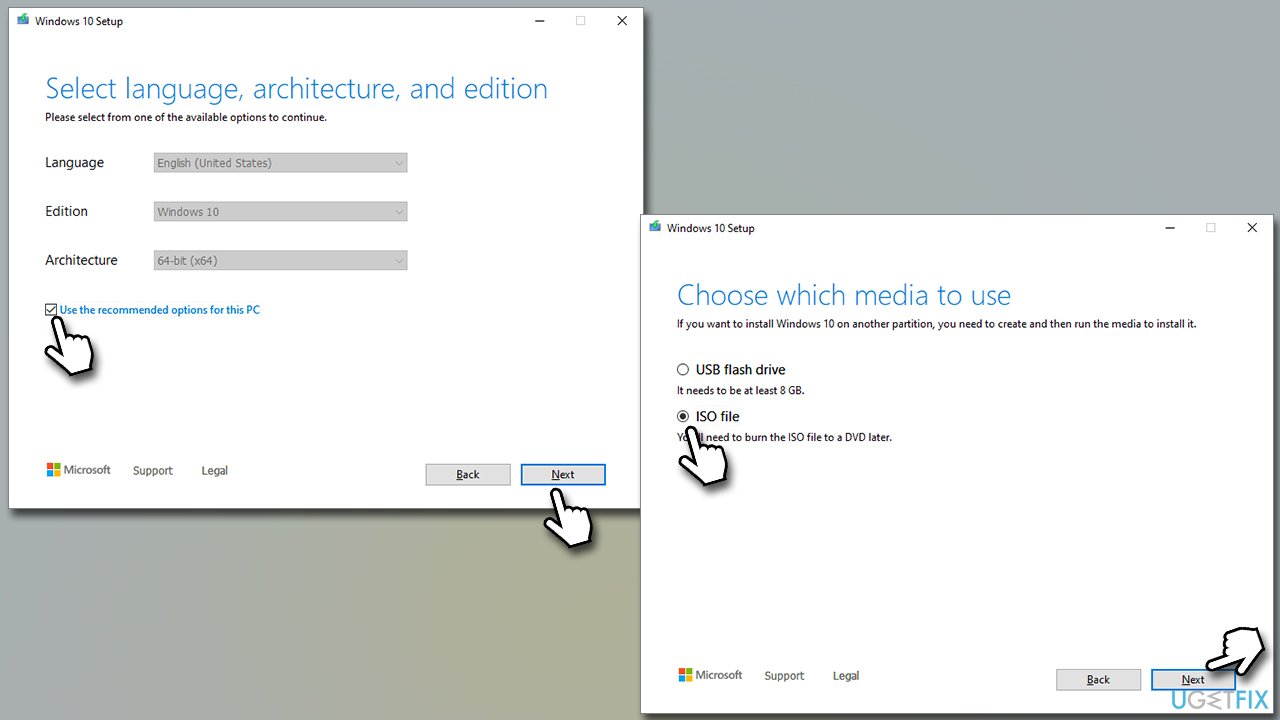
How to fix windows file system error 2147163893 reinstall windows - After downloading the ISO file, right-click it and select Mount, and double-click the Setup.exe
- Accept the license once again
- Select Keep my personal files and click Install.
Similar errors you might want to check:
Bottom line
To fix File System Error (-2147163893), you can try several methods including resetting the Microsoft Store, repairing system files, and running a scan with PC repair software. If none of these solutions work, consider seeking further assistance or exploring additional troubleshooting options.
Frequently asked questions
This error typically indicates a problem with the file system, often caused by corrupted files or issues with the disk on Windows 10 or Windows 11.
You can run a system file check by opening Command Prompt as an administrator and typing 'sfc /scannow', which will scan and repair corrupted system files on Windows 10 or Windows 11.
Yes, you can use the Check Disk utility by running 'chkdsk /f' in Command Prompt, which will check for and fix file system errors on your Windows 10 or Windows 11 device.




Report an issue
What's wrong with this guide? We review every report and update or remove content.
Report received — thank you. We'll review and fix it.
You need a free account to submit a report.
Be the first to comment