How to fix
Lsalso.exe high CPU usage
on Windows
Resolve lsalso.exe high CPU usage on Windows 10 or 11 with effective solutions. Boost your system’s performance now! Expert-tested methods included.


What causes How to fix lsalso.exe high CPU usage?
- Certain drivers attempting to load a Dynamic Link Library (DLL) into the IUM process
- Problematic applications loading DLLs into the IUM process
- System destabilization due to conflicting software
- High CPU usage caused by lsalso.exe
- Lagging issues and crashes due to high CPU usage
- Potential overheating leading to hardware malfunctions
Repairs Windows system files, removes malware, and restores a clean OS state — without reinstalling.
Hello. A couple of days earlier I noticed that my CPU usage has gone up and it causes my Windows computer to lag and crash. I opened the Task Manager and found that it was lsalso.exe that is causing high CPU usage. What is it and how do I fix it?
Recently, some users have encountered a problem with their Windows machines where lsalso.exe causes high CPU[ref en-1] usage. It is a more common problem than you may think. We previously wrote about Shell Infrastructure Host high CPU usage, Audio Endpoint Builder high CPU usage, Msedgewebview2.exe high CPU usage, and many others.
Lsalso.exe is associated with the Credential Guard and KeyGuard process and is developed by Microsoft. The process of this file typically runs in a secure environment called Virtual Secure Mode (VSM) as an Isolated User Mode (IUM) process. It is generally considered safe and essential, but can sometimes cause issues like high CPU usage within the system.
This is typically caused due to certain drivers and applications that attempt to load a Dynamic Link Library file (DLL) into the IUM process. This can cause the system to destabilize. In this guide, you will find 2 possible solutions to high CPU usage caused by lsalso.exe.
We recommend taking care of this as soon as possible as this can cause bugs, crashes, lagging issues, or even overheating which could lead to hardware malfunctions. You can also use a repair tool like [d1] to run a scan. This powerful software can fix various system errors, BSODs,[ref en-2] corrupted files, and registry[ref en-3] issues. Otherwise, follow the instructions below.

Solution 1. Use the Process of Elimination
Certain applications and drivers can load DLL into the IUM process, resulting in a higher CPU usage associated with lsalso.exe. You can try to eliminate the processes of these problematic applications and drivers and see if that fixes the issue.
- Type Task Manager in the search area and click Open
- Go to the Processes tab and locate the suspicious application
- Right-click on it and select End task
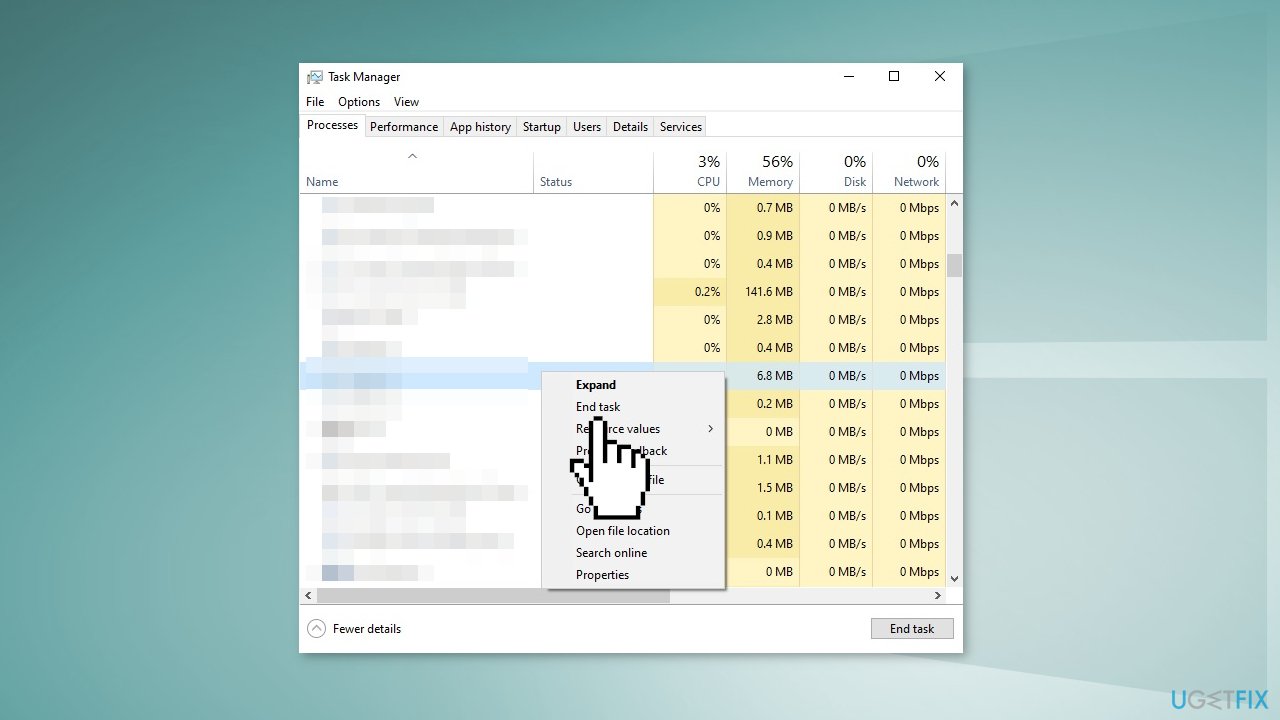
- Do the same with other potentially problematic applications
- See if the CPU usage has gone down
- If not, launch Device Manager and locate the drivers
- Right-click on them and choose Uninstall device from the context menu and see if that makes any difference in the high CPU usage caused by lsalso.exe

Solution 2. Check for Queued APCs
Microsoft has developed several Debugging Tools for Windows users that can help to check for problematic drivers.
- Install the Windows Debugging (WinDbg) tool from the Windows Driver Kit
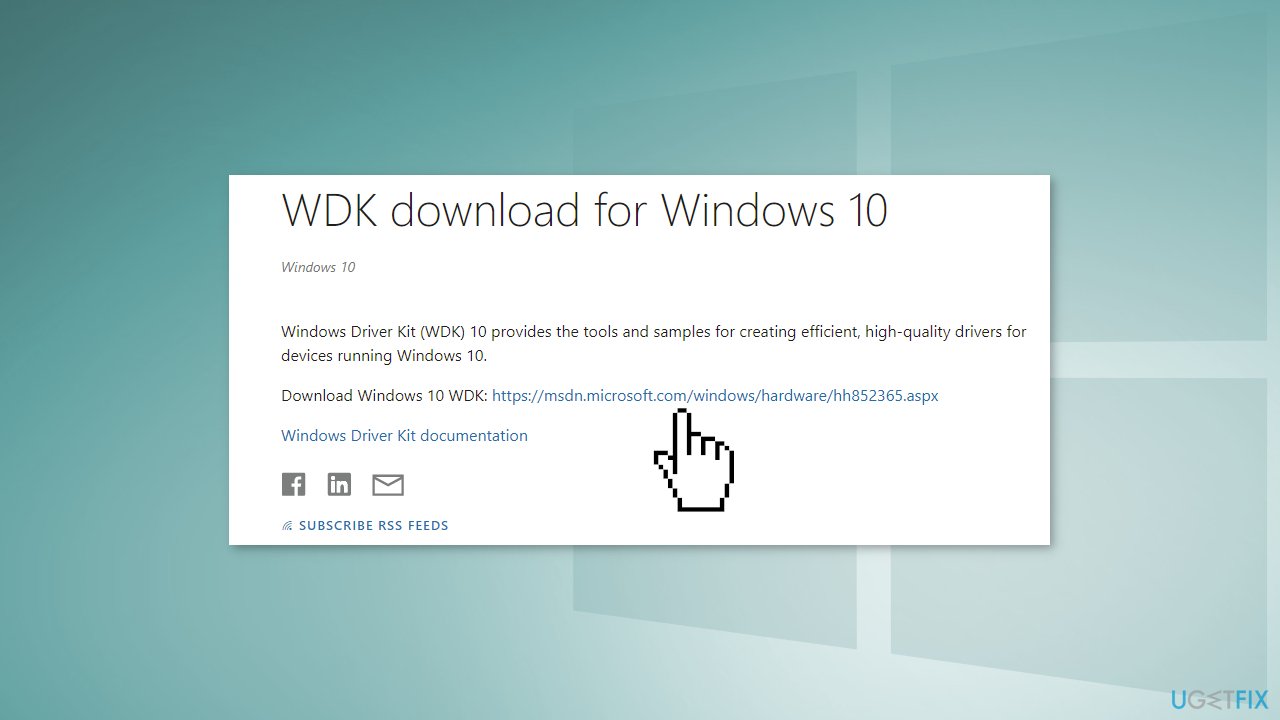
- Then, use NotMyFault.exe to generate a kernel memory dump during the spike
- To enable kernel memory, launch a Run dialog box by pressing Windows + R keys
- Type control system in the text field and hit Enter
- Click Advanced system settings
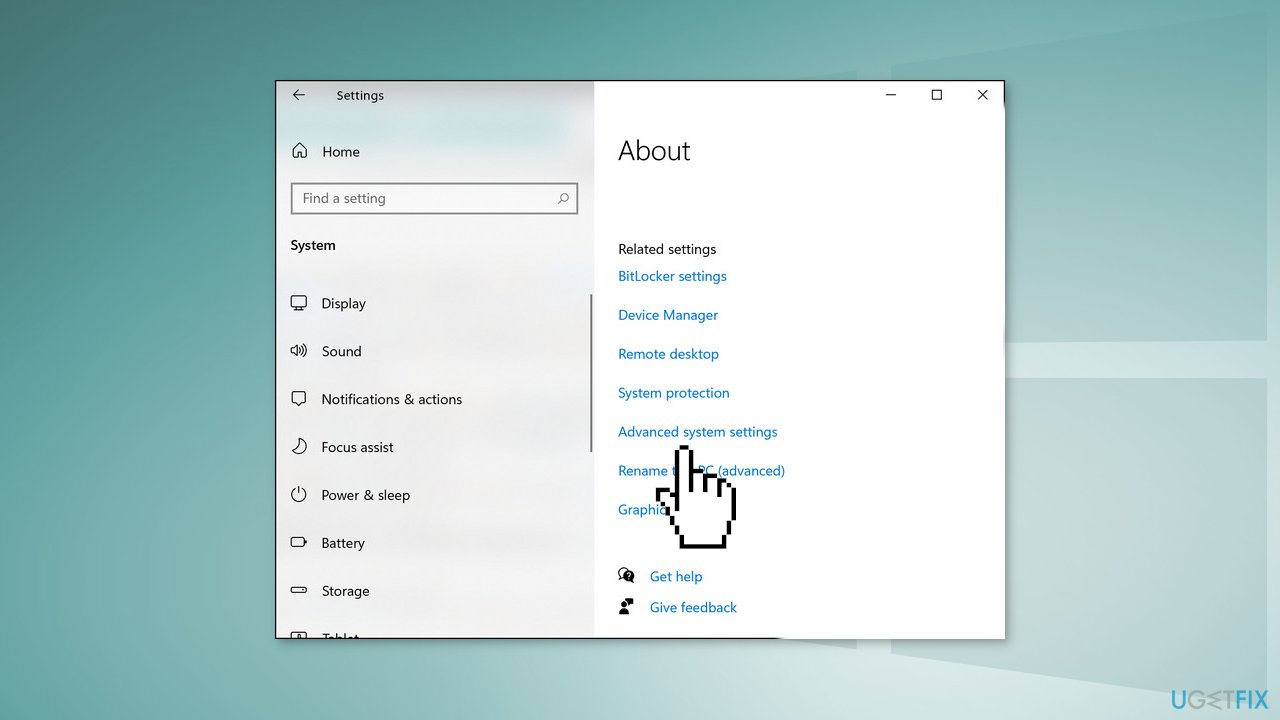
- Head over to the Advanced tab in the System Properties dialog box
- Click on the Settings button associated with Startup and Recovery
- Expand the drop-down menu for Write debugging information and choose Kernel memory dump
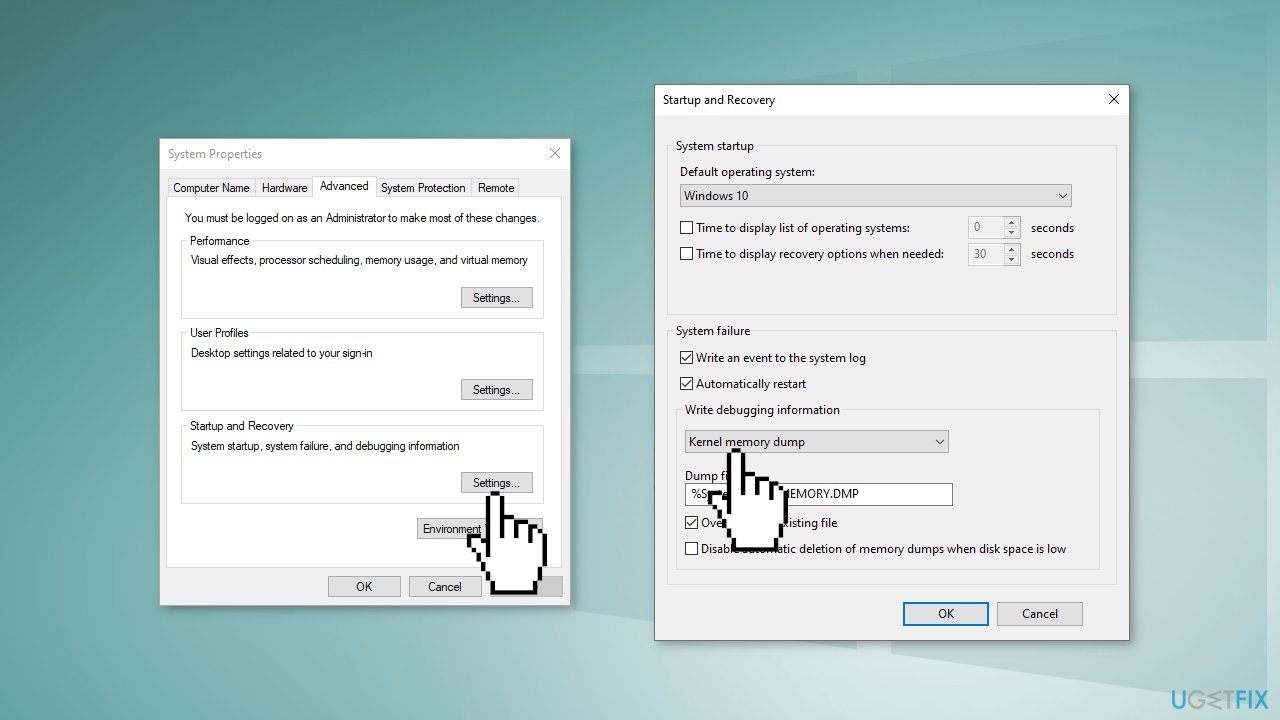
- Hit OK and note the Dump File location here
- Navigate to the Start menu and click on the Windows Kits entry
- Choose WinDbg(x64/x86) to proceed
- Click on File and select Symbol File Path
- Type https://msdl.microsoft.com/download/symbols for the Microsoft Symbol Server in the Symbol path section
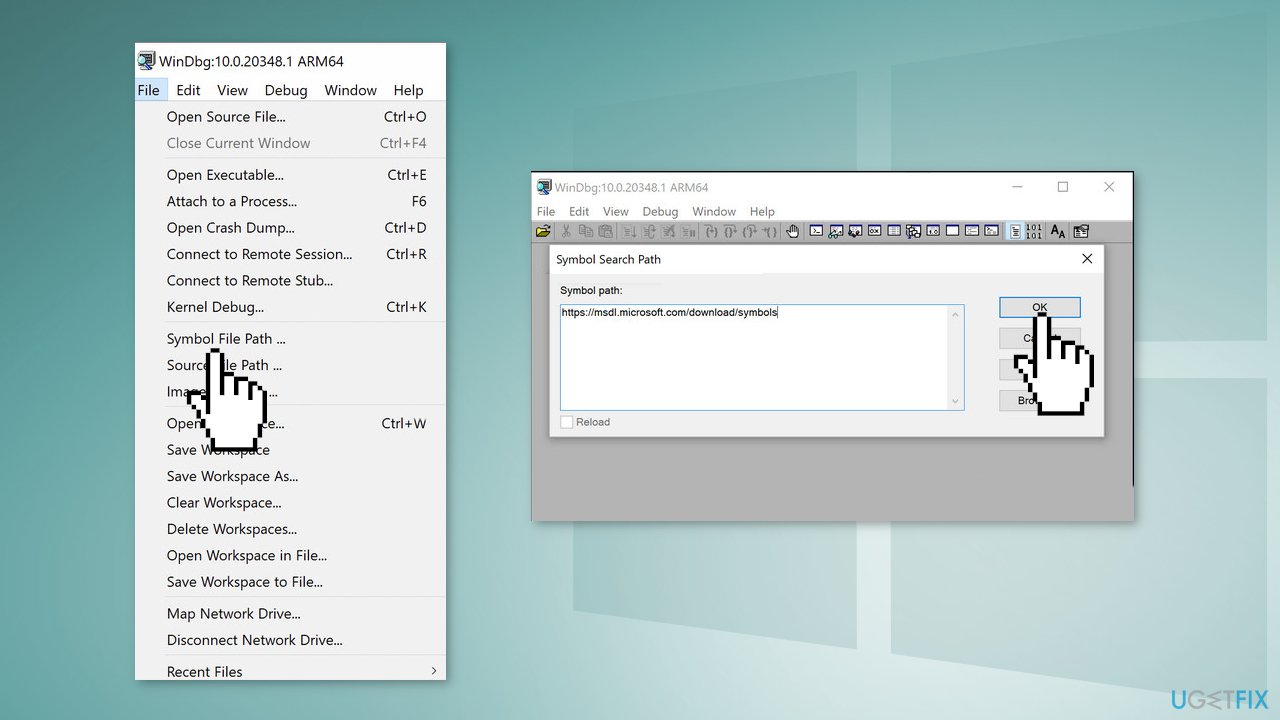
- Click OK and access the File menu again
- Choose Open Crash Dump and browse the location you noted
- Click Open and type !apc in the command window and hit Enter
- Once the command is executed, look for <ProblemDriver>.sys under LsaIso.exe
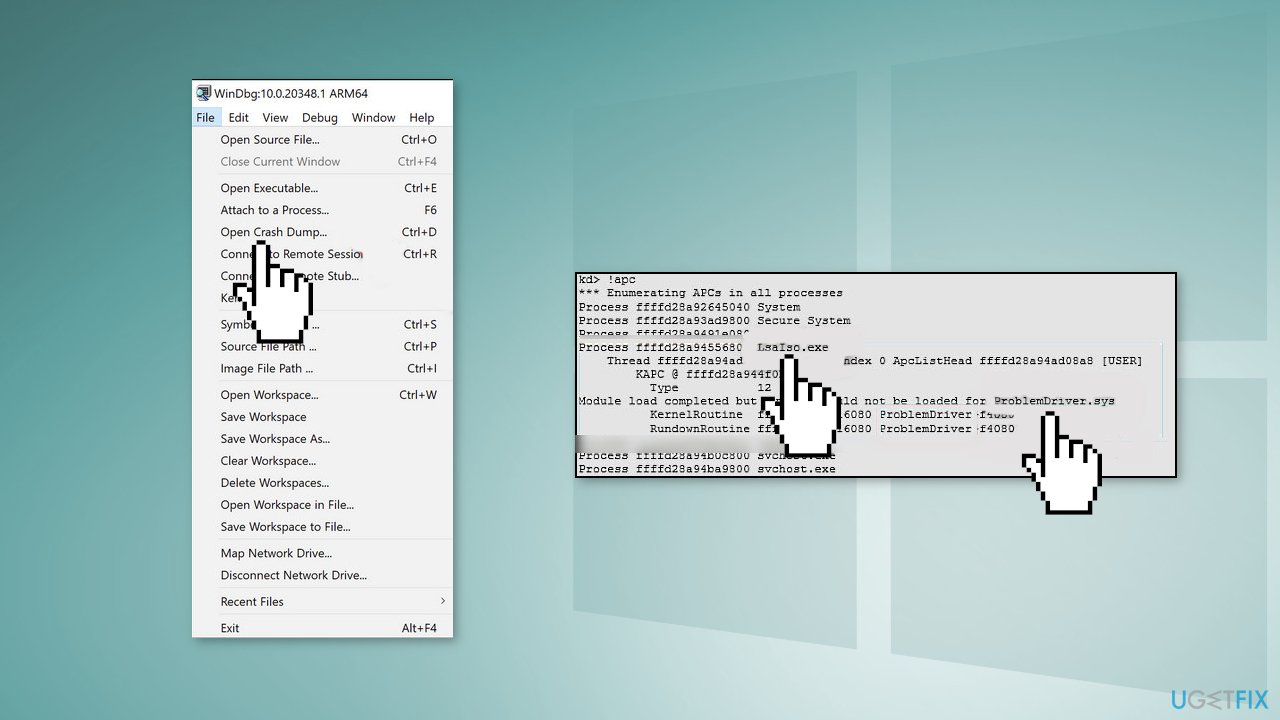
- Contact your driver vendor now and then refer them to the Microsoft document for mitigation recommendations for Isolated User Mode (IUM)
Bottom line
To fix high CPU usage caused by lsalso.exe, you can use the Process of Elimination to identify and end tasks of suspicious applications and drivers. Additionally, consider using a repair tool to scan for and fix various system errors. If these solutions do not resolve the issue, further investigation may be necessary.
Frequently asked questions
lsalso.exe is a legitimate Windows process related to Local Security Authority Subsystem Service, but it can cause high CPU usage due to system misconfigurations or malware infections.
To reduce lsalso.exe CPU usage, you can run a full antivirus scan, update your Windows system, and check for any corrupt system files using the System File Checker tool.
While you can terminate lsalso.exe temporarily to reduce CPU usage, it's not recommended as it is a critical system process; instead, focus on resolving the underlying issue.




Report an issue
What's wrong with this guide? We review every report and update or remove content.
Report received — thank you. We'll review and fix it.
You need a free account to submit a report.
Be the first to comment