How to fix
Windows Hello keeps asking to set up PIN
on Windows
Resolve the Windows Hello PIN issue in Windows 11 effortlessly. Quick fixes and expert tips ensure your system runs smoothly. Updated 2025.

What causes How to fix Windows Hello keeps asking to set up PIN in Windows 11?
- Windows Hello settings may not be configured properly
- Corrupted files in the system
- Issues with the Ngc folder
- Problems with user account settings
- Software conflicts
Repairs Windows system files, removes malware, and restores a clean OS state — without reinstalling.
Hello. I am using Windows 11, and Windows Hello keeps showing me a prompt asking me to set up a PIN. How do I get rid of it?
Windows 11 is the newest version of Windows released by Microsoft. It has a new user interface, updated design, and many other new functions. Particularly, Windows 11 introduced Windows Hello,[ref en-1] which is a new, more secure way to sign in to Windows devices.
It uses biometric authentication, which means that users can sign in with their face, iris, fingerprint, or a PIN. Well, this has caused a hassle for some people. Many users report that Windows Hello keeps asking to set up PIN in Windows 11 even if they already did. The prompt shows up every time they boot up the device, which can be annoying.
In this guide, you will find 5 steps that could help you fix the Windows Hello keeps asking to set up PIN bug. This is not the first bug that Windows 11 users have discovered. We previously wrote about other problems, like Windows 11 freezes when alt-tabbing from the game, long audio delay before starting, and WiFi icon missing.
We recommend using a maintenance tool like [d1] because manual troubleshooting can be a lengthy process. This powerful software can fix most system errors, BSODs,[ref en-2] corrupted files, and registry[ref en-3] issues. Otherwise, follow the step-by-step instructions below carefully.
Method 1. Dismiss the Message
- Open Windows Security
- On the Account protection option, click on the Dismiss button
- You can also access the Windows Hello section under Account protection and click on the Dismiss option there
Method 2. Sign in with a Local Account
- Open Settings and go to Accounts
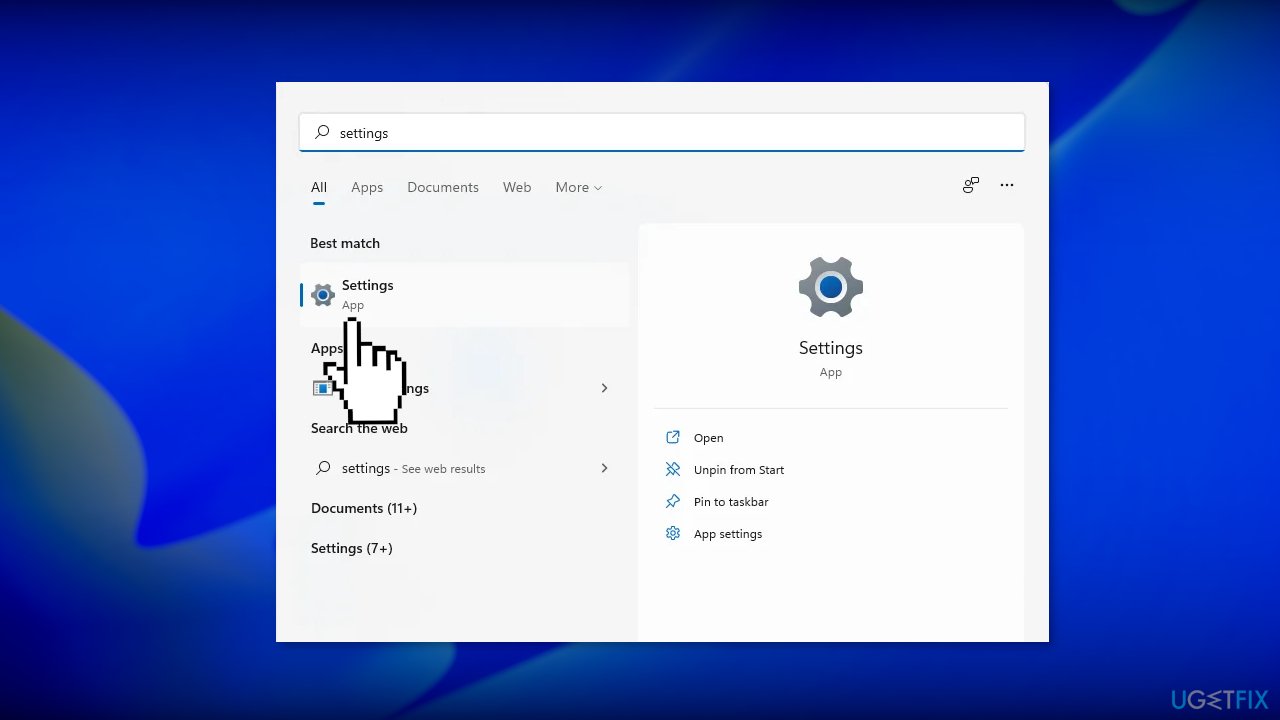
- Access the Your info page
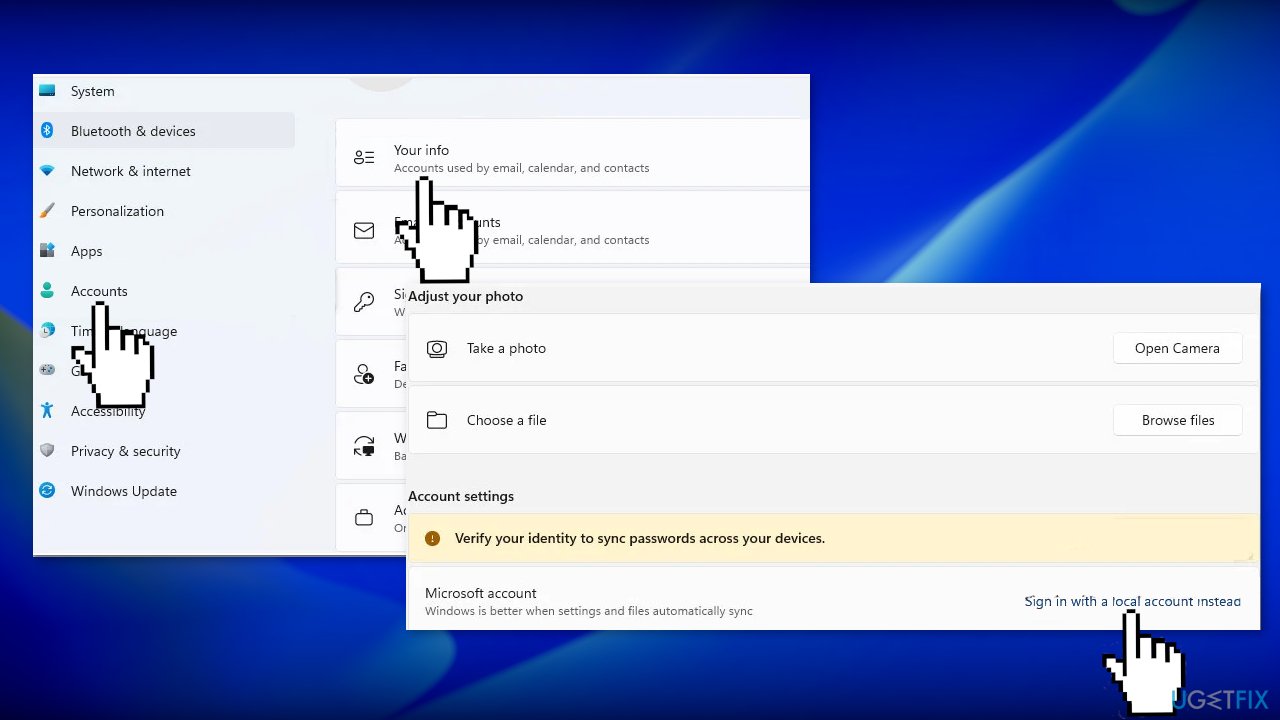
- Use the Sign in with a local account instead option
- Follow the on-screen instructions to complete the process
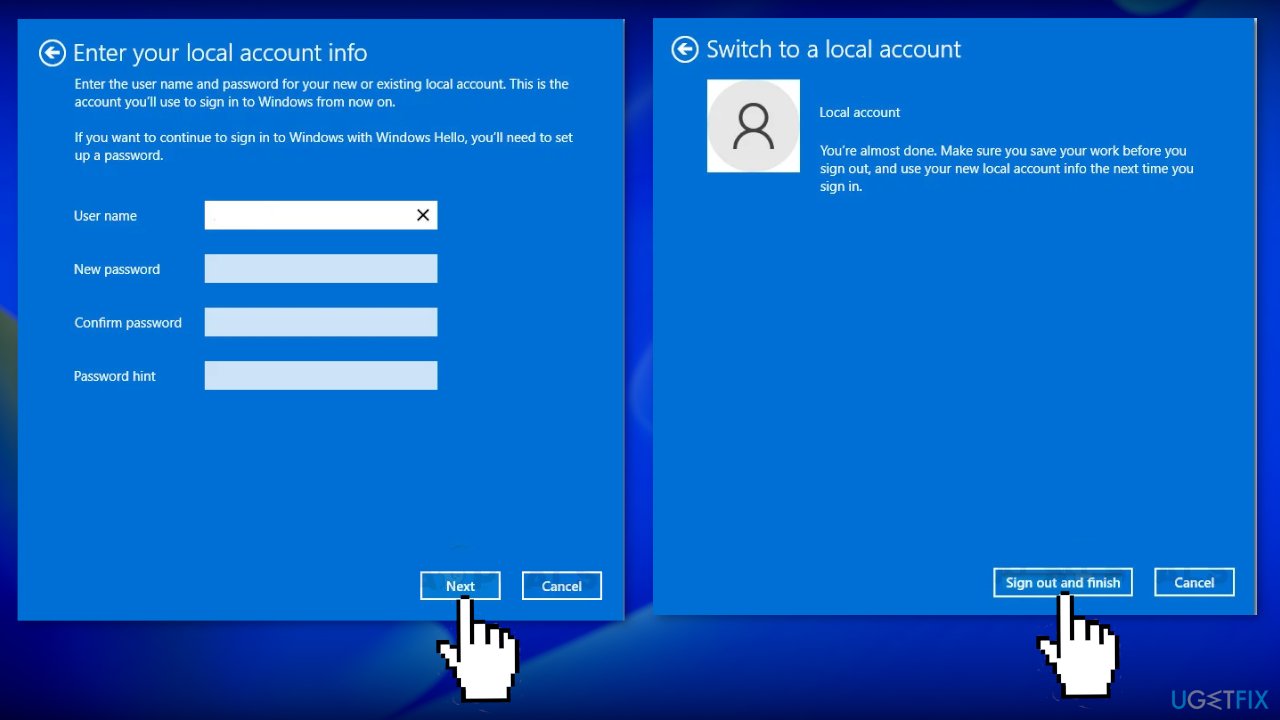
Method 3. Clear the Ngc Folder
- Press the Windows key + E to open File Explorer
- Access the Microsoft folder using the following path
C:\Windows\ServiceProfiles\LocalService\AppData\Local\Microsoft
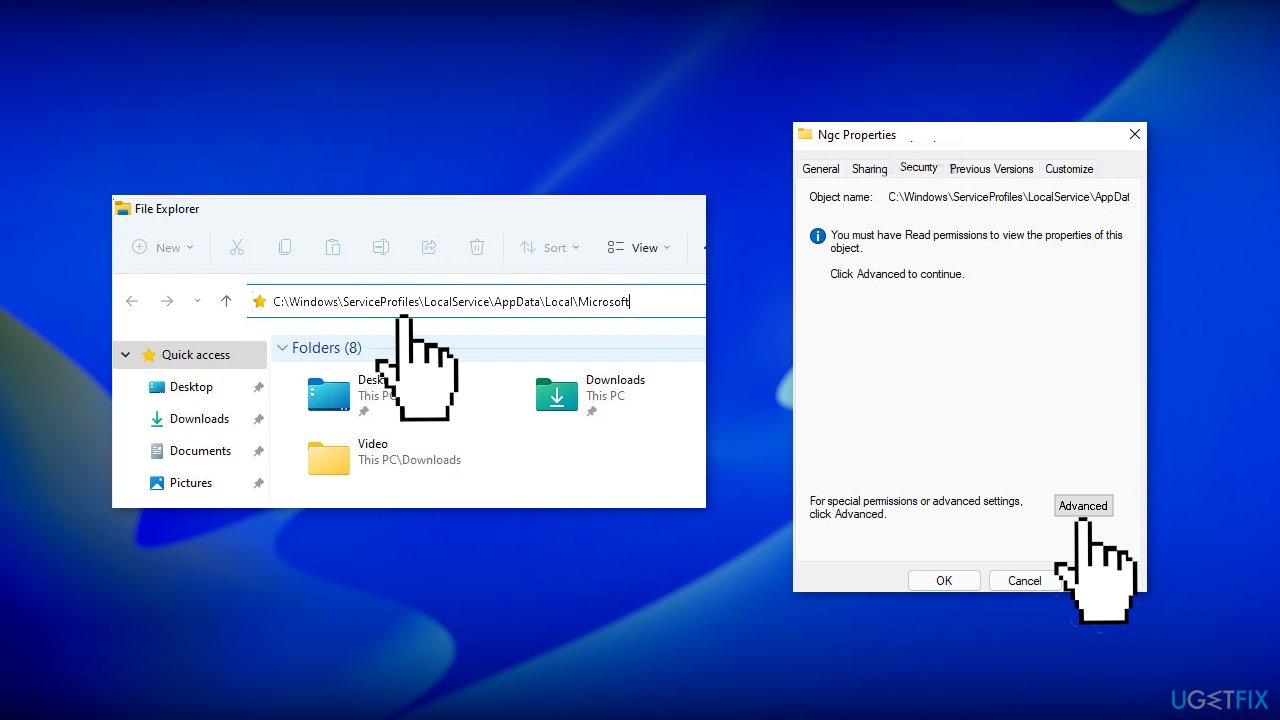
- Open the Ngc folder
- Select all files and folders inside and delete them
- If you are not allowed to enter the folder, right-click on Ngc and choose Properties
- Click on the Security tab then on the bottom left click on Advanced
- Click on Change next to the Owner Section
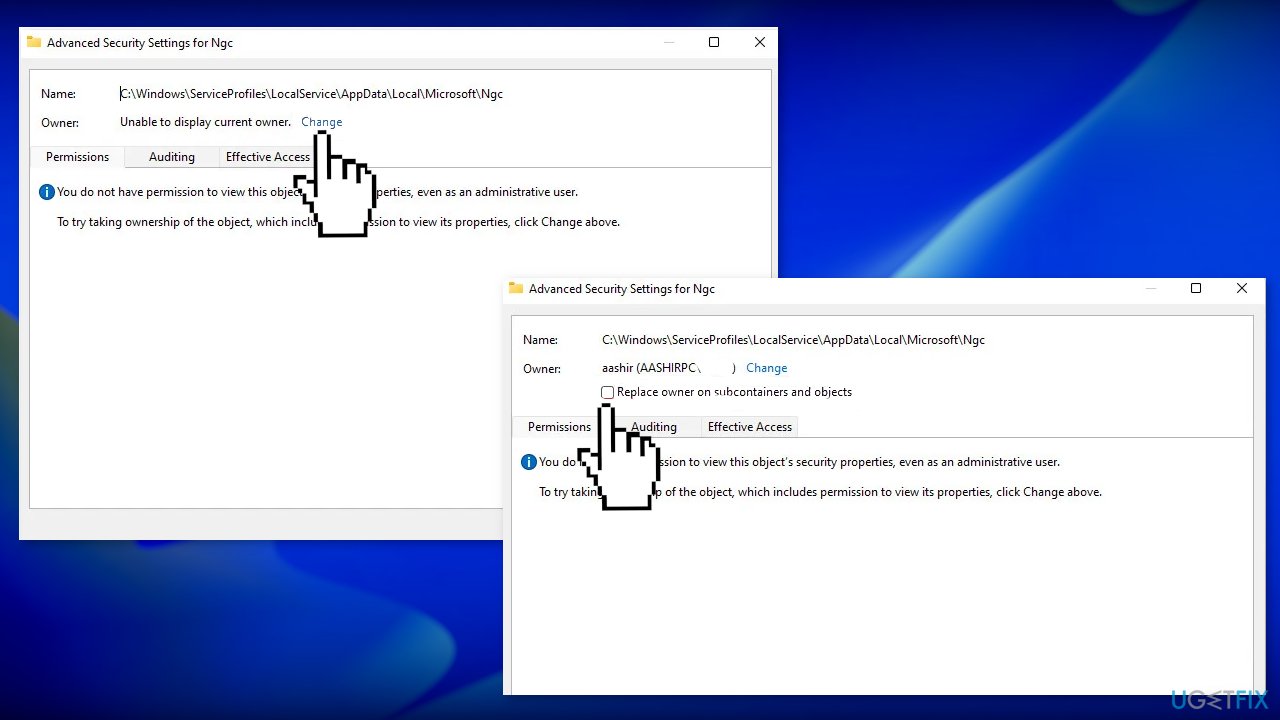
- Type the user name of your account that has admin privileges in the Enter the object name to select enter field
- Click on Check Names, choose your account name and press ok
- Under Owners, check the box next to Replaceowneronsubcontainersandobjects
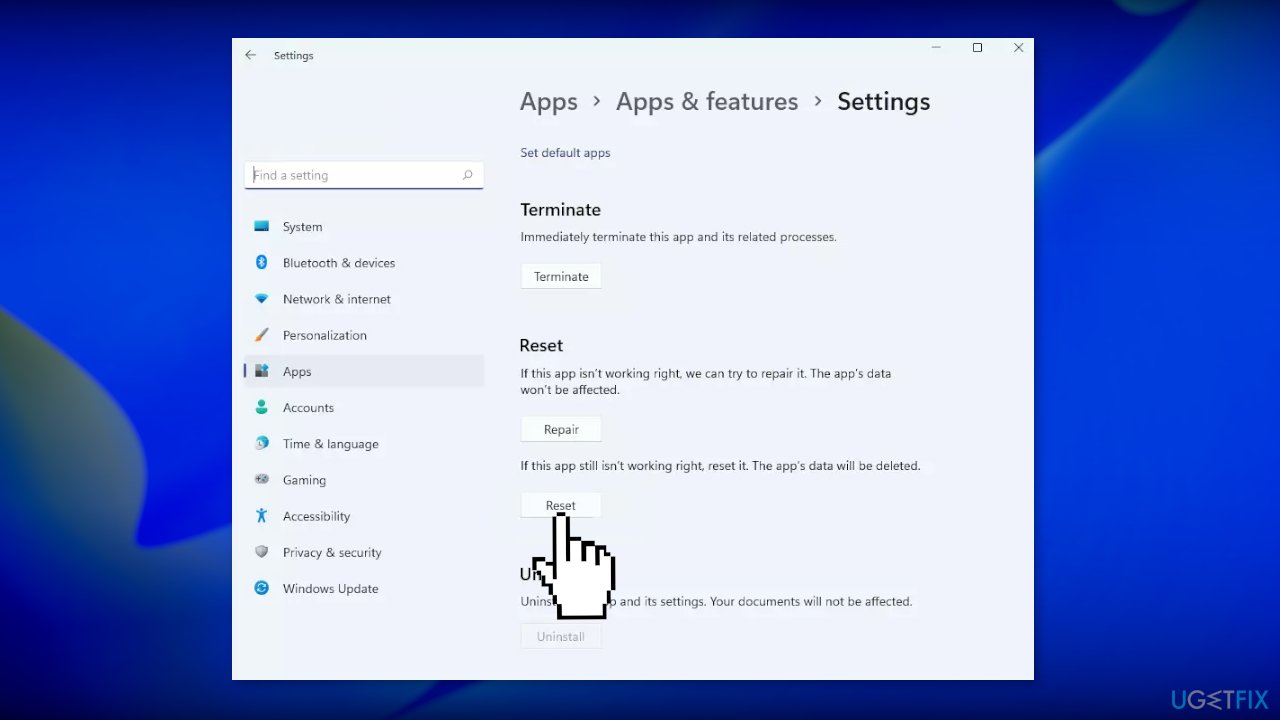
Method 4. Reset the Settings app
- Open the Start menu and search for Settings
- Select App settings from the right side of the Start menu
- Click on the Reset button
Method 5. Reset your PC
If none of the above methods fixed the issue for you, you can try resetting Windows:
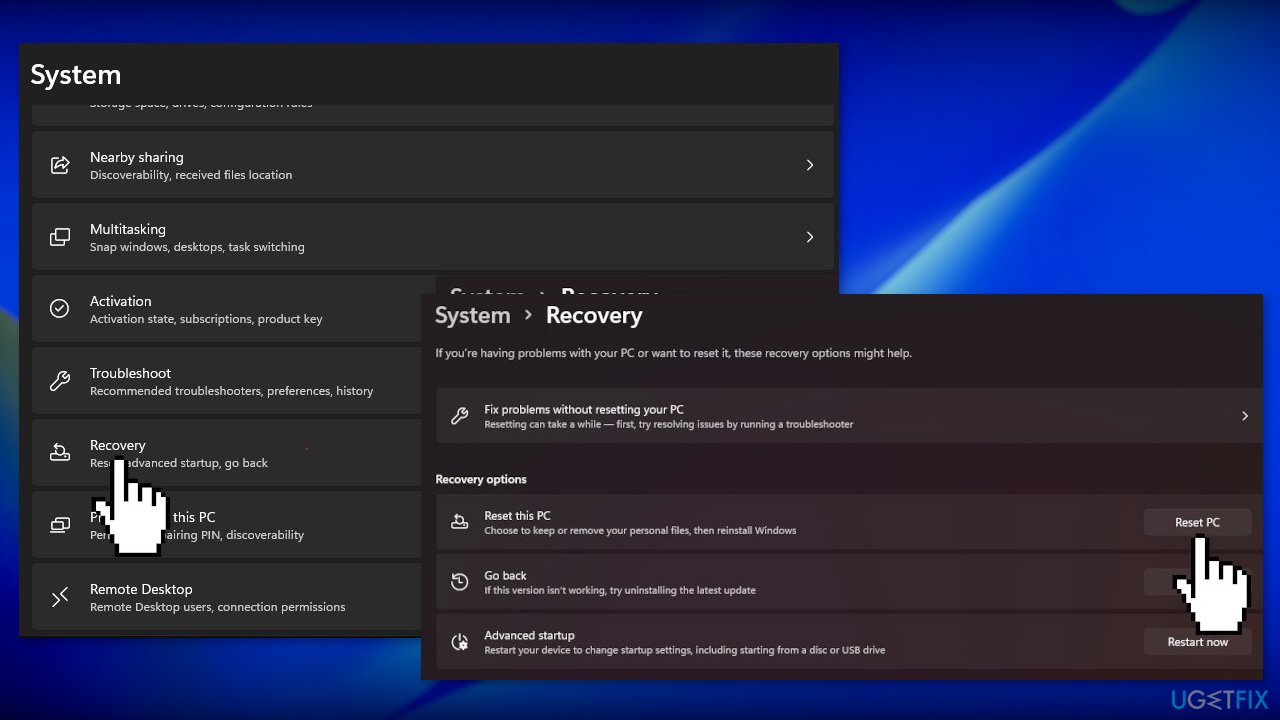
- Choose the Start button located on the Taskbar and click on Settings
- Select System and click on Recovery
- Hit the Reset PC button
- Click on Keep my files if you don’t want to lose them
- Click Next, then Reset, and Windows 11 will start the reinstallation process
Bottom line
To resolve the issue of Windows Hello repeatedly asking to set up a PIN, you can try dismissing the message in Windows Security, signing in with a local account, or clearing the Ngc folder. If these steps do not work, consider using a maintenance tool to fix underlying system errors.
Frequently asked questions
This issue may occur due to misconfigured settings or corrupted system files affecting the Windows Hello feature. Ensuring that your device is fully updated and resetting the Windows Hello settings can often resolve the problem.
To reset Windows Hello settings, go to Settings > Accounts > Sign-in options and remove your existing PIN, then restart your device and set up Windows Hello again. This can help clear any glitches causing the repeated prompt.
Yes, ensure that your Windows 11 is updated to the latest version by going to Settings > Windows Update and checking for updates. Sometimes, updates include fixes for known issues with Windows Hello.




Report an issue
What's wrong with this guide? We review every report and update or remove content.
Report received — thank you. We'll review and fix it.
You need a free account to submit a report.
Be the first to comment