How to fix
StartMenuExperienceHost.exe error
on Windows
Resolve the StartMenuExperienceHost.exe error on Windows 10 and 11 quickly. Get expert-tested solutions and regain your smooth user experience!

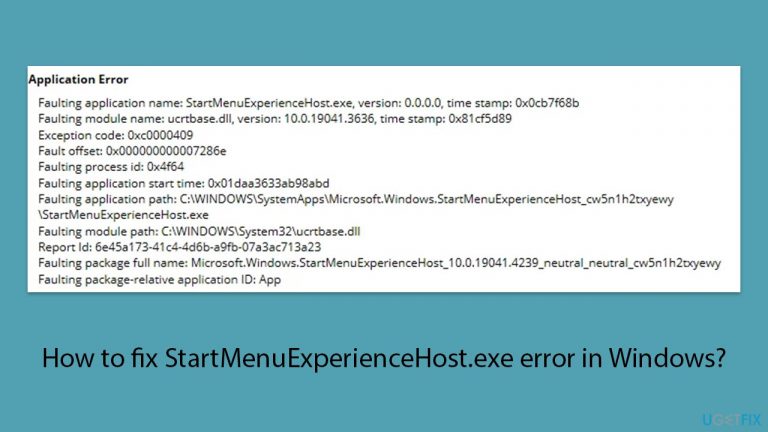
What causes How to fix StartMenuExperienceHost.exe error in Windows?
- Corrupted system files
- Issues with Windows updates
- Malfunctioning DLLs
- Registry issues
- BSODs
Repairs Windows system files, removes malware, and restores a clean OS state — without reinstalling.
Hello. I was hit with an issue where StartMenuExperienceHost.exe keeps on crashing, sometimes when I'm not even using the Start menu. It started after installing Windows updates. What should I do?
Start Menu is a frequently utilized feature in Windows, serving as the central location for users to access files, folders, applications, and more. Due to its importance, any issues with the StartMenuExperienceHost.exe error can significantly impact user experience.
StartMenuExperienceHost.exe plays a critical role in Windows 10 and 11, serving as a dedicated manager for the Start menu separate from the primary shell process. Its primary function is to optimize the stability and effectiveness of the Start menu by separating it from the main shell process, thereby reducing the risk of the entire shell crashing in the event of any Start menu-related issues. It functions as an independent process that can be restarted without causing disruption to other Windows components when needed.
In the Event Viewer, it is shown as a Critical event and the faulting package is shown as KERNELBASE.dll (although this may vary depending on individual situation). Applications rely on DLLs[ref en-1] to work properly, so when they malfunction, users can experience issues with one or multiple apps. It is unknown why exactly StartMenuExperienceHost.exe won't run or start but in this guide, you will find 7 steps that can help you solve the problem.
Manual troubleshooting can be a lengthy process, so you can also scan your machine with a maintenance tool [d1] - it can fix various system errors, BSODs,[ref en-2] corrupted files, and registry[ref en-3] issues automatically. If you would rather tackle the error yourself, please follow the instructions below.

Solution 1. Fix Corrupted System Files
Use Command Prompt commands to repair system file corruption:
- Open Command Prompt as administrator.
- Use the following command and press Enter:
sfc /scannow
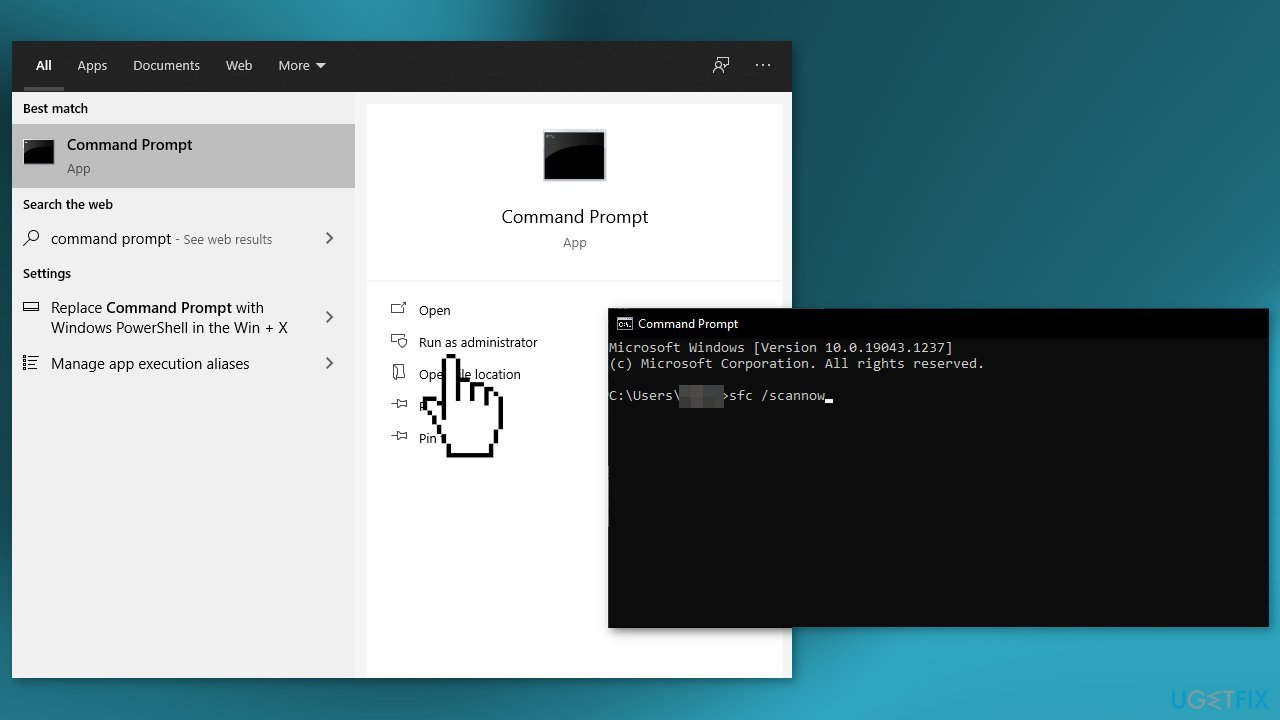
- Reboot your system.
- If SFC returned an error, then use the following command lines, pressing Enter after each:
DISM /Online /Cleanup-Image /CheckHealth
DISM /Online /Cleanup-Image /ScanHealth
DISM /Online /Cleanup-Image /RestoreHealth
Solution 2. Install Windows Updates
- Type Updates in Windows search.
- Click Check for updates and wait till the process is finished.
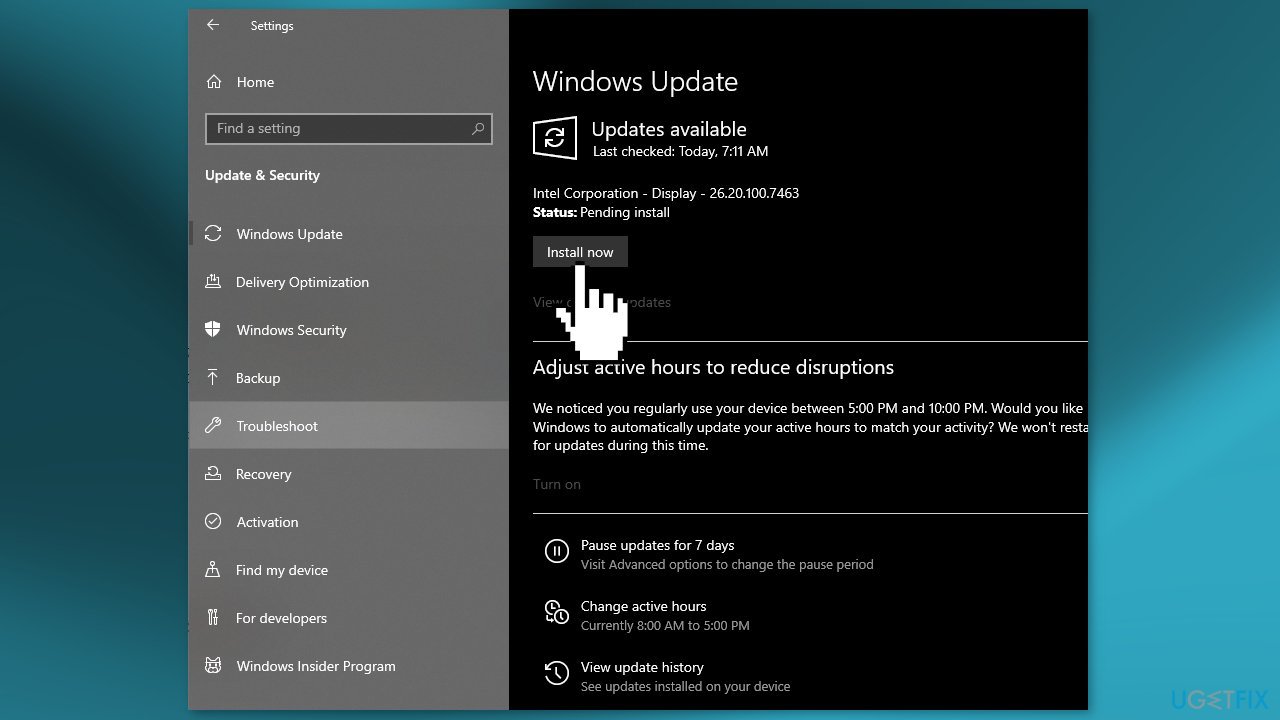
- If optional updates are available, install them too
- Once done, restart your system
Solution 3. Re-register the Start Menu
- Press Ctrl + Shift + Esc to open Task Manager.
- Select File and then Run new task.
- In the Open field, type PowerShell, check Create this task with administrative privileges, and click OK.
- Paste the following command and press Enter:
Get-AppxPackage -AllUsers Microsoft.Windows.ShellExperienceHost | Foreach {Add-AppxPackage -DisableDevelopmentMode -Register "$($_.InstallLocation)\AppXManifest.xml"}
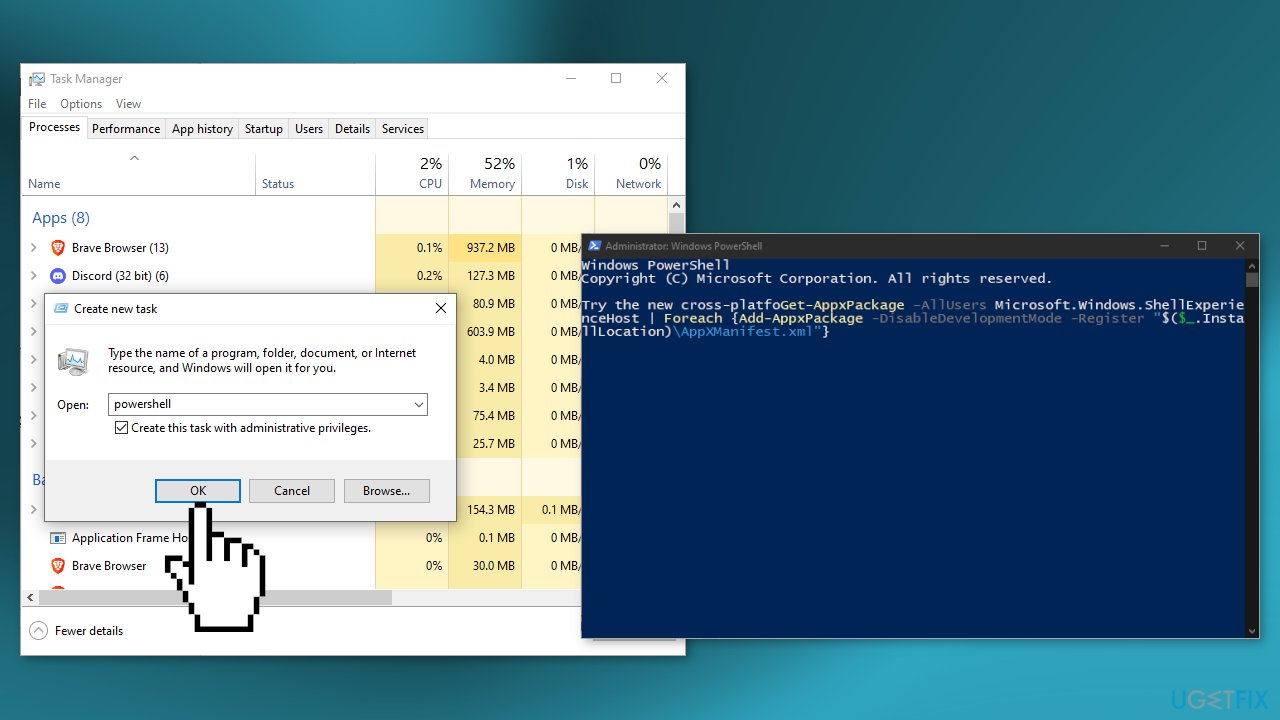
- If you get a red message, you will need to kill the Windows Shell Experience Host process in Task Manager and run the command again.
- Restart the PC.
Solution 4. Modify Registry Keys
- Open the Registry Editor.
- Go to the users HKU hive.
HKEY_CURRENT_USER\Software\Microsoft\Windows\CurrentVersion\Explorer\User Shell Folders
- Right-click on the User Shell Folders key.
- Select Permissions.
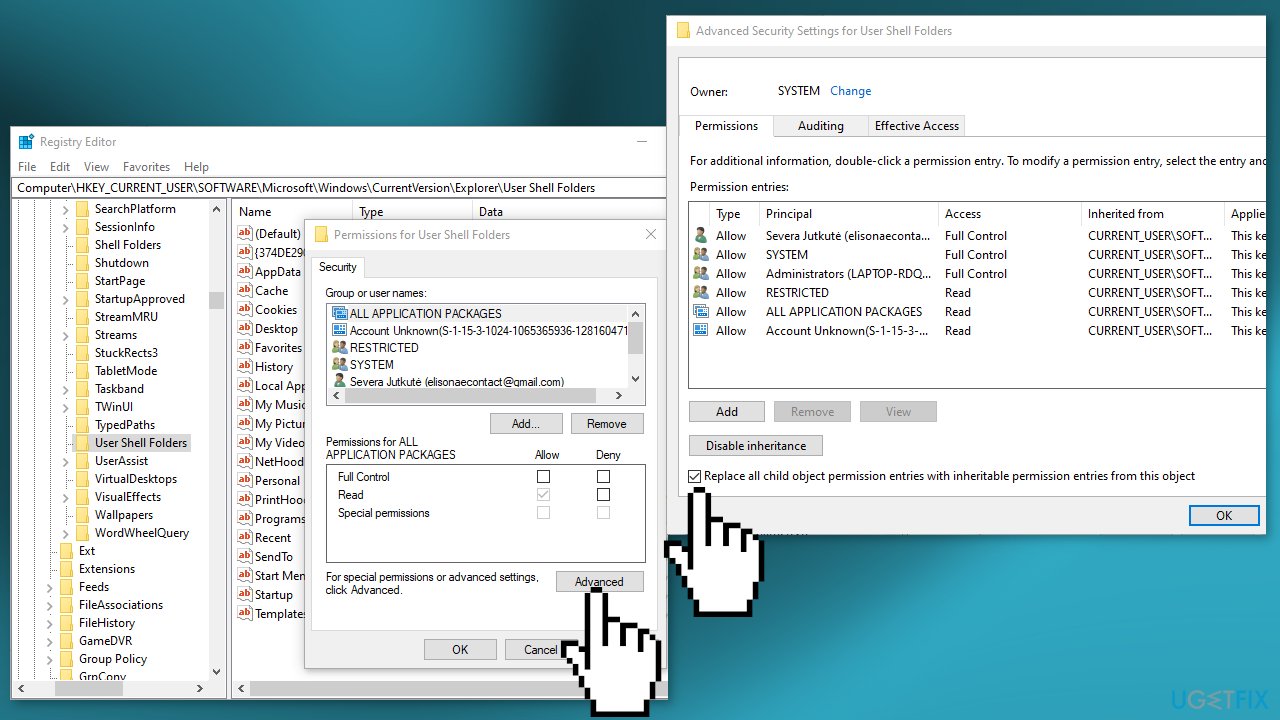
- Click the Advanced button.
- Check the Replace all child object permission entries with inheritable permission entries from this object.
- Click on Enable inheritance.
- Click OK.
- Restart the PC.
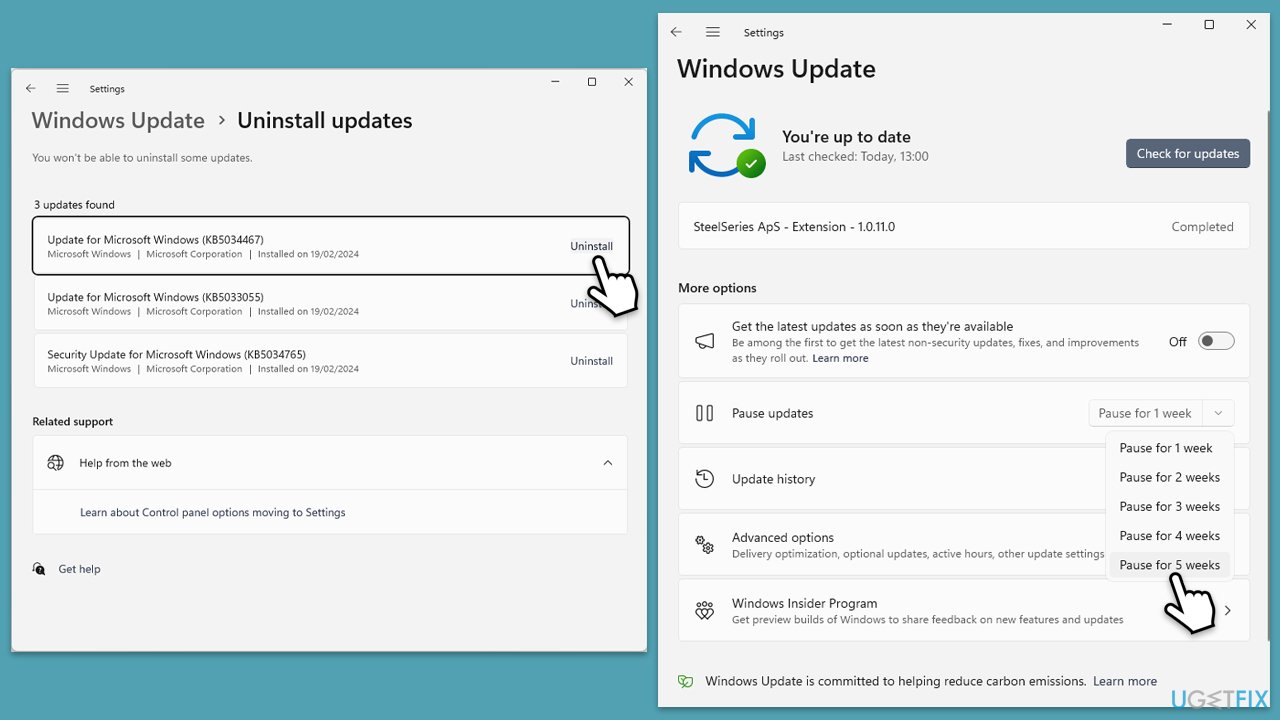
Solution 5. Uninstall the most recent update
Some users said that their problems with the Start menu started after installing the most recent Windows updates (for example, KB5039211, KB5035942, or KB5037849) - they managed to get rid of the error by uninstalling them.
- Type Control Panel in Windows search and press Enter.
- Select Programs > Uninstall a program.
- Click on View installed updates on the left side of the window.
- Uninstall the most recent update.
- Proceed with on-screen instructions.
- Don't forget to pause the update.
Solution 6. Run System Restore
- Go to the Start menu, type
restore, and click on Create a restore point. - Click System Restore, then follow the prompts until you can select a restore point.
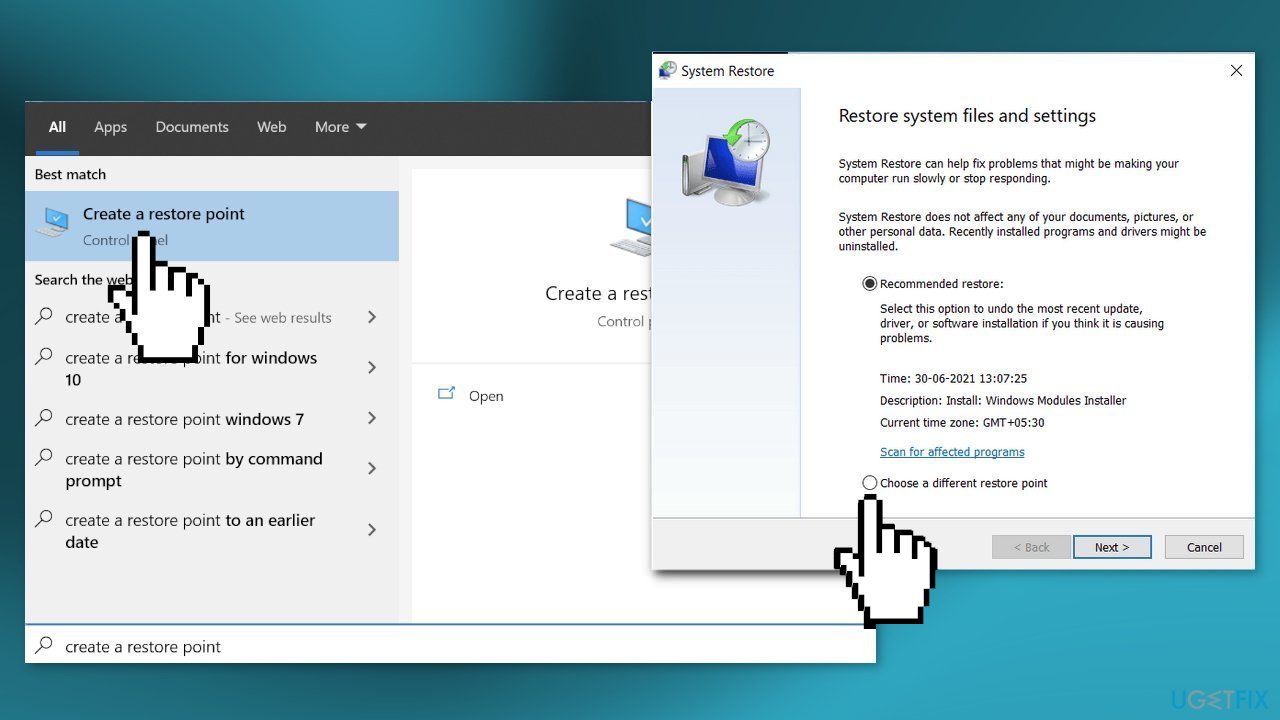
- Select the one you want (ideally before the StartMenuExperienceHost.exe error appeared) and go ahead with the process.
Solution 7. Perform in-place upgrade
If none of the solutions above worked, you can perform repair-install of Windows. Make sure you uninstall third-party security software before proceeding with this step.
- Visit the official Microsoft website and download Windows 10 installation media (Windows 11 version).
- Double-click the installer and select Yes when UAC shows up.
- Agree to the terms and click Next.
- Select Upgrade this PC now and select Next.
- Windows will now download all the necessary files, which might take some time.
- Agree to the terms once again and click Next.
- Before installing, ensure you are happy with your choices (otherwise, you can click Change what to keep option).
- Click Install to begin the upgrade process.
- Your computer will restart as required.

Bottom line
To fix the StartMenuExperienceHost.exe error, you can repair corrupted system files using Command Prompt, install the latest Windows updates, or use a maintenance tool to address various system errors. If these solutions do not resolve the issue, consider seeking further assistance or exploring additional troubleshooting methods.
Frequently asked questions
The StartMenuExperienceHost.exe error is often caused by corrupted system files, issues with Windows updates, or conflicts with third-party applications.
You can try resetting the Windows Explorer process or using the System File Checker tool by running 'sfc /scannow' in Command Prompt to repair corrupted files.
Disabling StartMenuExperienceHost.exe is not recommended as it may affect your Start menu functionality; instead, focus on troubleshooting the errors associated with it.




Report an issue
What's wrong with this guide? We review every report and update or remove content.
Report received — thank you. We'll review and fix it.
You need a free account to submit a report.
Be the first to comment