How to fix
Fix: Windows 10/11 Product Key Not Working
on Windows
Resolve your Windows 10/11 product key issues quickly and efficiently. Get back to work with expert-tested solutions and zero traces left.

What causes Fix: Windows 10/11 Product Key Not Working?
- Incorrect key
- Hardware changes
- Connection issues
- Corrupted files
- Use of untrustworthy websites
Repairs Windows system files, removes malware, and restores a clean OS state — without reinstalling.
Hello. I tried to activate Windows but the product key is not working. What could be the issue?
In Windows, a product key[ref en-1] is what activates the operating system. If the product key is not working, people cannot activate it and use all the features. When Windows is not activated, users cannot change the wallpaper, lock screen background, and use other customizations. Taskbar settings are also inaccessible.
When some people try to activate Windows, they are met with an error. We previously wrote about many activation errors, like 0x8007232B, 0x87e107f9, 0XC004F009, etc. If you tried to activate your Windows 10 or Windows 11 computer and it has not worked, it does not mean that the key is no longer valid.
There are many possibilities why the product key may not activate the OS, like an incorrect key, hardware changes, connection issues, and corrupted files. There are also shady websites that supposedly offer legitimate product keys for a smaller price but they cannot be trusted. Hence, why it is best to always use official sources.
In this guide, you will find 9 steps that could help you fix the product key not working issue in Windows 10/11. However, manual troubleshooting can become a lengthy process. You can try using a maintenance tool like [d1] that can fix various system errors, BSODs,[ref en-2] corrupted files, and registry[ref en-3] issues. Otherwise, follow the step-by-step instructions below carefully.
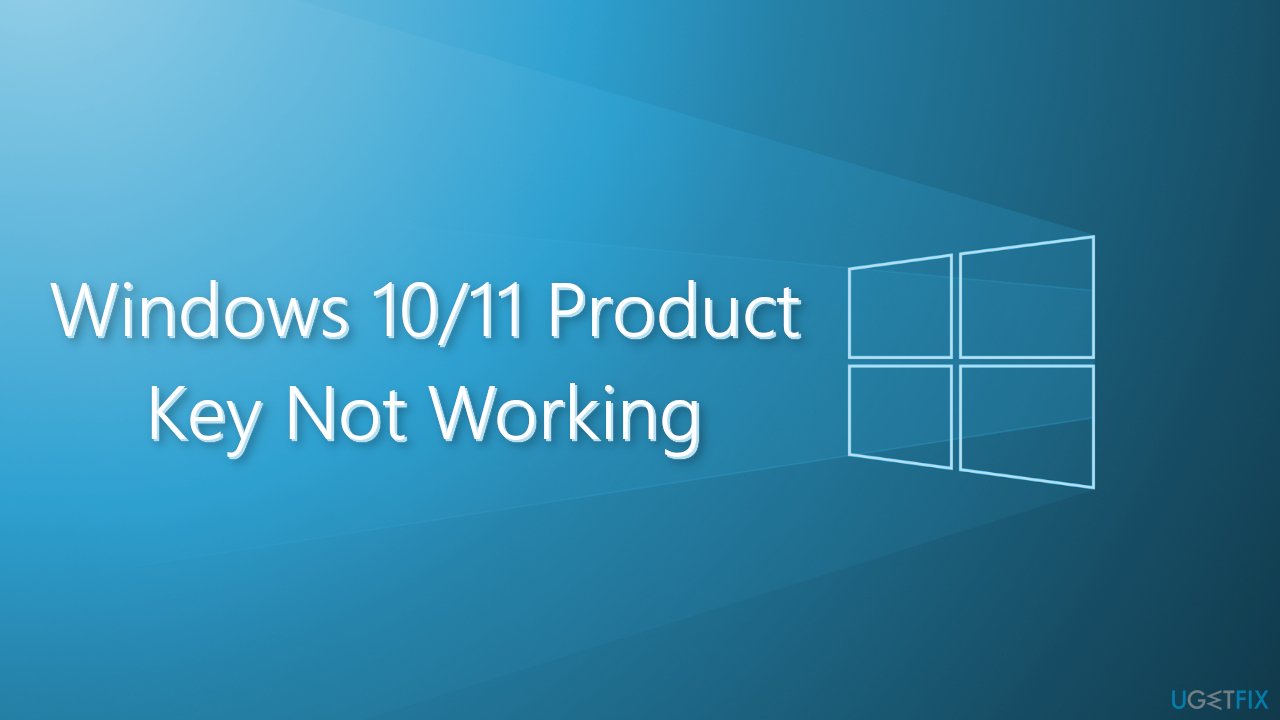
Check the Windows Activation State
- Press Windows + I to launch the Settings app, and click on Activation
- Check if the Activation state says Active. If that’s the case, Windows is already activated
- In case Windows is not activated, and you still encounter the error, proceed with the methods provided below
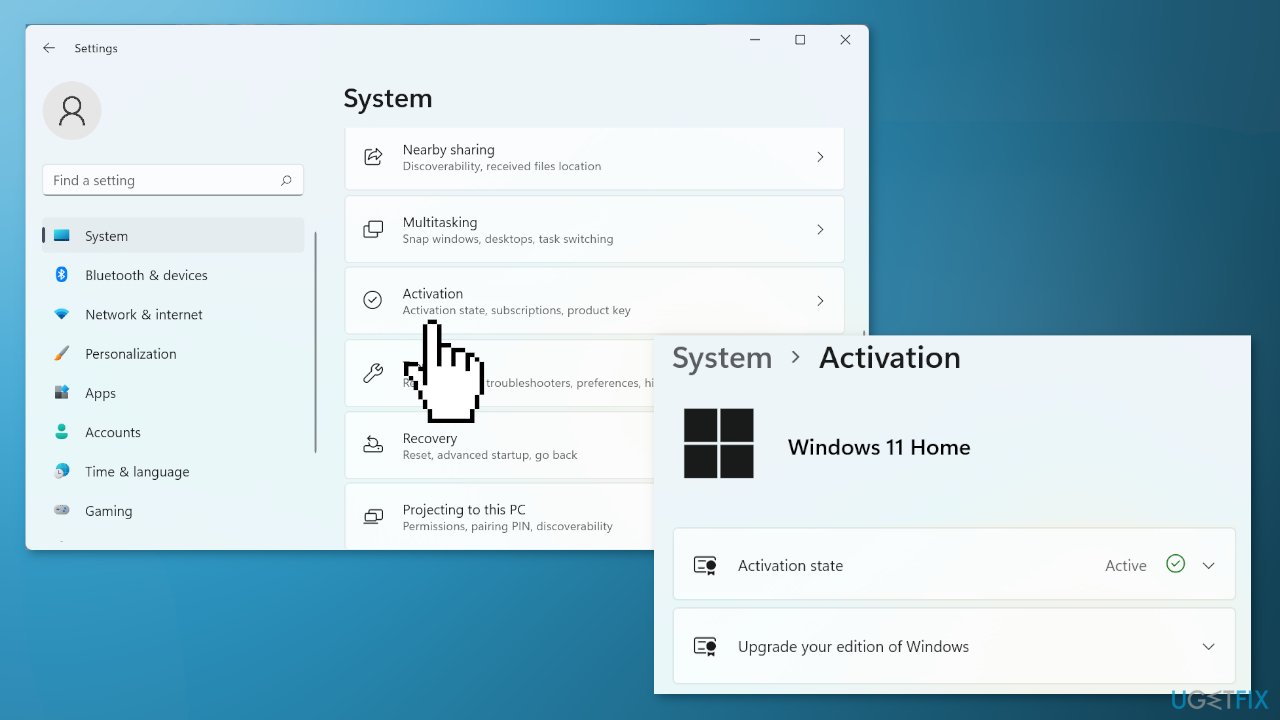
Solution 1. Repair Corrupted System Files
Use Command Prompt commands to repair system file corruption:
- Open Command Prompt as administrator
- Use the following command and press Enter:
sfc /scannow
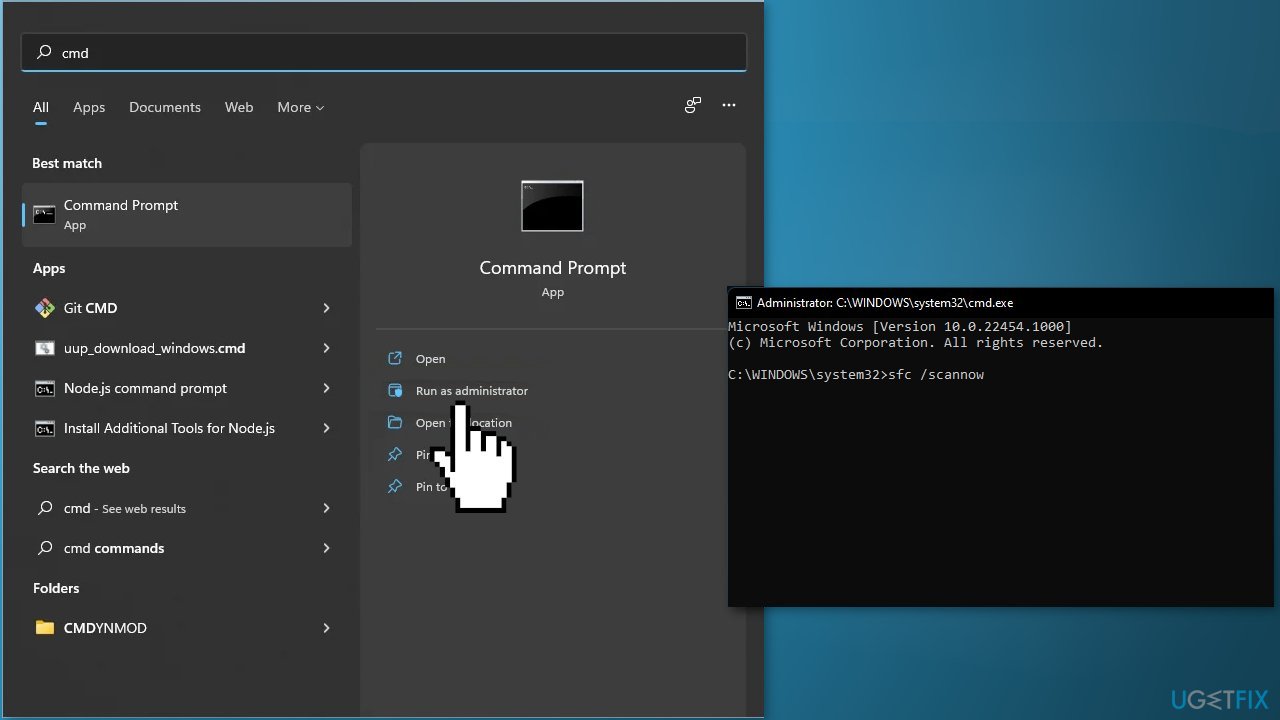
- Reboot your system
- If SFC returned an error, then use the following command lines, pressing Enter after each:
DISM /Online /Cleanup-Image /CheckHealth
DISM /Online /Cleanup-Image /ScanHealth
DISM /Online /Cleanup-Image /RestoreHealth
Solution 2. Check your Internet Connection
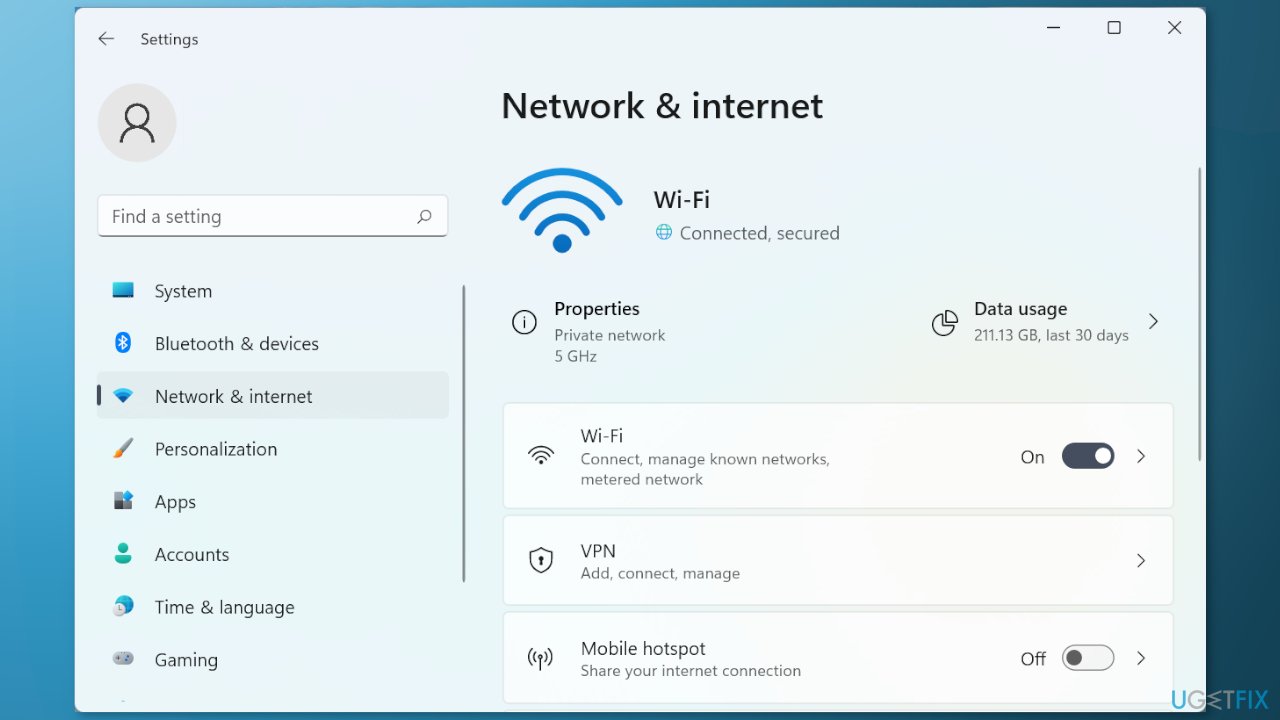
A stable Internet connection is necessary in order to activate Windows 10 or 11. Go to your Network & internet and ensure that you are connected to the Wi-Fi or connected to the Internet through an Ethernet cable.
Solution 3. Run the Activation Troubleshooter
- Launch the Settings app
- Go to Updates and Security and click Activation
- If you keep seeing the error, you should see the Troubleshoot button
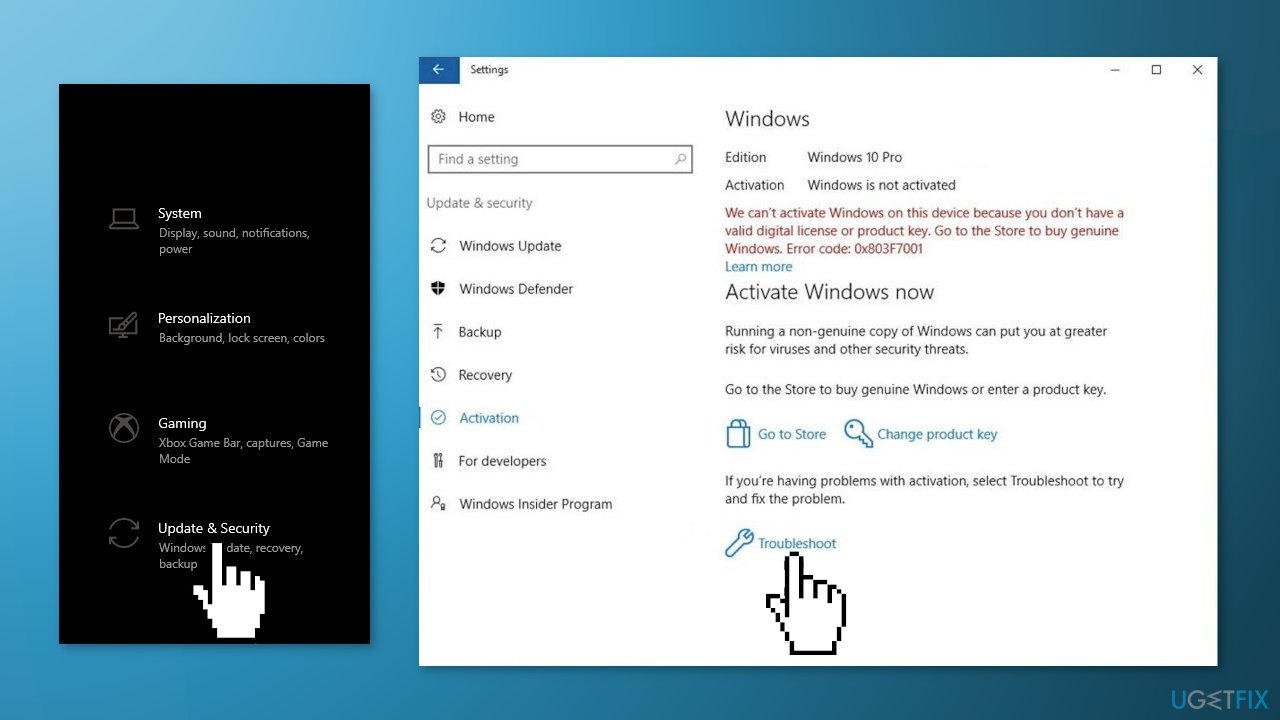
- If any problems are found, follow the instructions to fix it
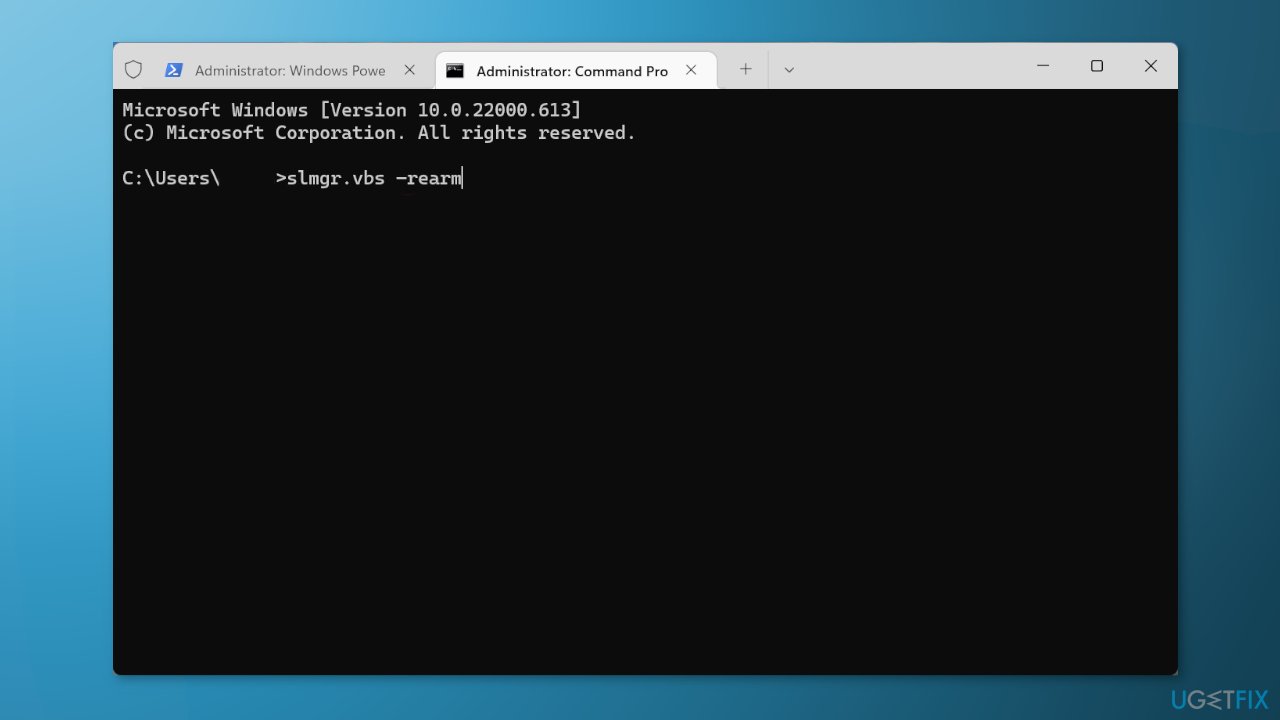
Solution 4. Reset the License
- Open Command Prompt as an Administrator
- Paste the following command and hit Enter:
slmgr.vbs –rearm
- Restart the computer
Solution 5. Use the Command Prompt to Activate Windows
- Take note of your MAK key
- Press the Windows key and type cmd into the search field
- Run the Command Prompt as Administrator
- Type in vbs -ipk <your product key> command and hit Enter
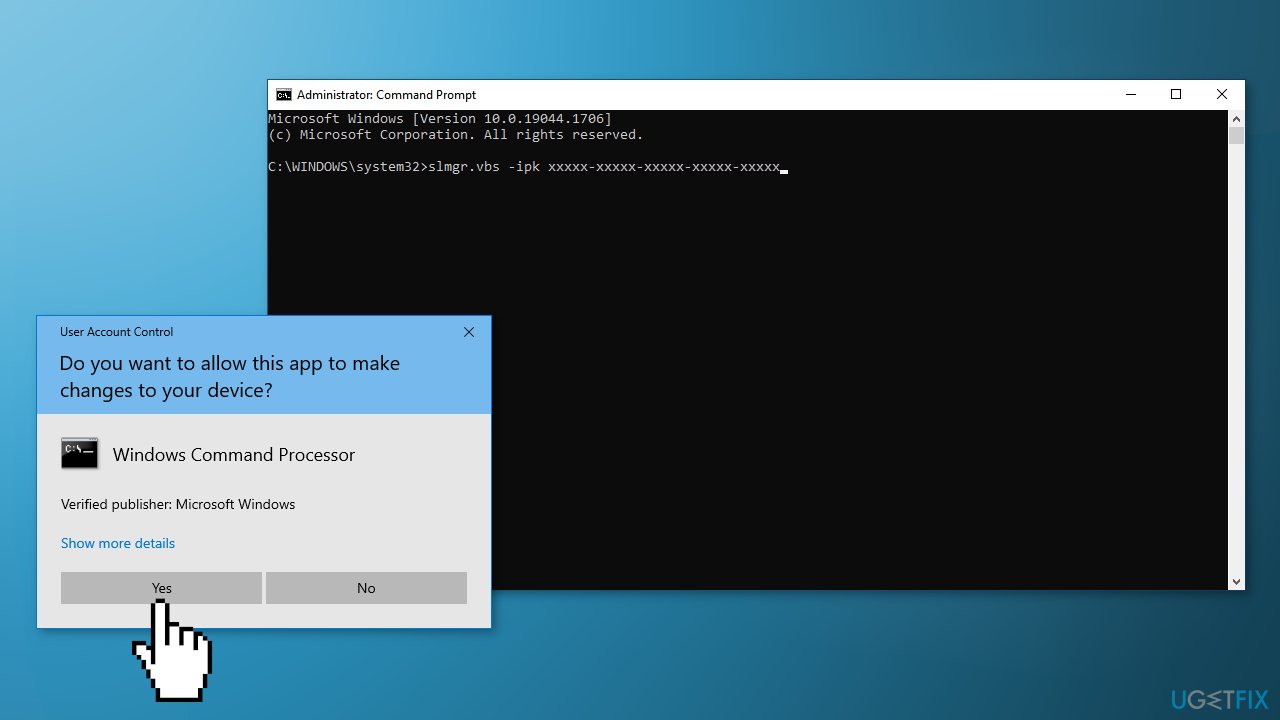
- Wait as Windows is being installed
- After that, input this command: vbs -ato and hit Enter to proceed
- Close the Command Prompt and restart your computer
Solution 6. Use Phone Activation
- Press the Windows + R keys to launch the Run prompt
- Type in ms-settings:activation and press OK
- If you do not see a Phone Activation option, press the Windows + R keys to open the Run box again and type SLUI 4
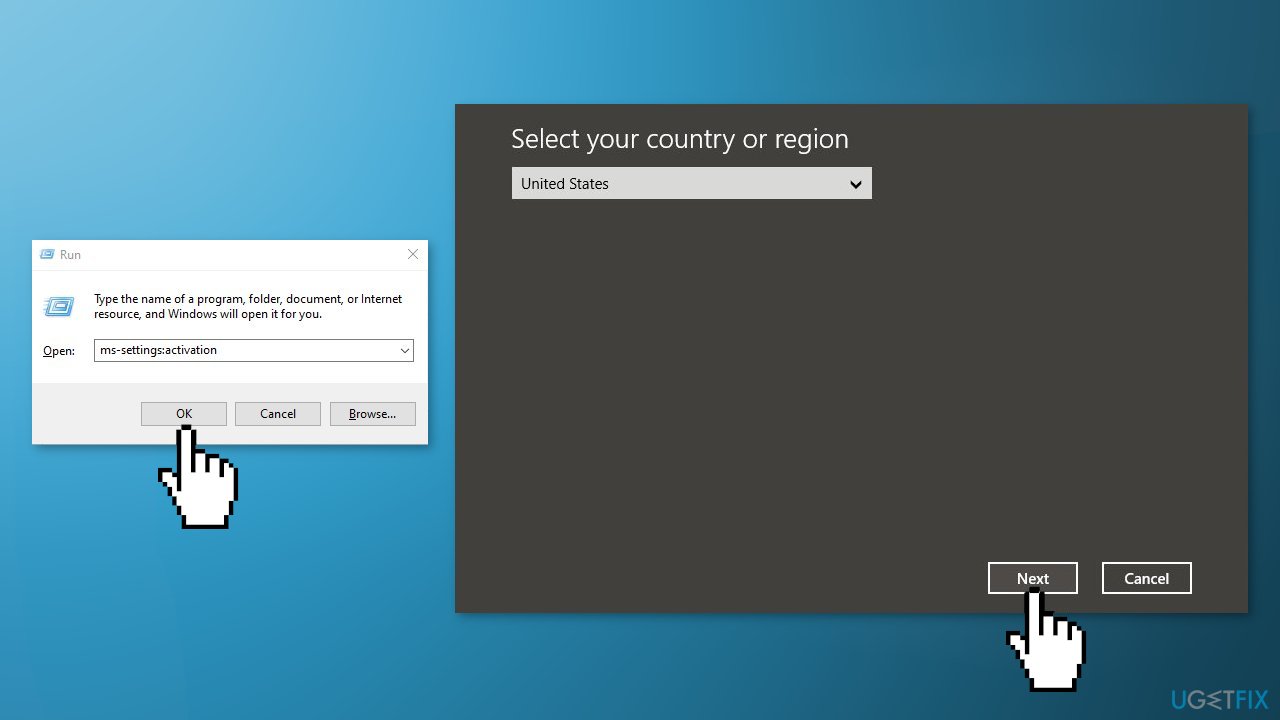
- Select your Country and press on Phone Activation
- Call the provided number
Solution 7. Increase the Grace Period
If you purchased a MAK key from a retailer but you failed to activate it immediately, then you may encounter an activation error. MAK keys are not reusable, so the number of times you can use them is limited. You can reset the activation period four times, so if you have already used the key four times, you may have to get a new license key. Try to extend the grace period to activate the license key:
- Press the Windows + R keys to launch the Run box
- Type in regedit and hit Ctrl + Shift + Enter
- When prompted by the UAC, hit the Yes button to grant admin privilege
- Inside the Registry Editor, navigate to this key:
HKEY_LOCAL_MACHINE\SOFTWARE\Microsoft\Windows\CurrentVersion\Setup\OOBE\mediabootinstall
- Double-click on mediabootinstall
- While in the Edit menu, set the base value to Hexadecimal and then change the value to 0
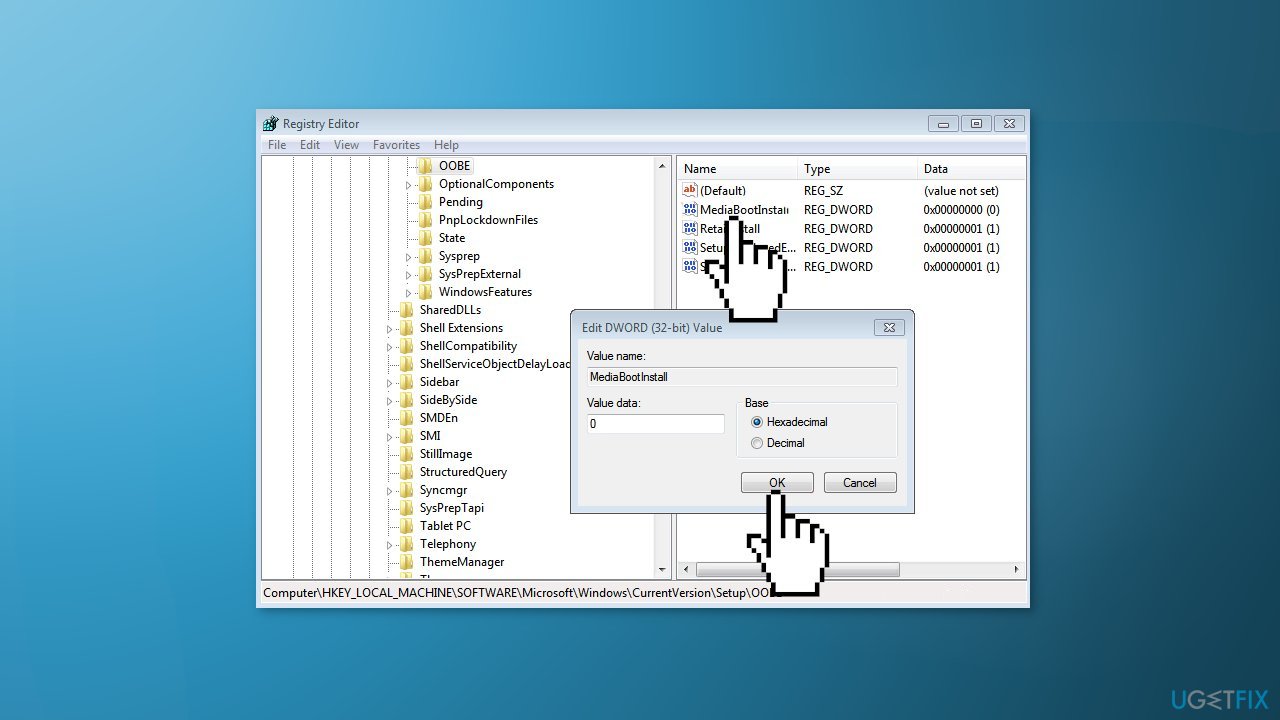
- Hit OK to save the changes
- Restart your computer
- Press the Windows + R keys to launch the Run dialog box again
- Type in cmd and hit the Ctrl + Shift + Enter keys
- When prompted by the UAC, hit the Yes button
- Type in slmgr -rearm command and hit Enter
- Restart your computer again
- Repeat the activation process
Solution 8. Use a Default Product Key
You can try to use a default activation key. This is a generic key provided by Microsoft to resolve common activation errors. If you use it, Windows will activate temporarily. This is a temporary solution as you will need to replace it with a genuine key later on.
- Press Windows + I keys to open the Windows Settings
- Select the Update & Security option and then click on the Activation tab
- Under the Update Product key section, click on the Change product key
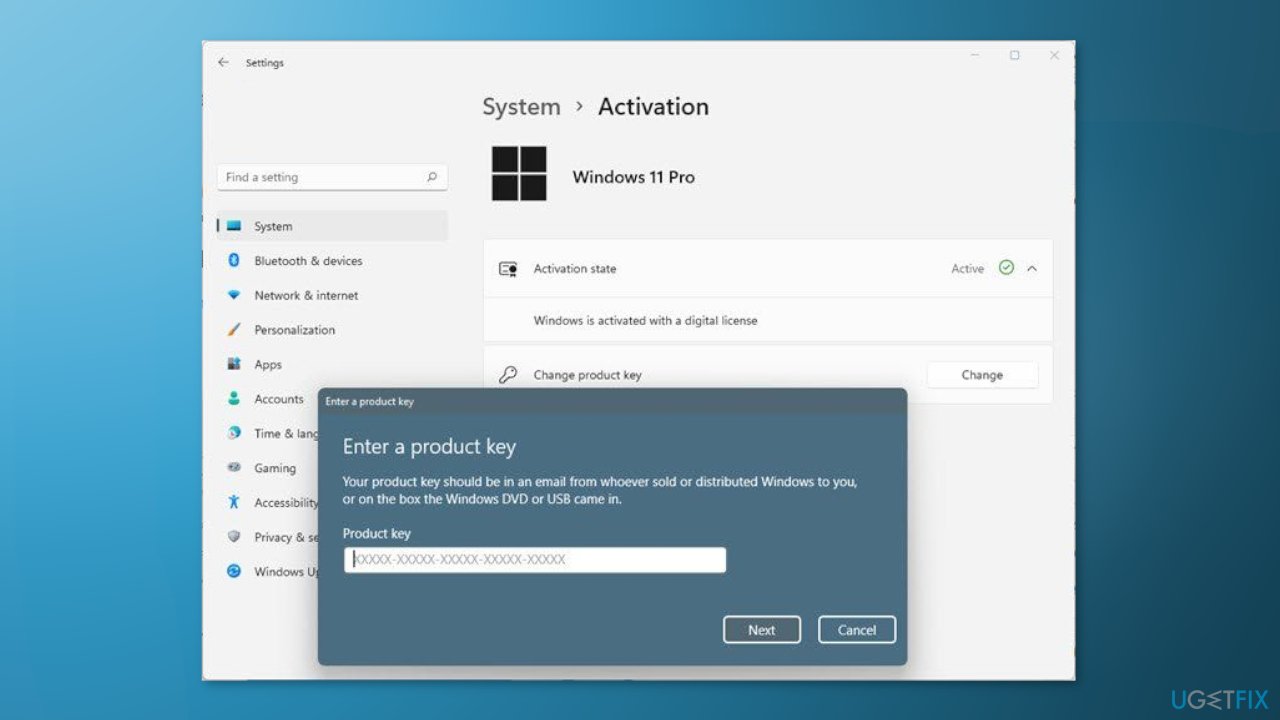
- Find a default license key according to the Windows version installed on your device on the Microsoft website
- After successful activation of the operating system, restart your computer
Solution 9. Contact Microsoft Support
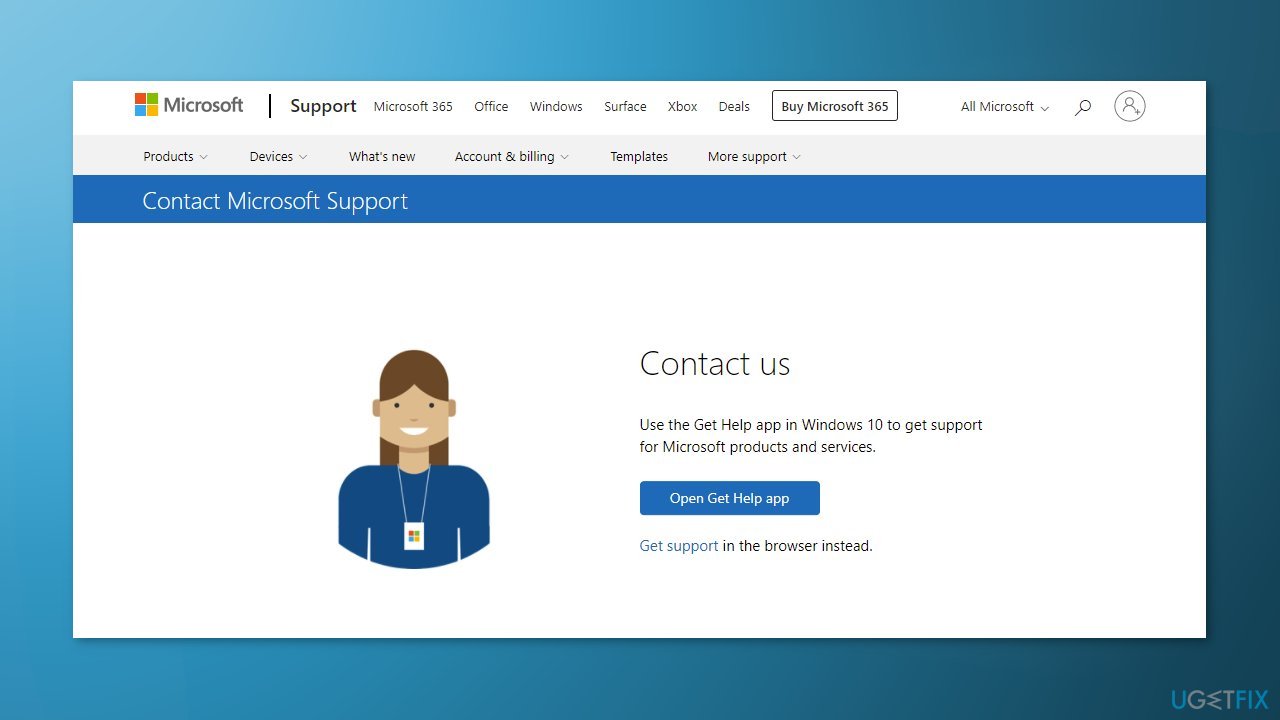
If none of the above methods have helped you in resolving the Windows activation process failing, you might have a serious issue with restrictions and activation servers. A support agent from Microsoft might help you find the reason and remotely fix the problem for you. Try to contact Microsoft support via the official contact page.
Bottom line
To fix the product key not working issue, you can check the Windows activation state and repair corrupted system files using Command Prompt commands. If these methods do not resolve the issue, consider using a maintenance tool or seeking further assistance.
Frequently asked questions
First, ensure that you are entering the product key correctly, as typos can cause activation issues. If the key is still not working, try running the Activation Troubleshooter found in the Settings under Update & Security.
Yes, you can use a valid Windows 10 product key to activate Windows 11, provided the key has not been used on another device. Just enter the key during the activation process in Windows 11.
Common reasons include using an invalid or already used product key, hardware changes that affect activation, or issues with Microsoft’s activation servers. Ensure that your Windows version matches the product key type as well.




Report an issue
What's wrong with this guide? We review every report and update or remove content.
Report received — thank you. We'll review and fix it.
You need a free account to submit a report.
Be the first to comment