How to fix
Windows update error 0x80004002
on Windows
Resolve Windows update error 0x80004002 quickly and efficiently. Get back to smooth updates on Windows 10 and 11 with expert-tested solutions.


What causes How to fix Windows update error 0x80004002?
- Unstable internet connection
- General bugs
- Server issues
- Installation errors during update process
- Configuration settings requiring manual update initiation
Repairs Windows system files, removes malware, and restores a clean OS state — without reinstalling.
Hello, I have been trying to install the newest updates for my Windows machine for months now to no avail - I keep getting the 0x80004002 error instead. It has kept telling me to wait or contact support for several weeks now, so I'm looking for help with this one. All the tips are appreciated.
Windows updates are critical, as they always bring intriguing new features, fix serious and minor bugs,[ref en-1] enhance performance, patch software flaws,[ref en-3] and so on. As a result, it's critical to maintain the most up-to-date version of Windows at all times; however, installation errors such as 0x80004002 might prevent you from doing so.
Usually, Microsoft ships its updates monthly in a process commonly referred to as Patch Tuesday.[ref en-2] These are usually installed automatically, although, depending on user configuration, people might have to initiate the process manually via the settings menu or other methods.
During this time, Microsoft's servers are contacted via the internet connection, where the newest patch files are downloaded, and then the update is installed. If at any time during this process something goes wrong, this procedure will fail with an error code. Usually, problems like that are caused by unstable internet connection, general bugs, or server issues and are resolved automatically within a day or two - that's not a big deal, and users aren't concerned about that.
However, a 0x80004002 error code might repeatedly occur, with users being stranded from the newest security patches, stability improvements, and new features, which might be quite infuriating. Luckily, in the vast majority of cases, such situations can be resolved with the help of a bit of troubleshooting or with automatic tools like [d1], so we highly recommend trying it before proceeding with the manual steps below.
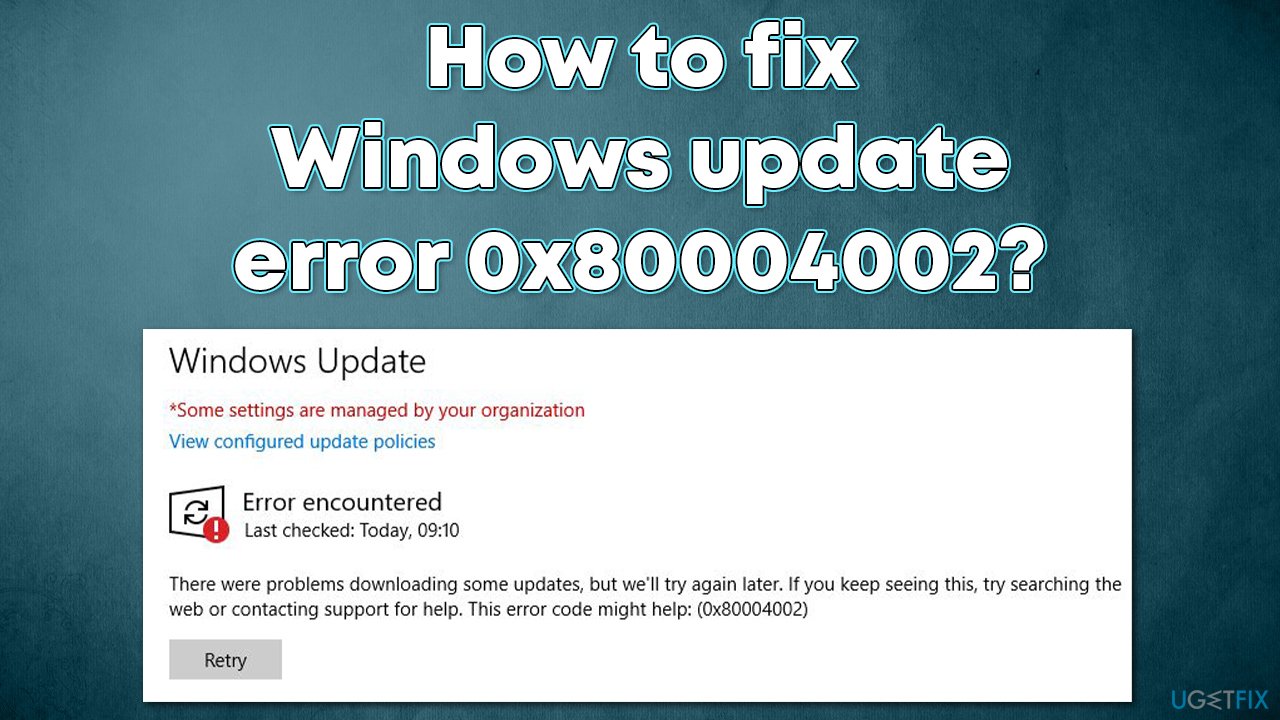
Windows update errors are extremely common, and we have already helped thousands of users to resolve errors like 0x80070032, 0x80070643, 0x800f8001, and others. In this particular case, 0x80004002 tends to be more prevalent on Windows 10 machines, although other operating system versions could also be affected.
It is also important to note that the error code may be encountered when dealing with Windows backup, although we are not going to look into this issue today and focus on cases where users encounter it during the update process.
Solution 1. Repair damaged system files
System file corruption is an extremely common cause of Windows update errors, so we recommend starting by making sure that system files aren't damaged.
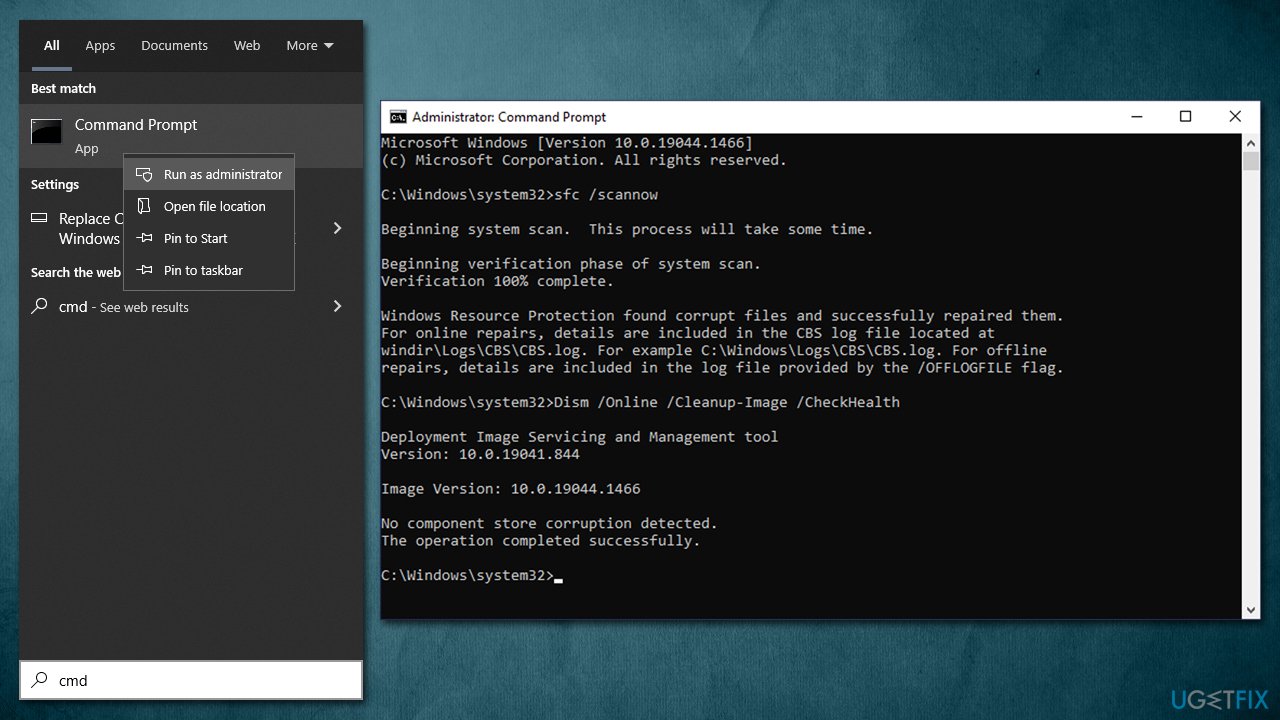
- Type cmd in Windows search
- Right-click on Command Prompt and select Run as administrator
- When the User Account Control window pops up, click Yes
- Use the following command and press Enter:
sfc /scannow - After the SFC scan is complete, use the following commands, pressing Enter after each:
DISM /Online /Cleanup-Image /CheckHealth
DISM /Online /Cleanup-Image /ScanHealth
DISM /Online /Cleanup-Image /RestoreHealth - Restart your device.
Solution 2. Reset Windows Update components
- Open Command Prompt (Admin) as explained above
- Copy and paste the following commands, pressing Enter each time:
net stop wuauserv
net stop cryptSvc
net stop bits
net stop msiserver - Press Win + E to open File Explorer
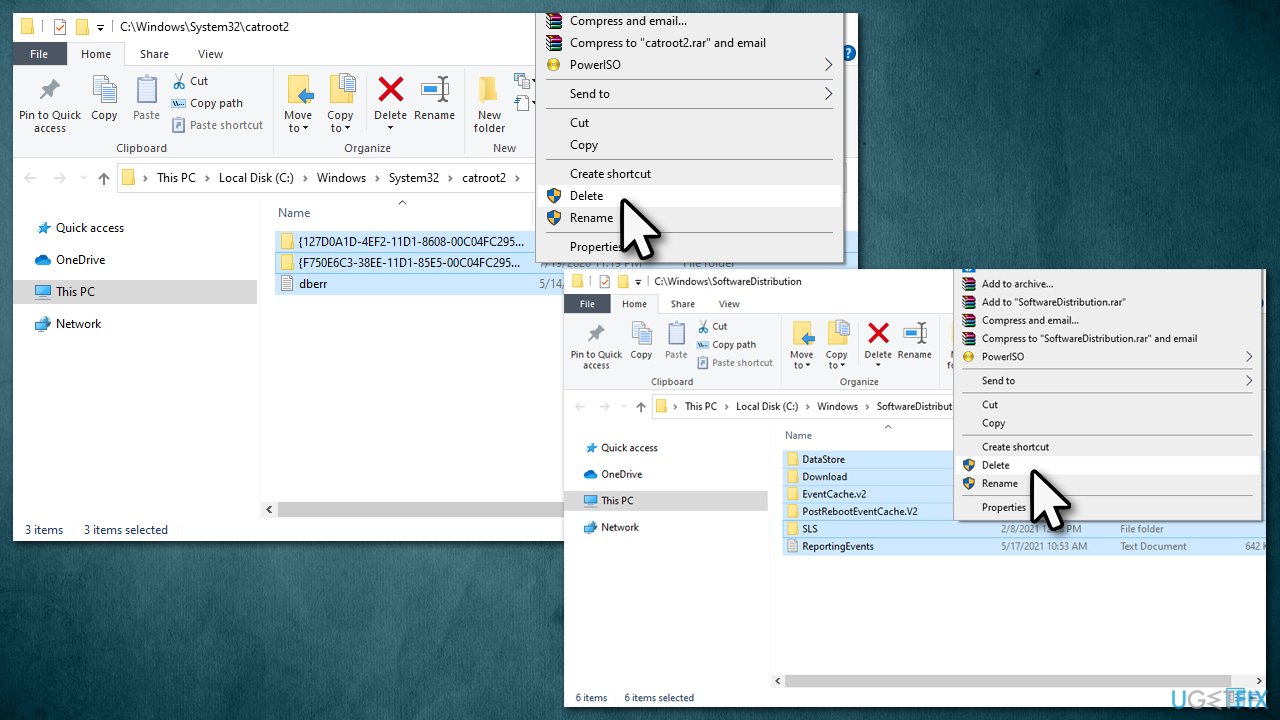
- Go to the following directories and delete the contents of these folders:
C:\Windows\System32\catroot2
C:\Windows\SoftwareDistribution
- Open Command Prompt again and paste these command lines:
net start wuauserv
net start cryptSvc
net start bits
net start msiserver - Restart your PC.
Solution 3. Run the troubleshooter
While this solution is one of the most obvious ones, people tend to forget about it a lot, and it's definitely useful when trying to solve various computer issues on Windows.
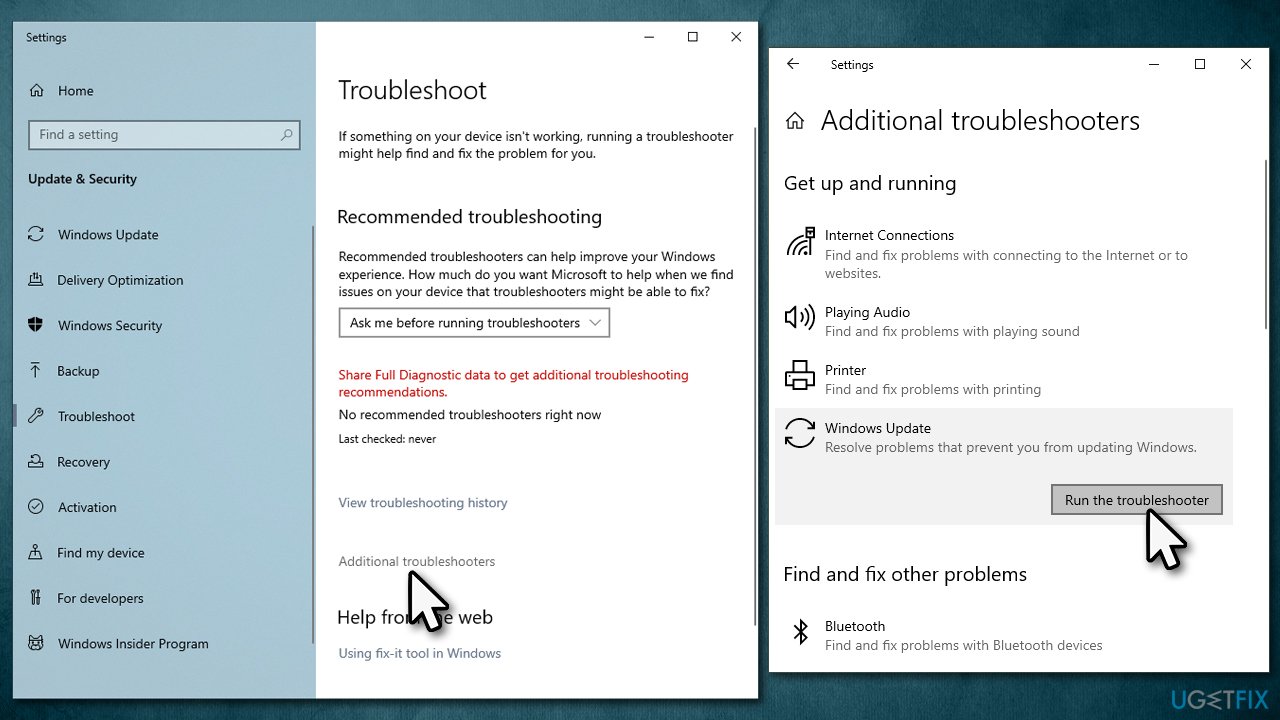
- Type Troubleshoot in Windows search and hit Enter
- Click Additional troubleshooters on the right
- Scroll down to find Windows update and click it
- Click Run the troubleshooter
- Apply the suggested fixes and restart your system.
Solution 4. (Re)start relevant services
The updating process is dependent on background services to operate properly. If some of them aren't working or have bugs, the upgrade may fail. If the services are already up and running, you can try restarting them instead.
- Type in Services in Windows search and press Enter
- Locate Background Intelligent Transfer Service (BITS)
- If it is already running, right-click and select Restart
- if the service is not running, double-click it, select Automatic under the Startup type from the drop-down menu
- Click Start, Apply, and OK
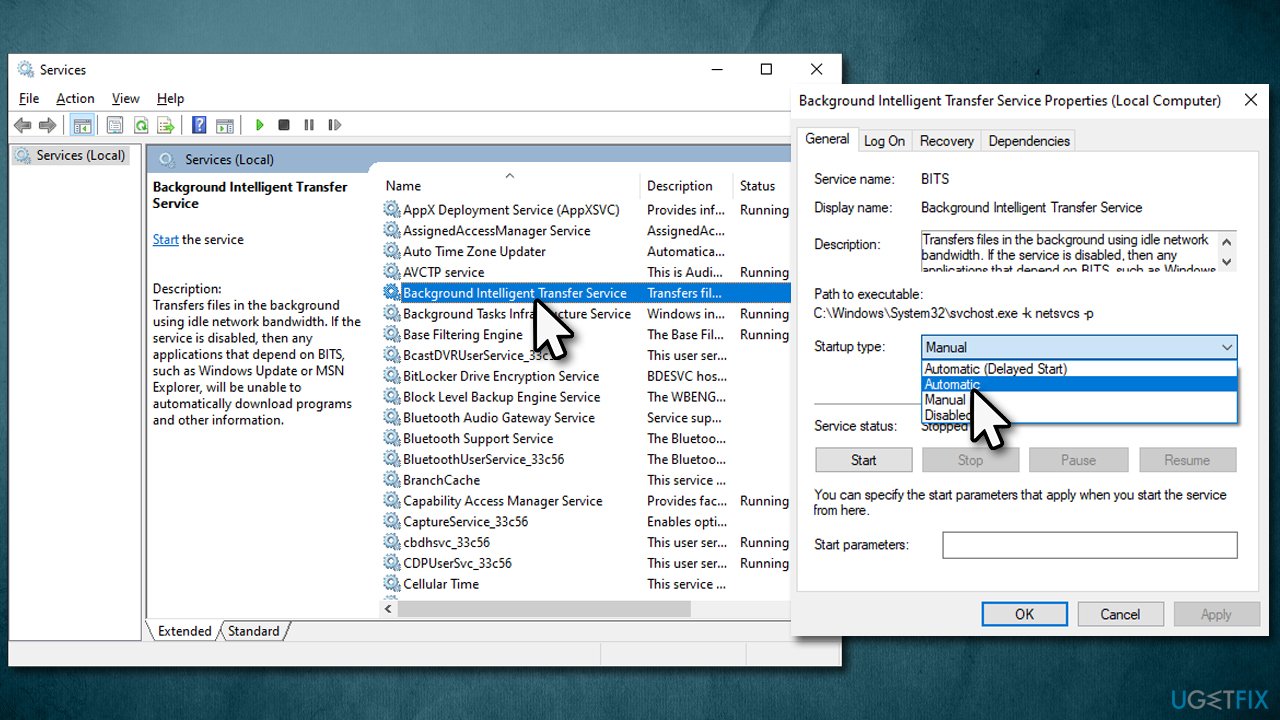
- Locate the Windows Update service and perform the same steps as well.
Solution 5. Temporarily disable third-party anti-virus
Microsoft Defender is a security program that comes with Windows, and it certainly does the job of keeping users safe from malware and potentially unwanted applications. Since the software was created by the same firm that developed the operating systems, there were no compatibility problems. It also demonstrates excellent detection rates.
However, a third-party antivirus may be overly aggressive in defending the computer against both outbound and inbound connections, preventing data packets from being downloaded. The security software can either be uninstalled or deactivated temporarily, and an update attempted once more.
Solution 6. Perform in-place upgrade
It might be that the solutions above would not work, so your best bet is to perform an in-place upgrade using Media Creation Tool. Before proceeding, make backups of your personal files just in case and also disconnect anything not necessary for your computer to operate, e.g., cameras, printers, scanners, etc.
- Visit the official Microsoft website and download Windows 10 installation media (Windows 11 version)
- Double-click the installer and select Yes when UAC shows up
- Agree to terms
- Select Upgrade this PC now and click Next
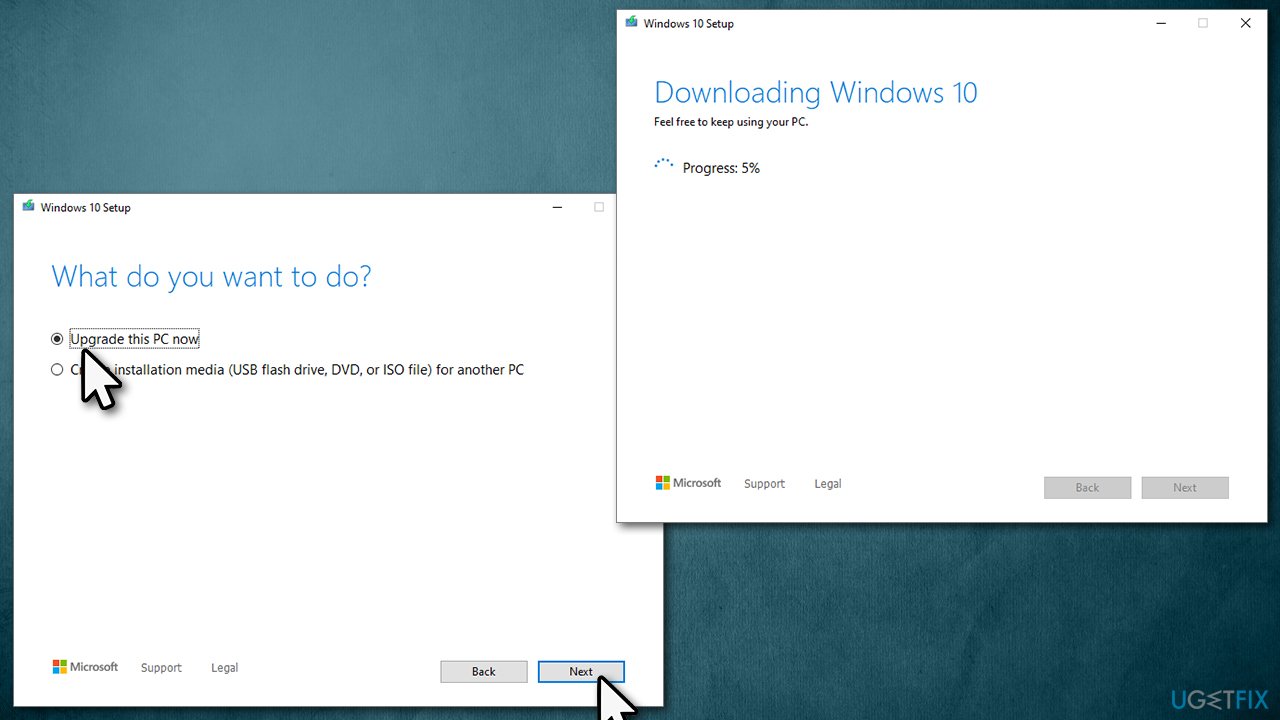
- Windows will start downloading the needed files
- Agree to terms once again and click Next
- Before installing, make sure that you are happy with your choices (otherwise, you can click Change what to keep option)
- Finally, click Install to begin the upgrade process.
Bottom line
To fix the Windows update error 0x80004002, users can try troubleshooting steps or use automatic tools for resolution. If these methods do not work, consider checking for configuration issues or seeking further assistance.
Frequently asked questions
This error typically indicates a problem with missing or corrupted system files that prevent Windows Update from functioning properly.
You can try running the Windows Update Troubleshooter from Settings > Update & Security > Troubleshoot to automatically detect and fix issues.
Yes, you can manually reset the Windows Update components by stopping the Windows Update services, deleting the SoftwareDistribution folder, and then restarting the services.




Report an issue
What's wrong with this guide? We review every report and update or remove content.
Report received — thank you. We'll review and fix it.
You need a free account to submit a report.
Be the first to comment