How to fix
Windows activation error 0xC004D302
on Windows
Resolve Windows activation error 0xC004D302 effortlessly with proven solutions. Get your system running smoothly again—expert-tested tips included!


What causes How to fix Windows activation error 0xC004D302?
- Corrupted license files
- Issues in the Machinekeys folder
- Reactivation of trusted data memory
- Executing commands after slmgr.vbs /rearm without restarting
Repairs Windows system files, removes malware, and restores a clean OS state — without reinstalling.
Hello. Today I received an activation error 0xC004D302 on my Windows computer. Some functions stopped working. What should I do?
Windows requires an activation key to work properly. If for some reason the license files become corrupted, users can encounter activation errors. We previously wrote about 0x8007232B, 0x87e107f9, 0XC004F009, and many other activation errors.
When Windows is not activated, users cannot change the wallpaper, customize the lock screen, change icons, etc. The most worrying thing is that such a device is not eligible to receive the latest security patches and feature updates which can make the system vulnerable.[ref en-1]
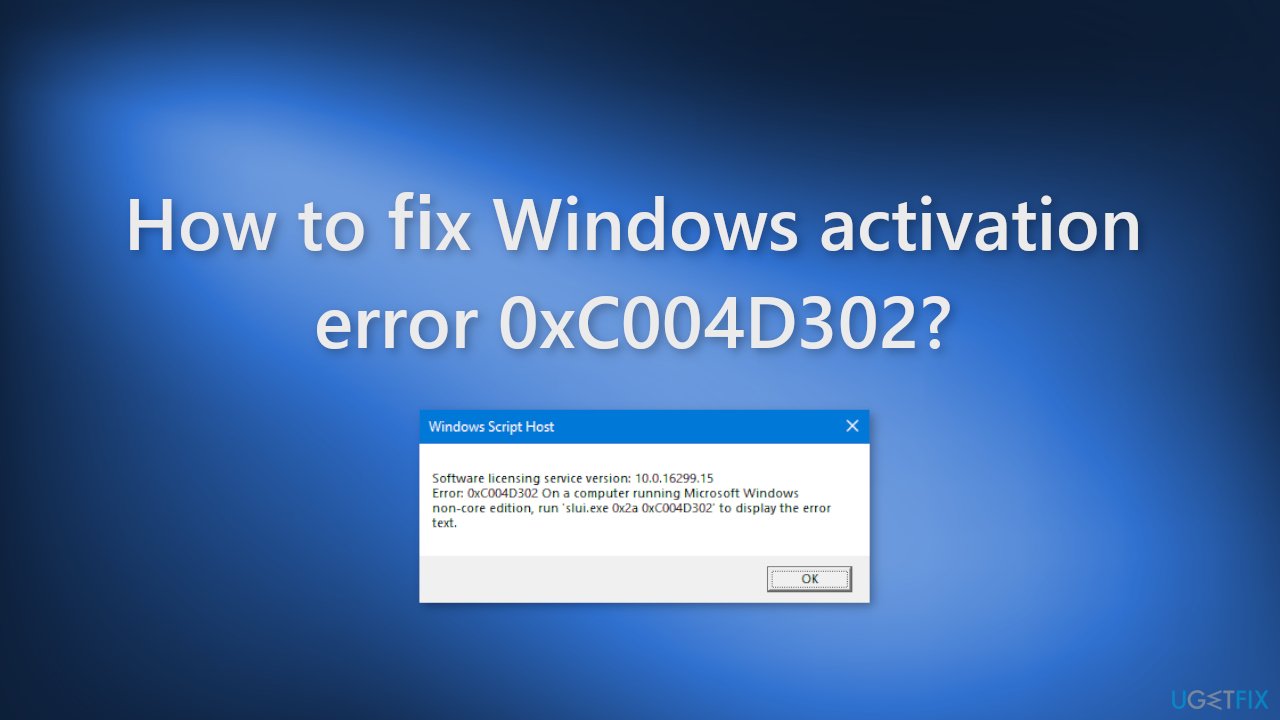
Usually, they can be fixed by using the Windows activation troubleshooter, installing Windows updates, or using the phone activation option. Recently, some people encountered a 0xC004D302 Windows activation error. This error appears on computers running Microsoft Windows non-core edition. The full message reads as follows:
Software licensing service version: 10.0.16299.15
Error: 0xC004D302 On a computer running Microsoft Windows non-core edition, run 'slui.exe 0x2a 0xC004D302' to display the error text.
Most of the time, the error is triggered by issues in the Machinekeys folder, reactivation of trusted data memory, or attempts at executing different commands after executing slmgr. Vbs /rearm without restarting the computer. In this guide, you will find 4 steps that should help you fix Windows activation error 0xC004D302.
However, manual troubleshooting can be a lengthy process. You can try using a maintenance tool like [d1]. This powerful software can fix most system errors, BSODs,[ref en-2] corrupted files, and registry[ref en-3] issues. Otherwise, follow the step-by-step instructions below.
Solution 1. Fix Corrupted System Files
Use Command Prompt commands to repair system file corruption:
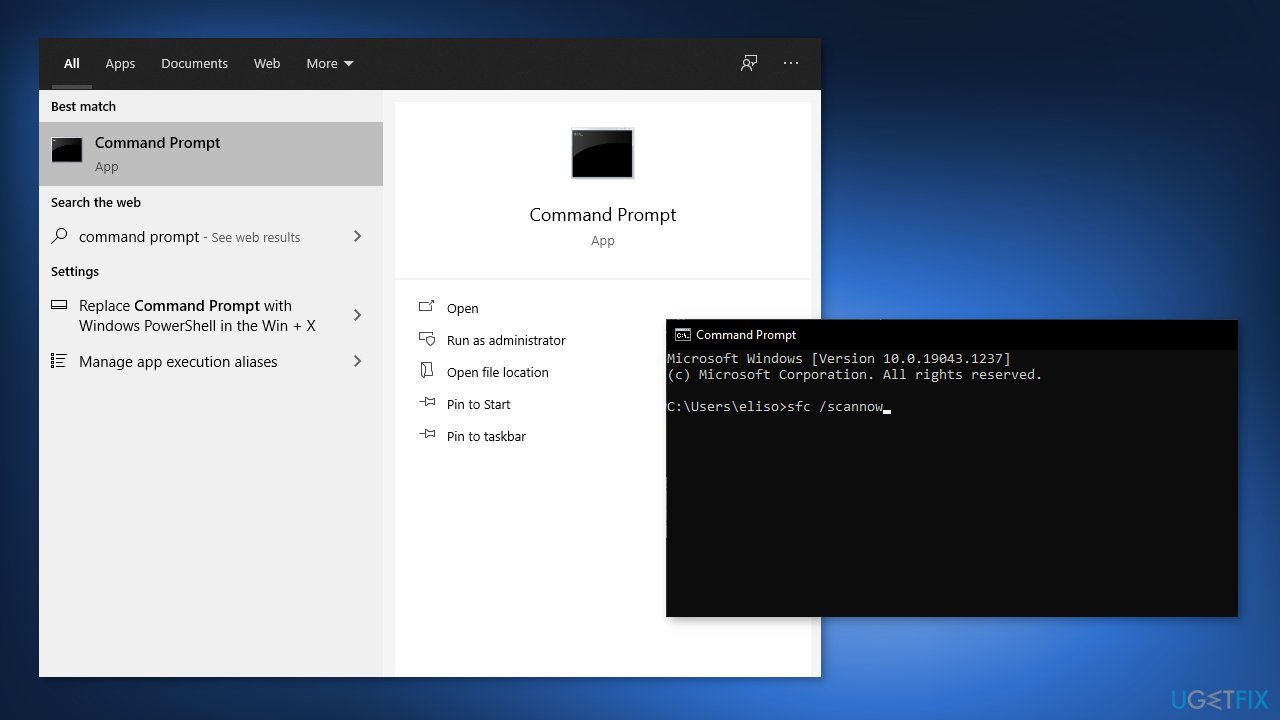
- Open Command Prompt as administrator
- Use the following command and press Enter:
sfc /scannow
- Reboot your system
- If SFC returned an error, then use the following command lines, pressing Enter after each:
DISM /Online /Cleanup-Image /CheckHealth
DISM /Online /Cleanup-Image /ScanHealth
DISM /Online /Cleanup-Image /RestoreHealth
Solution 2. Edit Windows Registry
- Go to the Start menu and type Registry
- Now open the Registry Editor and navigate to the following location:
Computer\HKEY_LOCAL_MACHINE\SOFTWARE\Microsoft\Windows NT\CurrentVersion\SoftwareProtectionPlatform
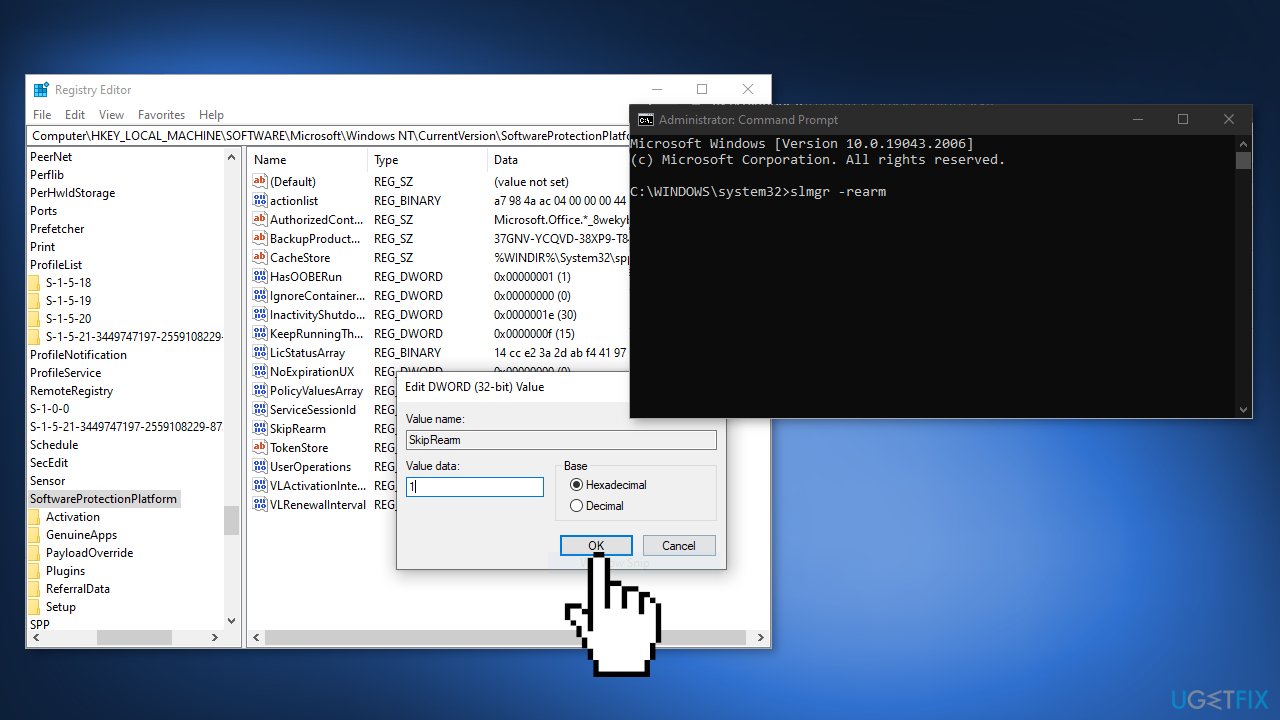
- Go to the right panel and right-click on SkipRearm
- Select the Modify option and a dialogue box Edit DWORD 32-bit folder should appear
- Here set the Value Data to 1 and click the Ok option
- Restart your computer
- Now go to the Start menu, and search for Command Prompt
- Select the run as an Administrator option
- Type the following command and press Enter:
slmgr –rearm
- Check if the error is fixed
Solution 3. Check Drive
The activation error might have been caused by a corrupted drive. Perform a scan to make sure it is working properly:
- Open File Explorer and click on My PC
- Right-click on your c: / drive and select Properties
- Then select Tool from its menu bar, and press the Check option to scan the Drive to detect the system file errors
- Click Scan Drive
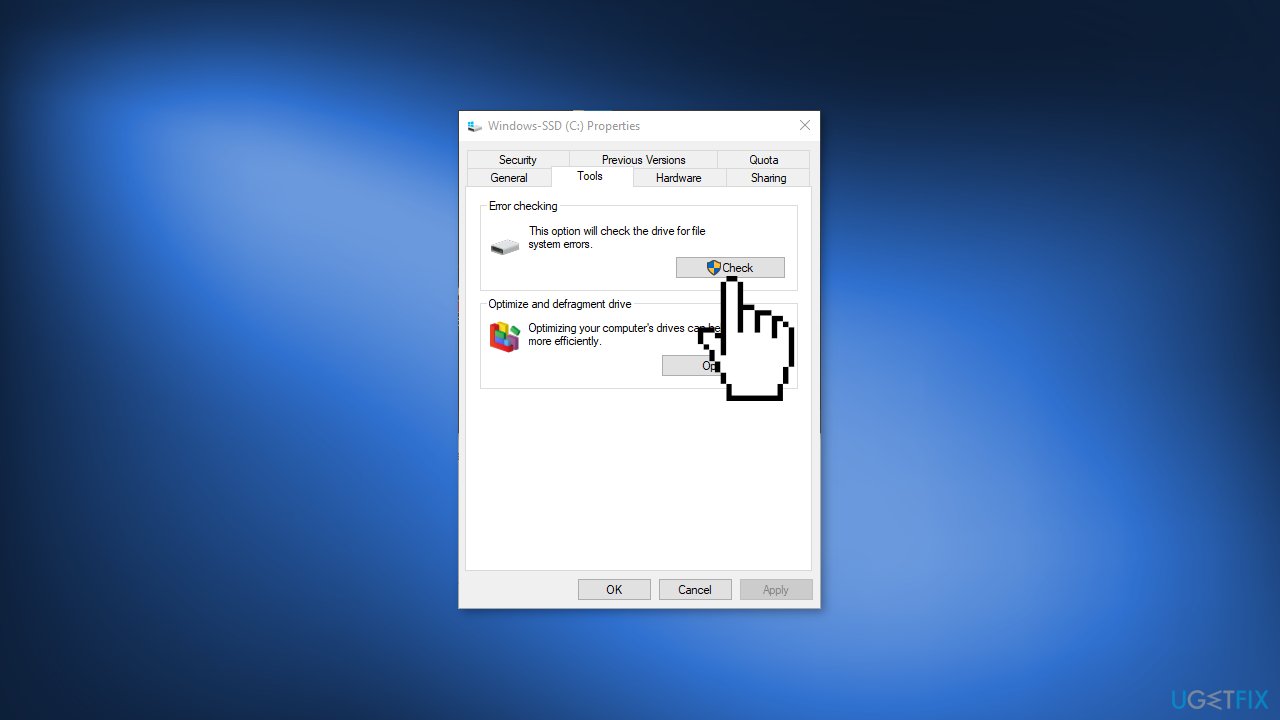
- Click on Check Defective Sectors option just below the Check Disk Option
- Once it is complete, check if the error appears or not
Solution 4. Use System Restore
You can use the System Restore tool to revert your system to a previous point. Keep in mind that this can result in software loss if it was installed after the restore point:
- Press the Window key + R to open the Run dialogue box
- Type rstrui and hit Enter
- Select choose a different restore point and then press the Next option
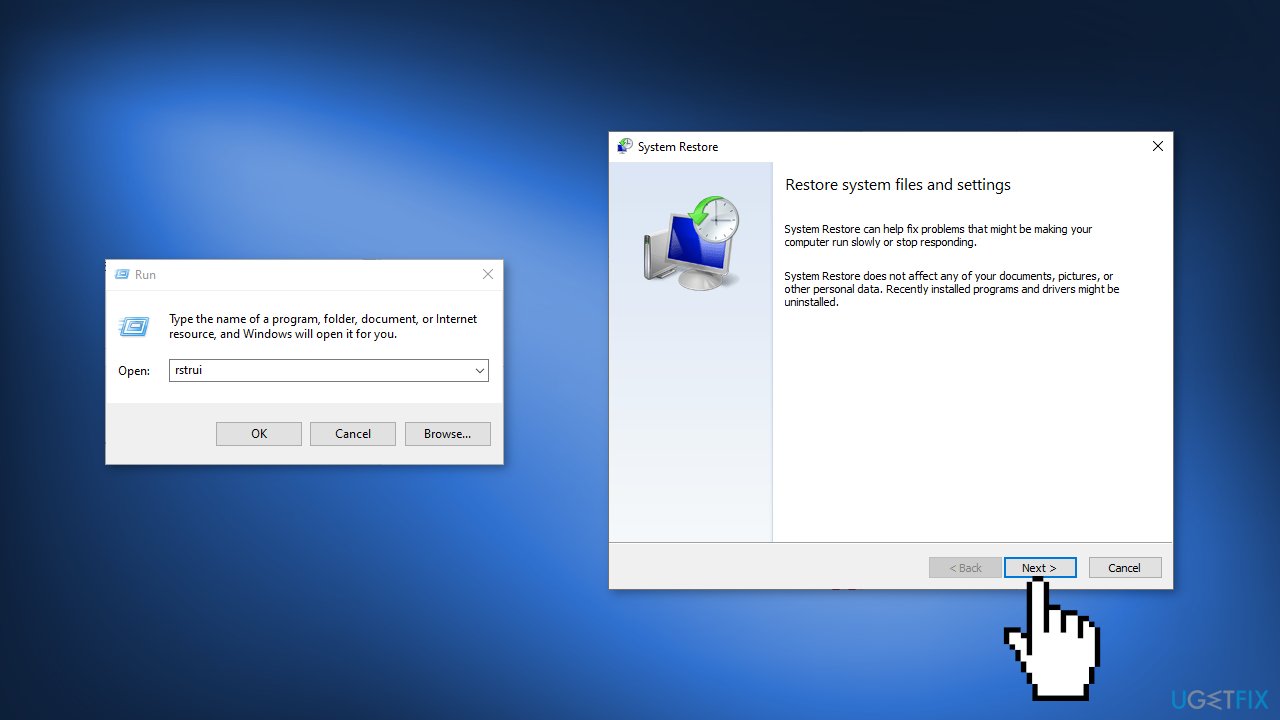
- Now select the option to your required time and date when the error didn’t appear
- Then press the Next option and then click on Finish
- Once the restore is complete, check if the issue is fixed
Bottom line
To fix the Windows activation error 0xC004D302, you can repair corrupted system files using Command Prompt commands and edit the Windows Registry. If these solutions do not resolve the issue, consider using a maintenance tool or seeking further assistance.
Frequently asked questions
The error 0xC004D302 typically means that the Windows activation server is temporarily unavailable. This can occur on Windows 10 or Windows 11 when trying to activate your OS.
To fix this error on Windows 10, you can try restarting your computer and then attempt activation again. If the problem persists, check your internet connection and ensure that Microsoft's activation servers are online.
While it's not recommended to bypass activation errors, you can troubleshoot by running the Windows Activation Troubleshooter in Settings, which may help resolve the issue on Windows 11.




Report an issue
What's wrong with this guide? We review every report and update or remove content.
Report received — thank you. We'll review and fix it.
You need a free account to submit a report.
Be the first to comment