How to fix
“DNS_PROBE_POSSIBLE” error in Chrome or other browsers
on Windows
Resolve the "DNS_PROBE_POSSIBLE" error in Chrome on Windows 10 or 11 quickly. Troubleshoot with expert-tested solutions and fix it in minutes!


What causes How to fix “DNS_PROBE_POSSIBLE” error in Chrome or other browsers?
- Third-party software blocking inbound connections
- Windows Defender Firewall causing connection issues
- Browser-specific issues after updates
- Internet connection active but websites inaccessible
Repairs Windows system files, removes malware, and restores a clean OS state — without reinstalling.
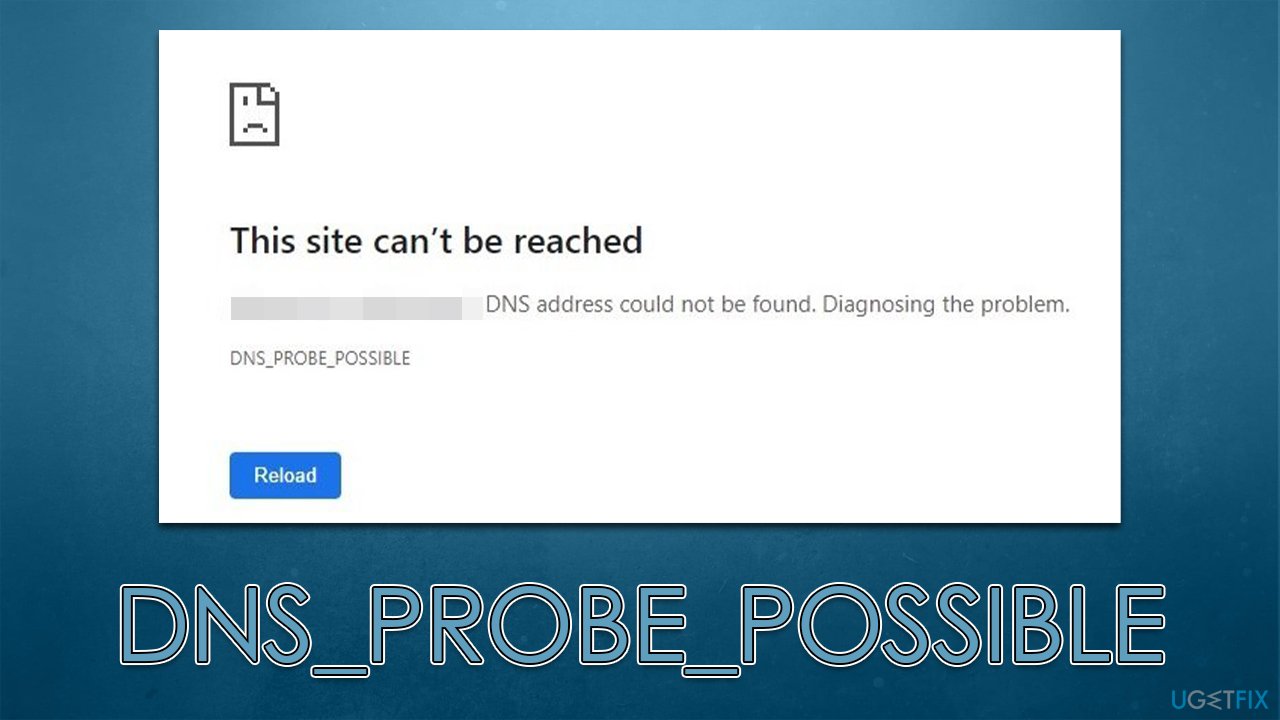
I have recently come across a rather annoying issue. I can't load any websites on Chrome because of the DNS_PROBE_POSSIBLE error - it comes up every time I try to use Google or anything else. I don't think this is related to my internet, as everything else (including other browsers) works fine. Please help.
Internet browsing has been a part of our lives for a very long time now. Everyone picks a browsing tool they sympathize with the most, and for most users, it's the Google Chrome browser. While the release of the new Chromium[ref en-1] Edge made some people switch, it remains the most popular browser around the world.
Regardless of your choice of browser, all of them can experience issues, and the DNS_PROBE_POSSIBLE error is something that users claim to encounter regularly. The problem seemingly comes up out of nowhere and completely prevents users from accessing websites, regardless of which browser is being used.
While some people claimed that they would encounter the DNS_PROBE_POSSIBLE error whenever they tried to enter certain sites, the problem was much more universal to others, with them not being able to access anything at all, all meanwhile, the internet connection was active and working.
The first troubleshooting step we'd recommend is checking whether the issue occurs on other browsers, so if you are using Google Chrome, try switching to MS Edge or Mozilla Firefox - this will allow you to access the internet until you can fix it.
Luckily, there are several methods you could try to fix the DNS_PROBE_POSSIBLE error on Chrome or any other browser. The most common reason for the error is third-party software blocking all inbound connections, so you need to ensure you don't have something like that running on your system. Even if it is the case, the issue can be bypassed by adding exclusions to the blocked app.
Windows Defender Firewall is also the culprit for many connection issues. For example, people claimed that they were suddenly unable to run the Brave browser after an update. This can be easily resolved by letting the app run through a firewall. These and other solutions can be found below, so make sure you try them.
Before proceeding, we recommend you try running a check with the [d1] repair tool, as it can find any system inconsistencies and fix them automatically for you. This way, it can resolve DLL errors, BSODs, and other common Windows issues.
1. Change DNS settings
- Right-click on Start and pick Network Connections.
- Under Advanced network settings, pick Change adapter options.
- In the Network Connection window, right-click on your main connection (for example, Ethernet) and select Properties.
- Select Internet Protocol Version 4 (TCP/IPv4) and click Properties below.
- Click Use the following DNS server address and type in the following into the fields:
Preferred DNS server: 8.8.8.8
Alternate DNS server: 8.8.8.9 - Press OK.
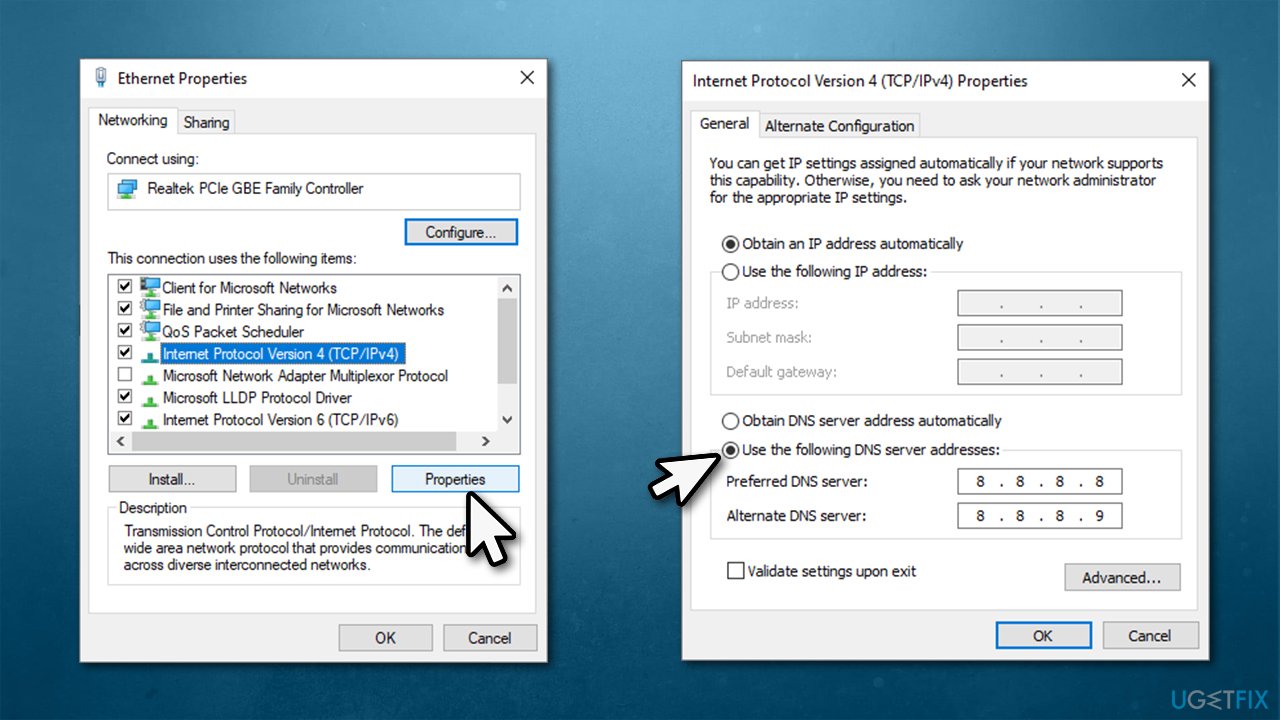
Note: if you had alternative DNS enabled, try to disable it and use default ones instead.
2. Check your third-party applications
There is plenty of third-party software that can interfere with browsers communicating with the internet freely. For example, if you have a VPN app installed and use it all time, you should make sure to disable it and see if that helps. On the other hand, VPN software such as [ref id="Private Internet Access"] can also bypass some restrictions and allow you to connect to the internet freely, so we recommend trying both options.
Likewise, third-party overly-aggressive security applications might also mark a browser as a threat and stop it from making connections. Thus, temperately disable security software and try again. If it works, make sure you add your browser as an exception (instructions depend on the software you are using - visit the official website for more details). Checking the system for malware[ref en-3] infections is also a good idea because it is known to corrupt some system files.
Ad-blocker is another software you should look closely at. Google recently made some changes to how ad-blockers can interact with code on every website, hence it might result in errors.[ref en-2] Try disabling the ad-blocker and see if that helps.
3. Let the browser through the firewall
Some people reported that browsers such as Brave might be blocked by Windows Defender Firewall. It usually happens after Windows or browser updates, so it may seem like the issue appeared out of the blue. Proceed with the following:
- Type in Control Panel in Windows search and press Enter
- Go to System and Security and click on Windows Defender Firewall
- On the left side of the window, click Allow an app or feature through Windows Defender Firewall
- Click Change settings (if you are not on an administrator account, you will be asked to enter a password)
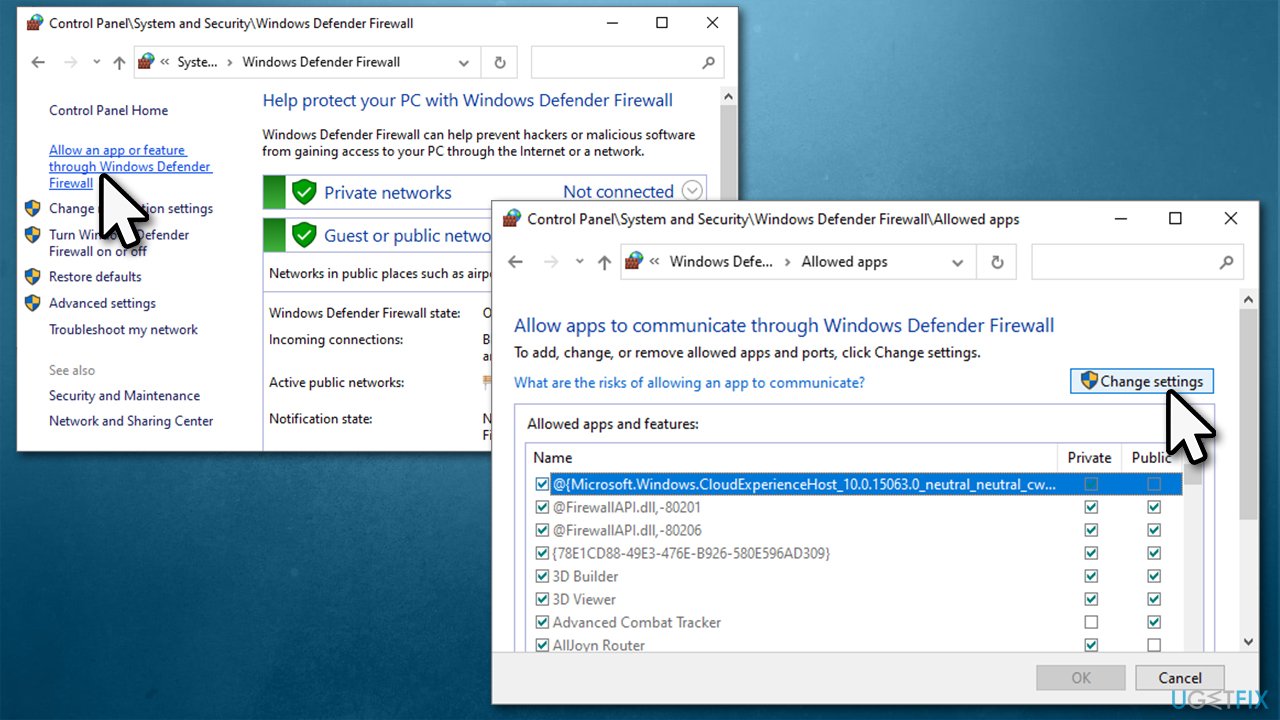
- Scroll down and enable Private and Public access to the browser you are having trouble with, for example, Chrome.
- Click OK and close the window. Try using the browser again and seeing if DNS_PROBE_POSSIBLE is gone.
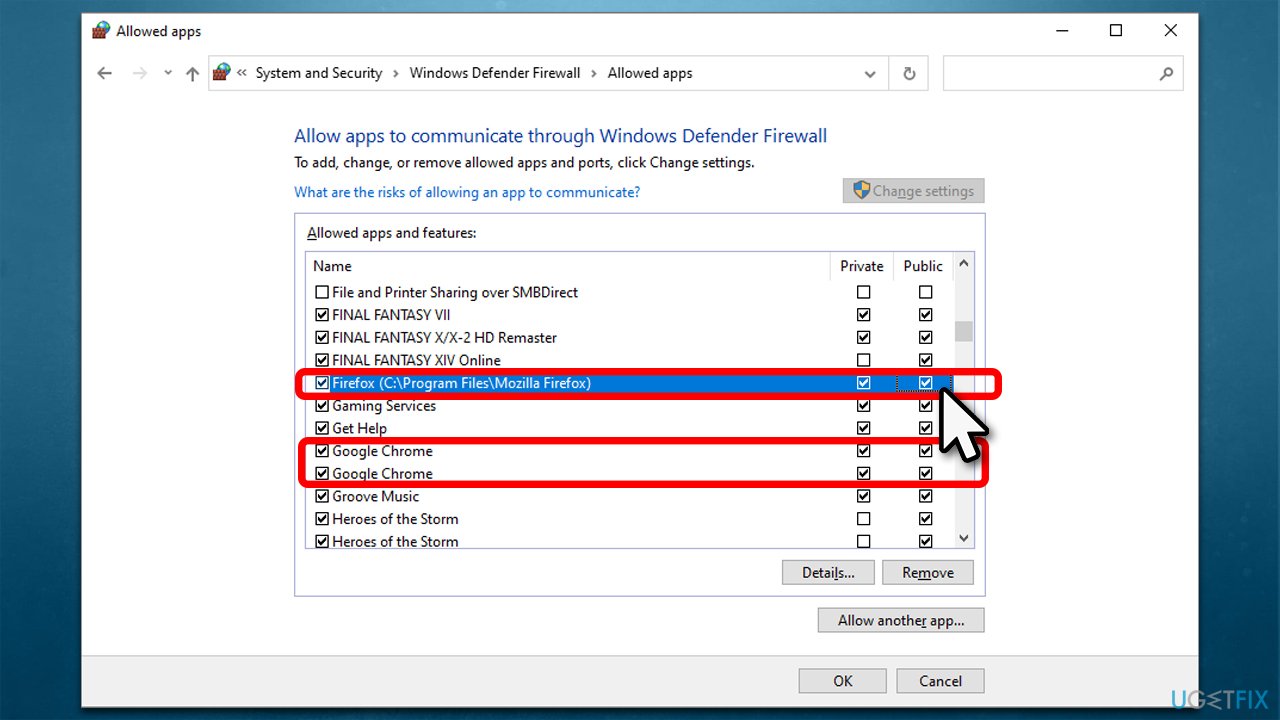
Note: if the browser is not on the list, you should click Allow another app button and find the EXE file of the browser. For example, Chrome's path is "C:\Program Files\Google\Chrome\Application" (make sure you have hidden items enabled).
4. Reset your internet connection
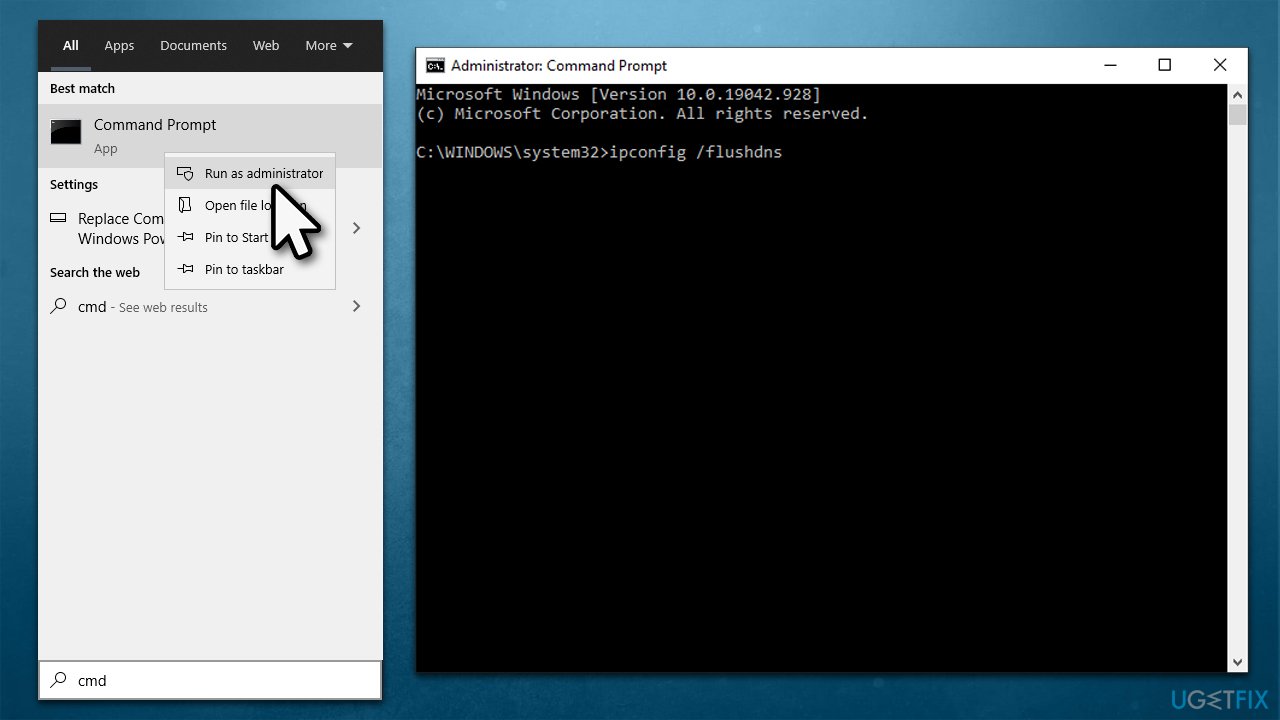
While it is not always the case, a troubled internet connection might prevent you from accessing sites online. Try resetting your internet connection by using a set of commands via an elevated Command Prompt:
- Type cmd in Windows search.
- Right-click on Command Prompt result and pick Run as administrator.
- In the new window, copy and paste the following commands, pressing Enter after each:
ipconfig /flushdns
ipconfig /registerdns
ipconfig /release
ipconfig /renew
netsh winsock reset - Wait for each of the commands to be executed.
- Close down Command Prompt.
Similar errors:
Bottom line
To fix the DNS_PROBE_POSSIBLE error, try switching to another browser, checking for third-party software interference, and adjusting Windows Defender Firewall settings. If these methods do not resolve the issue, consider further troubleshooting or seeking additional support.
Frequently asked questions
The 'DNS_PROBE_POSSIBLE' error indicates that your browser is having trouble resolving the DNS address of the website you're trying to access. This can occur due to network configuration issues or problems with your internet service provider.
To flush the DNS cache, open Command Prompt as an administrator and type 'ipconfig /flushdns', then press Enter. This will clear the DNS resolver cache and may resolve the error.
Yes, you should check your network adapter settings to ensure that the DNS server addresses are correctly configured, or consider switching to a public DNS like Google DNS (8.8.8.8 and 8.8.4.4). Additionally, resetting your network settings can help fix the issue.




Report an issue
What's wrong with this guide? We review every report and update or remove content.
Report received — thank you. We'll review and fix it.
You need a free account to submit a report.
Be the first to comment