How to fix
VAN 0 Error Code in Valorant
on Windows
Resolve VAN 0 error code in Valorant on Windows 10 and 11 effortlessly with our expert-tested solutions. Get back to gaming in minutes!

What causes How to fix VAN 0 Error Code in Valorant?
- Third-party antivirus blocking the game
- Windows Firewall blocking the game
- Corrupted game files
- Issues with the Riot Client
- Misconfigured security software
Repairs Windows system files, removes malware, and restores a clean OS state — without reinstalling.
Hello. I have been trying to launch Valorant but every time I try to I receive the VAN 0 Error Code. What should I do?
Valorant is a free-to-play first-person tactical hero shooter developed and published by Riot Games, for Microsoft Windows. Valorant takes inspiration from the Counter-Strike series of tactical shooters, borrowing several mechanics such as the buy menu, spray patterns, and inaccuracy while moving.
The game is set in the near future. Players play as one of a set of Agents, characters based on several countries and cultures around the world. In the main game mode, players are assigned to either the attacking or defending team with each team having five players on it.
However, while playing this popular game, people can encounter certain issues. We previously wrote about TPM event id 14, error code 38, and error VAN9001. Now, users are reporting that VAN 0 Error Code is preventing them from launching Valorant. It is unknown what exactly could cause this problem.
The error could be caused by third-party antivirus, which is mistakenly blocking the game, or even Windows Firewall. It is also possible that your game files are corrupted. In this guide, you will find 5 steps that should help you fix VAN 0 Error Code in Valorant.
Manual troubleshooting can be a lengthy process, so you can also use a maintenance tool like [d1]. It can automatically fic most system errors, BSODs,[ref en-1] corrupted files, registry[ref en-2] issues, and clear cookies and cache[ref en-3] which are often the culprits behind many malfunctions. Otherwise, follow the step-by-step instructions below.
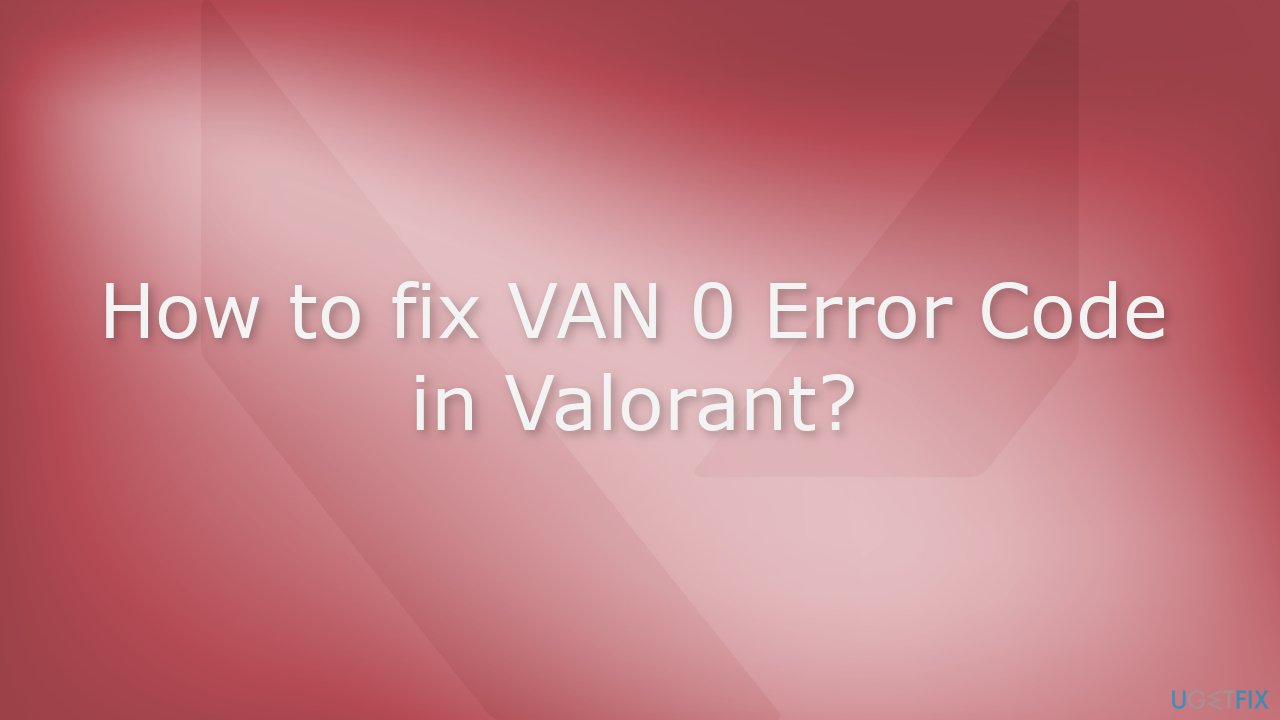
Method 1. Disable Third-Party Security Software
Sometimes antivirus software can block legitimate processes mistakenly. You should try disabling your antivirus and trying to launch Valorant again.
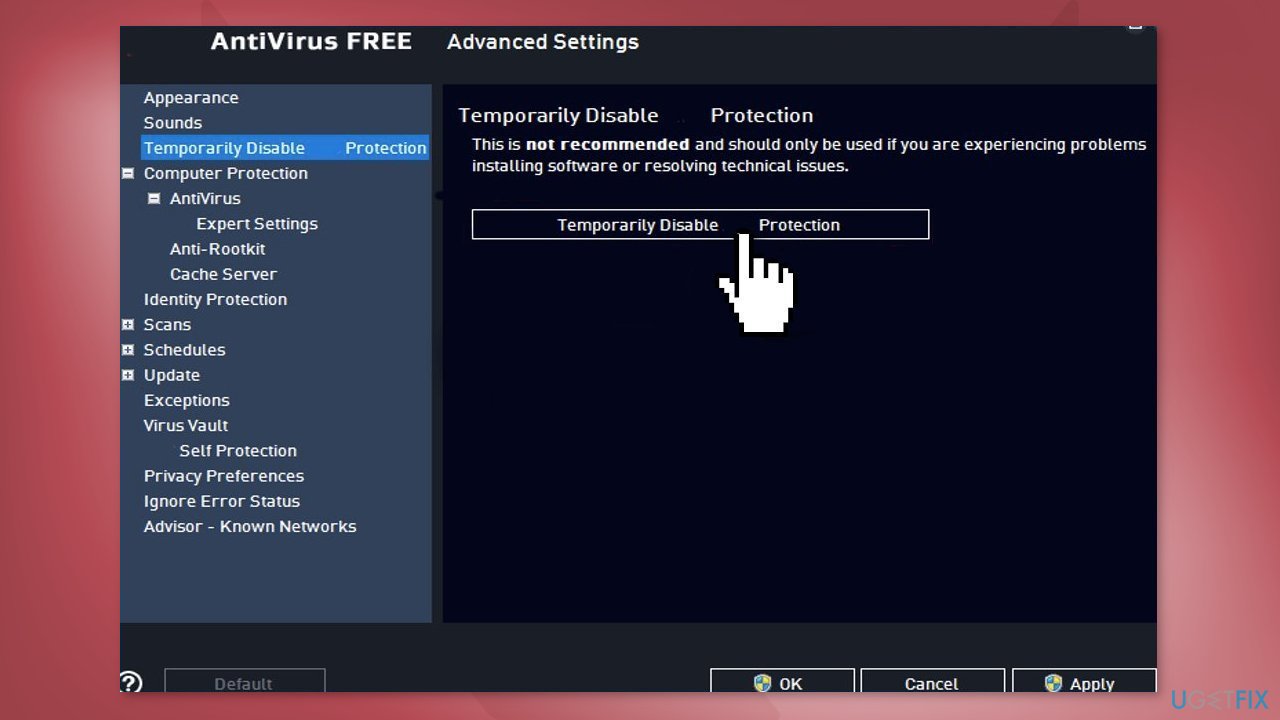
Method 2. Restart the Riot Client
- Press the Windows key, search for Task Manager and click to open it
- Search for the Riot Client in the list
- Right-click on the Riot Client and select End Task
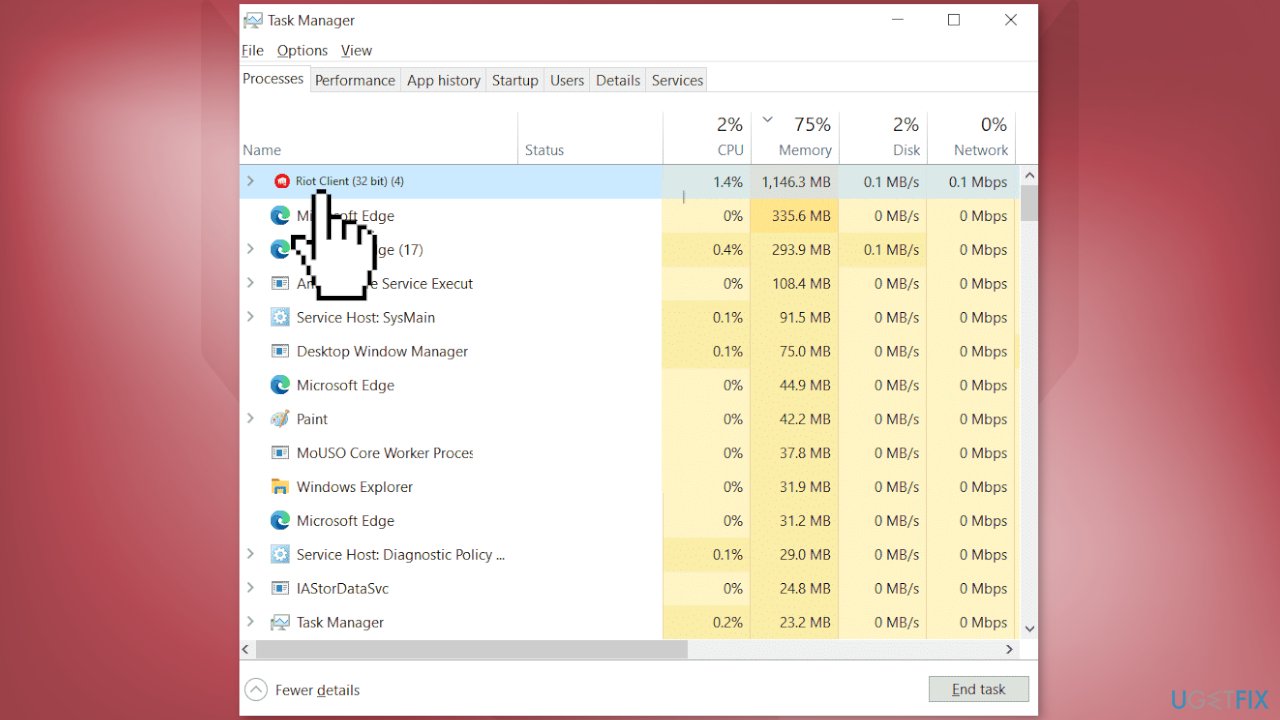
- Now launch the Riot Client and check if the issue gets fixed
Method 3. Repair Valorant
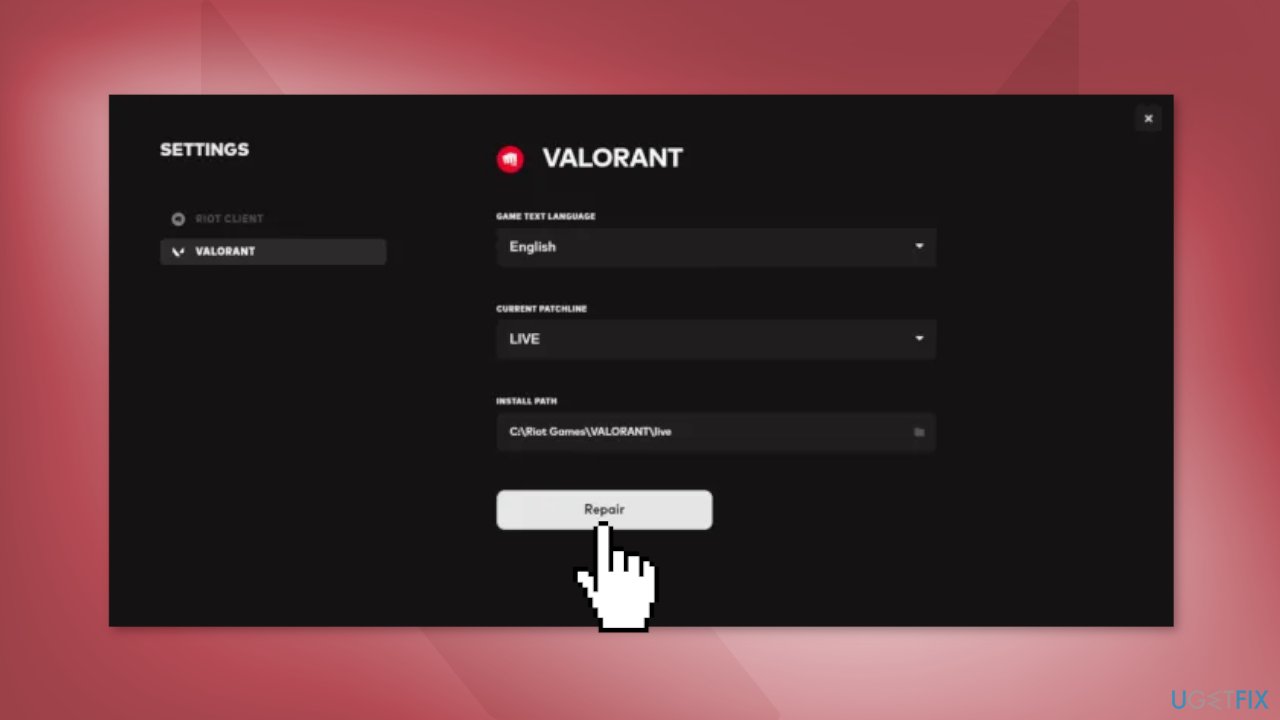
- Open the Riot client, click on the profile icon, and select Settings
- Navigate to Valorant and click on Repair
Method 4. Change Windows Firewall Settings
- Press the Windows key + I to open Settings
- Navigate to Privacy & Security
- Open the Windows Security tab and click on Firewall & network protection
- Click on Allow an app through firewall
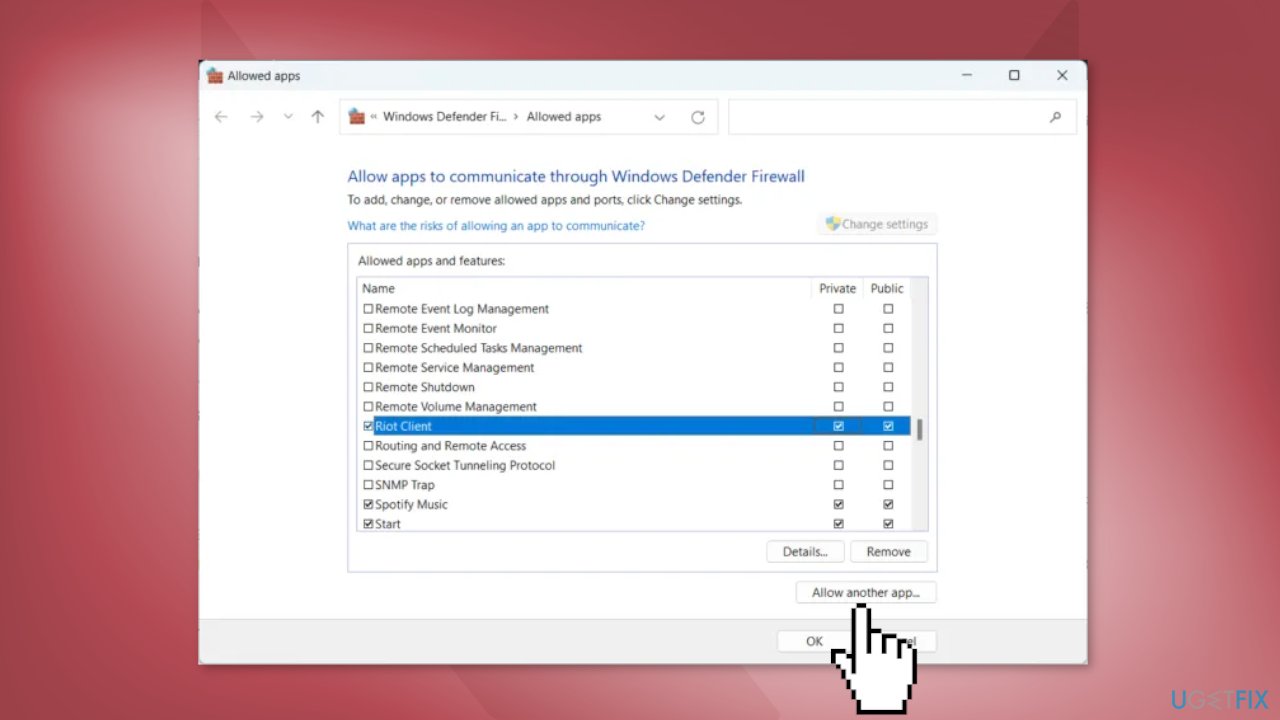
- Press on Change settings and select Allow another app
- Find the Riot Vanguard folder; it’s most probably located in Program Files on the C partition (C:\Program Files\Riot Vanguard), then select the vgc application, select Open and click on Add
- On the Allowed apps window, locate the Vanguard user-mode service and check both the Private and Public boxes
Method 5. Reinstall the Game
- Close Valorant
- Now, type uninstall in the Windows Search Menu and select Add or remove programs
- First, remove Riot Vanguard then Valorant
- Restart your computer
- Now go to the official Valorant website

- Sign in to your Riot Account
- Hit the Download button on the next screen
- Run the installer, ensuring you set the install path to whatever drive and file you want
- Sign in to the fully installed program with your Riot ID from your Riot Account
- Check if the issue is fixed
Bottom line
To fix the VAN 0 Error Code in Valorant, you can disable third-party security software, restart the Riot Client, or repair Valorant through the Riot client. If these steps do not resolve the issue, consider using a maintenance tool or further troubleshooting.
Frequently asked questions
The VAN 0 error code indicates a connection issue to the Valorant servers, often related to network settings or firewall configurations on your Windows system.
To fix the VAN 0 error on Windows 11, try resetting your network settings or temporarily disabling your antivirus and firewall to see if they are blocking the connection.
Yes, ensuring that your Windows 10 or 11 is up to date can help fix compatibility issues and improve network performance, potentially resolving the VAN 0 error.




Report an issue
What's wrong with this guide? We review every report and update or remove content.
Report received — thank you. We'll review and fix it.
You need a free account to submit a report.
Be the first to comment