How to fix
“Messages Failed To Load” in Discord
on Windows
Resolve "Messages Failed To Load" errors in Discord on Windows 10 and 11 effortlessly. Get expert-tested solutions for a seamless experience!

What causes How to fix “Messages Failed To Load” in Discord?
- Network connectivity issues
- Corrupted Discord installation
- Outdated application version
- Conflicting software or processes
- System configuration problems
Repairs Windows system files, removes malware, and restores a clean OS state — without reinstalling.
Hello, I have a weird problem with Discord messages. I load the program fine, but I can't see any of the messages - they are replaced with empty chat bubbles instead, and the "Messages Failed To Load" error is shown at the bottom. Is there any fix for this? Answers very appreciated.
Discord is a popular communication platform that is primarily used by gamers but has also become a popular choice for businesses, communities, and other groups. It offers a wide range of features, including voice and text chat, file sharing, and the ability to create and join servers, which are groups of users that can communicate with each other.
One of the main benefits of Discord is that it is very easy to use and set up. Users can create a server for free and invite others to join, and the platform is available on a wide range of devices, including PC, Mac, iOS, and Android. Additionally, Discord has a large and active community, which means that users can find and join servers for almost any topic or interest.
Despite these benefits, Discord might sometimes malfunction - the "Messages Failed To Load" error is one such case. According to numerous user reports, they are unable to see any messages within any channels or any private DMs. Likewise, they are unable to send any messages to anyone, making the app essentially useless.
It is worth noting that other Discord issues may arise as well. We have previously talked about GIFs not working, the app failing to detect games, the green screen, video calls not working, and much more. Today we are going to look into the issue where users encounter the "Messages Failed To Load" error - we provide all the instructions below.
To exclude the possibility that the problem lies within system issues, we recommend running a scan with [d1] PC repair software, which can easily fix various common Windows issues, including errors, BSODs, registry corruption, and more.
Fix 1. Shut down Discord processes via the Task Manager
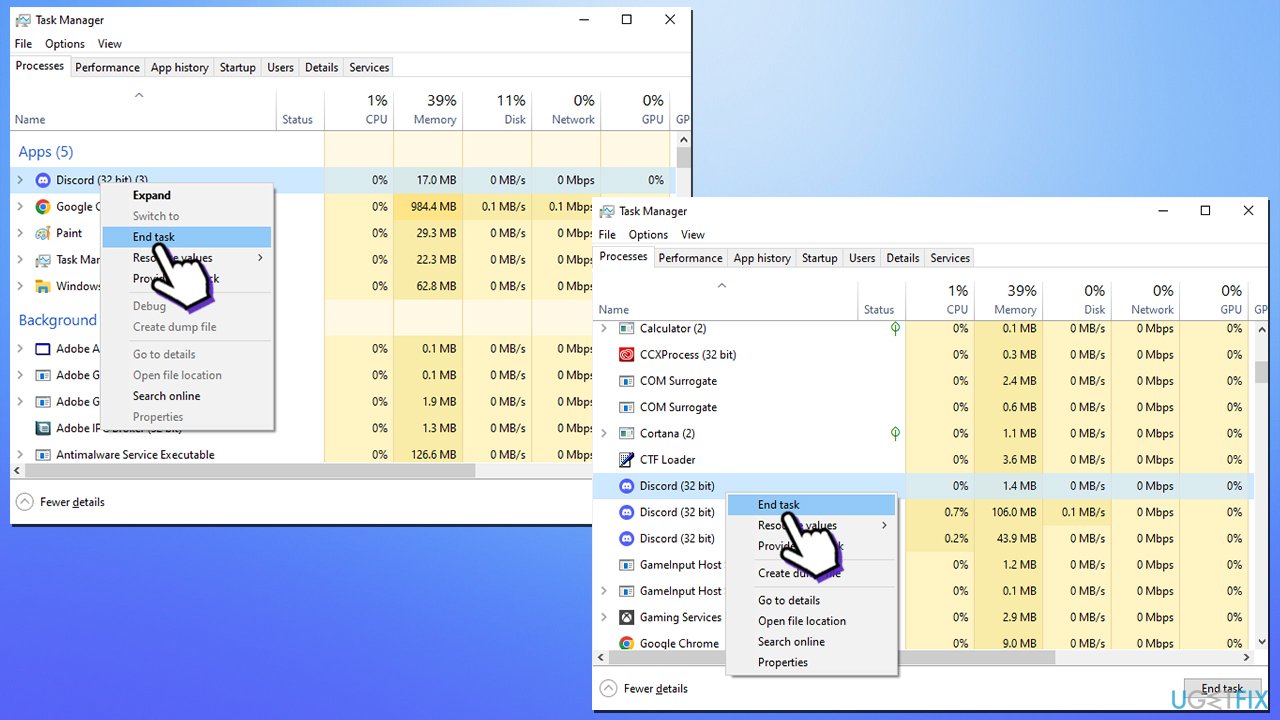
Discord is known to sometimes "hang," which could lead to all sorts of issues, including the "Messages Failed To Load" error. Thus, if you haven't done so yet, shut down all Discord-related processes and see if that helps:
- Press Ctrl + Shift + Esc on your keyboard.
- Click More details if necessary.
- Locate Discord under Apps section.
- Right-click the app and select End Task.
- Scroll down and do the same with any other Discord background processes still running.
- Next, re-launch the app and see if the error is gone.
Fix 2. Clear cached files
Bugged caches could also be one of the reasons why Discord fails to load messages. Clearing them might help:
- First, open Task Manager and shut down all related processes (we explain how in the previous step).
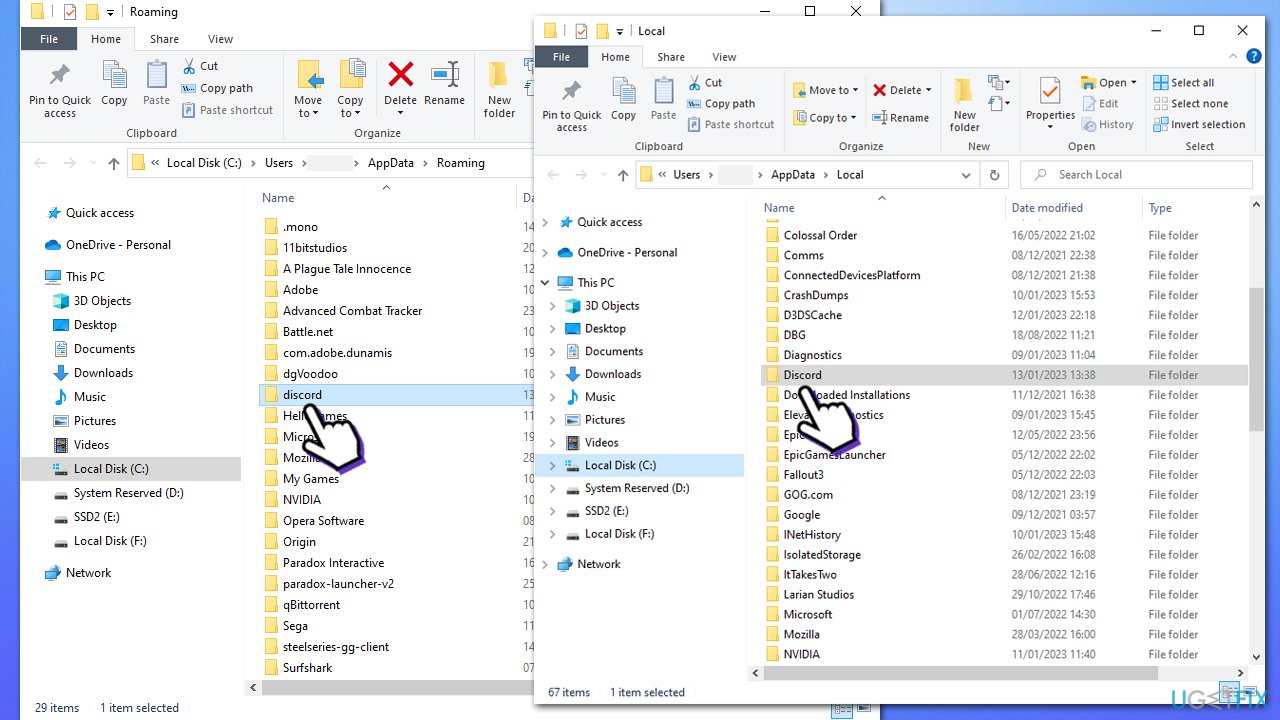
- Type %AppData% in Windows search and press Enter.
- Find the Discord folder, mark it and press Shift + Del on your keyboard to delete it.
- Next, type in %LocalAppData% in Windows search and press Enter.
- Delete the Discord folder the same way
- Start the app and see if that helped.
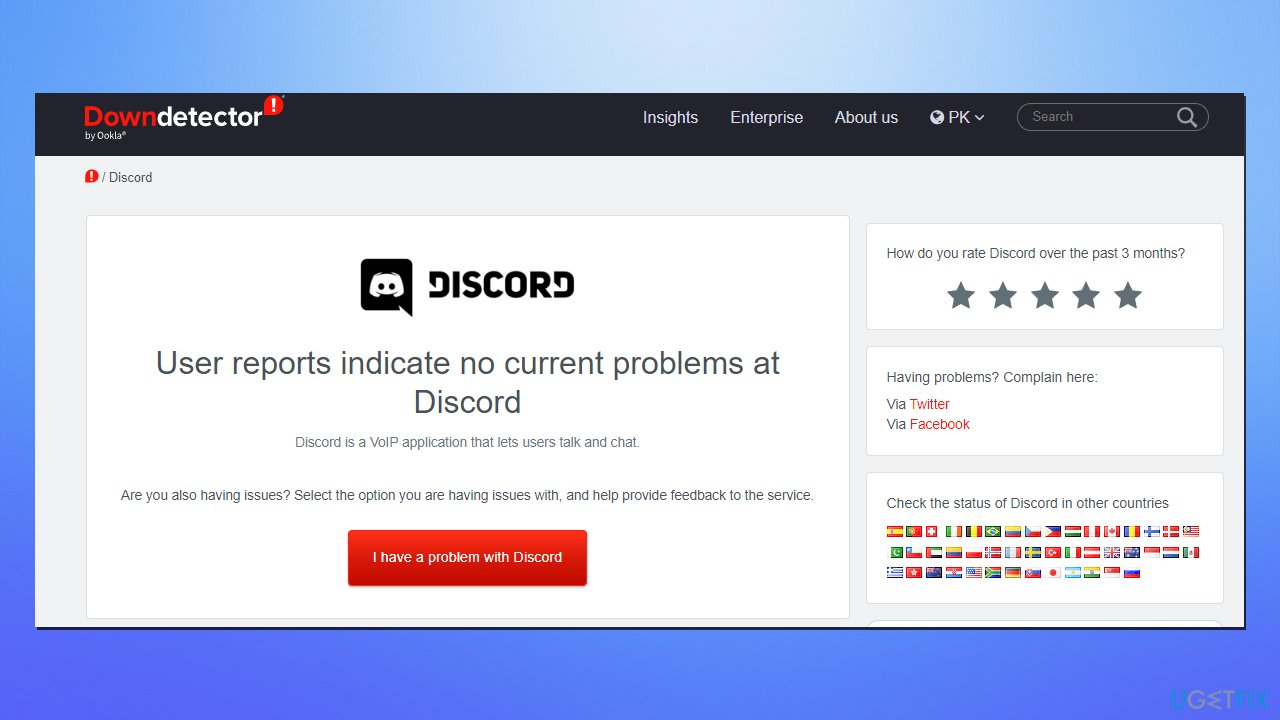
Fix 3. Check if Discord's servers are having troubles
Even the most prominent companies sometimes have downtime when it comes to their servers. Reasons could be multiple, including technical hardware issues, cyberattacks, or similar.
Therefore, if you are seeing "Messages Failed To Load" in Discord, you should check whether its servers are functional. You can do that via websites like Downdetector.
Fix 4. Reset your internet connection
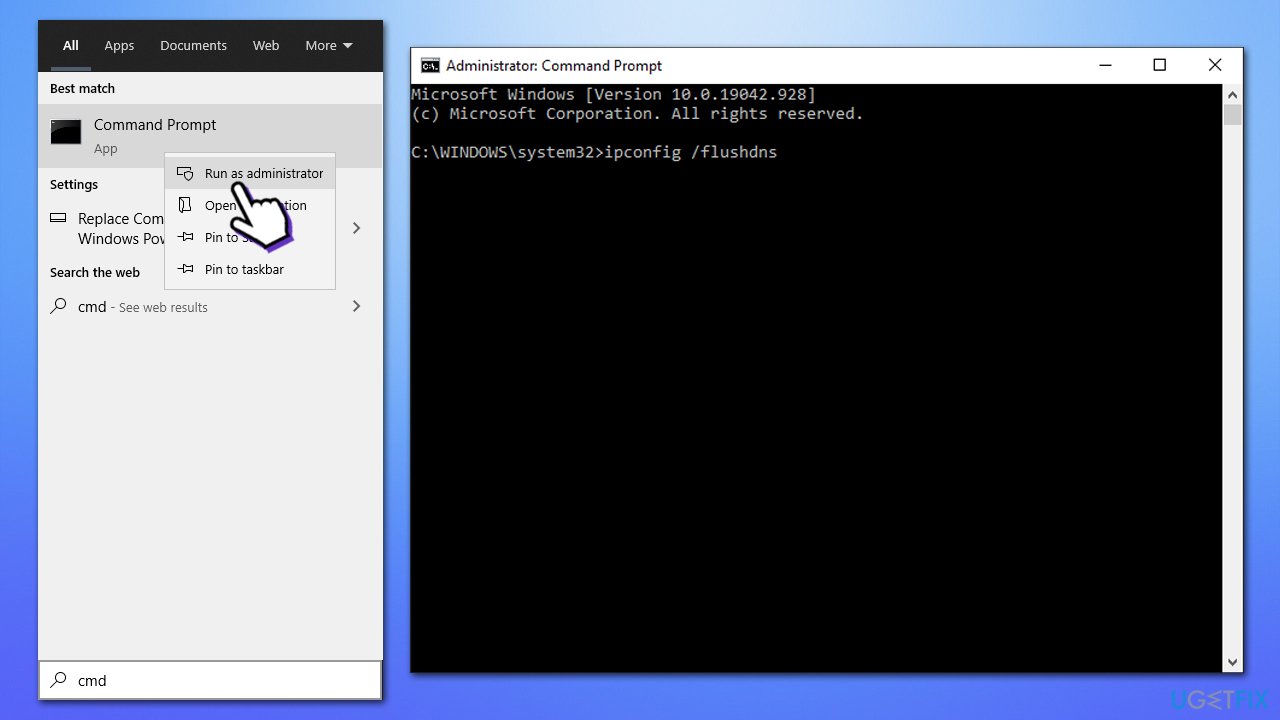
- Type cmd in Windows search
- Right-click on Command Prompt and select Run as administrator
- When User Account Control shows up, click Yes
- Copy and paste the following commands, pressing Enter after each:
ipconfig /flushdns
ipconfig /registerdns
ipconfig /release
ipconfig /renew
netsh winsock reset - Restart your system.
Fix 5. Reinstall Discord
Sometimes, the app is simply bugged, and the best way of solving its issues is by reinstalling it.
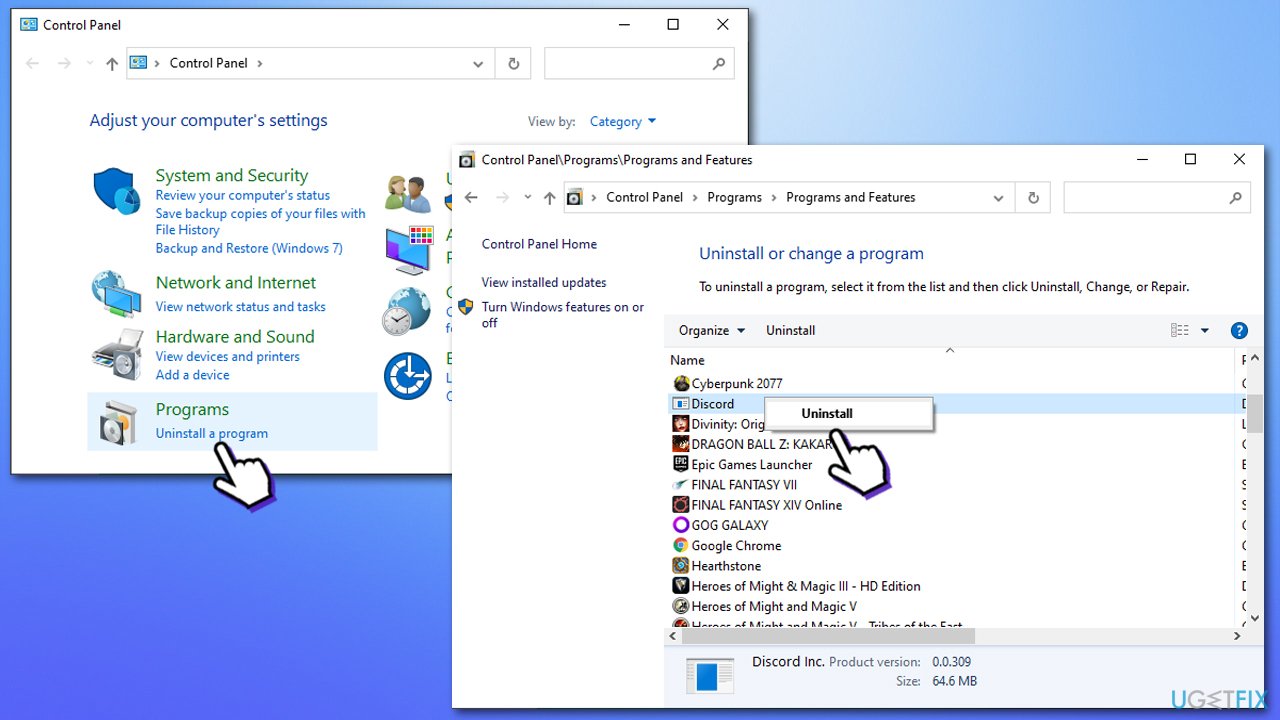
- Type in Control Panel in Windows search and press Enter.
- Go to Programs > Uninstall a program.
- Find Discord on the list.
- Right-click on the app and select Uninstall.
- Follow on-screen instructions.
- Go to the official Discord download page and install the app again.
- If you can't uninstall discord, check our "How to uninstall Discord" guide.
Bottom line
To fix the 'Messages Failed To Load' error in Discord, you can try shutting down Discord processes via the Task Manager, running a scan with PC repair software, or ensuring your application is up to date. If none of these solutions work, consider reinstalling Discord or checking for system issues.
Frequently asked questions
Try clearing the Discord cache by navigating to `%appdata%/Discord/Cache` and deleting the contents of that folder. Restart Discord afterward to see if the issue is resolved.
Ensure that your Windows 11 is up to date by checking for updates in Settings, as outdated software can cause connectivity issues. Additionally, try reinstalling Discord to restore any missing files.
Yes, verify that your firewall or antivirus isn't blocking Discord, and consider resetting your network settings by using the 'Network Reset' option in Windows 10 or Windows 11 settings.




Report an issue
What's wrong with this guide? We review every report and update or remove content.
Report received — thank you. We'll review and fix it.
You need a free account to submit a report.
Be the first to comment