How to fix
“DLL not designed to run
on Windows
Resolve the "DLL not designed to run on Windows" error quickly and effectively on Windows 10 or 11. Expert-tested solutions for hassle-free fixes!


What causes How to fix “DLL not designed to run on Windows” error?
- Incompatible software installation
- 32-bit application installed on a 64-bit Windows operating system
- DLL developed for a different version of Windows
- Corrupt DLL due to malicious software interference
- Mistaken deletion of DLL files by the user or cleaning software
Repairs Windows system files, removes malware, and restores a clean OS state — without reinstalling.
Hi, I recently started to receive "C:\Windows\SYSTEM32\MSVCP140.dll is either not designed to run on Windows or it contains an error" whenever I attempt to open any files on OneDrive. It also says Bad Image at the top. Is there any way to fix this?
Dynamic Link Library, commonly known as DLL, refers to a file format used to hold multiple codes and procedures for Windows programs. DLL files are essential for applications to function as they allow programs to perform specific operations without the need to build those functions from scratch.
With the pivotal role DLL files play in the Windows operating system, it's not surprising that users encounter errors related to them. One of the frequent errors encountered is the "DLL not designed to run on Windows" or what’s termed as the Bad Image error. This error can be associated with various DLLs, such as Nvldumd.dll, MSVCP110.dll, and MSVCR100.dll, among others.
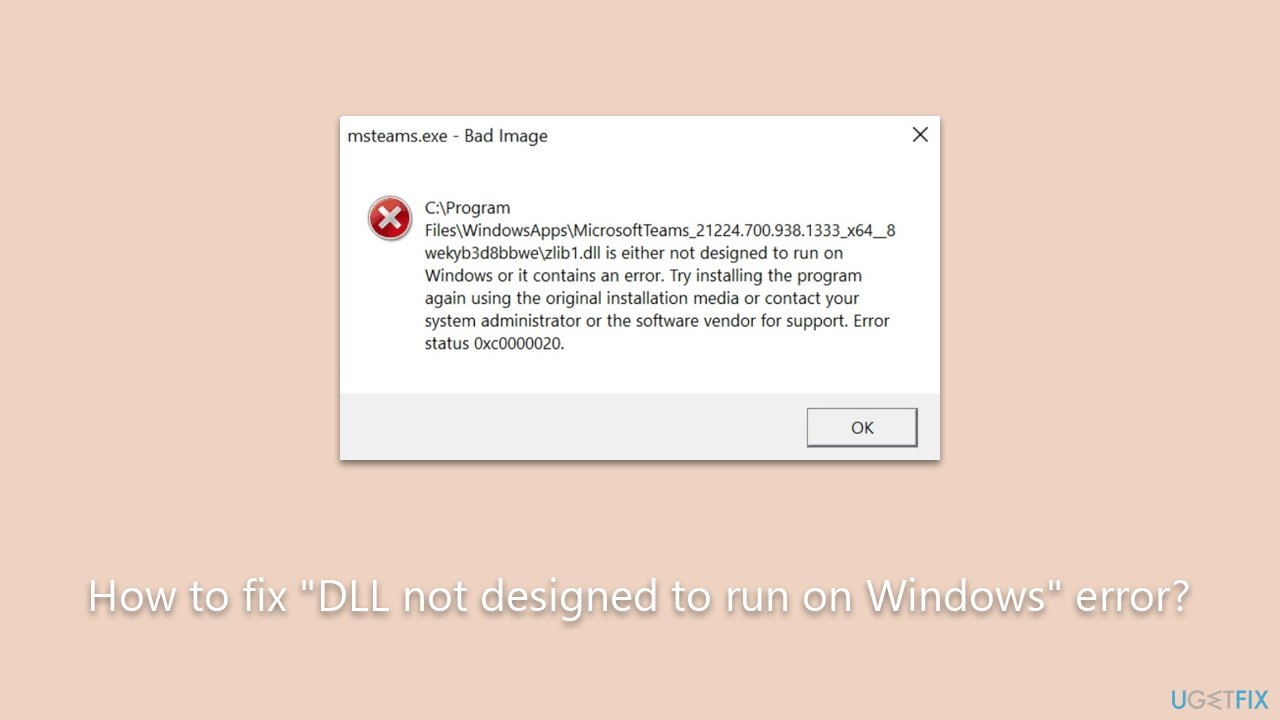
A Bad Image error occurs when Windows cannot run the files referenced by the application because the file is corrupt, incompatible, or even mistakenly deleted. Windows displays an alert when this happens, indicating that the application or program can't start because a particular DLL is not designed to run on Windows.
The "DLL not designed to run on Windows" error mainly arises from incompatible software installation. For instance, installing a 32-bit application on a 64-bit Windows operating system can trigger this error. Alternatively, the DLL might have been developed for a different version of Windows or might be corrupt due to reasons like malicious software interference or an interrupted download process. Sometimes, a program or application overwrite might replace an existing DLL with an incompatible version.
Another prevalent cause is the mistaken deletion of DLL files, either by the user or by certain cleaning software that misidentifies these files as redundant or unnecessary.
While a detailed guide on solving "DLL not designed to run on Windows" errors will be provided below this article, a basic understanding is that the solution usually revolves around reinstalling the problematic software, re-registering the DLL file, or even repair-installing Windows.
For individuals seeking a hassle-free and quick solution, using [d1] PC repair tool is recommended. This tool is designed specifically to tackle and fix DLL errors automatically, ensuring a smooth and efficient computing experience.
Fix 1. Re-register the DLL file
Every DLL file is registered within the Windows system, creating an entry point that allows programs to call it. If the registration becomes corrupt or is missing, errors can occur. Re-registering can often restore this entry point and resolve associated errors.
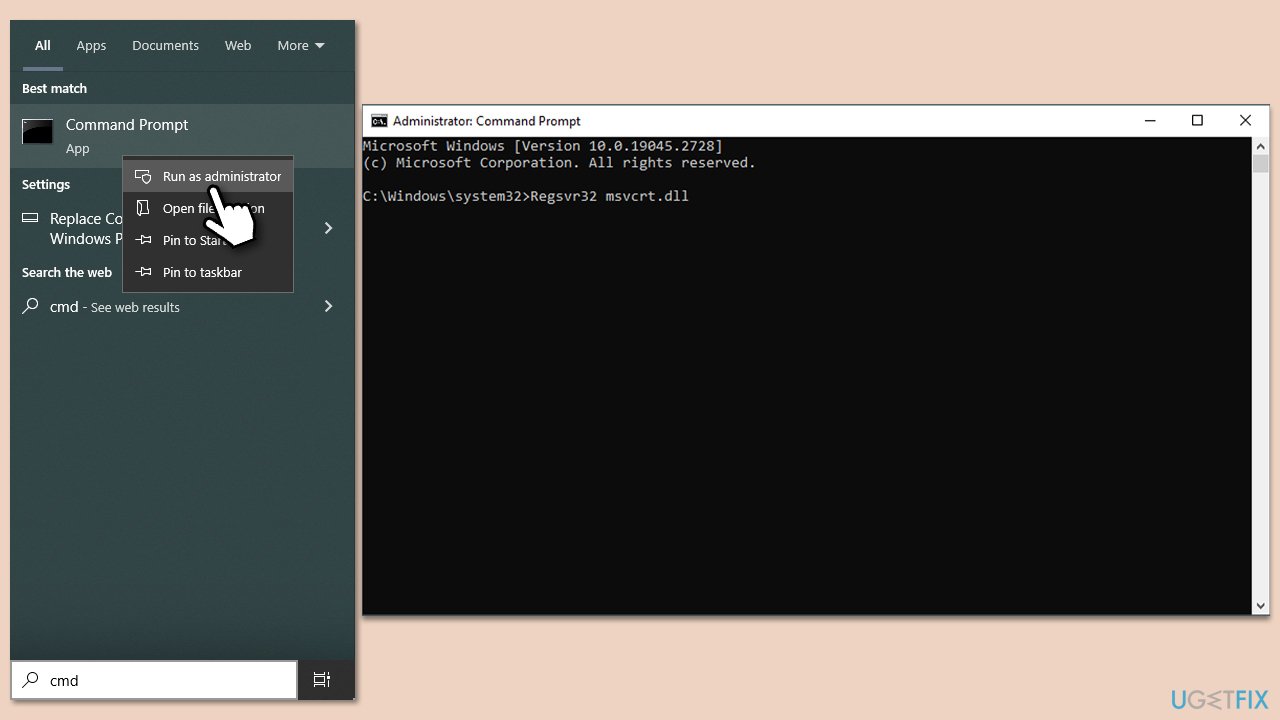
- Type cmd in Windows search.
- Right-click on Command Prompt and select Run as administrator.
- When UAC shows up, click Yes.
- Within the Command Prompt, enter regsvr32 nameofdllfile.dll (make sure to replace nameofdllfile.dll with the accurate name of the DLL you aim to re-register).
- Hit Enter.
- If successful, a confirmation message will appear, signifying the file's successful registration.
Fix 2. Run SFC and DISM
Windows offers built-in utilities, namely the System File Checker (SFC) and the Deployment Image Service and Management Tool (DISM), specifically designed to identify and repair corrupt or missing system files, including problematic DLLs.
- Open Command Prompt as administrator.
- Use the following command and press Enter:
sfc /scannow - Once the scan is complete, you should also run the following commands to repair Windows image files (don't forget to press Enter after each):
DISM /Online /Cleanup-Image /CheckHealth
DISM /Online /Cleanup-Image /ScanHealth
DISM /Online /Cleanup-Image /RestoreHealth - Restart your device.

Fix 3. Try Clean Boot
Performing a clean boot essentially allows Windows to start using the least amount of drivers and startup programs. This is instrumental in pinpointing issues stemming from external applications or drivers interfering with the normal functioning of the system.
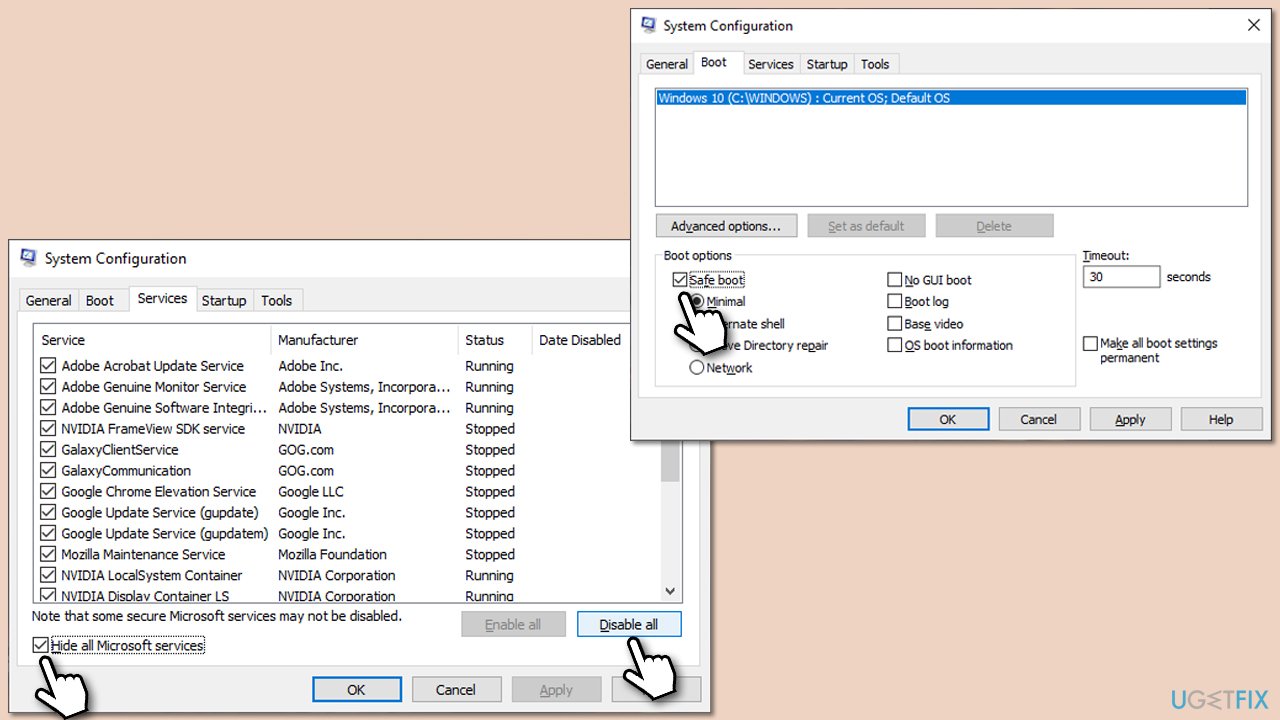
- Press the Win + R to open the Run dialog.
- Type msconfig and press Enter.
- In the System Configuration window, select Selective Startup, and uncheck Load startup items.
- Go to the Services tab and check the box Hide all Microsoft services, then click Disable all.
- Click on the Startup tab and open Task Manager.
- Disable all the startup items in the Task Manager.
- Click OK, and restart the computer.
- Once the computer is restarted, try the action that was causing the error.
- If resolved, you can start enabling services and startup items one by one to identify the culprit.
Fix 4. Install all Windows updates
Windows releases periodic updates that often contain critical fixes for known system issues. Staying updated can preemptively resolve many problems.
- Type Updates in Windows search and press Enter.
- In the new window, click Check for updates.
- Wait till all the necessary files are downloaded and installed.
- If optional updates are available, install them as well.
- When done, reboot your computer to apply updates.

Fix 5. Uninstall the latest Windows updates
Conversely, at times, new updates may introduce unforeseen issues. If a DLL error arises after an update, reverting the update may prove beneficial.
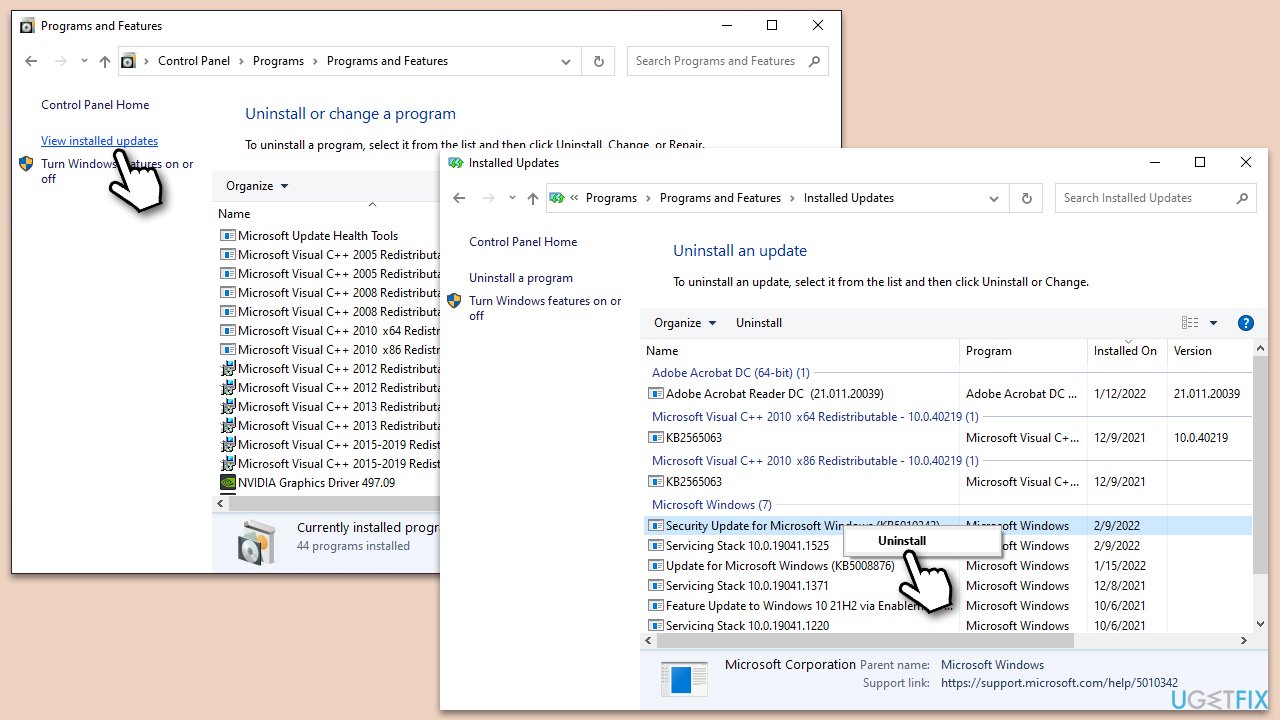
- Type Control Panel in Windows search and press Enter.
- Select Programs > Uninstall a program.
- Click on View installed updates on the left side of the window.
- Sort all the updates by date.
- Right-click on the most recent update and select Uninstall.
- Proceed with on-screen instructions.
- Then, type Updates in Windows search and press Enter.
- Click Pause the updates for 7 days (in Windows 11, you can pick a different time period).
Fix 6. Perform security scan
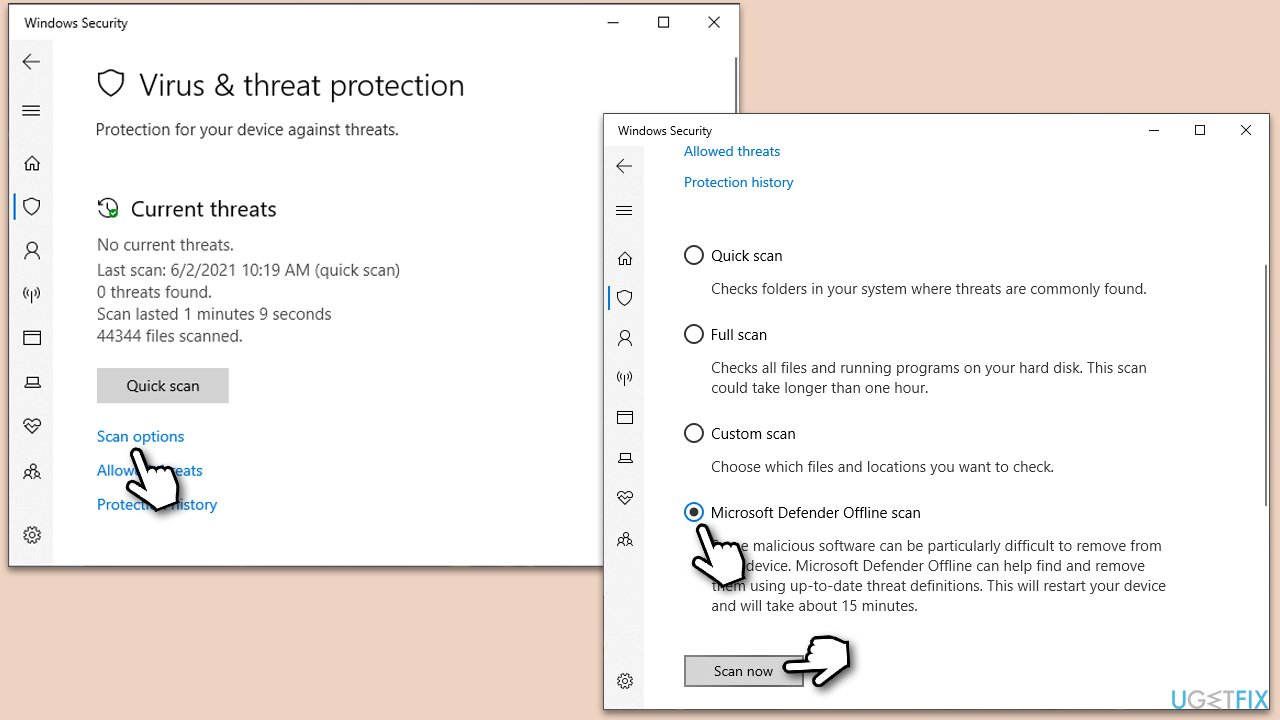
DLL files, due to their inherent importance, are popular targets for malware and viruses. These malicious entities can modify, corrupt, or outright delete these files. A thorough security scan can root out such threats. You can use Microsoft Safety Scanner or the built-in Windows Defender:
- Type Windows Security in the Windows search bar and hit Enter.
- Select Virus & threat protection.
- Pick Scan options.
- Choose Microsoft Defender Offline scan and click Scan now.
- Your computer will immediately reboot and begin a deep scan.
Fix 7. Repair-install Windows
A repair-install is a failsafe approach, essentially reinstalling the Windows OS without affecting personal data. This ensures all system files, including DLLs, revert to their original, uncorrupted state.
- Download Windows 11 Installation media from the official Microsoft website. [Windows 10 version]
- Double-click on the ISO file to open it.
- Find and select the setup.exe file within.
- Should User Account Control prompt you, choose Yes.
- Upon reaching the Install Windows screen, opt for Change how Setup downloads updates.
- Choose Not right now to avoid downloading a potentially new build. Then proceed with Next.
- Allow the setup to assess your PC's compatibility and free space.
- In the ensuing license agreement, select Accept.
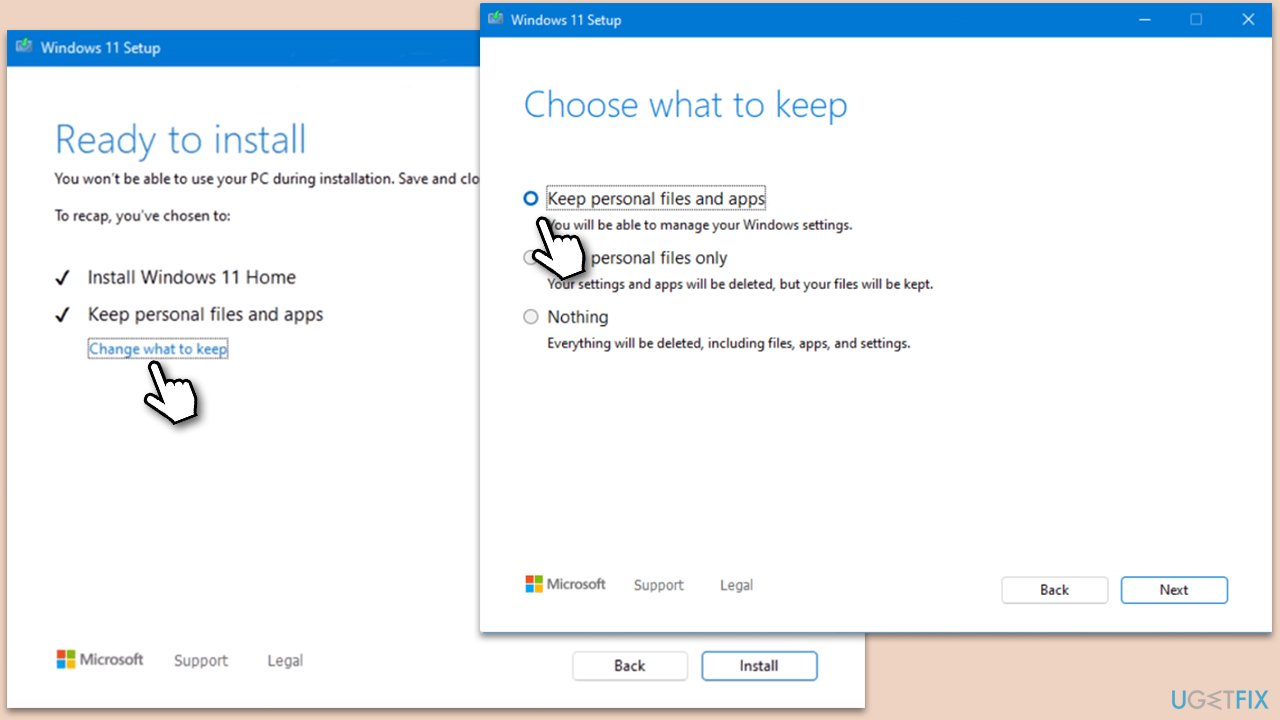
- Once on the Ready to install page, click on Change what to keep.
- You'll be presented with choices: Keep personal files and apps, Keep personal files only, or Nothing.
- Finally, click Install to begin the installation process.
Bottom line
To fix the 'DLL not designed to run on Windows' error, you may need to reinstall the problematic software or restore the missing DLL files. If these solutions do not work, consider checking for software updates or running a system file checker.
Frequently asked questions
This error typically occurs when a DLL file is incompatible with your version of Windows 10, often due to corruption or a mismatch in architecture (32-bit vs. 64-bit). Ensuring that you have the correct version of the DLL file can resolve this issue.
To fix this error on Windows 11, you can try reinstalling the application that uses the DLL or downloading the correct version of the DLL file from a reliable source. Additionally, running a system file checker scan may help repair any corrupt files.
Yes, you can use the Event Viewer in Windows 10 or Windows 11 to check error logs that will detail which specific DLL file is causing the issue. This information can guide you in troubleshooting the exact problem.




Report an issue
What's wrong with this guide? We review every report and update or remove content.
Report received — thank you. We'll review and fix it.
You need a free account to submit a report.
Be the first to comment