How to fix
Disappearing cursor issue
on Windows
Resolve the disappearing cursor issue in Windows 10 quickly and easily. Our expert-tested solutions ensure a smooth experience in just minutes.


What causes How to fix disappearing cursor issue in Windows 10?
- Hardware-related issues
- Software compatibility problems
- File corruption problems
- Issues after Windows updates
- Problems after upgrading the operating system
- Mouse malfunction
Repairs Windows system files, removes malware, and restores a clean OS state — without reinstalling.
Hello, today I logged into my computer that is running Windows 10, and unfortunately, the cursor did not appear on the screen. How am I supposed to navigate and control the computer now? I can’t even solve the issue. Can you provide a fix for the disappearing mouse issue?
Disappearing cursor issues on Windows 10 can be caused by hardware-related issues, software compatibility, or file corruption problems. An unresponsive cursor can be particularly frustrating when the computer is needed to do important work or school tasks.[ref en-5]
Computer inputs are made either by mouse or keyboard - although that was not the case all the time. In the meantime, users so got used to this pointing device that using a computer without it seems like a nightmare - it happens when the mouse cursor starts disappearing seemingly out of nowhere.
Of course, laptop owners also have a touchpad[ref en-1] to rely on - they can use this device to fix mouse cursor disheartening or missing issues. However, PC users will have a much harder time if they have no touchpad to rely on. In the meantime, the disappearing cursor prevents users from operating their computers normally.
In most cases, users believe that the disappearing mouse cursor comes suddenly and that the issue is not related to anything. However, in the majority of cases, the problem appears after Windows updates,[ref en-2], or after upgrading the operating system to a newer version (for example, Windows 8 to Windows 10). Additionally, this could also happen after the computer comes out of sleep.

However, just with every other Windows error and issue, there are multiple other reasons why the mouse cursor disappears. The problem could lie within the hardware[ref en-3] itself - just like other devices, a mouse could break, or some of its components could become non-functional.
Therefore, before you proceed with the following mouse cursor disappearing fixes, you should perform the following tasks:
- Unplug and plug back in the mouse. Sometimes the mouse may bug out (just like any other device), and "rebooting" it by plugging it out and back into the USB socket might fix the issue.
- Try another mouse. If you have one more pointing device you can use - try plugging it, as your current one might simply be broken.
If these two methods did not help you fix the cursor disappeared issue, proceed with the steps below. Note, you will have to navigate with your keyboard in some cases. You can also check the system for any corruption or file issues with [d1] and repair errors automatically.
Also, you should check the following articles in order to find more relevant answer to your particular case when it comes to mouse issues:
1. Fix cursor disappearing issue on Windows 10 laptop by enabling the function
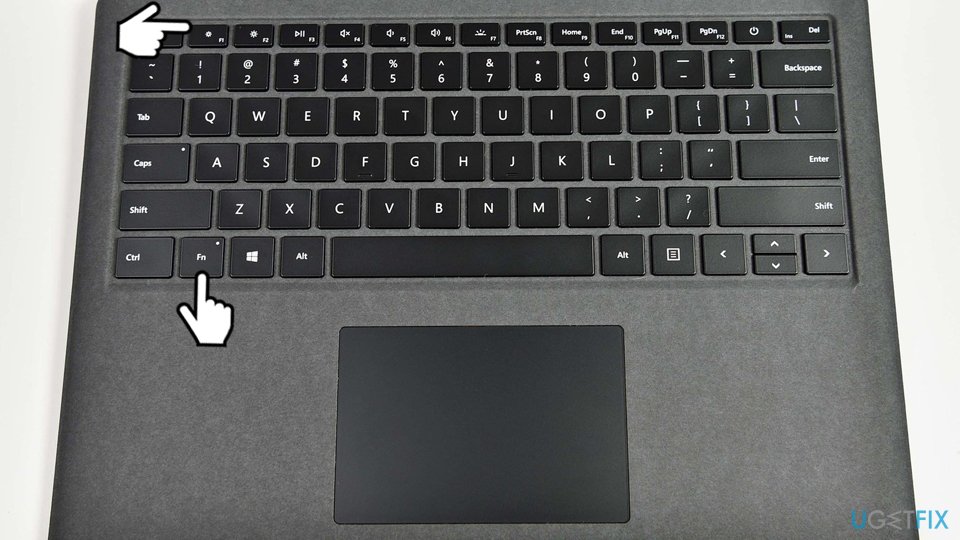
Many users who reported cursor disappearing issue were using laptops of various brands, including Dell, Acer, HP, Asus, and others. On laptops, disabling the mouse cursor is sometimes possible, and it is not always done on purpose. Therefore, try enabling your mouse with the help of your keyboard - simply press the following combinations (it all depends on your laptop brand):
Fn + F3/ Fn + F5/ Fn + F9/ Fn + F11
2. Reboot your PC
Sometimes, all that it takes to fix a certain Windows issue is simply to restart the operating system. However, since you cannot use your mouse, you have to follow these steps:
- Press Windows key + X at the same time.
- Use arrow Up to select Shut down or sign out.
- Use the Right arrow to navigate to the Restart option and then hit Enter.

Fix mouse cursor disappears restart your pc - Wait until your PC reboots and try to move your mouse to see if the cursor appears on the screen.
3. Enable the mouse
- Press down Windows key + R. In the Run window, type in main.cpl and press Enter.
- This should open Mouse Properties. Using arrow keys and TAB key, navigate to the Device Settings tab.
- Press TAB repetitiously until the dotted square appears on Enable button. Press Enter.
4. Configure Pointer size
- Press the Windows button and type Cursor and Pointer in the search.
- Choose the first option and open the pointer configuration screen.
- Slide the Change Pointer Size up or down with arrow keys to change the size.
- Check if the pointer disappearing issue is persisting.
5. Modify Pointer Options to fix the disappearing cursor issue
- Launch the Run prompt by holding Windows key + R at the same time.
- Type main.cpl, press Enter.
- Using arrow keys and Tab key, reach Pointer Options tab and click Enter to open it.
- Press Tab key as many times as it takes you to reach the Enhance pointer precision option. Deselect this option with Enter key.
- Navigate to Display pointer trails using the same Tab key. Use the Enter key to enable this option.
- Now, use the same technique to uncheck Hide pointer while typing option.
- Finally, check Show location of pointer when I press the CTRL key.
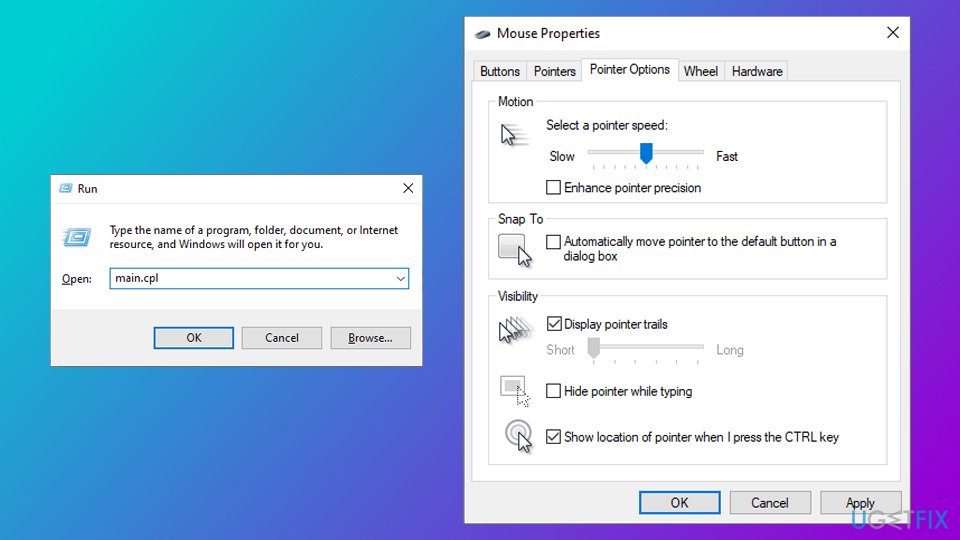
Fix mouse cursor disappears modify pointer options - Navigate to Apply, and then press Enter.
- Restart the system using the technique explained in the method 1.
6. Update drivers
- Press down Windows key + R.
- In the Run prompt, enter devmgmt.msc and hit Enter.
- Navigate through the list using Up and Down arrows. You may also need to use Tab key to navigate. Go to Mice and other pointing devices and then press the right arrow key.
- Then press Down arrow key to access a sub menu. Select your mouse device.
- Press down Shift and also F10 key at the same time.
- Use arrow keys to reach Properties menu. Press Enter.
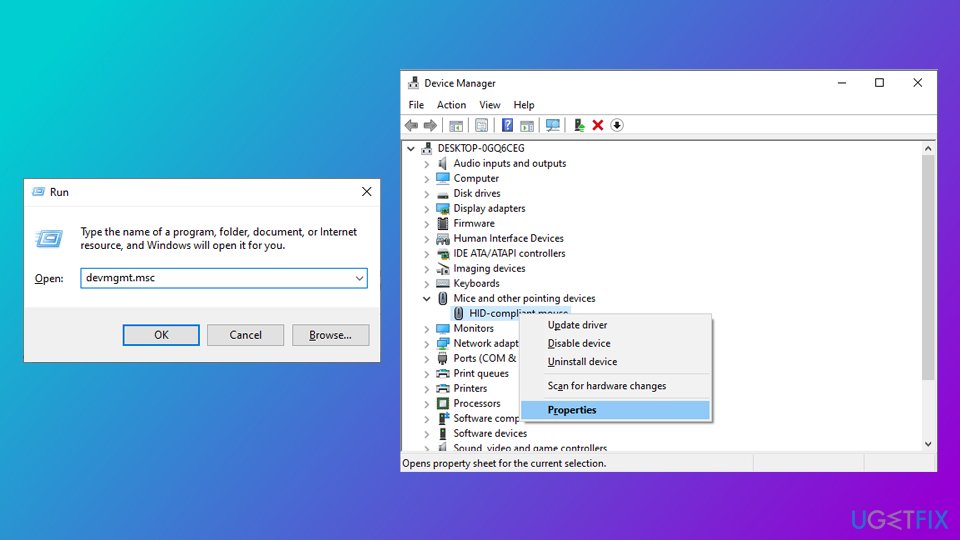
Fix mouse cursor disappears open device manager - Now, use Tab key and press it as many times as it takes to reach the General tab.
- Use right arrow key to access Driver tab. Press Enter or Tab to open it.
- Press Tab key again as many times as it takes to select Update Driver… button. Press Enter.
- Using arrow keys, select the Search automatically for updated driver software option and hit Enter.
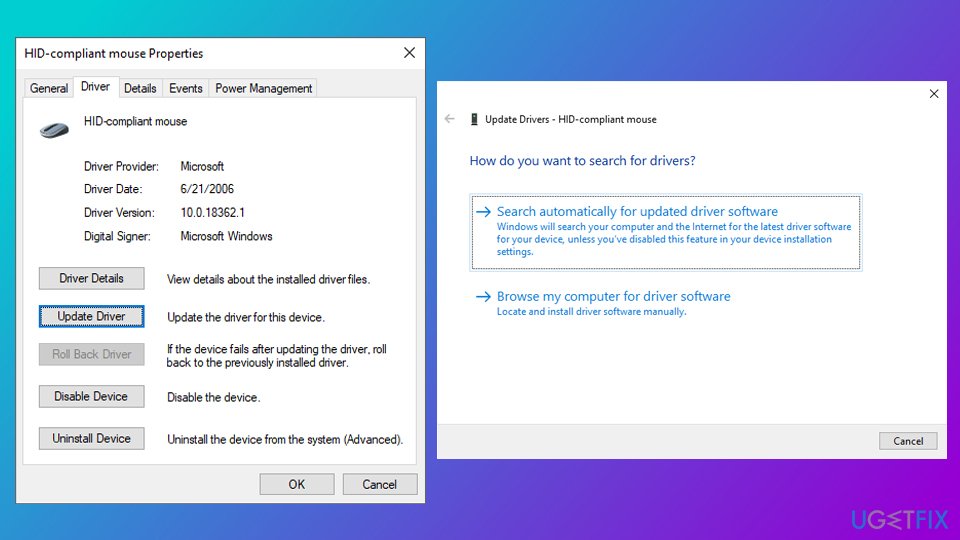
Fix mouse cursor disappears update driver - Check if your cursor is still missing. In case there are no new updates, or they do not work, select Cancel button and press Enter.
- In the Properties window, see if the Roll Back Driver… is available. If it is, navigate to it using your keyboard keys and press Enter.
- Up and Down keys should be used to select the reason. Click Enter to confirm. Activate the Yes button to save.
Note: Driver update can be performed automatically using a trustful driver updater tool. We recommend using [rev id="Driverfix"]
7. Scan your PC for malware
Malware[ref en-4] can cause a variety of issues on Windows 10, including the disappearing mouse cursor. Therefore, we highly advise you scan your device with Microsoft Defender or another anti-malware program:
- Press Windows key + T once and then hit Tab.
- Press Enter to show hidden icons.
- Use arrow key Up to reach Microsoft Defender icon - press Enter.
- Press arrow key Down to select Virus & threat protection and press Enter.
- Press Tab to reach Scan options.
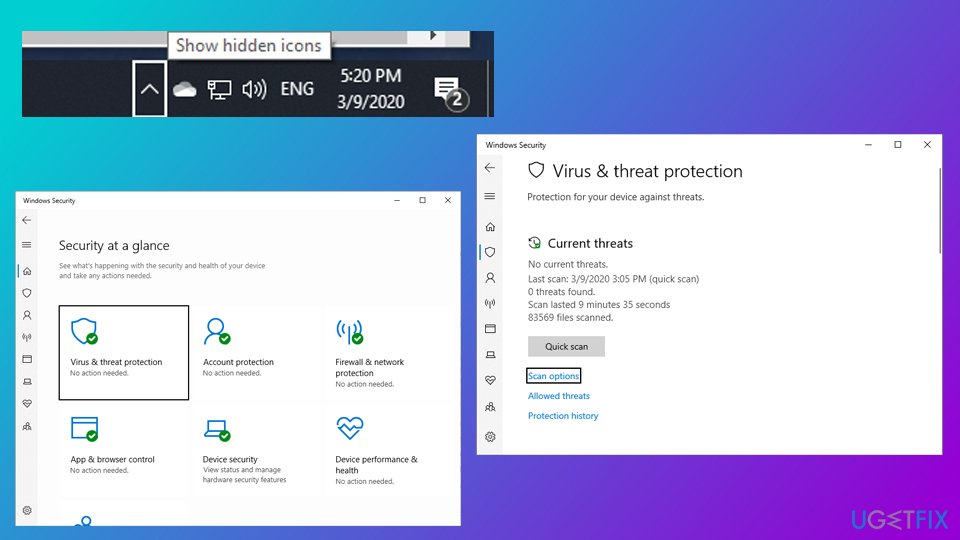
Fix mouse cursor disappears scan for malware - Use tab till you reach Full scan, then press Spacebar.
- Press Tab to reach Scan now and hit Enter.
- Now wait for the scan to finish.
8. Edit the registry entries to solve the disappearing cursor issue
- Press Windows and R keys on the keyboard.
- Type regedit in the run box hat opened and click Enter.
- Use the arrows and navigate to folder HKEY_LOCAL_MACHINE that you should expand.
- Go to \\SOFTWARE\\Microsoft\\Windows\\CurrentVersion\\Policies\\System.
- Choose System and press TAB key to go to the right.
- Highlight EnableCursorSuppression and hit Enter.
- When it opens, enter 0 in the Value field and press TAB to highlight the OK.
- Restart the device.
9. Run SFC scan
- Press Windows key and type in cmd.
- Use Up arrow to go to Command Prompt result, then press the right arrow and select Run as administrator.
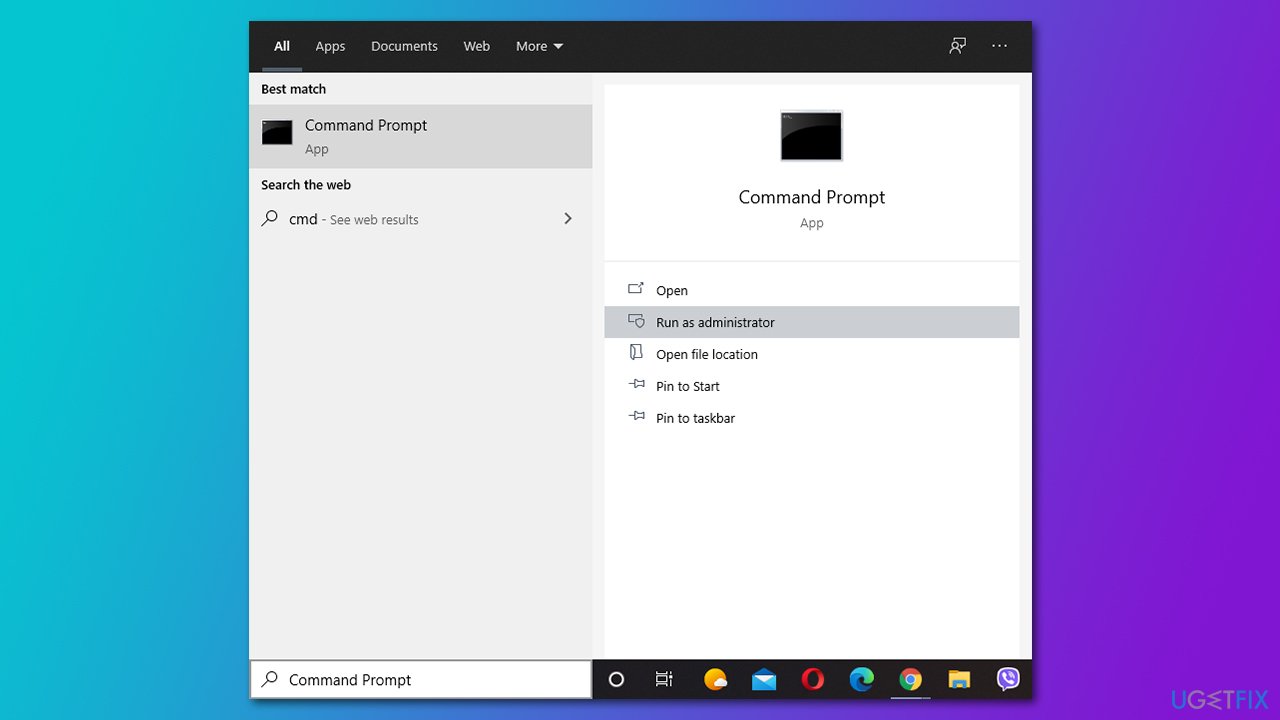
Fix disappearing cursor on windows open cmd as admin - If User Account Control shows up, select Yes.
- In the new window, type in sfc /scannow and press Enter.
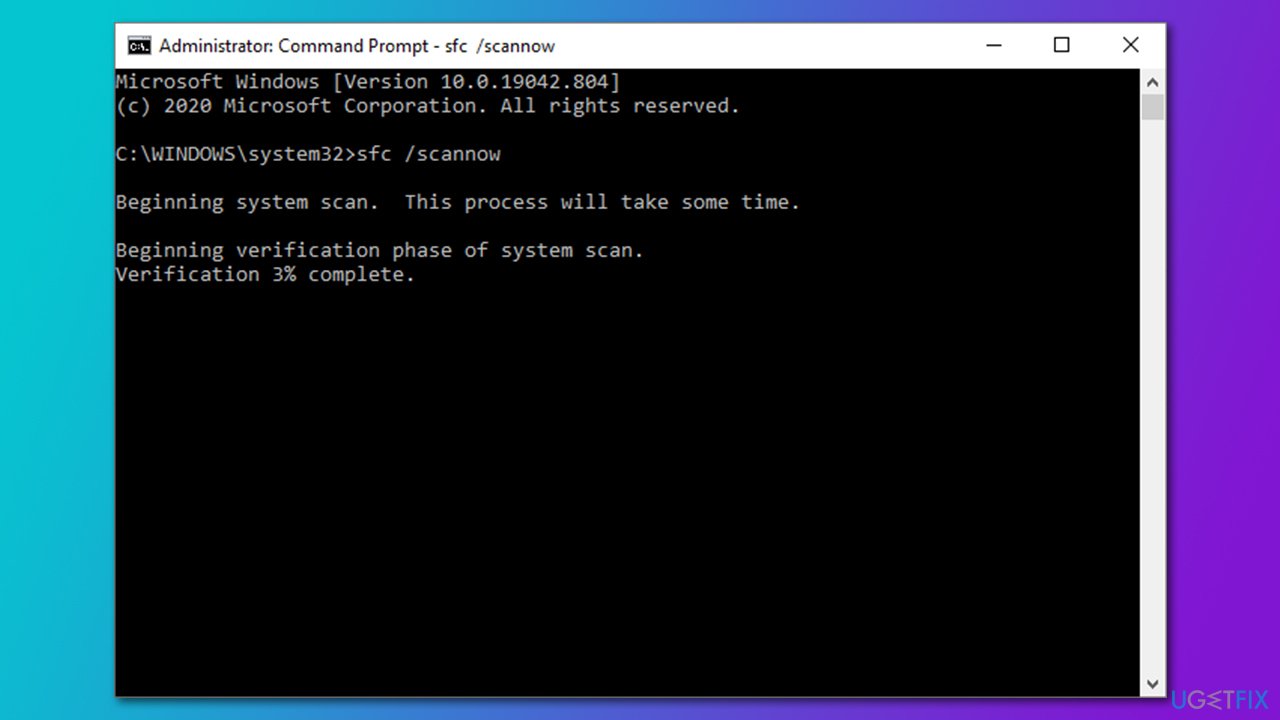
Fix disappearing cursor on windows run sfc scan - Wait till Windows finishes the process and reboot your PC.
10. Use Disk Cleanup
- Press Windows key, type in Disk Cleanup and press Enter.
- Select your default drive (usually, C:) and press OK/Enter.
- Select the temporary files you want to delete.
- Press OK and then Delete Files.
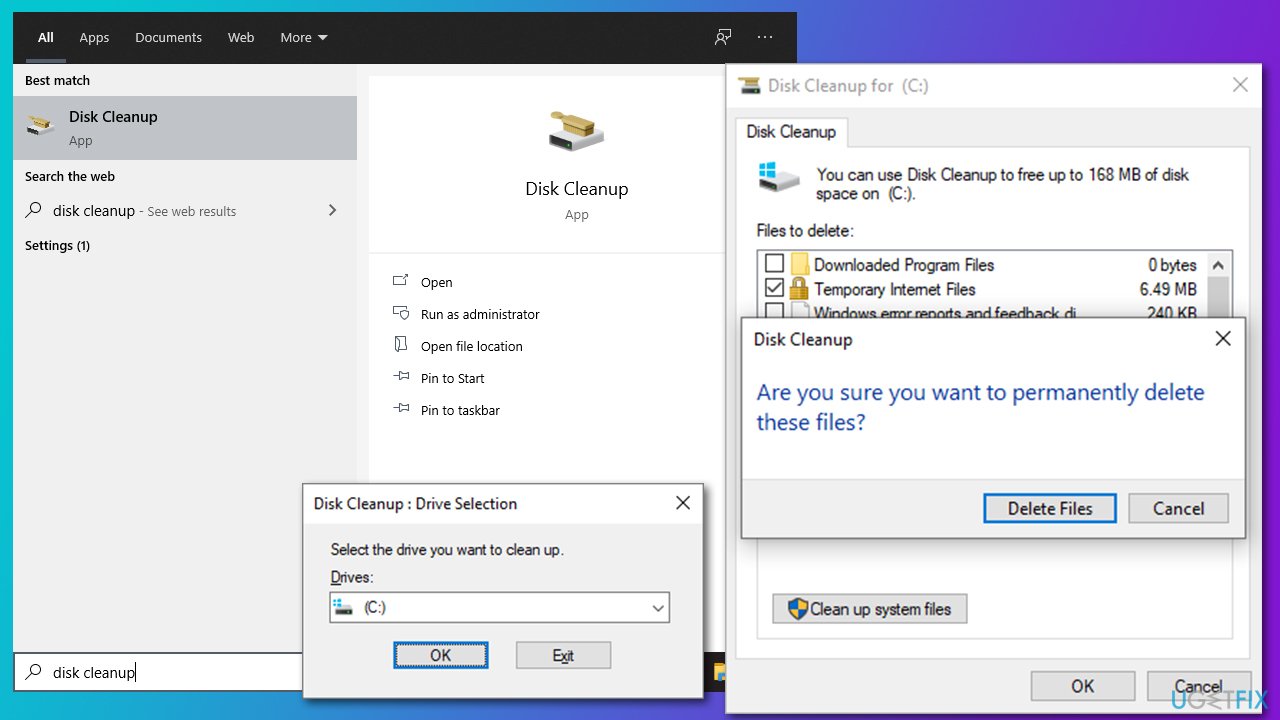
Fix disappearing cursor on windows run disk cleanup
Bottom line
To fix the disappearing cursor issue, try unplugging and plugging back in the mouse, check for software compatibility, and ensure there are no file corruption problems. If these fixes do not resolve the issue, consider checking for hardware malfunctions or contacting support for further assistance.
Frequently asked questions
The disappearing cursor in Windows 10 can be caused by outdated drivers, system settings, or software conflicts. Checking and updating your mouse drivers and adjusting pointer settings often resolves the issue.
If your cursor disappears in a specific application, try pressing 'Alt' + 'Tab' to switch windows, or minimize and restore the application. Additionally, restarting the application or updating it may also help.
Yes, adjusting mouse settings such as pointer speed or enabling 'Show location of pointer when I press the CTRL key' can help. You can find these settings in the Mouse options under Control Panel.




Report an issue
What's wrong with this guide? We review every report and update or remove content.
Report received — thank you. We'll review and fix it.
You need a free account to submit a report.
Be the first to comment