How to fix
“Sorry, we’re having trouble getting this feature installed” when installing Language packs
on Windows
Resolve the "Sorry, we’re having trouble getting this feature installed" error for Windows 10 and 11 language packs easily and efficiently. Expert-tested.

![[Fix] “Sorry, we’re having trouble getting this feature installed” when installing Language packs](https://ugetfix.com/wp-content/uploads/articles/askit/fix-sorry-were-having-trouble-getting-this-feature-installed-copy_en-768x432.jpg)
What causes [Fix] “Sorry, we’re having trouble getting this feature installed” when installing Language packs?
- Incorrect power settings
- Issues with Windows Update components
- General bugs within the operating system
- Permission restrictions preventing system changes
Repairs Windows system files, removes malware, and restores a clean OS state — without reinstalling.
Hi. I can't seem to install the features of a Language pack in Windows 11. The language pack itself installs but the features don't. Message says "Sorry, we’re having trouble getting this feature installed. You can try again later. Error code: 0x800F0954." Have you got any tips for me?
Understanding Language Packs installation errors in Windows
Language packs in Windows are essential for users who need to operate their system in a language other than the default installed one. These packs change the language of the user interface, enabling applications and menus to display in the selected language.
Beyond the basic language packs, Windows also allows for the installation of language pack features, which include additional tools like spell checkers and proofing tools that enhance the functionality of the chosen language settings.
Despite the straightforward integration process, some users might encounter the error message "Sorry, we’re having trouble getting this feature installed" when attempting to add new language packs or language pack features.
This issue may also present various error codes, including 0x800F0954, 0x80072f8f, and 0x80070490, among others, indicating specific problems during the installation process.
Why does this error occur?
Several factors can contribute to difficulties in installing language packs or features in Windows. Incorrect power settings that limit the system’s ability to process installations efficiently, issues with the Windows Update components that handle downloads and installations, general bugs within the operating system, or permission restrictions that prevent changes to system settings are common culprits.
How to fix the "Sorry, we’re having trouble getting this feature installed" error?
Addressing the error "Sorry, we’re having trouble getting this feature installed" involves a few possible solutions:
- Ensuring that your device is connected to a stable power source and is set to high-performance power settings can help.
- Checking and repairing Windows Update components may resolve issues affecting the download and installation processes.
- Adjusting system permissions to allow changes can also be crucial, etc.
For detailed manual instructions on how to resolve these issues, refer to the troubleshooting steps provided below this article. If you would rather take a more hands-off approach, you can always leave the fixing of Windows issues to [d1] PC repair software instead.

Fix 1. Run Windows Update and Network troubleshooters
Troubleshooters in Windows can automatically find and fix problems with your system’s update mechanism and network connections, which can interfere with the installation of language packs.
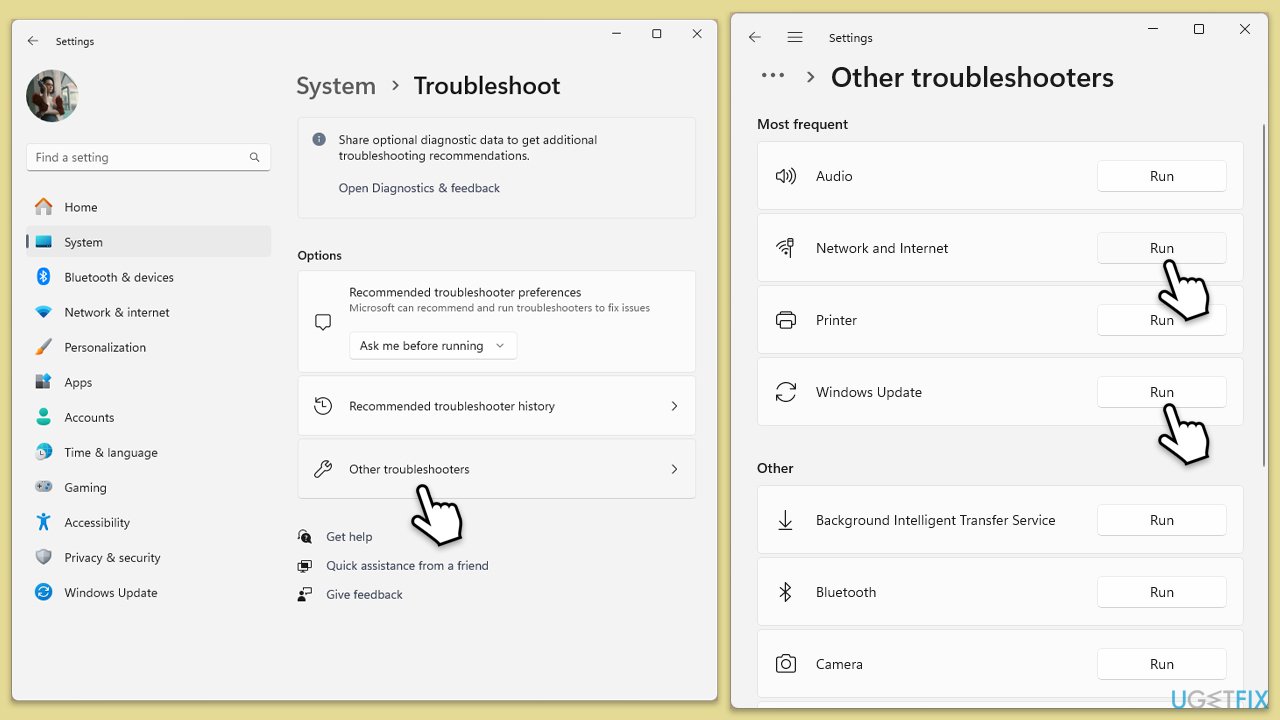
- Type Troubleshoot in Windows search and press Enter.
- Select Additional troubleshooters/Other troubleshooters.
- Find Windows Update from the list.
- Click it and select Run the troubleshooter/Run.
- The troubleshooter will automatically scan your system for potential problems and display any issues it finds.
- Repeat the process with Network and Internet troubleshooter.
To run Network troubleshooter in Windows 10, follow these steps:
- Right-click on Start and pick Settings.
- Go to the Network & Internet section.
- On the right side, find the Advanced network settings section.
- Click Network troubleshooter, specify the problem, and wait till the scan is finished.
- When done, apply all the recommendations.
Fix 2. Reset Windows Update components
Resetting these components clears out any corrupted data or configurations that may be causing issues with updates or installations.
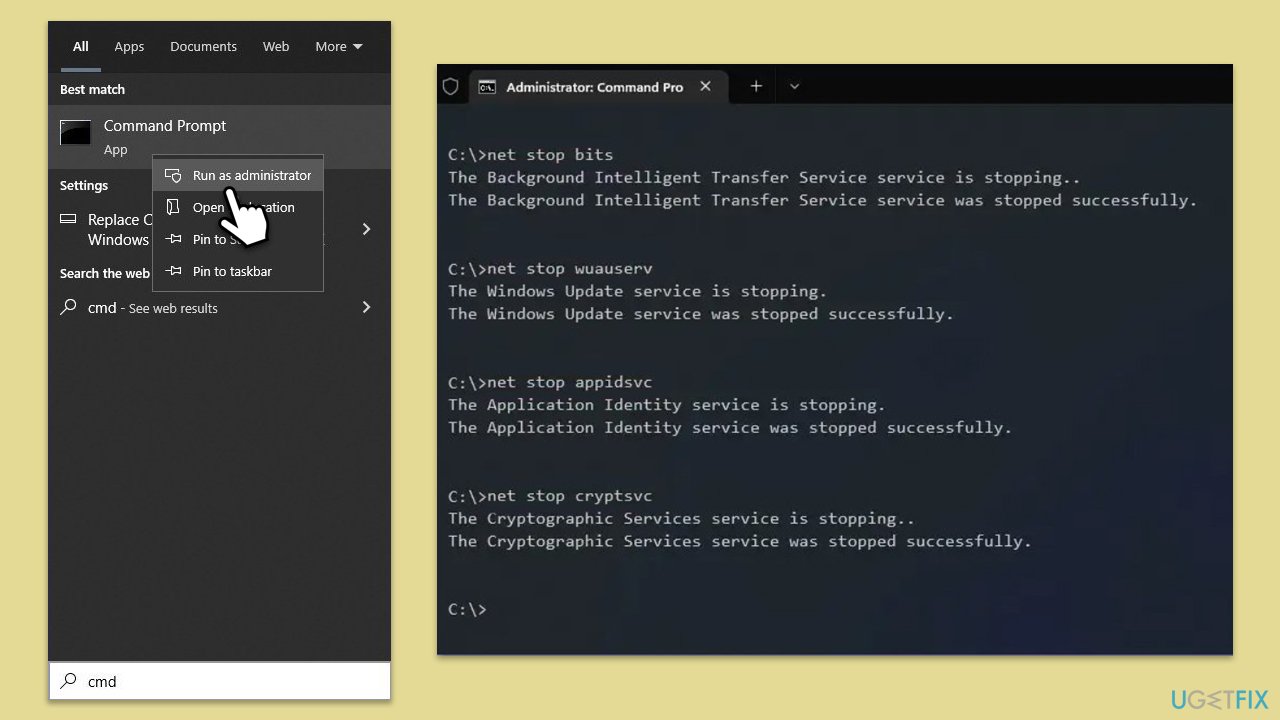
- Type cmd in Windows search.
- Right-click on Command Prompt and pick Run as administrator.
- Click Yes when User Account Control asks whether you want to allow changes.
- Type the following commands, pressing Enter after each:
net stop bits
net stop wuauserv
net stop appidsvc
net stop cryptsvc
Del “%ALLUSERSPROFILE%\Application Data\Microsoft\Network\Downloader\*.*”
rmdir %systemroot%\SoftwareDistribution /S /Q
rmdir %systemroot%\system32\catroot2 /S /Q
regsvr32.exe /s atl.dll
regsvr32.exe /s urlmon.dll
regsvr32.exe /s mshtml.dll
netsh winsock reset
netsh winsock reset proxy
net start bits
net start wuauserv
net start appidsvc
net start cryptsvc - Close the Command Prompt and restart your system.
Fix 3. Enable responsible services
Certain system services must be running to successfully install new languages and features.
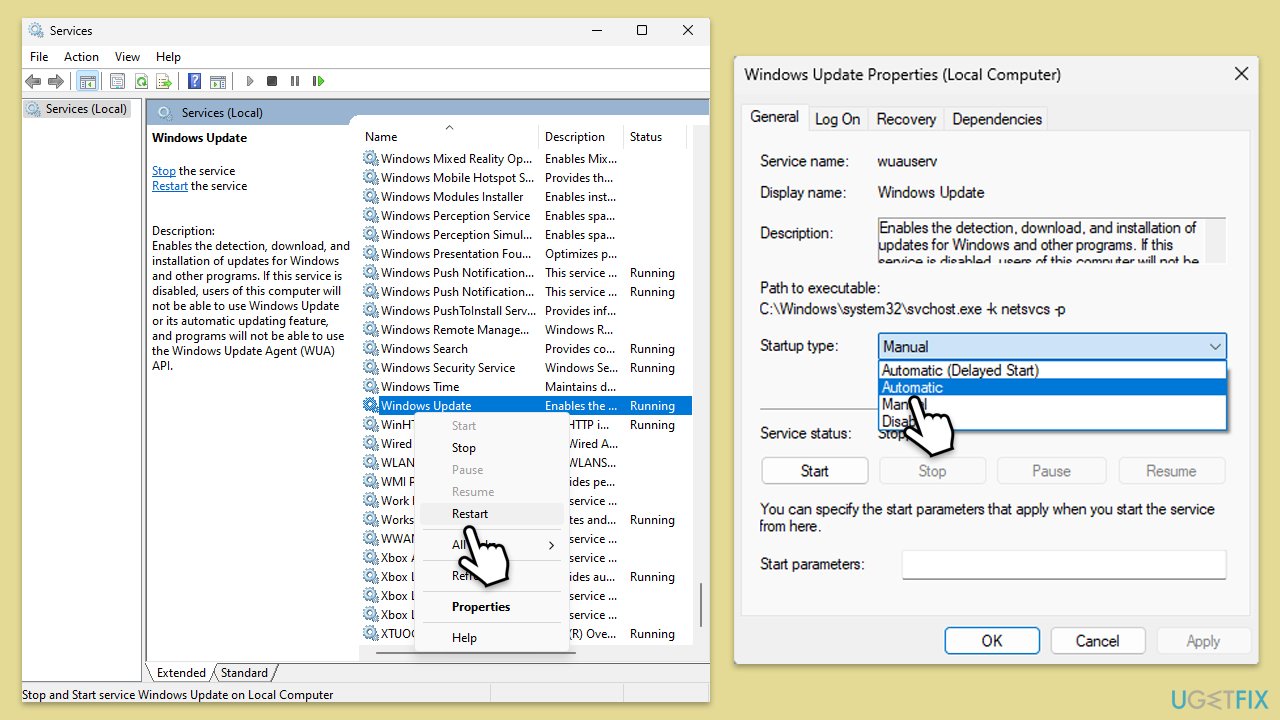
- Type Services in Windows search and hit Enter.
- Scroll down to locate Windows Update.
- If it is already running, right-click and pick Restart.
- If the service is not running, double-click it, and select Automatic under the Startup type from the drop-down menu.
- Click Start, Apply, and OK.
- Repeat this process for Background Intelligent Transfer Service (BITS) and Cryptographic services.
Fix 4. Disable Power Saver if enabled
Power settings can restrict the performance needed to install large features like language packs.
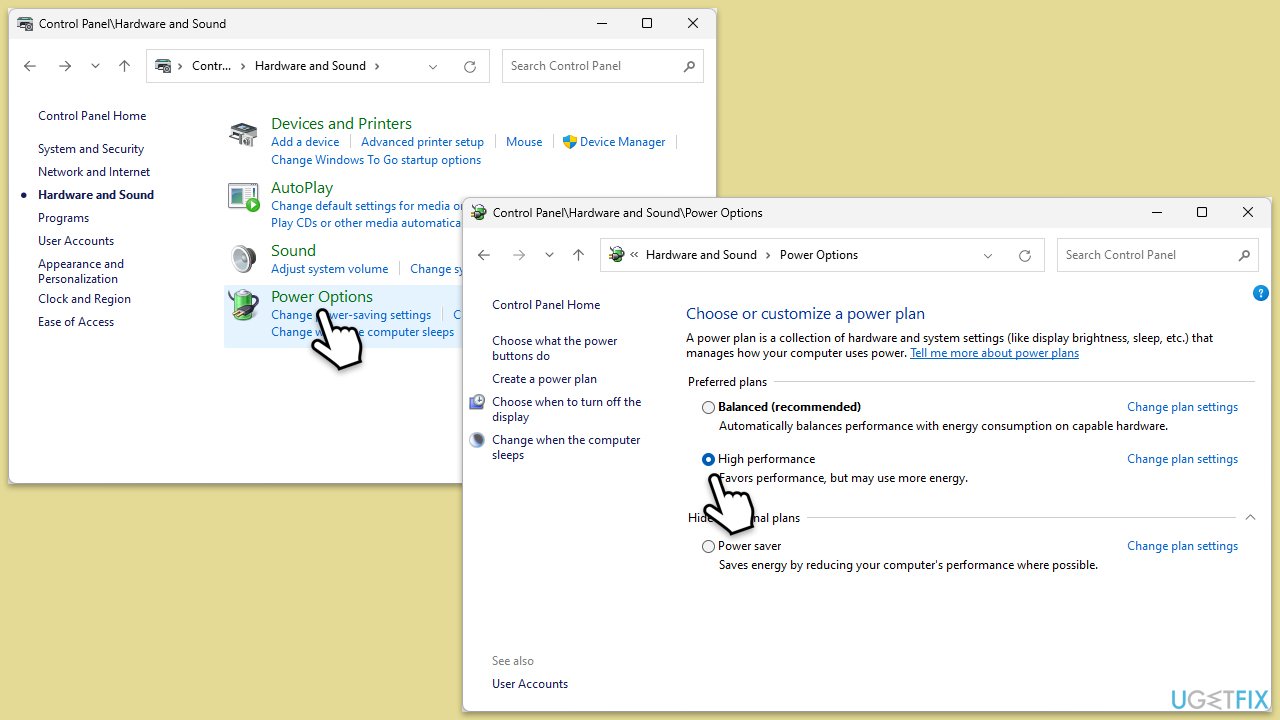
- Type Control Panel in Windows search and press Enter.
- Go to Hardware and Sound.
- Select Power Options.
- Choose High Performance or Balanced instead of Power Saver.
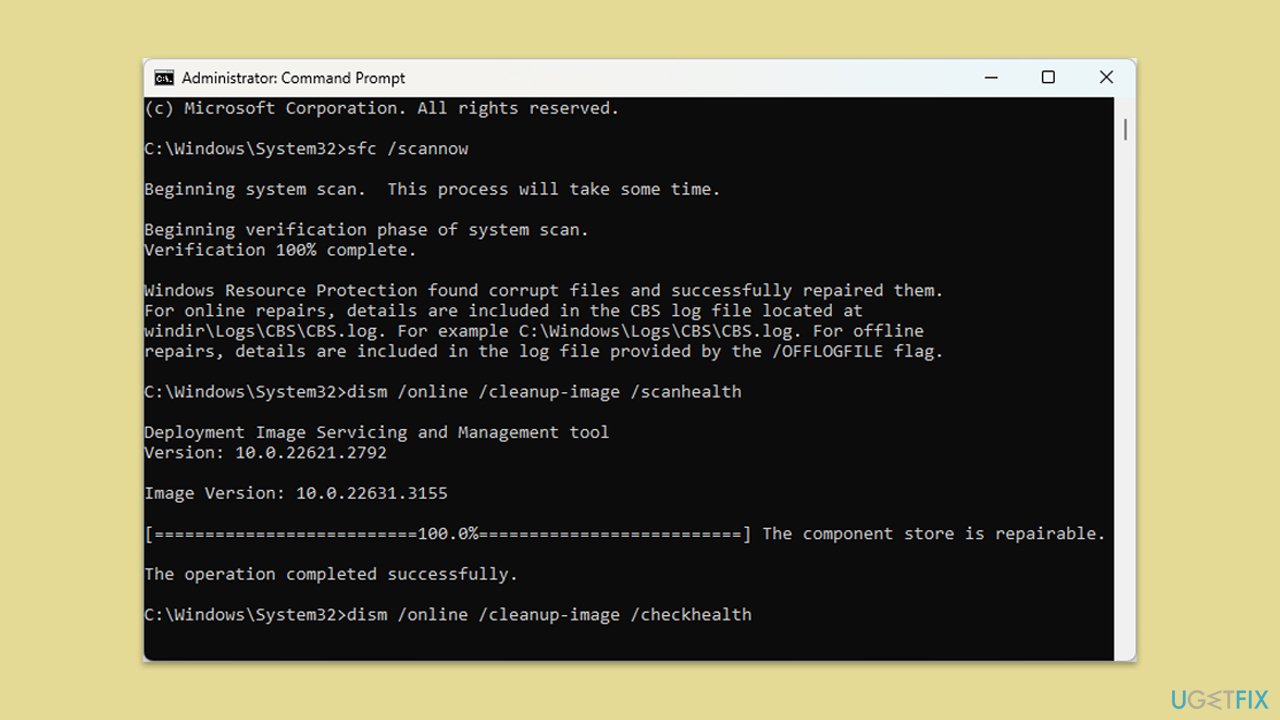
Fix 5. Repair corrupted files
System File Checker and Deployment Image Servicing and Management are tools that repair system files and system images, potentially resolving issues with system corruption that might prevent language pack installations.
- Open Command Prompt as administrator.
- Copy and paste this command and hit Enter:
sfc /scannow - Wait till the scan is finished. If Windows finds system file integrity violations, it will attempt to fix them. After this, use the set of the following commands, pressing Enter each time:
Dism /Online /Cleanup-Image /CheckHealth
Dism /Online /Cleanup-Image /ScanHealth
Dism /Online /Cleanup-Image /RestoreHealth - Close down the Command Prompt and restart your device.
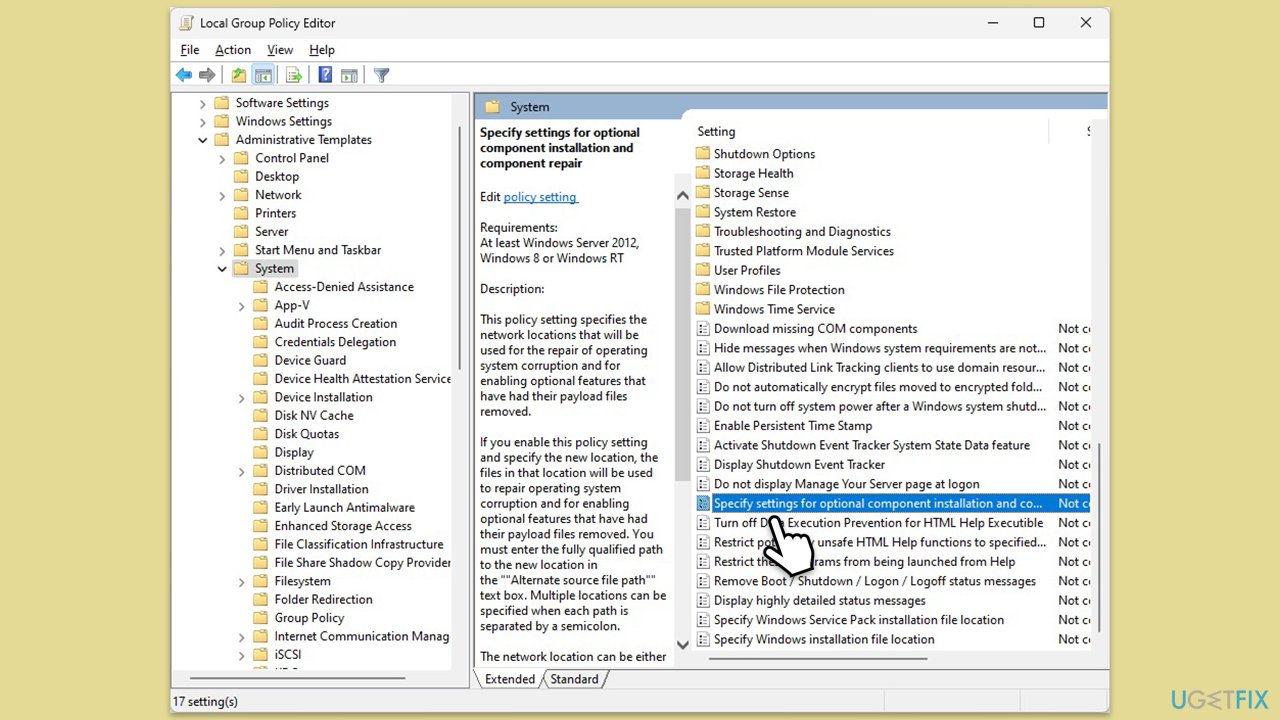
Fix 6. Adjust the "Specify settings for optional component installation and component repair" setting in the Group Policy
This setting ensures that Windows can download repair content and optional features directly from Windows Update.
- Type Group Policy and press Enter.
- Navigate to Computer Configuration > Administrative Templates > System.
- Double-click on Specify settings for optional component installation and component repair.
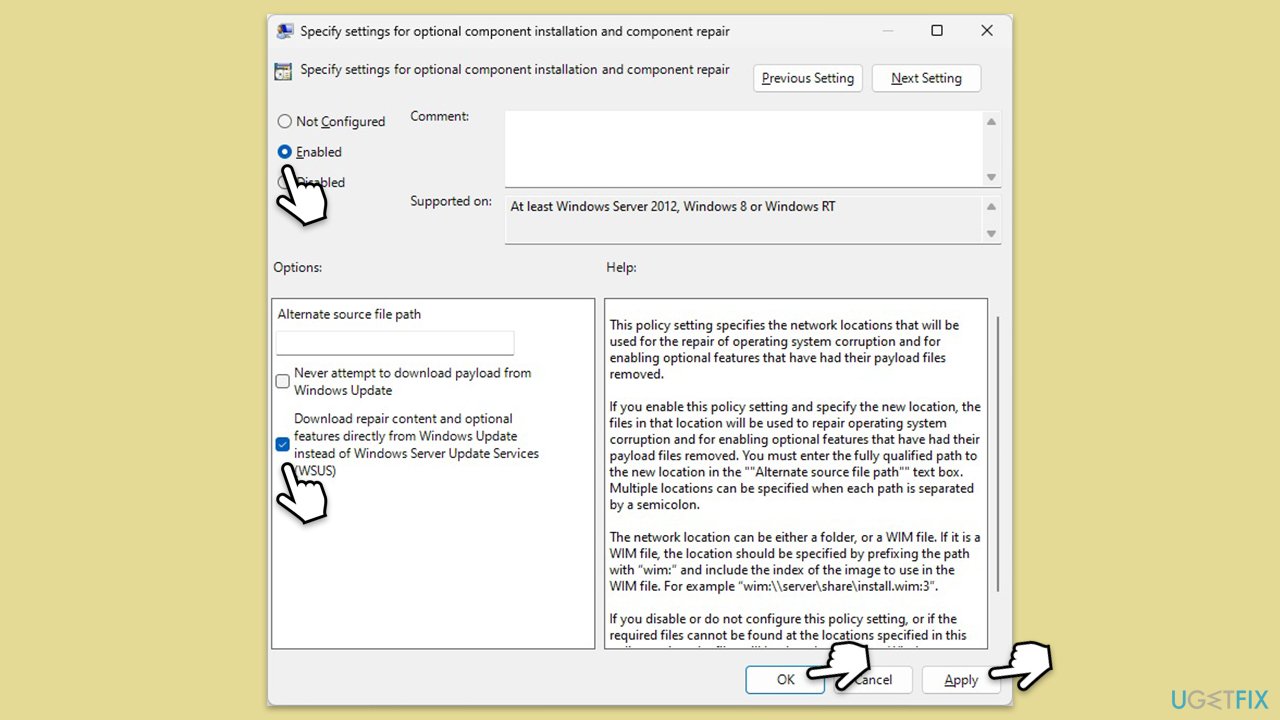
- Set it to Enabled.
- Below, mark the Contact Windows Update directly to download repair content instead of Windows Server Update Services (WSUS) checkbox.
- Click Apply and OK.
- Restart your computer.
Bottom line
To fix the error 'Sorry, we’re having trouble getting this feature installed', ensure your device is connected to a stable power source and set to high-performance settings. Additionally, check and repair Windows Update components and adjust system permissions. If these solutions do not resolve the issue, refer to the detailed troubleshooting steps provided in the article.
Frequently asked questions
Try running the Windows Update Troubleshooter, as it can often resolve issues related to feature installations. You can find this tool in the Settings app under Update & Security.
Ensure that your system is fully updated by checking for Windows updates, as pending updates can interfere with installing new features. Additionally, resetting the Windows Store cache may help resolve the issue.
Yes, make sure that the appropriate language settings are enabled in the Region & Language section of Windows Settings, and that you have administrative privileges to install language packs.




Report an issue
What's wrong with this guide? We review every report and update or remove content.
Report received — thank you. We'll review and fix it.
You need a free account to submit a report.
Be the first to comment