How to fix
“Default gateway is not available” error
on Windows
Resolve the "Default gateway is not available" error on Windows 10 and 11 quickly. Get expert-tested solutions for a seamless internet experience!


What causes How to fix “Default gateway is not available” error?
- Corrupt or outdated drivers
- Wrong Power Management settings
- Wrong router frequency
- Inadequate security software
Repairs Windows system files, removes malware, and restores a clean OS state — without reinstalling.
Hi. I usually use Ethernet for my internet connection, as it is more stable, and I never had problems with it. I have recently installed a new copy of Windows 10, however, and I now keep encountering the error stating that Default gateway is not available, and my Ethernet connection does not work anymore. The only way I can connect to the internet is via WiFi. What is the problem?
The default gateway[ref en-1] is an access point used by a networked computer to send out the information to a device in another network. For example, if your PC is requesting a connection to a certain internet web page, it first runs through a default gateway and then retreats from the local network, and only then connects to the internet.
The word "default" defines that it is used by default unless the used program stipulates utilizing another gateway. Without this feature, users would not be able to access the internet, and the network would remain disconnected from other networks.
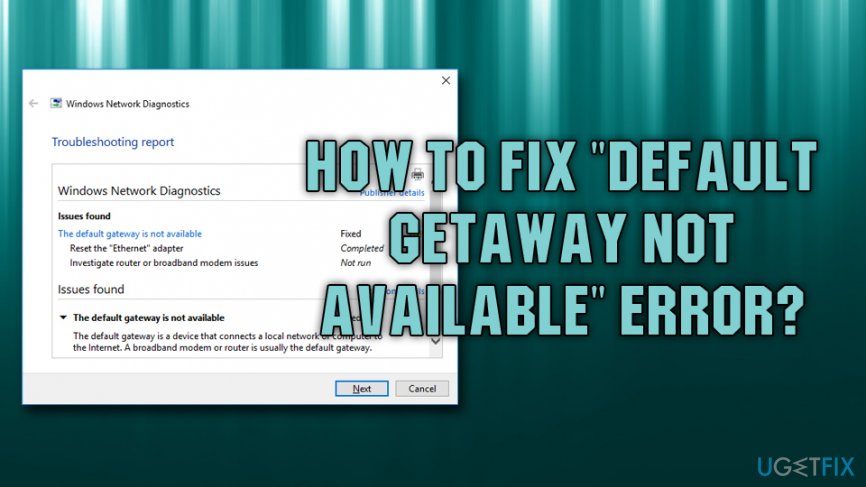
Countless users reported[ref en-2] "Default gateway is not available" error when troubleshooting the internet connection problem. Windows Network Diagnostics usually comes up with the following:
Troubleshooting was unable to automatically fix all the issues found. You can find more details below.
Problems found
The default gateway is a device that connects a local network or computer to the Internet. A broadband modem or router is usually the default gateway.
There are several reasons why people might be getting the "Default gateway is not available" error, including:
- Corrupt or outdated drivers
- Wrong Power Management settings
- Wrong router frequency
- Inadequate security software, etc.
Several methods can be used to fix "Default gateway is not available" error. Our expert team prepared detailed instructions on how to achieve that. If you are having frequent problems with internet connection, you might want to check:
- Ethernet doesn't have a valid IP configuration
- Unidentified Network
- No internet connection after malware removal
- One or more network protocols are missing
In this video you will find useful information:
[youtube uf17gjav1PA]
Step 1. Update your Network Adapter drivers
Drivers are links that connect a computer's hardware with software and make sure that these two can communicate properly. The issue with drivers is that they can stop working at any time or get corrupt when a device manufacturer releases new drivers. Nevertheless, you should first try updating your network adapter drivers and see if it helps you fix "Default gateway is not available" error:
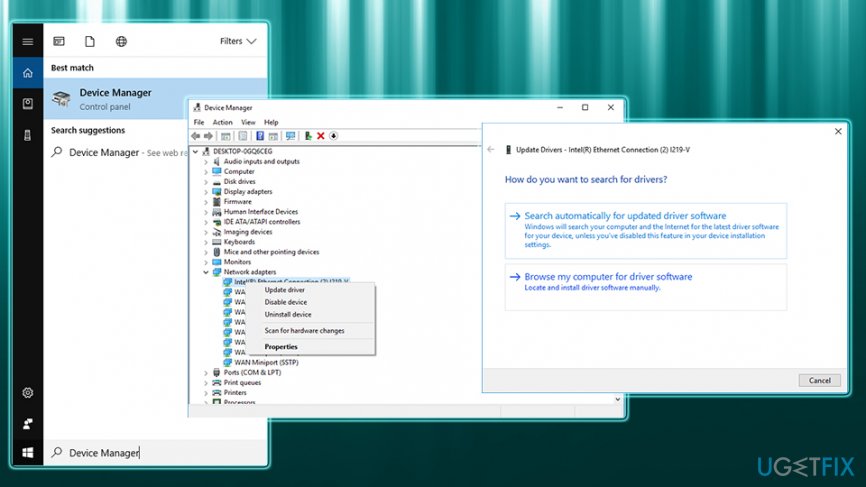
- Type in Device Manager into Cortana's search box (alternatively, right-click on the Start button and select Device Manager)
- Find Network Adapters and expand the category
- Right-click on the device that you are using, and pick Update Driver
- Next, choose Search automatically for updated software and let Windows install the newest version
- Restart your PC.
The process of updating drivers manually can be a pain, especially when multiple ones need to be updated. Therefore, automatic solutions like [rev id=”DriverFix”] can be used to update your drivers automatically. You will be notified that the new driver is released and all you have to do is click Update without performing any further actions.
Step 2. Uninstall anti-virus software
While anti-virus solutions are essential for the complete protection of your PC from trojans, keyloggers,[ref en-3] spyware, ransomware, and other types of malware, the third-party software might interfere with the normal operation of Windows 10 and cause "Default gateway is not available" error. In particular, users reported that McAfee products are the ones that are causing this issue.
- Simultaneously press Ctrl+ Shift + Esc on your keyboard
- In the Task Manager, right-click on security software and pick End task
- Type in Apps & Features into Cortana's search box
- Locate the installed software and click Uninstall
- Reboot your computer.
Additionally, you should turn on the default anti-virus program Windows Defender on, or use another third-party security tool like [d1].
Step 3. Perform netshell reset command
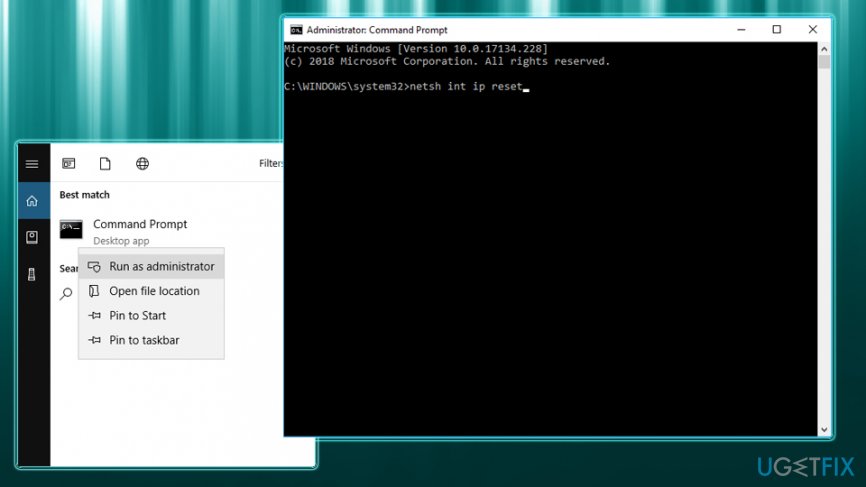
- Type in cmd or Command Prompt in the search bar
- From the search results, right-click on it and select Run as administrator
- Enter the following into the Command Prompt window: netsh int ip reset
- Hit Enter and reboot your PC after the command is executed.
Step 4. Change Power settings
Many users reported that changing Power Management settings helped them fix "Default gateway is not available" error. To do that, follow these instructions:
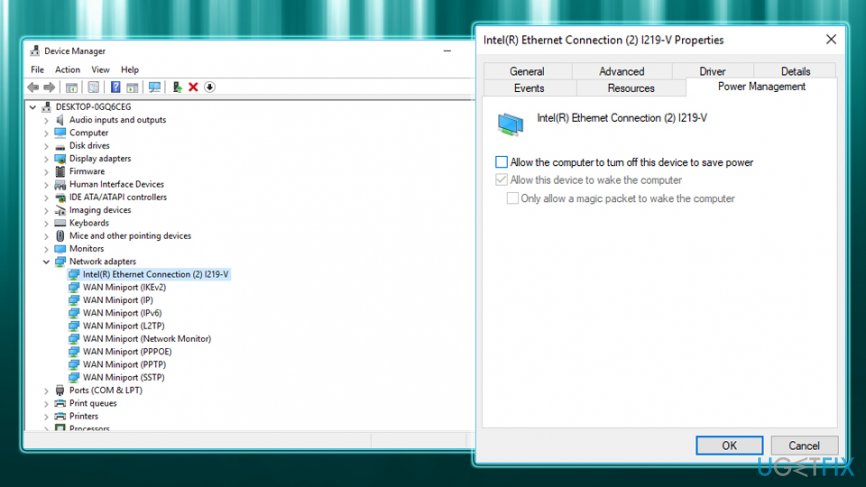
- Right-click on the Start button and select Device manager
- Expand Network Adapters section
- Locate your network adapter and double-click on it
- Go to Power Management tab and uncheck the Allow the computer to turn off this device to save power.
Step 5. Change settings in Power Options
- Type in Control Panel in Windows search and press Enter
- There, pick the Small icons option from the View by menu
- Select Power Options
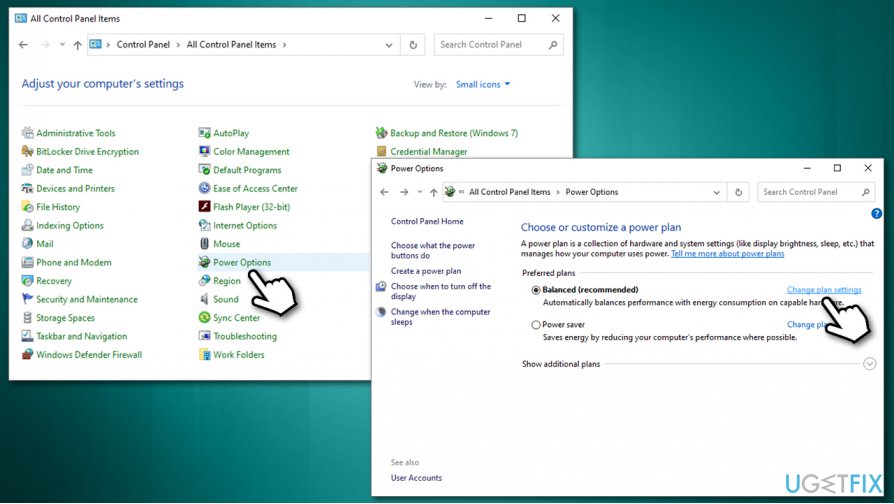
Fix default gateway is not available error enter power options - Pick Change plan settings
- Go for Change advanced power settings
- Click on Wireless Display Adapter once and select High performance from the drop-down menu above.
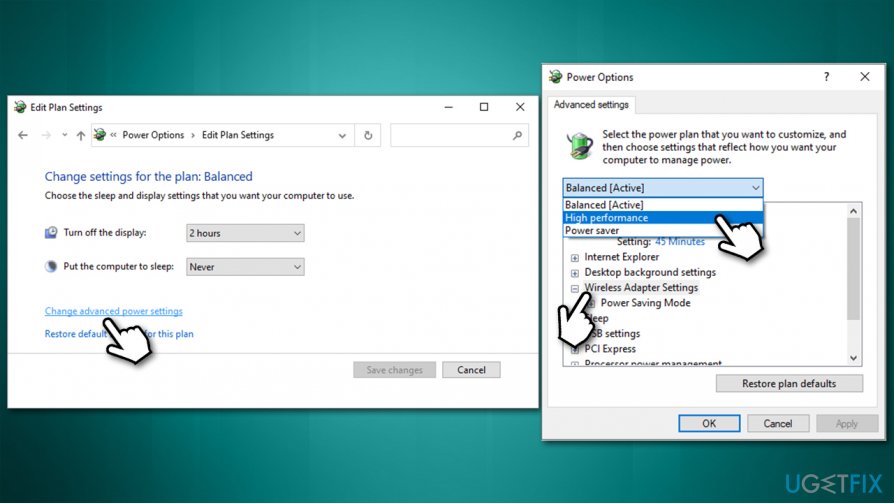
Fix default gateway is not available error select high performance
Step 6. Change your DNS address
Typically, your ISP provides you with the default DNS address. You can swap to different DNS quite easily. After that, check if that helps to resolve the issue.
- Right-click on Start button and pick Network Connection
- Under Advanced Network Settings, pick Change adapter options
- Right-click on your connection (for example, Ethernet), and pick Properties
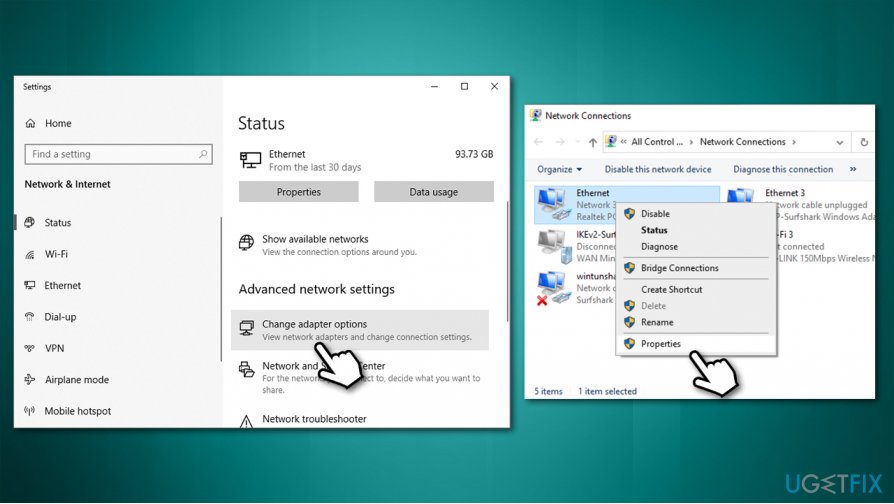
Fix default gateway is not available error go to ethernet properties - Click on Internet Protocol Version 4 (TCP/IPv4) and select Properties at the bottom
- At the bottom, select the Use the following DNS server addresses and type in the following:
8.8.8.8
8.8.8.9 - Press OK
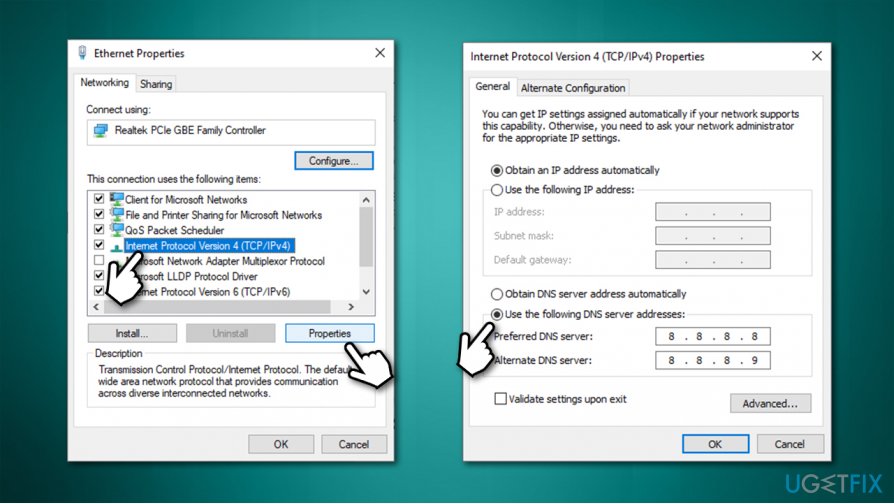
Fix default gateway is not available error change dns - Close down everything and see if this "Default gateway is not available" error fix worked for you.
Bottom line
To fix the 'Default gateway is not available' error, you can update your Network Adapter drivers, check your Power Management settings, and ensure your router frequency is set correctly. If these methods do not resolve the issue, consider reviewing your security software and other network settings.
Frequently asked questions
You can start by resetting your network adapter, running the Network Troubleshooter, and updating your network driver through Device Manager.
On Windows 11, try resetting your TCP/IP stack using the Command Prompt and check your network settings to ensure the default gateway is correctly configured.
Yes, you can resolve this issue by performing network resets, flushing the DNS cache, or changing your DNS settings without needing to reinstall Windows.




Report an issue
What's wrong with this guide? We review every report and update or remove content.
Report received — thank you. We'll review and fix it.
You need a free account to submit a report.
Be the first to comment