How to fix
FIX: High disk and CPU usage by “System and Compressed Memory”
on Windows
Resolve high disk and CPU usage by “System and Compressed Memory” in Windows 10 efficiently. Expert-tested solutions for quick fixes!

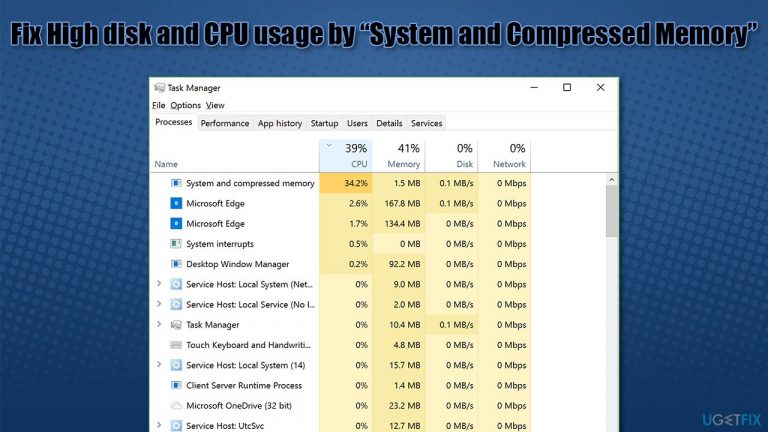
What causes FIX: High disk and CPU usage by “System and Compressed Memory” in Windows 10?
- Paging file size altered
- Corrupted system files
- Another service/process causing the issue
- Third-party software interference
Repairs Windows system files, removes malware, and restores a clean OS state — without reinstalling.
Hello. Every time I launch an application or game, the "System and Compressed Memory" process on Windows eats my CPU like crazy. Can I disable it? If not, what can I do to fix high CPU usage by "System and Compressed Memory"? Thanks.
There are dozens of processes that run in the background at any time during the operation of Windows. Some of these are imported by third-party software, while others are implemented by the operating system itself and are required to perform normal Windows 10 functions, such as updating or providing internet connection.
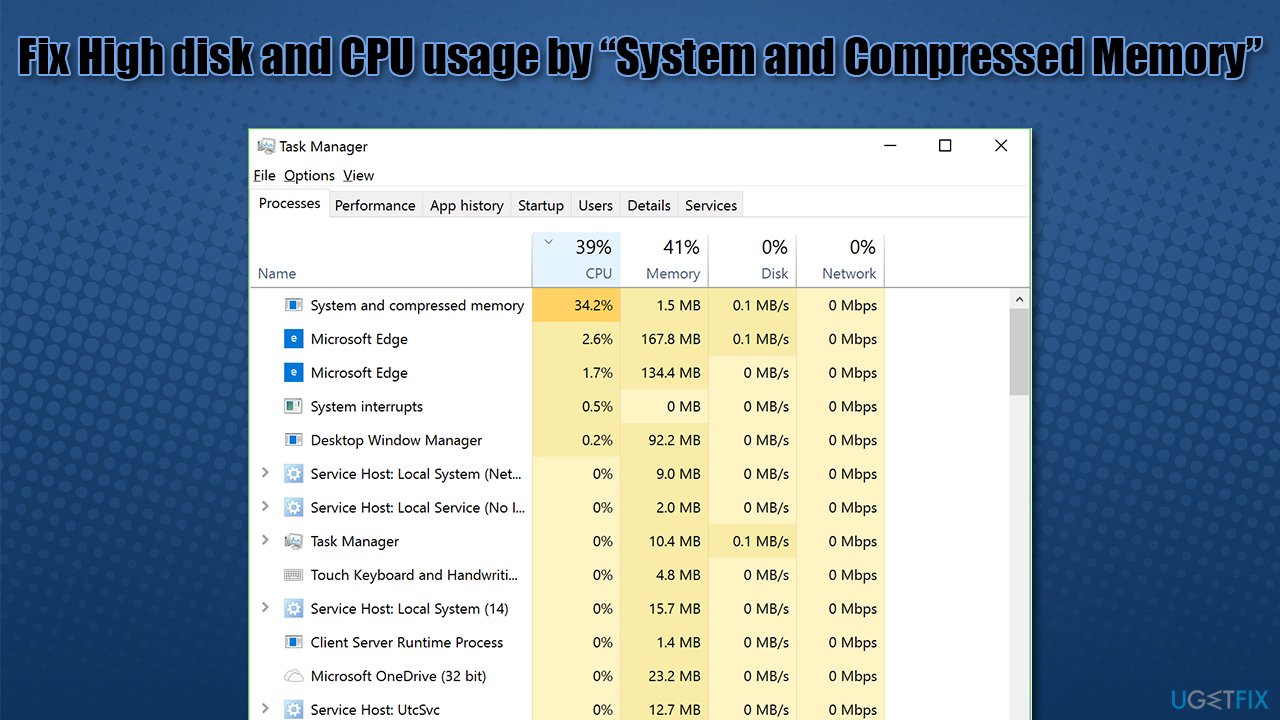
System and Compressed Memory is one of the built-in processes that can be found running in the background and can be viewed via the Task Manager. It fulfills a very important role within the operating system - it is responsible for memory management and file/folder compression as required. By default, the process should only take a minimal amount of resources.
However, users were complaining about System and Compressed Memory high CPU[ref en-1] and disk[ref en-2] usage, which might spike up to 100% in some cases. Without a doubt, such behavior can cause serious performance issues, including lag, unresponsiveness, crashes, and Blue Screen errors.
Abnormal consumption of resources is a sign that something is very wrong, and the issues should be addressed as soon as possible. In fact, there are plenty of other system processes that behave in a similar manner - we previously discussed WaasMedic Agent Exe, Modern Setup Host, IP Helper, and many others.
There are several reasons why you might suffer from System and Compressed Memory high disk or CPU usage. For example, a paging file size on your system was altered by some program (or maybe yourself), system files got corrupted, or another service/process is causing the issue.
In any case, below you provide several ways you can fix high disk or CPU usage of the System and Compressed Memory process. If you would like to skip all the troubleshooting steps and find a quick solution, we strongly recommend you run a scan with a PC diagnostic and maintenance tool [d1] - it can quickly and efficiently remove problems from Windows thanks to it patented[ref en-3] technology.
Solution 1. Scan your system with anti-malware
Malware infection could be one of the main causes of an unstable system, as it can interfere with normal Windows processes and interrupt their normal functions. You can either employ a third-party security tool or use the built-in Windows Defender.
- Type Windows Security in Windows search bar and hit Enter
- Select Virus & threat protection
- Pick Scan options
- Choose Microsoft Defender Offline scan and click Scan now
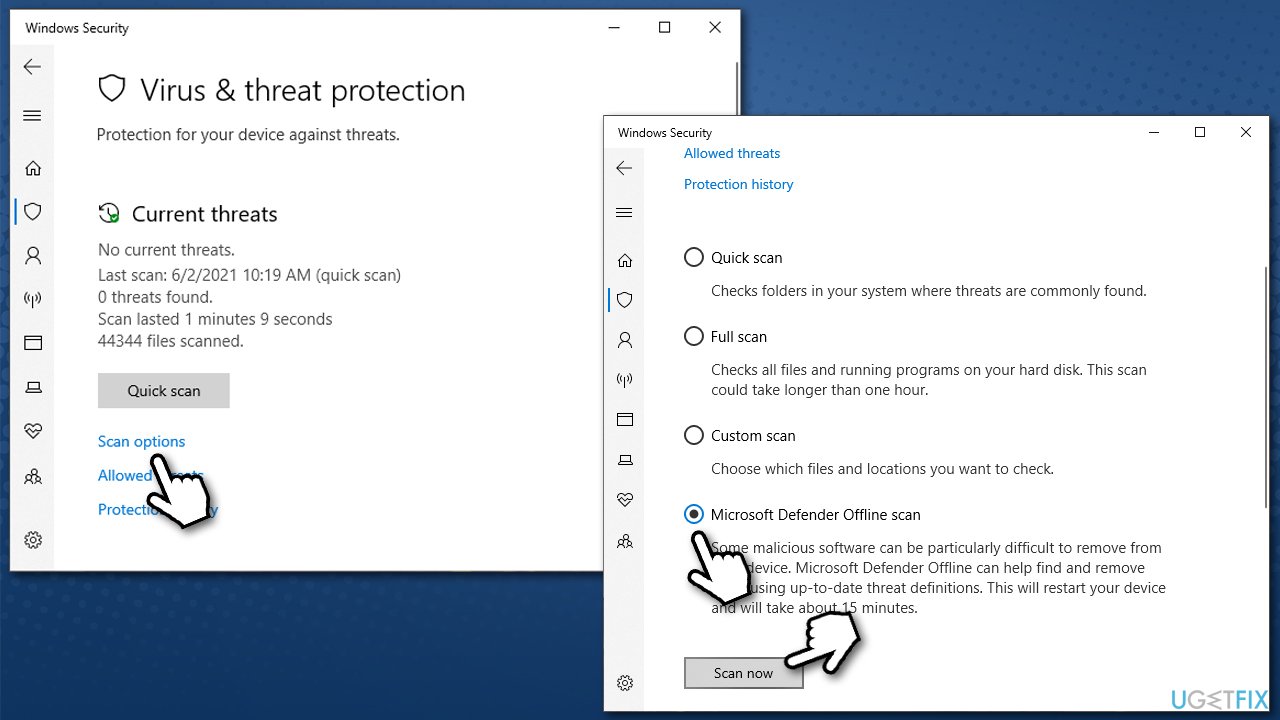
How tofix high disk and cpu usage by system and compressed memory in windows 10 scan for malware - You PC will restart and the scan will begin
- Results will be displayed after you load back into Windows.
Solution 2. Change the size of paging file
- Right-click on Start and pick System
- Scroll down and select Advanced system settings
- Under Performance section, click Advanced
- Go to Advanced tab
- Under Virtual Memory, select Change
- Here, make sure that the Automatically manage paging file size for all drives option is ticked.
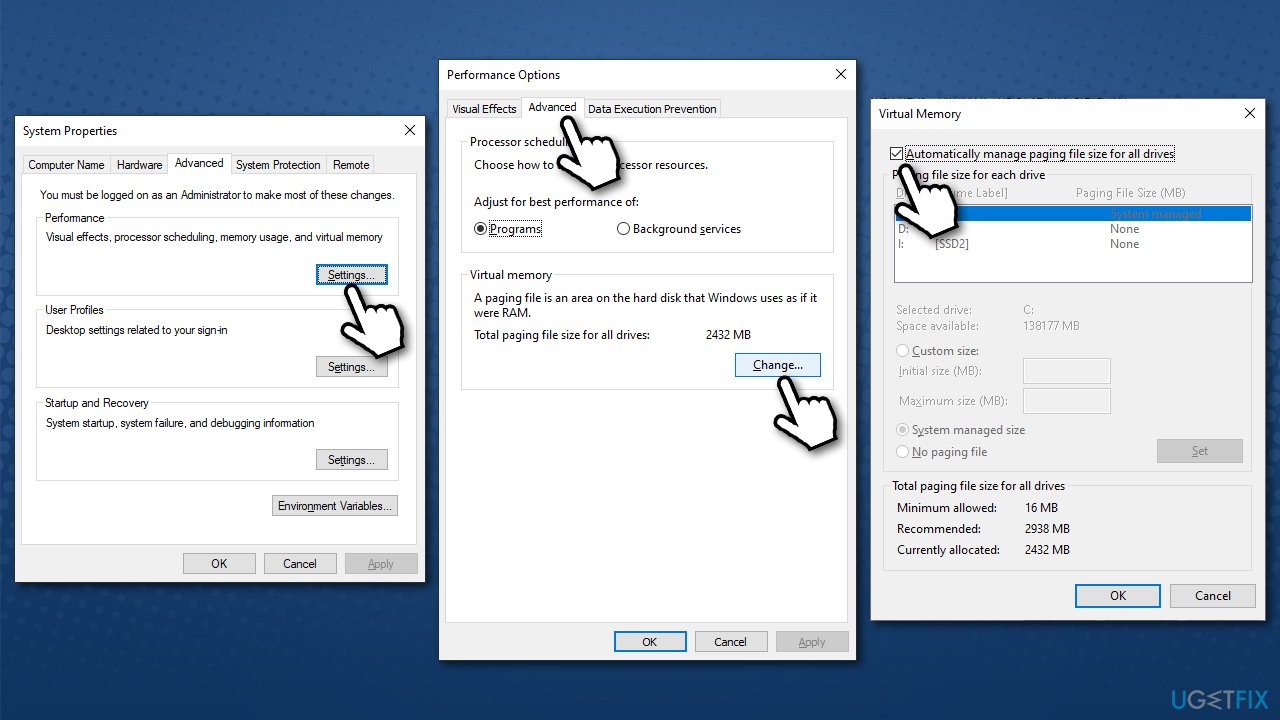
How tofix high disk and cpu usage by system and compressed memory in windows 10 change size of paging size2
Solution 3. Change Windows optimization settings
You can tell Windows what it should focus on more - performance or appearance. Usually, this setting is set for Windows to decide, but it might not always be optimal. Thus, if you are having problems with high resource usage, try this method:
- Right-click on Start and pick System
- Scroll down and select Advanced system settings
- Under Performance section, click Advanced
- Select Adjust for best performance
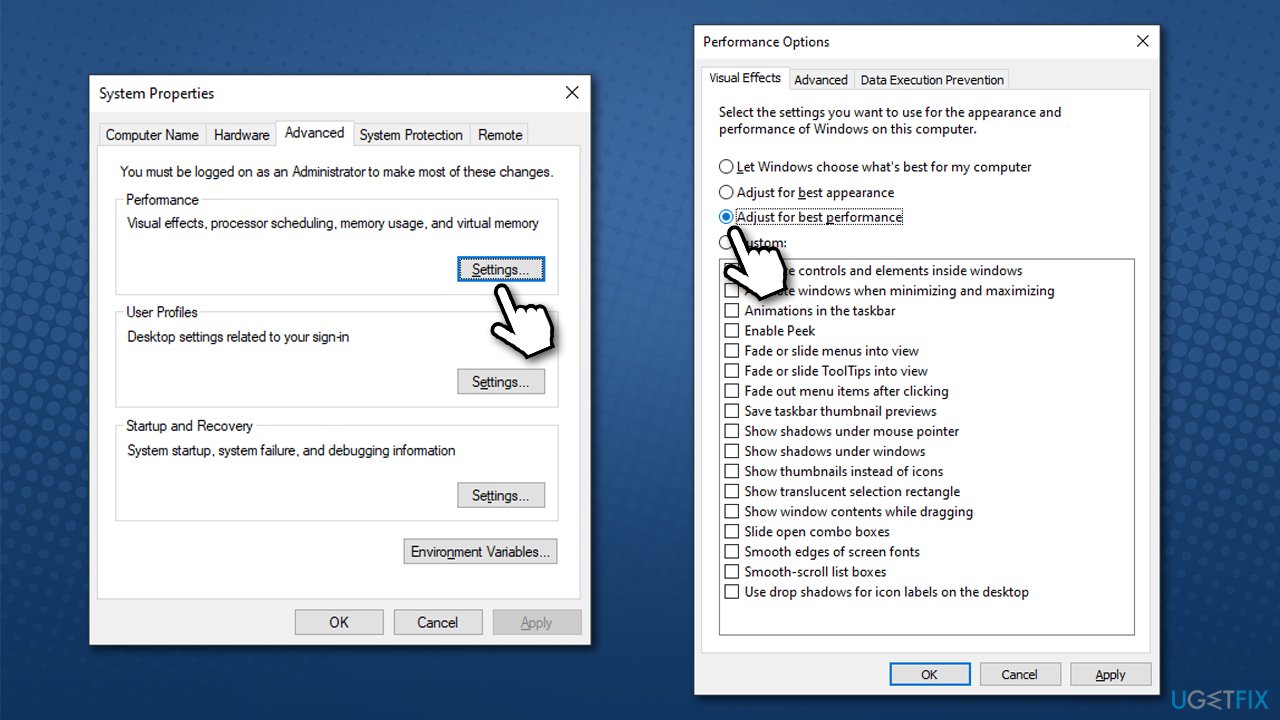
How tofix high disk and cpu usage by system and compressed memory in windows 10 change windows optimization settings - Click Apply and OK.
Solution 4. Fix Windows system files with SFC
In case the problem lies within system file corruption, you can repair that by using SFC and DISM scans.
- Type cmd in Windows search, right-click on Command Prompt and select Run as administrator
- Type the following command and press Enter:
sfc /scannow
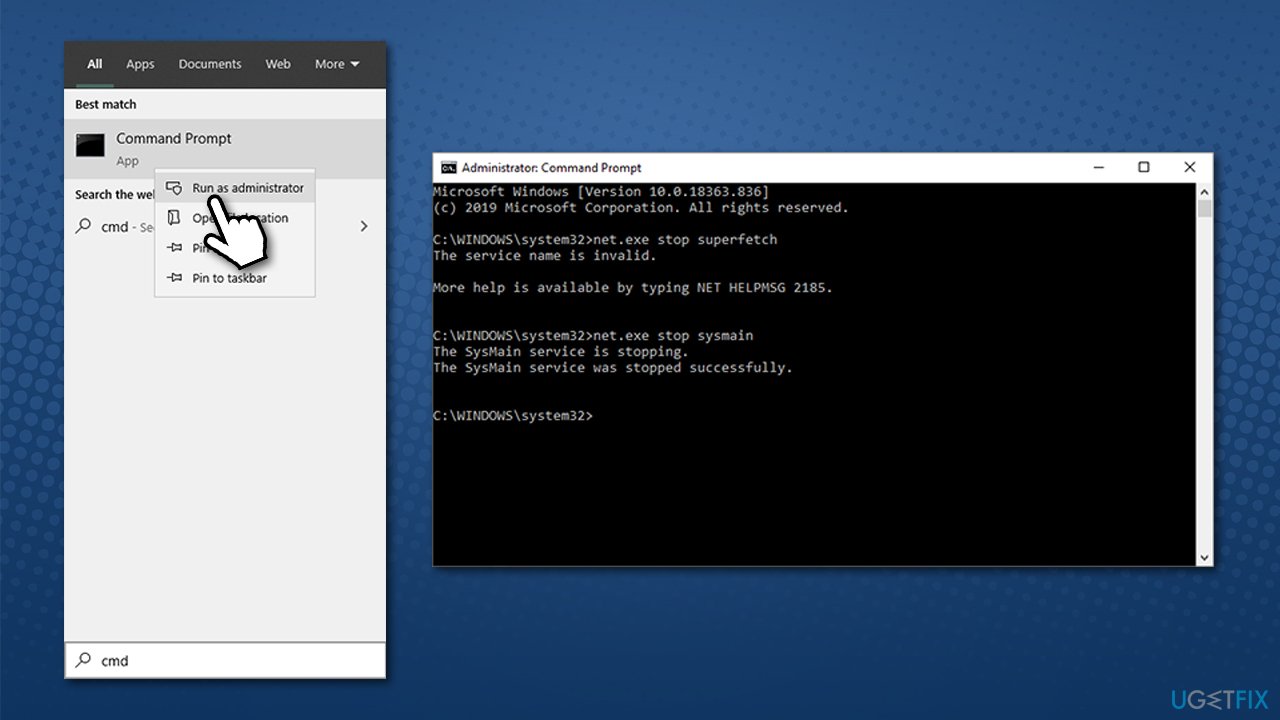
How tofix high disk and cpu usage by system and compressed memory in windows 10 disable superfetch via command prompt - If SFC managed to fix corrupted files, restart your computer. If an error was delivered, proceed with the following commands (don't forget to press Enter each time):
DISM /Online /Cleanup-Image /CheckHealth
DISM /Online /Cleanup-Image /ScanHealth
DISM /Online /Cleanup-Image /RestoreHealth
Solution 5. Check your Memory
The easiest way to check whether your RAM is failing or is having some issues is by running Windows Memory Diagnostics. Here's how:
- In Windows search, type Windows Memory Diagnostics and press Enter
- Select Restart now and check for problems (recommended)
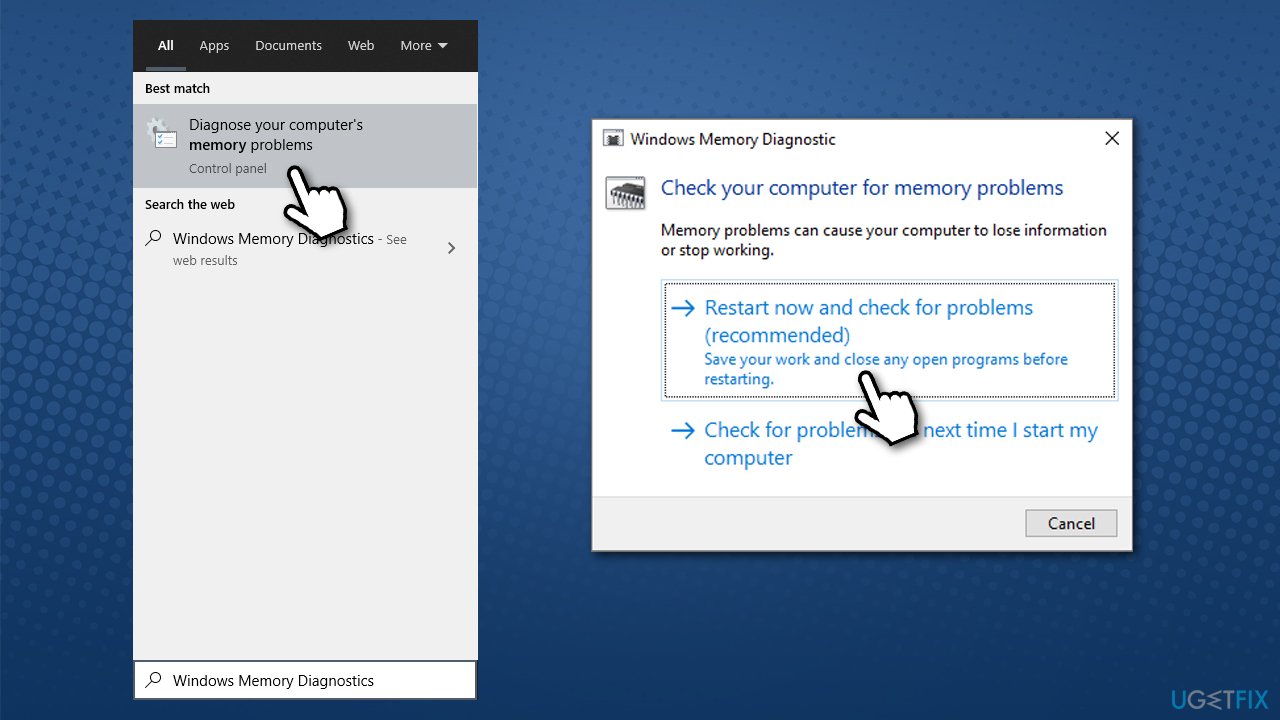
How tofix high disk and cpu usage by system and compressed memory in windows 10 run memory diagnostics - Your PC will immediately restart and test will be run
- Be patient, as it might take awhile.
The results will be displayed to you. If nothing was detected, it means your memory is fine, so proceed with the next step. If Windows has detected problems, you will have to replace your RAM sticks or contact a technician.
Solution 6. Disable System and Compressed Memory process
You can disable the process via the Task Scheduler:
- Type Task Scheduler in Windows search and press Enter
- On the left pane, open the following:
Task Scheduler Library > Windows > MemoryDiagnostic - In the right pane, click on RunFullMemoryDiagnostic
- From the Actions menu on the right, click Disable.
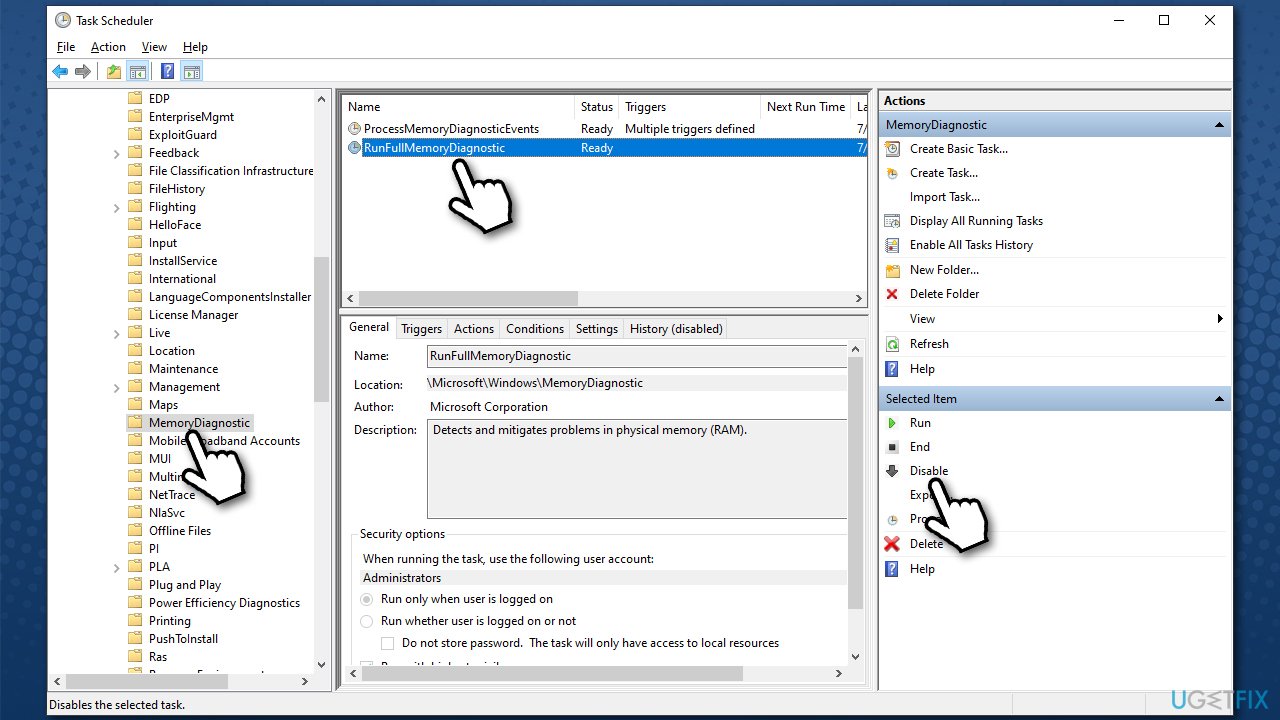
How tofix high disk and cpu usage by system and compressed memory in windows 10 disable via task scheduler
Solution 7. Disable Host SuperFetch process
Service host: SuperFetch is a Windows process that allows apps on your system to load faster by allowing the OS to learn which ones are used the most. This service, however, might sometimes cause serious performance issues due to excessive resource consumption. Precisely due to this reason, System and compressed memory CPU and disk usage might spike up.
You can disable this process in these ways:
Disable via Services
- Type in services.msc in Windows search and hit Enter
- Scroll down and locate SuperFetch or SysMain entry
- Right-click and pick Properties
- Under Startup type, select Disabled
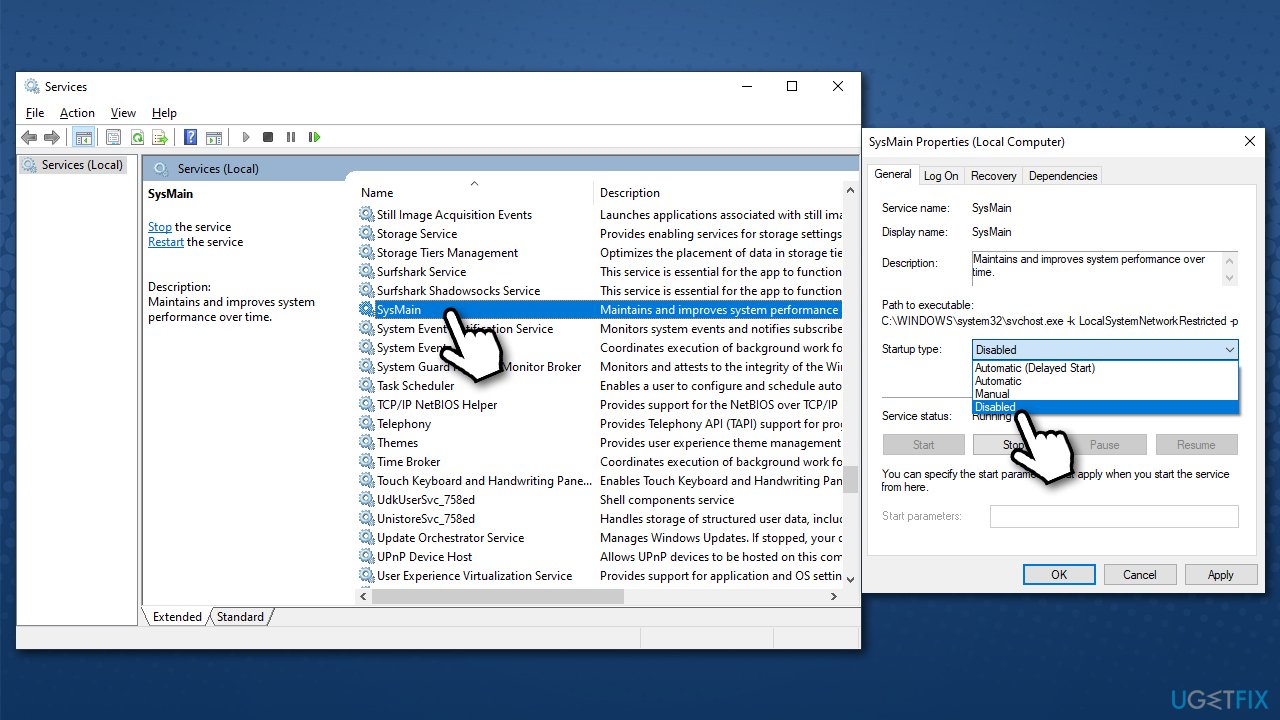
How tofix high disk and cpu usage by system and compressed memory in windows 10 disable superfetch - Click Apply and OK.
Disable via Command Prompt
- Open Command Prompt as administrator as explained above
- Copy and paste the following command, pressing Enter after:
net.exe stop superfetch
- If that did not work, use net.exe stop sysmain command instead.
How tofix high disk and cpu usage by system and compressed memory in windows 10 disable superfetch via command prompt
Bottom line
To fix high disk or CPU usage by 'System and Compressed Memory', you can try adjusting the paging file size, repairing corrupted system files, or identifying conflicting services. If these solutions do not resolve the issue, consider running a scan with a PC diagnostic and maintenance tool.
Frequently asked questions
This issue is often caused by excessive memory compression, which can occur due to insufficient RAM or specific background processes consuming resources.
You can try disabling memory compression by adjusting the virtual memory settings or increasing your system's RAM to alleviate the pressure on the disk.
Yes, users of Windows 11 may also encounter high disk and CPU usage by 'System and Compressed Memory,' and similar troubleshooting steps can be applied.




Report an issue
What's wrong with this guide? We review every report and update or remove content.
Report received — thank you. We'll review and fix it.
You need a free account to submit a report.
Be the first to comment