How to fix
“Print Pictures” app is opening pictures instead of Photos app
on Windows
Resolve the "Print Pictures" app issue in Windows 10 or 11 for seamless photo viewing. Quick solutions provided by our experts ensure zero traces left.

![[Fix] “Print Pictures” app is opening pictures instead of Photos app in Windows](https://ugetfix.com/wp-content/uploads/articles/askit/fix-print-pictures-app-is-opening-pictures-instead-of-photos-app-in-windows_en-768x432.jpg)
What causes [Fix] “Print Pictures” app is opening pictures instead of Photos app in Windows?
- Users have not set the Photos app as the default photo viewer app
- Recent Windows updates may have caused the issue
- System restore points may not be set correctly
- Corrupted files or registry issues may exist
Repairs Windows system files, removes malware, and restores a clean OS state — without reinstalling.
Hello. Whenever I try to view my photos on my Windows 11 computer, they open in the "Print Pictures" app instead of the Photos app. How do I fix this?
Windows 11 was released by Microsoft at the end of 2021 and many Windows users rushed to upgrade to the newest version. It features an updated user interface,[ref en-1] new design, and many other functions. However, many have noticed that the newest operating system version is still a bit unstable.
We previously wrote about many other Windows 11 problems, including WiFi icon missing, weather widget not updating or not working, taskbar icons not working, etc. As Microsoft rushes to release new patches for previously found bugs, new ones seem to arise.
Some users report a bug that causes the "Print Pictures" app to open pictures instead of the Photos app. While it is unclear why this could be happening, the most common reason for this is that users have not set the Photos app as the default photo viewer app.
In this guide, you will find 8 steps that could help you fix the "Print Pictures" app is opening pictures instead of Photos app in Windows issue. You may also use a maintenance tool like [d1] that can fix various system errors, BSODs,[ref en-2] corrupted files, and registry[ref en-3] issues. Otherwise, follow the step-by-step instructions below.
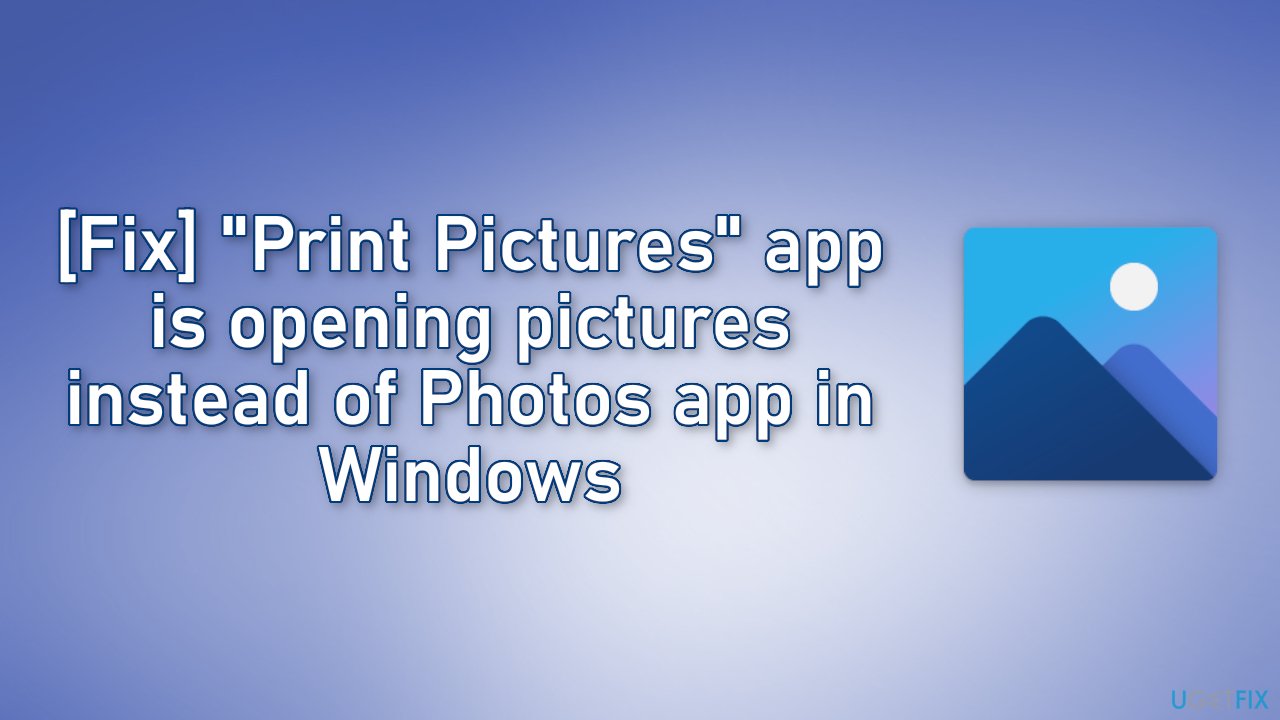
Solution 1. Set Photos app as Default
- Go to Settings and click on Apps
- Choose Default Apps and pick the Photo viewer app
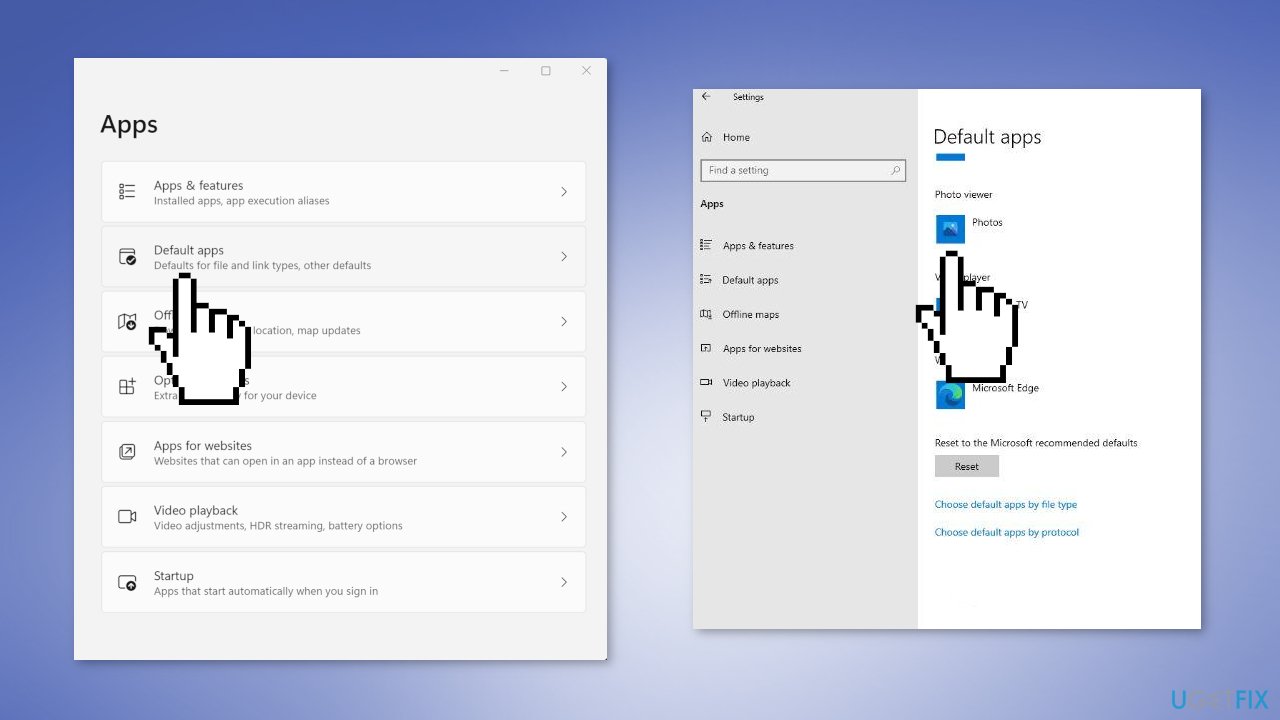
Solution 2. Perform a System Restore
- Go to the Start menu, type
restore, and click on Create a restore point - Click System Restore, then follow the prompts until you can select a restore point
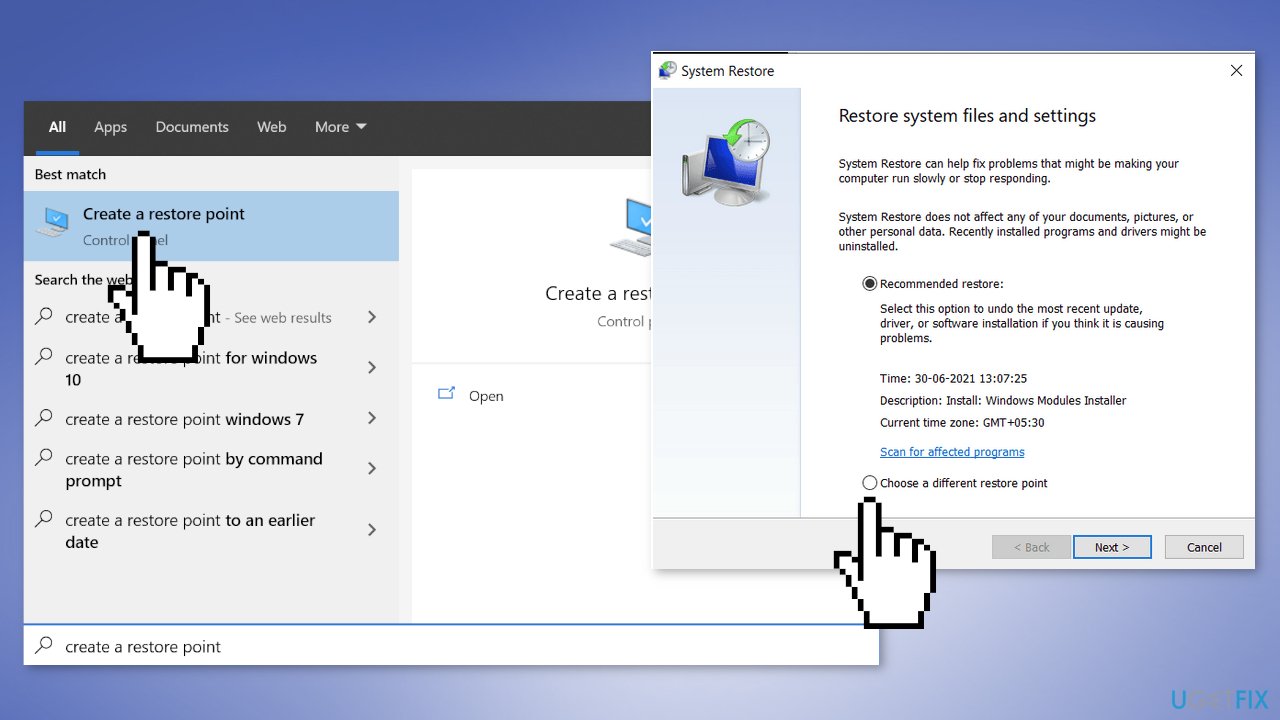
- Select the one you want (ideally before the Photos app problems started) and go ahead with the process
Solution 3. Uninstall Recent Windows Updates
Before proceeding, keep in mind that this can leave your device unprotected from the latest security threats.
- In Settings, from the left sidebar, select Windows Update
- On the Windows Update page, click Update History
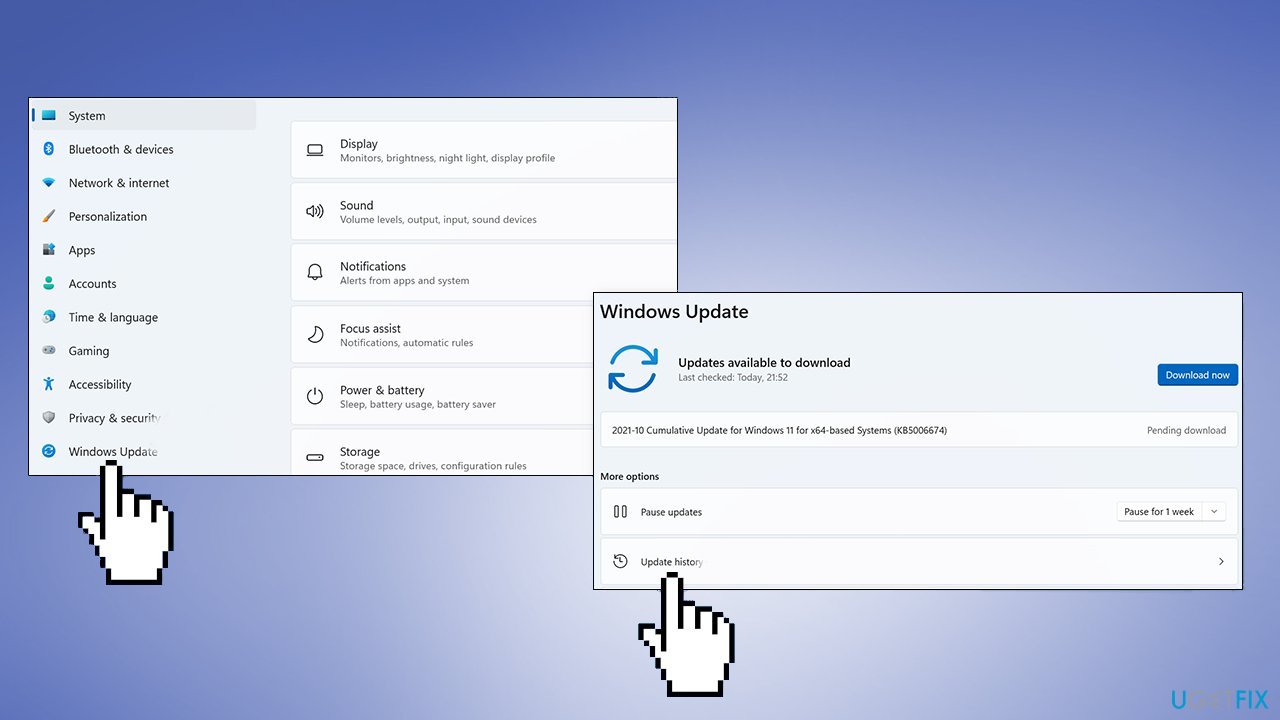
- From the Related Settings section, choose Uninstall Updates
- To remove an update, select it in the list and then click Uninstall
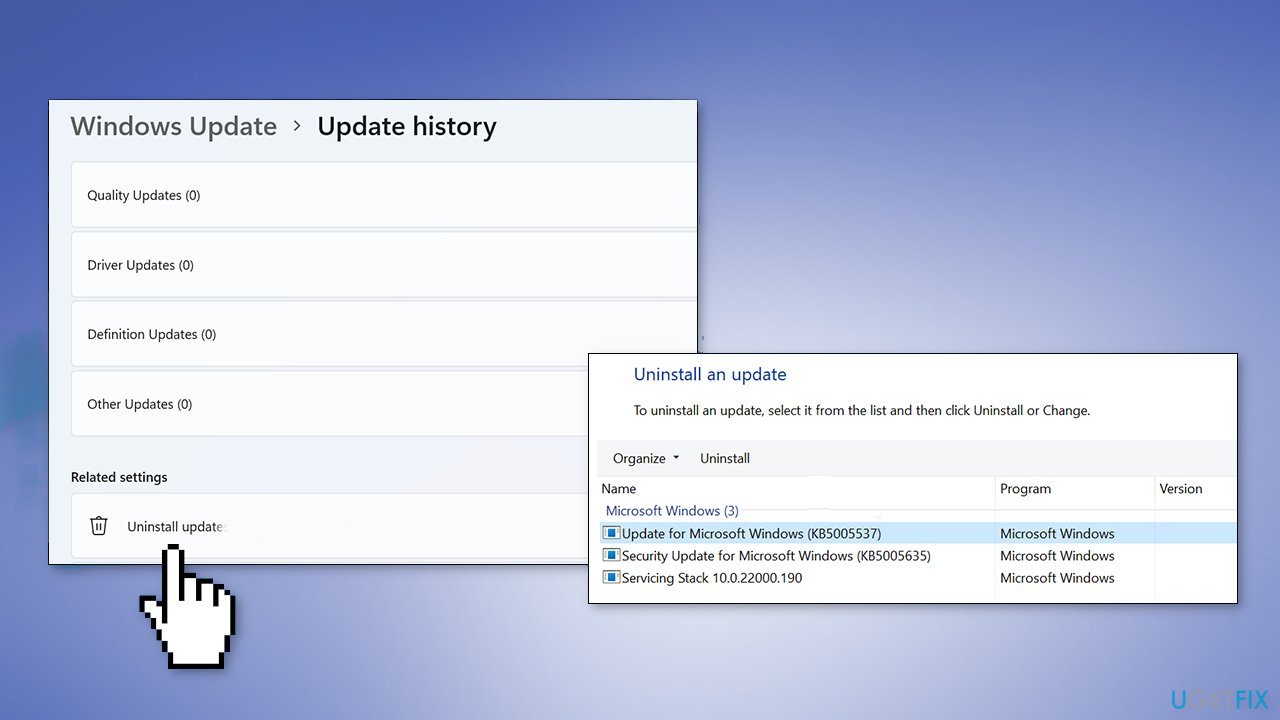
- Click Yes in the prompt to continue
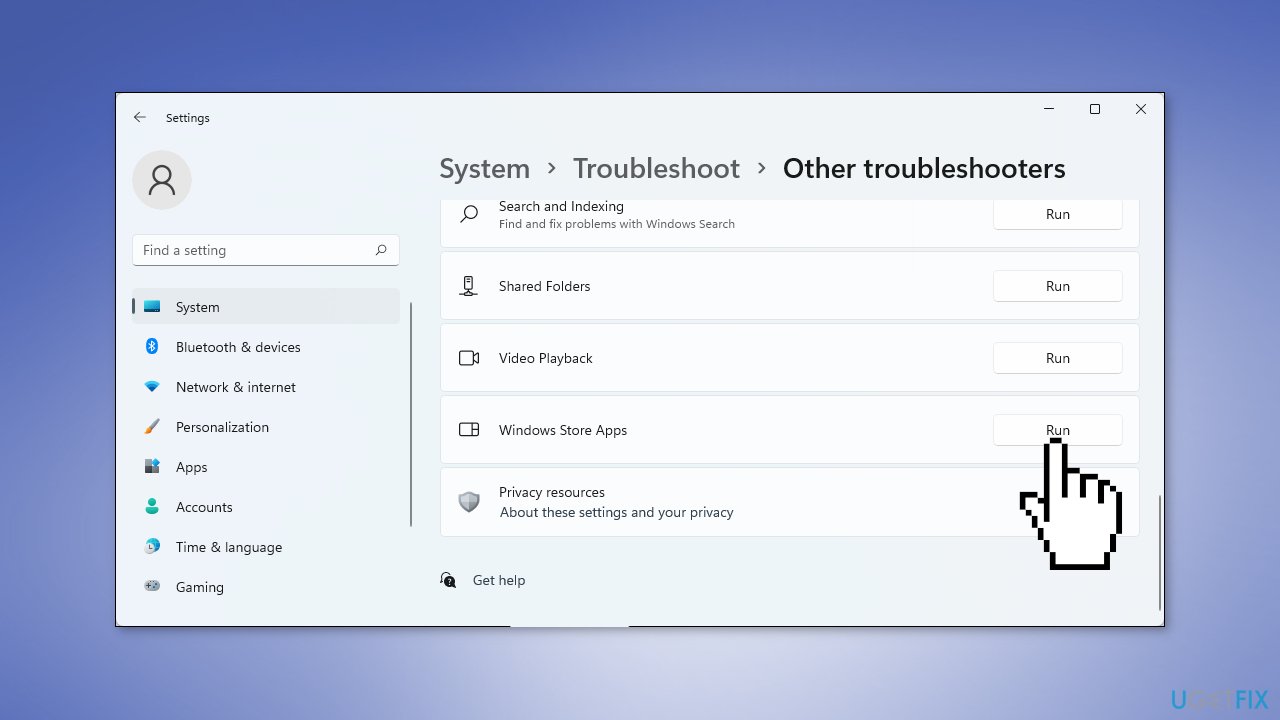
Solution 4. Run Windows Store Apps Troubleshooter
- Go to Settings and choose Update & Security
- Click on Troubleshoot and pick the Additional troubleshooters option
- Scroll down to Windows Store Apps and click Run the troubleshooter to see if that fixes the problem
Solution 5. Repair and Reset Photos app
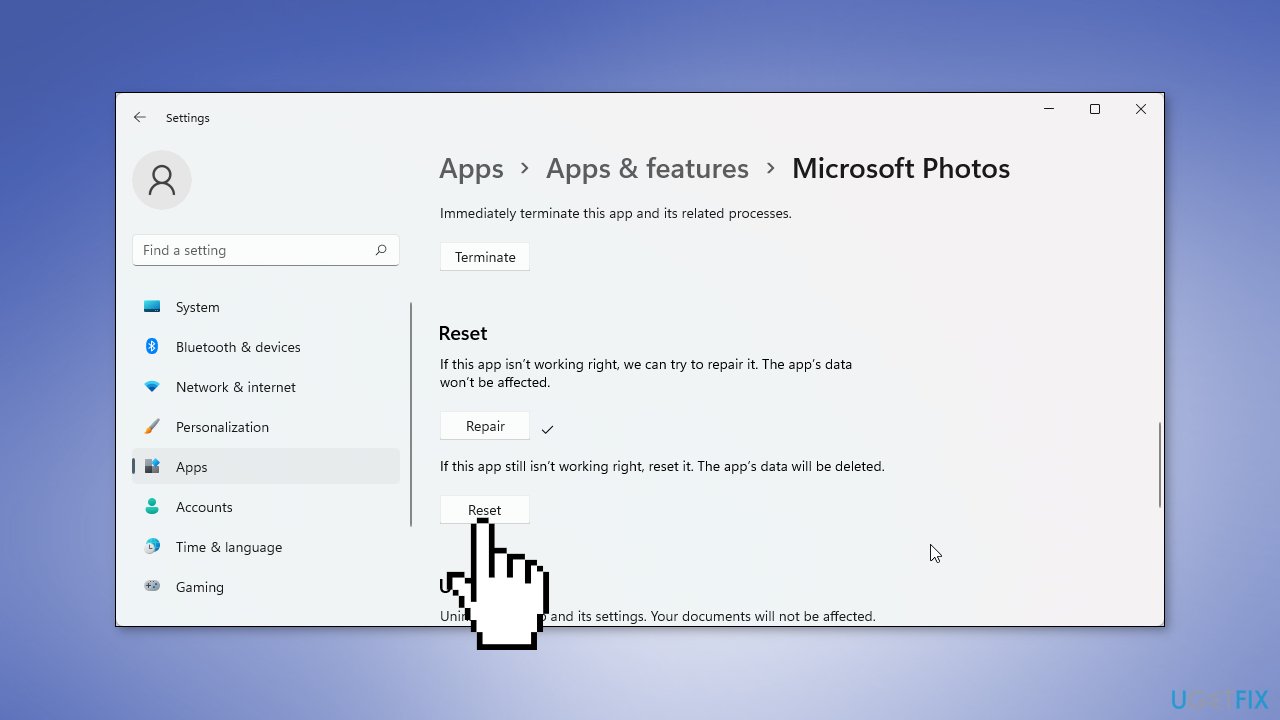
- Go to your Settings, click on Apps, and then Apps & Features
- Find the Photos app in the list, click on Advanced Options
- Press on the Repair button and wait for the process to finish
- If that does not fix the problem, click Reset
Solution 6. Re-register the Photos app
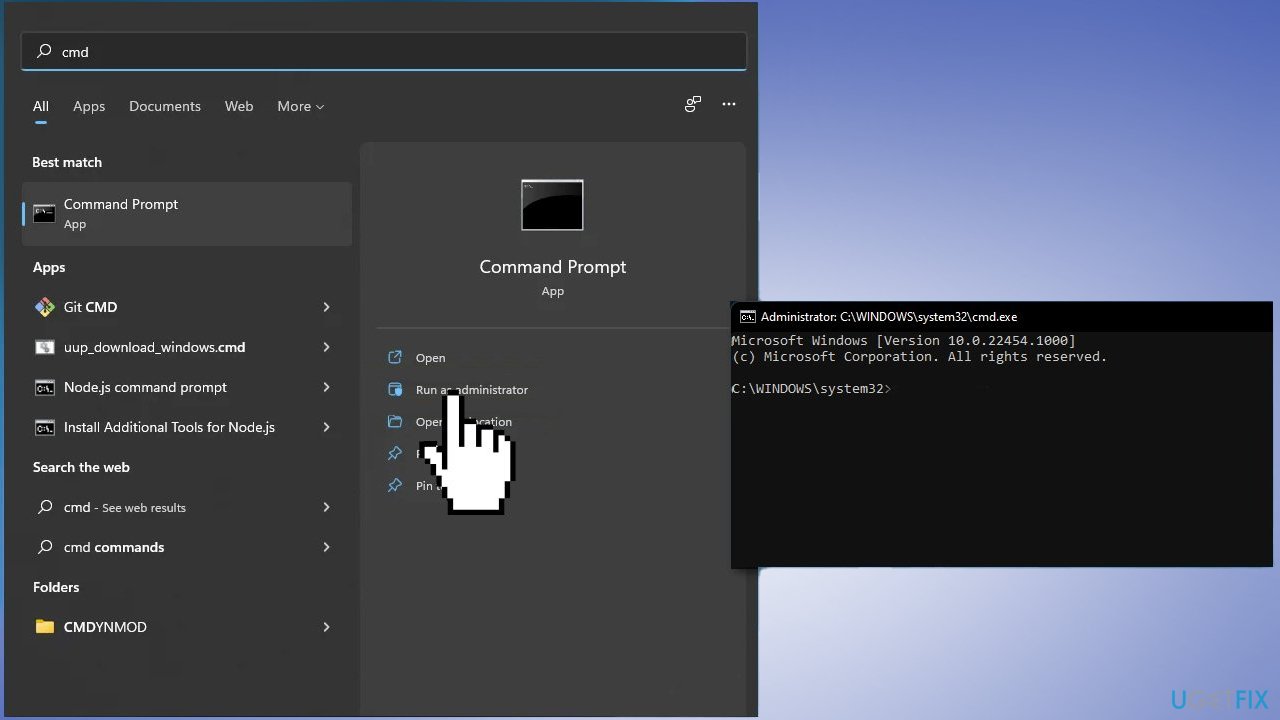
- Open the Command Prompt by searching for it in the Start Menu
- Click Run as administrator
- Copy and paste the command below and press Enter:
PowerShell -ExecutionPolicy Unrestricted -Command "& {$manifest = (Get-AppxPackage *Photos*).InstallLocation + '\\AppxManifest.xml' ; Add-AppxPackage -DisableDevelopmentMode -Register $manifest}"
- Close the Command Prompt
Solution 7. Remove and Reinstall the Photos App
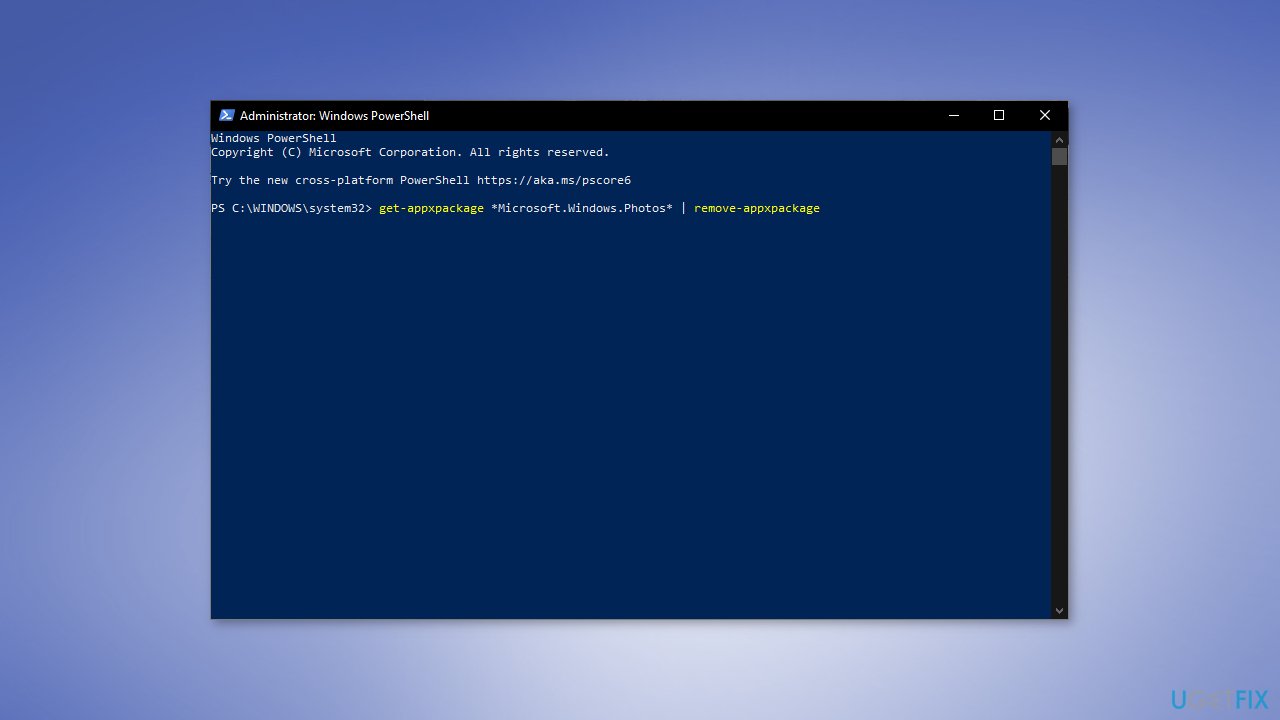
- Type powershell in the Start Menu, then right-click PowerShell and choose Run as administrator
- Type the following command and press Enter:
get-appxpackage *Microsoft.Windows.Photos* | remove-appxpackage
- To reinstall it, go to the Microsoft Store app, search for the Photos app and install it
Solution 8. Perform a Repair Install
- Visit the official Microsoft website to download Windows 11 Installation Media
- Run the Media Creation Tool and select Create Installation Media for another PC
- Select your USB drive
- Let the Process complete of writing the Installation files to the USB drive
- Click Finish
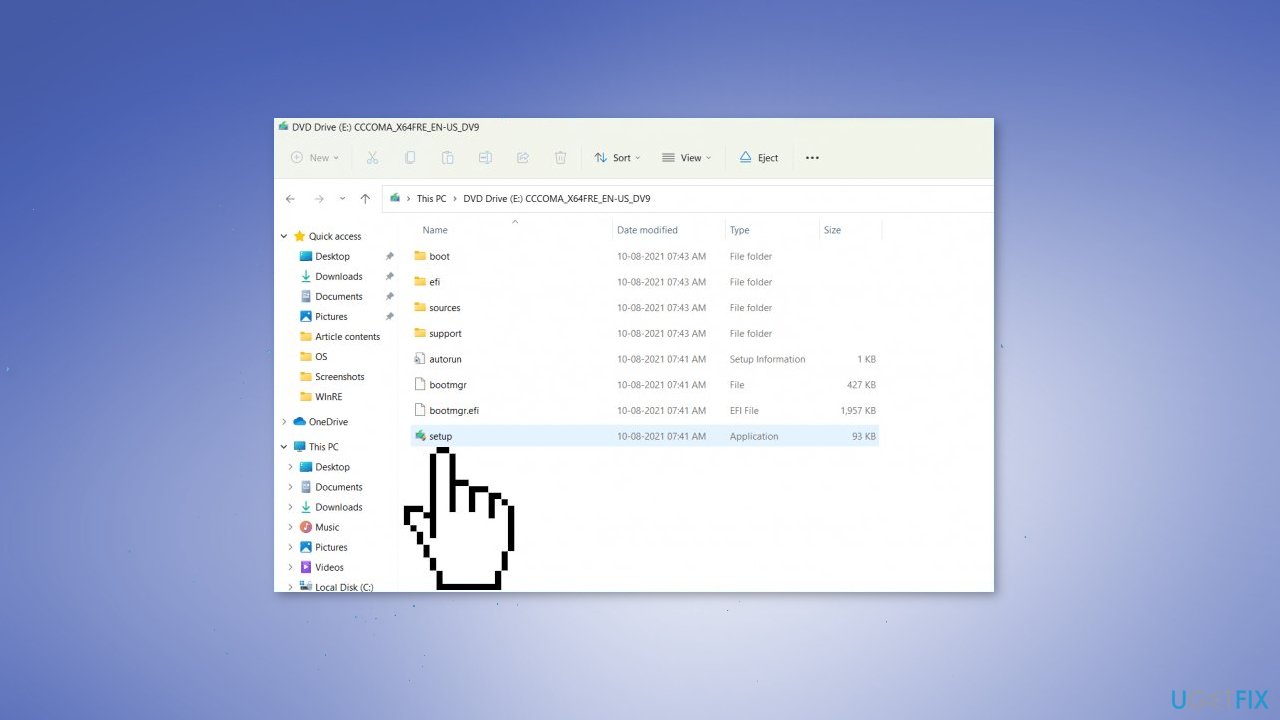
- On the PC you wish to upgrade, Press Windows + E to open the File Explorer
- Open the Removable drive and click Setup.exe
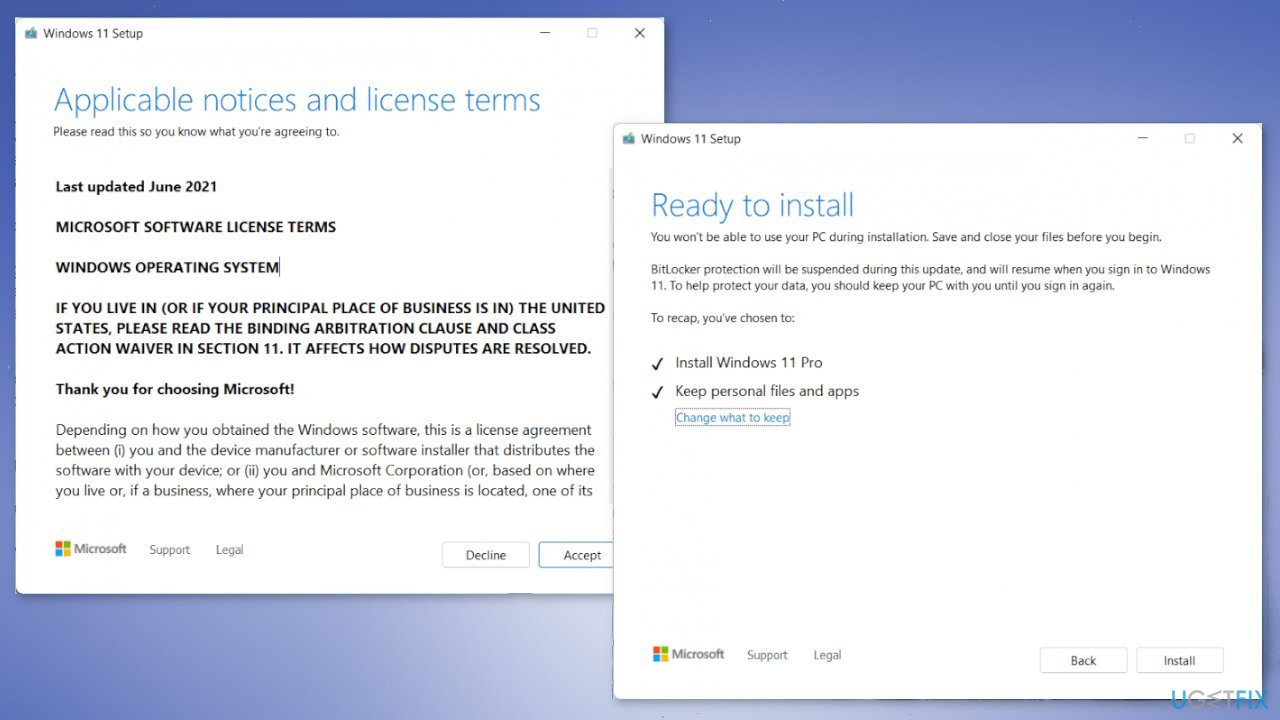
- Accept the license terms on the next screen
- Confirm the Upgrade options – Files, apps and Settings are kept
- Click Install, and the upgrade should start
Bottom line
To fix the issue of the 'Print Pictures' app opening instead of the Photos app, you can set the Photos app as the default viewer, perform a system restore, or uninstall recent Windows updates. If none of these solutions work, consider using a maintenance tool to address potential system errors.
Frequently asked questions
This issue may occur due to a default app setting that prioritizes the 'Print Pictures' app over the Photos app for opening image files. You can change the default app settings in Windows 10 to resolve this.
To set the Photos app as the default, go to Settings > Apps > Default apps, then choose 'Photos' and set it for image file types like .jpg and .png.
Yes, resetting default apps can help; go to Settings > Apps > Default apps and click on 'Reset' to restore the original settings, which should prioritize the Photos app.




Report an issue
What's wrong with this guide? We review every report and update or remove content.
Report received — thank you. We'll review and fix it.
You need a free account to submit a report.
Be the first to comment