
How to enable Client License Service (ClipSVC) if it's not starting?

Prefer to fix it yourself? The manual steps follow.
- 7methods
- 5 to 40 minutes
- Medium
Applies to Windows 11 and Windows 10; Microsoft Store apps and games that need the Client License Service
7 methods in this guide
Hi. I was foolish enough to play around with Microsoft Services, and I disabled Client License Service. Now, most of my apps and files can no longer be opened. I tried to start the service manually, but I received a "The Client License Service (ClipSVC) service could not be started" system error. Please help.
Client License Service (ClipSVC) is the Windows service that supports licensing for Microsoft Store apps. When it is disabled or will not start, Store apps can stop opening and Windows shows "The Client License Service (ClipSVC) service could not be started." Set its startup type to Manual and start it first. Then deal with system error 126 if the start still fails.
Open Services, double-click Client License Service, set Startup type to Manual and select Start (Fix 1). If Windows still refuses, run net start clipsvc in an administrator Command Prompt (Fix 2) or set the type with sc config (Fix 3). System error 126 means a module is missing, so repair system files next (Fix 5).
| Error | The Client License Service (ClipSVC) service could not be started. Often with System error 126 has occurred. |
|---|---|
| Where it appears | In the Command Prompt after net start clipsvc, in a Services window message, or as Store apps that will not open after the service was disabled. |
| Main cause | The service is set to Disabled, or a module it needs cannot be loaded (system error 126). Microsoft does not say which file is missing. |
| Fastest fix | Services, Client License Service, Startup type Manual, then Start (Fix 1). |
| Also written as | ClipSVC, Clip SVC, ClipSVC service, Client License Service (ClipSVC). |
| Service name | ClipSVC, display name Client License Service. |
| Default startup | Manual, starts on demand (Microsoft's table for Windows Server 2016). A stopped service with Manual is normal. |
| Microsoft's status | Microsoft says that if the service is disabled, applications bought using Microsoft Store do not behave correctly. It lists no fix for error 126. |
| Time to fix | 5 minutes for Fixes 1 to 3; 20 to 40 minutes if system files need repair. |
Facts checked on 16 October 2026. Steps written for Windows 11 (25H2 and 26H2) and Windows 10 22H2.
What Client License Service (ClipSVC) is and what the error means
Client License Service, service name ClipSVC, is a background Windows service for Microsoft Store apps. Microsoft describes it as providing infrastructure support for the Microsoft Store. It starts on demand, and if it is disabled, applications bought using Microsoft Store do not behave correctly. The name points to licensing, which is why Store apps and games are the first to fail when it is off.
Microsoft's table for Windows Server 2016 lists its Startup type as Manual. Manual with an on-demand start means the service sits at Stopped until a Store app asks for it, so an empty Status column is not a fault. Microsoft Q&A threads about Windows 10 and 11 use the same service name, but we could not find a Microsoft table for the client versions, so read your own Startup type in Services.
The message in the Command Prompt
The Client License Service (ClipSVC) service could not be started.
System error 126 has occurred.
The specified module could not be found.- System error 126
- Microsoft's name for it is
ERROR_MOD_NOT_FOUND: "The specified module could not be found." Windows tried to load a file the service needs and did not find it. Microsoft does not name the file, and we could not confirm which one ClipSVC loads. - System error 1058
ERROR_SERVICE_DISABLED: "The service cannot be started, either because it is disabled or because it has no enabled devices associated with it." This is the code to expect when the Startup type is Disabled.- System error 5
ERROR_ACCESS_DENIED: "Access is denied." Windows refused the command, most often because the window was not opened as an administrator.
Error 126 is the one in your message, so it decides the order of the fixes. If the Startup type is Disabled, Fixes 1 to 3 undo what was changed. If it is not Disabled and the start still fails with 126, a file is missing, and Fixes 5 to 7 repair Windows itself.
Why ClipSVC will not start: the causes, ranked
Microsoft publishes no frequency for these causes, so the column below says how likely each one is from the facts above and from what users report. Start at the first row that matches what you see.
| Cause | How likely | How to tell | Fix |
|---|---|---|---|
| The Startup type of Client License Service is Disabled, set by hand or by a tweak tool. | Most likely after you changed services | Services shows Disabled, and the start fails with system error 1058. | Fix 1, then Fix 3 |
| A file the service loads is missing or damaged. | Likely when the message says error 126 | System error 126 with "The specified module could not be found." | Fix 5, then Fixes 6 and 7 |
| The Command Prompt was not run as administrator. | Possible | The start fails with system error 5, Access is denied. | Fix 2 |
| The Microsoft Store cache or its app registration is damaged. | Possible | The service runs, but Store apps still fail to open or license. | Fix 4 |
| A change made after a restore point, such as a tweak tool or a service cleanup. | Possible | The trouble began on the day you changed services. | Fix 6 |
| The service is Stopped with Manual startup, nothing else wrong. | Normal, not a fault | Status is empty, Startup type is Manual, and your apps work. | Nothing to fix |
Users also report that a service cleanup or tweak tool is behind many disabled copies of this service. We could not confirm that with a Microsoft source, so treat it as a clue to check what you changed, not as a rule.
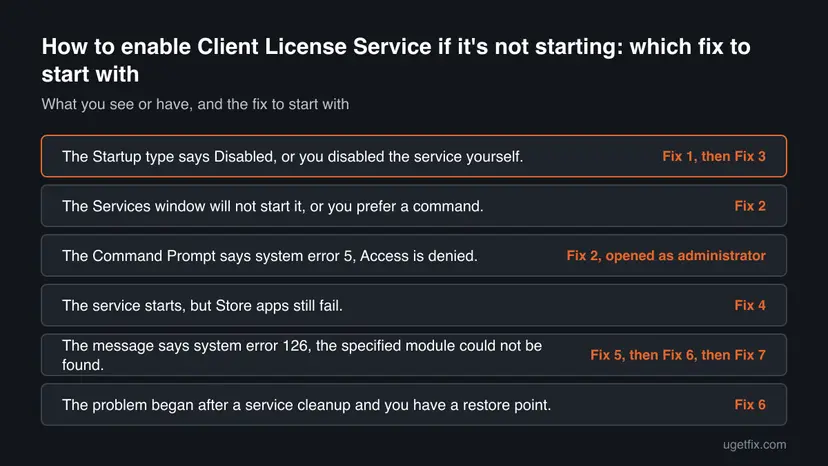
How to enable Client License Service (ClipSVC) when it will not start
Fixes 1 to 3 set the startup type and start the service, and they cover the Disabled case in minutes. Fix 4 resets the Store. Fixes 5 to 7 repair Windows and are for system error 126. Windows 10 22H2 left support on 14 October 2025, and every fix here still works on it.
| What you see or have | Start with |
|---|---|
| The Startup type says Disabled, or you disabled the service yourself. | Fix 1, then Fix 3 |
| The Services window will not start it, or you prefer a command. | Fix 2 |
| The Command Prompt says system error 5, Access is denied. | Fix 2, opened as administrator |
| The service starts, but Store apps still fail. | Fix 4 |
| The message says system error 126, the specified module could not be found. | Fix 5, then Fix 6, then Fix 7 |
| The problem began after a service cleanup and you have a restore point. | Fix 6 |
Fix 1. Set Client License Service to Manual and start it
5 minutesLow riskAlways first, most of all when you or a tweak tool disabled services before the apps stopped opening.
Windows will not start a service whose Startup type is Disabled, so the type has to change before Start can work. Microsoft's table lists Manual as the default, which is the safe value to go back to.
- Press Win + R, type
services.mscand press Enter. - Scroll to Client License Service. The list is sorted by name.
- Double-click it and look at Startup type on the General tab.
- If it says Disabled, choose Manual and select Apply.
- Under Service status select Start, then OK.
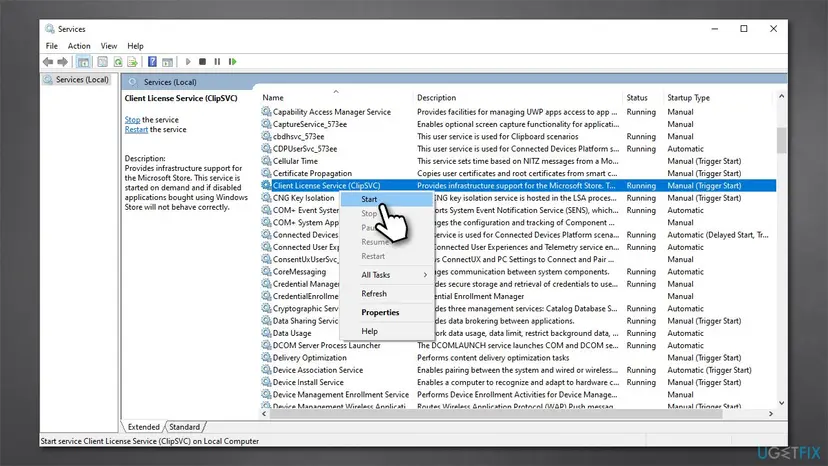
For the same screens on Windows 11, with the startup type list, see Check and restart Windows services. Do not pick Automatic as a fix: Microsoft lists Manual, and we found no Microsoft guidance for another type.
It worked if: The Status column shows Running, or the service starts and stops again within a minute, which is normal for an on-demand service. Store apps open again.
If not: If Start shows an error or system error 126, go to Fix 2 for the exact code.
Fix 2. Start the service from an administrator Command Prompt
3 minutesNo riskThe Services window gives an error, or you want the exact system error code written out.
A command prints the real system error number, such as 5, 126 or 1058, and that number tells you which fix to use next. Running it as administrator also rules out the Access is denied case.
- Type
cmdin Windows search. - Right-click Command Prompt and select Run as administrator.
- If User Account Control (UAC) shows up, select Yes.
- Paste the command below and press Enter.
Start the Client License Service
net start clipsvc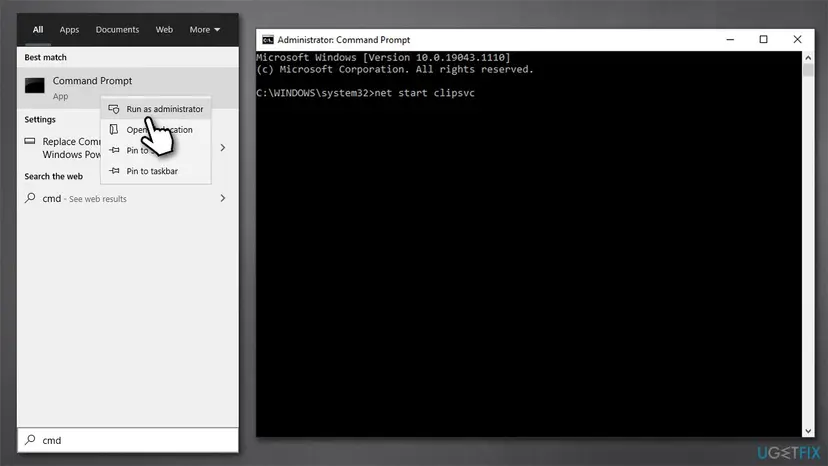
System error 1058 means the service is disabled, so use Fix 1 or Fix 3. System error 126 means a module is missing, so jump to Fix 5. System error 5 means the window was not opened as administrator.
It worked if: The window says that the Client License Service (ClipSVC) service was started successfully.
If not: With error 1058 go to Fix 3. With error 126 go to Fix 5.
Fix 3. Reset the startup type with the sc config command
3 minutesLow riskThe Startup type will not stay on Manual in Services, or net start gives system error 1058.
The sc config command writes the startup type straight into the Service Control Manager database, which is the same place the Services window changes. It is a second way to undo a Disabled setting.
Open an administrator Command Prompt as in Fix 2 and run the two commands below. Microsoft's reference for sc config says the space after each equal sign is required, and without it the operation fails. Type start= and a space, then demand.
Set the type to Manual, then start the service
sc config ClipSVC start= demand
net start clipsvc
It worked if: The first command answers SUCCESS and the second says the service was started successfully.
If not: If the first command works but the start still fails with error 126, go to Fix 5. If the Store apps still fail with the service running, go to Fix 4.
Fix 4. Reset the Microsoft Store
5 minutesLow riskThe service runs, but Store apps and games still do not open or cannot get their license.
ClipSVC supports the Microsoft Store, so a damaged Store cache or app state can look like a licensing fault even when the service is running. A reset clears the Store's local data and leaves your purchases in your account.
- Clear the Store cache. Press Windows + R, type wsreset.exe and select OK. A blank Command Prompt window opens; after a short while it closes and Microsoft Store opens by itself.

After wsreset, the Store opens and loads again. Screenshot: Windows 11 26H2. - Open System components. If the problem stays, select Start > Settings > System > System components. Next to Microsoft Store, select the three dots and Advanced options. If Microsoft Store is not listed there, look for it in Settings > Apps > Installed apps.
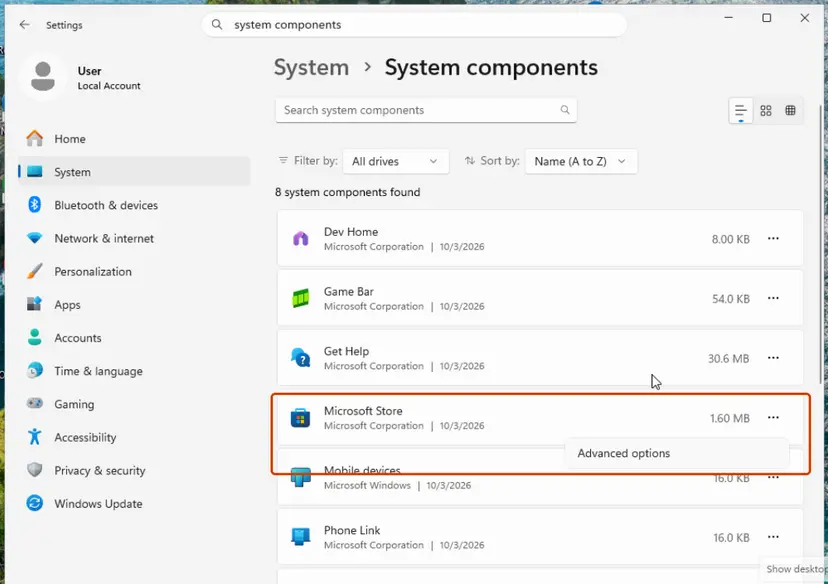
Microsoft Store is listed under System components. Screenshot: Windows 11 26H2. - Repair first. Scroll to Reset and select Repair. Repair keeps the app's data. Open the Store and check whether it works.
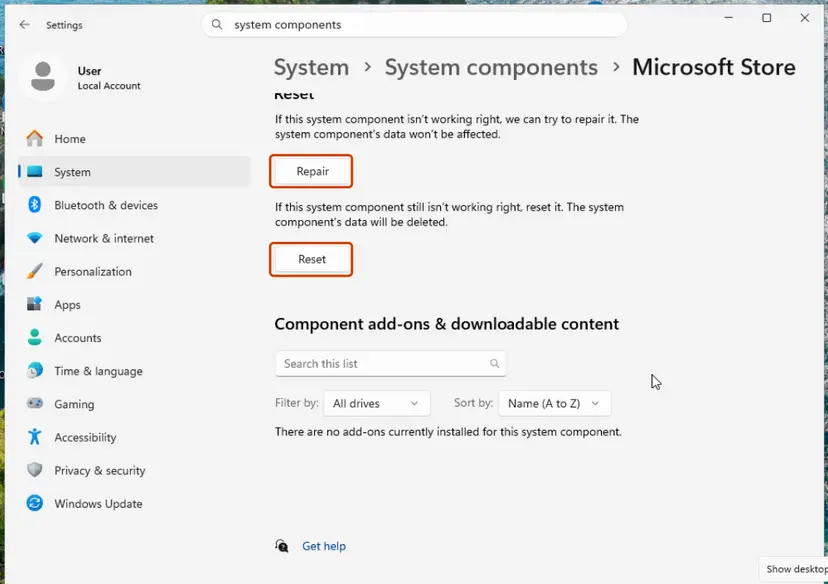
Repair keeps the app's data; Reset deletes it. Screenshot: Windows 11 26H2. - Reset if Repair did not help. Select Reset and confirm. This deletes the Store app's data on this PC; your purchases stay in your Microsoft account. Open the Store and sign in again.
These steps were written for Windows 11 26H2 (build 26300). The full page with the other versions and what each result means: Reset the Microsoft Store
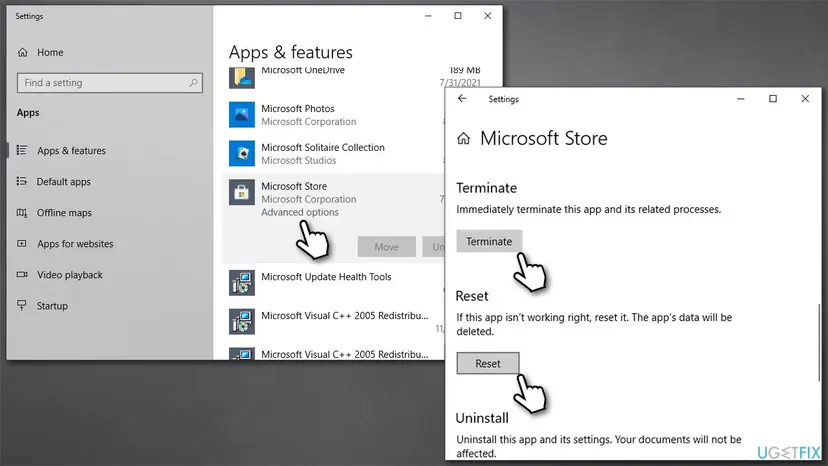
It worked if: The Store opens, and a Store app that failed before opens or installs.
If not: If apps still fail while the service shows Running, go to Fix 6.
Fix 5. Repair system files when the error says module not found
20 to 40 minutesLow riskThe message ends with system error 126, or Fixes 1 to 3 start the service and it stops at once.
System error 126 means Windows could not find a module the service needs. SFC checks protected system files, and DISM repairs the Windows image they are restored from. Microsoft does not say which file is missing, so a full check is the sound way to bring it back.
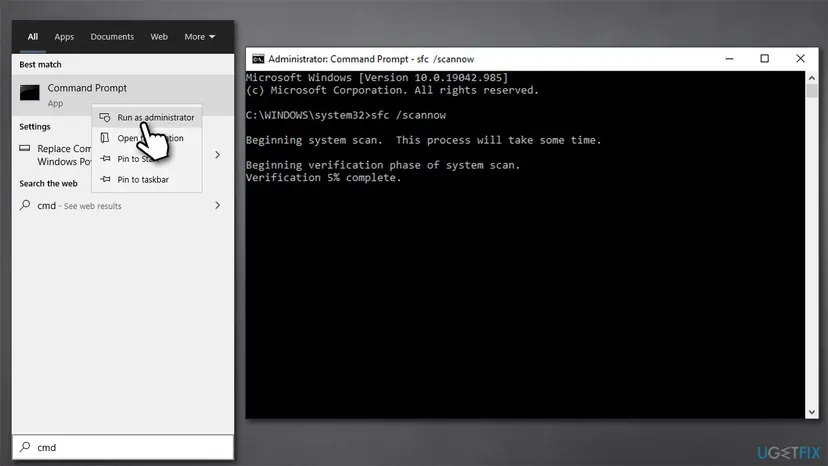
- Open an elevated command window. Right-click Start and select Terminal (Admin), or type cmd in the search box, right-click Command Prompt and select Run as administrator. Select Yes when Windows asks for permission.

Search for cmd and choose Run as administrator. Screenshot: Windows 11 26H2. - Run DISM first. Type the command below and press Enter. DISM downloads clean copies of damaged components from Windows Update, so it can take several minutes. Wait until it says The operation completed successfully.
DISM.exe /Online /Cleanup-Image /RestoreHealth
DISM /RestoreHealth running. Screenshot: Windows 11 26H2. - Run System File Checker. In the same window, type the command below and press Enter. Do not close the window until the verification reaches 100%.
sfc /scannow
sfc /scannow at 100%. Screenshot: Windows 11 26H2. - Read the result and restart. Compare the last message with the table below this guide, then restart the PC so that repaired files are loaded.

The result line tells you what SFC did. Screenshot: Windows 11 26H2.
These steps were written for Windows 11 24H2 and 25H2. The full page with the other versions and what each result means: Run DISM and SFC to repair Windows system files
Restart the PC after the repair and run net start clipsvc again as in Fix 2.
It worked if: SFC reports that it repaired files, or DISM finishes without errors, and the service starts after a restart.
If not: If error 126 stays, use Fix 6 if you have an older restore point, otherwise Fix 7.
Fix 6. Go back to a restore point from before the change
20 to 45 minutesLow riskThe trouble began on the day you disabled services or ran a tweak tool, and you have an older restore point.
System Restore returns system files, the registry and installed programs to an earlier state and leaves your own files alone. A point from before the service was disabled undoes the change and anything it broke along with it.
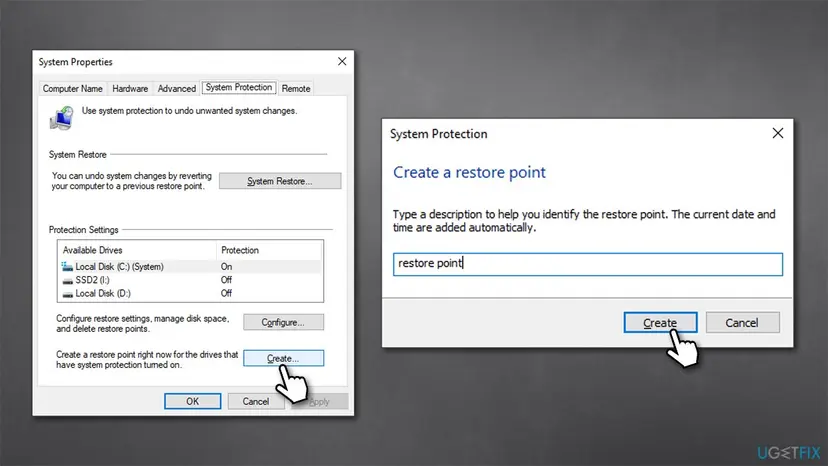
- Type Create a restore point in Windows search and press Enter.
- Select Create and give the new point a Name, such as before ClipSVC restore.
- Wait until Windows says the restore point was created.
- Then follow the procedure below and pick a point dated before the change.
- Open System Restore. Press Windows+R, type the command below and press Enter. You can also open Control Panel > Recovery > Open System Restore. If a first page opens, select Next.
rstrui.exe - Choose a restore point. Select a restore point from a time before the problem started. The Description often names the event, such as a driver or app install. If the one you need is missing, select Show more restore points (shown only when there are more).
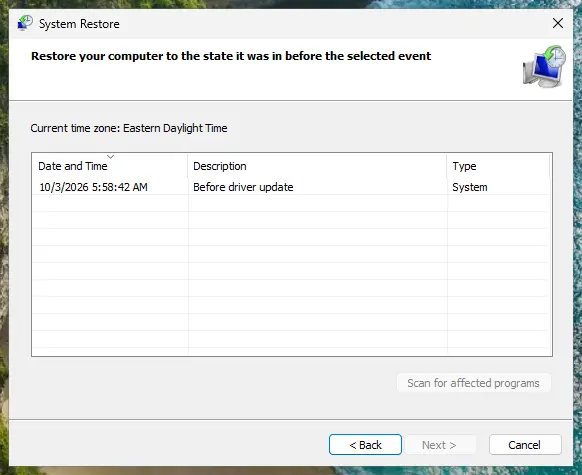
Pick a restore point from before the problem started. Screenshot: Windows 11 26H2. - See what will change. Select Scan for affected programs. The upper list shows programs and drivers that will be removed; the lower list shows those that might come back and may need to be reinstalled. Select Close.
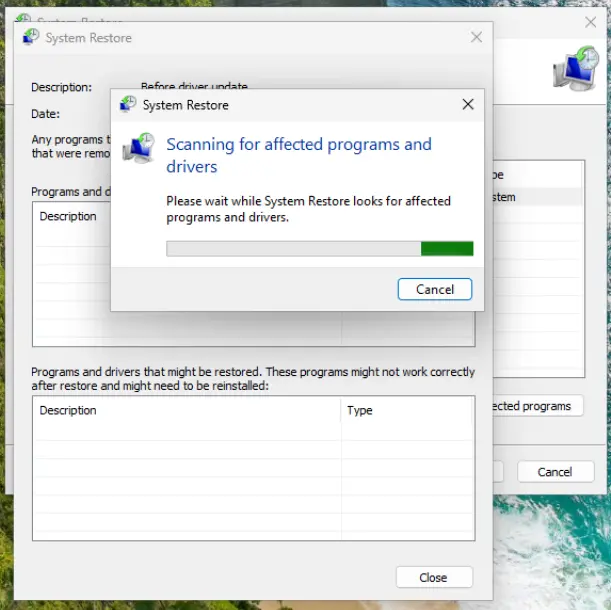
The scan lists programs and drivers the restore removes or brings back. Screenshot: Windows 11 26H2. - Start the restore. Select Next, check the summary and select Finish. Windows restarts and applies the restore point. Do not turn the PC off.
- Check the result. After sign-in Windows reports whether the restore succeeded. Check whether the problem is gone.
These steps were written for Windows 11 and Windows 10 (the steps are the same). The full page with the other versions and what each result means: Undo recent changes with System Restore
It worked if: After the restart, Client License Service shows Manual again and Store apps open.
If not: If no restore point exists or error 126 stays, use Fix 7.
Fix 7. Repair Windows with an in-place reinstall that keeps your files
1 hour or moreRead the warningFixes 1 to 6 did not clear error 126, or there is no restore point to go back to.
A repair install replaces the Windows system files, including any module the service cannot find, and keeps your files and most apps. It is the last step because it takes the longest.
A repair install keeps your files in most cases, but a failed setup can leave a PC that will not start. Copy your important files to another drive before you begin.
- Open Recovery in Settings. Open Settings > System > Recovery. Next to Fix problems using Windows Update, select Reinstall now. This keeps your apps, files and settings.

Fix problems using Windows Update reinstalls the current version and keeps apps, files and settings. Screenshot: Windows 11 26H2. - Start the reinstall. Choose whether the PC may restart on its own 15 minutes after the installation, then select OK.
- Wait and restart. Windows Update downloads and installs a repair copy of your current Windows version. Keep the PC plugged in and online, and restart it when asked.
- If that did not help: Reset PC. Back in Settings > System > Recovery, next to Reset this PC, select Reset PC. This keeps your personal files but removes installed apps and settings.
- Choose Keep my files. Select Keep my files. Do not select Remove everything.
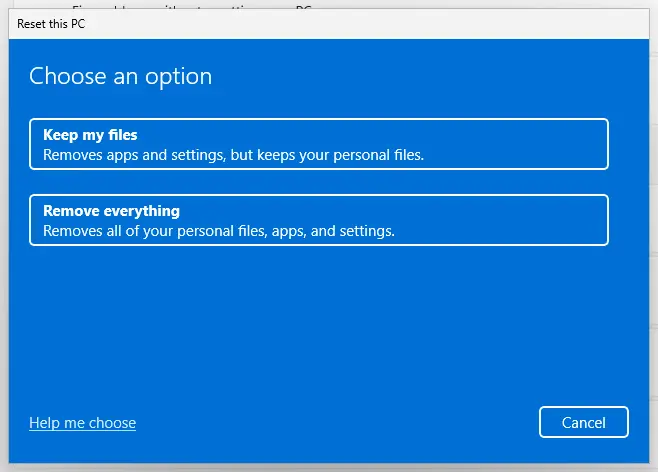
Keep my files removes apps and settings but keeps personal files. Screenshot: Windows 11 26H2. - Choose where Windows comes from. Select Cloud download to download a fresh copy of Windows, or Local reinstall to use the files already on the PC (faster, but may not include the latest updates).
- Reset. Review the summary and select Reset. The PC restarts several times.
These steps were written for Windows 11 22H2 and later. The full page with the other versions and what each result means: Reinstall Windows without losing files
It worked if: Windows starts as before with your files and apps in place, and the Client License Service starts from Services or net start clipsvc.
If not: If the error remains after a repair install, send the details in the Still broken section to Microsoft Support.
If Client License Service still will not start
The Command Prompt shows only the last error. Windows writes more detail about every failed service start in the System log, with the service name and the error code.
- Right-click Start and select Event Viewer.
- Open Windows Logs > System.
- Select Filter Current Log, tick Error and select OK.
- Open the entries from the time of your failed start and note the source, the text and the code.
- What to send to Microsoft Support: the three lines of the message, the Startup type you see, your Windows version from Settings > System > About, and the fixes you tried.
- A work or school PC: the organization may lock services by policy, and system error 5 can come from that. Ask the administrator before you change anything.
- When it is not software: this error does not point to hardware. If Windows also crashes or files go missing, check the disk with Check a disk for errors (chkdsk).
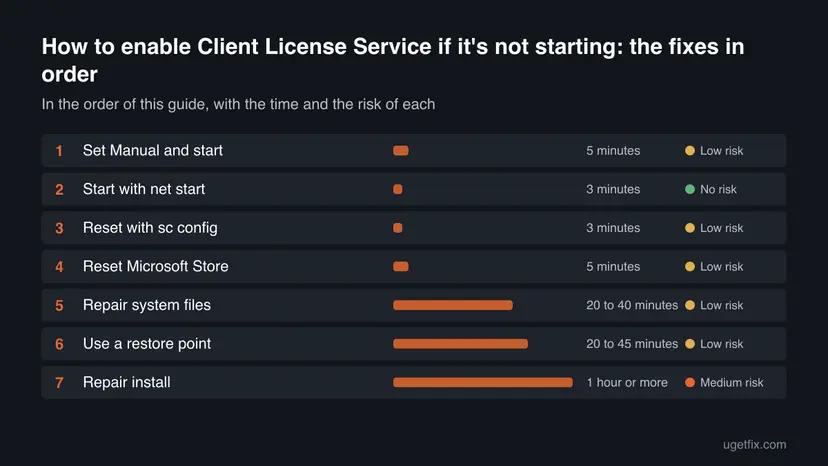
How to keep Client License Service from being disabled again
The service is meant to sit on Manual and start when a Store app asks for it. These habits keep it that way and give you a way back if a change goes wrong.
- Create a restore point before you change any service.
- Write down the old Startup type before you change it.
- Leave Client License Service on Manual.
- Change one service at a time and test your apps.
- Disable services in bulk with a tweak or debloat tool.
- Set a service to Disabled because a guide calls it unnecessary.
- Download a registry file to force the service to start.
- Stop at Disabled and ignore the Store apps that stop opening.
Frequently asked questions
What is ClipSVC?
ClipSVC is the service name of Client License Service, a Windows service that Microsoft describes as providing infrastructure support for the Microsoft Store. It starts on demand when a Store app needs it. If the service is disabled, applications bought using Microsoft Store do not behave correctly. You find it in the Services window under Client License Service.
What is the ClipSVC service, and is it safe to disable it?
It is the Client License Service, and Microsoft warns that if it is disabled, applications bought using Microsoft Store do not behave correctly. That is why disabling it is not safe on a PC that uses Store apps or games. If you disabled it, set the Startup type back to Manual in Services (Fix 1). Microsoft lists Manual as the default.
What does Clip SVC mean, and is it the same as ClipSVC?
Yes. Clip SVC is the same service typed with a space. The short name is ClipSVC, and the display name in the Services list is Client License Service. In commands you must write it as one word, as in net start clipsvc or sc config ClipSVC start= demand, because the name with a space does not match.
What does system error 126 mean when ClipSVC will not start?
Microsoft names system error 126 ERROR_MOD_NOT_FOUND and describes it as "The specified module could not be found." Windows tried to load a file the service needs and did not find it. Microsoft does not say which file, so we could not confirm it. Repair system files with SFC and DISM (Fix 5) and then try a restore point or repair install.
Why does the ClipSVC service stop after it starts, or say it has shutdown?
ClipSVC is an on-demand service, so it can start, do its work and stop again when no Store app needs it. A stopped service with Manual startup is normal and not an error. If it stops and your apps still fail, run net start clipsvc and read the system error number. Then use the fix for that number from the chooser.
What should I do if the ClipSVC service restart failed?
Read the code before you try again. Failure with system error 1058 means the service is disabled, so set Manual in Services or with sc config (Fixes 1 and 3). Failure with 5 means Access is denied, so open the Command Prompt as administrator. Failure with 126 means a module is missing, so repair system files (Fix 5).
Why does the Services window say Access is denied when I start ClipSVC?
Access is denied is system error 5. The usual cause is that the command or window runs without administrator rights, so open Command Prompt with Run as administrator (Fix 2). On a work or school PC the organization may limit services by policy, and then only the administrator can change them. Do not try tools that remove such limits.
Why do my apps stop opening when Client License Service is disabled?
Microsoft says that applications bought using Microsoft Store do not behave correctly when this service is disabled. Store apps ask the service for licensing support when they run, and a disabled service cannot answer. Set the Startup type back to Manual and start it (Fix 1), then restart the PC. Apps that came from outside the Store are not part of this.
Can I set ClipSVC to Automatic instead of Manual?
Microsoft's table for Windows Server 2016 lists Manual, with an on-demand start, and we found no Microsoft advice to use Automatic. Start with Manual as in Fix 1. If it works, leave it there. Some users report that they set Automatic when they saw the service stopped again and again, but that is a user report and not a Microsoft instruction.
Sources
- Microsoft Learn: Security guidelines for system services in Windows Server 2016, Client License Service (ClipSVC): description and Manual startup type (learn.microsoft.com)
- Microsoft Learn: sc.exe config, the start= parameter and the required space after the equal sign (learn.microsoft.com)
- Microsoft Learn: System Error Codes (0-499), errors 5, 126, 1058 (learn.microsoft.com)
Did this fix work?
One click, no account. It tells the next reader which guides are worth their time.
Questions and experiences: enable Client License Service (ClipSVC) if it's not starting
Still broken, or found a fix we did not cover? Ask here: members and our editors answer. Reading is open; writing needs a free account.
…