How to fix
0xC19000101 – 0x30018 error
on Windows
Resolve the 0xC19000101 - 0x30018 error on Windows 10 and 11 quickly. Follow our expert-tested solutions for a smooth upgrade experience. Fixed in minutes!

What causes How to fix 0xC19000101 – 0x30018 error on Windows?
- Bad disk sectors
- Insufficient space on the disk
- System file corruption
- Bad Windows installation
- Failing RAM
Repairs Windows system files, removes malware, and restores a clean OS state — without reinstalling.
I can't upgrade Windows for a while now. All I'm getting is an error code 0xC19000101 - 0x30018 when trying. Is there anything I could do to fix this? Help would be much appreciated.
Windows is an operating system that is constantly improved by Microsoft, as new features, bug fixes, software vulnerability patches, and other advances are introduced. These versions of Windows 10 are commonly marked under a particular code, such as 20H2 or 1909. Previously, these codes were also accompanied by another title, such as "Anniversary update" or " Fall Creators update."[ref en-3]
Each time when Windows jumps from one of these major versions to another, it typically takes much longer than just installing regular Tuesday patches. In most cases, the transition is smooth - all users have to do is restart their computers and see the new implementations right away.
However, it is a well-known fact that not everything goes smoothly for everybody when it comes to Windows updates.[ref en-2] Users sometimes get caught in an endless reboot loop or end up damaging vital Windows functions. This time, we are talking about the failure of installing the updates, namely, how many reported receiving 0xC19000101 - 0x30018 installation error when upgrading Windows to the newer version.
Users who encountered the error code xC19000101 - 0x30018 said that the installation fails with it after hours of trying to install the update. Luckily, not everyone has to wait that long to know that the installation is not going anywhere. Most people said that they also got the "Undoing changes" notification before receiving the following message:
We couldn't install Windows 10
We've set your PC back to the way it was right before you started installing Windows 10.0xC19000101 - 0x30018
The installation failed in the FIRST_BOOT phase with an error during SYSREP_SPECIALIZE operation.
We have an indication that the installation failed during the FIRST_BOOT phase, although this does not explain much to the user. In fact, this error might be related to bad disk sectors, insufficient space on the disk, system file corruption, bad Windows installation, or even failing RAM.[ref en-1]
Since there are many different reasons for this issue, you will have to perform several troubleshooting procedures in order to come to the root cause, which would allow you to fix xC19000101 - 0x30018 error. Alternatively, if you are not that PC savvy and are bothered by this or any other Windows problem, we highly recommend you try the automatic repair option with [d1].
Other error codes from the same family that show up under similar circumstances include:
And now, let's jump into the solutions for xC19000101 - 0x30018 error.
Fix 1. Run Windows Update troubleshooter
- Right-lick on Start and pick Settings
- Go to Update & security section
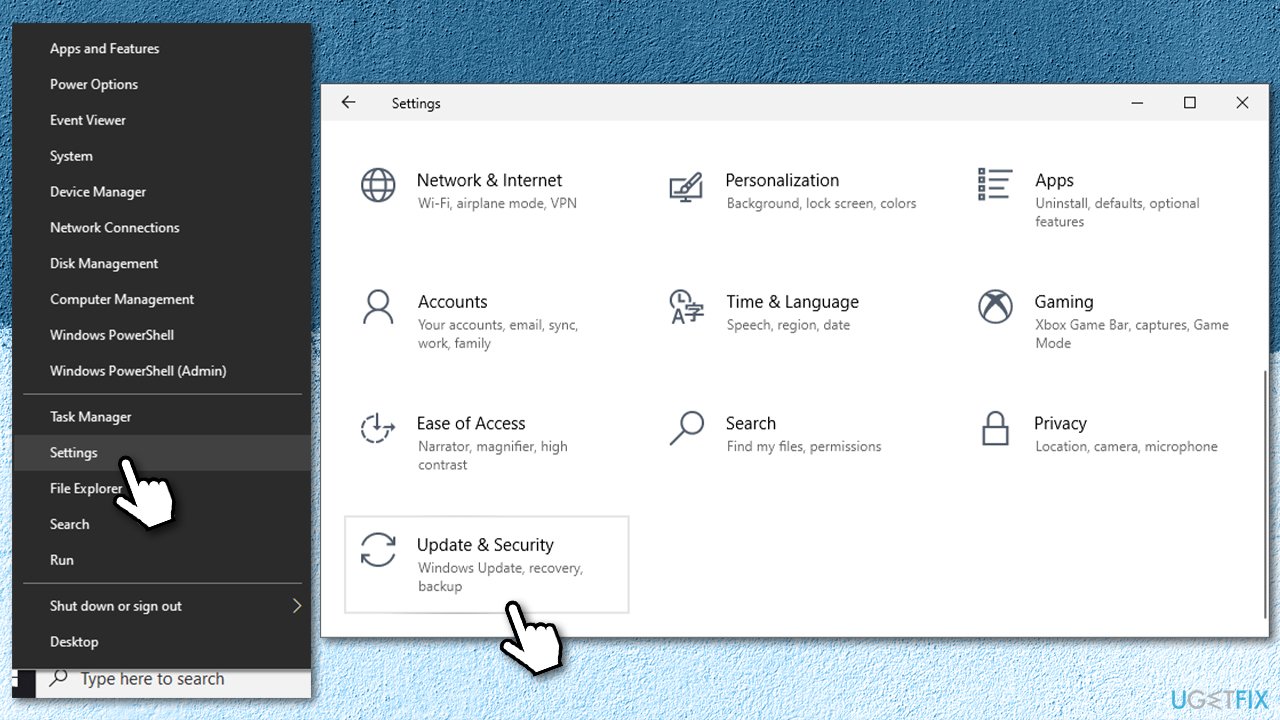
How to fix 0xc19000101 0x30018 on windows go to settings - On the left, select Troubleshoot
- You should see all the troubleshooters listed on the left (if not, click Additional troubleshooters)
- Select Windows Update and click Run the troubleshooter.
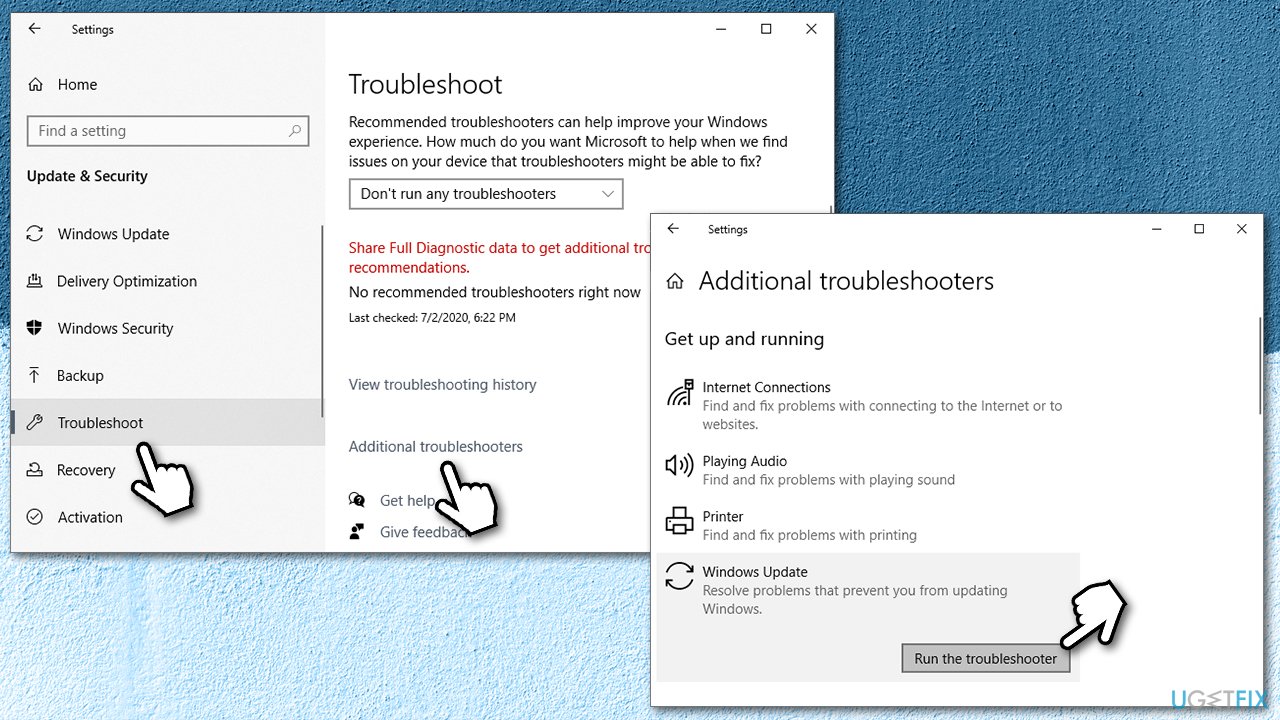
How to fix 0xc19000101 0x30018 on windows run troubleshooter
Fix 2. Ensure you have enough space
You might receive upgrade errors if your hard drive or solid-state drive (SSD) does not have enough space on it. Here are the requirements for modern Windows systems:
- For Windows 32-bit version, you will need at least 20 GB of free space.
- For Windows 64-bit version, you will need at least 32 GB of free space.
It is worth noting that the size of Windows update varies. Nonetheless, your space is running out, use automatic junk cleaners such as [d1] or employ the built-in Disk Cleanup function:
- Type Disk Cleanup in Windows search and press Enter
- Select your main drive (C: by default)
- Select appropriate fields (Temporary files, Recycle Bin, etc.,) and press OK
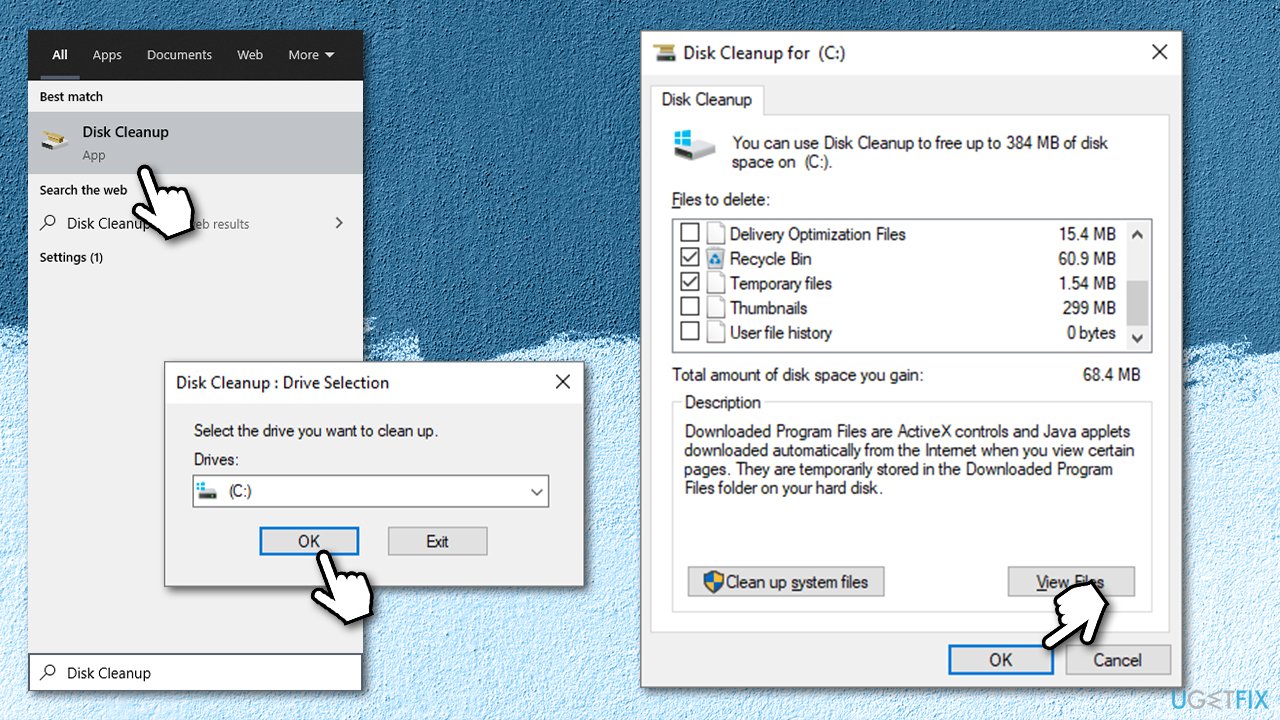
How to fix 0xc19000101 0x30018 on windows use disk cleanup - Note that you could also pick Clean up system files to reclaim additional space (although keep in mind that, for example, by deleting Windows update files, you won't be able to revert the OS to its previous version).
Fix 3. Fix corrupted Windows system files
Command Prompt is a panel that allows users to run otherwise unavailable commands. Here's what you should do in order to fix damaged system files with System File Checker:
- Type in cmd in Windows search
- Right-click on Command Prompt and select Run as administrator
- In the new window, paste in the following command:
sfc /scannow
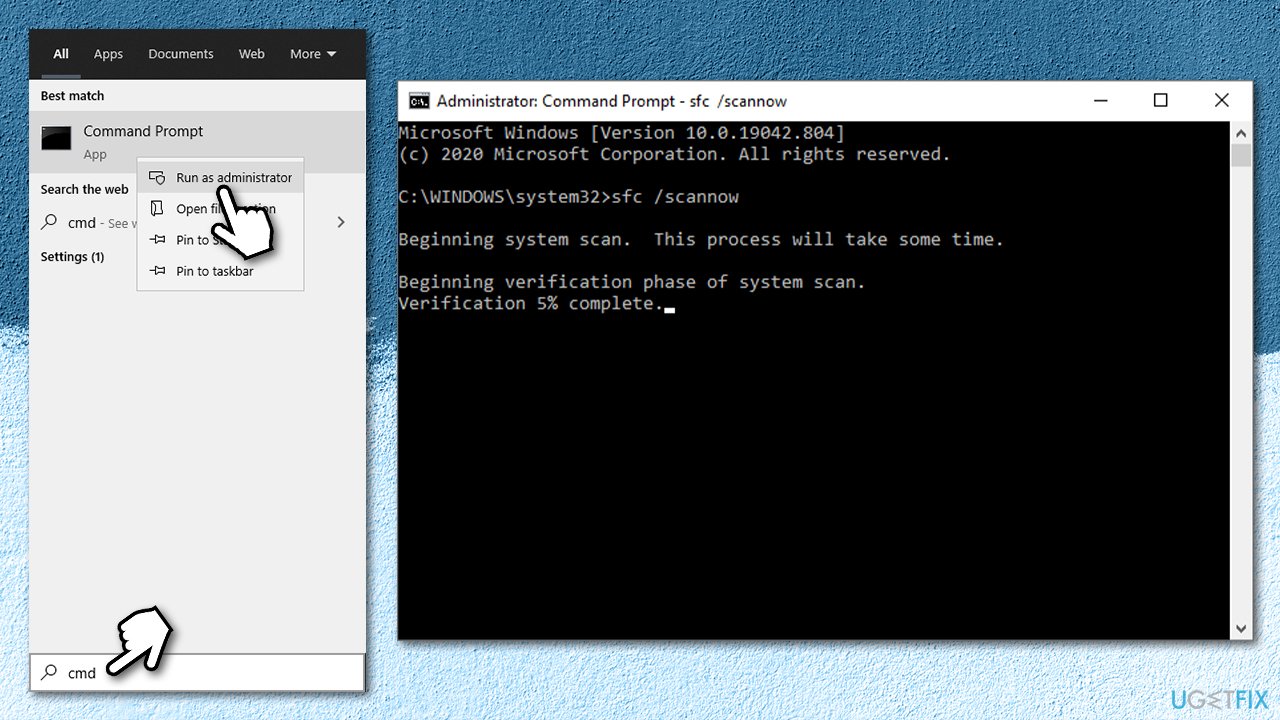
How to fix 0xc19000101 0x30018 on windows run sfc scan - Now hit Enter and wait till the scan finishes - Windows will explain whether it managed to find system file integrity violations and whether it managed to fix them
- Reboot your PC.
If SFC was unable to fix the cornuted files, you can employ the DISM tool:
- Open Command Prompt as Admin once again
- Type in the following commands, pressing Enter after each:
Dism /Online /Cleanup-Image /CheckHealth
Dism /Online /Cleanup-Image /ScanHealth
Dism /Online /Cleanup-Image /RestoreHealth
Fix 4. Check your disk for errors
- Press Win + E to open File Explorer
- Go to This PC (left side)
- Right-click on your main drive (C: by default) and select Properties
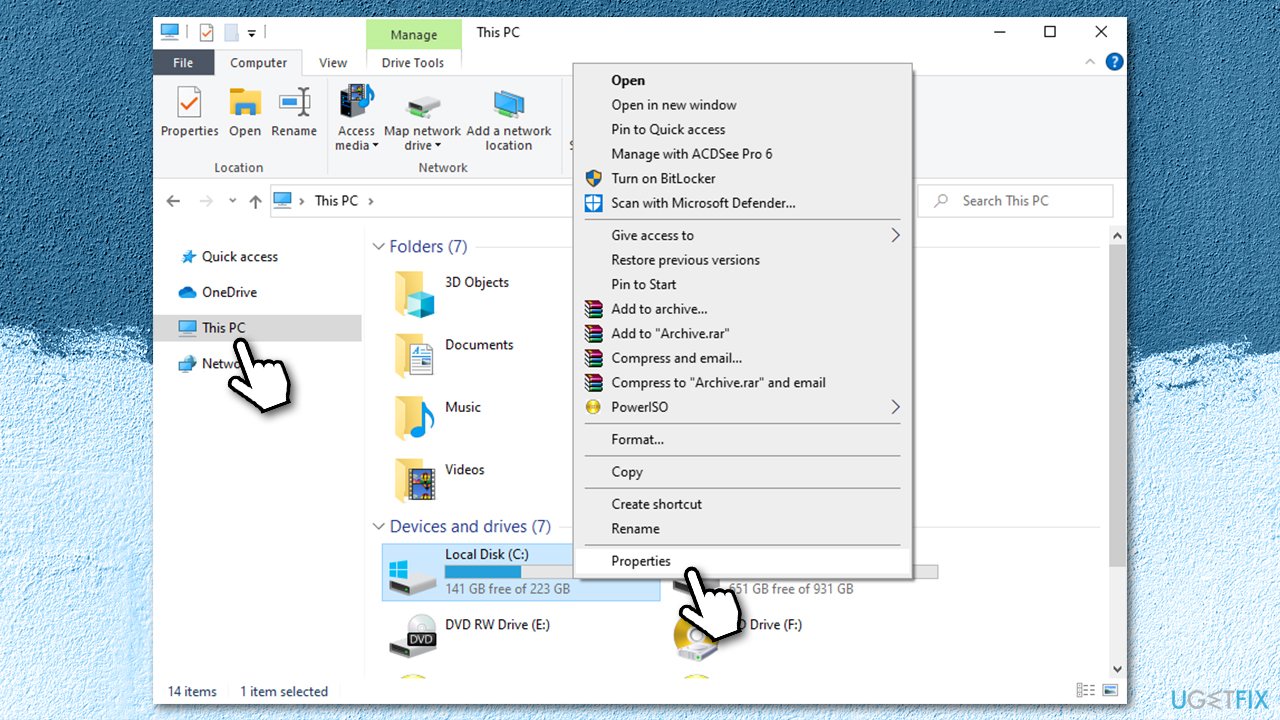
How to fix 0xc19000101 0x30018 on windows chek disk for errors - Go to Tools tab
- Under Error checking, click Check
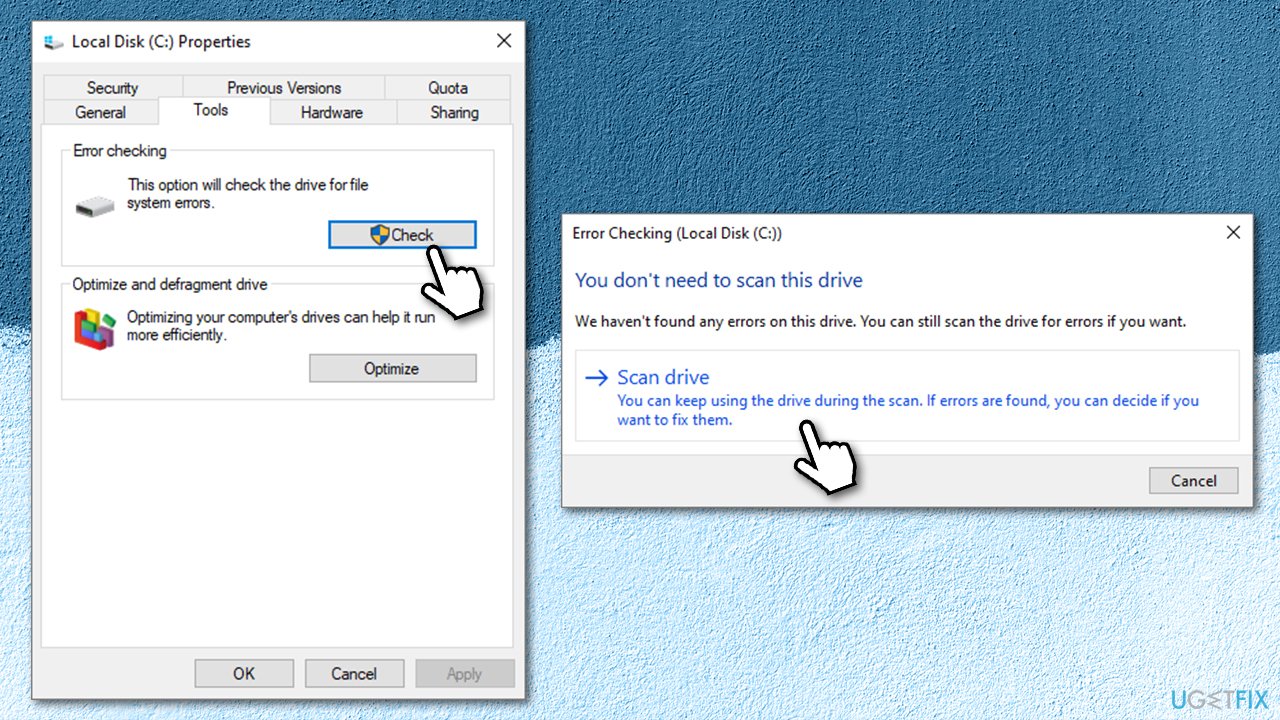
How to fix 0xc19000101 0x30018 on windows chek disk for errors2 - Now select Scan drive and wait till the operation is finished.
Fix 5. Check your RAM with Windows Memory Diagnostic Tool
It might be that your RAM is failing, so you should check whether it is the case by using Windows memory Diagnostic Tool:
- Type in Memory Diagnostic Tool in Windows search and press Enter
- Once the new window shows up, click Restart now and check for problems (recommended)
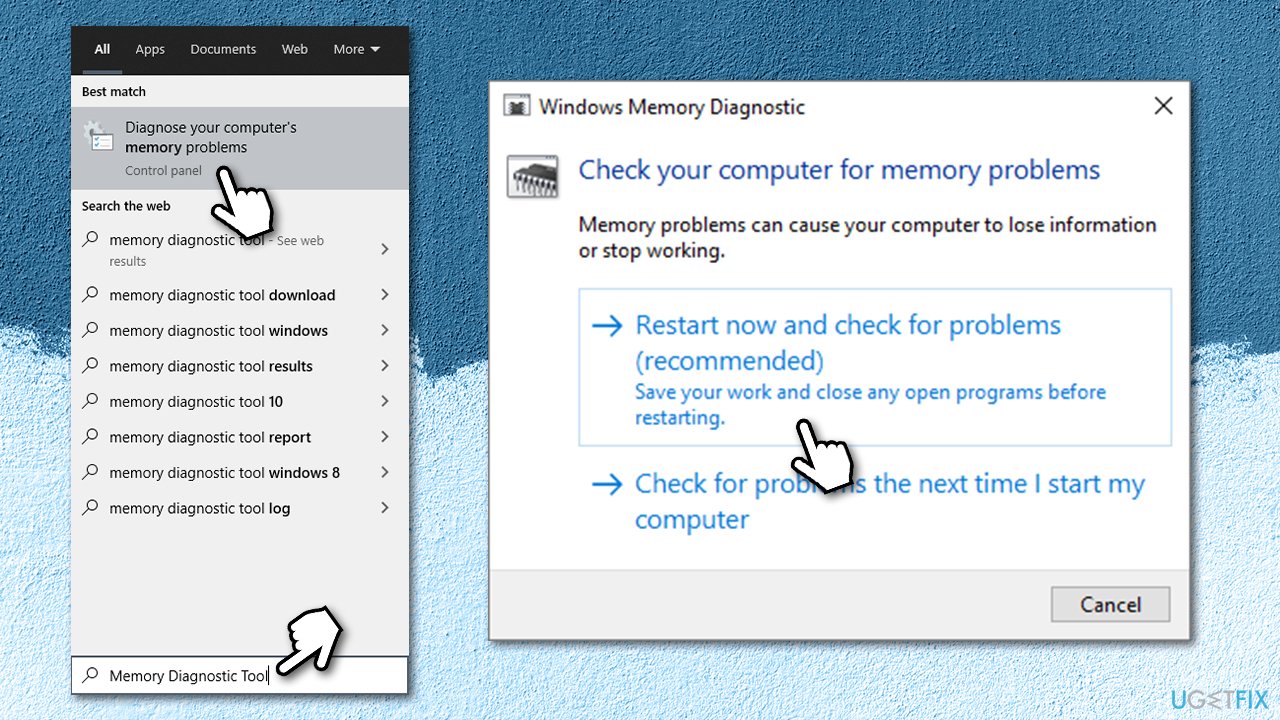
How to fix 0xc19000101 0x30018 on windows run memory diagnostic tool - Note that this will reboot your PC immediately so ensure your work is saved so you won't lose it.
Fix 6. Reset Windows Update components
- Open Command Prompt (administrator) as explained in the 3rd solution
- Type in the following commands, pressing Enter after each of them:
net stop wuauserv
net stop cryptSvc
net stop bits
net stop msiserver
ren C:\\Windows\\SoftwareDistribution SoftwareDistribution.old
ren C:\\Windows\\System32\\catroot2 Catroot2.old
net start wuauserv
net start cryptSvc
net start bits
net start msiserver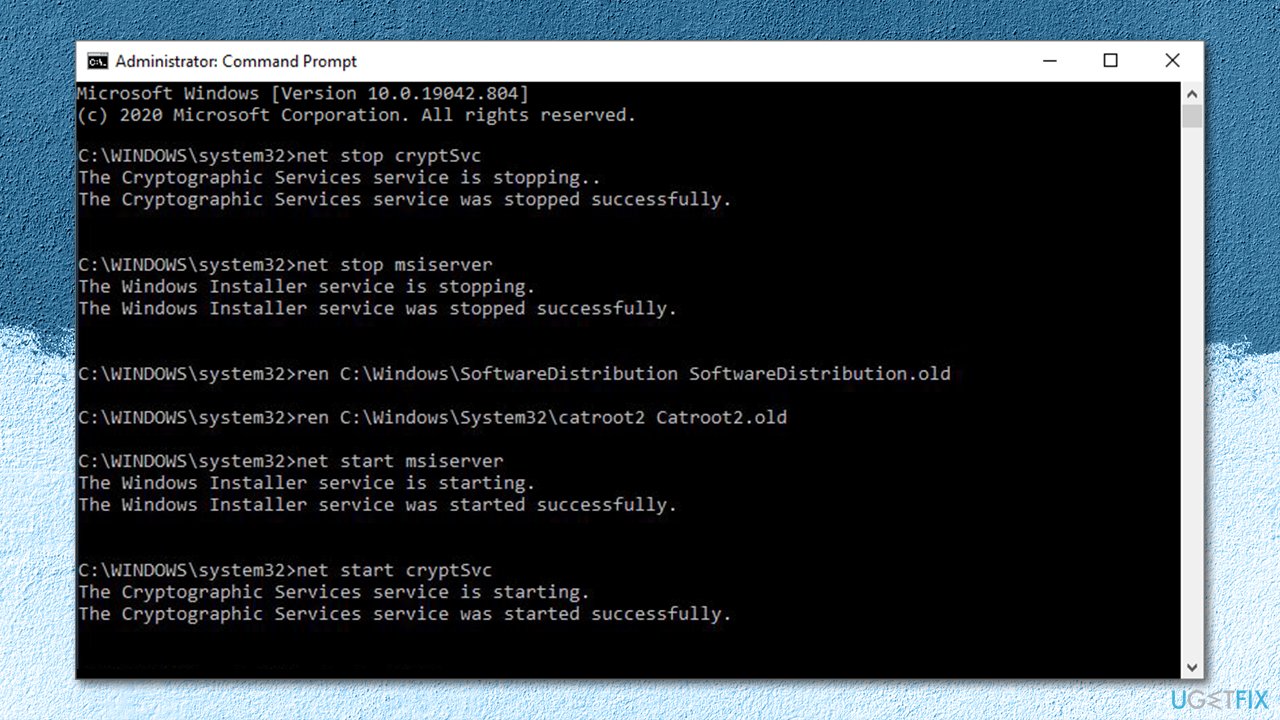
How to fix 0xc19000101 0x30018 on windows reset windows update components - Reboot your computer and try upgrading once again.
Fix 7. Use Media Creation Tool
If all the above solutions did not provide you with an error code xC19000101 - 0x30018 fix, we recommend installing the newest Windows version manually. Here's how:
- Download Windows 10 installation media from the official Microsoft website.
- Double-click the installer to launch it.
- Agree to Terms and pick Next.
- Select Upgrade this PC now and select Next
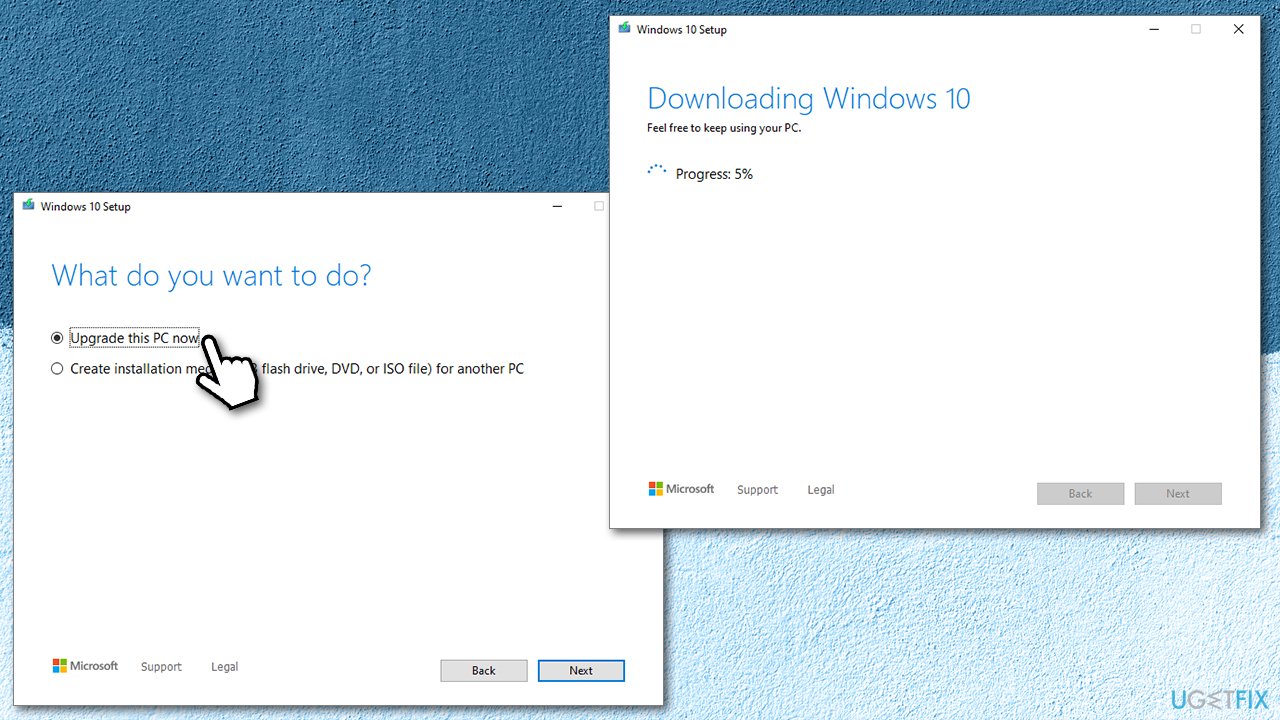
How to fix 0xc19000101 0x30018 on windows use media creation tool - Windows will begin the download process of the appropriate update
- Proceed with on-screen instructions to finalize the process
- Once done, double-click the Ready to install option.
Bottom line
To fix the 0xC19000101 - 0x30018 error, users can check for bad disk sectors, ensure there is enough disk space, repair system files, verify the integrity of the Windows installation, and test the RAM for issues. If none of these solutions work, further troubleshooting may be necessary.
Frequently asked questions
This error typically indicates a problem during the upgrade process, often related to hardware compatibility or insufficient resources on your system.
To fix this error, ensure that your device meets the minimum system requirements and try disconnecting any unnecessary peripheral devices before the upgrade.
Yes, you can run the Windows Update Troubleshooter from the Settings app, which can help identify and fix issues related to the upgrade process.




Report an issue
What's wrong with this guide? We review every report and update or remove content.
Report received — thank you. We'll review and fix it.
You need a free account to submit a report.
Be the first to comment