How to fix
“Access denied” error in Nvidia Control Panel
on Windows
Resolve the "Access denied" error in Nvidia Control Panel on Windows 10 or 11 effortlessly. Get expert-tested solutions today for a seamless experience!


What causes How to fix “Access denied” error in Nvidia Control Panel?
- Insufficient permissions for the Nvidia Control Panel
- Conflicting components preventing full operation
- Issues arising after GPU driver updates
- Corrupted installation of the Nvidia Control Panel
Repairs Windows system files, removes malware, and restores a clean OS state — without reinstalling.
Every time I attempt to change something in "Manager 3D settings" in Nvidia Control Panel, I receive an error "Access denied." This is super frustrating, as I can't change any settings for my games at all. Please help.
Today, graphics cards are much more sophisticated than they used to be and their performance capabilities have skyrocketed over the years. Most GPUs come with adjustable settings that can easily be altered using software provided by the card's manufacturer. There is no doubt that these powerful pieces of hardware make it possible for you to get the most out of your gaming experience.
Utilizing its GeForce brand, Nvidia delivers users with the Nvidia Control Panel and other drivers to grant them greater control. Whether you want to adjust resolution or enhance graphics quality for a better gaming experience, this application offers everything that one can need. Anyone who installs an Nvidia video card receives it automatically; however, if needed, you can always download it from additional sources such as Microsoft Store.
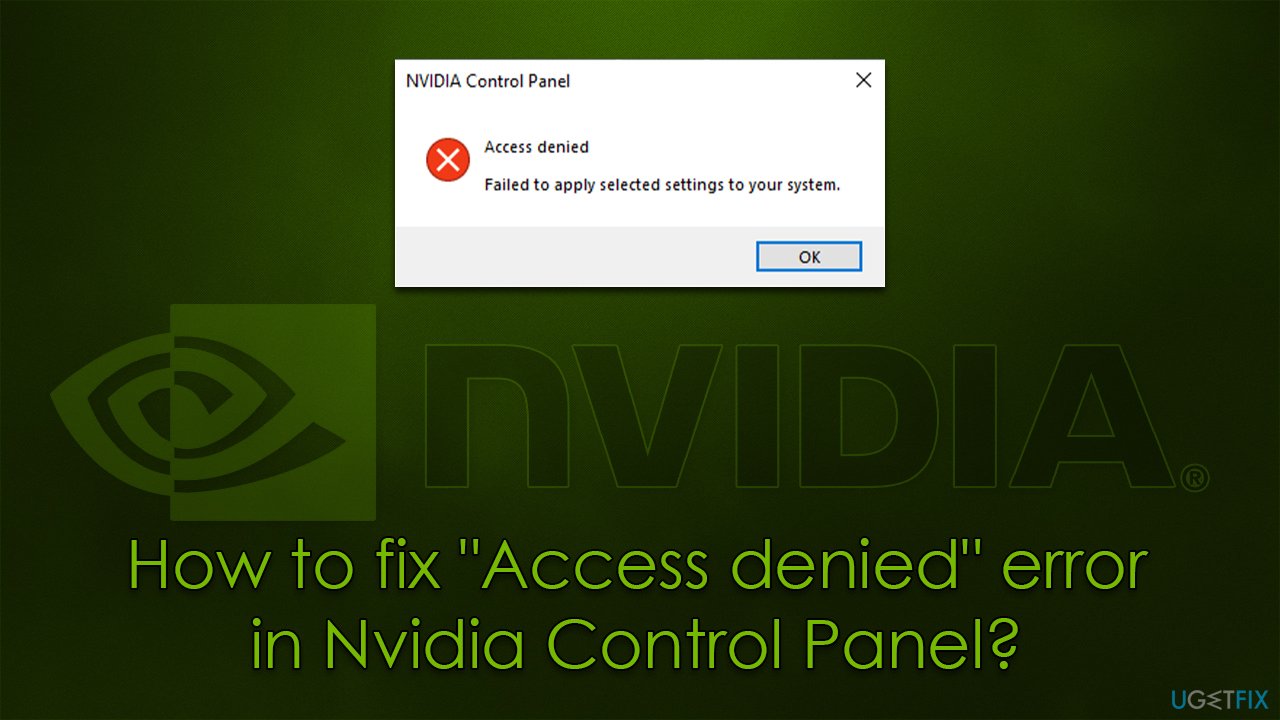
Despite all its benefits, the app is not perfect and issues such as crashes are not uncommon. In this instance, users said that they ran into an "Access denied" error, usually whenever they try to access the "Manage 3D settings" option. As a result, users are unable to change any vital settings to improve their gaming experience, which can be particularly problematic.
If you have run into an "Access denied" error in Nvidia Control Panel, it is likely that the app does not have sufficient permissions or other components are preventing its full operation. In other cases, people reported that the issues started as soon as they updated their GPU drivers, so rolling them back may be useful in this instance.
Below you will find instructions on how to fix "Access denied" in Nvidia Control Panel - make sure you follow each of the steps thoroughly. Also, we recommend you run a scan with a sophisticated PC repair tool [d1], which can help you resolve various Windows issues automatically.
Fix 1. Turn off Game bar
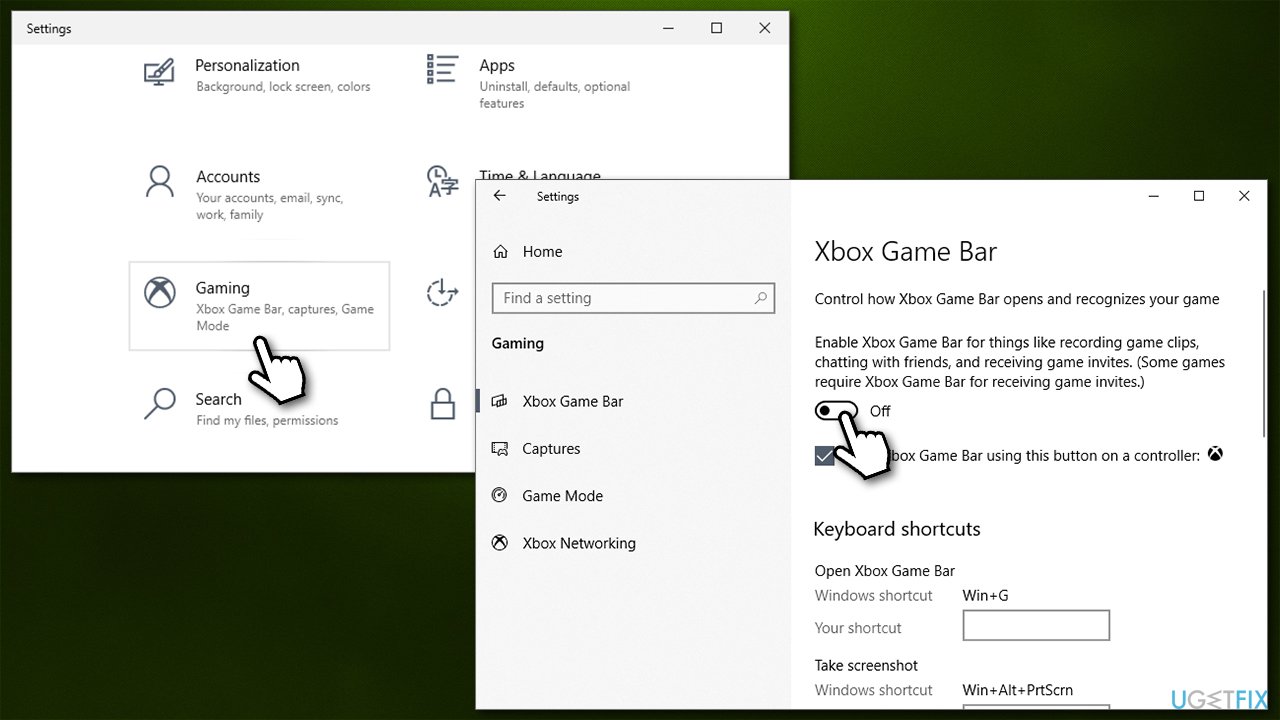
While the Game bar is designed by Microsoft to improve gaming performance, it may sometimes cause problems, so try disabling it as follows:
- Right-click on Start and pick Settings
- Go to the Gaming section
- Under Xbox Game Bar, toggle the switch to the Off position
- Try using Nvidia Control Panel again.
Fix 2. Run the app as an administrator
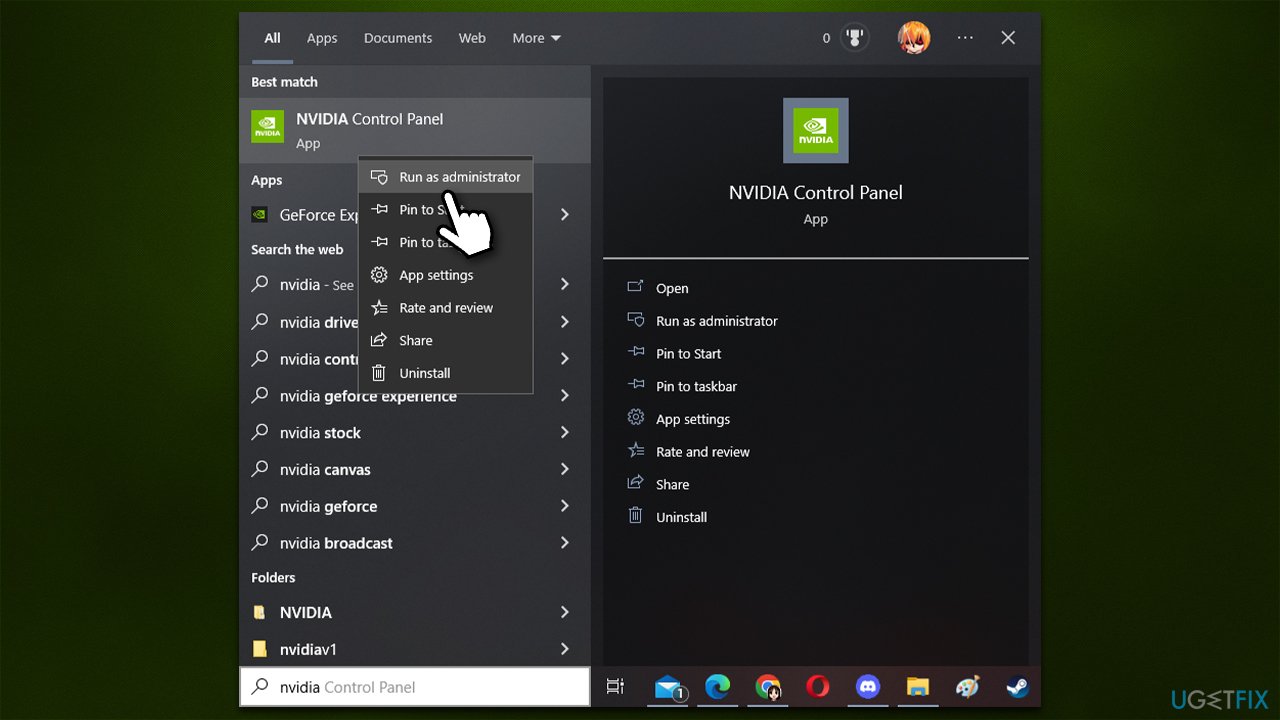
Sometimes Nvidia control panel might simply not have enough permissions to run its functions, so try running it as an administrator:
- Type Nvidia Control Panel in Windows search
- Right-click on the app entry and select Run as administrator
- Try accessing Manage 3D settings and see if it resolved the situation.
Fix 3. Roll back drivers
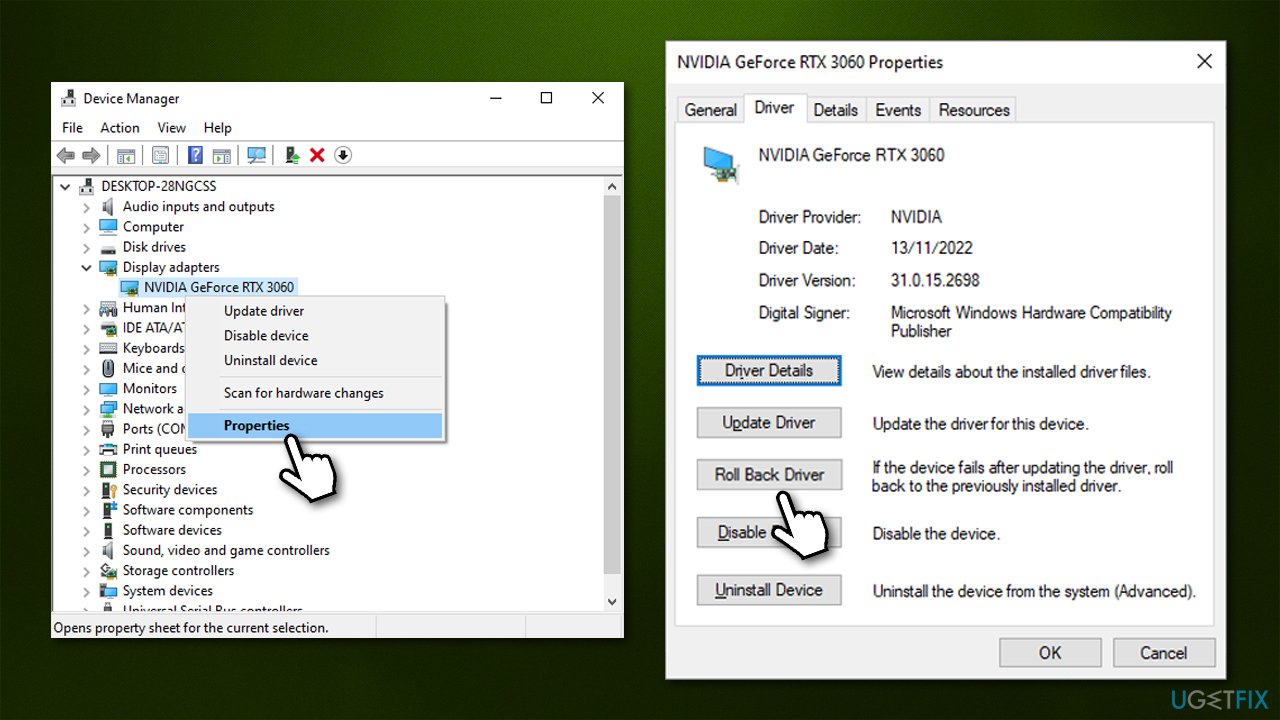
Some users said that the "Access denied" error in Nvidia Control Panel only started happening after updating Nvidia drivers to the latest version. If that is the case, you could opt to revert to the previous version and see if that helps solve the situation.
- Right-click on Start and pick Device Manager
- Expand Display adapters
- Right-click on your graphics card, and pick Properties
- Go to the Driver tab
- Click Roll Back driver
- Pick a reason why you are rolling back and click Yes
- Restart your system.
If the rollback option is grayed out for you, please follow the instructions in our dedicated article.
If rolling back does not work, you could try reinstalling your graphics drivers altogether.
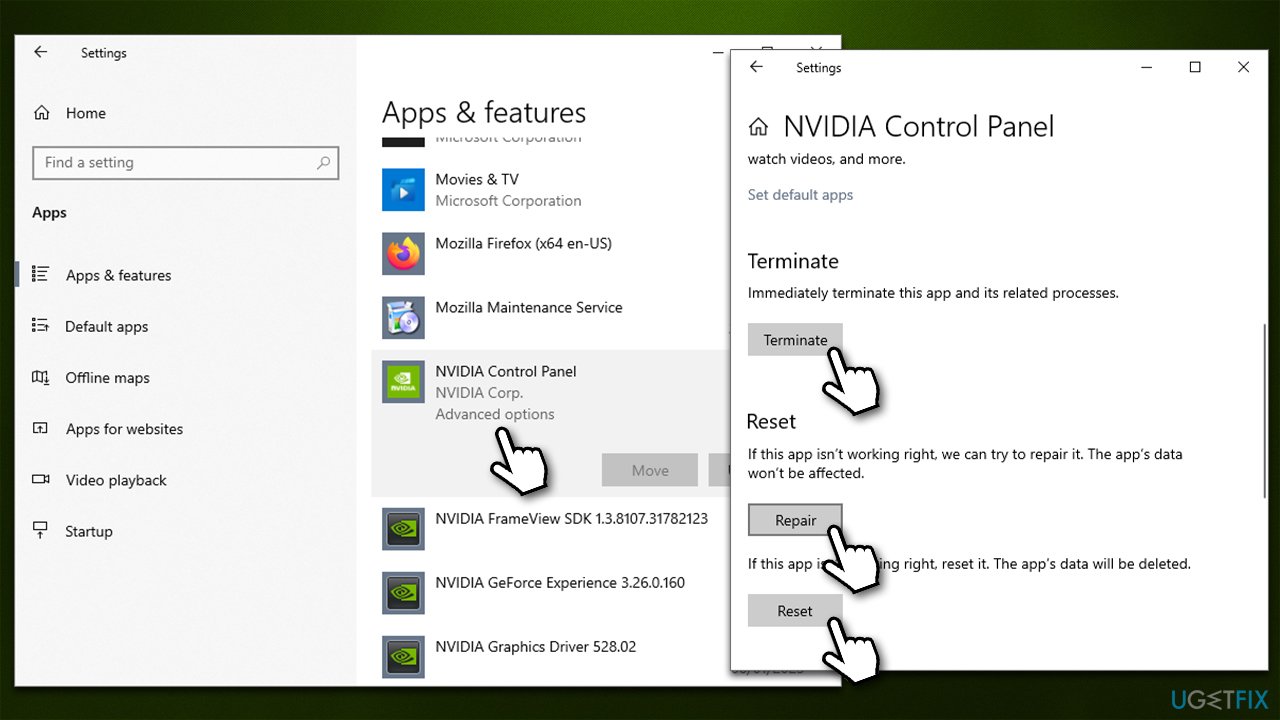
Fix 4. Repair/reset the app
- Right-click on Start and pick Apps and Features
- Scroll down to find Nvidia Control Panel entry
- Click Advanced options
- Scroll down, click Terminate and Repair
- If this option has no effect, try using Reset instead.
Fix 5. Check Nvidia services
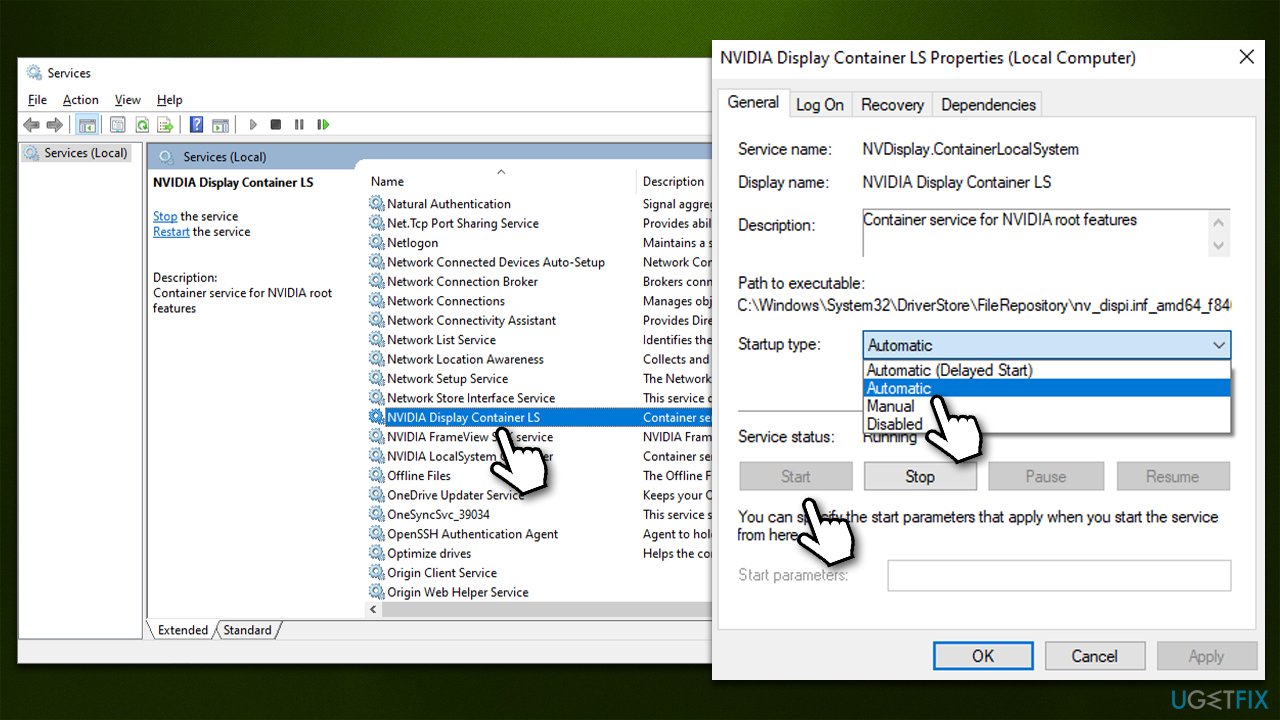
- Type Services in Windows search and press Enter
- Scroll down to find NVIDIA Display Container LS service and double-click it
- Under Startup type, click on the drop-down menu and select Automatic
- Click Start, Apply and OK.
Bottom line
To fix the 'Access denied' error in Nvidia Control Panel, you can check permissions, roll back GPU drivers, or reinstall the application. If these steps do not resolve the issue, consider using a sophisticated PC repair tool to address various Windows problems automatically.
Frequently asked questions
The 'Access denied' error may occur due to insufficient user permissions, outdated graphics drivers, or conflicts with third-party applications. Ensuring you have administrative rights and updating your drivers can often resolve the issue.
To run the Nvidia Control Panel as an administrator, right-click the application icon and select 'Run as administrator' from the context menu. This can help bypass the 'Access denied' error.
If reinstalling the drivers doesn't resolve the issue, try resetting the permissions for the Nvidia folder in the Program Files directory. You can also check for Windows updates that may address compatibility issues.




Report an issue
What's wrong with this guide? We review every report and update or remove content.
Report received — thank you. We'll review and fix it.
You need a free account to submit a report.
Be the first to comment