How to fix
ATTEMPTED_WRITE_TO_CM_PROTECTED_STORAGE Blue Screen error
on Windows
Resolve the ATTEMPTED_WRITE_TO_CM_PROTECTED_STORAGE error on Windows 10 and 11 effortlessly. Follow our expert-tested solutions for a quick fix!

What causes How to fix ATTEMPTED_WRITE_TO_CM_PROTECTED_STORAGE Blue Screen error in Windows?
- Driver issues
- Corrupted system files
- Malware or virus infections
- Hardware failures
- Configuration manager problems
Repairs Windows system files, removes malware, and restores a clean OS state — without reinstalling.
Hello. Usually, I'm not bothered by minor issues on my PC, and a crash I received last week with ATTEMPTED_WRITE_TO_CM_PROTECTED_STORAGE blue screen didn't bother me either. However, the Blue Screen returned the next day, and it has kept happening for a week now. It would be nice to see some ways to fix this once and for all.
Most users have previously come across a Blue Screen of Death crash while operating a Windows system and, while the experience is never a pleasant one, it fulfills a vital role in preventing further damage that would otherwise occur on the computer. ATTEMPTED_WRITE_TO_CM_PROTECTED_STORAGE is one of the error codes that users have noticed for several years now, and while there is no universal solution, there are definitely things that should be tried by troubleshooting.
ATTEMPTED_WRITE_TO_CM_PROTECTED_STORAGE has a bug check of 0x0000011C, which means that Windows made an attempt to write to the configuration manager read-only protected storage. Usually, the call is made by a driver,[ref en-3] although it could also be associated with other elements of the system.
It goes without saying that random PC crashes can cause a lot of frustrations to users, as they might lose some important, unsaved data, get interrupted during work or while playing games. The issue becomes even more relevant when the crashes are repeated. In some rare cases, users might even get locked out of their PCs or get stuck in a BSOD restart loop. In this case, trying to access Safe Mode or trying to perform a reset can be useful.
If you have encountered the crash once, the problem is likely to be fine as soon as the computer restarts. However, if the issue keeps repeating itself, there is something wrong, and it needs to be addressed before more damage is caused to the system or data inside it.
We have previously discussed many Blue Screen errors, including UNEXPECTED_STORE_EXCEPTION, PFN_LIST_CORRUPT, PAGE_FAULT_IN_NONPAGED_AREA, etc. Just like with these stop codes, there are multiple ways of resolving the issue, so please check the instructions below.
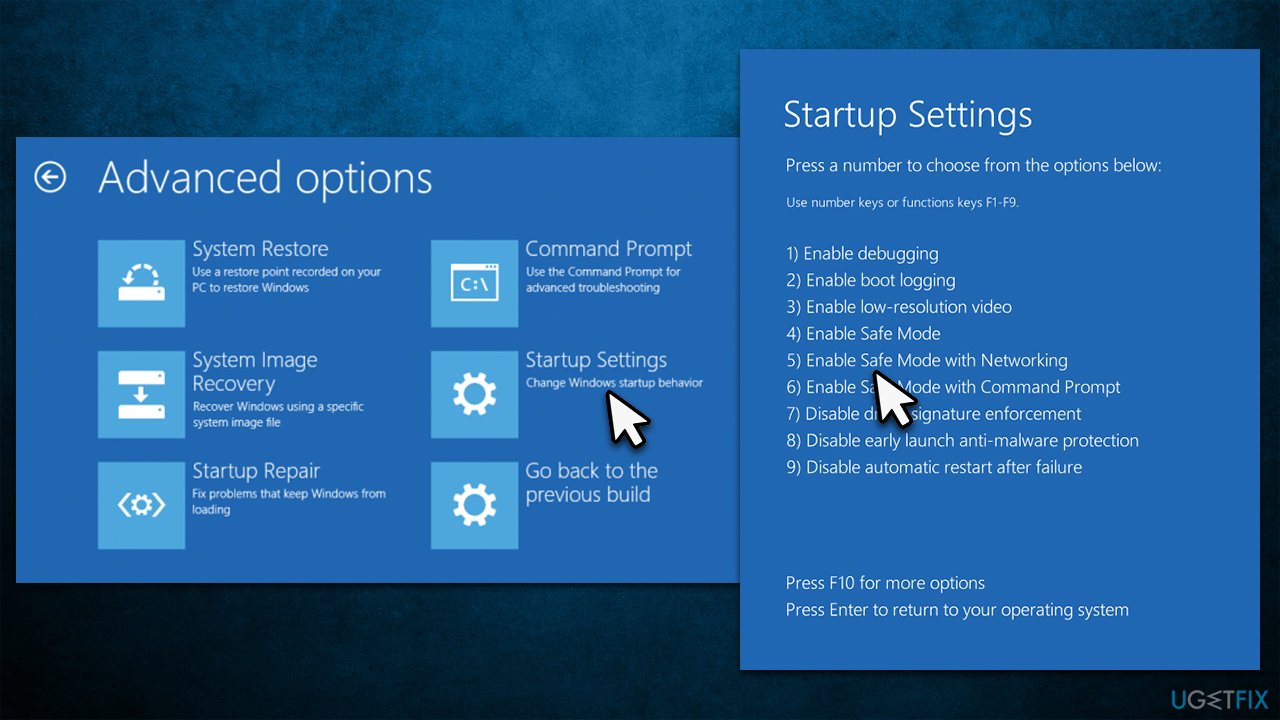
Access Safe Mode (if required)
- Restart Windows
- Once the system starts booting, interrupt the loading process by pressing and holding the Power button – do this two more times
- Windows will automatically enter Advanced Startup mode
- Select Troubleshoot > Advanced options > Startup Settings and Restart
- After a system reboot, select 4/F4 or 5/F5 to access Safe Mode.
How to fix attempted write to cm protected storage bsod in windows access safe mode
1. Run an automatic repair tool
Before you proceed with manual fixes for the ATTEMPTED_WRITE_TO_CM_PROTECTED_STORAGE BSOD, we recommend you run a scan with a powerful repair tool. It is a brilliant application when it comes to fixing the most common Windows issues like BSODs, registry[ref en-2] errors, crashes, and more.
- Download [d1]
- Click on the ReimageRepair.exe
- When User Account Control (UAC) shows up, select Yes
- Press Install and wait till the program finishes the installation process
- The analysis of your machine will begin immediately
- Once complete, check the results - they will be listed in the Summary
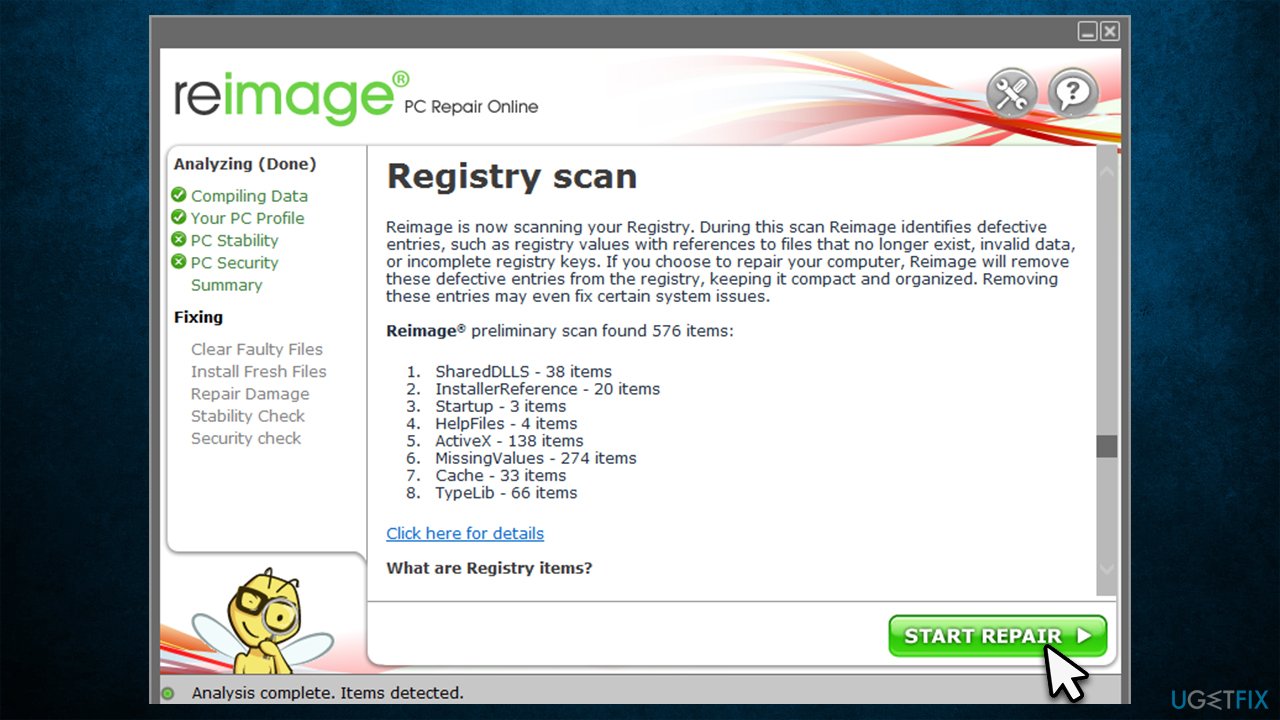
How to fix attempted write to cm protected storage bsod in windows run automatic repair - You can now click on each of the issues and fix them manually
- If you see many problems that you find difficult to fix, we recommend you purchase the license and fix them automatically.
2. Reinstall your drivers
There could be many drivers related to crashes caused by the BSOD. Therefore, we recommend reinstalling them - the most likely culprit would be GPU drivers, although chipset, network, and other drivers could also be at fault.
- Right-click on Start and pick Device Manager
- Expand any of the sections you want, for example, Display Adapters
- Right-click on the device and select Uninstall device
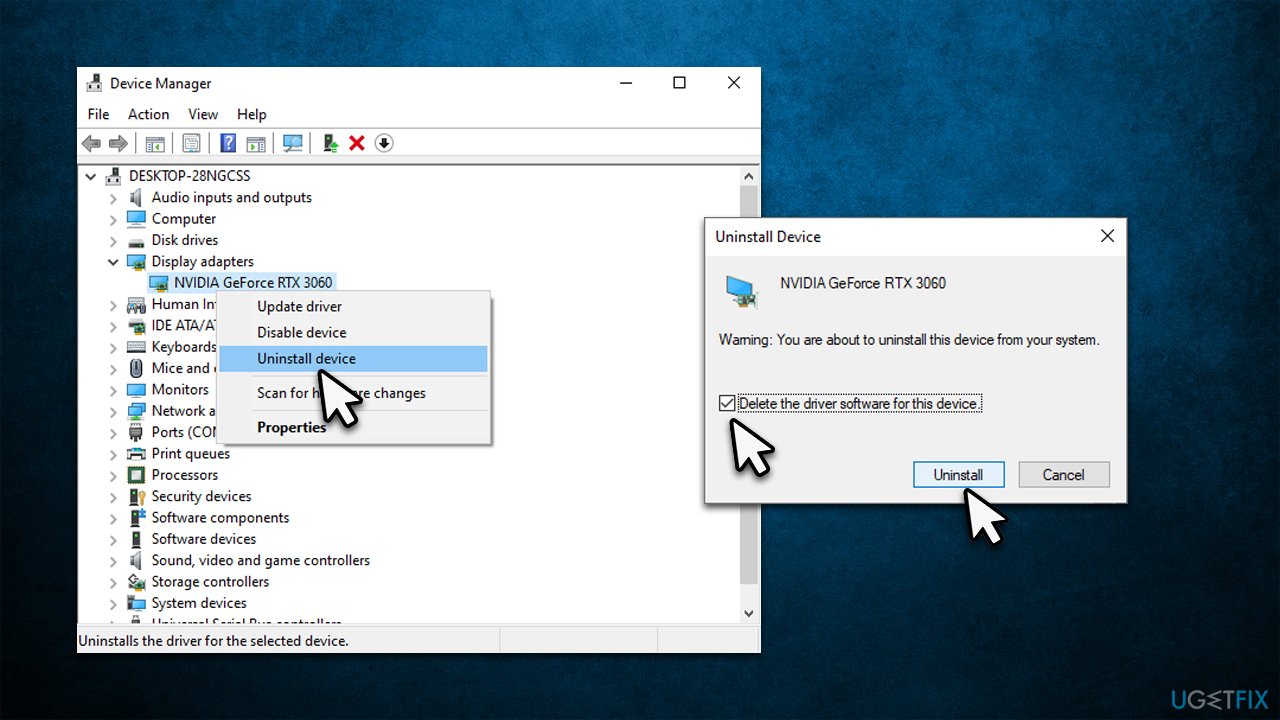
How to fix attempted write to cm protected storage bsod in windows reinstall drivers - In the warning prompt, mark the Delete the driver software for this device and click Uninstall (if applicable)
- Reboot your PC.
Once you get rid of the drivers, proceed with the following steps (note: install all the available updates as well):
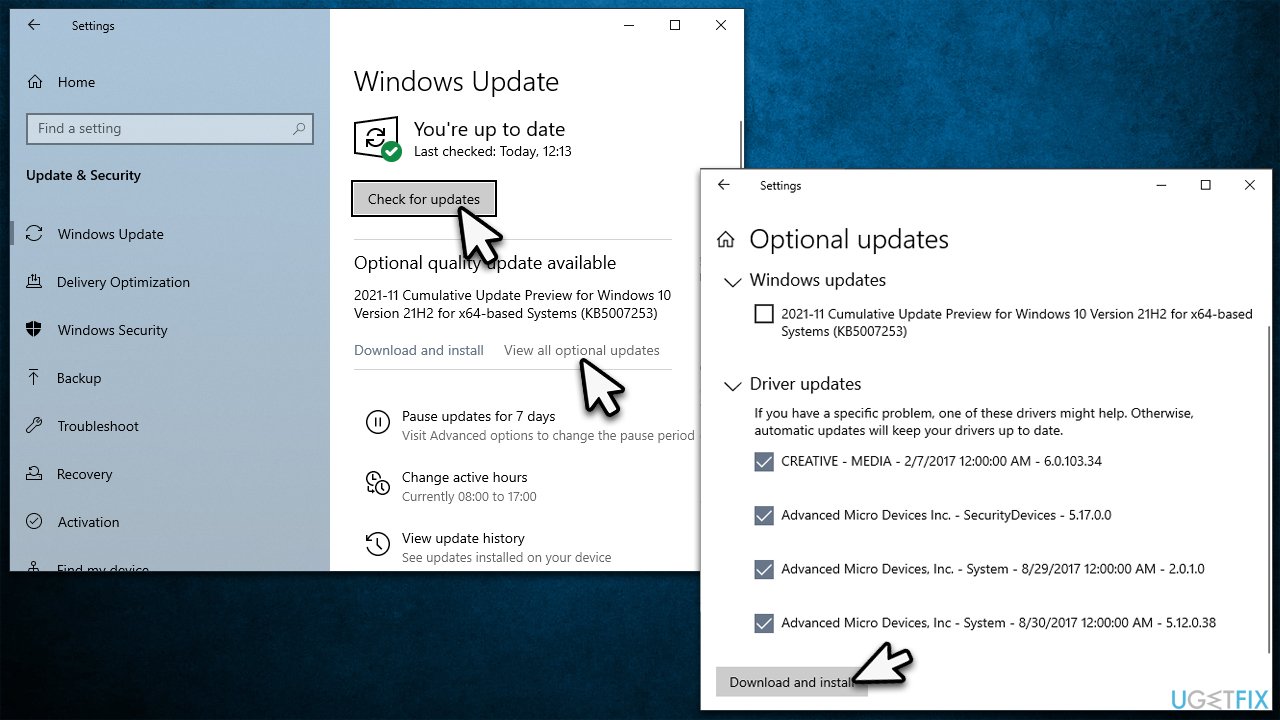
- Type Update in Windows search and hit Enter
- Click Check for updates
- Click View optional updates
- Find the Driver Updates section, tick the checkboxes, and click Download and Install
How to fix attempted write to cm protected storage bsod in windows reinstall drivers2 - Restart your PC.
Keep in mind that Windows does not always find all the relevant drivers so we recommend using [rev id="DriverFix"] as an automatic solution instead.
3. Run SFC and DISM
System file corruption is one of the most common reasons for Blue Screen errors to occur.
- Type in cmd into Windows search
- Right-click Command Prompt result and select Run as administrator
- When the User Account Control window shows up, click Yes
- In the new window, type in the following command and press Enter:
sfc /scannow - After the scan is done, copy the following command and press Enter:
DISM /Online /Cleanup-Image /RestoreHealth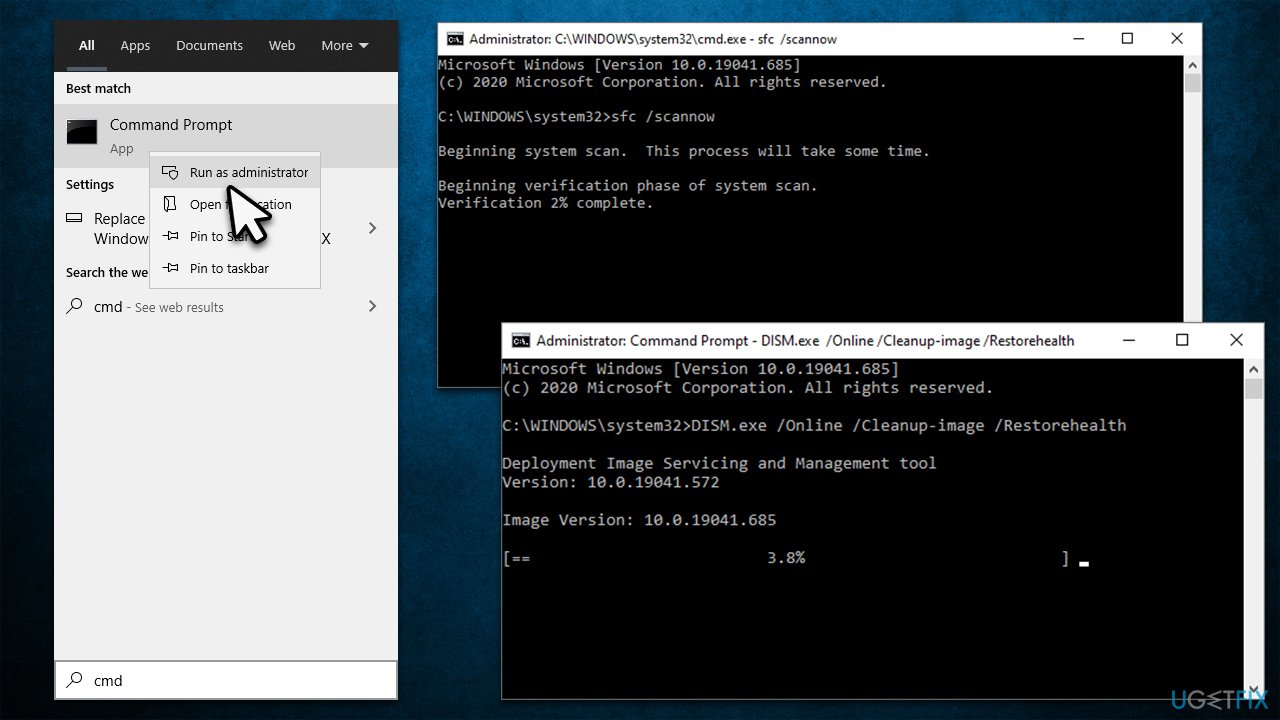
How to fix attempted write to cm protected storage bsod in windows run sfc dism - Wait for the scan to finish and reboot your system.
4. Check your disk for errors
- Open Command Prompt as administrator as explained in the previous fix
- In the new window, type in the following command and press Enter after:
chkdsk c: /f
(Note: use chkdsk c: /f /r /x command if you are using SSD as your primary partition) - If you receive an error, type in Y, close down Command Prompt, and restart your computer
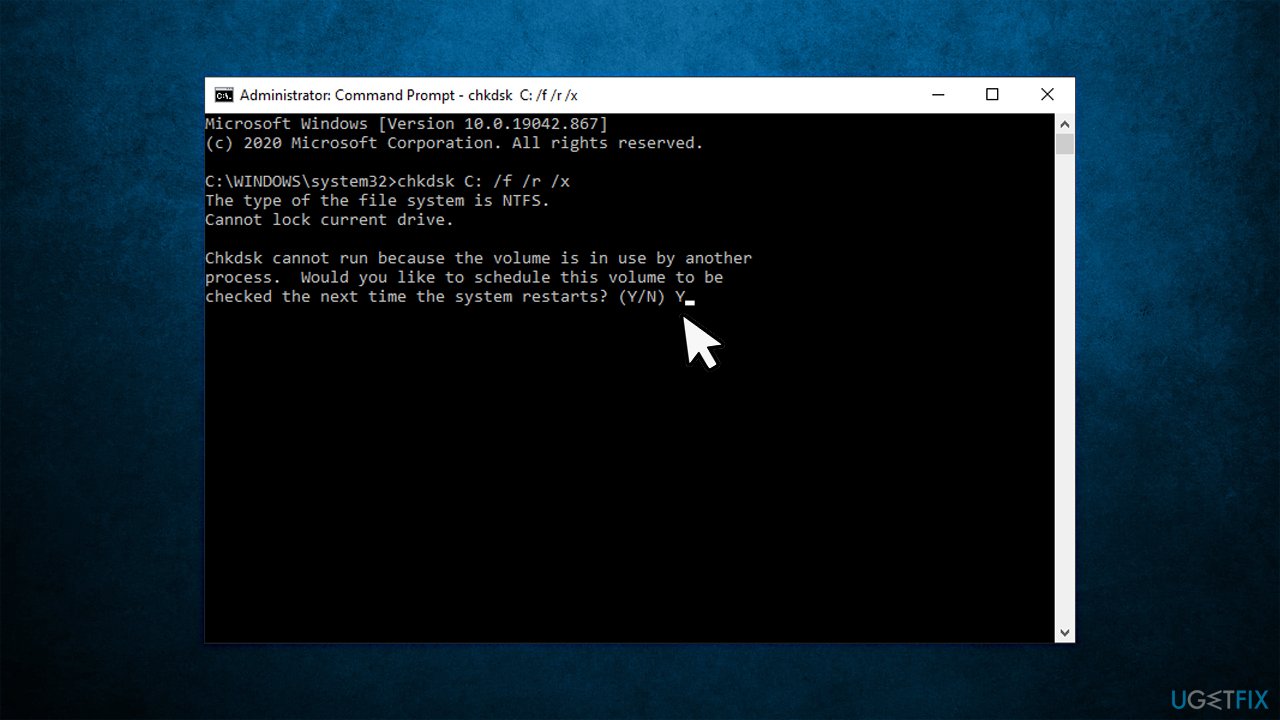
How to fix attempted write to cm protected storage bsod in windows run check disk - The scan might take a while, so be patient. The results will be shown after a restart.
5. Reset your PC
Before you proceed with this step, make sure that you backup your personal files and disconnect all optional external devices, such as
- Right-click on Start and pick Settings
- Go to the Update & Security section and select Recovery
- Under Reset this PC, click on Get Started
- Select Keep my files and Cloud download
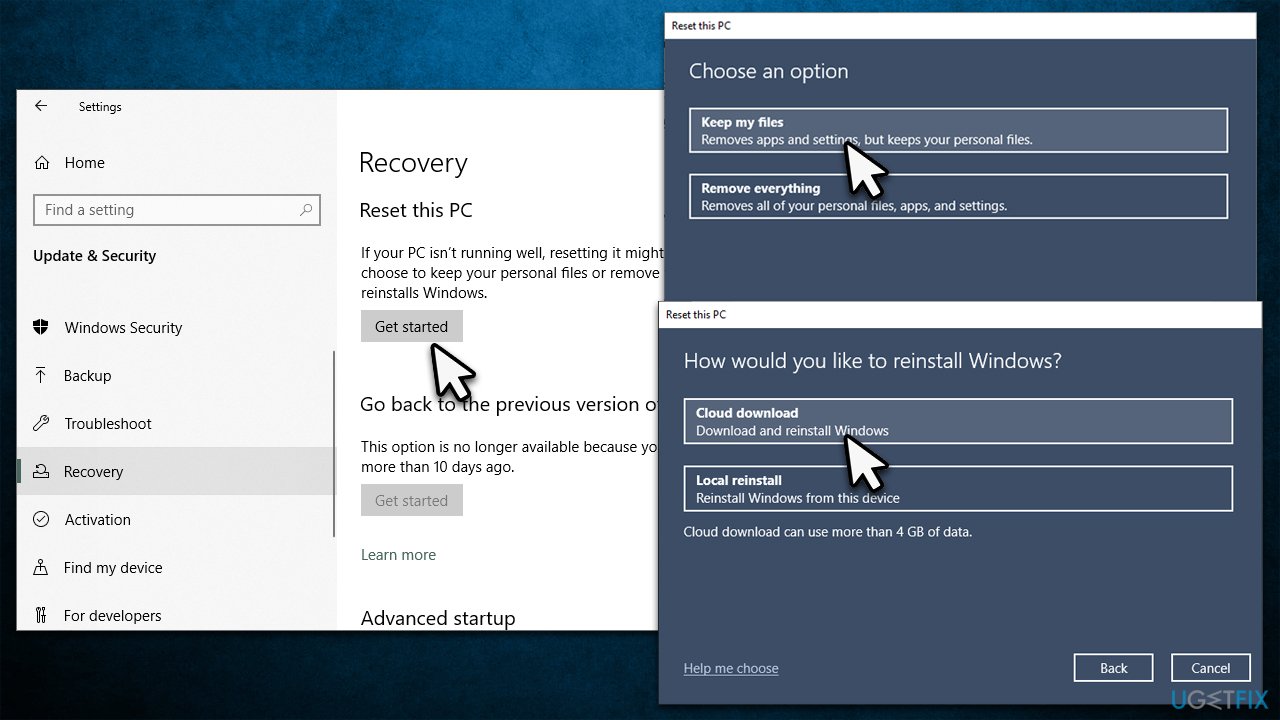
How to fix attempted write to cm protected storage bsod in windows reset pc - Click Next in the next prompt
- Finally, click Reset.
If you can't boot into normal mode or even safe mode, proceed with the following:
- Use steps we provided at the beginning on how to access Safe Mode until you reach the Troubleshoot screen
- Pick Reset this PC
- Wait till the process is complete.
Other solutions to try
Sometimes the solutions to BSODs might lie in simple things, or those that you haven't thought of could help:
- Run a full system scan with antivirus software to check for infections
- Clean your computer components from dust - check GPU, CPU, PSU,[ref en-1] etc.
- Disable Fast Startup.
Bottom line
To fix the ATTEMPTED_WRITE_TO_CM_PROTECTED_STORAGE error, you can try accessing Safe Mode, restarting Windows, or performing a system reset. If these solutions do not resolve the issue, further troubleshooting may be necessary to identify the underlying cause.
Frequently asked questions
This error typically occurs due to corrupted system files, faulty drivers, or issues with third-party applications that interfere with the system's protected storage.
You can start by running the System File Checker tool to repair corrupted files, and also check for any recent driver updates that might resolve the issue.
Yes, many users have successfully fixed this error by performing a clean boot to eliminate software conflicts or by using the Windows Recovery Environment to perform a system restore.




Report an issue
What's wrong with this guide? We review every report and update or remove content.
Report received — thank you. We'll review and fix it.
You need a free account to submit a report.
Be the first to comment