How to fix
Audio Renderer error “Please restart your computer”
on Windows
Resolve the Audio Renderer error on Windows 10 and 11 easily. Get your sound back with expert-tested fixes that ensure zero traces left.

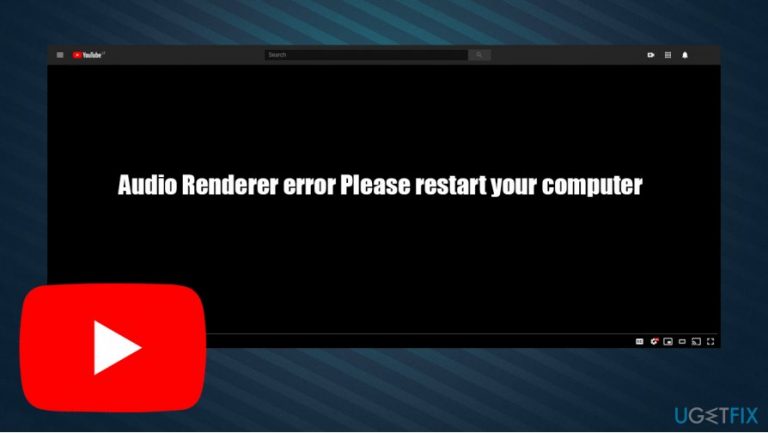
What causes How to fix Audio Renderer error “Please restart your computer”?
- Audio driver issues
- Conflicts with browser extensions
- Outdated web browser
- Corrupted audio settings
- Incompatible audio devices
Repairs Windows system files, removes malware, and restores a clean OS state — without reinstalling.
Hello, I am a huge fan of YouTube - I have been watching videos on it for years. Recently I started experiencing a weird phenomenon - some videos simply do not load, and Audio Renderer error "Please restart your computer" shows up instead. Is there any way to fix this?
YouTube is, without a doubt, the most successful video sharing and streaming platform in the world, visited by more than 2 billion users monthly.[ref en-2] Initially created by three former PayPal employees, the potential of the service was predicted by Google, which bought the company in 2006. Since then, most of the planet's population knows what YouTube is.
Despite being so popular, YouTube, just like any other prominent service, does not avoid issues. The platform is known to be used by cybercriminals to distribute fake cheats for video games, consequently making innocent viewers install all sorts of malware on their devices.[ref en-1] Additionally, technical difficulties are also not uncommon - users are facing black screens, YouTube is running slow, or errors such as An Error Occurred, Please Try Again Later, or Audio Renderer error Please restart your computer occur. In this article, we will talk about the latter and provide ways to fix the error once and for all.
Audio Renderer error is an issue that has been around for quite a while and is affecting the YouTube video streaming platform. While in some cases, people experience the issue occasionally while attempting to view particular videos, others claim that they are unable to watch any content at all. This is obviously very frustrating, as users are unable to watch their favorite YouTubers and other relevant content.
Audio Renderer error Please restart your computer does not seem to be tied to a particular operating system, meaning that Windows 10/9/7 or Mac users can experience the same problem. Besides, the error is reported to occur on all popular web browsers, such as Google Chrome, Mozilla Firefox, Safari, MS Edge, and others.
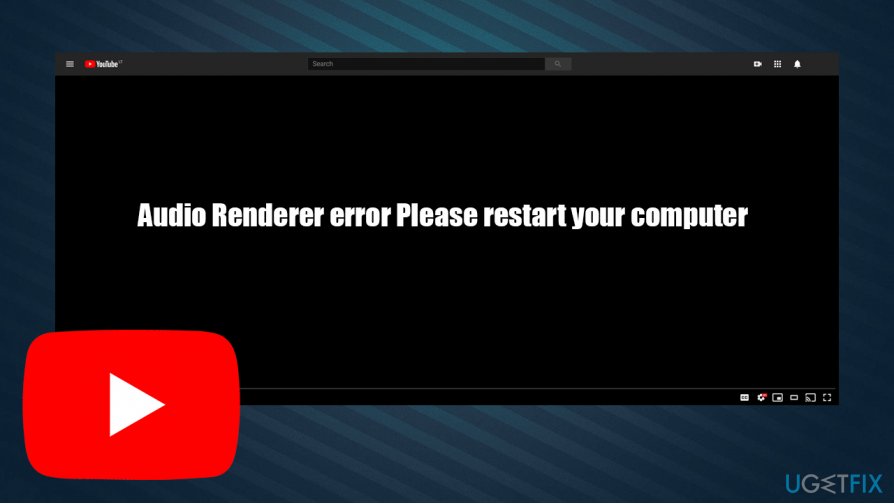
As the Audio Renderer error on YouTube means that the difficulties with video playback are related to computer audio. Despite this, the error itself does not provide anything specific, so many users are looking for a fix. Nonetheless, it was reported that corrupted or conflicting audio drivers are the main culprit for the problem. Additionally, the bugged BIOS version can also be at fault.
Luckily, there are several ways when trying to fix the Audio Renderer error "Please restart your computer" for good - we provide a step-by-step guide below. Before you start, we would like to offer you scanning the device with powerful [d1] repair software, as it can often help fix various computer issues automatically.
Fix 1. Reconnect your audio and reboot your PC
Since the reason why the issue occurs is related to audio, the first troubleshooting you should do is to temporarily disconnect the audio device that you are using. Just as if you get a Blue Screen of Death[ref en-3] error, a computer restart can fix this problem. Thus, if you are using headphones, you should disconnect them from the audio jack or the USB, wait a minute, and then reconnect the device - see if that helped you fix Audio Renderer error Please restart your computer.
It was also reported that several audio output devices connected to the same PC could trigger the YouTube Audio Renderer error. Thus, if you have several headphones or speakers connected simultaneously, disconnect one of them, restart your machine, and see if the problem persists.
Fix 2. Run Windows audio troubleshooter
Troubleshooters are great built-in features provided in all Windows systems. Here's how to use the Audio troubleshooter:
- Right-click on Start and select Settings
- Select Update & Security
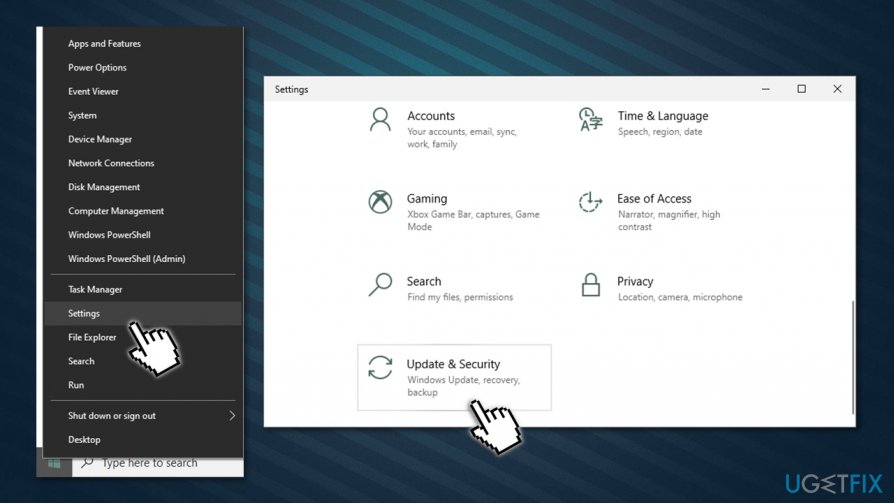
How to fix audio renderer error please restart your computer go to settings panel - Pick Troubleshoot on the left
- On the right side, click on Additional Troubleshooters (in some systems, troubleshooters will be listed without accessing additional settings)
- Select Playing Audio and click Run troubleshooter
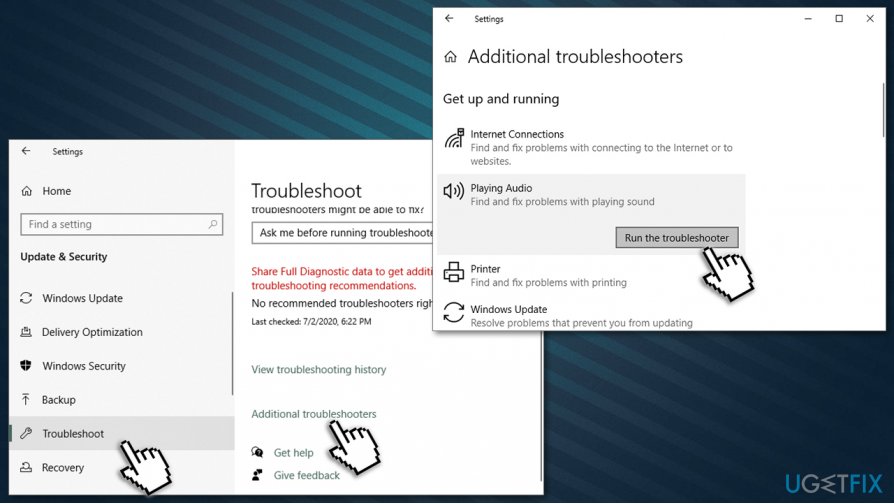
How to fix audio renderer error please restart your computer run audio troubleshooter - Wait till Windows finishes the scans and reports findings.
Fix 3. Reinstall your audio drivers
- Right-click on Start and pick Device Manager
- Expand the Sound, video and game controllers section
- Right-click on your audio device, and select Uninstall device
- When the confirmation prompt shows up, press Uninstall
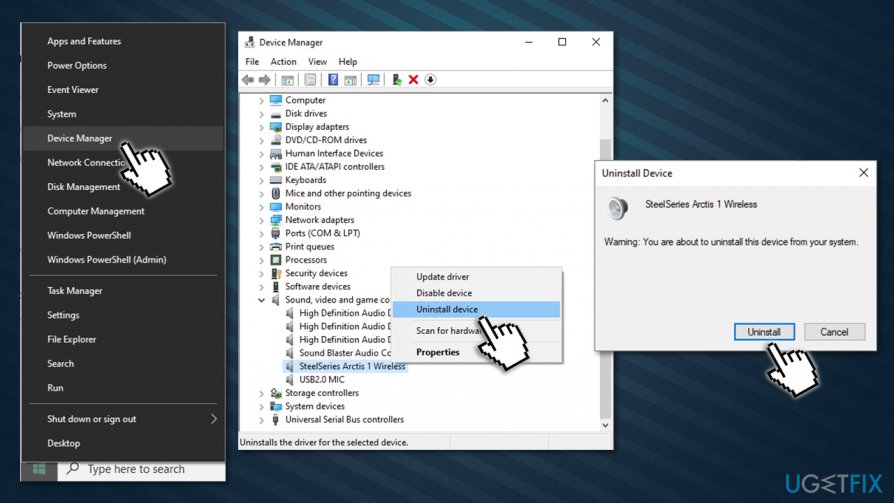
How to fix audio renderer error please restart your computer reinstall audio drivers - Reboot your PC, reconnect your speakers/headphones and let Windows install them automatically.
Fix 4. Update your audio drivers
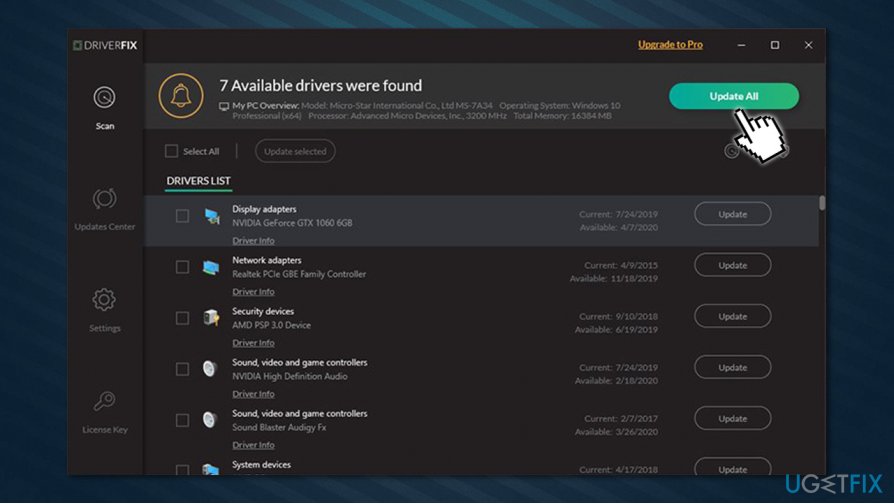
Windows Device Manager is a default window you can access all of your devices through and, while it can be used to update some drivers, it is far from ideal. It might not always find the relevant or the newest driver compatible with your PC. Besides, device manufacturers of various devices release new versions of drivers regularly, so tracking all of them all could be quite difficult (and tedious).
For that reason, we highly recommend you employ automatic driver update utilities, such as [rev id="DriverFix"]. The program is AppEsteem certified, which guarantees that legitimate and correct drivers would be installed on your device. Besides, it offers you driver backups in case something goes wrong, so it is a nice mechanism to keep you protected.
Fix 5. Audio Renderer error fix for ASIO driver users
If you are using ASIO driver on your system and are experiencing the Audio Renderer error "Please restart your computer," you should ensure that there is no conflict between it and Windows sound drivers when it comes to the audio frequency.
- Right-click on your sound icon located near where time and date is displayed (bottom-right corner of the screen) and select Sounds
- Go to Playback tab
- Select the device you are having problems with, right-click and pick Properties
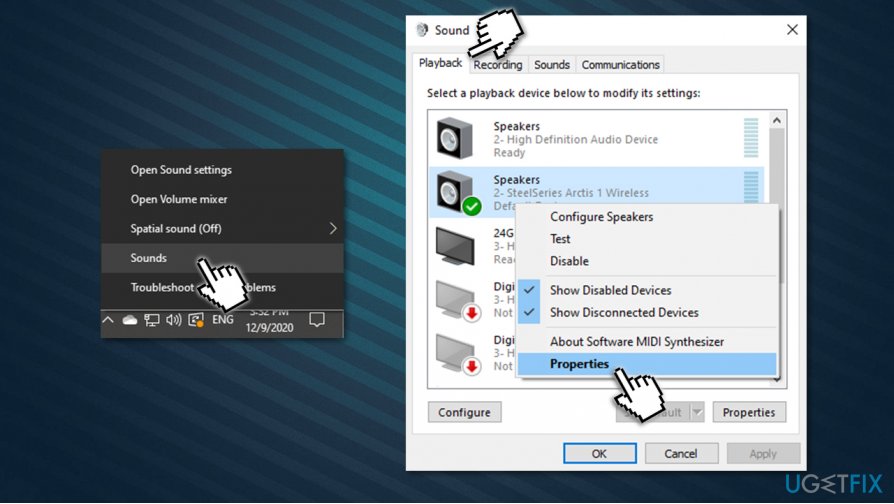
How to fix audio renderer error please restart your computer access playback properties - Go to Advanced tab
- From the drop-down menu under the Default Format option, pick the 16 bit, 44100 Hz (CD Quality) option
- Now log to your ASIO sound settings panel and go to Audio section
- Make sure that sample rate is set to 44100.
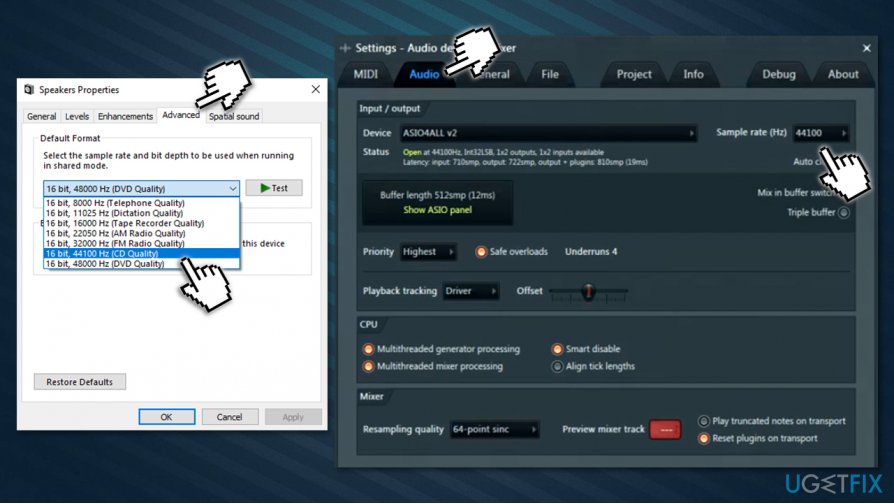
How to fix audio renderer error please restart your computer sync sample rate on asio driver
Fix 6. Update your BIOS (Dell machines only)
According to some reports, updating firmware on Dell laptops help users who dealt with Audio Renderer error. However, it is important to note that updating BIOS can be a difficult process, especially for those who are not experienced with the process. Despite this, you can follow a detailed guide on how to do this provided by Dell.
If you are not confident enough and rather not perform this process yourself, you should contact a computer technician that could do this for you.
Bottom line
To fix the Audio Renderer error, you can try updating your audio drivers, disabling browser extensions, or using a different web browser. Additionally, checking your audio settings and ensuring your audio devices are compatible may help. If none of these solutions work, consider restarting your computer or seeking further technical support.
Frequently asked questions
This error is typically caused by outdated or corrupted audio drivers, conflicts with audio settings, or issues with the audio hardware itself.
To update your audio drivers, go to Device Manager, expand 'Sound, video and game controllers', right-click your audio device, and select 'Update driver'.
Yes, you can reset your audio settings by right-clicking the sound icon in the taskbar, selecting 'Sounds', navigating to the 'Playback' tab, and setting the default device again.




Report an issue
What's wrong with this guide? We review every report and update or remove content.
Report received — thank you. We'll review and fix it.
You need a free account to submit a report.
Be the first to comment