How to fix
Bad sound quality of Airpods Pro
on Windows
Resolve AirPods Pro sound quality issues on Windows 10 or 11 effortlessly. Improve your audio experience with expert-tested solutions today!


What causes How to fix bad sound quality of Airpods Pro on Windows?
- Configuration and compatibility problems on Windows systems
- Windows handles Bluetooth technology by setting up separate devices for headphones and headset
- Audio quality is set to 1 channel, 16 bit, 8000 Hz by default
- Incompatible or corrupted sound drivers
- Corrupted system issues
Repairs Windows system files, removes malware, and restores a clean OS state — without reinstalling.
Hi, I recently got Airpods Pro along with a new iPhone. They work perfectly fine on the phone, but the sound quality on my Windows 10 PC once I connect them is terrible. On top of that, the microphone quality is also awful. Any ideas how to fix this?
Airpods Pro are Bluetooth[ref en-1] headphones designed and produced by the tech giant Apple. Primarily, they are designed for all Apple devices, including macOS desktops/laptops, iPhones, iPads, etc. However, lucky for those who use iPhones in conjunction with Windows 10 computers, Airpods Pro can be used on the latter as well.
While the device functions very well on its designated hardware, users said that the headphones do not work that well on Windows. According to many reports on Reddit, Apple,[ref en-3], and Microsoft forums, the bad sound quality of Airpods Pro on Windows is also accompanied by a terrible performance of the built-in microphone.
The headset works completely fine on Macs, and it should also work fine with any system that has Bluetooth connectivity enabled - Windows PC, Android phones, Linux,[ref en-2] Fire tablets, etc. Therefore, the issue lies within configuration and compatibility problems on Windows systems.
That being said, sound issues on Windows are not uncommon. Under certain circumstances, users said that they had no sound at all or that headphones were not working. The problem with Apple's headset might be related to these issues, although it is not necessarily the case.
One of the main reasons why these incompatibilities and similar issues with Bluetooth headphones occur is due to the way how Windows handles this technology. It sets up two separate devices - one for headphones and the other one for headset. Once connected, the quality of audio is set to 1 channel, 16 bit, 8000 Hz, which is essentially telephone quality, or bad quality.
In order to fix Airpods Pro bad sound quality, users need to dive into Windows configuration settings and tweak them accordingly. It is also important to note that bad sound quality might be related to other issues on a PC itself, including incompatible/corrupted sound drivers, corrupted system files, and other issues. Also, keep in mind that most of these solutions are workarounds until Bluetooth and Windows systems improve.
Therefore, before you begin with manual steps to fix bad sound quality of Airpods Pro on Windows, we highly recommend you perform a full system scan with a PC diagnostic and repair tool such as [d1]. It can find underlying problems within any Windows operating system and fix them automatically within just a few minutes.
Method 1. Update your drivers
Sound quality can suffer greatly if inadequate or outdated drivers are installed on the device. Therefore, you should first try updating sound and audio drivers:
- Right-click on Start and pick Device Manager
- In the new window, expand Audio inputs and outputs section
- Right-click on your headset and select Update driver
- Pick Search automatically for drivers
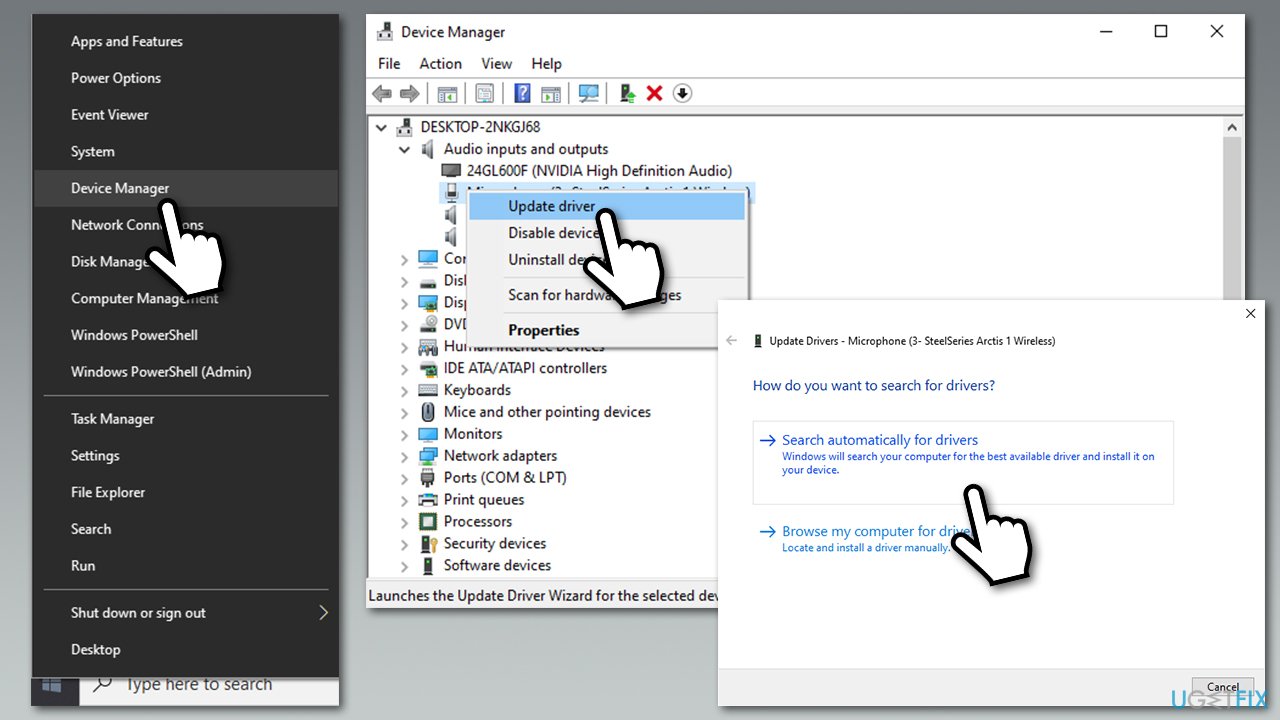
How to fix bad sound quality of airpods pro on windows update drivers - Wait till Windows downloads and installs drivers and reboot your PC
- Now open the Device Manager again, expand Sound, video and game controllers
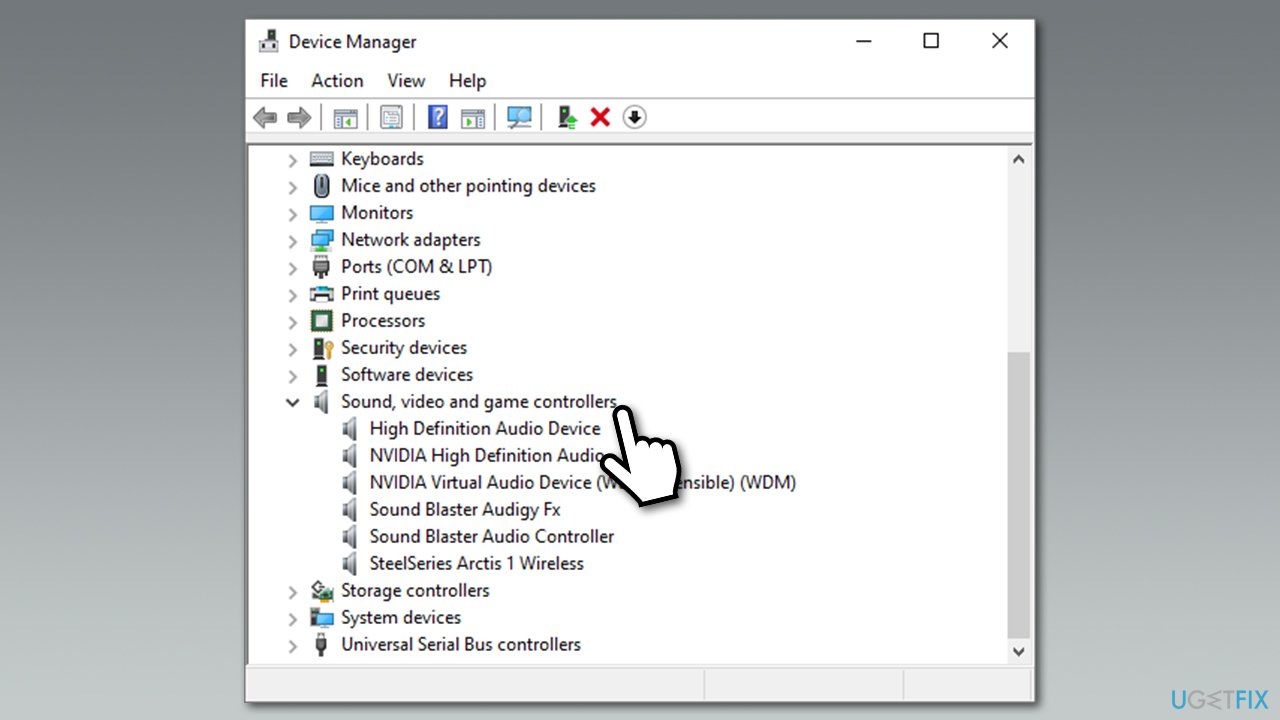
How to fix bad sound quality of airpods pro on windows update drivers2 - Update the relevant components as explained above.
Note that the Device Manager is far from perfect and might not always download the required software. While downloading from device manufacturer's websites is the way to go, it might be extremely time-consuming. Besides, people who are less computer-savvy will have problems with finding out which driver version they need or what model hardware component they are using.
Therefore, we highly advise you choose an automatic driver updater [rev id="DriverFix"]. By using this software, you will never have to worry about drivers again, as all of them will be updated automatically as soon as new versions are released.
Method 2. Use a dual-band adapter
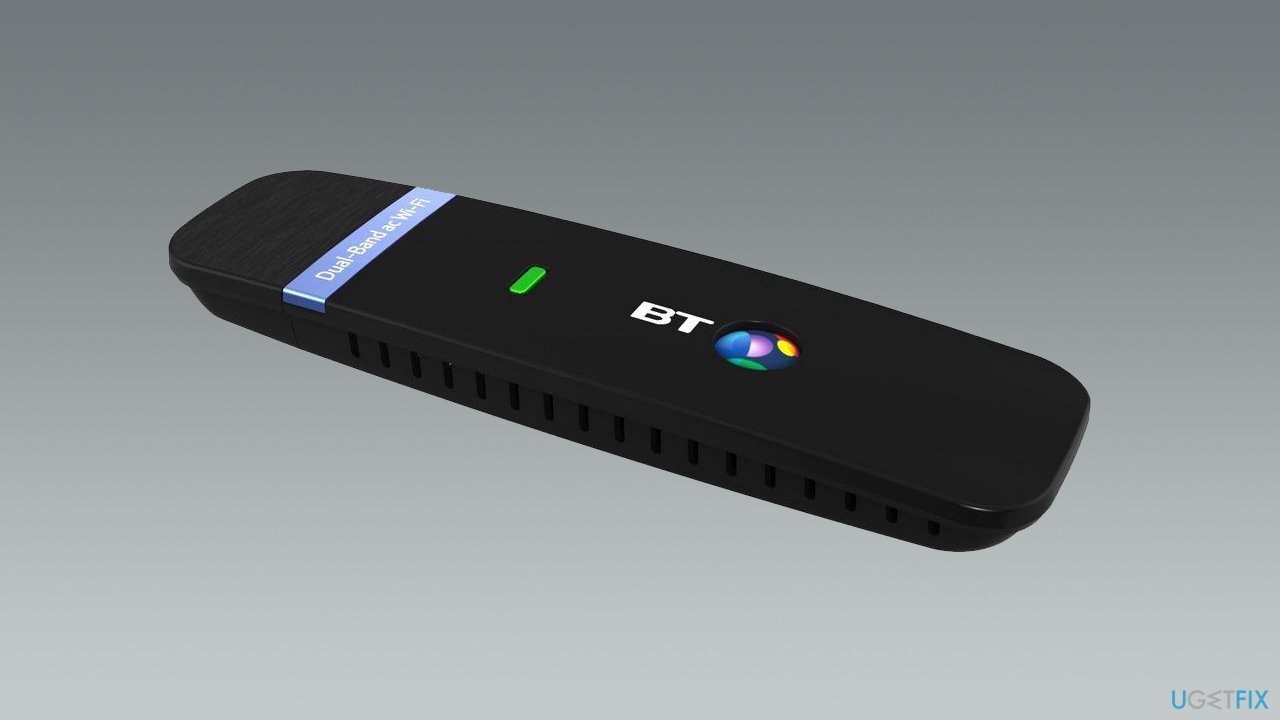
One of the main reasons for Airpods Pro bad sound quality on Windows is the way Bluetooth technology works - it simply does not provide enough bandwidth for both to work effectively. In this case, a dual-band adapter can help - it works well with 2.4GHz and 5GHz bands, allowing a much better transmission quality for your headset. The problem is that you will have to buy another piece of hardware, so this solution is not optimal as well. However, those willing to spend a bit of extra money for convenience will be happy with a better sound quality.
Method 3. Set Airpods Pro to headphones mode
This method is the most effective one, although it will prevent you from using the microphone. However, if you are not using it for communication over the internet, you can fix this issue with just a few clicks of a button.
- Look at the taskbar at the bottom of your screen. Near the time/date, you will see speaker icon - click it
- With your Airpods connected, you will see two different playback devices:
1. Headset (Airpods Pro Hands-Free AG Audio)
2. Headphones (AirPods Pro Stereo) - All you have to do is pick Headphones (AirPods Pro Stereo) by clicking on it once.
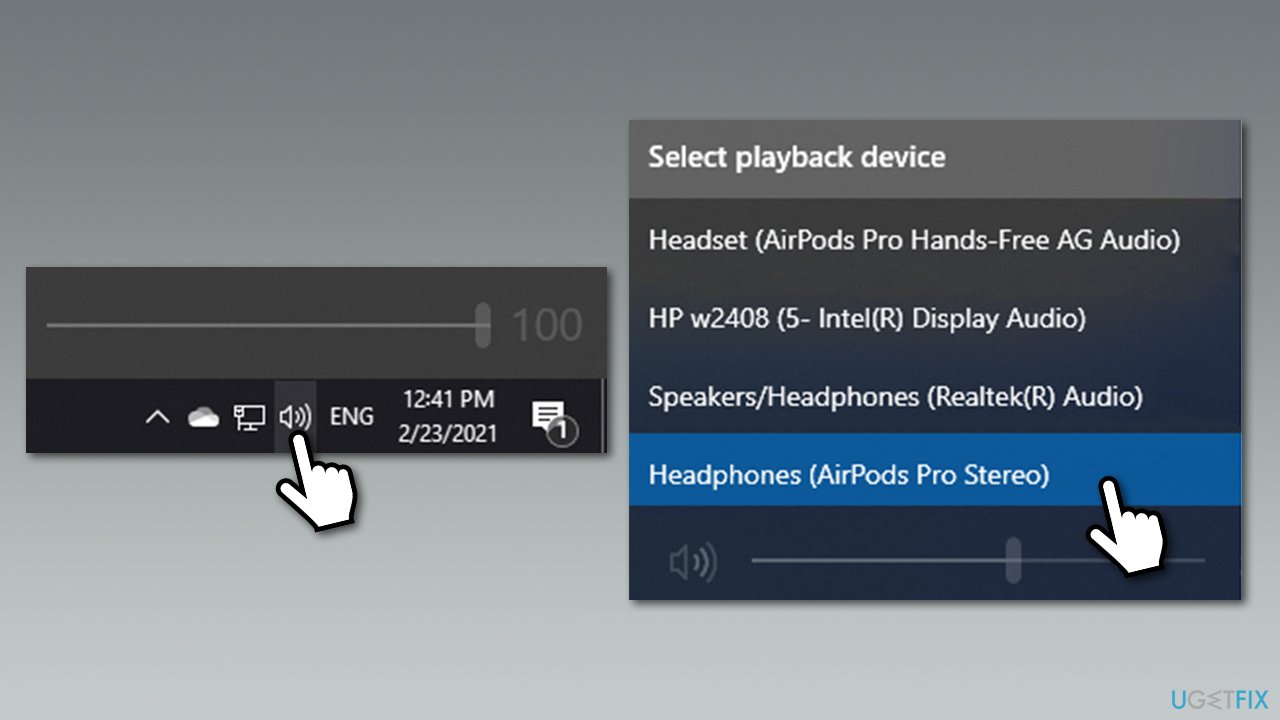
How to fix bad sound quality of airpods pro on windows select headphones mode
Now with mic not working, you can either use a built-in one if you are on a laptop, or purchase a separate device.
Method 4. Disable Handfree Telephony service for Airpods Pro
- Type in Control Panel in Windows search and press Enter
- Under Hardware and Sound, select View devices and printers
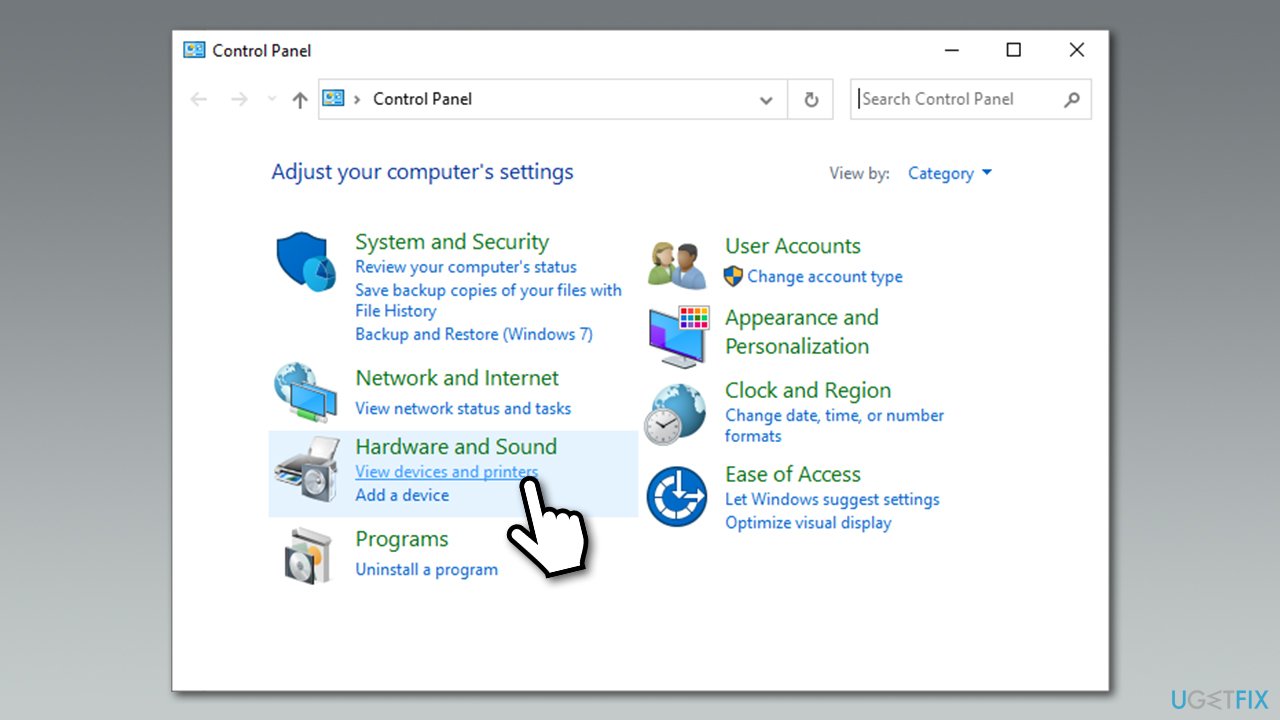
How to fix bad sound quality of airpods pro on windows disable handfree telephon service - Double-click your Airpods Pro
- Go to Services tab
- De-select Handfree Telephony
- Click Apply and OK.
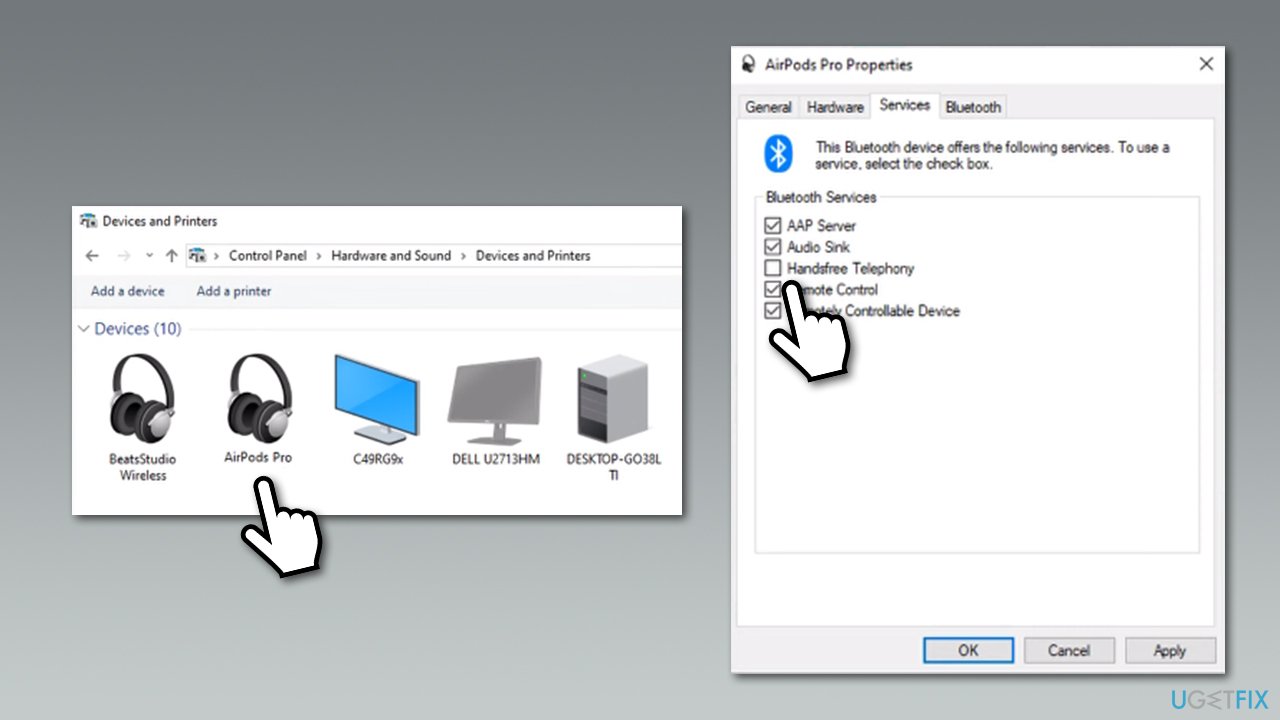
How to fix bad sound quality of airpods pro on windows disable handfree telephon service2
Bottom line
To fix the bad sound quality of Airpods Pro on Windows, users should adjust the Windows configuration settings and ensure sound drivers are compatible and not corrupted. If these solutions do not resolve the issue, further troubleshooting may be necessary.
Frequently asked questions
The sound quality of AirPods Pro may degrade on Windows due to Bluetooth codec issues or improper audio settings. Ensure that your Bluetooth drivers are updated and check the audio settings in Windows for optimal configuration.
To enhance sound quality, try changing the audio format in the Sound settings or switch to a different Bluetooth codec if supported. Additionally, ensure that your AirPods Pro are fully charged and properly paired with your Windows device.
If you experience poor sound quality, remove and re-pair your AirPods Pro in the Bluetooth settings of Windows 11. You can also try resetting your AirPods Pro and updating your Windows system to the latest version.




Report an issue
What's wrong with this guide? We review every report and update or remove content.
Report received — thank you. We'll review and fix it.
You need a free account to submit a report.
Be the first to comment