How to fix
Bluetooth disconnect and other problems
on Windows
Resolve Bluetooth disconnect issues on Windows 10 effortlessly. Get expert-tested solutions to keep your devices connected seamlessly and fix in minutes.

What causes How to fix Bluetooth disconnect and other problems on Windows 10?
- Bluetooth adapter issues
- Driver compatibility problems
- Interference from other wireless devices
- Outdated Bluetooth drivers
- Power management settings affecting Bluetooth
Repairs Windows system files, removes malware, and restores a clean OS state — without reinstalling.
Hello. I have been experiencing multiple issues with Bluetooth. Most commonly, it simply disconnects from my mouse and other Bluetooth devices. I restart the PC, but that only works for a little while, then the same thing happens. It just feels like this technology is not working very well, even though I use multiple devices based on it. Any suggestions, please?
Bluetooth is an old technology introduced back in 1989, although it is prevalent to this day. It helps two compatible devices to connect wirelessly, although it only works within a short range. Most Windows laptops are equipped with it, although a desktop PC also commonly uses Bluetooth for connection of various peripherals, such as mice, headphones, or printers.
Even though there are other wireless technologies such as WiFi,[ref en-2] it is still a very much used one to this day. It is a real shame when this Bluetooth starts to malfunction on Windows laptops and computers - users can't hear sounds due to their headphones being wireless, or they can't click on anything due to a malfunctioning wireless mouse. To say the least, it is rather frustrating.
There has been numerous user reports on Microsoft forums about Bluetooth not working or working very poorly over the years. Users said that they are suffering from abrupt and unpredictable disconnects on their devices that use this technology. Besides that, some said that devices appeared when Bluetooth toggled off and vice versa.
People even went as far as comparing Apple's implementation of the technology on its keyboards, mice, and headphones, saying that the company does a much better job at it. However, we saw that Airpods Pro headphones did not perform too well on Windows machines either.
How to fix Bluetooth problems on Windows?
In order for a Bluetooth device to work on a Windows PC or laptop, it needs to have an adapter. All laptops come with a built-in adapter, while not all desktops have it (it can be bought and implemented easily if required, however). A physical device is just one part of the technology, as compatible drivers also need to be installed.
Drivers[ref en-3] are most commonly associated with technology's missteps. If a driver gets outdated or somehow damaged, it might start malfunctioning, consequently interfering with the proper operation of the device.
However, device drivers are not the only reason why the wireless connection might malfunction. For example, corrupted system files, damaged registry entries, third-party software interference, malware[ref en-1], and other causes could be at fault. Thus, in order to fix this problem, you might have to spend hours troubleshooting it. To avoid that, we strongly recommend you try using [d1] repair software for a quick solution - it can find the underlying Windows issues and fix them automatically for you.
Method 1. Enable Bluetooth or restart it
First and foremost, you need to make sure that the connection is turned on:
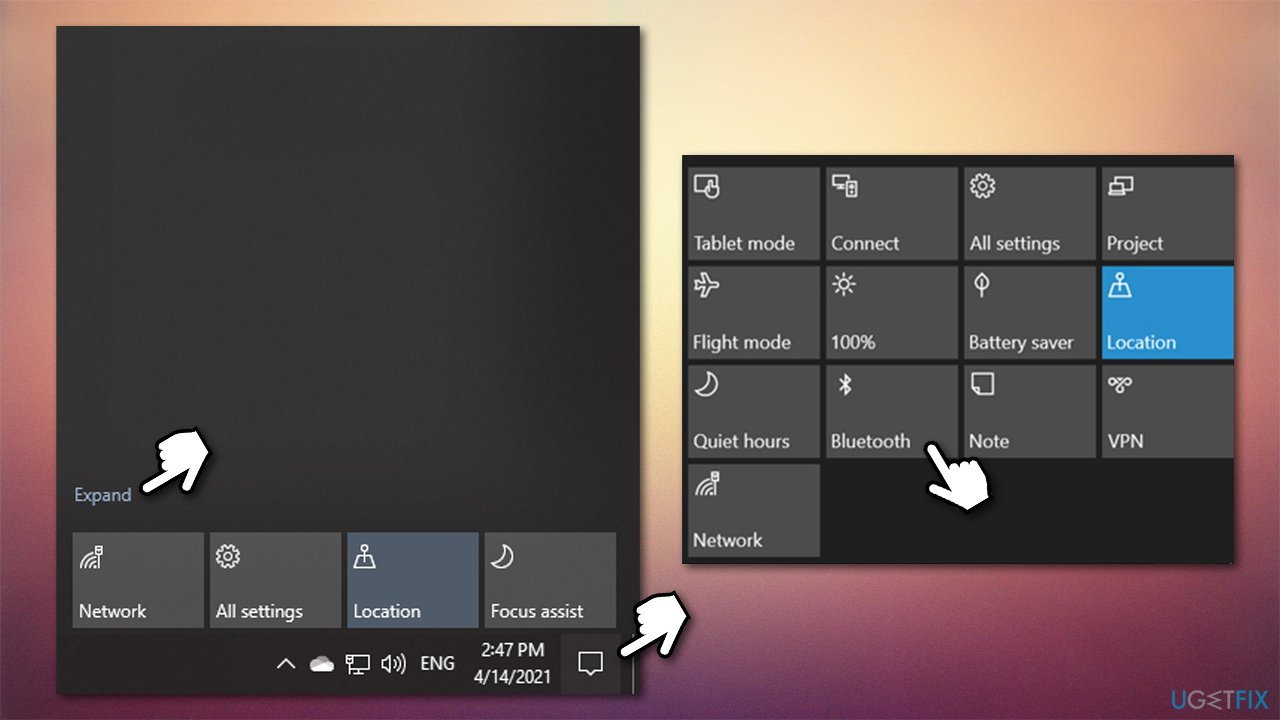
- Click on Windows Action Center button at the bottom-right corner of your screen
- Select Expand
- Make sure Bluetooth is turned on and Airplane mode is off
How to fix bluetooth disconnect and other problems on windows 10 turn on via action center - Next, right-click on Start and select Settings > Devices > Bluetooth & other devices
- Toggle the switch to off position and wait a few seconds, then turn it back on.
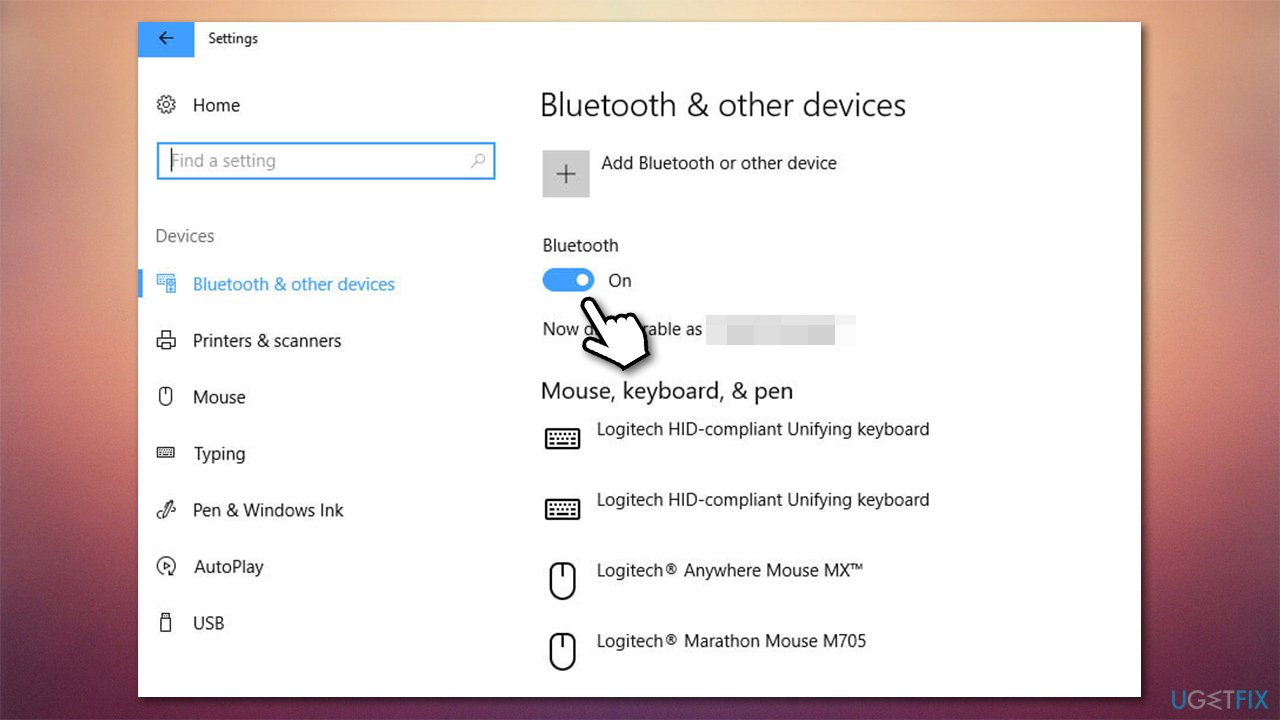
How to fix bluetooth disconnect and other problems on windows 10 toggle on and off
Method 2. Re-add the Bluetooth device
- Go to Settings > Devices > Bluetooth & other devices
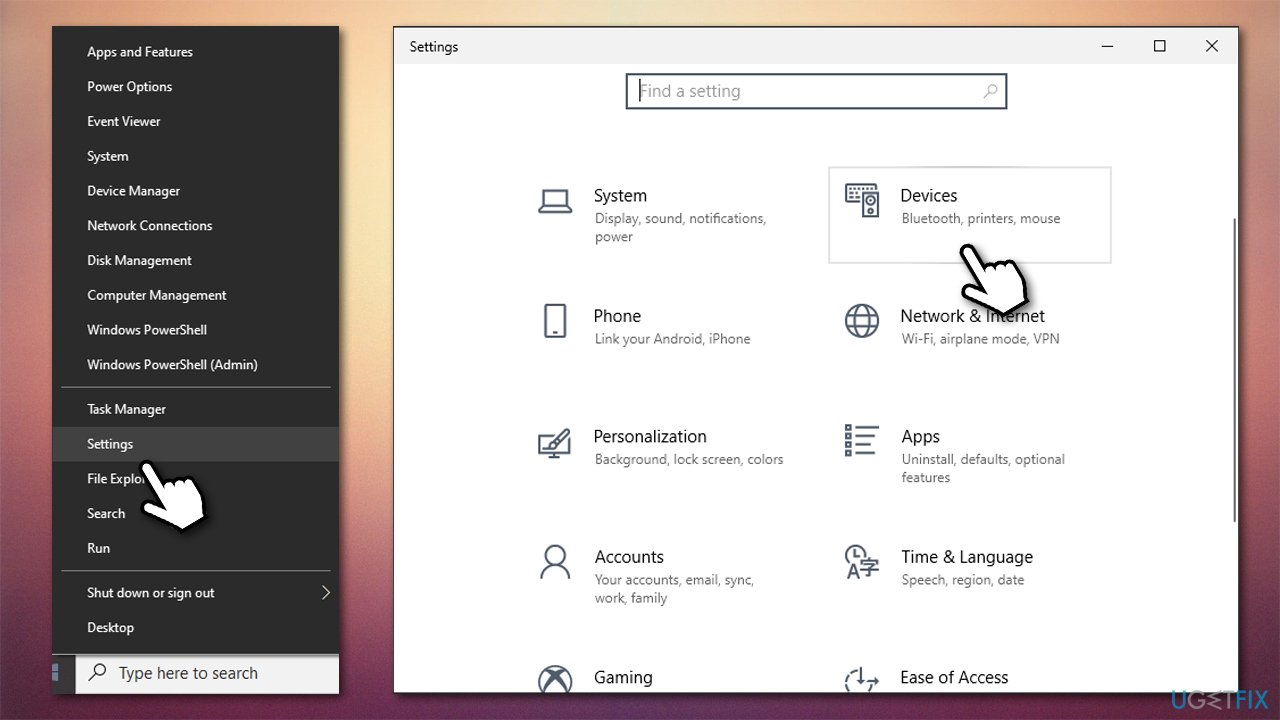
How to fix bluetooth disconnect and other problems on windows 10 access settings devices - On the right side of the window, click on the problematic device
- Select Remove device and click Yes
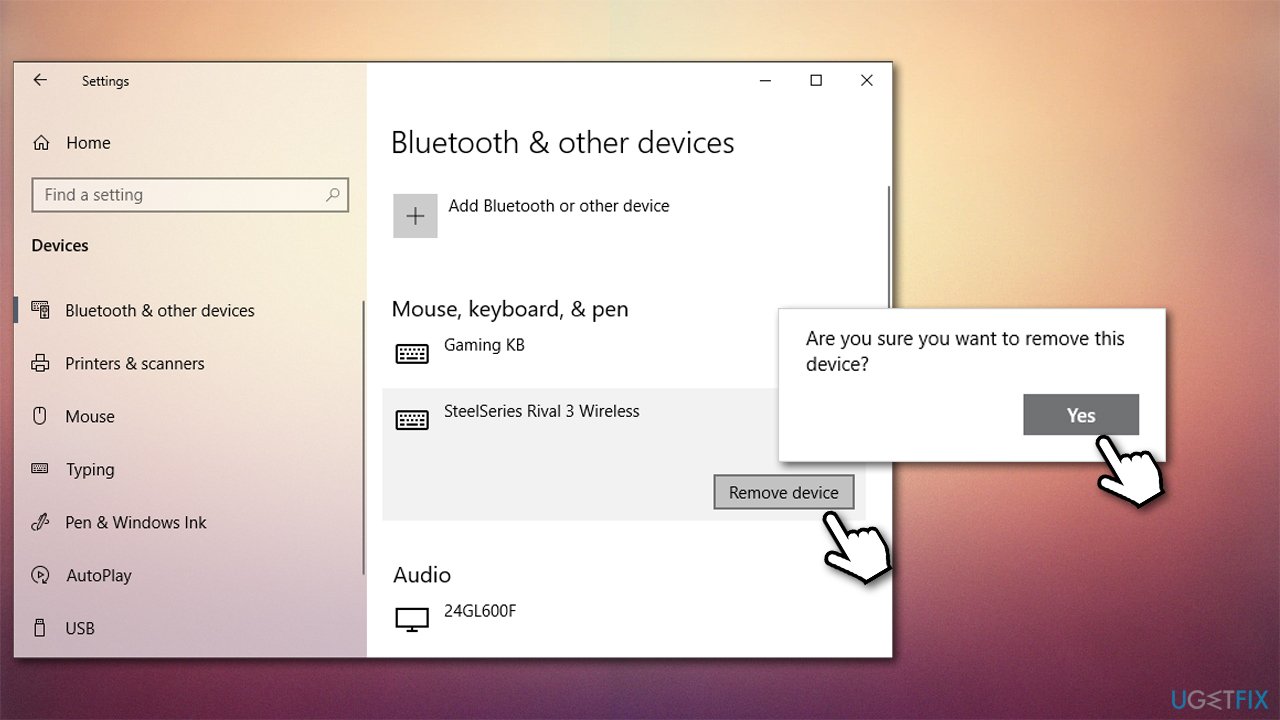
How to fix bluetooth disconnect and other problems on windows 10 re add bluetooth device - Then, re-add the device and see if that helps.
Method 3. Update your Bluetooth drivers
When it comes to drivers, you should update them to make sure that you are running the latest version. While you can do it via the Device Manager, it is less than a desirable option when trying to troubleshoot problems with the malfunctioning feature. Therefore, we recommend the following options:
- Visit the manufacturer's website of your device and download the latest drivers from there
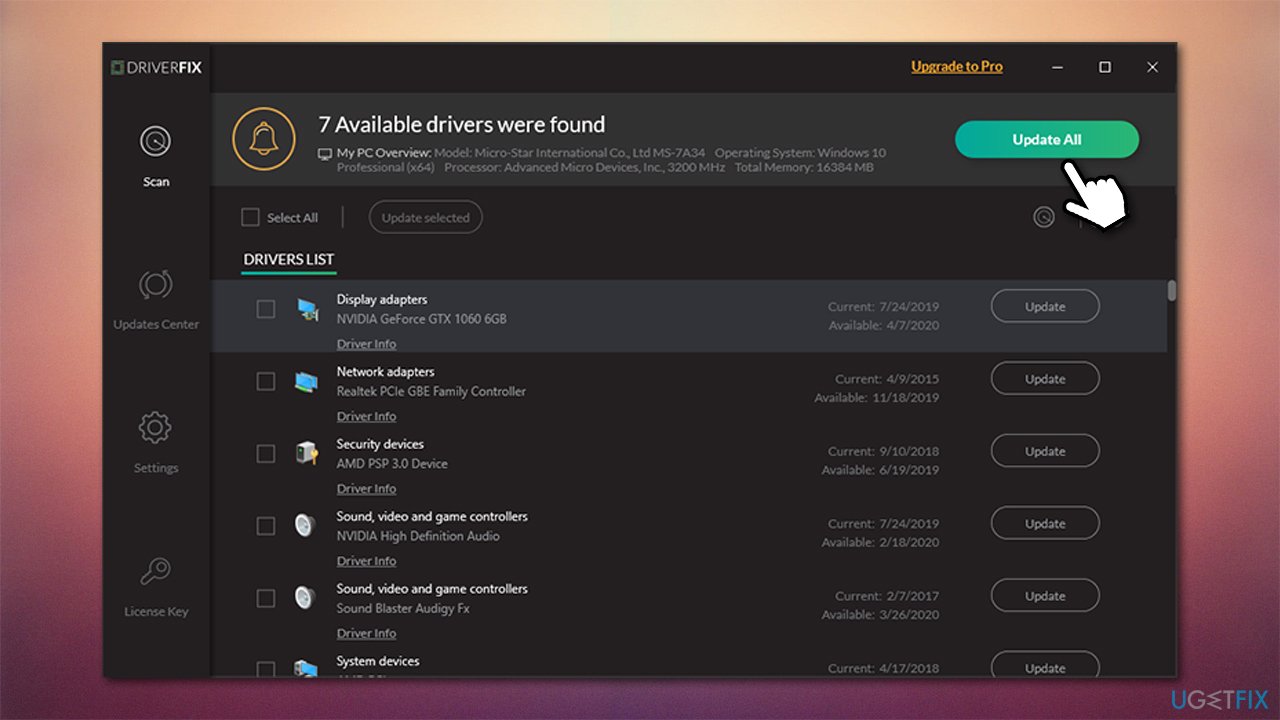
- Employ a reliable driver updater such as [rev id="DriverFix"] - it can update all your drivers automatically, quickly, and without you having to worry about compatibility issues.
How to fix bluetooth disconnect and other problems on windows 10 use automatic driver updater
Method 4. Reinstall Bluetooth adapter
If updating drivers did not work, you should reinstall the adapter altogether. Here's how:
- Right-click on Start and pick Device Manager
- Select Bluetooth section
- Right-click on your adapter name and select Uninstall device
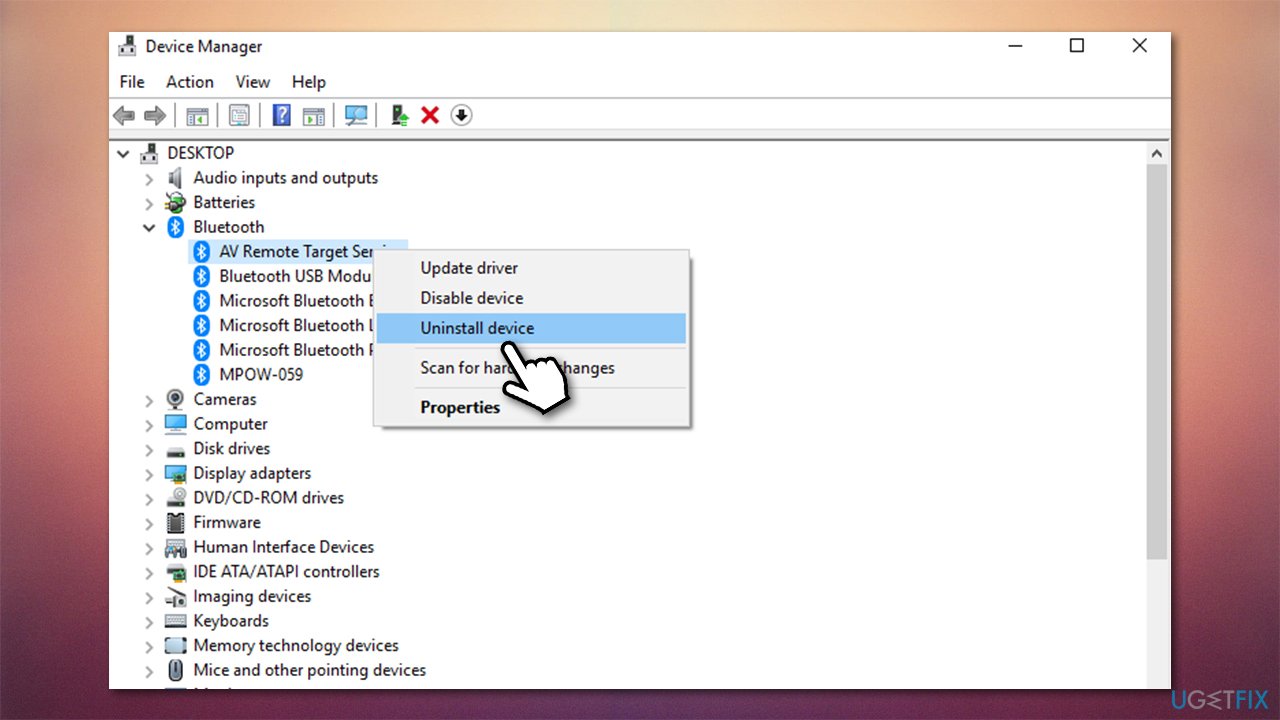
How to fix bluetooth disconnect and other problems on windows 10 reinstall drivers - Restart your computer
- Windows should automatically install the basic driver for Bluetooth after a reboot. If not, use the methods we provided above.
Method 5. Run Bluetooth troubleshooter
- Type Troubleshoot in Windows search and press Enter
- On the right side, you should see the available troubleshooters. If you cant, click Additional troubleshooters
- From the list, click on Bluetooth and select Run the troubleshooter
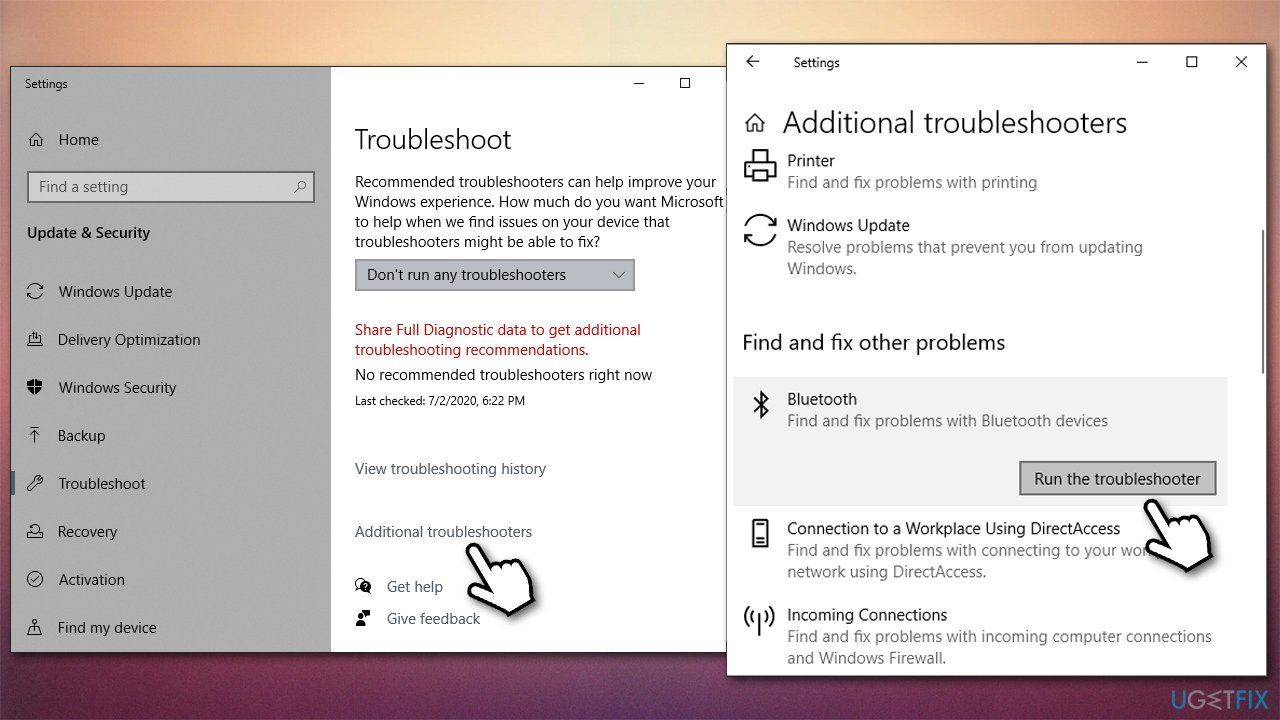
How to fix bluetooth disconnect and other problems on windows 10 run troubleshooter - Wait till Windows finishes the scan and provides suggestions on how to fix problems.
Method 6. Update Windows
Windows updates often include bug fixes and improvements to various features, Bluetooth included. Thus, you should apply all the available updates:
- Type Updates in Windows search and press Enter
- On the right side of the window, click Check for updates
- Once downloaded, install everything available, including optional updates
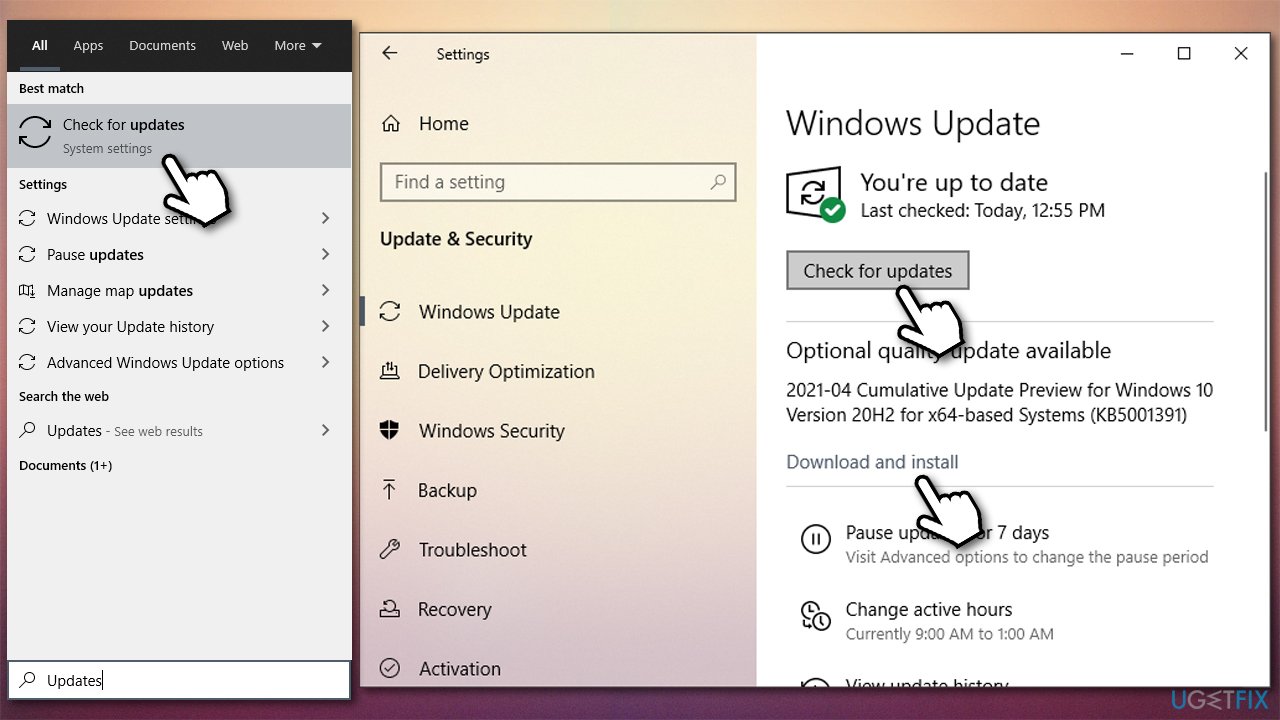
How to fix bluetooth disconnect and other problems on windows 10 update windows - Restart your computer and see if that helped you fix Bluetooth connectivity issues.
Method 7. (Re)start Bluetooth service
- Type in Services in Windows search and press Enter
- Scroll down until you find Bluetooth Support Service
- Right-click and select Restart
- If it is not running, select Properties instead
- Under Startup type, pick Automatic
- Click Start, Apply and OK.
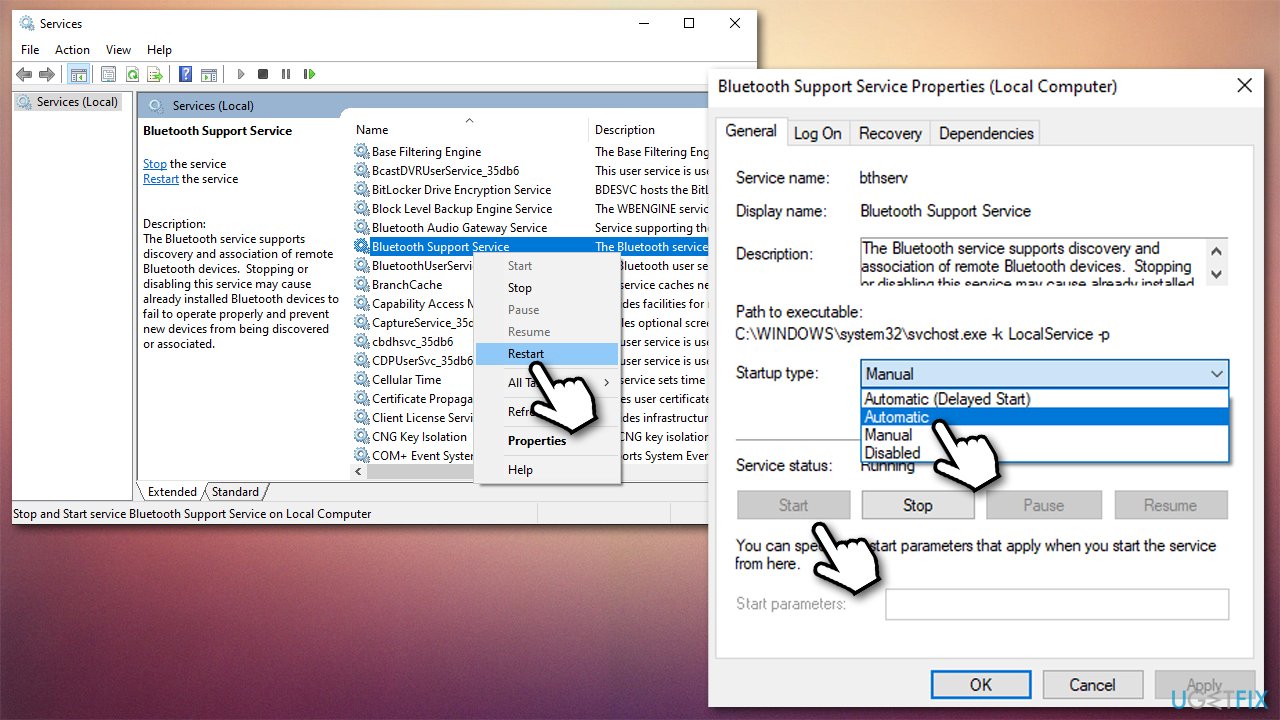
How to fix bluetooth disconnect and other problems on windows 10 restart service
Method 8. Disable power saving mode
- Open Device Manager as explained above
- Expand Bluetooth section again
- Right-click and select Properties
- Go to Power Management tab
- Untick the Allow the computer to turn off this device to safe power.
Bottom line
To fix Bluetooth problems on Windows, ensure that your Bluetooth adapter is functioning properly, update your drivers, and check for interference from other devices. If issues persist, consider adjusting power management settings or reinstalling the Bluetooth drivers. If none of these solutions work, further troubleshooting may be necessary.
Frequently asked questions
First, ensure that your Bluetooth drivers are up to date by checking the Device Manager. If the issue persists, try removing the device and re-pairing it.
You can roll back the Bluetooth driver in Device Manager or run the Windows troubleshooter for Bluetooth under Settings > Update & Security > Troubleshoot.
This could be due to interference or power management settings; try disabling power-saving options for the Bluetooth device in Device Manager.




Report an issue
What's wrong with this guide? We review every report and update or remove content.
Report received — thank you. We'll review and fix it.
You need a free account to submit a report.
Be the first to comment