How to fix
Camera error 0xA00F4291
on Windows
Resolve Camera error 0xA00F4291 on Windows 10 and 11 quickly and efficiently. Expert-tested solutions to restore your webcam functionality!

What causes How to fix Camera error 0xA00F4291 in Windows?
- Incorrect camera drivers
- Outdated camera drivers
- Camera hardware issues
- Corrupted system files
- General bugs within Windows
Repairs Windows system files, removes malware, and restores a clean OS state — without reinstalling.
Whenever I connect the camera to my Windows 10, it displays the 0xA00F4291 error code and would not open or simply freeze. I tried reconnecting the camera but always got the same error code with the <VideoPreviewStartFailed>message.
0xA00F4291 is a camera error that some users may encounter when trying to connect the camera or use it for video chatting or other purposes. This makes the camera completely unresponsive, and it crashes a short while after. In other cases, users reported that the Camera app would simply hang and simply would not respond at all.
Windows camera errors are something rather common, as so many users have already reported errors like 0xa00f4240, 0xA00F4245, 0xA00F429F, and many others. Quite often, these camera errors come with a short message which quickly points at the problem. In this case, 0xA00F4291<VideoPreviewStartFailed>is displayed to users and may also come along with a secondary code, such as 0x800706BE or 0x800701B1.
The error can be observed on various versions of Windows, although most users reported it appearing on Windows 10. Despite the error codes and the text message, there is no indication of what has caused the unresponsiveness of the camera or how to address this issue.
This error message typically indicates that there is a problem with the camera or its driver, and it may be caused by a variety of different issues. Some common causes of this error include incorrect or outdated camera drivers, a problem with the camera hardware itself, corrupted system files, and other issues, which we address below.
Before proceeding with these manual solutions, we recommend you check out an automatic one with [d1] - a repair tool that can easily deal with BSODs, registry corruption, DLL errors, and much more on Windows efficiently.
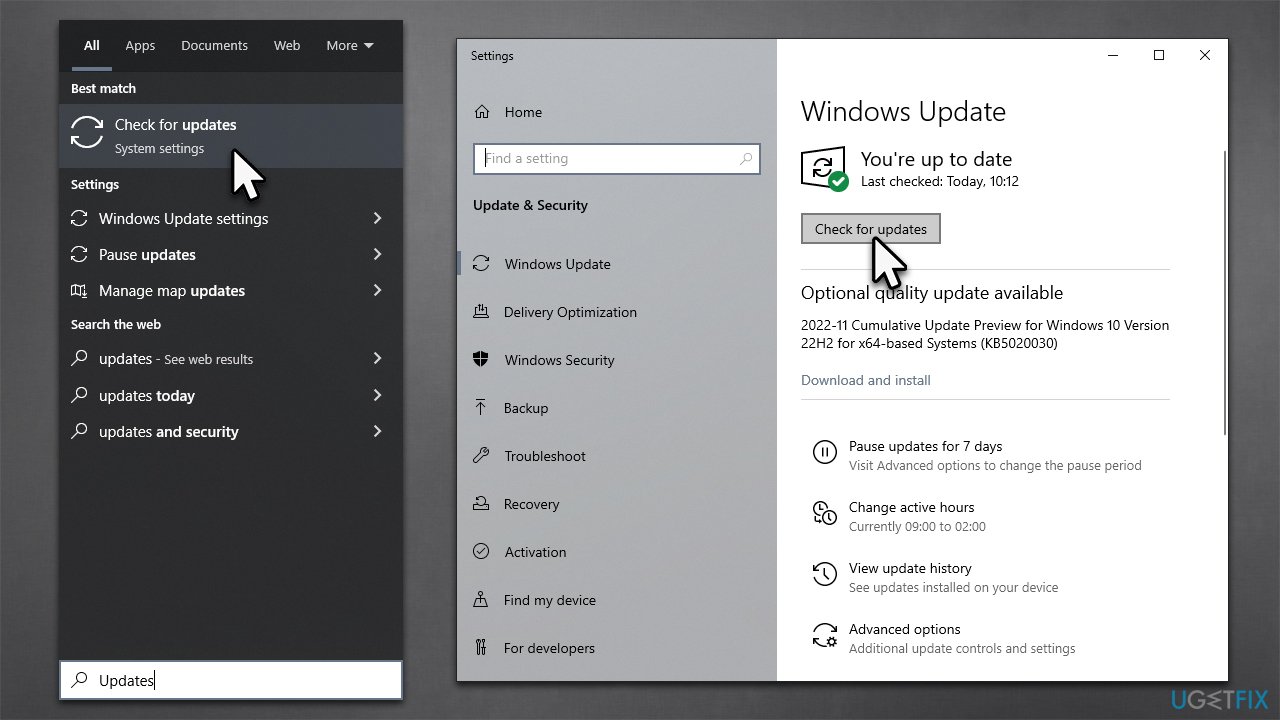
1. Install all the available Windows updates
Sometimes, camera errors may be caused by general bugs within Windows, and the newest updates may address them. Thus, make sure your Windows is up to date:
- Type Updates in Windows search and press Enter
- Here, press Check for updates
- Wait for Windows to install the available updates
- If you see any optional updates - install them too
- Restart your computer.
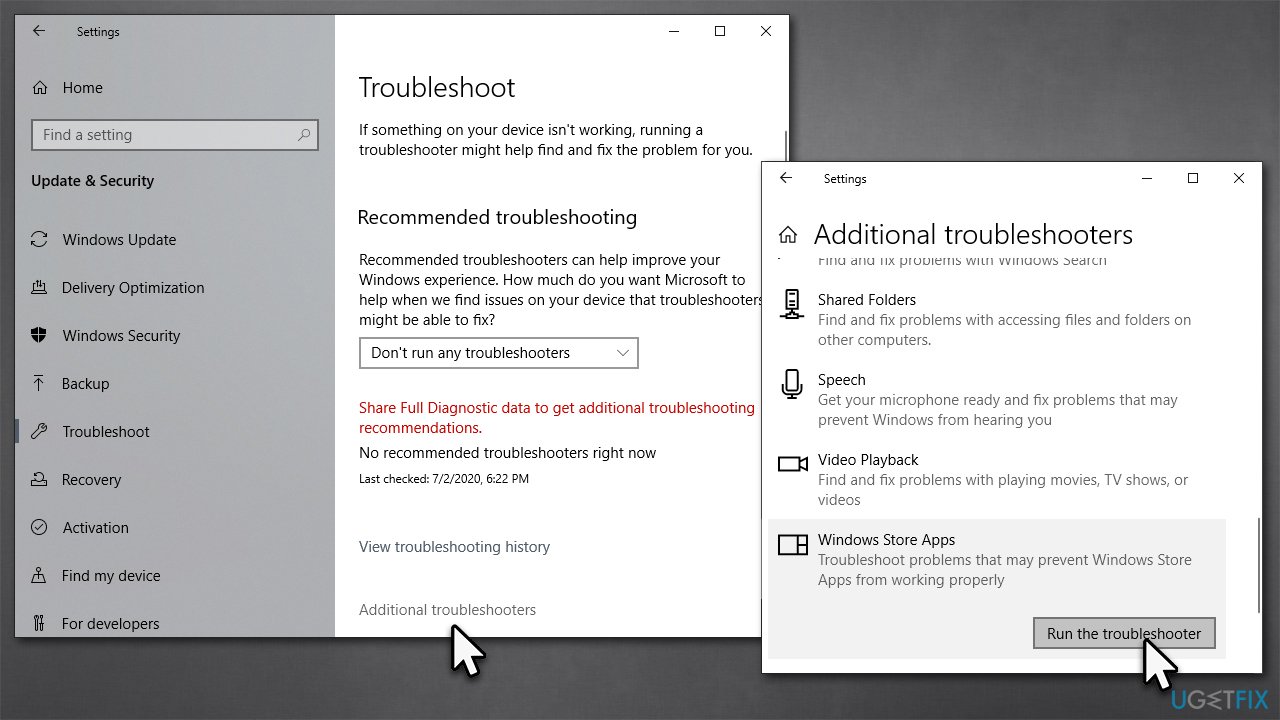
2. Run the Windows App troubleshooter
- Type Troubleshoot in Windows search and press Enter
- Click Additional troubleshooters if you can't see them listed
- Scroll down to find Windows Store Apps
- Click and select Run the troubleshooter
- Wait till the scan is complete and apply all the suggested fixes.
3. Reset or repair the Camera app
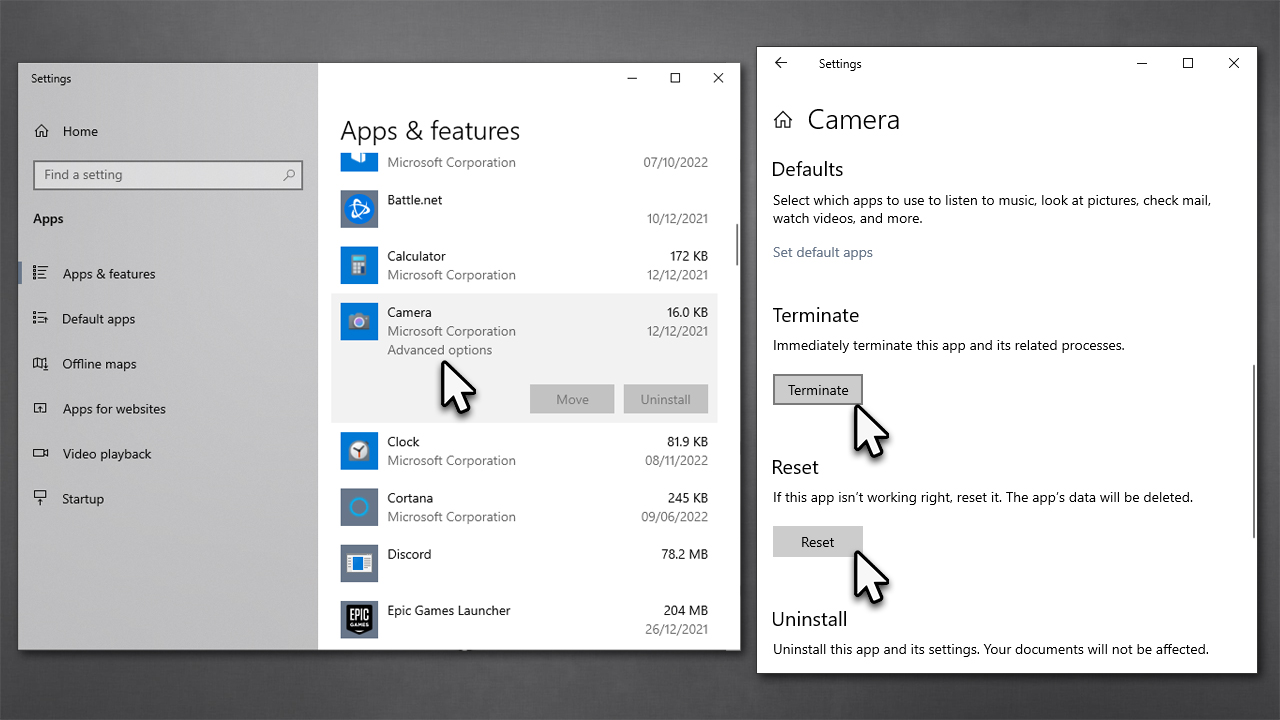
- Right-click on Start and pick Apps and Features
- Scroll down to find the Camera app
- Click on it once and pick Advanced options
- Scroll down until you find the Terminate button - click it
- Then, click Reset.
4. Check privacy settings and app permissions
One of the easier things that can be overlooked when dealing with camera errors is the privacy settings, as well as insufficient app permissions.
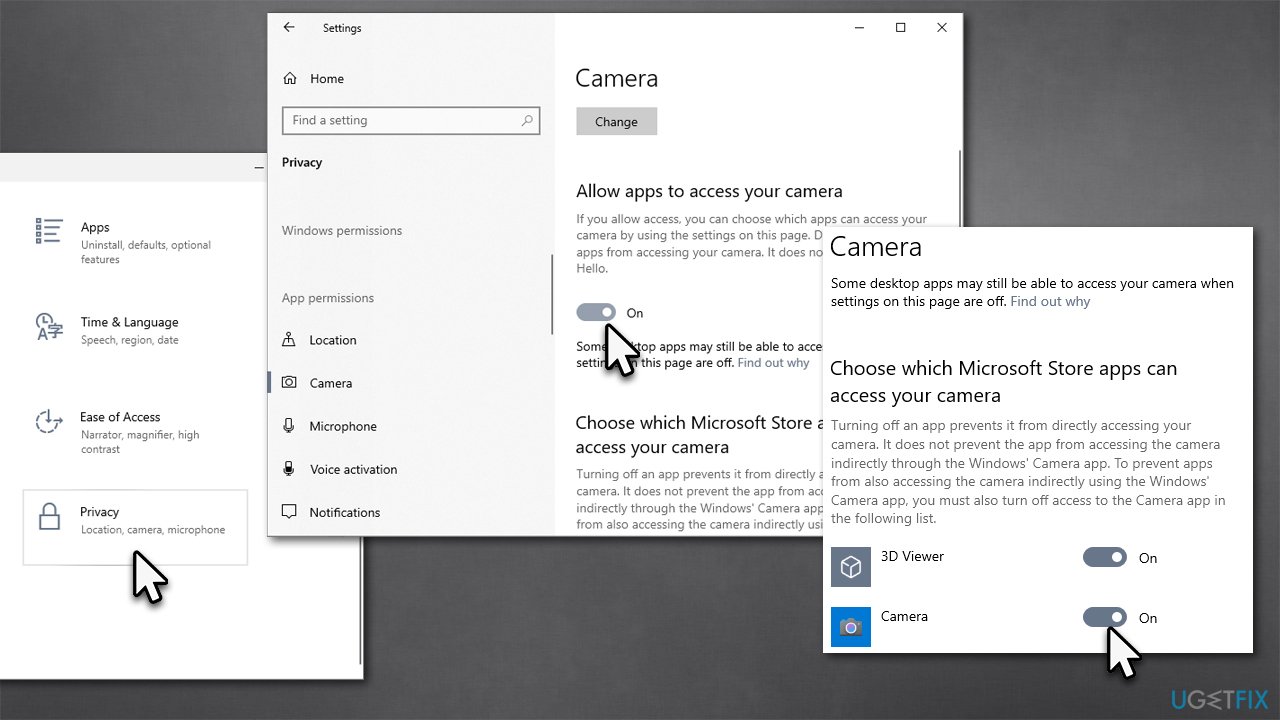
- Right-click on the Windows Start and pick Settings
- Select the Privacy category and click Camera
- On the right side, enable Camera access for this device if it's turned off
- Just below, you will find Choose which Microsoft Store apps can access your camera section
- Here, make sure that store apps can access the Camera.
5. Fix damaged system files
Corrupted system files might cause your camera not to work and result in error 0xA00F4291. To address this, follow these steps:
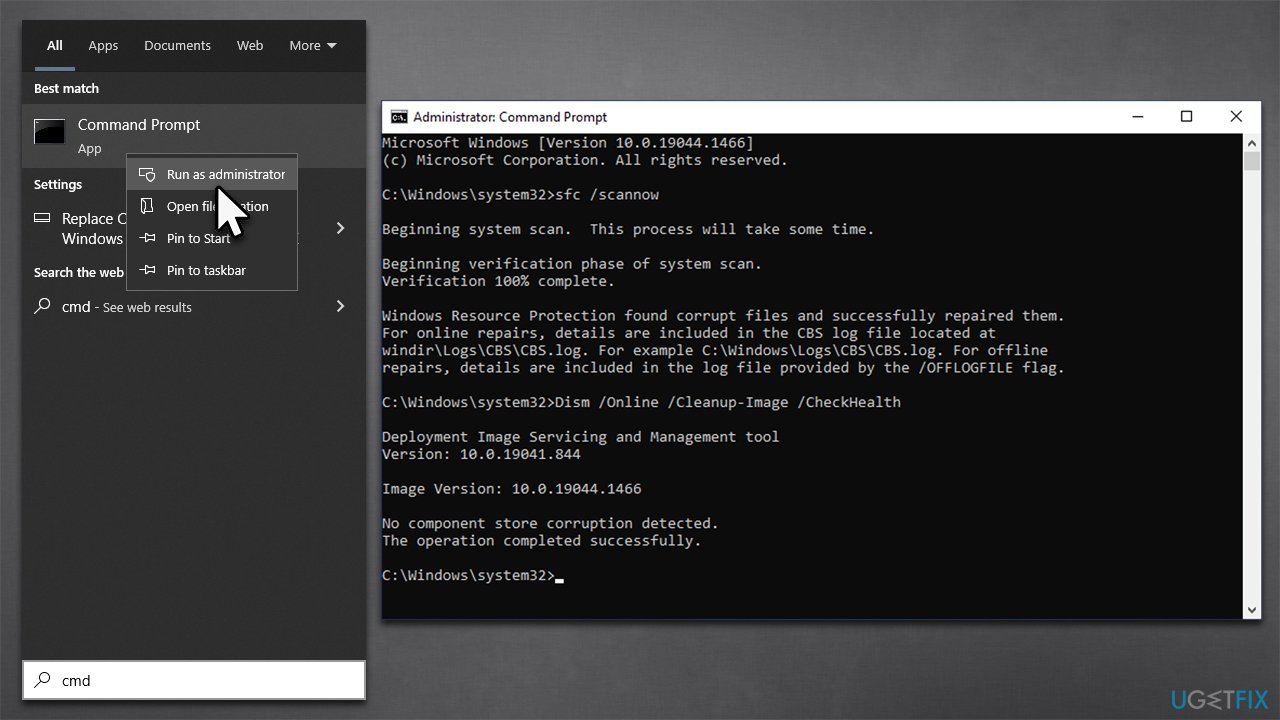
- Type cmd in Windows search, right-click on Command Prompt result, and pick Run as administrator
- When the User Account Control window shows up, click Yes
- In the new window, run the following commands, pressing Enter after each:
SFC /scannow - DISM /Online /Cleanup-Image /CheckHealth
DISM /Online /Cleanup-Image /ScanHealth
DISM /Online /Cleanup-Image /RestoreHealth - Restart your system.
6. Re-register the camera app
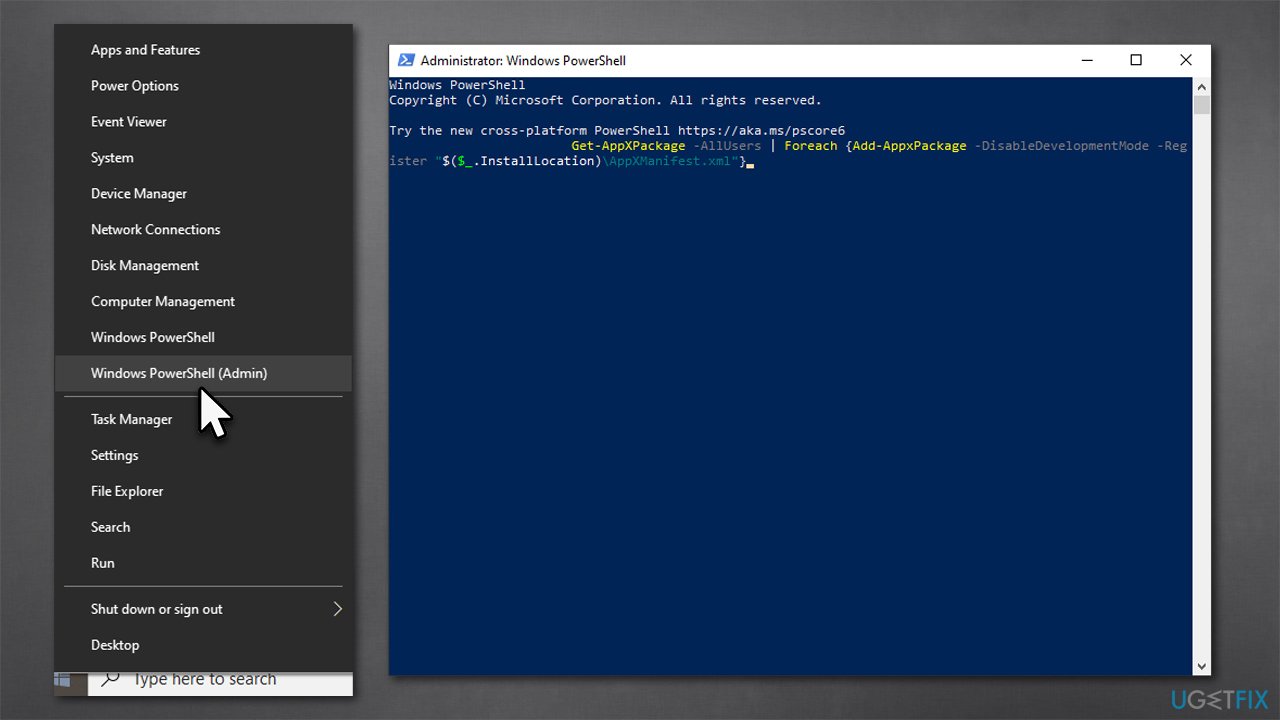
- Right-click on Start and pick PowerShell (Admin)
- Copy and paste the following command and hit Enter:
Get-AppXPackage -AllUsers | Foreach {Add-AppxPackage -DisableDevelopmentMode -Register "$($_.InstallLocation)\AppXManifest.xml"} - Restart your computer.
7. Edit the registry
Before proceeding with this step, make sure you create a registry backup (File >Export) to ensure nothing goes wrong.
- Type regedit in Windows search and press Enter
- When UAC comes up, click Yes
- Go to the following location in the Registry Editor:
Computer\HKEY_LOCAL_MACHINE\SOFTWARE\Microsoft\Windows Media Foundation\Platform - Right-click the empty space on the right side of the window, and select Create New > DWORD 32-bit value
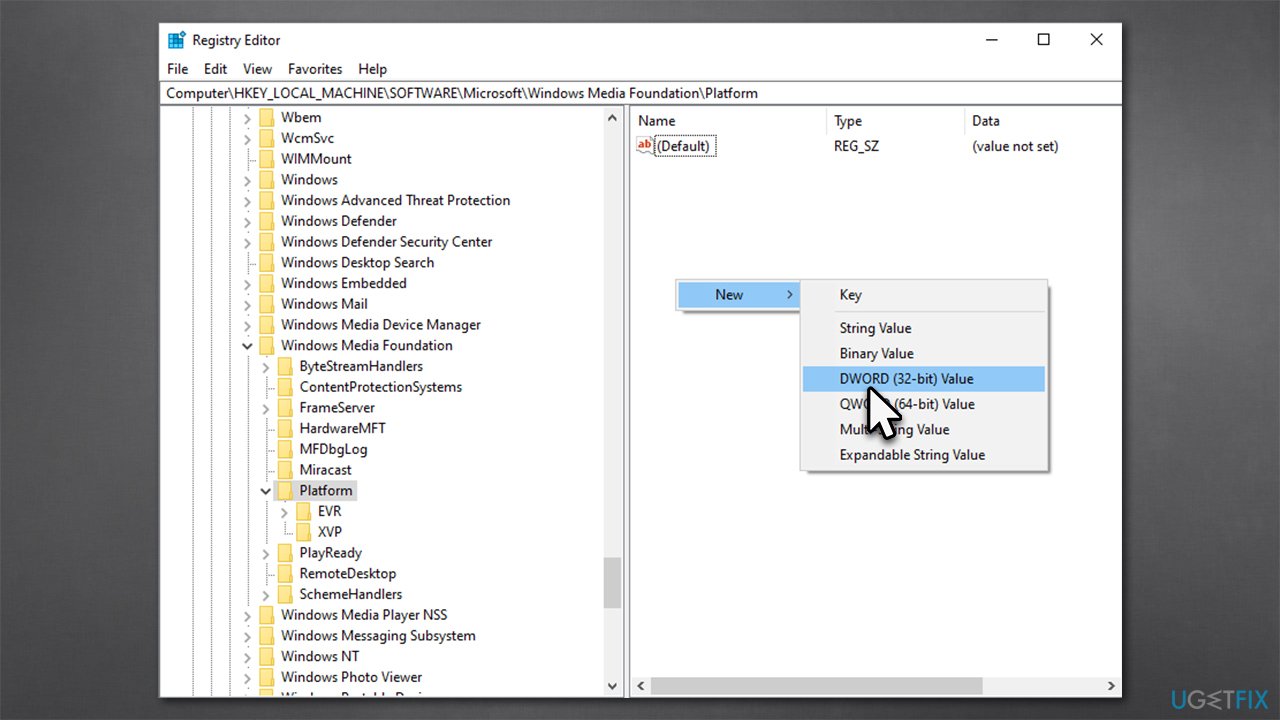
- Name it EnableFrameServerMode and double-click it
- Make sure the Value data is set to 0 and click OK.
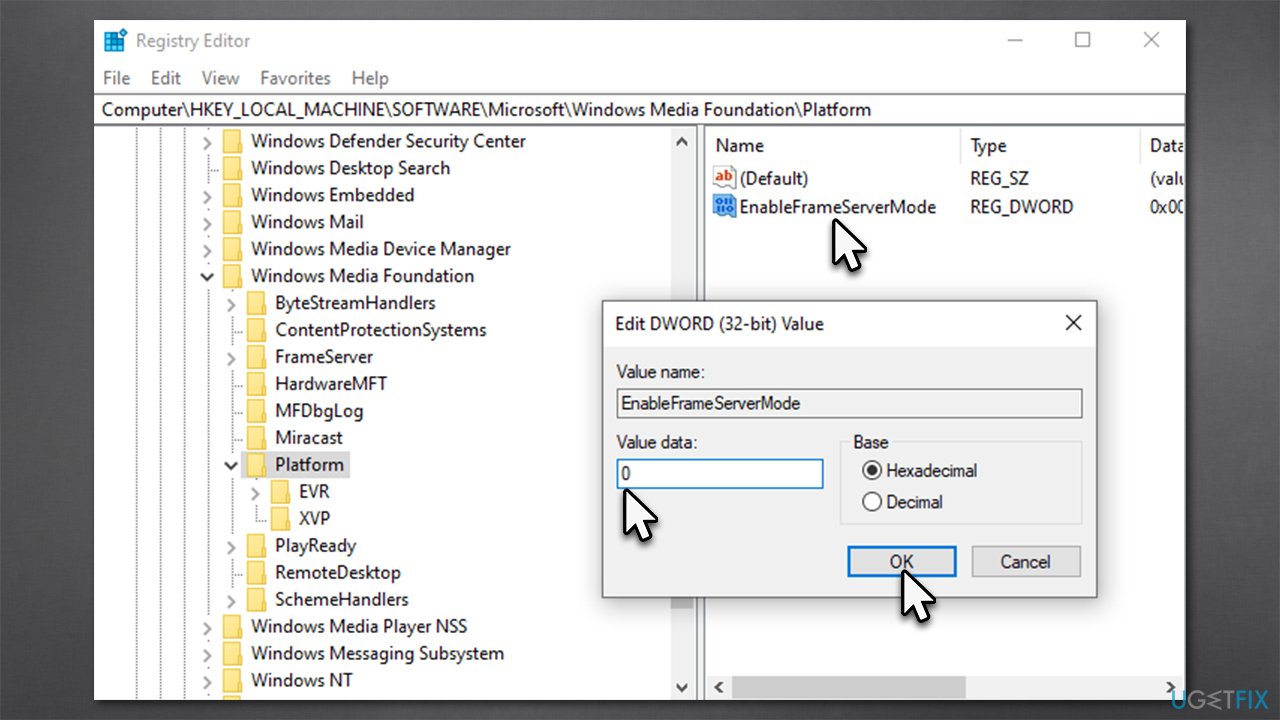
Note: it this does not work, try setting the value to 1 instead.
Other things to try
- If you haven't done so, restart Windows and your camera and try again.
- Make sure your time and date settings are correct.
- Update your camera drivers with [rev id="DriverFix"] or download the newest version from the manufacturer's website.
- Try different USB ports. For example, swap the USB 3.0 (blue) to USB 2.0 (black) and vice versa.
- Connect the camera to a different PC - if it doesn't work, there's a high chance it is broken.
If you continue to have problems with your camera after trying these steps, you may want to contact the manufacturer of your device for further assistance. They may be able to provide additional troubleshooting steps or help you repair or replace the camera if necessary.
Bottom line
To fix the camera error 0xA00F4291, you can install all available Windows updates, check your camera drivers for updates, and use a repair tool for system issues. If these solutions do not resolve the problem, further investigation into hardware issues may be necessary.
Frequently asked questions
This error typically occurs due to issues with camera permissions, outdated drivers, or conflicts with other applications using the camera.
Go to 'Settings' > 'Privacy' > 'Camera' in Windows 10 or Windows 11 and ensure that camera access is enabled for the apps you want to use.
If updating the driver doesn’t help, try uninstalling the camera from 'Device Manager' and then rebooting your PC to allow Windows to reinstall the driver automatically.




Report an issue
What's wrong with this guide? We review every report and update or remove content.
Report received — thank you. We'll review and fix it.
You need a free account to submit a report.
Be the first to comment