
How to fix "Can't move the folder because there is a folder in the same location" in Windows

Prefer to fix it yourself? The manual steps follow.
- 6methods
- 5 to 20 minutes
- Medium
Applies to Windows 11 and Windows 10 when you use Properties > Location > Move on Documents, Pictures, Desktop, Downloads, Music, Videos, Screenshots or Camera Roll
6 methods in this guide
Hi, I tried moving one of my folders to another drive and for some reason I get the message "Can't move the folder because there is a folder in the same location that can't be redirected. Access is denied." How can I fix this?
Windows shows "Can't move the folder because there is a folder in the same location that can't be redirected" when you move Documents, Pictures, Desktop or another personal folder and its path is still linked to OneDrive or to another folder. Your files are not lost. Stop OneDrive folder backup for that folder first, then restore its default location and move it again.
The folder's path is still tied to OneDrive or to another personal folder, so Windows refuses the move. Open OneDrive Settings > Sync and backup > Manage backup and turn off backup for that folder (Fix 1). Then use Properties > Location > Restore Default (Fix 2) and move it to a new, empty folder on the other drive (Fix 3). If it still fails, correct the path in the registry (Fix 4).
| Error | "Can't move the folder because there is a folder in the same location that can't be redirected. Access is denied." |
|---|---|
| Where it appears | After you select Move or Apply on the Location tab of a personal folder such as Documents, Pictures or Desktop, or after Restore Default on that tab. |
| Main cause | The folder is still redirected by OneDrive folder backup, or its target already contains another personal folder (for example Screenshots inside Pictures, or Documents inside the target). |
| Fastest fix | Turn off OneDrive backup for that folder in Settings > Sync and backup > Manage backup (Fix 1). |
| Also written as | "Can't move folder because there is a folder in the same location", "cant move the folder because there is a folder in the same location that cant be redirected", and the misspelling "can't be directed". |
| Affects | Windows 10 and Windows 11, every edition. Windows 10 left support on 14 October 2025, but the Location tab works the same on both. |
| Microsoft's status | Not a bug. It is Windows protecting the list of personal folder paths. Work or school PCs can also block the move with a policy. |
| Time to fix | About 5 minutes with Fix 1 and Fix 2, up to 20 minutes with the registry fix. |
Facts checked on 16 October 2026. Steps written for Windows 11 (25H2 and 26H2) and Windows 10 22H2.
What "Can't move the folder because there is a folder in the same location that can't be redirected" means
Documents, Pictures, Desktop, Downloads, Music, Videos, Screenshots and Camera Roll are special folders. Windows does not find them by name but through a list of paths in your user profile. When you use the Location tab to move one, Windows rewrites that path and moves the files. That change is called a redirection.
The message means Windows found a folder at the target that is already one of these special folders, or that is managed by OneDrive or a policy, so it cannot point a second special folder there. Access is denied at the end tells you the change was blocked, not that your files are damaged. Nothing was moved yet.
| What you did | What Windows found | Start with |
|---|---|---|
| Moved Documents, Pictures or Desktop on a PC that uses OneDrive | The folder is still backed up (redirected) by OneDrive | Fix 1 |
| Moved a folder after you uninstalled OneDrive | The path still points into the old OneDrive folder | Fix 1, then Fix 2 |
Moved a folder to the root of a drive, such as D:\, or into another personal folder | The target already holds a special folder | Fix 3 |
| Selected Restore Default and got the same message | The saved path in the registry is wrong | Fix 4 |
| Moved a folder on a work or school PC | A policy keeps the folder in OneDrive or blocks redirection | Fix 5 |
The move is refused before any file is copied. Look in File Explorer under This PC and in your OneDrive folder: the files are still in the folder they were in before.
Why you can't move the folder: causes in order
Most often OneDrive is the reason. Its folder backup (Microsoft also calls it Known Folder Move) redirects Desktop, Documents, Pictures, Screenshots and Camera Roll into the OneDrive folder. While backup is on, a manual move on the Location tab conflicts with it. If OneDrive was uninstalled while backup was on, the paths can still point into the old OneDrive folder.
Less often the target is the problem: a drive root, a folder that already is another special folder, or a folder that contains one. Sometimes a saved path in the registry is wrong, so even Restore Default fails. Rarely a work or school policy blocks the change, and very rarely damaged system files are involved.
| Cause | How often | How to tell | Fix |
|---|---|---|---|
| OneDrive folder backup is on for the folder | Most often | The Location tab shows a path with OneDrive in it. | Fix 1 |
| A path left behind after OneDrive was removed or unlinked | Often | OneDrive is gone, but the path still contains OneDrive. | Fix 1, Fix 2 |
| The target is a drive root or holds another special folder | Often | You chose D:\ or a folder such as D:\Documents that you used before. | Fix 3 |
| A wrong value under User Shell Folders | Sometimes | Restore Default gives the same message. | Fix 4 |
| A work or school policy | Rarely | The PC is managed and OneDrive says backup is set by your organization. | Fix 5 |
| Damaged system files | Rarely | Other Explorer features fail too. | Fix 6 |
How to fix "Can't move the folder because there is a folder in the same location"
Fix 1 and Fix 2 together solve most cases on PCs with OneDrive. Fix 3 is for a bad target folder. Fix 4 corrects the paths by hand when Restore Default fails. Fix 5 and Fix 6 are rare causes.
| What you see or have | Start with |
|---|---|
The Location tab shows a path that contains OneDrive. | Fix 1 |
| OneDrive is off or removed, the path is still not the default. | Fix 2 |
You were moving the folder to D:\ or into another special folder. | Fix 3 |
| Restore Default gives the same message. | Fix 4 |
| It is a work or school PC. | Fix 5 |
Fix 1. Stop OneDrive folder backup for the folder you want to move
5 minutesRead the warningOneDrive is installed, or was installed, and the folder's path contains OneDrive.
While OneDrive backs up a folder, OneDrive owns its path. Turning off backup returns the folder to your PC, so Windows lets you redirect it again.
When you stop backup, OneDrive asks whether to keep the files only in OneDrive or only on this PC. Choose only on my PC if you want to move them to another drive. Cloud only files must be downloaded first: right-click the folder in OneDrive and select Always keep on this device.
- If you removed OneDrive, install it again for now and sign in. You can remove it after the folder is moved.
- Select the OneDrive cloud icon in the notification area, then the Help & Settings icon, then Settings.
- Open the Sync and backup tab and select Manage backup.
- Turn off the switch of the folder you want to move. To stop all of them, turn off every switch.
- When asked, select Stop backup and choose to keep the files on this PC.
- Select Save changes and wait until OneDrive finishes.
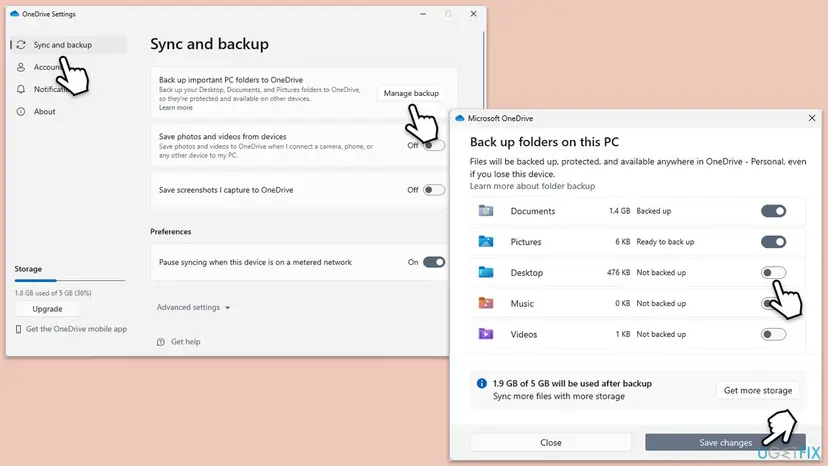
It worked if: The folder's switch shows it is no longer backed up, and its Location tab no longer shows a path inside OneDrive.
If not: If the path still contains OneDrive, go to Fix 2. If OneDrive says backup is set by your organization, go to Fix 5.
Fix 2. Restore the folder to its default location, then move it again
5 minutesLow riskOneDrive backup is off, or OneDrive is gone, but the folder still points somewhere odd.
Restore Default writes the normal path, such as C:\Users\<name>\Pictures, back into your profile. From that clean starting point the move to another drive usually works.
- Press Win + E to open File Explorer.
- Right-click the folder you want to move, for example Pictures, and select Properties.
- Open the Location tab and read the path in the box.
- Select Restore Default, then Apply.
- When Windows asks whether to create the folder or move the files, select Yes.
- Select OK, then try the move again with Move on the same tab.
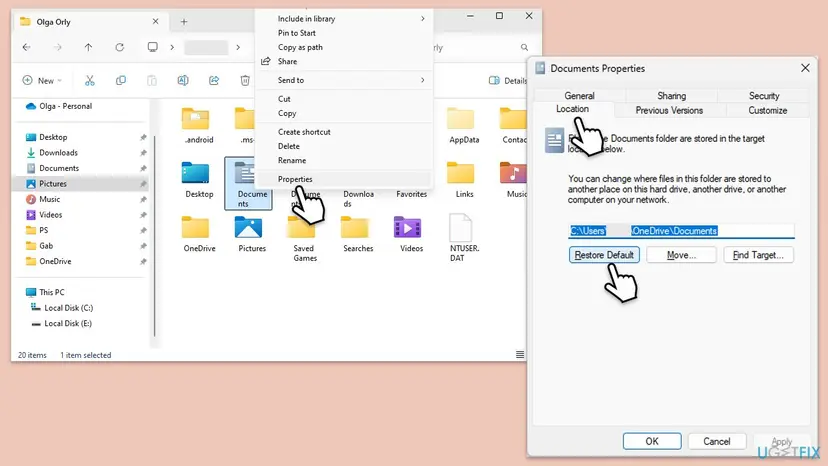
It worked if: The box shows C:\Users\<your name>\<folder> and the files are there.
If not: If the move still fails, check the target in Fix 3. If Restore Default itself shows the message, go to Fix 4.
Fix 3. Move the folder into a new, empty folder, not a drive root
5 minutesLow riskYou were moving the folder to the root of a drive, to a folder you used before, or into another personal folder.
Windows cannot redirect a special folder into a place that already holds another special folder. A new folder with its own name on the other drive gives it a target that nothing else claims.
- In File Explorer, open the other drive, for example
D:\. - Create a new folder for your profile, for example
D:\Users\<your name>, and inside it an empty folder with the same name, for examplePictures. - Right-click the folder you want to move in This PC and select Properties > Location.
- Select Move, open the new empty folder, and select Select Folder.
- Select Apply, then Yes to move the files, then OK.
- Give every special folder its own empty target folder.
- Keep Screenshots and Camera Roll inside Pictures, where Windows expects them.
- Point a folder at
D:\itself. - Point Pictures into Documents, or two folders at the same path.
- Choose a folder inside the OneDrive folder while backup is off.
It worked if: Windows copies the files, and the Location tab shows the new path on the other drive.
If not: If two folders already share one path, undo it with Restore Default on each of them, then move them one by one. If that fails, go to Fix 4.
Fix 4. Correct the folder paths under User Shell Folders in the registry
15 minutesRead the warningRestore Default gives the same message, or a folder still points into a OneDrive folder that no longer exists.
The Location tab only edits the values under User Shell Folders. When a value is wrong, the tab keeps failing, but setting the value to its default by hand returns the folder to a normal state.
A wrong path can make Windows open an empty Desktop or Documents folder. Your files are not deleted, but they look missing until the path is right. Export the key before you change anything: Back up the registry before editing it
- Press Win + R, type
regedit, press Enter and approve the prompt with Yes. - Go to
HKEY_CURRENT_USER\Software\Microsoft\Windows\CurrentVersion\Explorer\User Shell Folders. - Right-click User Shell Folders and select Export to save a copy.
- Find the value of your folder in the table below and double-click it.
- Type the default path in Value data exactly as shown and select OK.
- Close Registry Editor and restart the PC, then try the move again with Fix 3.
| Folder | Value name | Default value data |
|---|---|---|
| Desktop | Desktop | %USERPROFILE%\Desktop |
| Documents | Personal | %USERPROFILE%\Documents |
| Downloads | {374DE290-123F-4565-9164-39C4925E467B} | %USERPROFILE%\Downloads |
| Pictures | My Pictures | %USERPROFILE%\Pictures |
| Music | My Music | %USERPROFILE%\Music |
| Videos | My Video | %USERPROFILE%\Videos |
| Favorites | Favorites | %USERPROFILE%\Favorites |
| Screenshots | {B7BEDE81-DF94-4682-A7D8-57A52620B86F} | %USERPROFILE%\Pictures\Screenshots |
| Camera Roll | {AB5FB87B-7CE2-4F83-915D-550846C9537B} | %USERPROFILE%\Pictures\Camera Roll |
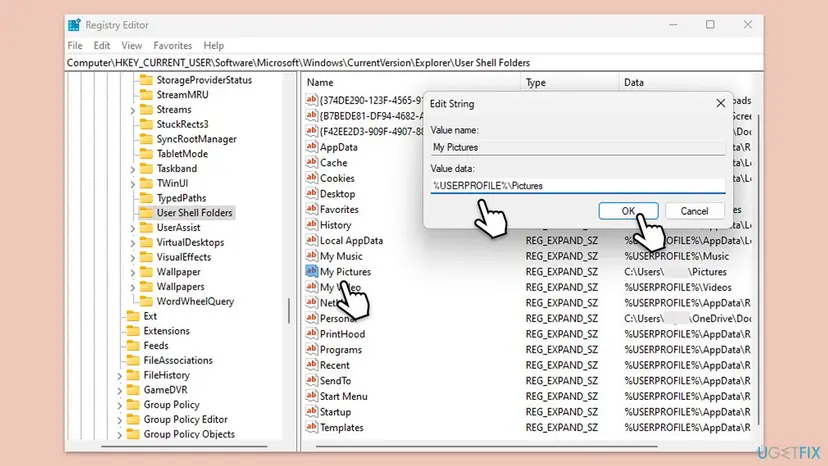
You may also see values such as {0DDD015D-B06C-45D5-8C4C-F59713854639} (Local Pictures) or {F42EE2D3-909F-4907-8871-4C22FC0BF756} (Local Documents) that point into OneDrive. Set them to the same default as their folder. Users report that deleting only such an entry, after the export, also works because Windows falls back to the default. We could not confirm this with Microsoft.
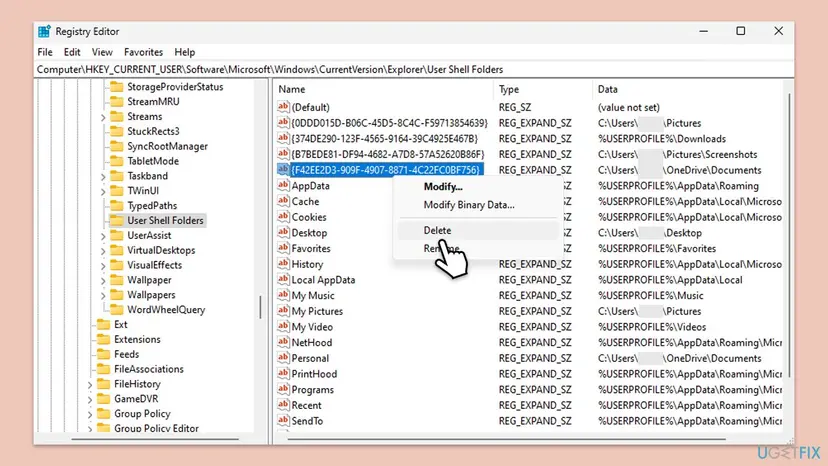
It worked if: After the restart, the Location tab shows the default path, and Move to a new empty folder works.
If not: Double-click the exported .reg file to undo the change if folders look empty, then go to Fix 5 or Fix 6.
Fix 5. Check for a work or school policy that blocks the move
5 minutesLow riskThe PC belongs to an employer or school, or OneDrive says folder backup is managed by your organization.
Administrators can keep known folders in OneDrive or stop users from redirecting profile folders. Microsoft says the second policy gives an access error during a move, which matches Access is denied here.
- Open OneDrive Settings > Sync and backup > Manage backup. If the switches are grey or a note says your organization manages them, a policy is set.
- Press Win + R, type
regeditand go toHKEY_LOCAL_MACHINE\SOFTWARE\Policies\Microsoft\OneDrive. - Look for the value KFMBlockOptOut. If it is
1, users may not turn off folder backup. - Do not change it yourself on a managed PC. Ask your IT team to move the folder or change the policy.
Microsoft notes that with the "Prohibit User from manually redirecting Profile Folders" policy turned on, a move can leave files in identically named folders inside OneDrive and the original folders empty. Move the contents back and ask your administrator.
It worked if: You know whether a policy is the reason, and who can change it.
If not: If there is no policy and the PC is your own, go to Fix 6.
Fix 6. Repair Windows system files with SFC and DISM
15 to 30 minutesLow riskFix 1 to Fix 5 did not help, and other File Explorer features act strangely too.
The Location tab is part of the Windows shell. If shell files are damaged, the move can fail even with correct paths, and DISM plus SFC restore those files.
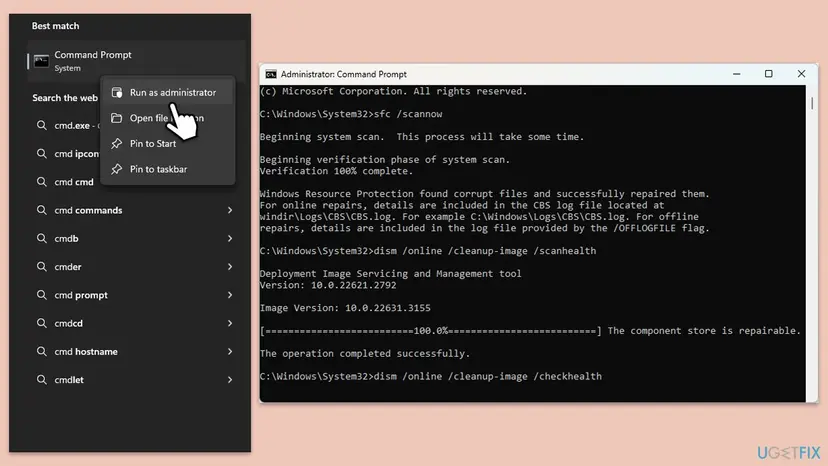
- Open an elevated command window. Right-click Start and select Terminal (Admin), or type cmd in the search box, right-click Command Prompt and select Run as administrator. Select Yes when Windows asks for permission.

Search for cmd and choose Run as administrator. Screenshot: Windows 11 26H2. - Run DISM first. Type the command below and press Enter. DISM downloads clean copies of damaged components from Windows Update, so it can take several minutes. Wait until it says The operation completed successfully.
DISM.exe /Online /Cleanup-Image /RestoreHealth
DISM /RestoreHealth running. Screenshot: Windows 11 26H2. - Run System File Checker. In the same window, type the command below and press Enter. Do not close the window until the verification reaches 100%.
sfc /scannow
sfc /scannow at 100%. Screenshot: Windows 11 26H2. - Read the result and restart. Compare the last message with the table below this guide, then restart the PC so that repaired files are loaded.

The result line tells you what SFC did. Screenshot: Windows 11 26H2.
These steps were written for Windows 11 24H2 and 25H2. The full page with the other versions and what each result means: Run DISM and SFC to repair Windows system files
It worked if: SFC reports that it found no problems or repaired them. After a restart, Restore Default and Move work.
If not: Collect the facts under "Still not working" below and test a new Windows account: Create a new user account to test a problem.
If you still can't move the folder
Collect these facts before you ask in Microsoft's community or a technician. They show whether OneDrive, the target or the saved path is at fault, and they save a long exchange of questions.
- The path on the folder's Location tab, and the target you chose.
- Whether OneDrive is installed, signed in, and which folders Manage backup shows as backed up.
- The value of the folder under
HKEY_CURRENT_USER\Software\Microsoft\Windows\CurrentVersion\Explorer\User Shell Folders. - Whether the PC is managed by work or school, and whether KFMBlockOptOut exists.
- Whether the move works in a new Windows account.
- Your Windows version: press Win + R and type
winver.
This message is not a sign of a failing disk. If the target drive itself disappears from File Explorer or reports errors, copy your files off it before you try again: Back up your files (Windows Backup, File History, Time Machine).
How to stop the "folder in the same location" error from coming back
The message comes back when two tools try to own the same folder path. Decide once where each personal folder lives: in OneDrive with backup on, or on your own drive with backup off. Then change it only in that one place.
- Turn off OneDrive backup for a folder before you move it by hand.
- Stop folder backup before you uninstall or unlink OneDrive.
- Move each special folder into its own new, empty folder.
- Export User Shell Folders before any registry change.
- Move a special folder to the root of a drive.
- Put one special folder inside another, such as Pictures in Documents.
- Drag the folder itself in File Explorer instead of using the Location tab.
- Change OneDrive policies on a work or school PC yourself.
Frequently asked questions
What does "Can't move the folder because there is a folder in the same location that can't be redirected" mean?
It means Windows refused to change where a personal folder such as Documents or Pictures points to. The target already holds a special folder, or the folder is still redirected by OneDrive or a policy. Access is denied says the change was blocked. No files were moved or deleted. Turn off OneDrive backup for the folder (Fix 1), restore its default location (Fix 2), then move it into a new, empty folder (Fix 3).
How do I fix this on Windows 11?
The steps are the same on Windows 11 and Windows 10. Open OneDrive Settings > Sync and backup > Manage backup and turn off backup for the folder. Then right-click the folder in File Explorer, select Properties > Location > Restore Default, and use Move to pick a new, empty folder on the other drive. If Restore Default fails, correct the value under User Shell Folders in the registry as Fix 4 shows.
I uninstalled OneDrive. Why does it still block the move?
Uninstalling OneDrive does not always put your folders back. If folder backup was on, the paths in your profile can still point into the old OneDrive folder. Install OneDrive again, sign in, turn off backup for the folders and choose to keep the files on this PC (Fix 1). Then use Restore Default (Fix 2). After that you can uninstall OneDrive again without the error.
Can I move Documents or Pictures to the root of another drive, like D:\?
Do not. A drive root is a poor target for a special folder, and if you later point a second folder there, Windows sees two special folders in the same location. Create a folder such as D:\Users\<your name>\Pictures and move the folder into that. Each special folder should have its own empty target. If you already pointed a folder at D:\, use Restore Default first, then move it again.
Will I lose my files when I stop OneDrive folder backup?
Not if you choose carefully. When you turn off backup for a folder, OneDrive asks whether to keep the files only in OneDrive or only on this PC. Choose the PC if you want to move them to another drive. Files that exist only in the cloud must be downloaded first with Always keep on this device, or OneDrive says some files couldn't be moved.
Restore Default also gives the same error. What now?
Then the saved path in the registry is wrong. Export the key HKEY_CURRENT_USER\Software\Microsoft\Windows\CurrentVersion\Explorer\User Shell Folders, double-click the value of your folder and set it to its default, for example %USERPROFILE%\Pictures for My Pictures. Restart the PC and move the folder again. Fix 4 has the full table of values. Older guides name a key under HKEY_LOCAL_MACHINE; the per-user paths are under HKEY_CURRENT_USER.
Why does the message end with "Access is denied"?
It tells you the change was blocked, not that you lack rights to your own files. The block usually comes from the conflict with OneDrive or another special folder. On a work or school PC it can also come from a policy that stops users from redirecting profile folders. Check Fix 5 if the PC is managed, and ask your IT team instead of changing the policy yourself.
Is "can't be directed" a different error?
No. "Can't move the folder because there is a folder in the same location that can't be directed" is a common misspelling of the same message, which says "can't be redirected". The same goes for versions written without apostrophes, such as "cant move the folder". The meaning and the fixes on this page are the same: stop OneDrive backup, restore the default location, and move the folder to a new, empty target.
Can I just drag the Documents folder to another drive instead?
Dragging copies or moves the files, but Windows keeps the old path for Documents, so apps and the Save dialog still use the old place. That can create a second Documents folder and makes the error more likely later. Use Properties > Location > Move instead, which updates the path and moves the files in one step. Back up important files first: Back up your files (Windows Backup, File History, Time Machine).
Sources
- Microsoft Support: Back up your folders with OneDrive (stop folder backup, fix problems with folder backup) (support.microsoft.com)
- Microsoft Learn: Redirect and move Windows known folders to OneDrive (learn.microsoft.com)
Did this fix work?
One click, no account. It tells the next reader which guides are worth their time.
Questions and experiences: fix "Can't move the folder because there is a folder in the same location" in Windows
Still broken, or found a fix we did not cover? Ask here: members and our editors answer. Reading is open; writing needs a free account.
…