How to fix
Discord keeps asking to switch audio device (New Audio Device Detected)
on Windows
Resolve the Discord audio device switch issue on Windows 10 and 11 effortlessly. Enjoy smooth communication with expert-tested solutions.

What causes How to fix Discord keeps asking to switch audio device (New Audio Device Detected)?
- Discord detects a new audio output/input when the PC wakes up from sleep
- The monitor turning on triggers the audio device detection
- Discord prompts for audio device switching upon app launch
- Audio device settings may not be configured correctly
- Nvidia High Definition Audio is prioritized over other devices
Repairs Windows system files, removes malware, and restores a clean OS state — without reinstalling.
Hi. Every time my computer goes to sleep or my screen turns off, Discord says "New Audio Device Detected" and keeps asking if I would want to change my audio device to Nvidia High Definition Audio. I am not sure why this is happening because I use my headphones as the output device all the time. Any advice on this?
Discord is a communication platform for online communities and gamers offering text/voice chat, file sharing, live streaming, and customizable servers with privacy control options. Known for its user-friendly interface and robust features, it has become a popular choice for gamers, educators, and businesses.
Unfortunately, users do not avoid technical issues and bugs when using Discord. We have already covered numerous issues people experience, including GIFs not working, audio cutting out, video calls not working, freezes and crashes, and similar.
This time, we will be talking about the "New Audio Device Detected" error or bug that some users are experiencing. While this is a legitimate message that shows up whenever Discord detects a new audio output/input, people said it keeps bugging them when it shouldn't.
In most cases, the message comes up whenever the PC wakes up from sleep or after the monitor is turned on. Some users even said that Discord asks them to switch audio device every time they turn on the app or simply open it when it's already running.
If you are facing this problem, there are several things you could do to stop the "New Audio Device Detected" every time your PC wakes up from sleep or whenever you launch Discord. Below you will find a few fixes, some of which might not always be optimal but would nonetheless would help you to get rid of this problem.
If you are having regular issues with your Windows machine, we recommend you run a scan with a PC repair tool [d1], which can automatically fix errors related to system file damage and malware-caused corruption, stopping BSODs, errors, and other issues. It can also clean your computer of junk and privacy-related files for better security and performance.
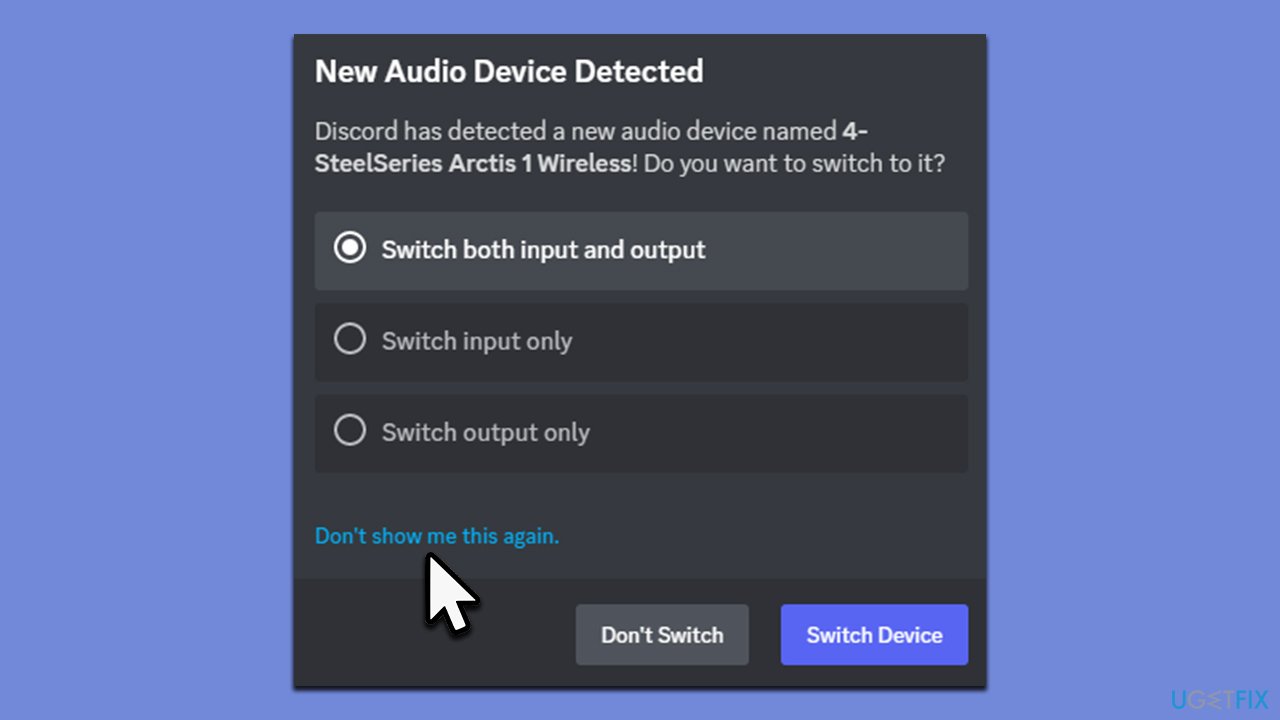
Solution 1. Use the "Don't show me this again" option
It is probably not surprising how we can easily miss things or options right in front of us. This is the case here, too, as some people said they simply did not notice this option, as they clicked "Don't Switch" every time they were asked.
Thus, the next time you see the "New Audio Device Detected" pop-up, pick the preference you like and click the "Don't show me this again" option instead of the "Don't Switch" or "Switch Device" options.
Solution 2. Select the precise input device via Discord Settings
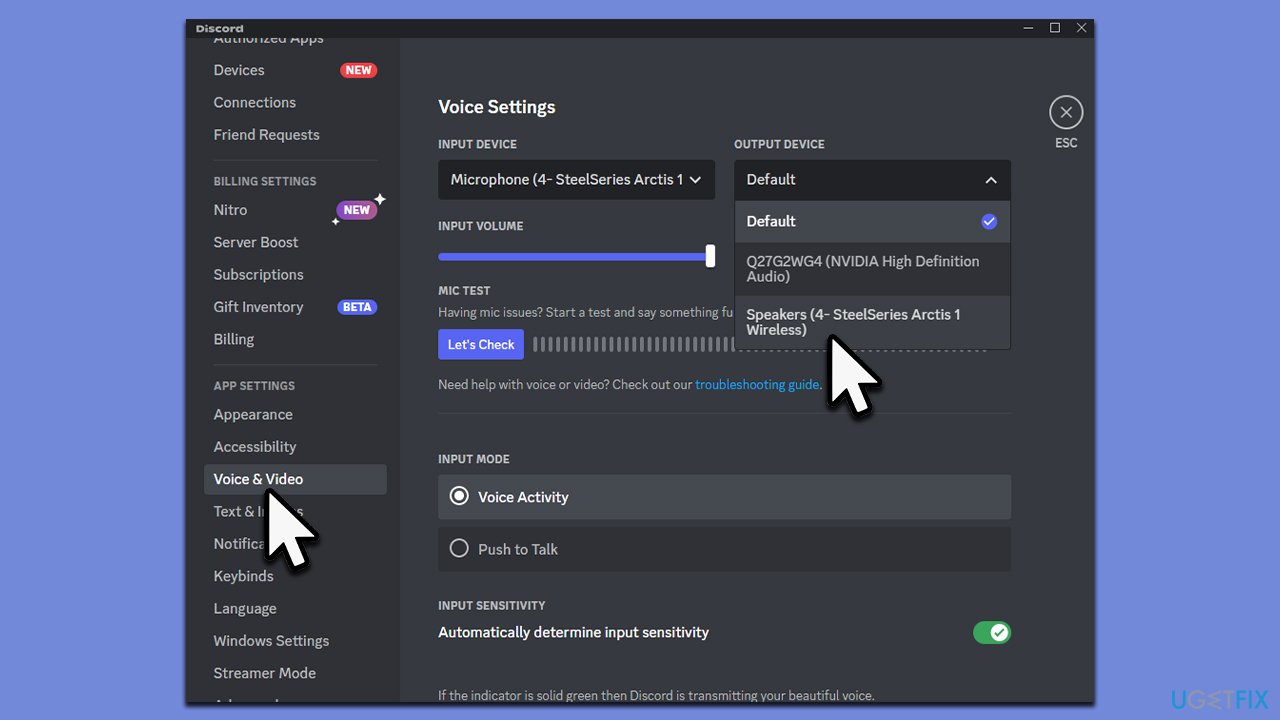
While you can set the default audio device via Windows settings, Discord has its own audio-detecting procedures. If the input/output device is set to the "Default" setting, you might start receiving repeated "New Audio Device Detected" in Discord whenever you open the app, or your computer comes back from sleep. Here's how to address this:
- Open Discord and press Settings.
- On the left side, scroll down and select Voice & Video.
- On the right side, you will see Voice Settings.
- Under Input and Output device, select the device you want to use from the drop-down menu.
- The prompts should not bother you anymore.
Solution 3. Disable the second output/input device
This solution might be helpful if you are never going to use a different source for your audio input and output on a computer. Otherwise, it is not ideal, as you would have to re-enable the second device you want to use for other purposes.
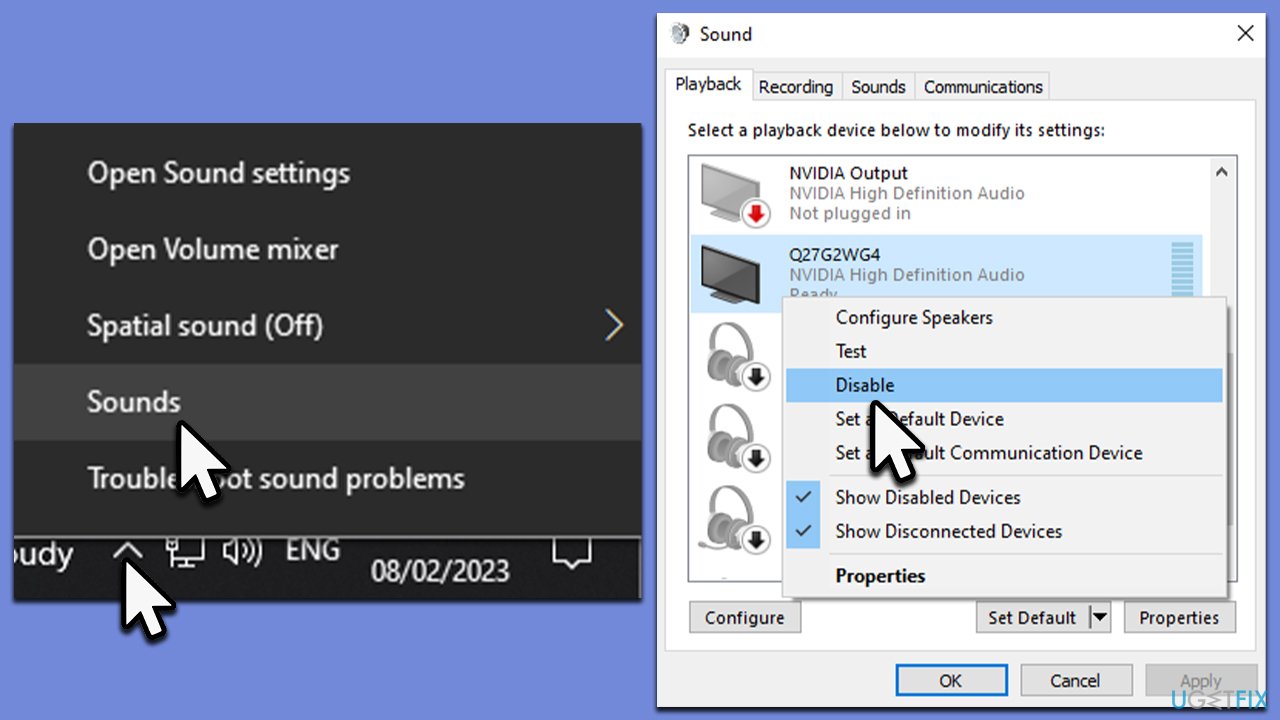
- Right-click on the Speakers icon in the taskbar and select Sounds.
- Go to the Playback tab.
- Locate the secondary audio device (for example, Nvidia High Definition Audio).
- Right-click on it and select Disable.
Bottom line
To fix the 'New Audio Device Detected' issue, you can try adjusting your audio device settings, ensuring your headphones are set as the default output device, or running a PC repair tool to fix system errors. If none of these solutions work, consider reaching out to Discord support for further assistance.
Frequently asked questions
This issue often occurs when multiple audio devices are connected or when Discord detects a change in your audio setup. Check your sound settings in Windows 10 to ensure the correct device is set as default.
To resolve this, go to Discord's settings, under Voice & Video, and disable the 'Automatically determine input sensitivity' option, which may help stabilize the audio device detection.
If the problem persists, try reinstalling Discord or updating your audio drivers in Windows 11 to ensure compatibility with your current audio hardware.




Report an issue
What's wrong with this guide? We review every report and update or remove content.
Report received — thank you. We'll review and fix it.
You need a free account to submit a report.
Be the first to comment