How to fix
Error 0xA00F4289 error
on Windows
Resolve error 0xA00F4289 in Windows 10/11 effortlessly with expert tips and proven solutions. Fixed in minutes and backed by user-friendly screenshots.

What causes How to fix error 0xA00F4289 error in Windows?
- Camera not connected properly
- Camera drivers outdated
- Camera blocked by anti-virus software
- Problematic application causing conflict
- Camera connection issues
Repairs Windows system files, removes malware, and restores a clean OS state — without reinstalling.
Hello. I have a problem with my camera. Once I connect it, it shows a black screen and a message in the middle that says 0xA00F4289<ActiveCameraUnplugged> 0xC00D3EA2. It affects all applications such as Skype and Zoom, and I simply can't use my camera. Any tips would be appreciated.
All modern laptops have a built-in camera that can be used at any time for video communication or recording. Likewise, Windows desktop machines are capable of the same with the help of an external camera device that can be plugged in via USB or other connections. Unfortunately, not always everything goes as planned, and users reported receiving 0xA00F4289<ActiveCameraUnplugged> 0xC00D3EA2 error on Windows, which prevents them from using the camera.
Problems with the camera are not something new, and users had to deal with them for years now - we have previously discussed numerous other errors, including 0xA00F4244 (0xC00D36D5), 0xA00F424F(0x803131500), or 0xA0F4244 (0xC00DABE0). The message of the error says the following:
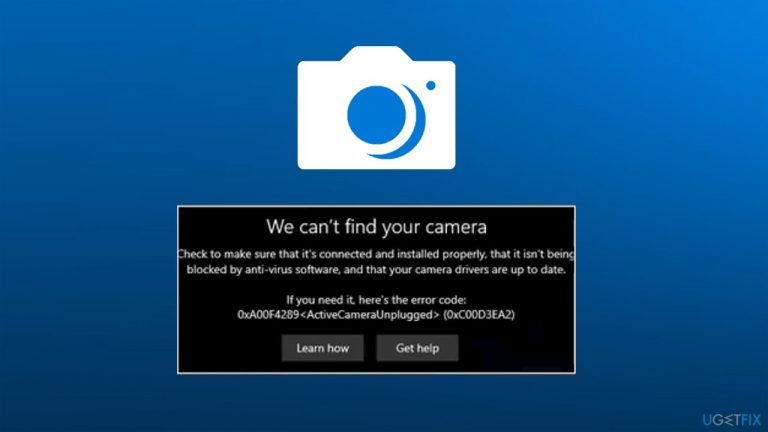
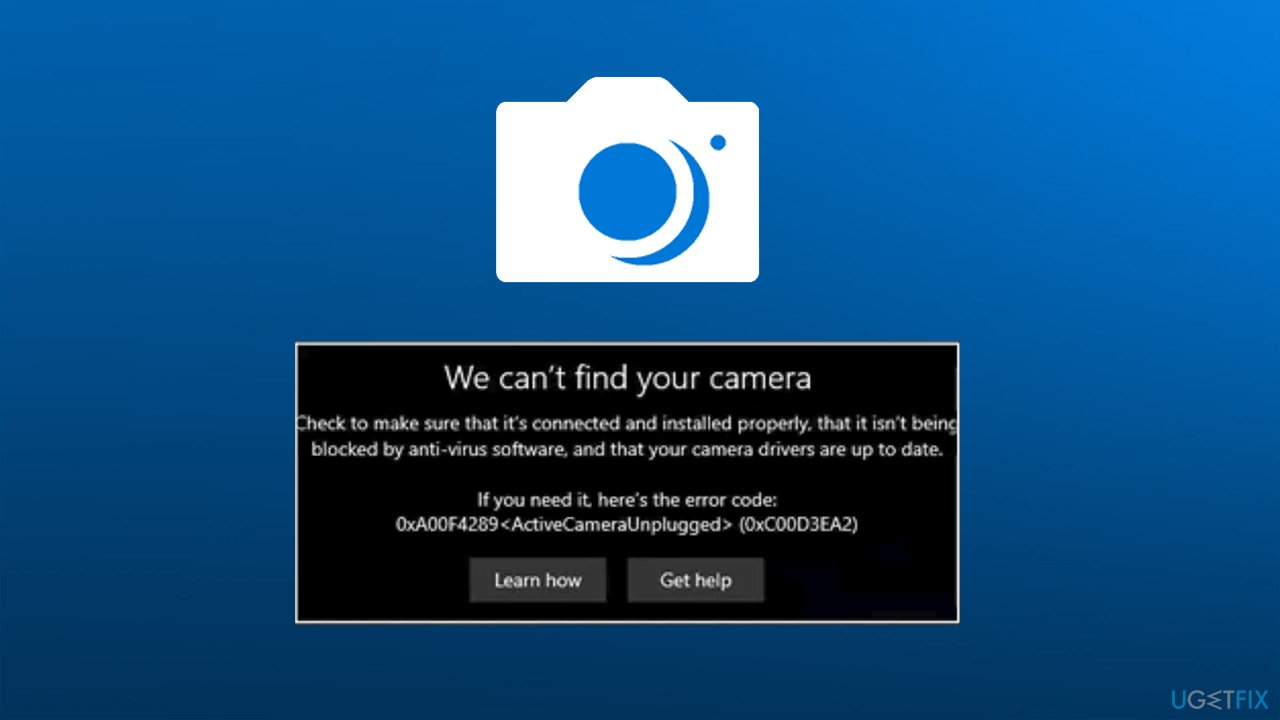
We can’t find your camera
Check to make sure that it’s connected and installed properly, that it isn’t being blocked by anti-virus software, and that your camera drivers are up to date.
If you need it here’s the error code: 0xA00F4289 <ActiveCameraUnplugged> (0xC00D3EA2)
According to user reports, they receive the error message every time when they try to use the camera for video calls on Skype, Zoom, Viber, and other applications. At this point, the camera itself is often flickering but not responding. Some people experienced the issue abruptly after having the camera working previously, while others claimed that they could not get the camera working in the first place.
In the attempt to fix 0xA00F4289 <ActiveCameraUnplugged>, users might try to follow the troubleshooting steps provided in the message, although it does not always help. Luckily, there are several other methods to address the problem, including removing the problematic Skype app, checking camera connections, enabling services, and more.
Before you proceed, we would like to suggest you try running a scan with a powerful [d1] tool that is capable of finding and remediating various common issues on Windows, fixing them automatically thanks to its unique, patented technology. Thus, if your PC is suffering from crashes, BSODs,[ref en-1] errors, registry corruption, or other issues, this app might help you solve them for you.
Fix 1. Follow the advice in the error message
Unlike many other error messages on Windows, this one provides several solutions to the issue. In other words, you should perform all the steps that are listed within the message itself - start from disabling your third-party antivirus, which is one of the main culprits to many problems on Windows.
To update your drivers, follow these steps:
- Right-click on Start and pick Device Manager
- Expand the Camera section
- Right-click on your camera and select Search automatically for updated driver software
- Wait till updates are downloaded and installed
- Restart your PC.
Important: keep in mind that Microsoft removed the possibility from the Device Manager to look for drivers online since version 2004.[ref en-2] If you are using this version and above, proceed with the following steps instead:
- Type Updates in Windows search and hit Enter
- On the right side of the screen, select View optional updates
- Expand Driver updates section
- Select all the updates and click Download and install
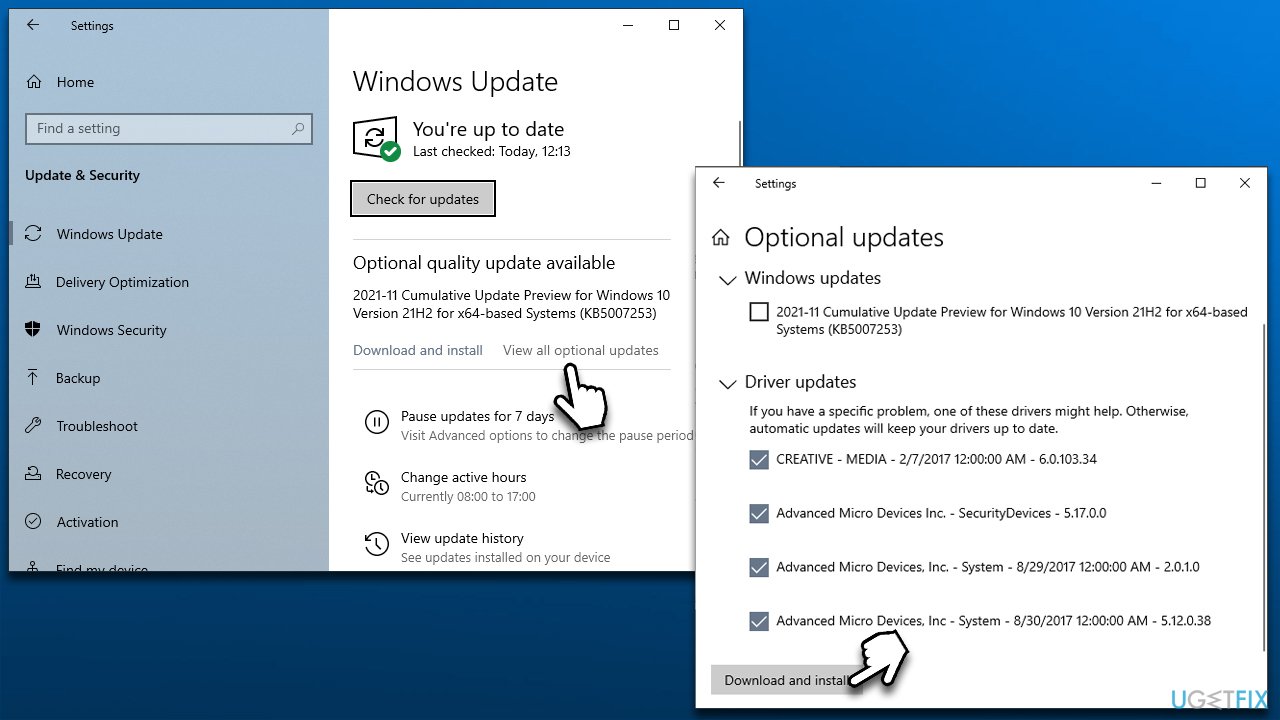
How to fix error 0xa00f4289 activecameraunplugged error in windows install newest driver - Restart your computer.
If this does not work, you should download the drivers from your laptop's or camera's manufacturer website or simply employ [rev id="DriverFix"] that could take care of your driver problems automatically.
Fix 2. Check Skype
In some cases, the reason why users experience the error is Skype. First, try to exit the app fully and boot it again. If that does not work, you could reset, repair, or reinstall Skype.
Repair and reset
- Right-click on Start and pick Apps and Features
- Scroll down until you find Skype
- Click Advanced options
- Here, scroll down and select Terminate, and Repair
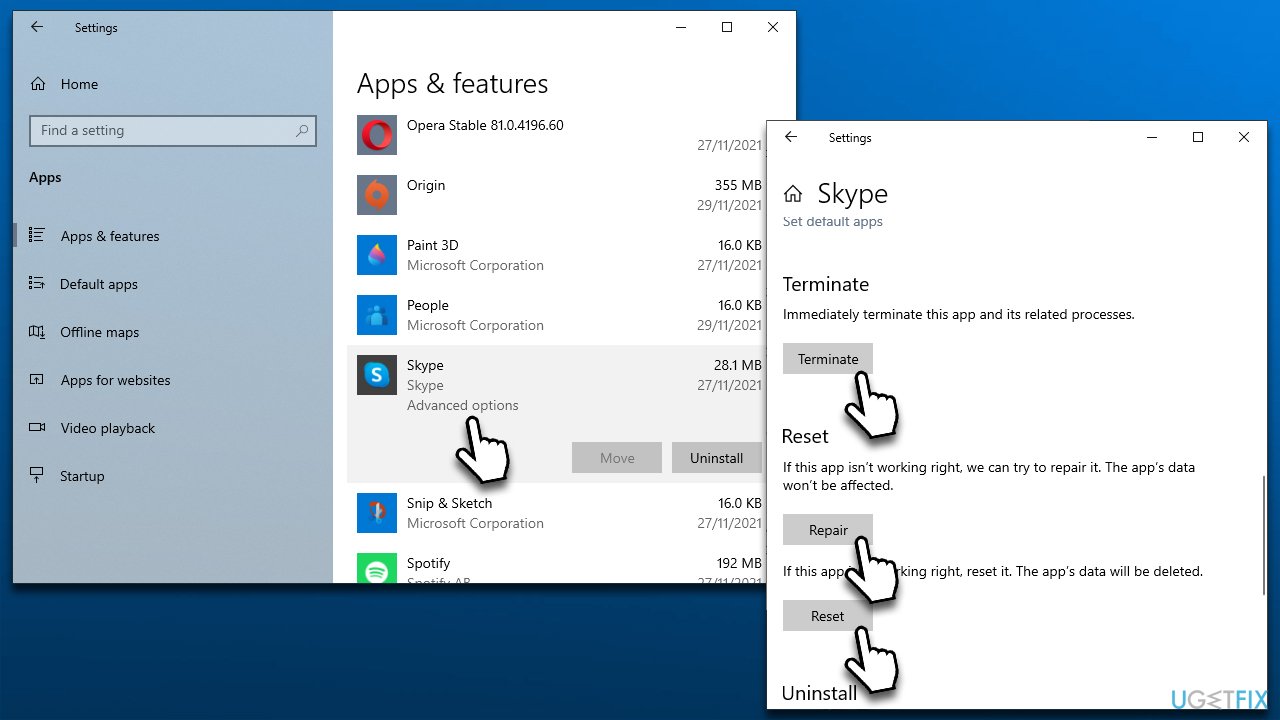
How to fix error 0xa00f4289 activecameraunplugged error in windows reset repair skype - If that doesn't help, try Reset
Note: you should also reset/repair your Camera app in the same way
Reinstall Skype
- Go to Apps and Features and find Skype entry again
- Click Uninstall > Uninstall
- Follow on-screen instructions
- Restart your PC and then download and install Skype again.
Fix 4. (Re)Start relevant service
The service related to the camera might be disabled or bugged.[ref en-3] If it is not running, you should set their startup to Automatic, and if they are running already, you should restart them.
- Type Services in Windows search and hit Enter
- Scroll down to find Windows Camera Frame Server
- If the service is running, right-click and select Restart
- If it is not running, double-click to open Properties
- Under Startup type, select Automatic
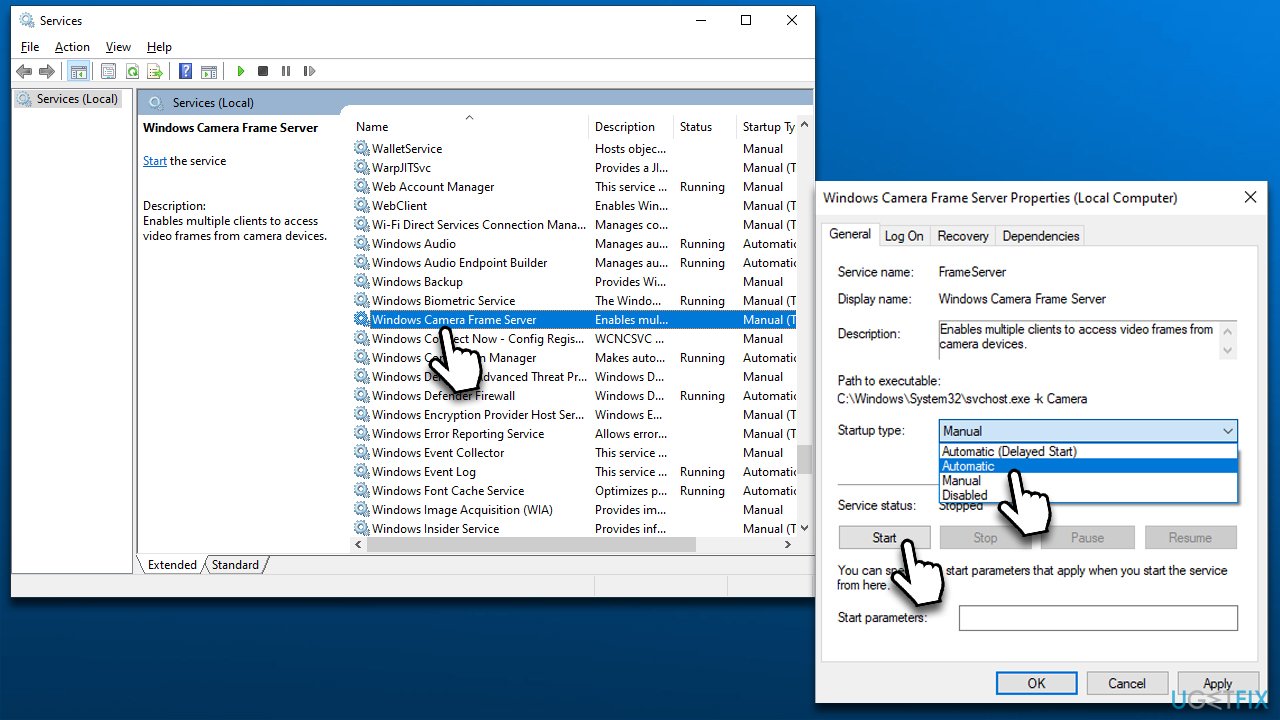
How to fix error 0xa00f4289 activecameraunplugged error in windows restart services set to automatic - Press Start, Apply, and OK.
Fix 5. Run troubleshooter
In some cases, a troubleshooter might help you.
- Type Troubleshoot in Windows search and hit Enter
- On the right side, pick Additional troubleshooters
- Find Windows Store Apps on the list
- Click it and select Run the troubleshooter
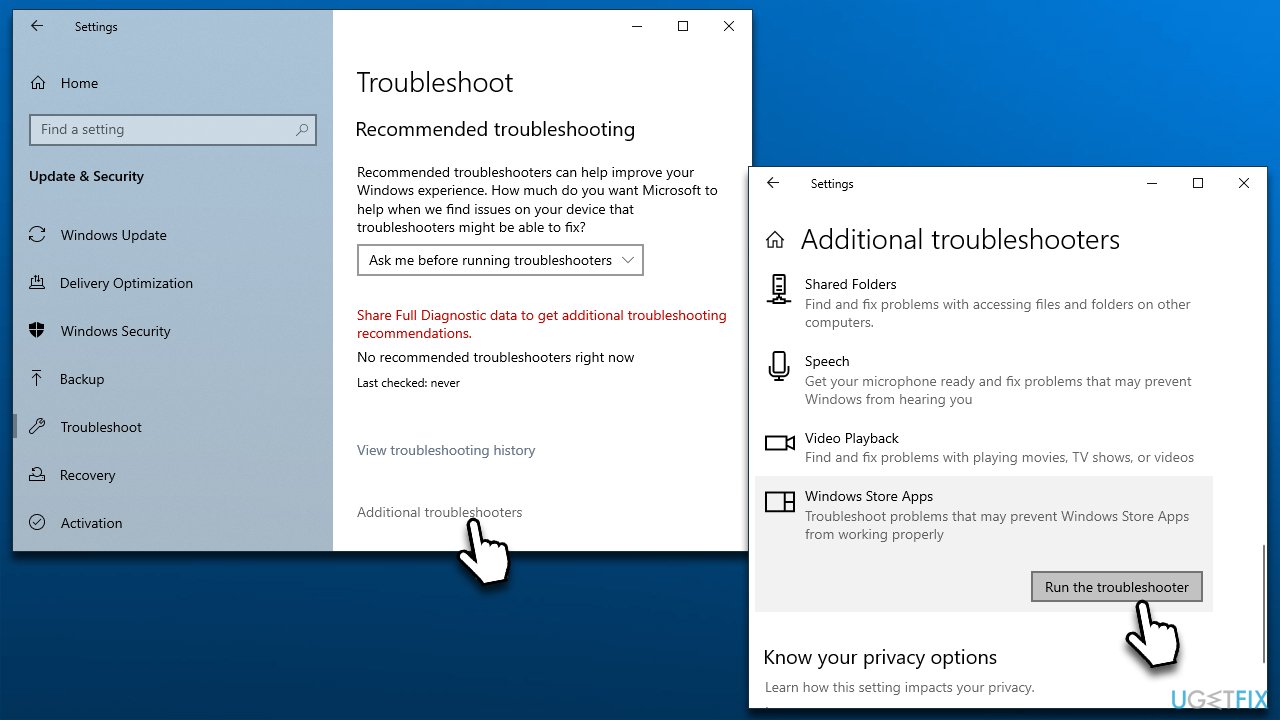
How to fix error 0xa00f4289 activecameraunplugged error in windows run troubleshooter - Wait till the scan finishes and apply the offered fixes.
Fix 6. Fix the loose camera
Another thing you could try is checking the connection of your camera. If you are using a laptop, you should use your fingers to apply some pressure around it. It might help the connection to remediate, which would consequently fix the error.
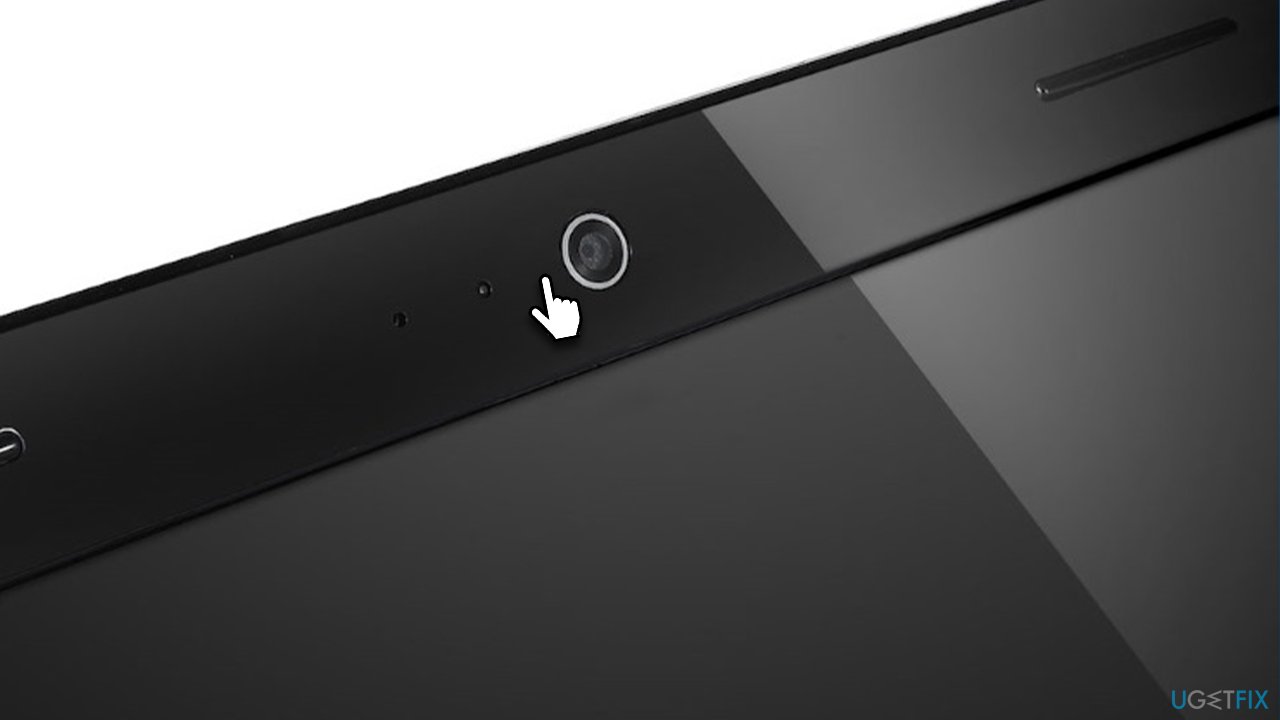
If you are using an external camera, try plugging it out of your PC and plugging it back in. In some cases, the cable might be damaged so you should check it for any physical damage. Likewise, trying a different USB slot might also solve the problem.
Bottom line
To fix the 0xA00F4289 error, users can try checking camera connections, updating drivers, and ensuring no applications like Skype are causing conflicts. If these steps do not resolve the issue, consider using a dedicated tool to scan for and fix common Windows problems.
Frequently asked questions
The error 0xA00F4289 typically occurs due to issues with the camera app, missing camera drivers, or corrupted system files in Windows 10 or Windows 11.
You can update your camera drivers by going to Device Manager, locating your camera under 'Imaging devices', right-clicking it, and selecting 'Update driver' in Windows 10 or Windows 11.
Yes, you can reset the camera app by going to Settings > Apps > Apps & features, selecting the Camera app, and clicking on 'Advanced options' where you will find the 'Reset' option in Windows 10 or Windows 11.




Report an issue
What's wrong with this guide? We review every report and update or remove content.
Report received — thank you. We'll review and fix it.
You need a free account to submit a report.
Be the first to comment