How to fix
Error c1900101-4000d when Windows 10 upgrade fails
on Windows
Resolve the c1900101-4000d error during your Windows 10 upgrade with effective solutions. Backed by expert-tested guidance for a smooth transition.

What causes How to fix error c1900101-4000d when Windows 10 upgrade fails?
- Windows installer file issue
- Problems with the USB driver
- Other driver issues
- Incompatibility triggered by anti-virus or applications
- Defected hardware pieces
- Stopped core services
Repairs Windows system files, removes malware, and restores a clean OS state — without reinstalling.
Hello. I have an issue with Windows 10 update. The error C1900101-4000D code appears when the upgrade fails for me. I tried a few times and don't know what to do next. It is annoying, but I am afraid to do anything and damage the PC permanently. Can you help me?
C1900101-4000D error when Windows 10 upgrade fails appears when the update installer cannot access particular files. The installation fails, and the annoying error occurs. This is the issue that many people have encountered. There are a few solutions for the issue, but many fixes available online do not solve the problem, as users[ref en-1] tend to report.
Don't worry, the issue is not crucial and will not lead to serious damage to your machine. However, error c1900101-4000d when Windows 10 upgrade fails occurs due to the Windows installer file issue. The message can come with a particular code or a numeric error indication, but the issue indicates the same failure.
In general, this error c1900101-4000d can indicate problems with the USB driver, other driver issues. Your anti-virus program or different application triggers incompatibility and affects serious processes on the machine. This is not the update error that is triggered by a faulty Windows 10 upgrade in particular.[ref en-2]
You might find the similar issues resembling the c1900101-4000d error with different names and endings: 0xC1900101 – 0x30018 error code; Code 0xC1900101 – 0x4001E; 0xC1900101 – 0x4000D; 0xC1900101 – 0x20017 error. Each specific code indicates that the root cause and solutions differ even though some may be similar in reasoning and fixes.
The best options for the Windows Update c1900101-4000d error would be to fix obsolete system files, corrupted drivers,3 or files, revert recent changes in settings. Some PUP[ref en-3] or third-party applications may trigger these issues with particular updates, so eliminating recently installed pieces can be helpful.
How to fix error c1900101-4000d when Windows 10 upgrade fails
The particular c1900101-4000d error occurs when the Windows 10 update fails to install. Defected hardware pieces or core services that get stopped can trigger the problem. SImple troubleshooting should help you determine the issue. Disabling the firewall or logging in with the administrative account can show possible fixes for the issue.
However, removing devices or changing settings and crucial preferences on the machine can lead to more serious computer issues. Fixing system issues by recovering files in important folders can help you avoid additional damage. Run [d1] and find issues with system files that need repair. Then go through the methods below and make sure to try them all before giving up.
Run troubleshooter
- Go to Settings.
- Find Updates & security, choose Troubleshoot.
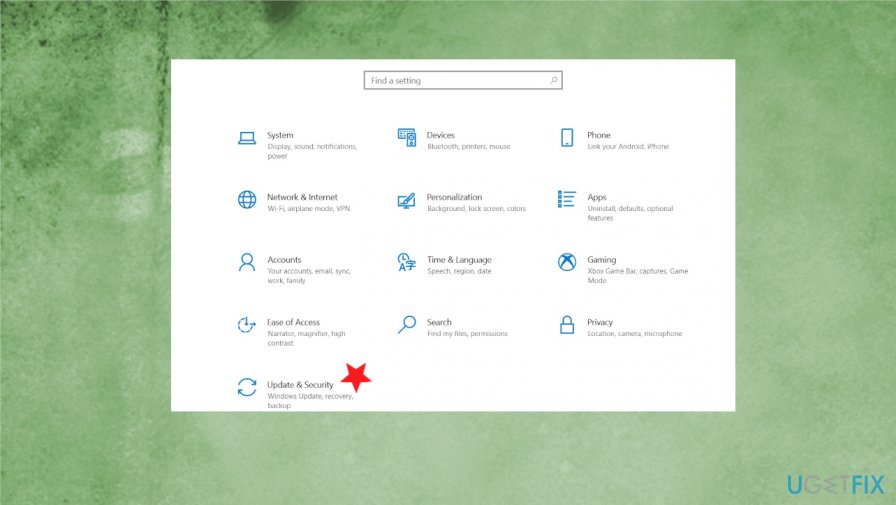
Windows error c1900101 4000d failed update - Go to Windows Store Apps.
- Click Run the Troubleshooter.
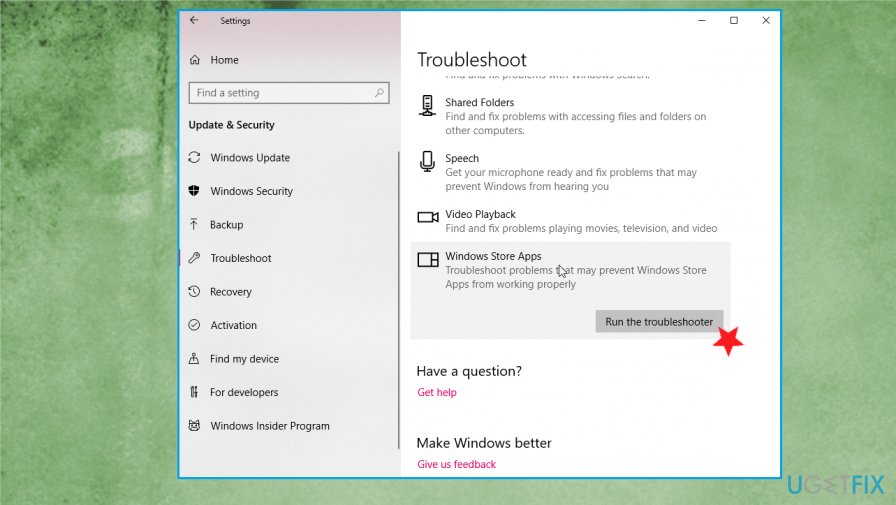
Windows error c1900101 4000d failed update troubleshooter - Follow instructions and Restart the PC.
Disable your antivirus tool to fix error c1900101-4000d when Windows 10 upgrade fails
- Go to Control Panel.
- Select System and Security.
- Click on Windows Solution Center.
- Click Security and locate your anti-virus.
- Right-click on it and it and select Uninstall.
- Restart your PC.
Restore to the previous OS version
- Start the Command Prompt.
- Run as administrator.
- Type command and hit Enter:
rundll32.exe pnpclean.dll.RUNDLL_PnpClean /DRIVERS /MAXCLEAN - Restart the PC.
Perform a clean boot to fix error c1900101-4000d when Windows 10 upgrade fails
- Press Win and R keys to open Run box.
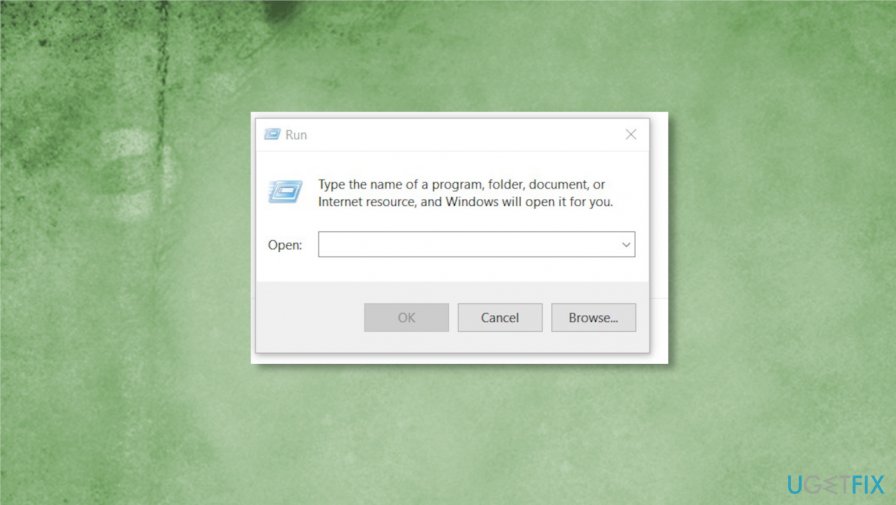
Windows error c1900101 4000d failed update run - Type msconfig and click OK.
- Go to System Configuration. Choose Services tab.
- Check Hide all Microsoft services box.
- Click on Disable all.
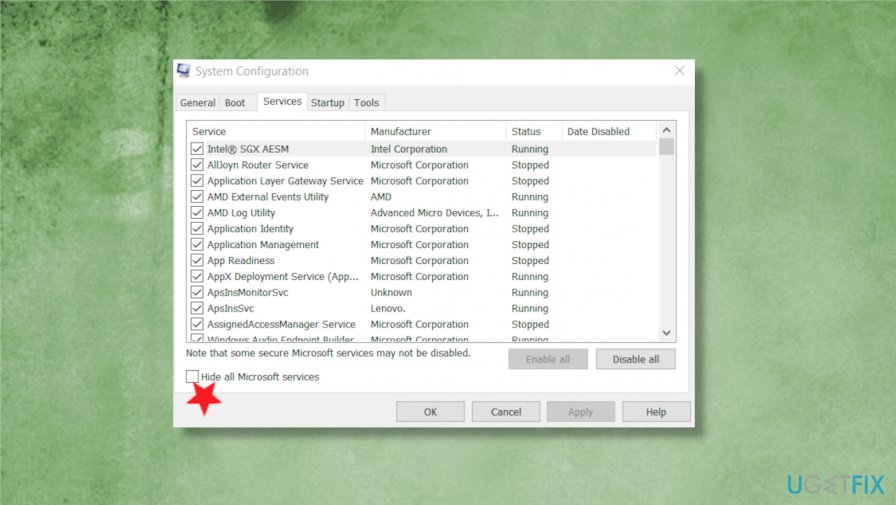
Windows error c1900101 4000d failed update servcies - Choose the Startup tab and click Open Task Manager.
- Select relevant items and click Disable.
- Close Task Manager.
- Restart.
Run System File Checker to fix c1900101-4000d error
- Type cmd in the search box, and press Enter.
- Right-click on the Command Prompt and select Run as Administrator.
- Type sfc /scannow and press Enter.
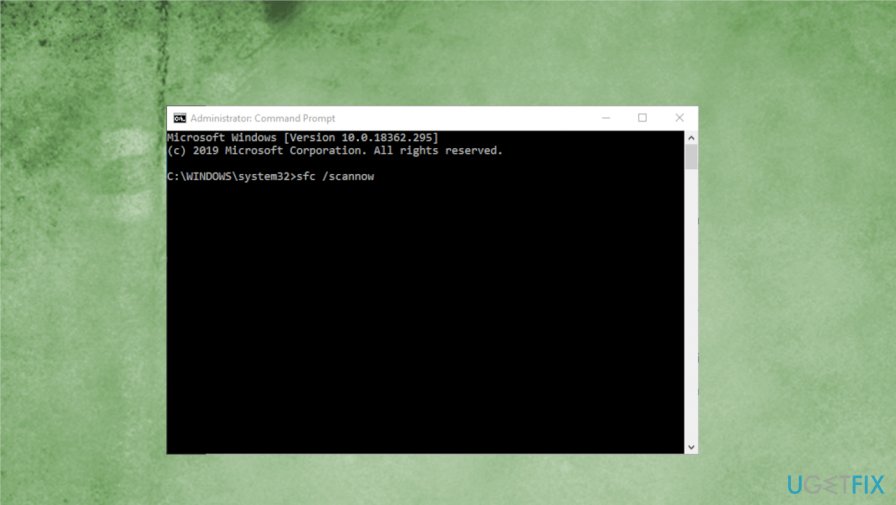
Windows error c1900101 4000d failed update sfc - Let the system perform the repair automatically.
- After that, reboot the system and see if the error persists.
Bottom line
To fix the error c1900101-4000d, consider fixing obsolete system files, corrupted drivers, and reverting recent changes in settings. Additionally, eliminating recently installed third-party applications may help. If none of these solutions work, further troubleshooting may be necessary.
Frequently asked questions
Error c1900101-4000d typically indicates a driver issue that prevents the upgrade from completing successfully. It often arises when incompatible or outdated drivers are present on your system.
To fix the c1900101-4000d error during a Windows 11 upgrade, ensure all your device drivers are updated and remove any unnecessary peripherals before attempting the upgrade again.
Yes, you can use the Windows 10 built-in troubleshooter for Windows Update to identify and fix issues related to the c1900101-4000d error.




Report an issue
What's wrong with this guide? We review every report and update or remove content.
Report received — thank you. We'll review and fix it.
You need a free account to submit a report.
Be the first to comment