
How to fix "Error code 5010F" on Mac?

Prefer to fix it yourself? The manual steps follow.
- 6methods
- 15 to 60 minutes
- Intermediate
Applies to Intel-based Mac computers starting macOS Recovery over the internet; Mac computers with Apple silicon use a different startup
6 methods in this guide
Hello, I think I ruined my MacBook Pro. I wanted to erase the data on my hard drive, and after that I went to reinstall OS X via Internet Recovery. When I rebooted my computer, it would not let me go to the recovery settings, and error code 5010F appeared on the screen. Can I restore my MacBook to its normal working state and fix this issue?
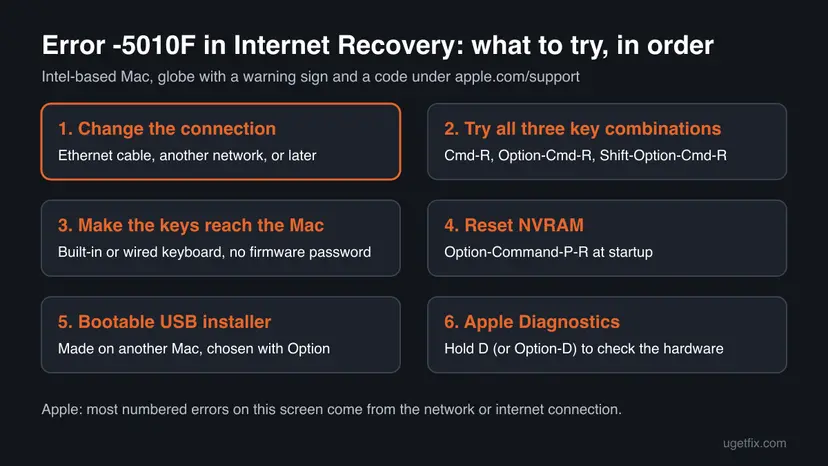
Error -5010F appears on an Intel-based Mac when Internet Recovery cannot load: you see a globe with a warning sign, apple.com/support and the code. Apple says most numbered errors on that screen come from the network or internet connection. Connect with an Ethernet cable or another network first, then try all three Recovery key combinations.
Your Mac is almost certainly not ruined. Error -5010F means Internet Recovery could not start, and Apple ties the numbered errors on that screen to the network. Plug in an Ethernet cable or join a different network, then hold Option-Command-R at startup (Fix 1). If it fails again, try Command-R and Shift-Option-Command-R too (Fix 2). A bootable USB installer made on another Mac is the way around it when the network is the problem (Fix 5).
| Error | A globe with a warning sign (exclamation point), the text apple.com/support and the code -5010F under it. |
|---|---|
| Where it appears | On an Intel-based Mac, right after you hold the Recovery keys at startup, while the Mac tries to load macOS Recovery over the internet. The macOS Utilities window never opens. |
| Main cause | Internet Recovery could not download what it needs. Apple says most numbered errors on this screen are related to the network or internet connection. |
| Fastest fix | Connect another way (Ethernet instead of Wi-Fi, or a different network) and start Internet Recovery again (Fix 1). |
| Also written as | 5010F, -5010F, 5010F (3), error code 5010F, apple.com/support -5010F. |
| Affects | Intel-based Mac computers. Users report it most often after the internal disk was erased, because the built-in Recovery is then gone and the Mac must use the internet version. |
| Apple's status | Apple does not list -5010F by name. Its macOS Recovery article names -2001F, -2002F and -2003F as network errors and gives the same fixes for the other numbered errors. |
| Data on the Mac | The error itself erases nothing. If you erased the disk before it appeared, the data was lost at that step, not because of the error. |
| Time to fix | About 15 minutes when the network was the cause. Making a bootable installer on another Mac takes longer, mostly for the download. |
Facts checked on 15 October 2026. Steps written for Intel-based Mac, read against Apple's macOS Recovery steps of June 2026.
What error -5010F on a Mac means
When you hold Option-Command-R or Shift-Option-Command-R at startup, an Intel-based Mac skips its built-in Recovery and loads macOS Recovery from Apple's servers. A spinning globe shows that download. If the globe gets a warning symbol (an exclamation point), Apple says startup from Internet Recovery was unsuccessful. The code under apple.com/support says where it stopped, and -5010F is one of those codes.
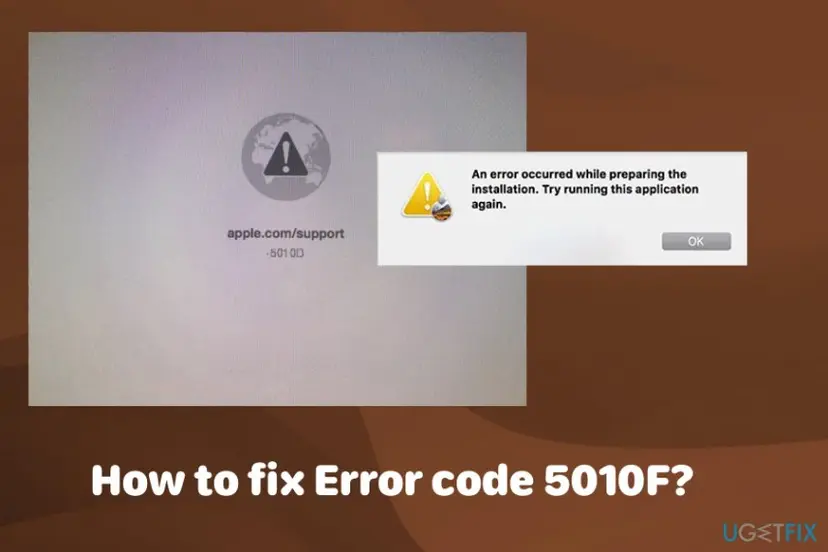
Apple has not published a separate meaning for -5010F. Its article on macOS Recovery says that the warning screen and most numbered errors you might see there, such as -2001F, -2002F and -2003F, are related to issues with your network or internet connection. The fixes Apple gives for them are the ones that work for -5010F too.
People search for 5010F, -5010F, 5010F (3) and error code -2003F. They are all the same globe with a warning symbol. Start with Fix 1 for any of them. Error -1008F is different: Apple has a separate article for it, linked from its Recovery page.
Why Internet Recovery stops with error 5010F
Most often the connection is the problem: a slow or unstable Wi-Fi, a network that needs a login page, or a short outage on Apple's side. Less often the Mac does not receive the key combination you meant, or the version of macOS that combination asks for cannot be loaded. Rarely the Mac itself has a fault.
| Cause | How often | How to tell | Fix |
|---|---|---|---|
| The Wi-Fi network is slow, unstable or needs a login page in a browser. | Most often | You chose a Wi-Fi network in Recovery, or the globe ran for a long time first. | Fix 1 |
| The key combination you used could not load its version of macOS. | Often | You only tried one of the three combinations. | Fix 2 |
| The Mac did not register the keys (wireless or PC keyboard, firmware password, Boot Camp set as startup disk). | Sometimes | The Mac started differently from what you expected. | Fix 3 |
| Startup settings stored in NVRAM point to a disk that was erased. | Rarely, not confirmed by Apple | The disk was erased just before the error. | Fix 4 |
| The network keeps failing for reasons you cannot change. | Sometimes | Fixes 1 to 3 fail on every network you can reach. | Fix 5 |
| A hardware fault (Wi-Fi card, memory, storage). | Rarely | Other startup problems, or the error on every network and every method. | Fix 6 |
The old version of this guide said the main cause was NVRAM and suggested a malware scan. We found no Apple source for either. A malware scan cannot run on a Mac that has no working system, so it is left out. NVRAM reset stays as a cheap test in Fix 4.
If you erased the disk before the error appeared
This is the situation in the reader's question above, and users report it more than any other. On an Intel-based Mac the built-in Recovery normally sits on the internal disk. If the whole disk was erased, Command-R has nothing to start, and the Mac falls back to the internet. Apple says such a Mac should automatically show a spinning globe as it tries Recovery over the internet.
- Your files are gone because of the erase step, not because of -5010F. If you have a Time Machine backup, Recovery can restore it once it starts.
- The Mac is not broken. It only needs one successful download of Recovery, or a USB installer, to reinstall macOS.
- Do not keep erasing the disk in different formats while you wait. Nothing about the disk format causes this error.
How to fix error -5010F on Mac
Fixes 1 and 2 follow Apple's own advice for numbered Recovery errors and solve most cases. Fixes 3 and 4 make sure the Mac starts the way you meant. Fix 5 avoids Internet Recovery altogether, and Fix 6 checks the hardware.
| What you see or have | Start with |
|---|---|
| You joined a Wi-Fi network in Recovery, or you are on a hotel, school or office network. | Fix 1 |
| You are already on a wired or a good home connection and used one key combination only. | Fix 2 |
| Wireless keyboard, a keyboard made for PC, or a Mac that used to start Windows with Boot Camp. | Fix 3 |
| The disk was erased just before, and Fixes 1 and 2 did not help. | Fix 4, then Fix 5 |
| You have access to another Mac and a USB flash drive. | Fix 5 |
| The Mac also had other problems before, or nothing above works. | Fix 6 |
| Your Mac has an Apple chip (M1 or later). | The FAQ: the steps are different |
Fix 1. Connect the Mac another way and start Internet Recovery again
10 to 30 minutesNo riskEveryone with -5010F, and first of all readers who joined a Wi-Fi network in Recovery.
Internet Recovery downloads a recovery system from Apple before anything else happens. Apple names the network as the cause of most numbered errors on this screen and lists another connection type, another network and a later try as the fixes.
- Press and hold the power button for up to 10 seconds, until the Mac turns off.
- Plug an Ethernet cable from your router into the Mac, with an adapter if the Mac has no Ethernet port. If you cannot, plan to use a different Wi-Fi network, such as a phone hotspot.
- Press and release the power button, then immediately press and hold Option-Command-R.
- Keep holding the keys until you see the spinning globe.
- If you are asked to select a network, choose it from the Wi-Fi menu and type its password, or skip this when the cable is connected.
- Wait for the progress bar. A slow connection can take a long time, so do not switch the Mac off while the globe spins without a warning sign.
- If the error comes back, wait an hour and try once more. Apple lists trying again later, in case the issue is temporary.
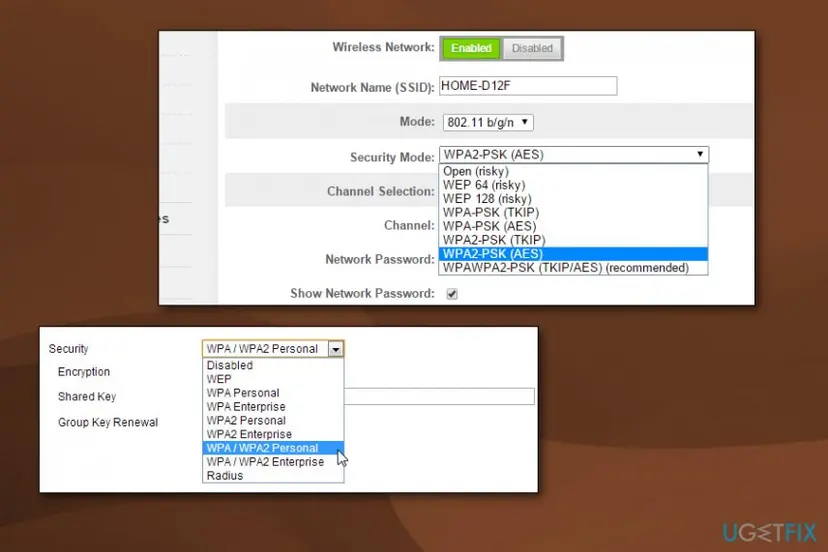
Recovery has no web browser to accept the terms of a hotel, café or school network. A network that shows a login page before it lets you online will not work here. A phone hotspot or your home router usually will.
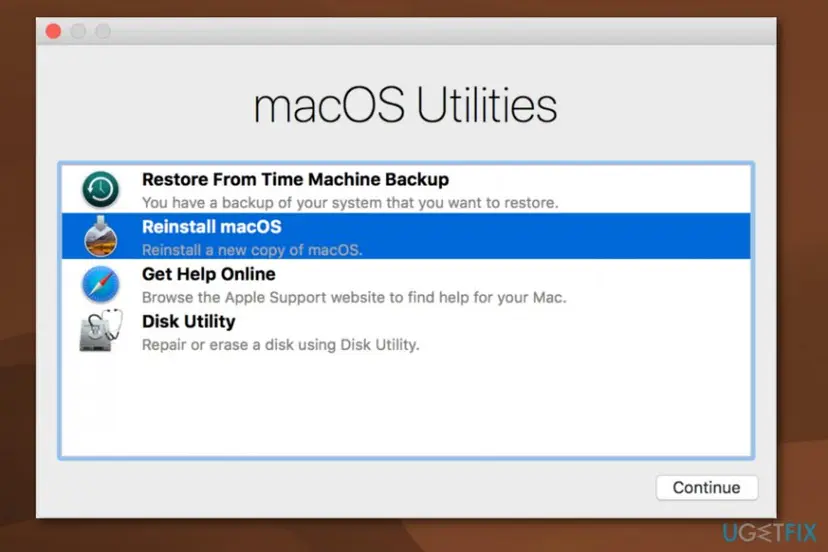
It worked if: The globe spins without a warning sign, then the macOS Utilities window (called Recovery on newer systems) opens.
If not: Try the other two key combinations on the same working connection in Fix 2.
Fix 2. Try each of the three macOS Recovery key combinations
15 minutesNo riskYour connection is good, but you have tried only one key combination so far.
Apple lists trying each combination as a fix for these errors. Each combination asks for a different version of macOS, so one can load when another fails.
- Turn the Mac off completely.
- Press the power button and immediately hold Command-R. On an erased disk the Mac should move on to the internet version by itself.
- If the error appears, turn the Mac off, then start it while holding Option-Command-R.
- If the error appears again, turn the Mac off, then start it while holding Shift-Option-Command-R.
- Each time, hold the keys until you see an Apple logo or the spinning globe, then let go.
| Keys at startup | What the Mac does |
|---|---|
| Command-R | Starts the built-in Recovery on the disk. If it cannot, it should show the globe and try over the internet. |
| Option-Command-R | Starts macOS Recovery over the internet. |
| Shift-Option-Command-R | Starts macOS Recovery over the internet too, and offers a different macOS version. |
It worked if: One of the three combinations loads Recovery and shows the utilities window with Reinstall macOS.
If not: If none of them gets past the globe, check that the Mac really receives the keys with Fix 3.
Fix 3. Make sure the Mac receives the startup keys
10 minutesNo riskYou use a wireless or PC keyboard, set a firmware password, or used Boot Camp for Windows.
A key combination that the Mac does not register can start the wrong mode or fail at once. Apple gives these checks for both Recovery and the other startup key combinations.
- On a MacBook, use its built-in keyboard instead of an external one.
- With an external keyboard, plug it in with a cable if possible, or use a wired keyboard made for Mac instead of one with a Windows logo.
- Press and hold all keys of the combination together, not one at a time.
- If the Mac does not react, wait a few seconds after pressing the power button before you press the keys. Some keyboards flash a light when they are ready.
- If you set a firmware password, turn it off first. Apple says some key combinations do not work while it is on.
- If the Mac was set to start from Windows with Boot Camp, set the startup disk back to macOS, shut down and try Fix 2 again.
It worked if: The Mac reacts to the keys: it shows an Apple logo or a spinning globe instead of the screen it showed before.
If not: If the keys work but the globe still ends with -5010F, reset NVRAM in Fix 4.
Fix 4. Reset NVRAM and start Internet Recovery again
5 minutesLow riskThe disk was erased just before the error, and Fixes 1 to 3 did not help.
NVRAM holds settings such as the chosen startup disk. After an erase it can still point to a disk that no longer has a system on it. Apple does not name NVRAM as a cause of -5010F, so this is a cheap test, not a sure fix.
- Shut down the Mac.
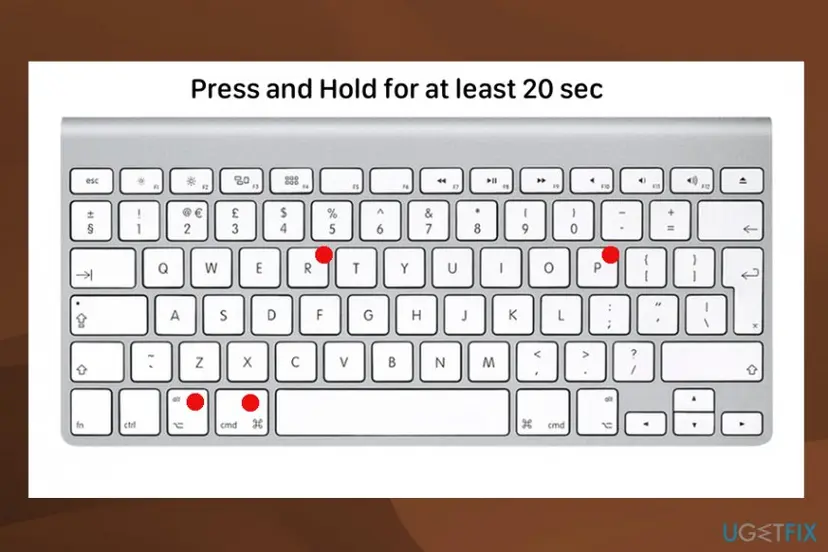
- Press the power button, then immediately press and hold Option-Command-P-R together.
- Keep holding the keys for about 20 seconds, then release them. The Mac restarts by itself.
- Shut the Mac down again.
- Start it with Option-Command-R on a wired or other working connection, as in Fix 1.
After an NVRAM reset you may need to set the sound volume, screen resolution, time zone and startup disk again once macOS is back. No files are touched.
It worked if: The Mac restarts after the reset, and the next Internet Recovery start gets past the globe.
If not: If the globe still fails, skip Internet Recovery and use a USB installer in Fix 5.
Fix 5. Install macOS from a bootable USB installer made on another Mac
45 to 90 minutesRead the warningYou can borrow another working Mac and a USB flash drive, and Internet Recovery keeps failing.
A bootable installer carries the whole macOS installer on the drive, so your Mac does not need Internet Recovery at all. That goes around the network step where -5010F appears.
Making the installer erases the USB flash drive you use. Copy anything you need from it first. Installing macOS on your Mac does not bring back files that were erased before the error.
- On the other Mac, download a macOS version that your Mac supports, as Apple's article Create a bootable installer for macOS describes.
- Connect the USB flash drive and run the
createinstallmediacommand exactly as that article gives it for your macOS version. - When Terminal says the install media is ready, eject the drive and plug it into your Mac.
- Turn on your Mac and immediately press and hold Option to open Startup Manager.
- Select the USB installer, then select Reinstall macOS (or Install macOS) and follow the steps.
- If the disk shows as missing in the installer, open Disk Utility in the same window and erase it first, then return and install.
It worked if: Startup Manager lists the USB drive, the installer opens and macOS installs to the Mac's disk.
If not: If the USB drive is not listed, turn off the firmware password (Fix 3). If the installer fails too, check the hardware in Fix 6.
Fix 6. Check the hardware with Apple Diagnostics
5 to 10 minutesNo riskEvery fix above failed, or the Mac had other faults before the error appeared.
If the Wi-Fi card, memory or storage is failing, Recovery can break on every network and every method. Apple Diagnostics is built into the Mac and also starts over the internet, so it runs even on an empty disk.
- Disconnect everything except the keyboard, mouse, display, power and Ethernet cable.
- Turn on the Mac and immediately press and hold D.
- If nothing happens, restart and hold Option-D to load Apple Diagnostics over the internet.
- Wait for the test to finish and write down any reference code it shows.
- Take the code to Apple Support or an Apple Authorized Service Provider.
It worked if: Apple Diagnostics reports no issues found, or gives a reference code that names the faulty part.
If not: With no fault found and every method failing, contact Apple Support with the steps you tried, as described below.
If error -5010F is still there: what to try and what to send to Apple
There is no log you can open on this screen, because macOS has not loaded yet. What helps Apple Support is a clear record of what you tried. Before you contact them, write down these details.
- The Mac model and year, from the label under the Mac or the box, and that it is an Intel-based Mac.
- The exact code under apple.com/support on each attempt, and which key combination showed it.
- Every network you tried: Ethernet, home Wi-Fi, phone hotspot.
- Whether the disk was erased before, whether NVRAM was reset, and whether a USB installer was tried.
- The Apple Diagnostics reference code from Fix 6, if it gave one.
When the error appears on every network, with a USB installer too, and Apple Diagnostics finds a fault, it is a hardware problem and no software step will clear it.
How to avoid error 5010F next time you reinstall macOS
- Keep a Time Machine backup before you erase the disk, so a failed reinstall never costs data.
- Use Erase All Content and Settings in macOS when your Mac offers it, instead of erasing the whole disk from Recovery.
- Connect with an Ethernet cable or a trusted home network before you start Internet Recovery.
- Keep a bootable USB installer if you reinstall Macs often.
- Start Internet Recovery on a hotel, school or office network with a login page.
- Erase every volume on the disk unless you have a way to reinstall ready.
- Turn the Mac off while the globe spins without a warning sign.
We could not confirm which Mac models offer Erase All Content and Settings. If it is not in System Settings > General > Transfer or Reset on your Mac, follow Apple's erase steps from Recovery and have the USB installer ready first.
Frequently asked questions
What does 5010F mean on a Mac?
It means the Mac tried to start macOS Recovery over the internet and could not. You see a globe with a warning symbol, the text apple.com/support and the code -5010F. Apple does not explain this one number on its own, but it says most numbered errors on that screen come from the network or internet connection. So treat it as a failed download: connect another way, try each key combination and try again later. The error does not erase anything on the Mac.
Is 5010F an Apple error or a sign of a virus?
It is Apple's own startup screen, shown by the Mac's firmware before any operating system loads. Malware cannot show it, and a malware scan cannot run at this stage because there is no working macOS yet. The code apple.com/support -5010F points to Apple's support site in general, not to a page about this number. The old advice to scan for malware first does not apply to this screen.
Is error -5010F the same as error -2003F?
They appear on the same screen, the globe with a warning symbol, and they have the same fixes. Apple names -2001F, -2002F and -2003F as examples of numbered errors related to the network or internet connection, and lists Ethernet, another network, each key combination and a later attempt as the solutions. If you saw -2003F, follow Fix 1 and Fix 2 of this guide. Error -1008F is different, and Apple has a separate article for it.
Did I ruin my MacBook by erasing the disk?
No. Erasing the internal disk removes your files and the built-in Recovery, but the Mac can still start Recovery from the internet or from a USB installer. The -5010F error only means that one internet attempt failed. Once Recovery loads, Reinstall macOS puts the system back. Your files come back only from a backup such as Time Machine, because the erase step removed them before the error appeared.
How long should Internet Recovery take before I give up?
There is no fixed time, because it depends on your connection and on Apple's servers. A spinning globe with a progress bar means it is still working, so leave it. Only a globe with a warning symbol and a code means it failed. If the progress bar stops moving for a very long time, turn the Mac off, connect with an Ethernet cable or another network and start again with Option-Command-R.
Which key combination should I use for Internet Recovery?
Use Option-Command-R first, then Shift-Option-Command-R, then Command-R. Apple says each combination affects the version of macOS offered when you reinstall from Recovery, and it lists trying each one as a fix for numbered errors. Hold the keys together right after you press the power button and keep holding until you see an Apple logo or a spinning globe. On a Mac with an Apple chip none of these combinations is used.
Does error 5010F appear on a Mac with Apple silicon?
The steps in this guide are for Intel-based Mac computers. On a Mac with an Apple chip you start Recovery by holding the power button until Loading startup options appears, then you click Options and Continue. If that Mac starts to a blank screen, an exclamation point in a circle or another screen instead, Apple has a separate article for a Mac that does not start up all the way.
Is error code -50 on a Mac the same problem?
No. Error code -50 is a different message that appears in Finder, usually while you copy or move files, often to an external drive. It has nothing to do with Internet Recovery and the globe screen. This page covers only the startup error -5010F and its sister codes such as -2003F. If you see -50 while copying, the fix starts with the drive and its format, not with your network.
I see the same screen and my language is not English. Does this guide apply?
Yes. The globe with a warning symbol, the text apple.com/support and the code look the same in every language, because this screen shows no words. If your screen shows a code such as -5010F or -2003F under apple.com/support, the six fixes on this page apply to you. Apple's support pages linked in the sources are also available in other languages from the region link at the bottom of each page.
Sources
- Apple Support: How to start up from macOS Recovery (published June 5, 2026) (support.apple.com)
- Apple Support: Mac startup key combinations (support.apple.com)
Did this fix work?
One click, no account. It tells the next reader which guides are worth their time.
Questions and experiences: fix "Error code 5010F" on Mac
Still broken, or found a fix we did not cover? Ask here: members and our editors answer. Reading is open; writing needs a free account.
…