How to fix
Exit Code 0 in Minecraft
on Windows
Resolve the Exit Code 0 error in Minecraft on Windows 10 or 11 effortlessly. Quick fixes and tips ensure seamless gaming experience. Expert-tested solut…

What causes How to fix Exit Code 0 in Minecraft?
- Incompatible program in your system
- Outdated Java version
- Display driver issues
- Conflicts with third-party antivirus software
Repairs Windows system files, removes malware, and restores a clean OS state — without reinstalling.
Hello. I was playing Minecraft when it suddenly crashed and I received an "Exit Code 0" error. Now it happens constantly. How do I fix this?
Minecraft is a sandbox video game developed by Mojang Studios.[ref en-1] Since its release in 2011, it has become the best-selling video game of all time, with over 238 million copies sold and nearly 140 million monthly active users as of 2021. In Minecraft, players can explore a blocky, 3D world, discover and extract raw materials, craft tools, and build structures.
However, as with many other games, often users run into issues when trying to play them. We previously wrote about various Minecraft errors, like “Oh no! Something went wrong”, "Minecraft Launcher is currently not available error (0x803F8001)" and “Failed to download file, the file contents differ from what was expected”. However, this time, gamers encountered this message:
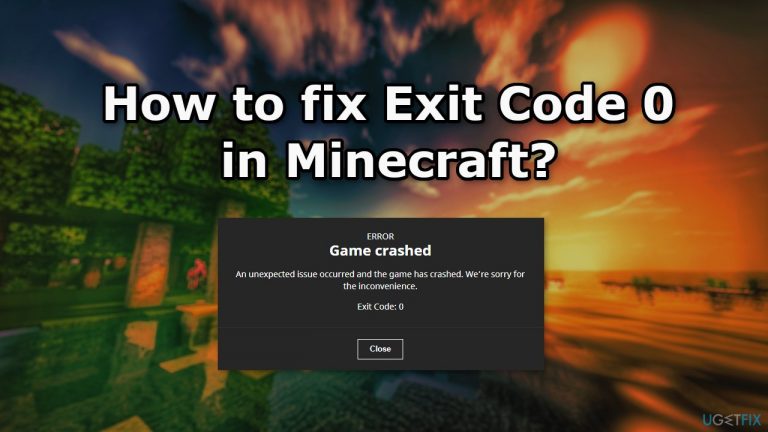
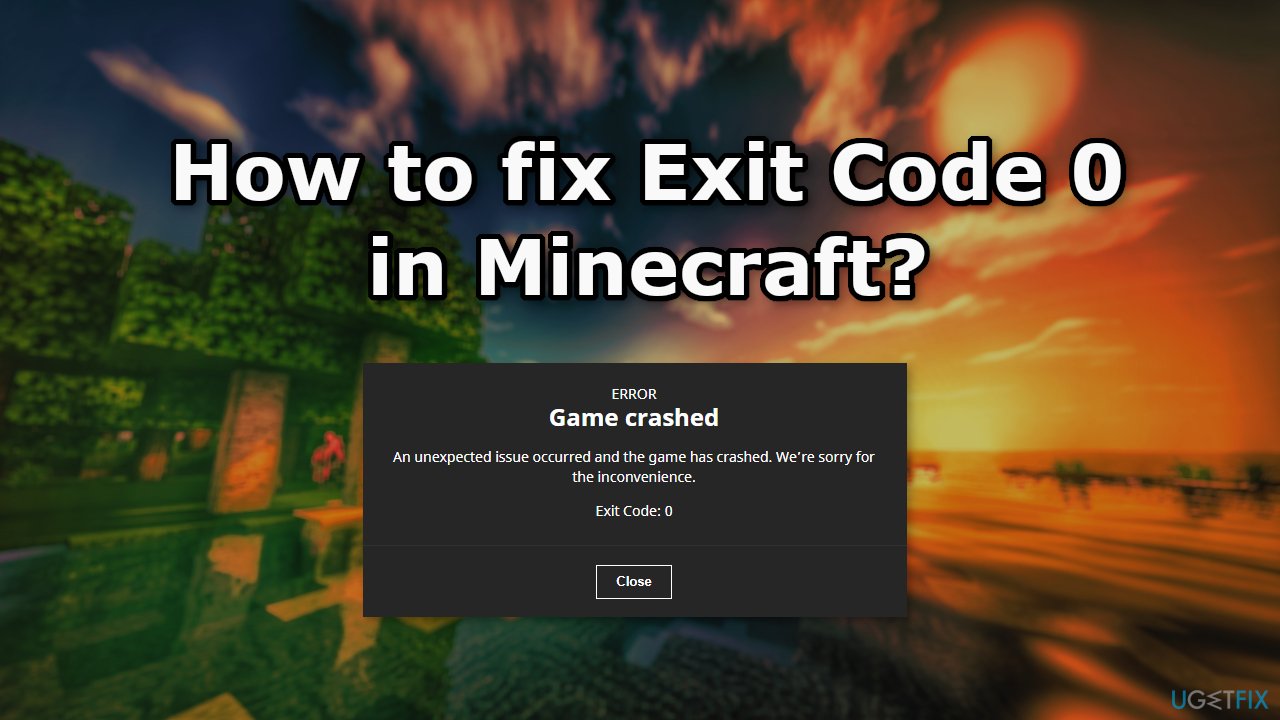
ERROR
Game crashed
An unexpected issue occurred and the game has crashed. We're sorry for the inconvenience.
Exit code: 0
It is unknown why exactly the Exit Code 0 error message appears but it could be caused by an incompatible program in your system that conflicts with Minecraft, an outdated Java version, and the display driver. In this guide, you will find 5 steps that could help you fix Exit Code 0 in Minecraft.
You can also try running a maintenance tool like [d1] as manual troubleshooting can be a lengthy process. It can fix most system errors, BSODs,[ref en-2] corrupted files, and registry[ref en-3] issues. This powerful software can also clear your machine from cookies and cache which are often the culprits behind many malfunctions. Otherwise, follow the step-by-step instructions below.
Solution 1. Uninstall Third-Party Security Software
Third-Party antivirus often conflicts with Minecraft so try removing it to see if it resolves the issue.
- Go to your Apps & Features
- Find your antivirus program in the list
- Click on it and press Uninstall
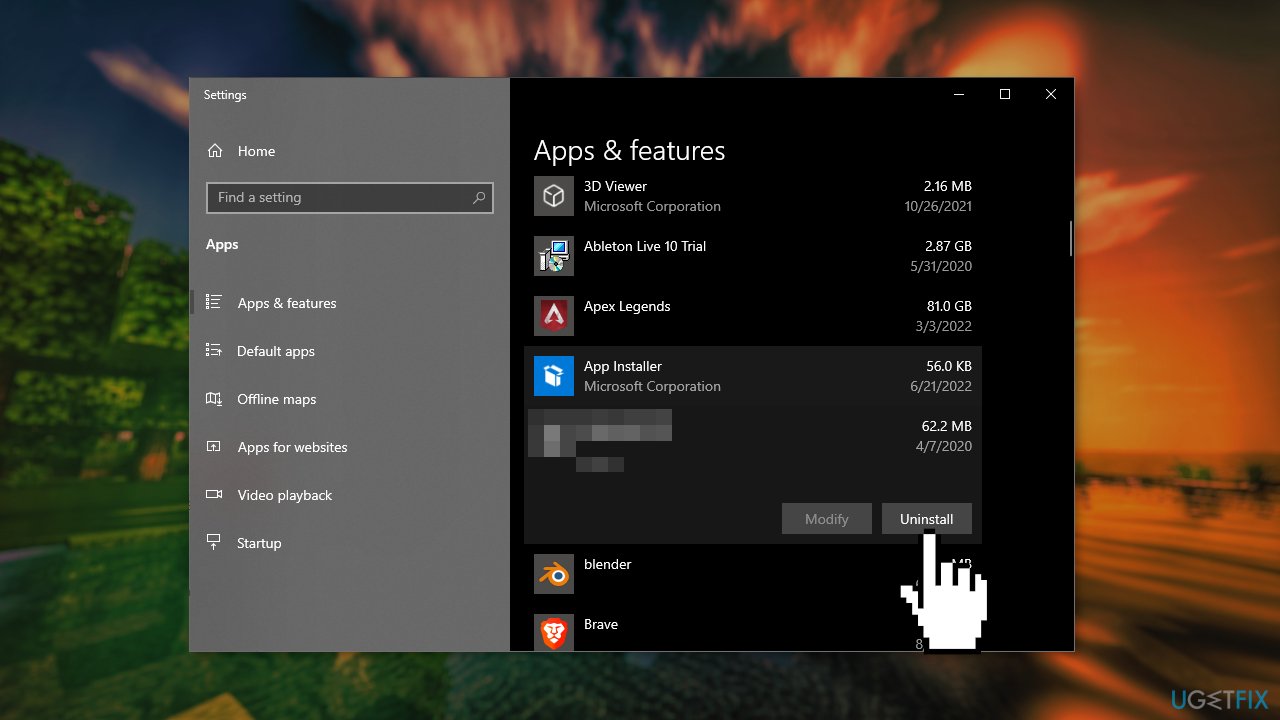
- Wait for the process to finish and try to launch Minecraft again
Solution 2. Update Java
- Right-click on This PC icon and select Properties
- Look up your System type
- Navigate to the official Java site and download a compatible update
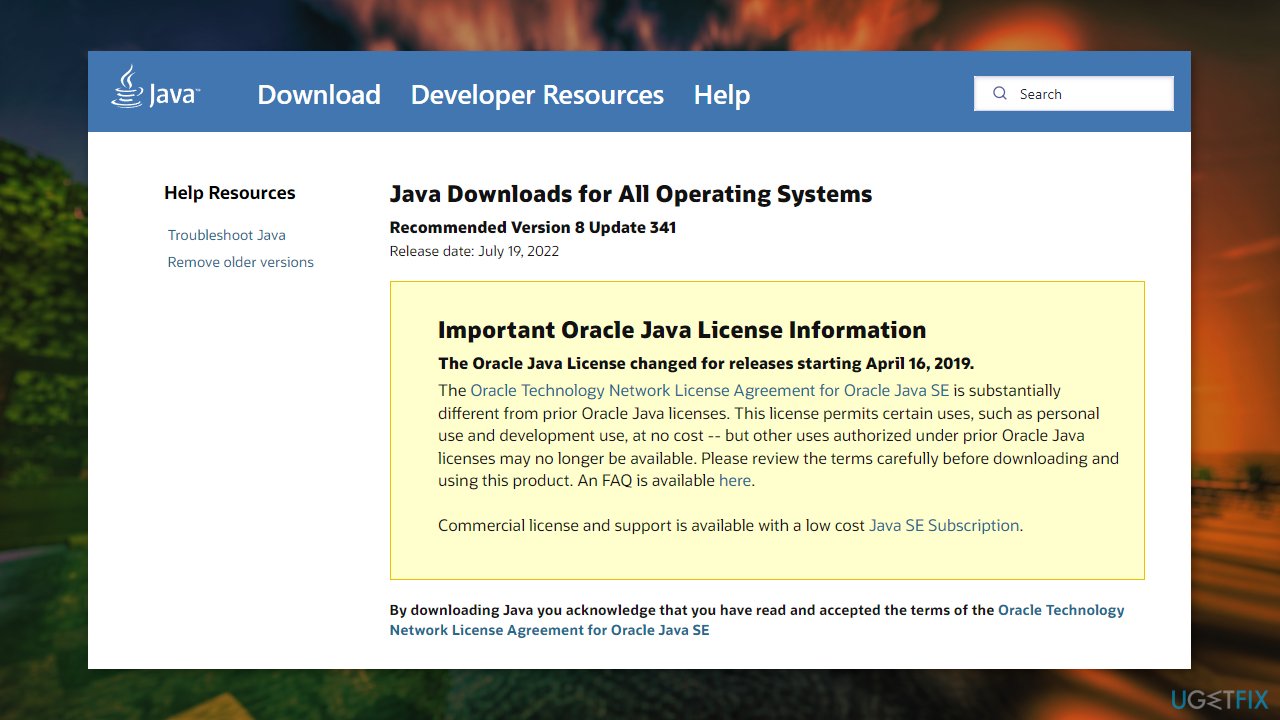
- Run the installer and finish the installation process
- Open the folder and copy the file version folder that you see
- Press Windows key + E to open Windows Explorer and then navigate to the following path (depending on the type of the system):
C:\Program Files\Java (for 32 bit)
C:\Program Files (x86)\Java (for 64 bit)
- Paste the Java file version folder that you've copied before
- After that, launch the Minecraft mod manager and click Edit profile at the bottom of the screen
- Extract the file that you have just downloaded. Open the folder and copy the file version folder type
Solution 3. Update Graphics Driver
- Right-click on Start and pick Device Manager
- Expand the Display adapters section
- Right-click on your graphics card and select Update driver

- Next, select Search automatically for drivers
- Wait till the driver is installed and restart your PC
- If you want the quickest and most efficient solution, we recommend using [rev id="DriverFix"] instead - it can install the latest drivers for all your hardware devices automatically
Solution 4. Remove Mods
There is a possibility that mods are causing Exit Error 0. So try disabling or removing any mods you are using, to see whether it resolves the issue.
- Start Minecraft Launcher
- Click on the Options button and select Username
- Click on the Force Update button (this will automatically remove all mods)
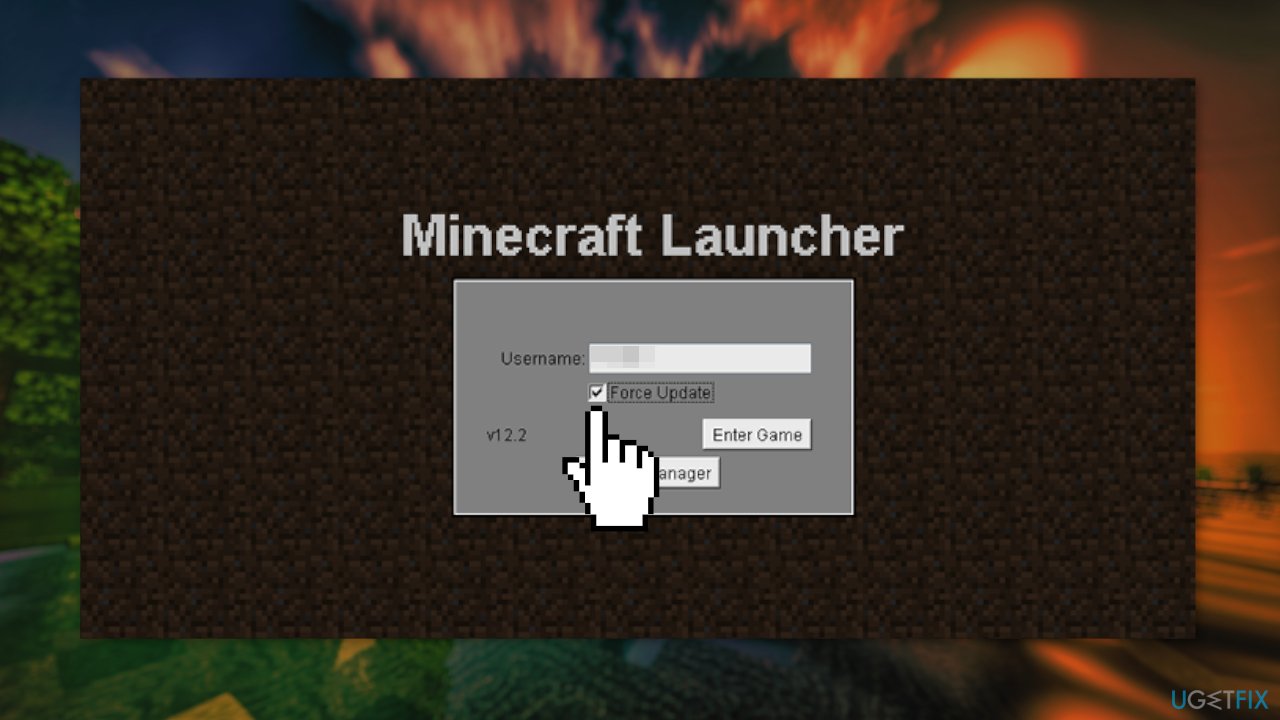
- After the update, restart your computer and try launching the game
Solution 5. Reinstall Minecraft
- Press the Windows key + R to open the Run box
- Type appwiz.cpl in the dialogue box, and press Enter
- Find Minecraft, right-click on it, and select Uninstall
- After removal, restart your machine
- Navigate to the official Minecraft site and download the official installer
- Before launching the installer, press the Windows key + R, type %appdata% and press Enter
- In the opened directory, you should find three folder names:
Local
LocalLow
Roaming
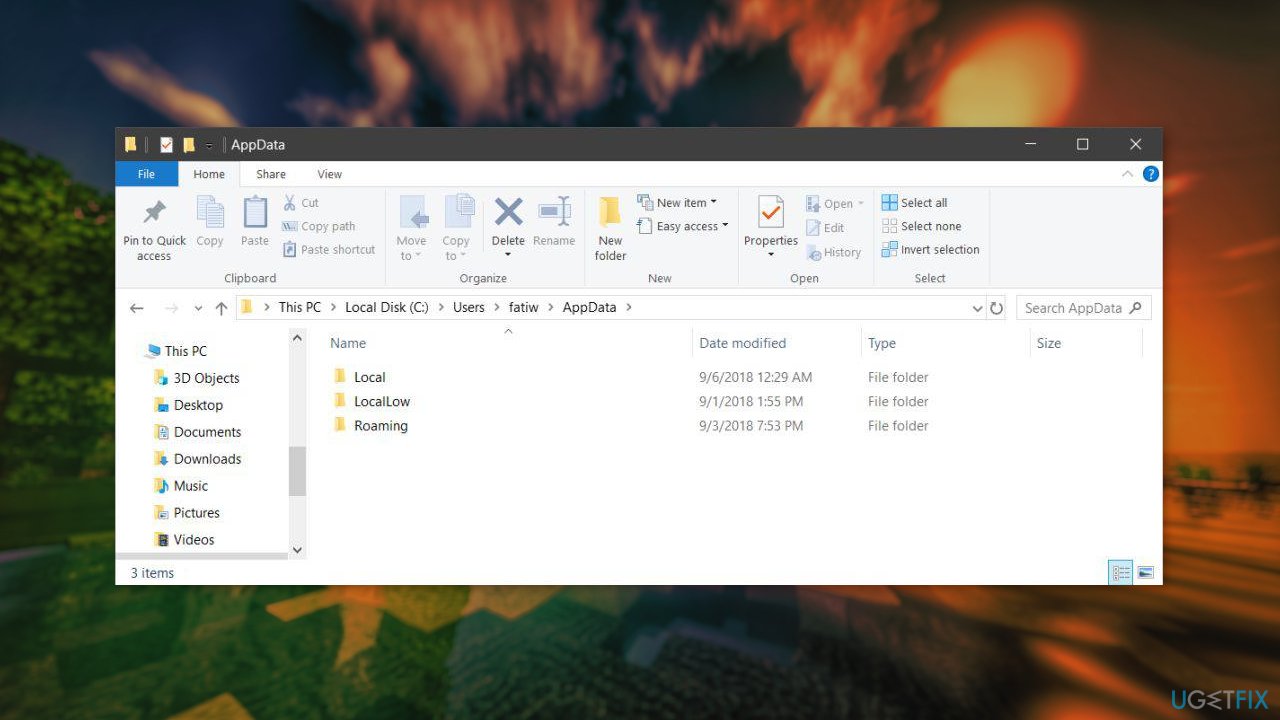
- Open each directory and remove the Minecraft folder from them
- Restart the computer and then launch the installer
Bottom line
To fix Exit Code 0 in Minecraft, you can uninstall third-party security software, update Java, and consider running a maintenance tool. If these steps do not resolve the issue, further troubleshooting may be necessary.
Frequently asked questions
Exit Code 0 indicates that Minecraft has exited without any errors, but it may also suggest that the game closed unexpectedly due to other issues.
To troubleshoot Exit Code 0, ensure your graphics drivers are updated, allocate more RAM to Minecraft, and verify the integrity of the game files through the launcher.
Yes, adjusting your Windows firewall settings to allow Minecraft and ensuring that your Windows is fully updated can help resolve issues related to Exit Code 0.




Report an issue
What's wrong with this guide? We review every report and update or remove content.
Report received — thank you. We'll review and fix it.
You need a free account to submit a report.
Be the first to comment