How to fix
File System Error (-789839862)
on Windows
Resolve the File System Error (-789839862) on Windows 10 and 11 quickly and effectively. Expert-tested solutions with screenshots for fast fixes.

What causes How to fix File System Error (-789839862) in Windows?
- Corrupted system files
- Faulty applications
- Outdated system
- Issues with Windows Update
Repairs Windows system files, removes malware, and restores a clean OS state — without reinstalling.
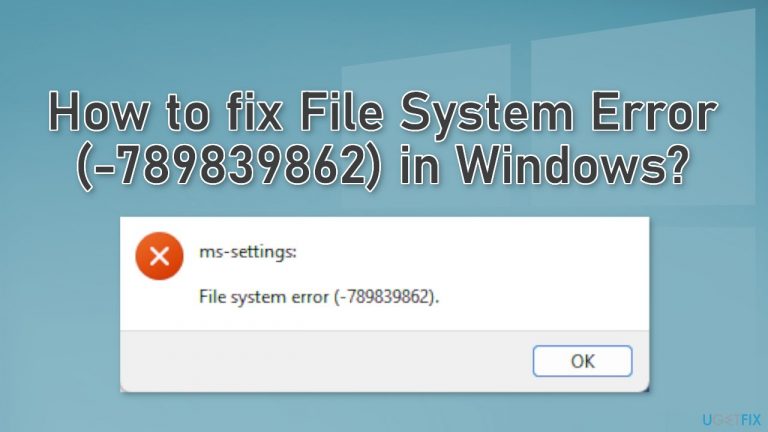
Hello. Whenever I try to open Settings on my Windows 11 computer, I receive a File System Error (-789839862). How do I fix this?
Windows 11 was released by Microsoft at the end of 2021. Many users were excited to try out the newest operating system. However, quite a lot of issues were uncovered as people started testing it. We previously wrote about many Windows 11 errors, such as long audio delay before starting, WiFi icon missing, and weather widget not updating or not working.
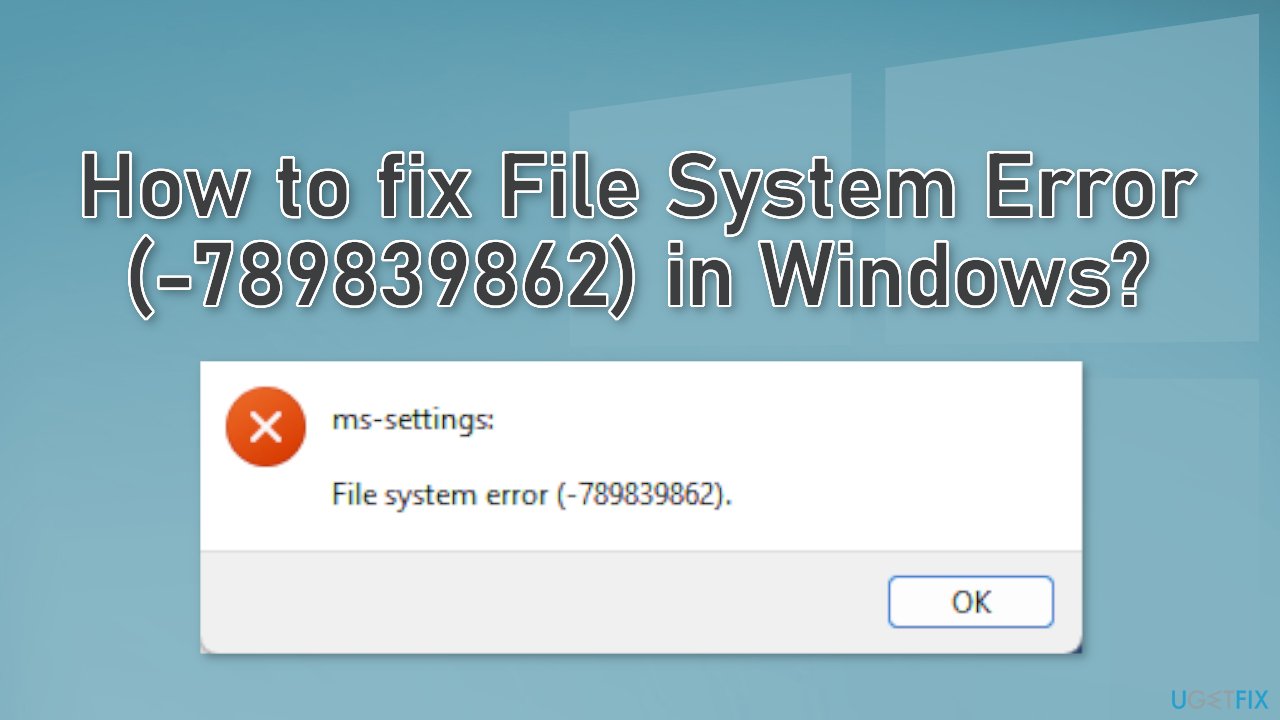
Recently, some users encountered another problem. People report that they have received a File System Error (-789839862) in Windows 11 when trying to launch the Settings app. Some suggest that the error could appear because of corrupted system files. This can cause a lot of inconveniences since the Settings app is the main place to configure your system.
In this guide, you will find 4 methods that could help you fix the issue. You can also use a maintenance tool like [d1] if you want to avoid a lengthy troubleshooting process. This powerful software can fix various system errors, BSODs,[ref en-1] corrupted files, and registry[ref en-2] issues. Otherwise, you can follow the step-by-step instructions below.
Method 1. Run the System File Checker
- In the search box on the taskbar, type Command Prompt
- Select Run as administrator, and then select Yes
- Type DISM.exe /Online /Cleanup-image /Restorehealth and then press Enter
- After you see a message The operation completed successfully, type sfc /scannow and press Enter
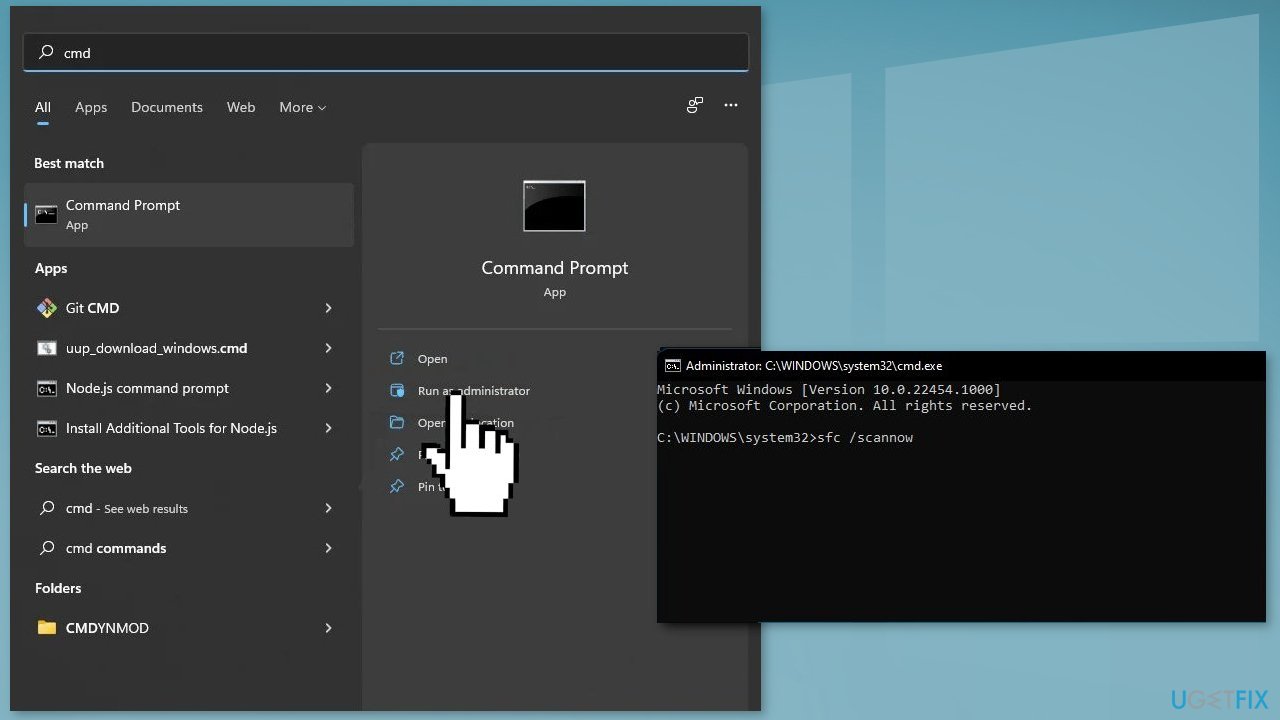
- After you see a message that says, Verification 100% complete, type exit
- Close the window and see if the issue is fixed
Method 2. Install Available Updates
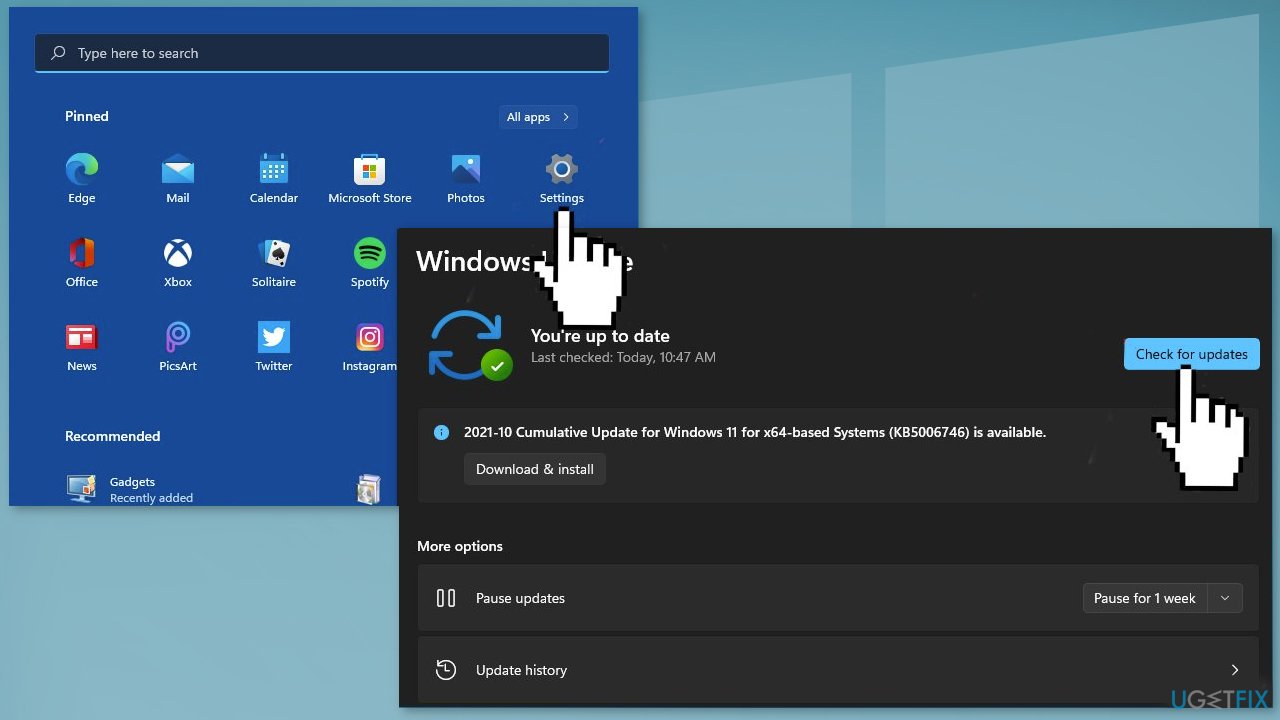
- Click Start on the taskbar
- Select the Setting app pinned to the Start menu
- Click Windows Update on the left side of Settings
- Press the Check for updates button to download and install new patch updates
Method 3. Uninstall Recently Installed Applications
- Type Control Panel in the search area of the taskbar and click Open
- Click on Uninstall a program
- Locate the faulty application and right-click on it
- Select Uninstall from the context menu and follow the on-screen instructions
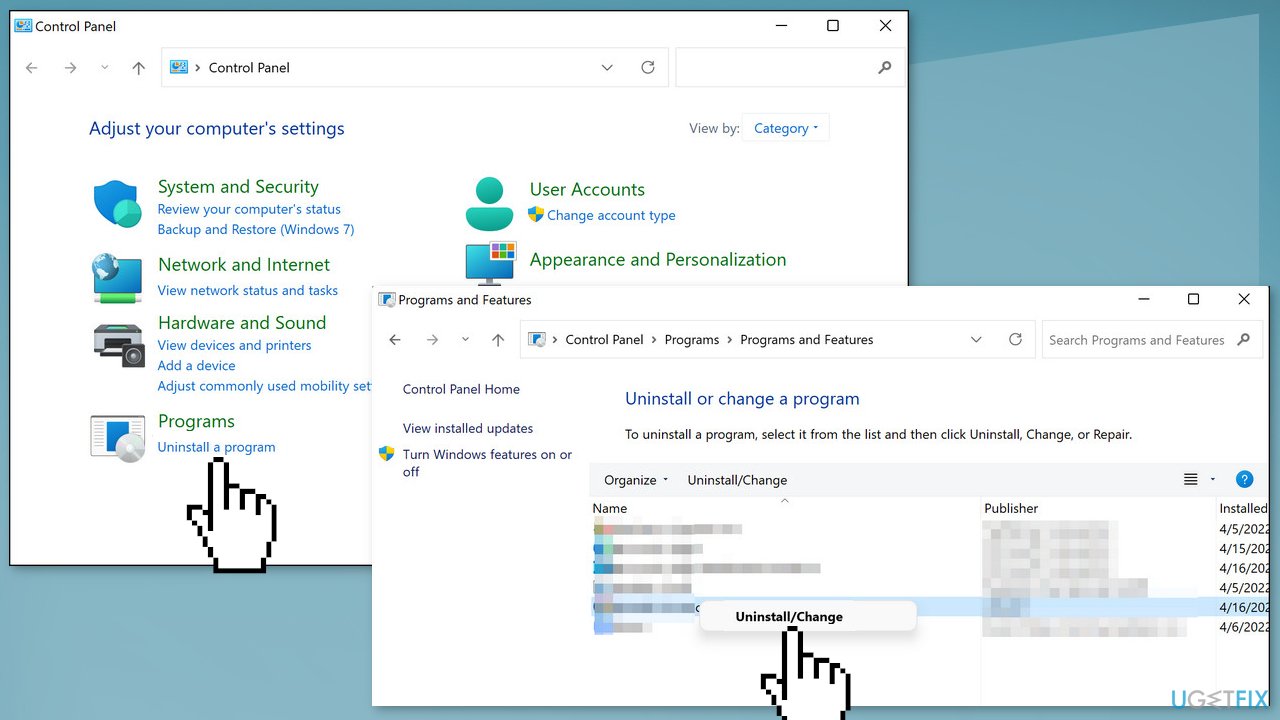
- Once you uninstall the program successfully, check if the File System error is gone
Method 4. Reset Windows
- Choose the Start button located on the Taskbar and click on Settings
- Select System and click on Recovery
- Hit the Reset PC button
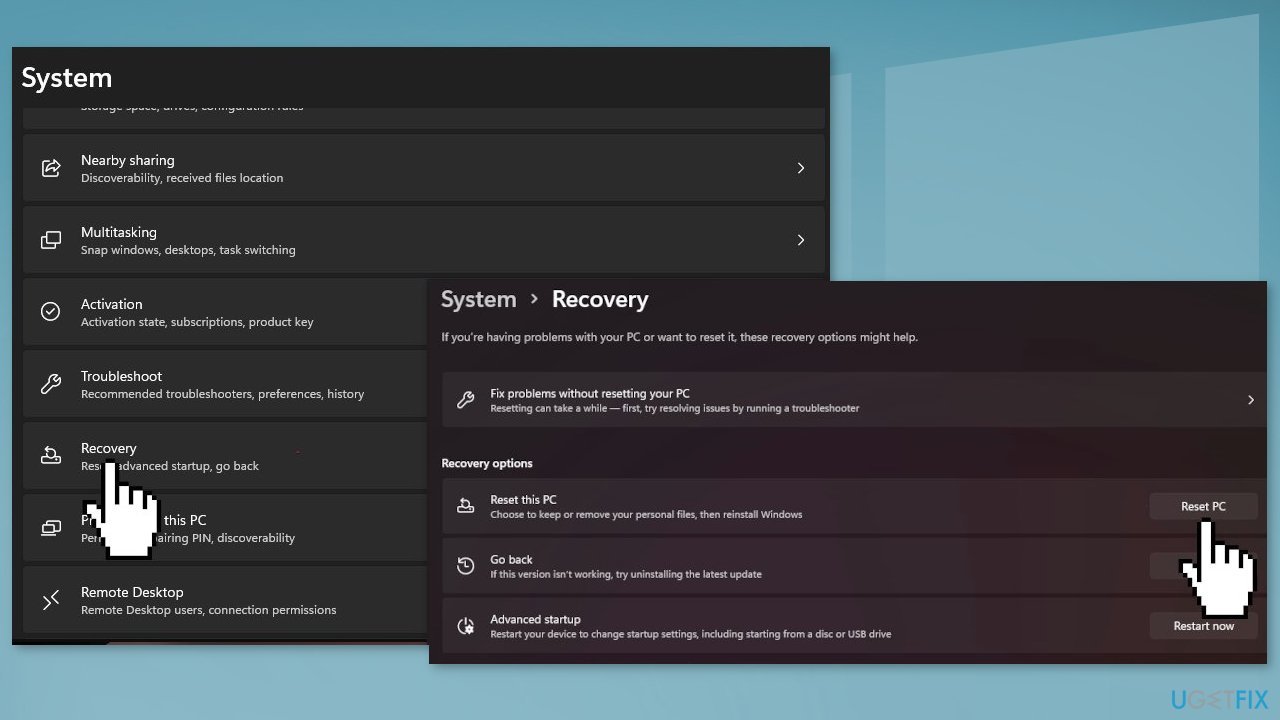
- Click on Keep my files if you don’t want to lose them
- Click Next, then Reset, and Windows 11 will start the reinstallation process
Bottom line
To fix the File System Error (-789839862), you can run the System File Checker, install available updates, or uninstall recently installed applications. If these methods do not resolve the issue, consider using a maintenance tool or further troubleshooting steps.
Frequently asked questions
This error can occur due to corrupted system files, improper shutdowns, or issues with disk storage. Running the System File Checker can help identify and fix these problems.
Yes, you can fix this error by using tools like DISM and SFC to repair corrupted files, or by performing a clean boot to troubleshoot software conflicts.
Regularly updating Windows 10 or Windows 11, maintaining disk health with tools like Check Disk, and avoiding abrupt shutdowns can help prevent this error.




Report an issue
What's wrong with this guide? We review every report and update or remove content.
Report received — thank you. We'll review and fix it.
You need a free account to submit a report.
Be the first to comment