How to fix
Fortnite error code 10002
on Windows
Fix Fortnite error code 10002 on Windows 10 and 11 effortlessly with expert tips and solutions. Get back to gaming in minutes! Expert-tested.


What causes How to fix Fortnite error code 10002 in Windows?
- Memory leaks
- Corrupted game files
- Outdated graphics card driver
- Instability of the Windows system
Repairs Windows system files, removes malware, and restores a clean OS state — without reinstalling.
Hello. When I try to launch Fortnite I receive Error Code: 10002. How can I fix this?
Fortnite is an online video game developed by Epic Games and released in 2017. Available on consoles, PC, and mobile, Fortnite Battle Royale is free to download and play. Gamers can set traps, build forts, and create cover. Strategic thinking is a must in order to survive. The game has regular seasons that add new items, update maps, and create new themes with special costumes and items to help keep things interesting.
However, as with many other games, users can experience bugs, crashes, and errors. Some users have not been able to launch Fortnite. They report receiving a 10002 error code in Windows. We have previously written about Windows errors users have experienced with other games like Age of Empires IV, FIFA 22, Battlefield 2042, and many more. The 10002 error could be caused by various things including memory leaks, corrupted game files, or an outdated graphics card driver.[ref en-1] In this guide, we will provide you with 9 possible solutions that could fix the issue.
Errors and crashes while gaming are quite common, as they usually require a huge amount of computer resources. The game might be unable to launch due to the instability of the Windows system itself, so we strongly recommend ensuring that it is not the case first. The easiest way to troubleshoot Windows issues is by employing a powerful PC repair tool [d1]. It can fix most system errors, registry[ref en-2] issues, corrupted files and clear your PC from cookies and cache[ref en-3] automatically.
If you want to proceed with the manual guide on how to fix Fortnite error code 10002 in Windows, make sure to follow the steps very carefully:
Method 1. Check the Minimum Requirements
Before you proceed with all the troubleshooting options below, make sure that the game is compatible with your device and can run at least minimum requirements:
- Video Card: Nvidia GTX 960, AMD R9 280, or equivalent DX11 GPU
- Video Memory: 2 GB VRAM or higher
- Processor: Core i5-7300U 3.5 GHz
- Memory: 8 GB RAM
- OS: Windows 7/8/10 64-bit
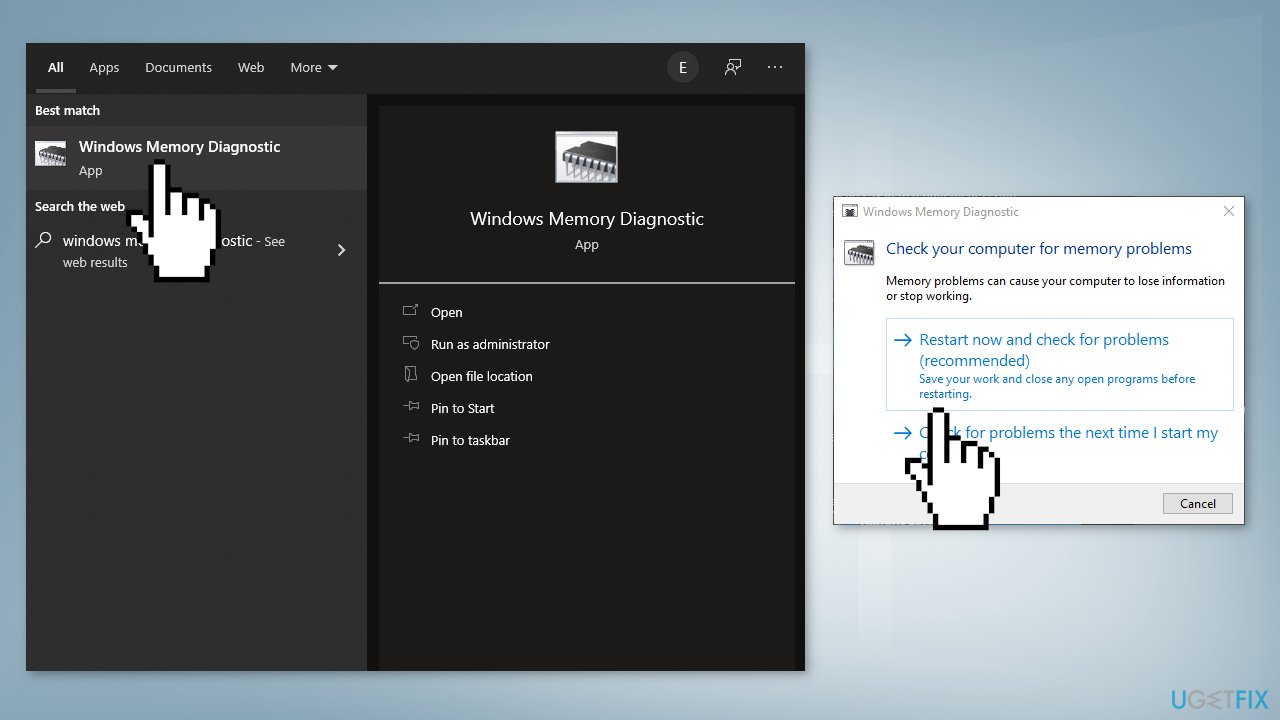
Method 2. Run Windows Memory Diagnostic
Windows has a built-in RAM testing tool. It’s included on Windows 10, Windows 11, Windows 7, and all other modern versions of Windows.
- Open the Start menu, type Windows Memory Diagnostic, and press Enter
- Click Restart now and check for problems (recommended)
- Your computer will now restart
- The test may take several minutes. You will see a progress bar and a Status message will inform you if any problems have been detected during the process
Method 3. Verify Game Files
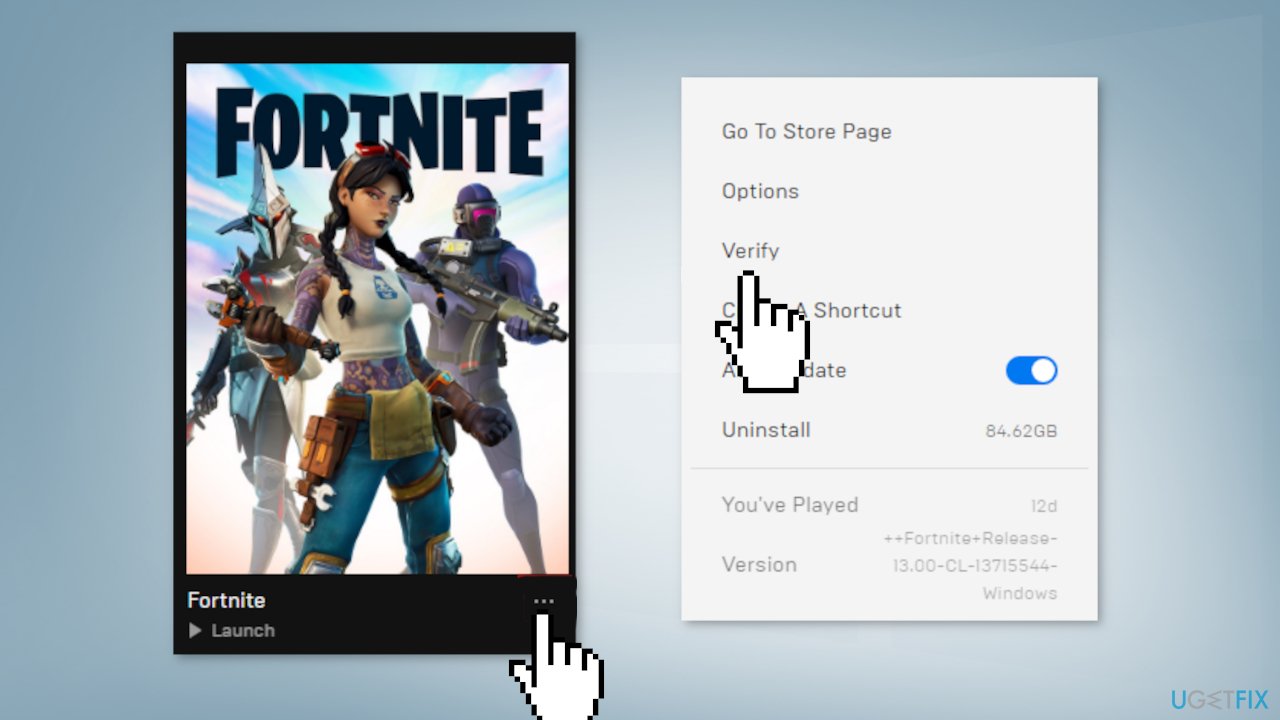
- Open the Epic Games Launcher
- Go to your Library
- Click the three dots next to Fortnite
- Click Verify
Method 4. Run the Epic Games Launcher as an Administrator
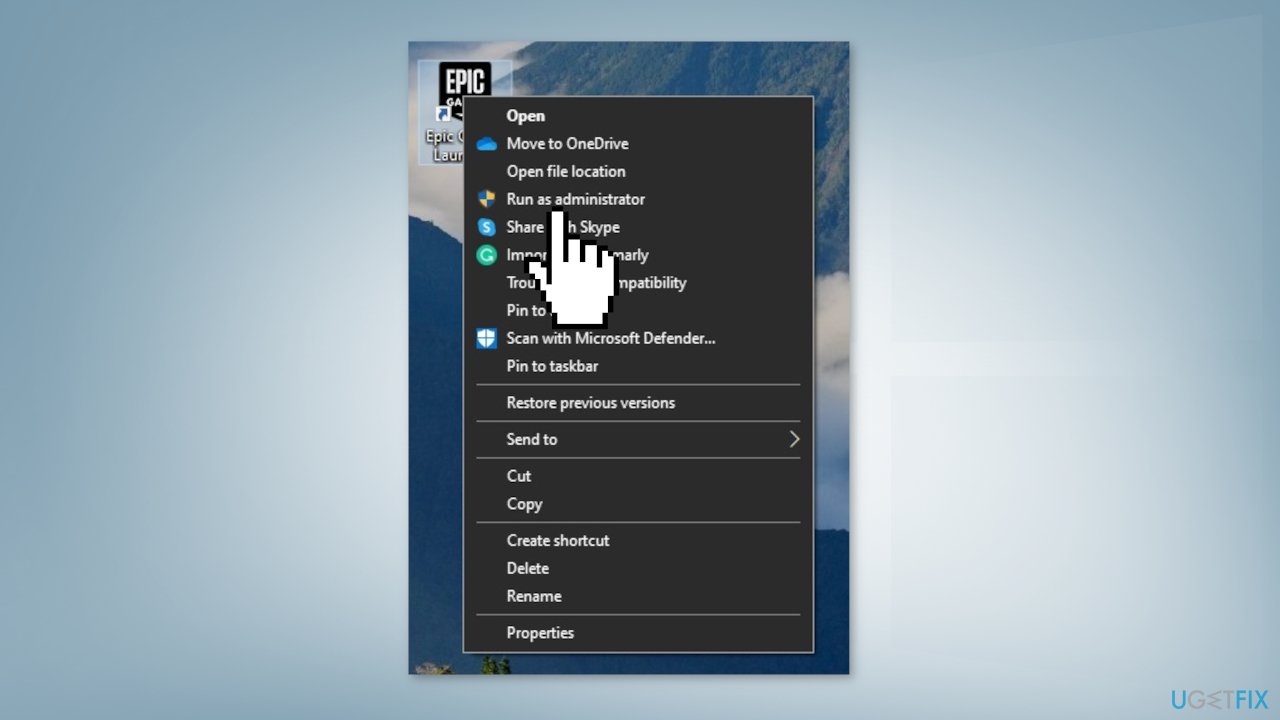
- Right-click your Epic Games Launcher shortcut
- Click Run as administrator
- Launch Fortnite
Method 5. Adjust Compatibility Mode
- Navigate to your Fortnite binaries directory (Default: C:\\Program Files\\Epic Games\\Fortnite\\FortniteGame\\Binaries\\Win64\\)
- Locate FortniteClient-Win64-Shipping.exe
- Right-click it, and then click Properties
- Click Compatibility
- Check the box next to Run this program in compatibility mode for
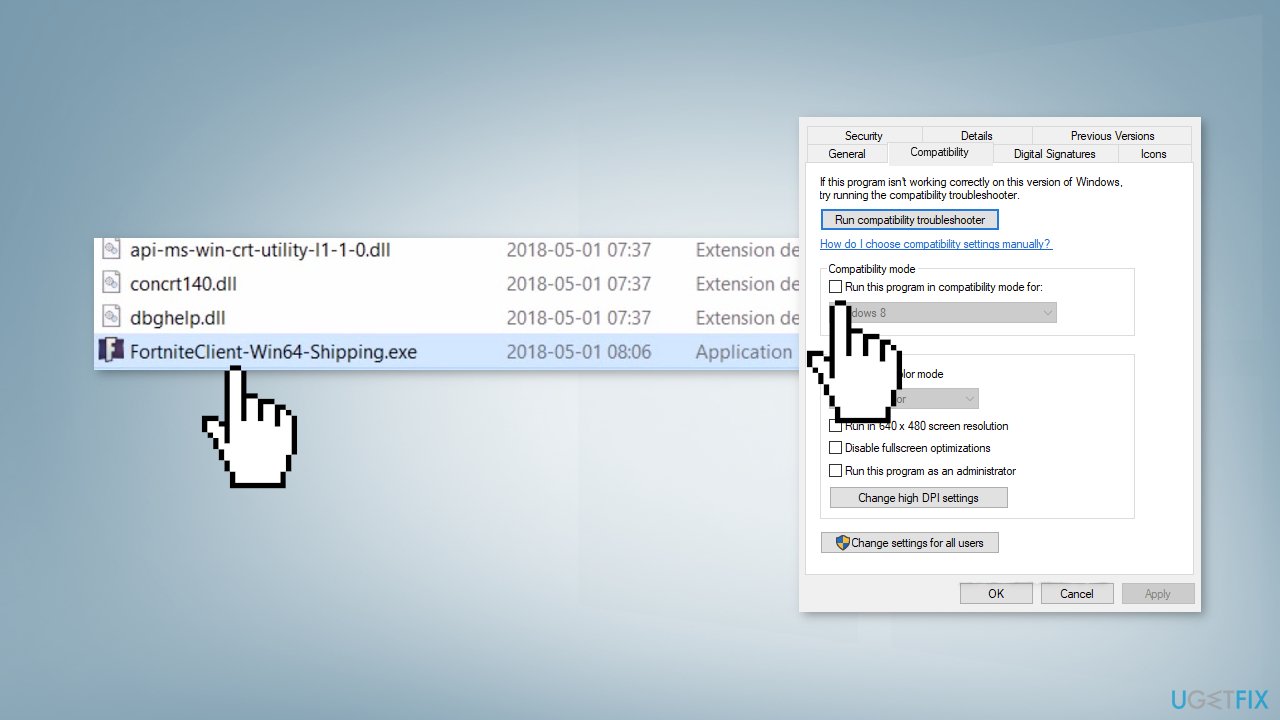
- Choose Windows version
- Check the box next to Disable fullscreen optimizations
- Click Apply and OK
- Relaunch Fortnite
Method 6. Disable Background Apps
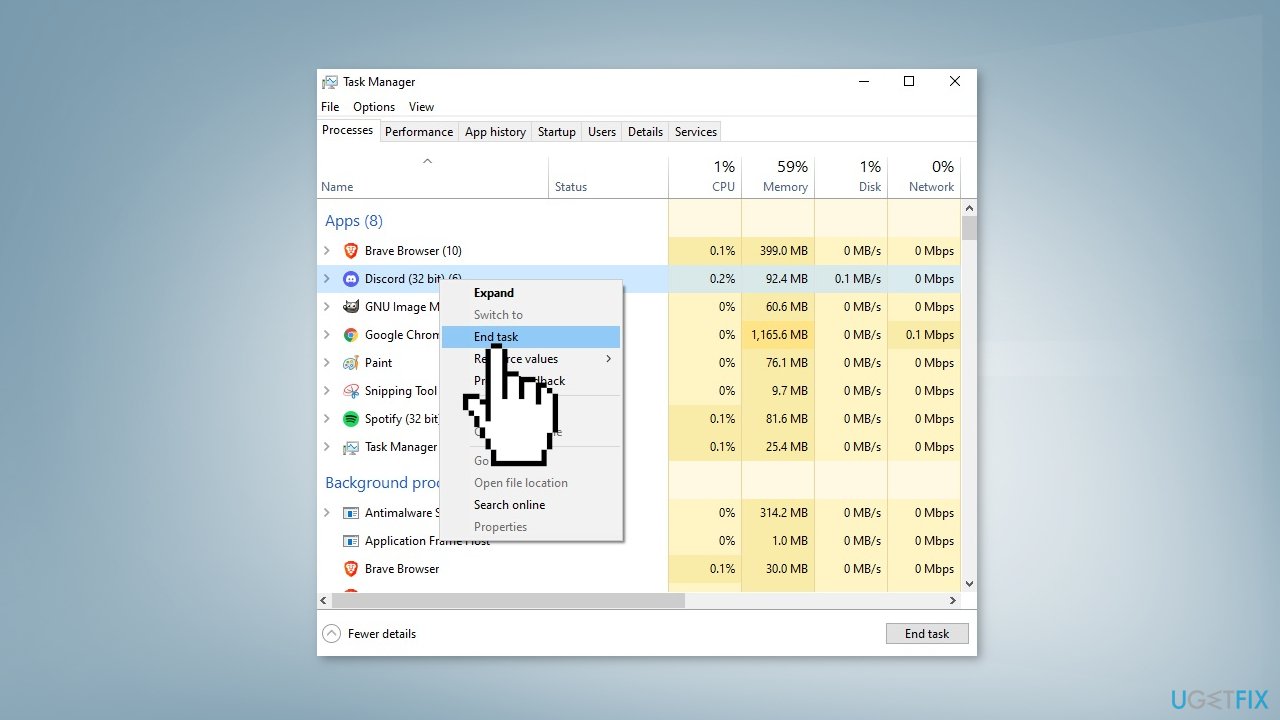
- Right-click on your taskbar
-
Click on Task Manager
-
Click on the Startup tab
-
For each application enabled on startup select them and click on End task
- Restart your computer
Method 7. Repair Visual C++ Redistributables
- Download all the Visual C++ Redistributables here
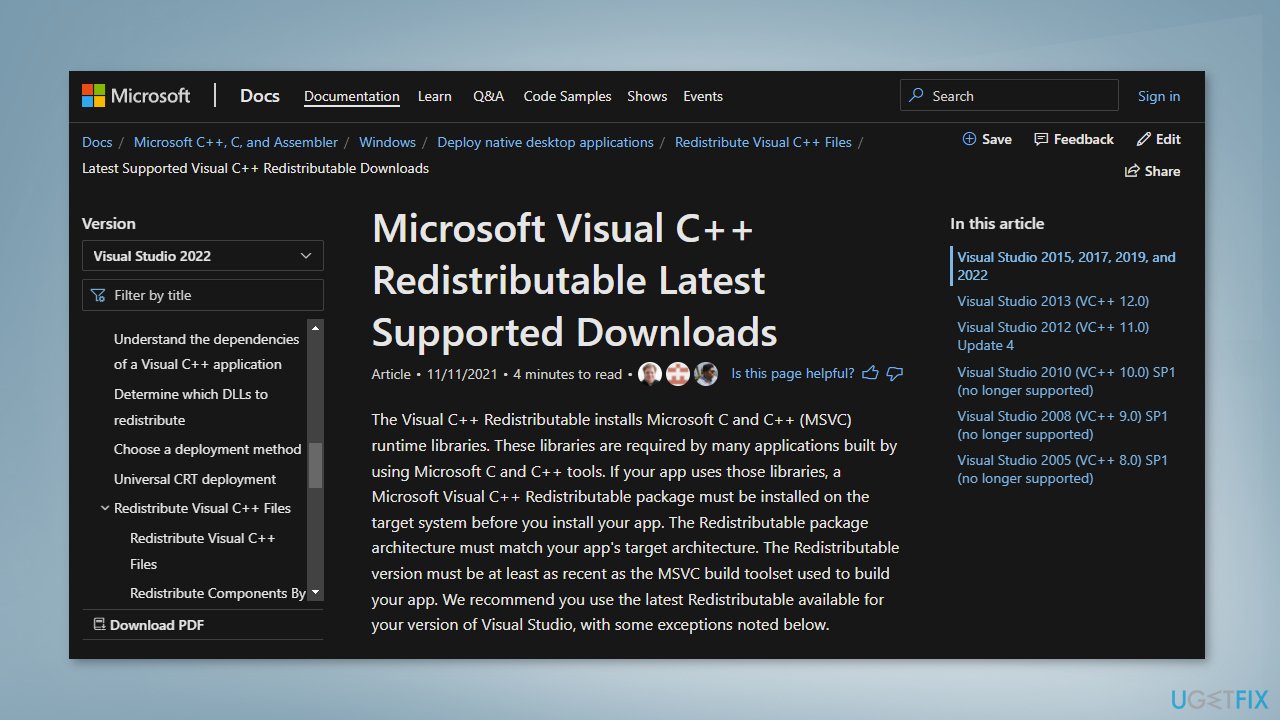
- Make sure to download both the x64 and x86 versions
- Once the download completes, run the executable files and choose Repair
- Restart your computer
- Relaunch Fortnite
Method 8. Use DirectX 11
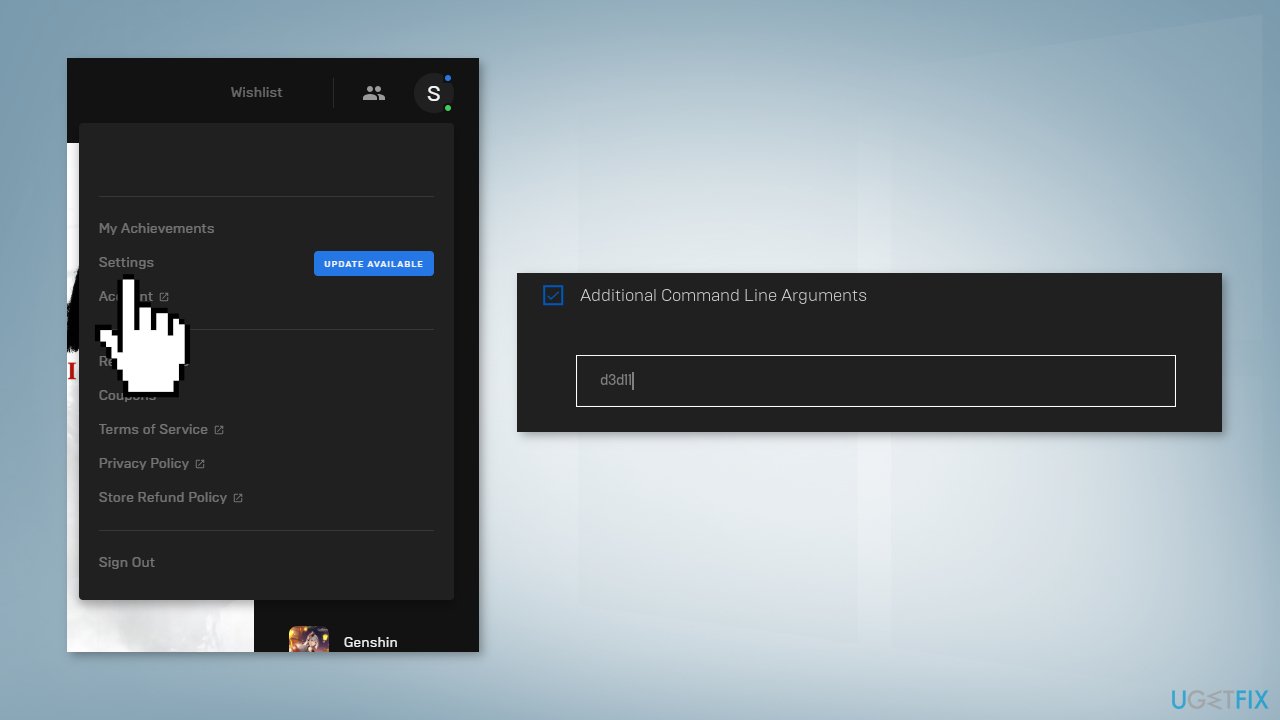
- Open the Epic Games Launcher
- Click Settings
- Scroll down and expand Fortnite
- Check the box for Additional Command Line Arguments
- Enter d3d11, and then relaunch Fortnite
Method 9. Update the Graphics Driver
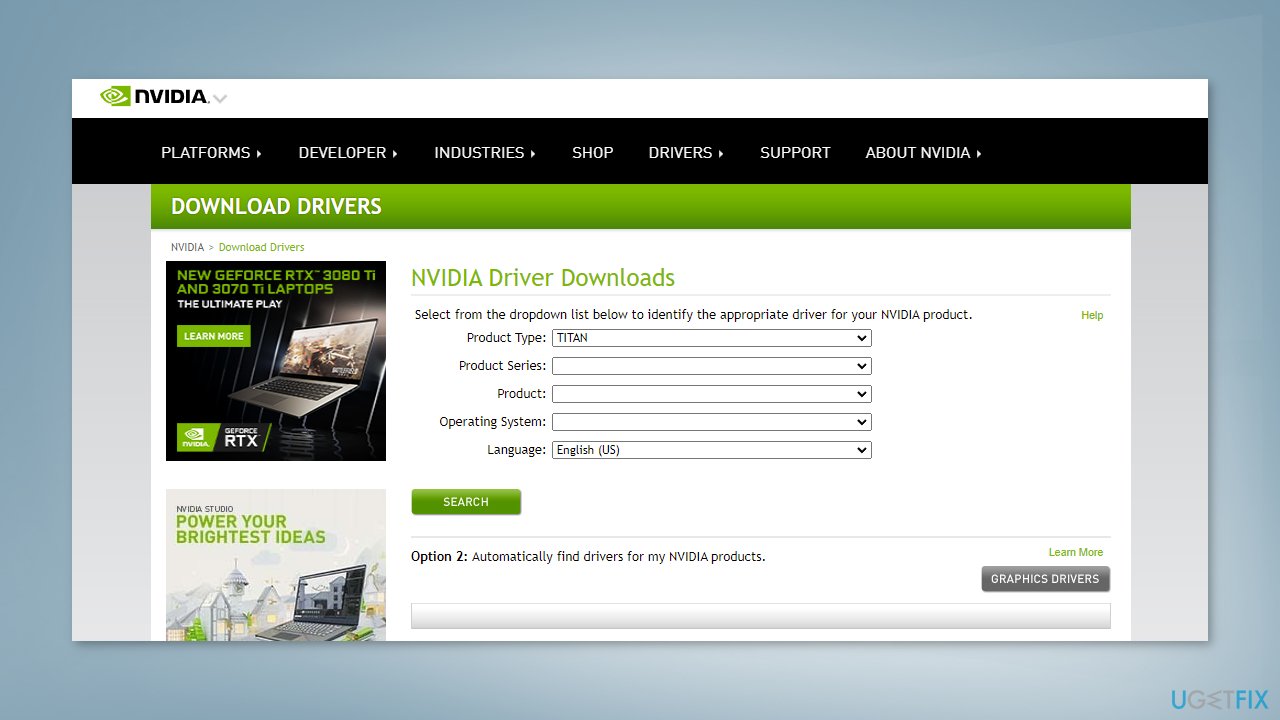
The game can keep crashing on startup even if they run it on the most sophisticated graphics cards because an outdated graphics card driver could be the cause of the game not being able to launch. We strongly recommend making sure that the latest GPU drivers are installed.
Do not use the Device Manager for this process, as it commonly fails to find the latest driver updates. Instead, go to your GPU manufacturer's official website and download the latest drivers from there. If you are not sure how to do that, you can instead employ [rev id="DriverFix"] software that is capable of doing that for you automatically.
Do you need help with Fortnite error code AS-1041?
Bottom line
To fix Fortnite error code 10002, you can check the minimum system requirements, ensure your graphics drivers are updated, and consider using a PC repair tool. If these solutions do not resolve the issue, further troubleshooting may be necessary.
Frequently asked questions
Fortnite error code 10002 typically indicates a connectivity issue, meaning the game is unable to connect to the server properly on your Windows system.
To fix this error on Windows 11, ensure your internet connection is stable, and try restarting your router or verifying the game files through the Epic Games Launcher.
Yes, temporarily disabling your firewall or antivirus software can help determine if they are blocking Fortnite's connection, but remember to re-enable them after testing.




Report an issue
What's wrong with this guide? We review every report and update or remove content.
Report received — thank you. We'll review and fix it.
You need a free account to submit a report.
Be the first to comment