
How to fix Game Pass error 0x803F800E on Xbox?

Prefer to fix it yourself? The manual steps follow.
- 7methods
- 5 to 30 minutes
- Beginner
Applies to Xbox Series X, Xbox Series S and Xbox One consoles with Xbox Game Pass (Core, Standard or Ultimate); users also report the code in the Xbox app on Windows
7 methods in this guide
I have paid for Game Pass and can't play any games because of the 0x803F800E error. Any idea what's going on?
Xbox error 0x803f800e appears when you start a Game Pass game and the console cannot confirm your membership, so it says "Looks like you need to renew your Xbox Game Pass". Often the membership really lapsed or a payment failed. When it is active, the cause is usually the account or the home Xbox setting, so check those before anything else.
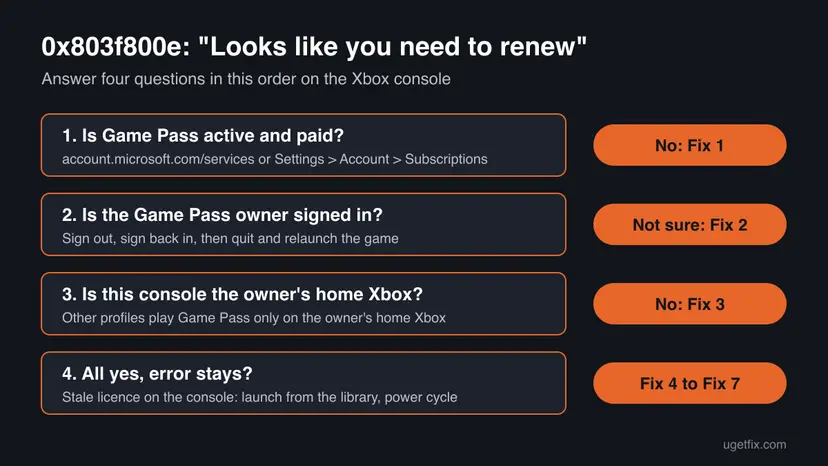
0x803f800e means the Xbox could not confirm an active Game Pass membership for the game you started. Check the membership and its payment at account.microsoft.com/services first (Fix 1). If it is active, sign out and back in with the account that holds Game Pass and relaunch the game (Fix 2). If another profile owns Game Pass, make this console that person's home Xbox (Fix 3).
| Error | 0x803f800e with the title "Looks like you need to renew your Xbox Game Pass". |
|---|---|
| Where it appears | On an Xbox console when you start a game that you play through Game Pass, often one that worked the day before. |
| Main cause | The console cannot find an active Game Pass membership on the signed-in account: it lapsed, a payment failed, or the wrong profile or console holds it. |
| Fastest fix | Check the membership at account.microsoft.com/services (Fix 1), then sign out and back in and relaunch the game (Fix 2). |
| Also written as | 0x803F800E, 803f800e, "Error code 0x803f800e". |
| Similar codes | 0x803F8001 "Do you own this game or app?" and 0x803f8007 (no licence after a refund). Both are licence checks, explained below. |
| Affects | Xbox Series X, Xbox Series S and Xbox One. Some users report the same code in the Xbox app on a Windows PC. |
| Vendor status | Xbox Support has no page of its own for 0x803f800e: the address for it returns "Hey, what happened to this page?" (checked 15 October 2026). The close code 0x803F8001 has one. |
| Time to fix | 5 minutes for the account checks, up to 30 minutes when the console needs a power cycle, a profile reload and an update. |
Facts checked on 15 October 2026. Steps written for Xbox Series X|S and Xbox One with the current console software.
What Xbox error code 0x803f800e means
Every time you start a Game Pass game, the console asks the Xbox service whether the signed-in account may play it. Game Pass games have no licence of their own: they are playable only while the membership is active. 0x803f800e is the console's answer "no active membership found", shown in this window:
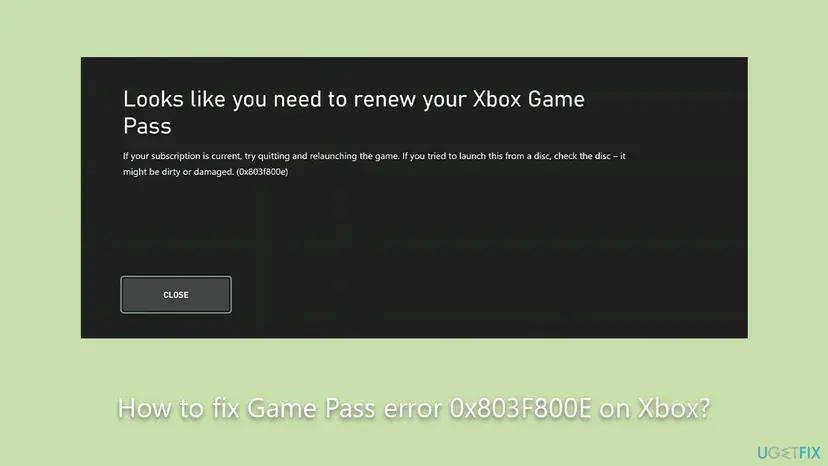
Looks like you need to renew your Xbox Game Pass. If your subscription is current, try quitting and relaunching the game. If you tried to launch this from a disc, check the disc – it might be dirty or damaged. (0x803f800e)
Read the message as two cases. If the membership really ended, renewing it is the fix. If it is current, the console holds an old or wrong answer about it, and the fixes below make it ask again. The disc line matters only for a game you own on disc, not for Game Pass.
- Code
- 0x803f800e (also 0x803F800E, 803f800e)
- Shown by
- Xbox Series X|S and Xbox One consoles
- Meaning
- No active Game Pass membership found for the signed-in account on this console
- Not about
- A broken console, a damaged drive or damaged game files
0x803f800e, 0x803F8001 and 0x803f8007: three Xbox licence codes
Many readers land here with a neighbour of this code. All three start with 0x803F80 and all three are about the right to play, but each one points to a different check. Read the last digits before you start.
| Code | Message | What it means | Start with |
|---|---|---|---|
| 0x803f800e | Looks like you need to renew your Xbox Game Pass | No active Game Pass membership found on this account and console | Fix 1 |
| 0x803F8001 | Do you own this game or app? | Xbox Support: trouble checking usage rights, or the game left the Game Pass catalog | Fix 1, then Fix 2 |
| 0x803f8007 | To play this, you'll need to buy it | You no longer own the game, for example after a refund or a canceled preorder | Our 0x803f8007 guide |
For 0x803F8001 on a console, Xbox Support adds: "If you have a game disc, insert it now. Otherwise, make sure you're signed in to the XBOX network." The same two checks help with 0x803f800e.
Why Xbox shows 0x803f800e: the causes, ranked
Microsoft publishes no numbers for this code, so the order below is our reading of the message, of the Xbox Support pages for the close codes and of what users report. Start at the top: the first three take minutes and need no repair.
| Cause | How often | How to tell | Fix |
|---|---|---|---|
| The membership ended, a renewal payment failed, or a prepaid code ran out. | Most often | account.microsoft.com/services shows the membership as expired, canceled or with a payment problem. | Fix 1 |
| The console holds an old answer about the membership, for example right after a renewal or an upgrade. | Often | The membership is active, and the game works on another console or on PC. | Fix 2 |
| Another profile on the console holds Game Pass, and this console is not that person's home Xbox. | Often | A family member pays for Game Pass and you play on your own profile. | Fix 3 |
| The home screen tile or the console cache is stale. | Sometimes | The game fails from the home screen or Game Pass page. | Fix 4 and Fix 5 |
| The profile on the console or the console software is damaged or out of date. | Rarely | Several Game Pass games fail, and other account screens misbehave too. | Fix 6 and Fix 7 |
| The Xbox service is down. | Rarely | The Xbox status page shows a problem with store or account services. | Wait, see "Still broken" |
Users report 0x803f800e on Game Pass Ultimate bundled with a mobile or broadband contract. Here the membership is billed by the provider, so a failed or delayed renewal there can end it. Check the membership in Fix 1, and ask the provider if it shows a problem.
How to fix Xbox error code 0x803f800e on Xbox Series X|S and Xbox One
Fix 1 to Fix 3 check where the membership is, which is what the message itself asks you to do. Do them first: no console refresh can bring back a membership that the account does not have. Fix 4 to Fix 7 make the console read the membership again.
| What you see or have | Start with |
|---|---|
| You are not sure Game Pass is still active, or a card on the account expired. | Fix 1 |
| Game Pass is active, and the game worked yesterday. | Fix 2 |
| Someone else on the console pays for Game Pass. | Fix 3 |
| You just moved to a new console. | Fix 3 |
| The game fails from the home screen but you have not tried the library. | Fix 4 |
| Every Game Pass game fails, and the account looks fine. | Fix 5, then Fix 6 |
| 0x803F8001 "Do you own this game or app?" instead. | Fix 1, then Fix 2 |
Fix 1. Check that your Game Pass membership is active and paid
5 minutesLow riskEveryone who sees 0x803f800e. This is the first check, even if you are sure you paid.
The message says the membership needs renewing. A renewal that failed on an expired card, a prepaid code that ran out or a canceled plan ends access to every Game Pass game at once.
- On a phone or PC, open account.microsoft.com/services and sign in with the account you use on the console.
- Find Xbox Game Pass and read its status and the next renewal date.
- If it shows a payment problem, select Manage and update the payment method, or renew the membership.
- On the console, the same information is in Settings > Account > Subscriptions, and the cards in Settings > Account > Payment & billing.
- If you pay through a phone or broadband provider, check that the provider's bill shows the Game Pass add-on as active.
- After any change, restart the console and start the game.
It worked if: Game Pass shows as active with a future renewal date, and the game starts after a restart.
If not: If the membership is active and the error stays, go to Fix 2.
Fix 2. Sign out, sign back in and relaunch the game
5 minutesLow riskGame Pass is active, but the console still says to renew it. Most useful right after a renewal or a plan change.
The message itself says to quit and relaunch the game if the subscription is current. Signing out first makes the console fetch the account and its membership again instead of using what it remembered.
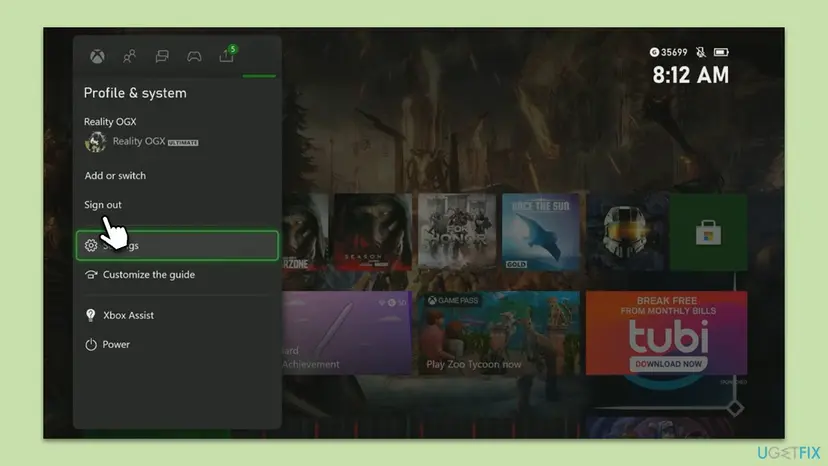
- Quit the game: press the Xbox button, highlight the game, press the Menu button and select Quit.
- Press the Xbox button and go to Profile & system.
- Check the name at the top. It must be the account that holds Game Pass.
- Select Sign out.
- Sign in again with the account that holds Game Pass.
- Start the game again.
It worked if: The game starts, and the Game Pass badge shows next to your gamertag in Profile & system.
If not: If another profile pays for Game Pass, go to Fix 3. Otherwise go to Fix 4.
Fix 3. Make this console the home Xbox of the person who has Game Pass
5 minutesLow riskA family member pays for Game Pass and you play on your own profile, or the owner just moved to a new console.
Xbox shares one person's games and Game Pass with every profile on that person's home Xbox. On any other console, the other profiles do not get the membership, so they see 0x803f800e.
- Sign in on the console with the account that pays for Game Pass.
- Press the Xbox button and go to Profile & system > Settings.
- Open General > Personalization > My home XBOX.
- Select Make this my home XBOX and confirm on the next screen.
- Sign in with your own profile and start the game.
Each account can have one home Xbox. If the owner sets a new one, the old console stops sharing their games and Game Pass with other profiles. Pick the console the family uses most.
It worked if: Every profile on this console can start the Game Pass game, even while the owner is signed out.
If not: If the owner is the one who gets the error, go to Fix 4.
Fix 4. Start the game from My games & apps instead of the home screen
2 minutesLow riskThe game fails from a tile on the home screen or from the Game Pass page.
Users report that a home screen tile can keep an old state of the game's licence. Starting the game from the library opens the installed copy directly, and the console checks the membership again.
- On the home screen, select My games & apps.
- Find the game in the list of installed games.
- Highlight the game and press A to start it.
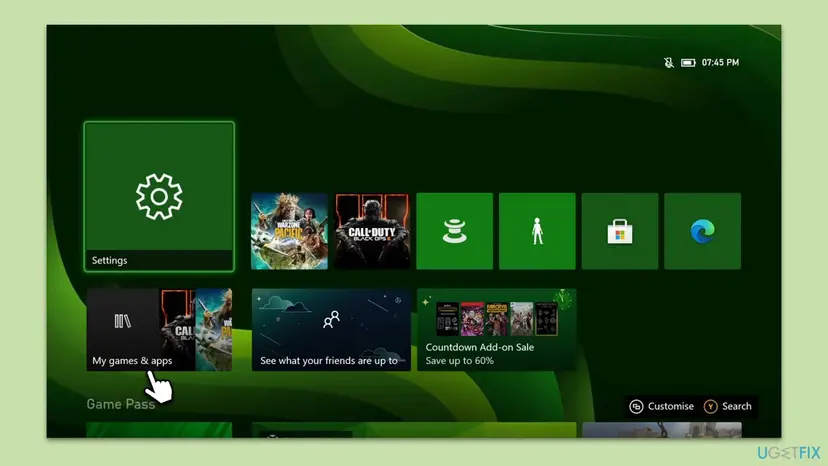
It worked if: The game starts from the library without the renew message.
If not: Go to Fix 5 and power cycle the console.
Fix 5. Power cycle the console to clear its cache
5 minutesLow riskFix 1 to Fix 4 show that the membership and account are fine, but the error stays.
A full shutdown with the power cord out clears what the console keeps in memory, including old answers about your account. On the next start it signs in fresh and reads the membership again.
- Hold the Xbox button on the front of the console for about 10 seconds, until it turns off.
- Unplug the power cord from the back of the console.
- Wait at least 10 seconds.
- Plug the cord back in and turn the console on with the Xbox button.
- Sign in with the account that holds Game Pass and start the game.
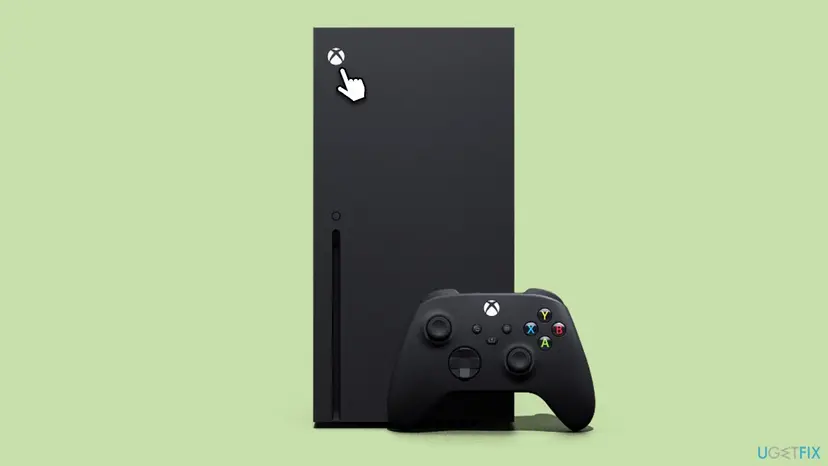
It worked if: The console starts with the green boot screen, and the game starts without 0x803f800e.
If not: Go to Fix 6 and load your profile again.
Fix 6. Remove your profile from the console and add it again
10 minutesLow riskSeveral Game Pass games fail on this console but work on another console or on PC with the same account.
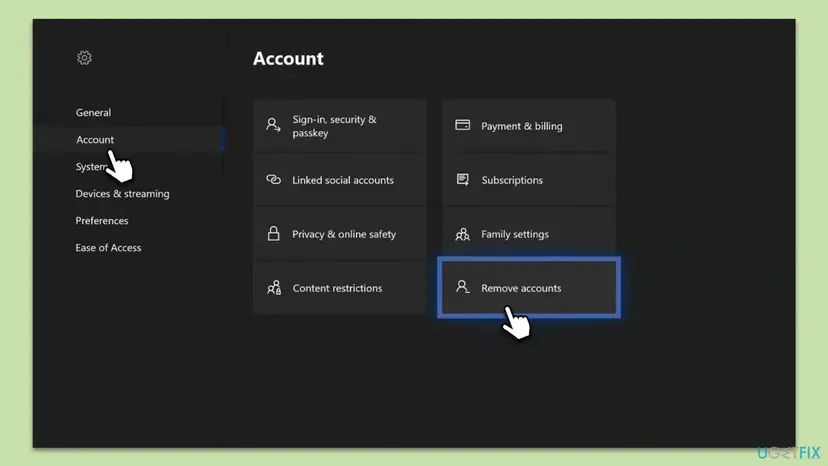
The console keeps a local copy of your profile and its licence data. If that copy is damaged, it keeps reporting no membership. Removing it deletes only the local copy, and adding it back downloads it fresh.
- Press the Xbox button and go to Profile & system > Settings.
- Select Account, then Remove accounts.
- Select your profile and remove it.
- Restart the console.
- Press the Xbox button, go to Profile & system > Add or switch and add your Microsoft account again.
- Start the game.
Your games, Game Pass and cloud saves stay with your Microsoft account. Saves that have not yet synced to the cloud can be lost, so start one game you play while online first and let it sync before you remove the profile.
It worked if: Your profile is back on the console with the Game Pass badge, and the game starts.
If not: Go to Fix 7 and update the console.
Fix 7. Update the console software
10 to 20 minutesLow riskThe console has not been online for a while or shows a pending system update.
An old system version can fail the licence check that newer Game Pass games expect. The update also restarts the console, so it signs in and reads the membership again.
- Press the Xbox button and go to Profile & system > Settings.
- Select System, then Updates.
- If an update is offered, select it and let the console install it and restart.
- Sign in and start the game.
It worked if: Updates shows that no console update is available, and the game starts.
If not: Read "If 0x803f800e is still there" below.
If 0x803f800e is still there
When the membership is active, the right account is signed in and the console is refreshed, the problem sits with the Xbox service or with the account itself. Nothing more on the console will change that.
- Check the Xbox status page at support.xbox.com/xbox-live-status. Xbox Support sends readers with the close code 0x803F8001 there first. When the store or account services are down, Game Pass games fail until they are back.
- Test the account on another device. If the game also fails on another console or in the Xbox app on PC, the membership is the problem, not your console.
- Contact Xbox Support with the exact code, the game, the account e-mail, the Game Pass status and how you pay for it.
- A provider bundle (Game Pass through a phone or broadband contract) can need the provider's help too, because they control the renewal.
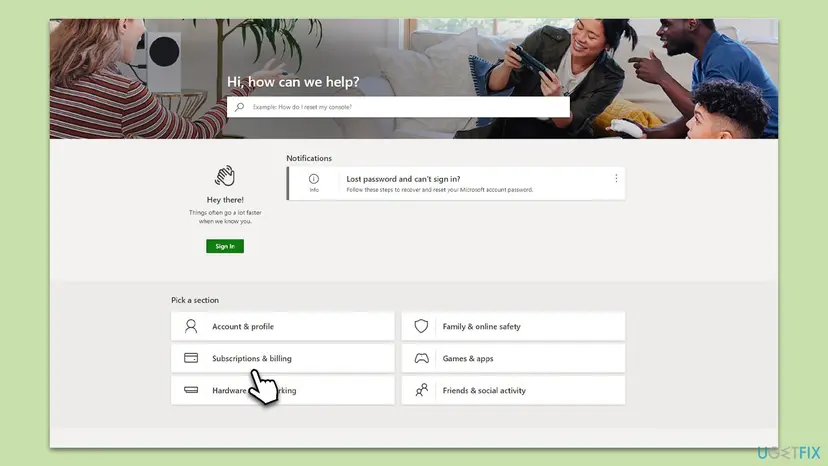
0x803f800e is never a sign of failing hardware. A damaged drive or console shows other errors, and the console still starts games you own outright.
How to keep 0x803f800e from coming back
- Keep a valid card on the Microsoft account before Game Pass renews, and update it when the old one expires.
- If you use prepaid Game Pass codes, redeem the next one before the current time runs out.
- Set the console the family uses as the home Xbox of the person who pays for Game Pass.
- Leave the console on automatic updates in Settings > System > Updates.
- Buy the Game Pass games you want to keep: the Xbox app and console show which ones are leaving the catalog.
If the error came right after an upgrade or a change of plan, give the account a few minutes, then sign out and back in. A new membership level is read again only when the console signs in.
Frequently asked questions
What does error code 0x803f800e mean on Xbox?
It means the console could not find an active Game Pass membership for the account that started the game. The window says "Looks like you need to renew your Xbox Game Pass". Sometimes the membership really ended or a renewal payment failed. When it is active, the console is using an old answer, the wrong profile is signed in, or the console is not the home Xbox of the person who pays. It is about the membership, not about a broken console or damaged game files.
Why does my Xbox say I need to renew Game Pass when I already paid?
Most often because the console still holds an old answer about your membership, for example right after a renewal. Sign out, sign back in and relaunch the game (Fix 2). If someone else on the console pays for Game Pass, this console must be that person's home Xbox (Fix 3). Also check account.microsoft.com/services: a payment that did not go through shows there even if your bank shows a charge attempt.
Can I fix 0x803f800e without renewing Game Pass?
Only if the membership is still active. Then the fixes on this page make the console read it again, and no new payment is needed. If account.microsoft.com/services shows that Game Pass ended, there is nothing to repair: Game Pass games need an active membership, so renew it or buy the game. The message is honest in that case. It is wrong only when the membership is current.
Why do other profiles on my Xbox get 0x803f800e?
Because Game Pass belongs to one account. Xbox shares it with other profiles only on that person's home Xbox. If the owner set another console as home, or never set one, other profiles see the renew message. Sign in as the owner and select Make this my home XBOX in Settings > General > Personalization > My home XBOX (Fix 3). After that, every profile on the console can play Game Pass games.
Is 0x803f800e the same as 0x803f8007 or 0x803F8001?
No, but they are close relatives. 0x803f800e says the Game Pass membership needs renewing. The code 0x803F8001 asks whether you own the game or app, and Xbox Support says it can mean trouble checking usage rights or a game that left the Game Pass catalog. The code 0x803f8007 means the game is no longer yours, for example after a refund. For all three, check the membership and the signed-in account first. Our 0x803f8007 guide covers that code on PC.
Can 0x803f800e appear on a Windows PC?
Users report it in the Xbox app on Windows too, for example with Starfield. The checks are the same: membership at account.microsoft.com/services, then the account signed in to the Xbox app and Microsoft Store. On PC the console steps do not apply. Instead, update the Xbox app and Gaming Services, clear the Microsoft Store cache and repair the Xbox app, as shown in our 0x803f8007 guide.
Will I lose my saves if I fix 0x803f800e?
No, the account checks, the sign-out, the home Xbox change and the power cycle do not touch saves. Removing the profile in Fix 6 deletes only the local copy, and your cloud saves come back when you add it again. The one risk is a save made offline that never synced. Start the game while online and let it sync before you remove the profile. If you renew Game Pass after a gap, saves in the cloud are usually still there.
Does a factory reset fix 0x803f800e?
We do not recommend it for this code. 0x803f800e is about the membership on your account, and a reset does not change what the account has. It also takes long and removes local data. Fix 5 and Fix 6 clear the same stale state on the console in minutes. If the error stays after all seven fixes, the cause is with the account or the Xbox service, so contact Xbox Support before you reset anything.
I searched in another language or with other words. Is this the right page?
Yes, if the code on your screen is 0x803f800e. Readers find this page with searches such as "how to fix this problem", "what does this mean", "why is game pass not available", "me sale eso", "que hago si me sale eso", "nadal jest to samo" or "شكو". The fixes do not depend on the console language: check the membership, then the account, then the home Xbox, in that order. Searches for other products, such as "mac mini m4", are not covered here, and this page has no other pictures to offer than the ones above.
Sources
- Xbox Support: Error 0x803F8001 occurs when you launch an XBOX game or app on console or PC (support.xbox.com)
- Xbox Support: How home XBOX and game sharing work (support.xbox.com)
Did this fix work?
One click, no account. It tells the next reader which guides are worth their time.
Questions and experiences: fix Game Pass error 0x803F800E on Xbox
Still broken, or found a fix we did not cover? Ask here: members and our editors answer. Reading is open; writing needs a free account.
…