
How to fix Google Chrome "Failed to load extension" error in Windows?

Prefer to fix it yourself? The manual steps follow.
- 7methods
- 2 to 15 minutes
- Easy
Applies to Google Chrome on Windows 11 and Windows 10 22H2; the extension steps are the same on macOS and Linux
7 methods in this guide
Every time I launch Google Chrome, I receive a pop-up that says "Failed to load extension." I press OK and nothing happens, but the pop-up just keeps bugging me. Is there a way to fix this somehow?
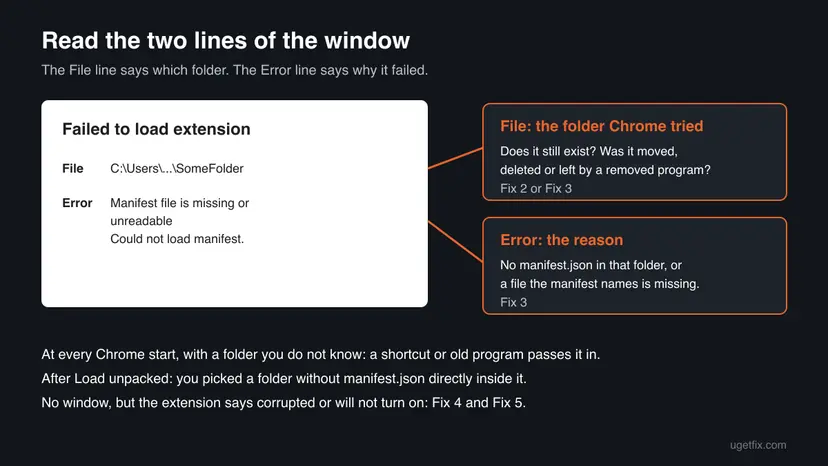
Failed to load extension is Chrome saying that it was told to load an extension from a folder on your disk and could not. The window names the folder and the reason. Read those two lines first: they decide whether you fix a shortcut, pick another folder or repair a Web Store extension.
The window appears when Chrome must load an unpacked extension folder that is missing or has no readable manifest.json. If it pops up at every start, a Chrome shortcut or an old program passes a folder to Chrome: remove the extra text from the shortcut and update Chrome (Fix 2). If it appeared after Load unpacked, select the folder that holds manifest.json directly (Fix 3). Clearing the cache does not help.
| Error | A window titled Failed to load extension with two lines: File (the folder Chrome tried) and Error (the reason), most often Manifest file is missing or unreadable and Could not load manifest. |
|---|---|
| Where it appears | When Chrome starts, or on the Extensions page (chrome://extensions) right after you select Load unpacked in Developer mode. |
| Main cause | An unpacked extension folder that was moved, deleted or never had a manifest.json in its top level. At start-up, usually a shortcut or program that still hands Chrome such a folder. |
| Fastest fix | Check the Command Line row on chrome://version, remove the extra switch from the Chrome shortcut, and update Chrome (Fix 2). |
| Also written as | Error loading extension, extension error in Chrome, Chrome extensions not loading, This extension may have been corrupted. |
| Affects | Chrome on Windows 11 and Windows 10 22H2. Windows 10 left support on 14 October 2025; Chrome still runs there, but the PC gets no more Windows security updates. |
| Vendor status | Google removed the --load-extension command line switch from branded Chrome in version 137 because it was commonly abused to load malicious and unwanted software. Developer mode Load unpacked still works. |
| Is it malware | Not by itself. A folder you never chose that loads at every start is still worth a scan (Fix 6). Google's help says that an extension that stays corrupted after a repair may be changed by a suspicious program. |
| Time to fix | 2 minutes for a shortcut or a repair. Up to 15 minutes with a reinstall and a malware scan. |
Facts checked on 15 October 2026. Steps written for Chrome on Windows 11 (screenshots of the Extensions page, the About Chrome page and the reset dialog). The Failed to load extension window itself was not reproduced by us; its text is quoted from Google's documentation and from user reports..
What "Failed to load extension" means in Chrome
Chrome installs extensions in two ways. An extension from the Chrome Web Store is packed, signed and kept by Chrome in your profile. An unpacked extension is a plain folder somewhere on your disk that Chrome reads every time it starts. The message Failed to load extension belongs to the second kind: Chrome went to the folder and could not use it.
The window holds two lines. File is the path of the folder Chrome tried. Error is the reason. The reason people search most is Manifest file is missing or unreadable, followed by Could not load manifest. Every extension needs a file called manifest.json in the top level of its folder. Google's developer guide calls that the only fixed rule of an extension's structure.
| What you see | What it means |
|---|---|
| Failed to load extension at every Chrome start, with a folder you do not recognise | Something starts Chrome with an instruction to load that folder, and the folder is gone or broken. |
| Failed to load extension right after Load unpacked | The folder you selected has no manifest.json directly inside it, or the manifest names a file that is missing. |
| This extension may have been corrupted on an extension card | A Web Store extension whose files changed on disk. Chrome offers Repair. |
| An extension that is off and will not turn on | Chrome disabled it: unsupported, blocked by your organisation, or broken. No Failed to load window appears. |
| Error loading the extension! inside a page or a pop-up of the extension | A message written by that extension itself, not by Chrome. Its maker has to explain it. |
The window is about a folder on your disk. Clearing the cache, cookies or history does not touch that folder, so it does not remove the window. The old advice to start with the cache is dropped here for that reason.
What causes the Chrome extension error, from most to least likely
Google publishes no numbers for this message. The order below follows how the message is produced and what readers of this page search for. Each cause is tied to one fix.
| Cause | How you recognise it | Fix |
|---|---|---|
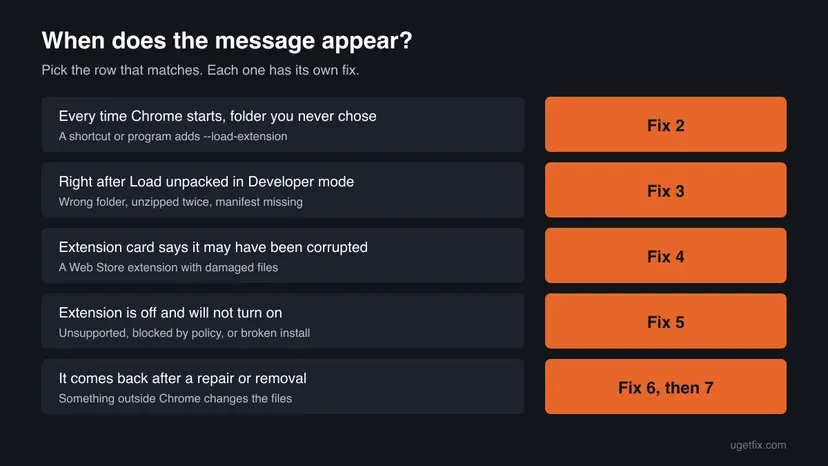
A shortcut or a program starts Chrome with --load-extension and a folder that no longer exists. Often the leftover of a program you already removed. | The window appears at every Chrome start, and the File path is a folder you never chose. | Fix 2 |
| You loaded an unpacked extension and picked the wrong folder: the parent folder, a ZIP file not yet extracted, or a folder unpacked twice. | The window appears right after Load unpacked. The error names the manifest. | Fix 3 |
| An unpacked extension you used before was moved, renamed or deleted. | The extension card shows an error and the folder in File is gone. | Fix 3 |
| A Web Store extension has damaged files. | The card says the extension may have been corrupted and shows Repair. | Fix 4 |
| The extension is unsupported, blocked by your organisation or installed badly. | It stays off, or does nothing when you select it. | Fix 5 |
| Software outside Chrome keeps changing extension files or Chrome's start-up. | The problem returns after a repair, a removal or a fixed shortcut. | Fix 6, then Fix 7 |
The --load-extension switch let a shortcut or program load any folder as an extension. Google's Chrome Extensions team wrote in June 2025 that it was commonly abused to load malicious and unwanted software, and removed it from branded Chrome in version 137. An old Chrome still obeys it, which is one more reason to update in Fix 2.
How to fix the Failed to load extension error in Chrome
Fix 1 takes a minute and tells you which case is yours. Fix 2 is for the window at every start, Fix 3 for developers and anyone who used Load unpacked, Fix 4 and Fix 5 for Web Store extensions. Fix 6 and Fix 7 are for an error that keeps coming back.
| What you see or have | Start with |
|---|---|
| You do not know where the window comes from. | Fix 1 |
| The window appears every time Chrome starts, with a folder you never chose. | Fix 2 |
| You selected Load unpacked and got Manifest file is missing or unreadable. | Fix 3 |
| An extension card says the extension may have been corrupted. | Fix 4 |
| An extension is off and will not turn on, or Chrome extensions are not loading at all. | Fix 5 |
| The error returns after you fixed it. | Fix 6, then Fix 7 |
Fix 1. Read the File and Error lines and check whether the folder exists
2 minutesNo riskEveryone who sees the window and does not know where it comes from.
The window already names the folder and the reason. Whether that folder exists, and whether you ever chose it, separates a broken shortcut from a broken extension folder.
- When the window appears, read the path after File and write it down before you close the window.
- Read the text after Error. Note whether it says Manifest file is missing or unreadable or names another file.
- Press Win + E to open File Explorer, paste the path into the address bar and press Enter.
- If the folder opens, look for a file called
manifest.jsondirectly inside it, not in a subfolder. - Note the moment the window appears: at every Chrome start, or only after you selected Load unpacked.
| What you found | Next |
|---|---|
| The folder does not exist, and you never chose it | Fix 2 |
The folder exists, but manifest.json sits one level deeper | Fix 3 |
| The folder is yours and was moved or renamed | Fix 3 |
| No window at all, but an extension says corrupted or will not turn on | Fix 4 or Fix 5 |
A path inside the folder of a program you installed or removed points to that program. A path in your Downloads folder usually means an extension you loaded yourself and later deleted.
It worked if: You know which folder Chrome wants, whether it exists and when the window appears.
If not: If the window closes before you can read it, open chrome://version and read the Command Line row as in Fix 2.
Fix 2. Remove the leftover start switch from the Chrome shortcut and update Chrome
5 minutesLow riskThe window appears every time Chrome starts and names a folder you never chose.
Chrome only loads a folder at start-up when something tells it to. That instruction is visible in the command line Chrome was started with, and it usually lives in the target of a shortcut. Chrome 137 and later also ignore the --load-extension switch.
- Open Chrome, type
chrome://versionin the address bar and press Enter. - Read the row Command Line. If it contains
--load-extension=followed by a path, a shortcut or program adds it. - Close Chrome. Right-click the Chrome shortcut you use on the desktop and select Properties.
- On the Shortcut tab, read the Target box. Delete everything after
chrome.exe", then select OK. - If you start Chrome from the taskbar, right-click its icon, right-click Google Chrome in the menu, select Properties and do the same.
- Open Chrome, type
chrome://settings/helpand press Enter. Chrome checks for an update and offers Relaunch when one is installed. - Open
chrome://versionagain and check that the Command Line row no longer holds the switch.
A clean Chrome shortcut target on Windows (default install path)
"C:\Program Files\Google\Chrome\Application\chrome.exe"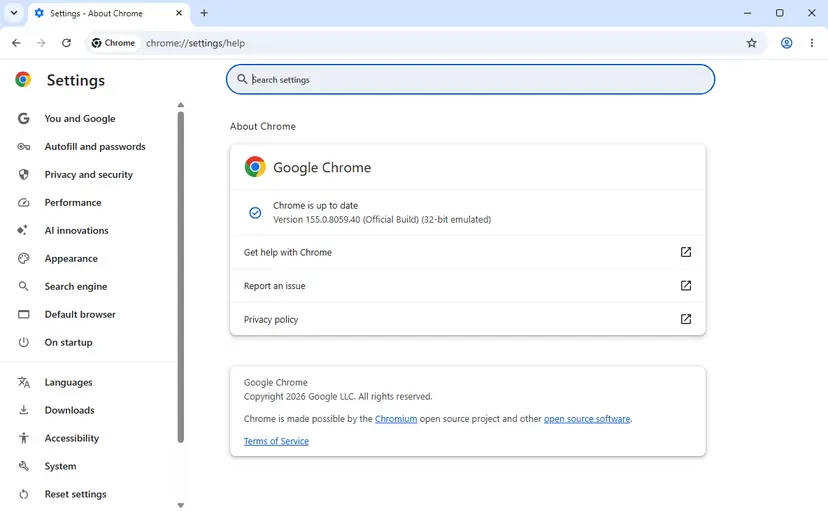
If every shortcut is clean but the Command Line row still carries the switch, a program starts Chrome itself. Open Settings > Apps > Installed apps and look for a program you do not know or no longer use, installed around the time the window first appeared. Fix 6 covers unwanted software.
It worked if: Chrome starts without the window, and the Command Line row shows only the path to chrome.exe and Chrome's own switches.
If not: If the switch comes back after you clean the shortcut, something rewrites it. Go to Fix 6.
Fix 3. Load the folder that holds manifest.json (Load unpacked)
5 minutesNo riskYou use Developer mode and Load unpacked, for your own extension or one you downloaded as a ZIP, and the error names the manifest.
Chrome reads manifest.json from the exact folder you select and nowhere else. A ZIP file, a parent folder or a folder unpacked inside another folder of the same name all give the manifest error.
- If the extension came as a ZIP file, right-click it in File Explorer, select Extract All and then Extract.
- Open the extracted folder. If you see only one folder inside, open it, and repeat until you see
manifest.jsonin the list. - In Chrome, type
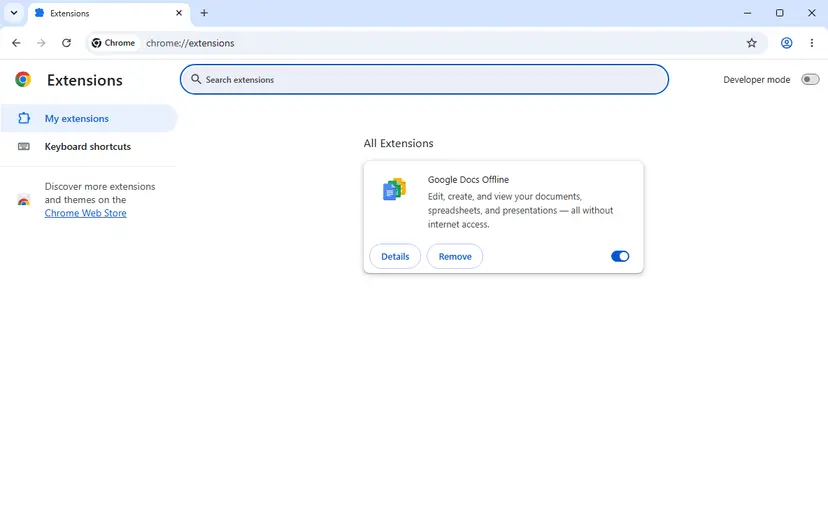
chrome://extensionsin the address bar and press Enter. - Turn on the Developer mode switch at the top right.
- Select Load unpacked, go to the folder that shows
manifest.jsonand select Select Folder. - If the extension appears with an Errors button, select it to read which file or line failed.
- After you change a file, select the reload arrow on the extension card so Chrome reads the manifest again.
- The manifest exists but cannot be read. Open
manifest.jsonin Notepad. A missing comma or quote makes it unreadable. A downloaded extension should be downloaded again rather than edited. - The manifest names a file that is missing. The Error line then names that file, such as an icon or a script. Put the file back or remove it from the manifest.
- You moved or renamed the folder. Chrome keeps the old path. Select Remove on the old card and load the folder again from its new place.
An unpacked extension gets the same access to your browsing as a Web Store extension, without the Store's review. Load only code you wrote or got from its maker. Turn Developer mode off again when you are done.
It worked if: The extension card appears on the Extensions page without an error, and the extension's icon shows in the puzzle-piece menu.
If not: If the Errors button lists a problem in a script, the extension's own code fails. That is for its maker. For a Web Store extension, use Fix 4 or Fix 5.
Fix 4. Repair a corrupted extension on the Extensions page
2 minutesLow riskAn extension card says the extension may have been corrupted, or Chrome shows This item appears to be corrupted. You can repair it to get it working again.
Chrome checks the files of Web Store extensions. When they no longer match, it turns the extension off and offers a repair that downloads a fresh copy. Your settings in the extension may be kept or not, depending on the extension.
- In Chrome, select More (three dots) at the top right, then Extensions and Manage Extensions.
- Find the extension marked as corrupted.
- Select Repair.
- Confirm with Repair extension.
- Restart Chrome and check that the card no longer shows the warning.
Google's help says that an extension still corrupted after a repair may mean a suspicious program is changing its files. Run a malware scan in that case (Fix 6), then repair once more.
It worked if: The extension turns back on and its card shows no warning after a restart.
If not: If Repair is missing or fails, remove the extension and add it again in Fix 5.
Fix 5. Remove the extension and add it again from the Chrome Web Store
5 minutesLow riskA Web Store extension is off and will not turn on, does nothing, or Chrome extensions are not loading after a repair.
A fresh install replaces every file of the extension and asks for its permissions again. Before you do it, check whether Chrome turned the extension off on purpose, because then a reinstall does not help.
- Open
chrome://extensionsand select Details on the extension. Read any note about why it is off. - If the note says the extension is no longer supported, look for Find Alternatives in its menu: Chrome may disable extensions that do not meet current requirements, and re-enabling is only temporary.
- If the browser says it is managed by your organisation, the extension may be blocked by policy. Ask your administrator instead of reinstalling.
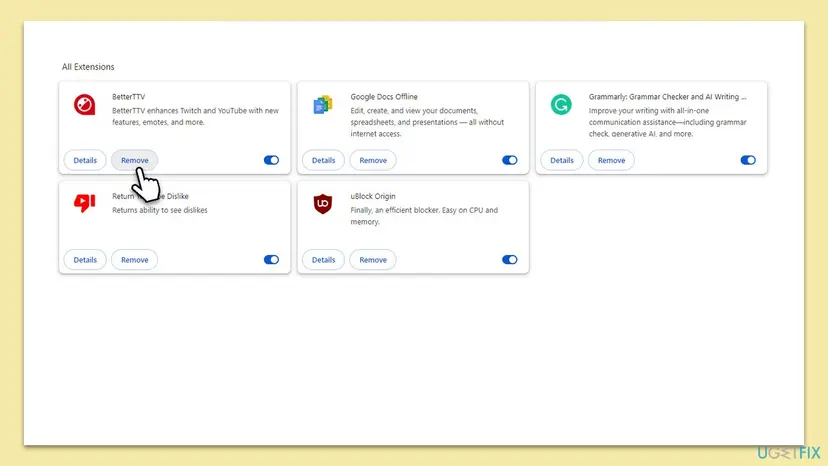
- Otherwise select Remove, then Remove again to confirm.
- Open the Chrome Web Store, find the extension and select Add to Chrome, then Add extension.
It worked if: The extension installs, its card is on, and it works on a test page.
If not: If the Store refuses the install or the extension fails again, check for a newer Chrome (Fix 2) and then run Fix 6.
Fix 6. Scan for unwanted software when the error keeps coming back
15 minutesLow riskThe start-up switch returns after you cleaned the shortcut, or an extension is corrupted again after a repair.
Google removed the start-up switch because unwanted software used it to load its own extensions, and Google's help names a suspicious program as the cause of repeated corruption. A scan finds such a program outside Chrome.
Run a quick scan first and a full scan if the quick one finds nothing. Step by step: How to scan for malware with Microsoft Defender.
- Open Settings > Apps > Installed apps and sort the list by install date.
- Uninstall programs you do not know that appeared around the time the window started. Step by step: Uninstall a program or app in Windows.
- Run the Microsoft Defender scan from the procedure above.
- Open
chrome://extensionsand remove extensions you did not add yourself. - Restart Windows and open Chrome.
It worked if: The scan finds nothing or removes what it found, and the window does not return after two restarts.
If not: If the start-up window or the corruption still returns, reset Chrome in Fix 7.
Fix 7. Reset Chrome settings as the last step
5 minutesRead the warningYour own PC, the earlier fixes did not stop the error, and you are ready to turn your extensions on again one by one.
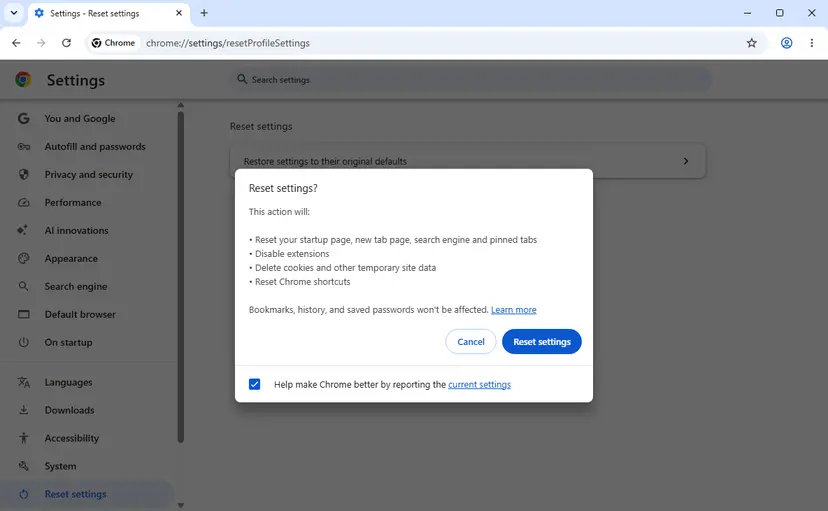
The reset turns off every extension, resets Chrome's shortcuts and clears the start-up settings in one step. Turning extensions on one at a time afterwards shows which one fails.
The reset turns off all extensions, removes pinned tabs, resets the search engine, start-up page and site permissions, and deletes cookies, so you are signed out of websites. Bookmarks, history and saved passwords stay. Note the extensions you use before you start.
- Select More (three dots) at the top right, then Settings.
- Select Reset settings in the left menu.
- Select Restore settings to their original defaults.
- Read the list in the box, then select Reset settings.
- Close Chrome completely and open it again.
Then open chrome://extensions, turn on one extension, restart Chrome, and repeat. The extension after which the error returns is the one to remove.
It worked if: Chrome starts without the window, and each extension you turn back on loads.
If not: If the window still appears after a reset, read the section below.
Chrome still shows Failed to load extension: what to check and who can help
If the window survives the fixes above, the instruction to load the folder comes from outside Chrome's settings. Collect what Chrome itself records before you ask for help.
- Copy the rows Command Line, Executable Path and Profile Path from
chrome://version. - Copy the exact File and Error lines of the window.
- For an unpacked extension, open the Errors button on its card and copy what it lists.
- Check whether the browser says it is managed: select More and look for Managed by your organization at the bottom of the menu.
| Situation | Who can fix it | What to send |
|---|---|---|
| A program you installed starts Chrome with the switch | The support of that program | The Command Line row and the File path |
| Your own or a downloaded unpacked extension | Its developer | The Error line and the Errors list |
| A Web Store extension that stays broken | The extension's developer, through its Store page | Your Chrome version and what the card says |
| Work or school PC | Your administrator | The File and Error lines and the Managed note |
Nothing in this error points to a failing disk or memory. It is always about a folder, a file or an instruction that Chrome received.
How to keep the Chrome extension error from coming back
- Install extensions from the Chrome Web Store when you can.
- Keep unpacked extensions in one folder that you do not clean up or move.
- Remove an unpacked extension on
chrome://extensionsbefore you delete its folder. - Let Chrome update itself, and check
chrome://settings/helponce in a while. - Turn Developer mode off when you do not need it.
- Do not add switches to the Chrome shortcut that you found on a forum.
- Do not load extension folders from unknown sites.
- Do not clear the cache or reinstall Chrome for this error first: neither touches the folder Chrome tries to load.
Most cases of this window are one leftover instruction or one moved folder. Once you know which folder Chrome wants, the fix takes minutes.
Frequently asked questions
Why does Chrome say Failed to load extension every time it starts?
Because something starts Chrome with an instruction to load an extension folder, and that folder is gone or has no manifest. Usually the instruction is the --load-extension switch in the target of a Chrome shortcut, left behind by a program or a tutorial. Open chrome://version and read the Command Line row: if it holds the switch, clean the shortcut as in Fix 2. Google removed the switch from branded Chrome in version 137, so updating Chrome also stops it from loading such folders.
What does Manifest file is missing or unreadable mean?
It means Chrome found no manifest.json in the top level of the folder, or found one it could not parse. Every extension needs that file directly in its folder. The usual causes are selecting the parent folder, loading a ZIP file that was not extracted, or a folder unpacked inside a folder of the same name. A missing comma or quote in the manifest also makes it unreadable. Fix 3 shows how to find and select the right folder.
What does This item appears to be corrupted mean for a Chrome extension?
Chrome noticed that the files of a Web Store extension changed on your disk and turned the extension off. Chrome offers a repair: open Manage Extensions, select Repair on that extension and confirm. If it is corrupted again soon after, Google's help says a suspicious program may be changing its files, so run a malware scan and repair once more. Fix 4 and Fix 6 cover both steps.
Why are my Chrome extensions not loading or not opening?
When there is no Failed to load window, Chrome has usually turned the extension off on purpose. Open chrome://extensions and select Details. An unsupported extension is disabled because it no longer meets Chrome's requirements, and Google's help says it can only be re-enabled for a limited time. On a work or school PC your organisation may block extensions. Otherwise remove the extension and add it again from the Chrome Web Store, as in Fix 5.
What is the Error loading the extension! message?
That exact wording is not Chrome's own window. It appears inside the pages or pop-ups of some extensions when their own code fails to start. Chrome's message is Failed to load extension, with File and Error lines. If you see the other text, remove the extension and add it again (Fix 5), and if it continues, contact the extension's maker through its Chrome Web Store page.
What does Couldn't load plugin mean in Chrome?
It is a different message from this page's error. A plugin is not an extension: Chrome uses the word for built-in viewers, the PDF viewer above all. Plugins are not loaded from extension folders, so the fixes here do not apply to it. We did not research that message for this page. Updating Chrome on chrome://settings/help is a safe first step, and a PDF that still fails can be downloaded and opened in another viewer.
What is An add-on for this website failed to run?
That message does not come from Chrome. It is shown by Internet Explorer and by Microsoft Edge pages opened in Internet Explorer mode, when an ActiveX add-on is blocked. This page is about Chrome extensions, so its fixes do not apply. Chrome has never run ActiveX add-ons. If a site asks for one, it is built for Internet Explorer only, and its owner or your administrator has to tell you how to open it.
What does FAILED_TO_COPY_EXTENSION_FILE_TO_TEMP_DIRECTORY mean?
It is an install error that people report when they drag an extension file onto the Extensions page. As the name says, Chrome could not copy the file to a temporary folder before installing it. We could not confirm the exact causes from a Google document. The reliable way around it is to install the extension from the Chrome Web Store, or, if it is your own extension, to extract it and use Load unpacked as in Fix 3.
What is chrome-extension://invalid/ net::ERR_FAILED?
It is a line in the developer console, not a window that Chrome shows to users. It appears when a web page or an extension asks for a file of an extension that Chrome does not let it reach, for example one that is not installed or not allowed for that page. It does not break Chrome. If you are not developing a site or an extension, you can ignore it. We could not confirm every case that produces it from a Google document.
Does reinstalling Chrome or clearing the cache fix Failed to load extension?
Usually not. The cache holds copies of web pages, not the folder Chrome is told to load. A reinstall keeps your profile and does not touch a shortcut that another program changed, so the window often returns. What helps is removing the instruction (Fix 2), pointing Chrome at the right folder (Fix 3), or repairing the extension (Fix 4). A settings reset (Fix 7) is the strongest Chrome-side step.
Sources
- Chrome for Developers: What's happening in Chrome Extensions, June 2025 (removal of the --load-extension flag in Chrome 137) (developer.chrome.com)
- Chrome Web Store Help: Install and manage extensions (Repair, possible malware, unsupported extensions) (support.google.com)
- Chrome for Developers: Hello World extension (Load unpacked, Developer mode, Errors button, manifest.json in the root folder) (developer.chrome.com)
Did this fix work?
One click, no account. It tells the next reader which guides are worth their time.
Questions and experiences: fix Google Chrome "Failed to load extension" error in Windows
Still broken, or found a fix we did not cover? Ask here: members and our editors answer. Reading is open; writing needs a free account.
…