How to fix
HPSAAppLauncher.exe Application Error
on Windows
Resolve the HPSAAppLauncher.exe error on Windows 10 and Windows 11 effortlessly. Follow our expert-tested guide for quick fixes, zero traces left.

What causes How to fix HPSAAppLauncher.exe Application Error in Windows?
- Application errors due to software conflicts
- Corrupted files in the HP Support Assistant suite
- Issues with memory referencing
- Input/output errors during startup
- Pre-installed software malfunctions
Repairs Windows system files, removes malware, and restores a clean OS state — without reinstalling.
Hi, every time I launch Windows, I receive HPSAAppLauncher.exe - Application Error. Not sure what this is about and would like to receive some help to remove it. Also, some of my apps stop working randomly... Is there anything that can be done? I'm using Windows 10.
Application errors are relatively common on Windows operating systems and, while they are usually not critical to its operation, they can cause all sorts of inconveniences and even malfunctions. HPSAAppLauncher.exe error usually shows up on Windows startup, although some people reported that it might also occur abruptly when operating the system - the issue is not triggered by any user inputs.
HPSAAppLauncher.exe is a regular Windows executable. It is not a part of the operating system, although comes pre-installed with all HP laptops and desktop computers, and is a part of the HP Support Assistant suite. It's located in the C:\\Program Files\\WindowsApps directory and usually does not cause any issues. However, as it is evident, some people did come across the Application Error tied to it.
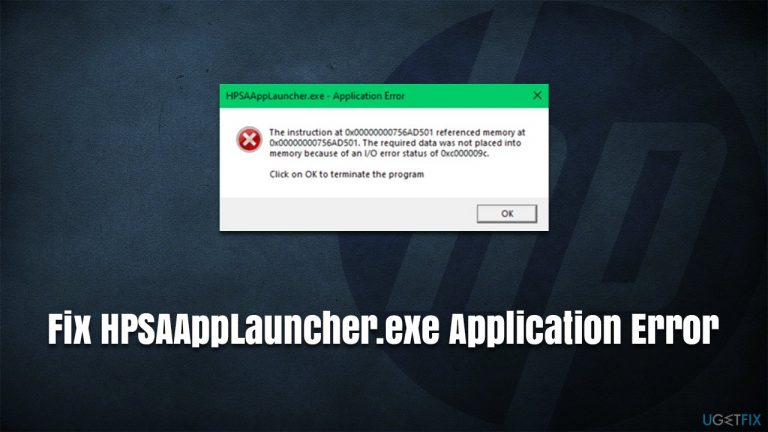
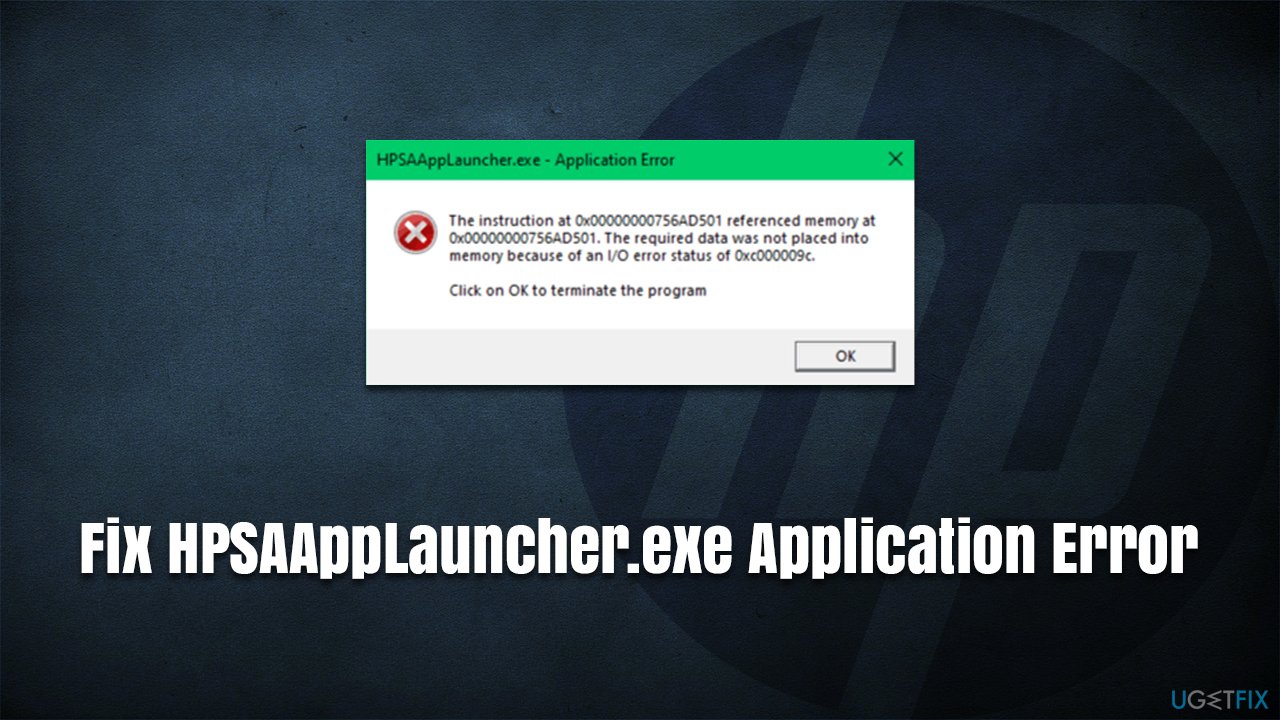
When users receive the error upon launching Windows, they might see the following message:
HPSAAppLauncher.exe - Application Error
The instruction at 0x00*** referenced memory at 0x00***. The required data was not placed into memory because if an I/O error status of 0x000009c.
Click OK to terminate the program
In this case, I/O stands for input/output, which was not possible due to an error. Keep in mind that the error code and referenced memory codes might differ from person to person.
In any case, the error can be caused by multiple reasons, thus there is no universal solution to fix it. As we have previously explained with similar errors referencing other EXE files (SystemSettings.exe, SearchProtocolHost.exe, ESRV.exe, etc.), you might need to check several solutions before you find the right one for you.
Before you proceed, we would like to suggest you try running a scan with a powerful [d1] tool that is capable of finding and remediating various common issues on Windows, fixing them automatically thanks to its unique, patented technology. Thus, if your PC is suffering from crashes, BSODs, errors, registry corruption, or other issues, this app might help you solve them for you.
Solution 1. Run SFC and DISM
One of the main reasons for application errors is system file corruption. Therefore, we recommend you run an SFC scan via elevated Command Promot to fix this issue. Likewise, DISM can further fix Windows image if it is damaged due to one reason or another.
- Type cmd in Windows search
- Right-click on Command Prompt and select Run as administrator
- When User Account Control shows up, click Yes
- Paste the following command and press Enter:
sfc /scannow - Wait till the scan is finished
- Once done, proceed with the following command (don't forget to press Enter):
dism /online /cleanup-image /restorehealth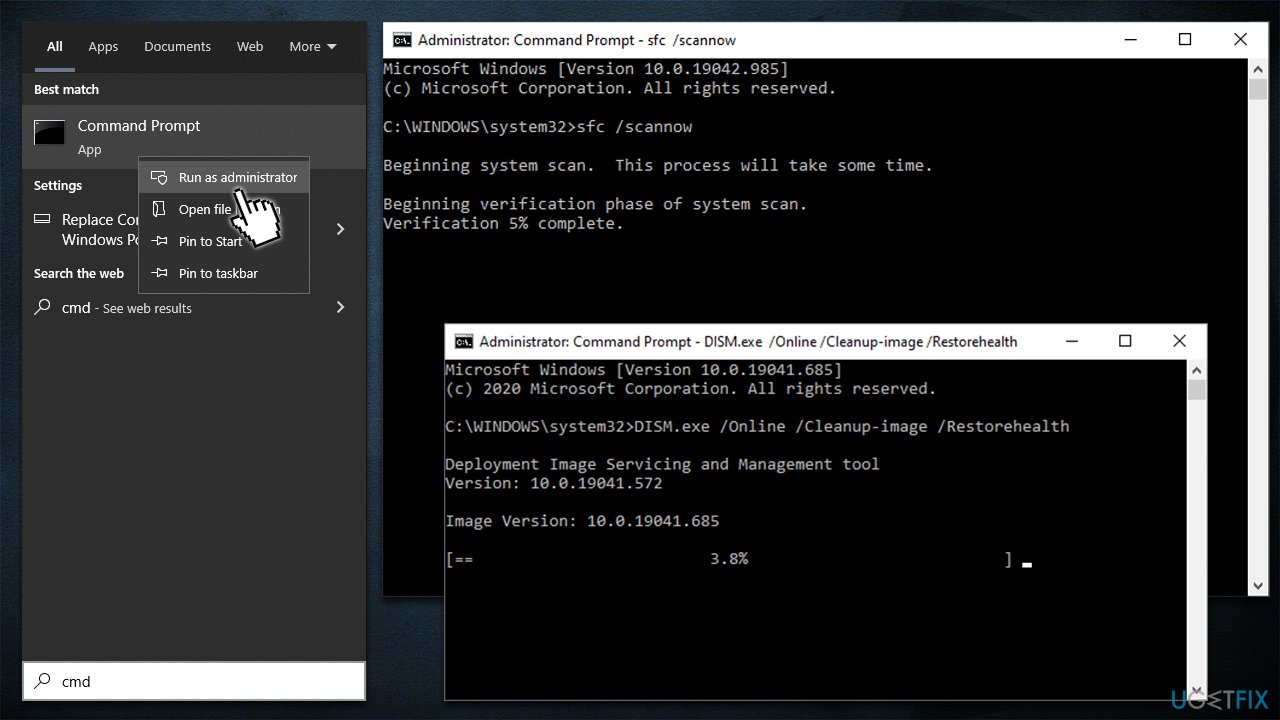
How to fix hpsaapplauncher exe application error in windows run sfc dism - Restart your PC.
Solution 2. Reinstall the app in question
Reinstalling HP Support Assistant can help to solve the error.
- Type in Control Panel in Windows search and hit Enter
- Go to Program > Uninstall a program
- From the list, select HP Support Assistant, right-click and pick Uninstall
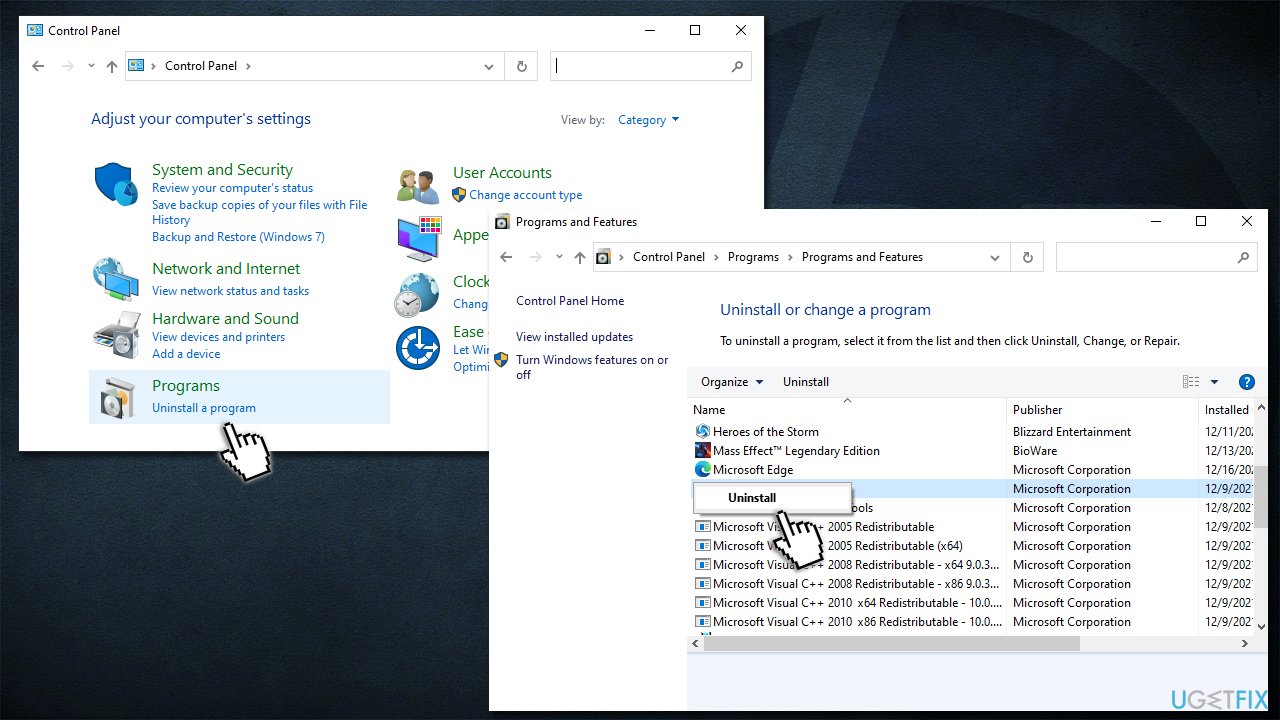
How to fix hpsaapplauncher exe application error in windows uninstall hp support assistant - Follow on-screen instructions to remove the app
- Restart your computer
- Go to the official HP website and download the app
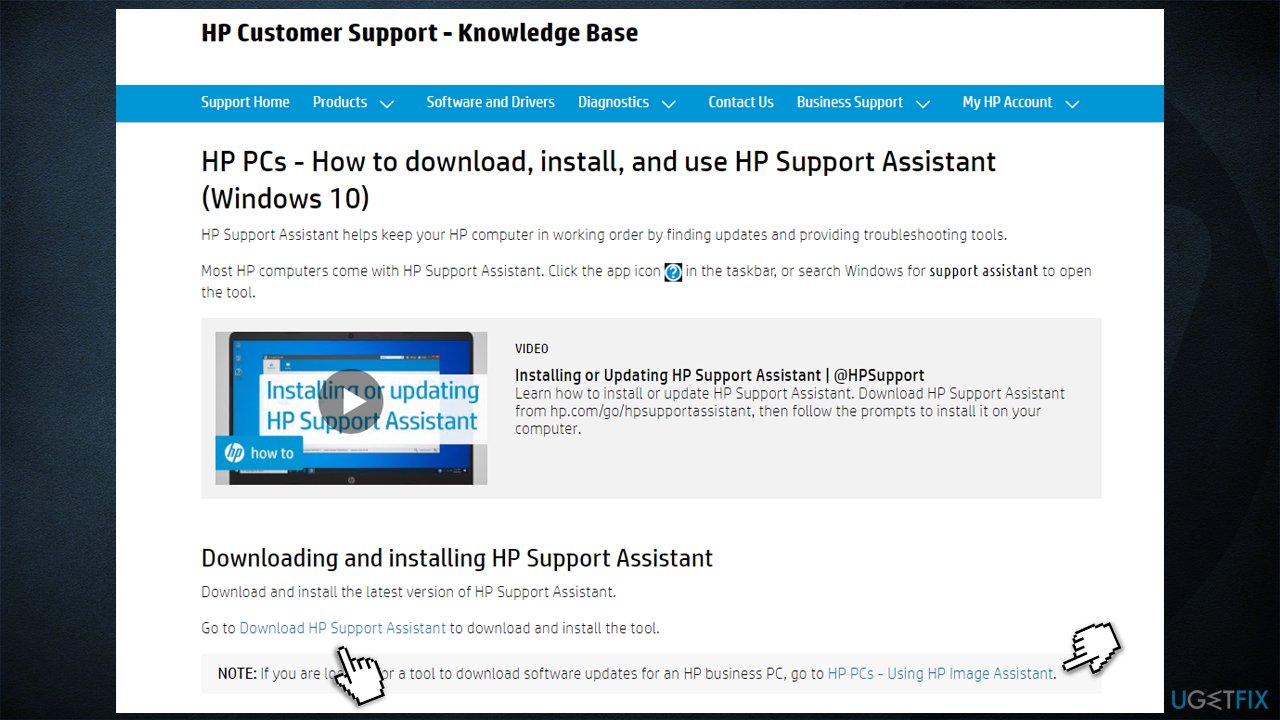
How to fix hpsaapplauncher exe application error in windows download hp support assistant - Install it and restart the computer - see if the HPSAAppLauncher.exe is gone.
Solution 3. Use Disk Cleanup
Bugged caches might be causing errors. Try cleaning them:
- Type Disk Cleanup in Windows search and hit Enter
- Select the disk you want to clean (C: by default) and click OK
- Mark the fields to clean - make sure Temporary files are ticked
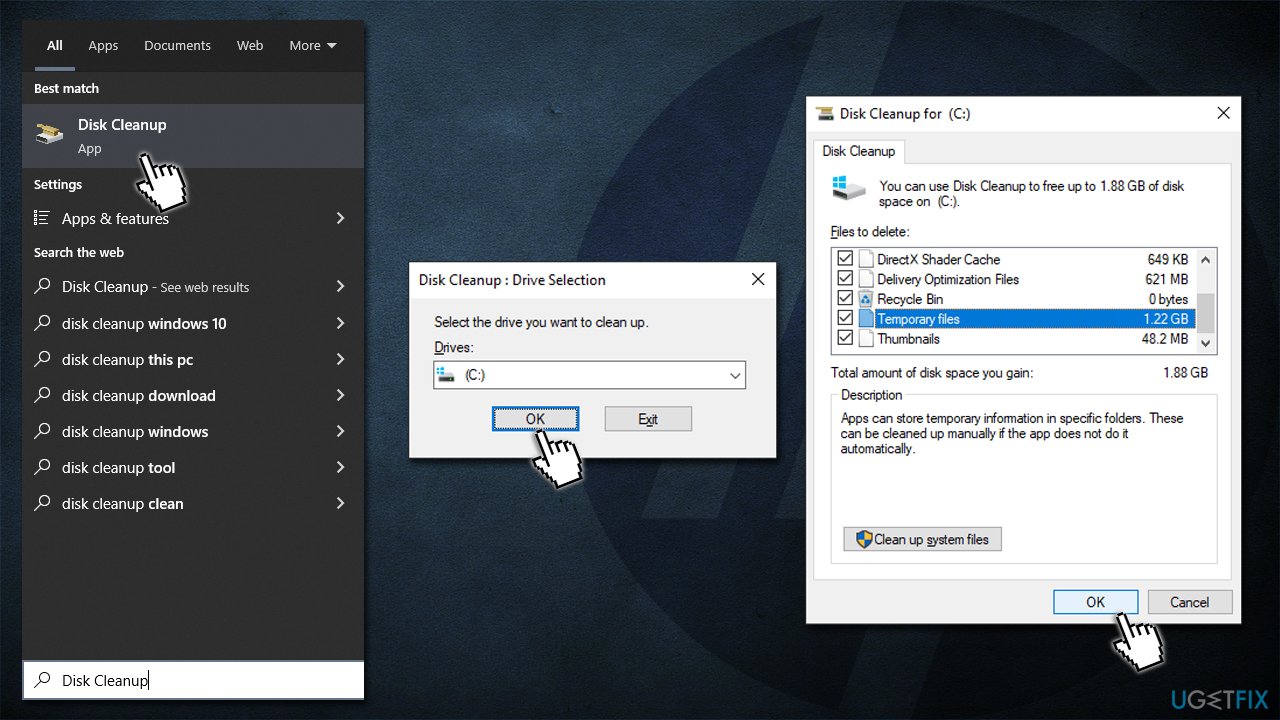
How to fix hpsaapplauncher exe application error in windows use disk cleanup - Click OK.
Solution 4. Use System Restore
If none of the solutions above worked, try using System Restore. While you won't lose your personal files, you might lose some applications that were installed at the time.
- Type in Create a Restore Point in Windows search and hit Enter
- Click System Restore
- Pick Choose a different restore point (if available) and click Next
- Mark the Show more restore points checkbox
- Select the point in time when the problem did not exist
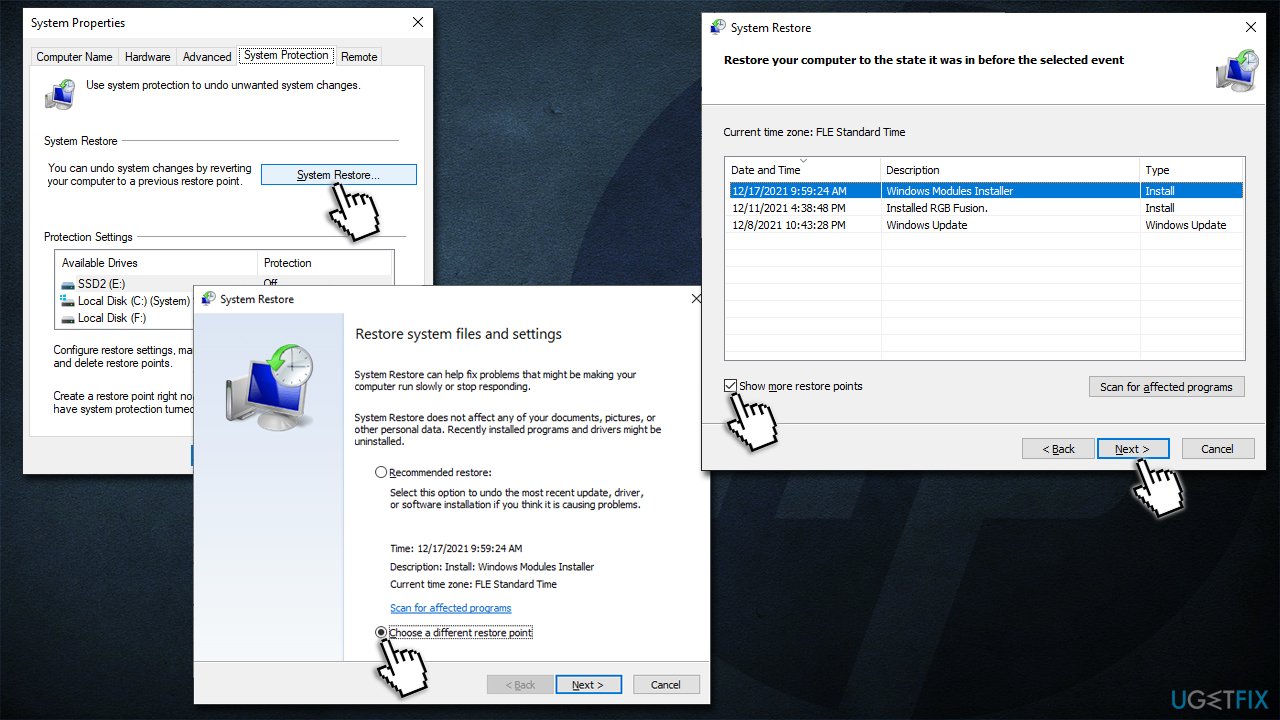
How to fix hpsaapplauncher exe application error in windows use system restore - Click Next and Finish - your PC will restart.
Bottom line
To fix the HPSAAppLauncher.exe Application Error, you can try running a system scan, checking for software conflicts, or reinstalling the HP Support Assistant. If these solutions do not resolve the issue, consider seeking further technical support or exploring additional troubleshooting methods.
Frequently asked questions
You can try reinstalling the HP Support Assistant application to resolve the crashing issue on Windows 10. Additionally, ensure that your Windows updates are current, as they may contain fixes for compatibility issues.
To prevent HPSAAppLauncher.exe from starting up automatically, go to Task Manager, click on the 'Startup' tab, find HP Support Assistant, and disable it. This will stop the application from launching during your Windows 11 startup.
Deleting HPSAAppLauncher.exe is not recommended as it is part of the HP Support Assistant, which helps manage your HP device. Instead, focus on troubleshooting the application error to maintain proper functionality on Windows.




Report an issue
What's wrong with this guide? We review every report and update or remove content.
Report received — thank you. We'll review and fix it.
You need a free account to submit a report.
Be the first to comment