How to fix
Internal Server Error 500 on Twitch
on Windows
Resolve the Internal Server Error 500 on Twitch with our expert-tested guide for Windows 10 and 11 users. Fix it in minutes, hassle-free!

What causes How to fix Internal Server Error 500 on Twitch?
- Server Issues
- Network Connection Problems
- Old Cookies
- Corrupt Caches
- Client's Server Issues
Repairs Windows system files, removes malware, and restores a clean OS state — without reinstalling.
Hi, I have a problem with Internal Server Error 500 on Twitch. While it does not happen all the time, it happens often enough to be really annoying. I am using Windows 10 and Google Chrome browser when watching Twitch.
Twitch is a popular online platform that allows users to stream and watch videos, mainly focused on video game streaming. However, some users may encounter problems while using Twitch, and one of the most frustrating issues is the Twitch 500 internal server error.
The Twitch 500 internal server error is caused by various factors, including server issues, network connection problems, old or corrupt cookies and caches, and more. This error message indicates that there is temporarily an issue with the Twitch server, preventing it from fulfilling the user's request.
If you encounter this error, you should first check your internet connection to ensure it is stable and fast enough to connect to the Twitch server. If your network connection is poor or unstable, it can prompt errors like the failed to fetch settings from Twitch.
Another possible cause of the internal server error on Twitch is an issue with the client's server. Sometimes, users do not consider server issues as the probable cause of internal server errors, so it is important to keep this in mind.
Old or corrupt caches and cookies can also cause internal server errors on Twitch. Browsers collect browsing data and store them in caches and cookies to help you load websites faster and more smoothly. However, these can become old or corrupt and affect your browsing activities, including accessing Twitch.
Fortunately, fixing the Twitch 500 internal server error can be fixed, and we provide a detailed guide on how to do just that below. To ensure your Windows system is not malfunctioning and causing this error, you should run a scan with an automatic PC repair tool [d1].
Fix 1. Check your internet with a Network troubleshooter
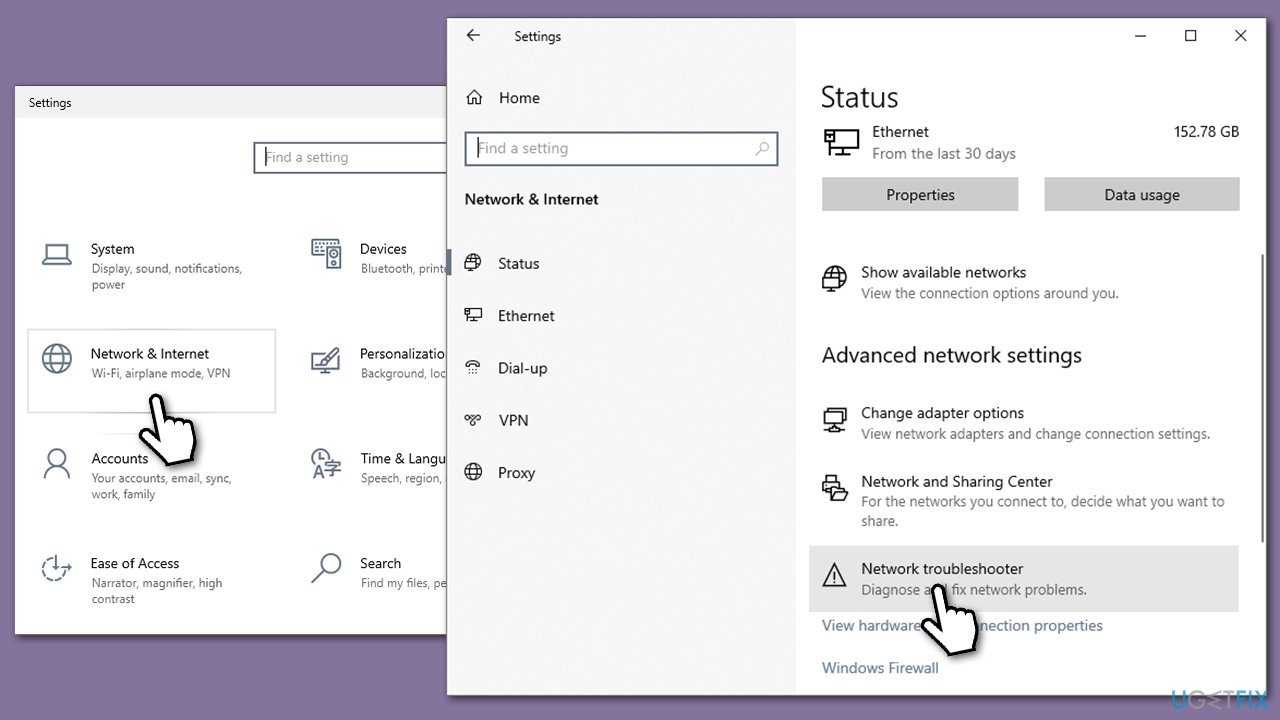
Internal Server Error 500 on Twitch can occur due to an unstable internet connection. To diagnose issues, run the built-in troubleshooter:
- Right-click on Start and pick Settings.
- Go to Network & Internet section.
- On the right side, find the Advanced network settings section.
- Click Network troubleshooter and wait.
- The fixes should be automatically applied.
Fix 2. Clear browser caches
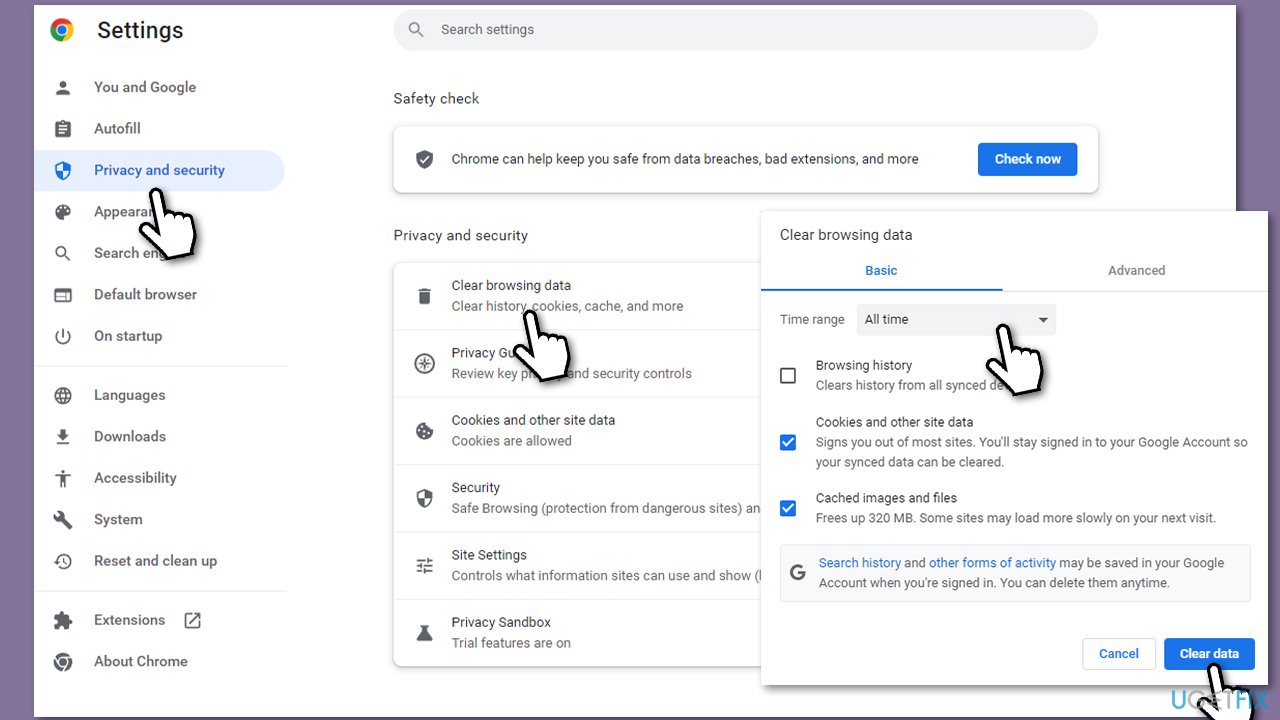
Cached browser data might be the reason for ongoing Twitch errors. To clear it, follow these steps:
Google Chrome:
- Click on Menu (⋮) and pick Settings.
- Under Privacy and security, select Clear browsing data.
- Under time range, pick All time.
- Select Browsing history, Cookies and other site data, as well as Cached images and files.
- Click Clear data.
Mozilla Firefox:
- Open Mozilla Firefox.
- Click the three lines icon (≡) located at the top-right corner of the window.
- Click on Settings from the dropdown menu.
- In the left-hand menu, click on Privacy & Security.
- Scroll down to locate the Cookies and Site Data section.
- Click Clear data...
- Mark the Cookies and Site Data, as well as Cached Web Content checkmarks, and click Clear.
MS Edge:
- Open Edge and click on three horizontal dots (…) (Settings and more).
- Pick Settings.
- Click Privacy, search, and services on the left.
- On the right side of the window, scroll down to find the Clear browsing data section.
- Click Choose what to clear.
- Select All time.
- Pick all the sections and click Clear now.
Fix 3. Uninstall browser extensions
Some browser extensions might interfere with Twitch servers.
Google Chrome:
- Open Settings and go to More tools.
- Select Extensions.
- Here, you will find the list of the installed extensions.
- You can delete them by pressing Remove or toggling the switch to disable them.
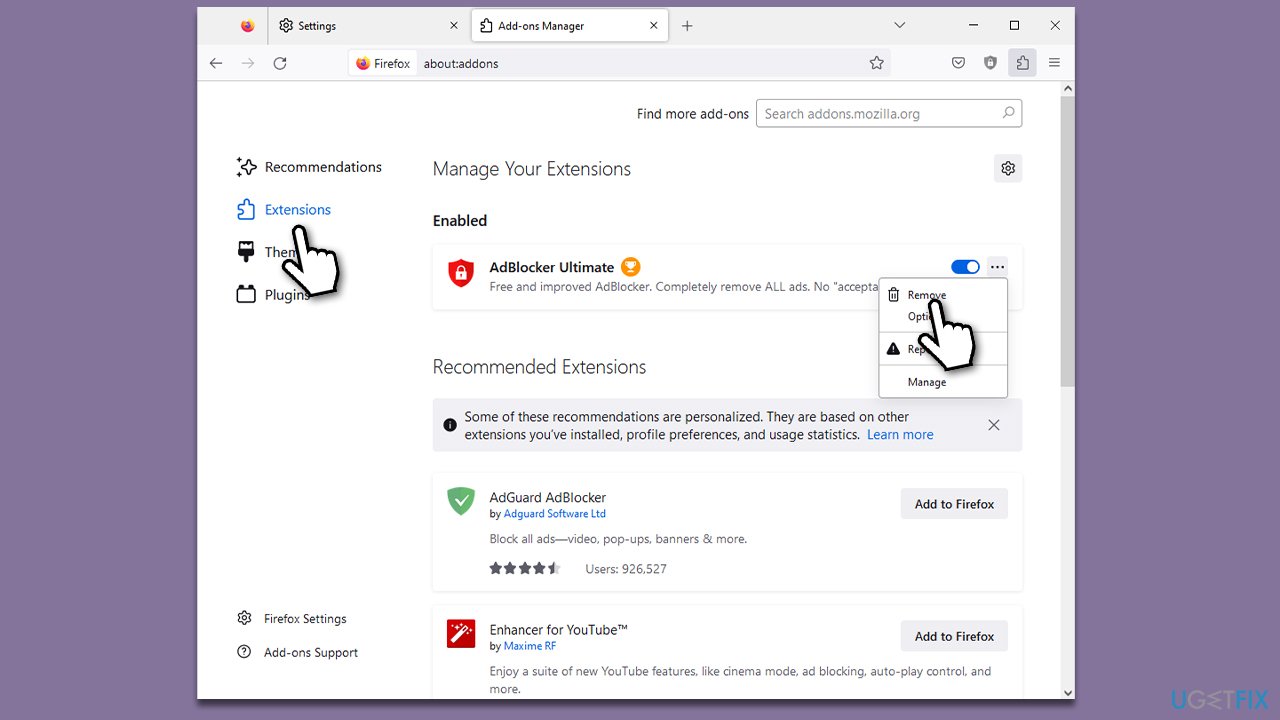
Mozilla Firefox:
- Click the Extensions button next to the menu.
- Click Extensions on the left.
- Here, you will see the listed extensions.
- You can disable them by toggling the switch or uninstall them by clicking 3 dots and selecting Remove.
Microsoft Edge:
- Click the Extensions button next to the address bar.
- Select Manage extensions.
- Here, you can either Remove the extension or disable it by toggling the switch.
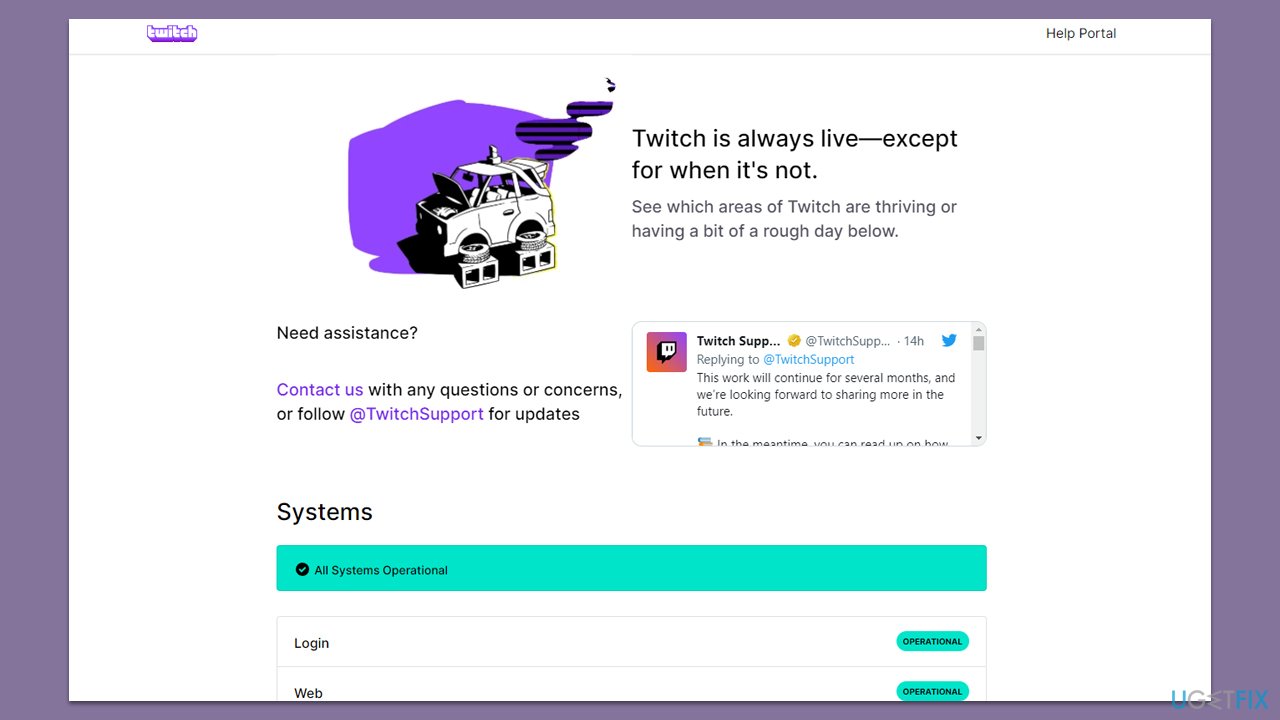
Fix 4. Check server status
If you keep trying to connect to a stream and you keep getting server error 500, it is likely that Twitch servers are down. To check it, you can visit the official Twitch account on Twitter or check an official dedicated website tracking various services live.
Other articles you may find useful:
Bottom line
To fix the Internal Server Error 500 on Twitch, check your internet connection for stability, run a network troubleshooter, and clear your browser's cookies and caches. If the problem persists, consider running a scan with an automatic PC repair tool.
Frequently asked questions
The Internal Server Error 500 on Twitch can be caused by server issues on Twitch's end, or it may also result from problems with your internet connection or browser settings on Windows 10 or Windows 11.
To clear your browser cache on Windows 10 or Windows 11, open your browser settings, navigate to the privacy section, and select the option to clear browsing data, ensuring you include cached images and files.
Yes, firewall or antivirus settings on Windows 10 or Windows 11 may block Twitch, leading to an Internal Server Error 500; ensure that Twitch is allowed through your security software.




Report an issue
What's wrong with this guide? We review every report and update or remove content.
Report received — thank you. We'll review and fix it.
You need a free account to submit a report.
Be the first to comment