How to fix
KB5049624 fails to install
on Windows
Resolve KB5049624 installation issues on Windows 11 with expert tips and solutions. Get it fixed in minutes for a smoother experience!

What causes How to fix KB5049624 fails to install in Windows 11?
- System configuration issues
- Corrupted files
- Update process conflicts
- .NET Framework components not properly enabled or configured
- Insufficient disk space
Repairs Windows system files, removes malware, and restores a clean OS state — without reinstalling.
I have no idea why I can't install this January's update KB5049624. Other related updates install fine. The error code is 0x800f0922. How do I fix it?
Updates not installing are not precisely common for Windows users, but when it happens, it may leave them without crucial security patches and bug fixes on their devices.
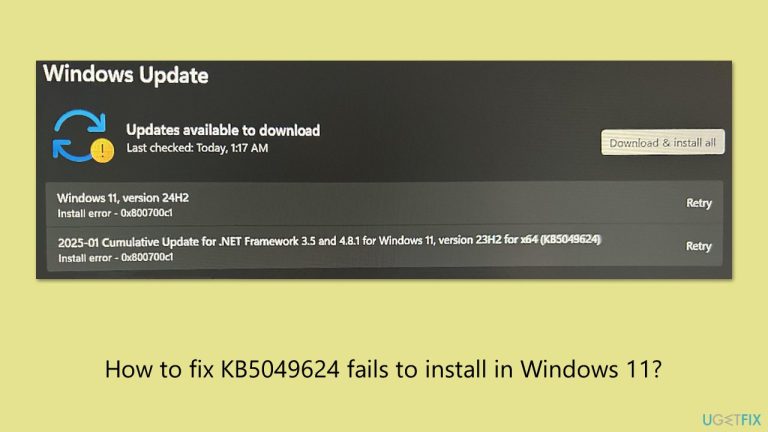
One such issue has now popped up with KB5049624, which simply fails to install on Windows 11 for some users. This is a cumulative update for .NET Framework 3.5 and 4.8.1 targeting Windows 11, version 22H2 and 23H2. According to Microsoft, the update brings important quality and reliability improvements, including security patches. But some users are facing errors while trying to install it, which means they cannot apply these critical updates.
When KB5049624 is failing to install, it usually comes with particular error codes. Among the reported ones are 0x800f0922, 0x800700c1, 0x80070003, and 0x80073712; these usually relate to system configuration issues, corrupted files, or update process conflicts. Many users reported that the installation process stops in the middle or doesn't even begin, which further complicates the situation.
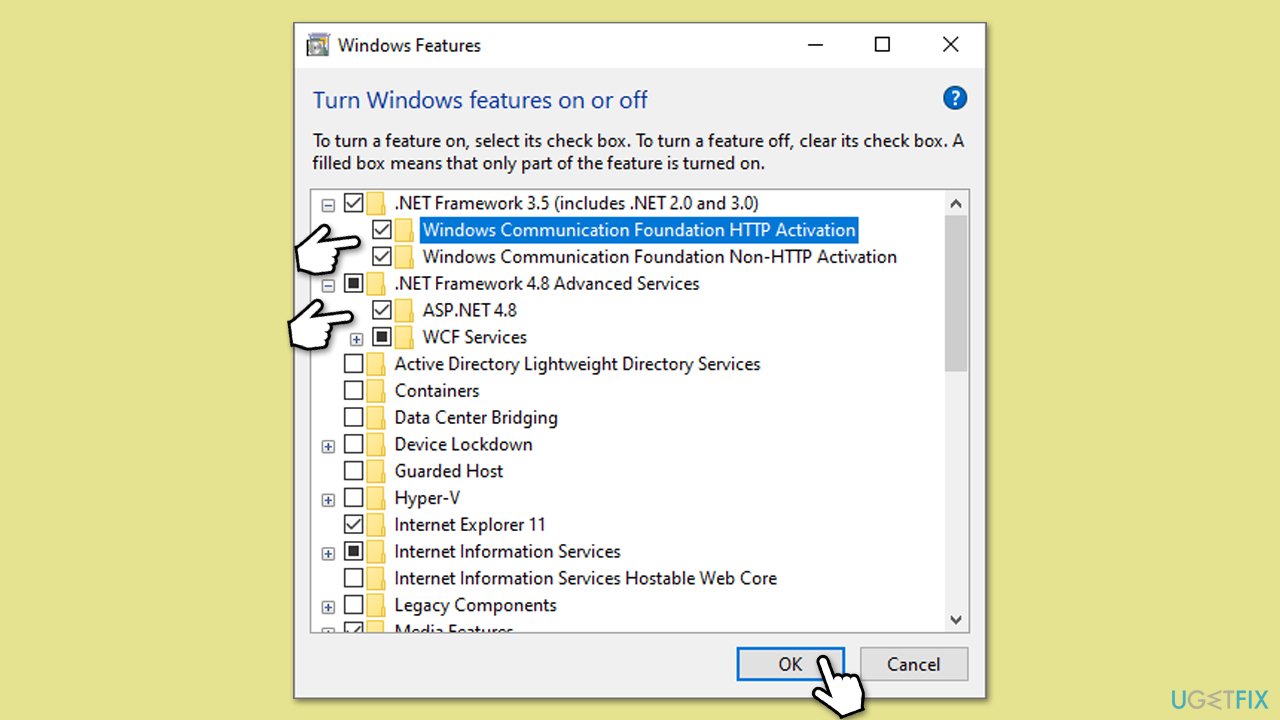
Since KB5049624 is a .NET Framework update, the problem may arise if the required framework components—such as .NET Framework 3.5 or 4.8—are not properly enabled or configured. In some cases, users found enabling these frameworks in the "Turn Windows features on or off" menu to be effective. For others, however, additional measures were required to resolve the issue.
Potential fixes reported by users include renaming or deleting the $WinREAgent folder, which can sometimes interfere with updates. Others have managed to resolve the problem by resetting Windows update components, repairing corrupted system files using built-in tools, or performing a Disk Cleanup to free up space and remove temporary files.
Given the complexity of these issues, users facing KB5049624 failing to install might benefit from addressing multiple factors, such as system settings and file integrity. For a more automated and streamlined approach, consider using the [d1] repair app to identify and fix underlying problems efficiently.

1. Enable .NET Framework Components
Since KB5049624 is a .NET Framework update, ensure that required components are enabled:
- Type Control Panel in Windows search and select Programs.
- Select Turn Windows features on or off.
- Enable .NET Framework 3.5 (includes .NET 2.0 and 3.0).
- Expand the section and mark all the associated checkboxes.
- Next, enable .NET Framework 4.8 Advanced Services .
- Expand the section and mark all the associated checkboxes, including ASP.NET 4.8.
- Click OK.
2. Delete or rename the hidden $WinREAgent folder
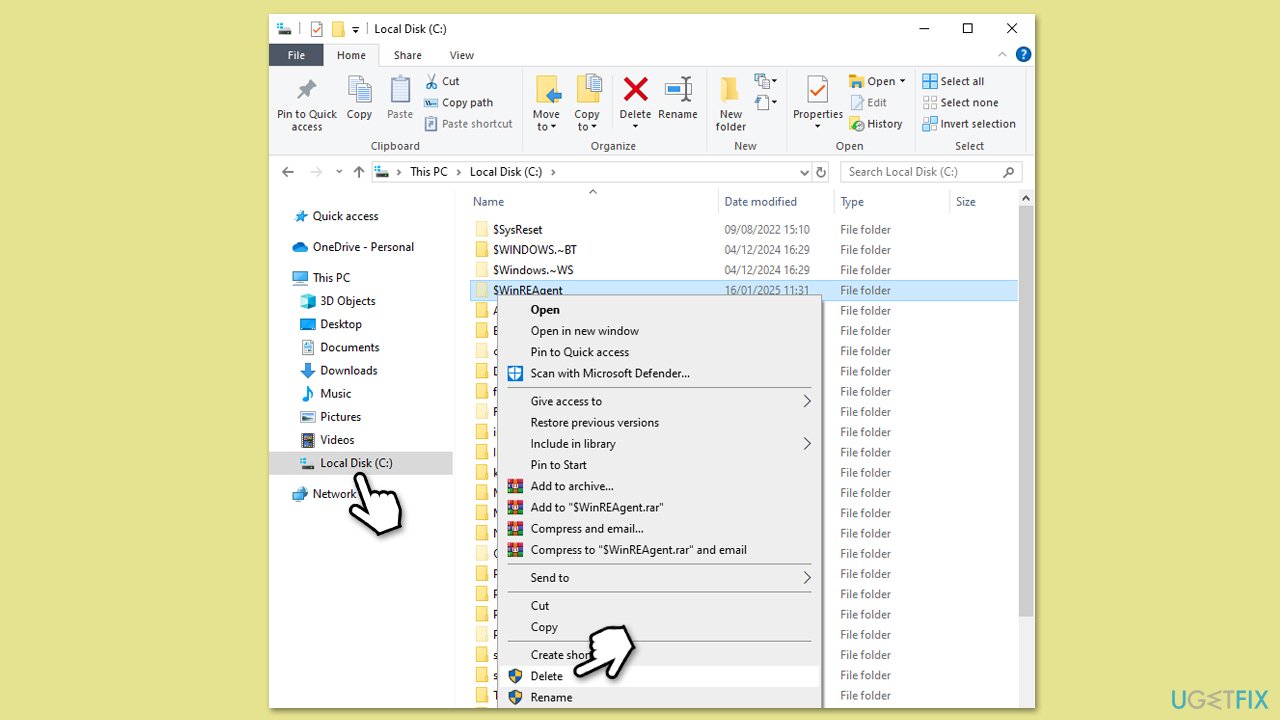
The $WinREAgent folder, used during updates, can sometimes interfere with the process. To resolve this:
- Press Win + E to open File Explorer.
- Go to C:\Windows.
- Enable hidden items by clicking View > Show > Hidden items (or View and check Hidden items in Windows 11) on the toolbar.
- Locate the $WinREAgent folder. Rename it to something like
$WinREAgent.oldor delete it. - Restart your PC and try the update again.
3. Run Disk Cleanup
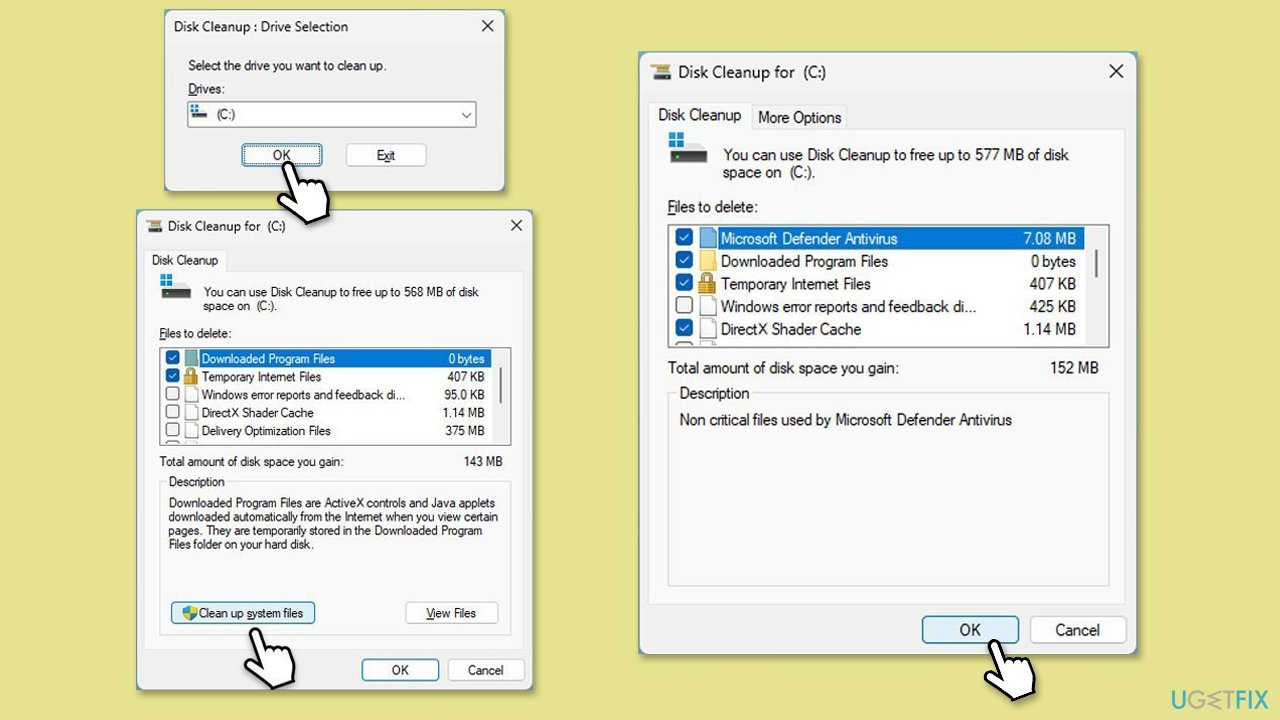
Insufficient disk space or temporary files can block updates. To perform a cleanup:
- Type Disk Cleanup in Windows search and hit Enter.
- If your Windows is installed on drive C, pick it from the list (it should be by default) and press OK.
- Click Clean up system files.
- Select your main disk again and click OK.
- Here, select the largest portions of the data used - these typically include Temporary Internet Files, Windows Update, Temporary Files, Recycle Bin, Delivery Optimization Files, and others.
- Click OK - the process should be finished shortly.
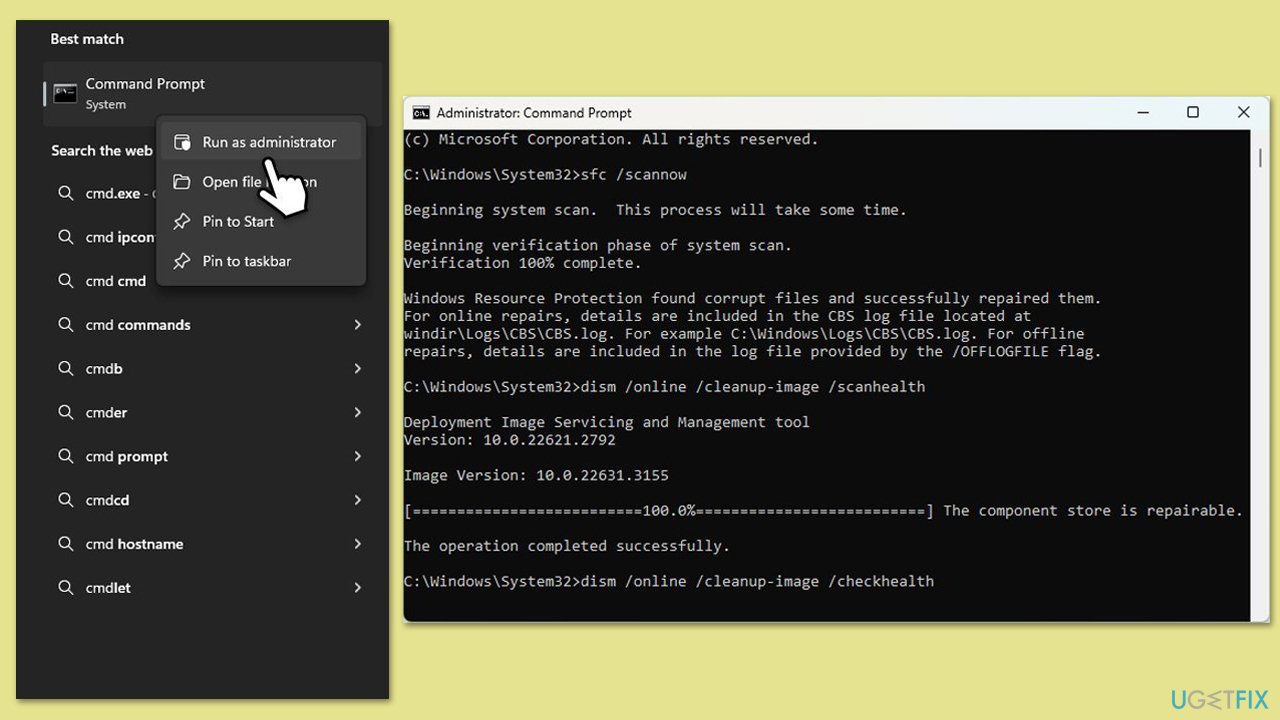
4. Repair Corrupted System Files
Corrupted system files might prevent KB5049624 from installing. Use these steps to fix them:
- Type cmd in Windows search.
- Right-click on Command Prompt and pick Run as administrator.
- User Account Control (UAC) will ask whether you want to allow changes - click Yes.
- In the Command Prompt window, paste the following command and hit Enter:
sfc /scannow - Next, use the following commands, pressing Enter each time:
Dism /Online /Cleanup-Image /CheckHealth
Dism /Online /Cleanup-Image /ScanHealth
Dism /Online /Cleanup-Image /RestoreHealth
(Note: if you get an error executing this last command, add /Source:C:\RepairSource\Windows /LimitAccess to it and try again). - Reboot your system.
5. Reset Windows Update Components
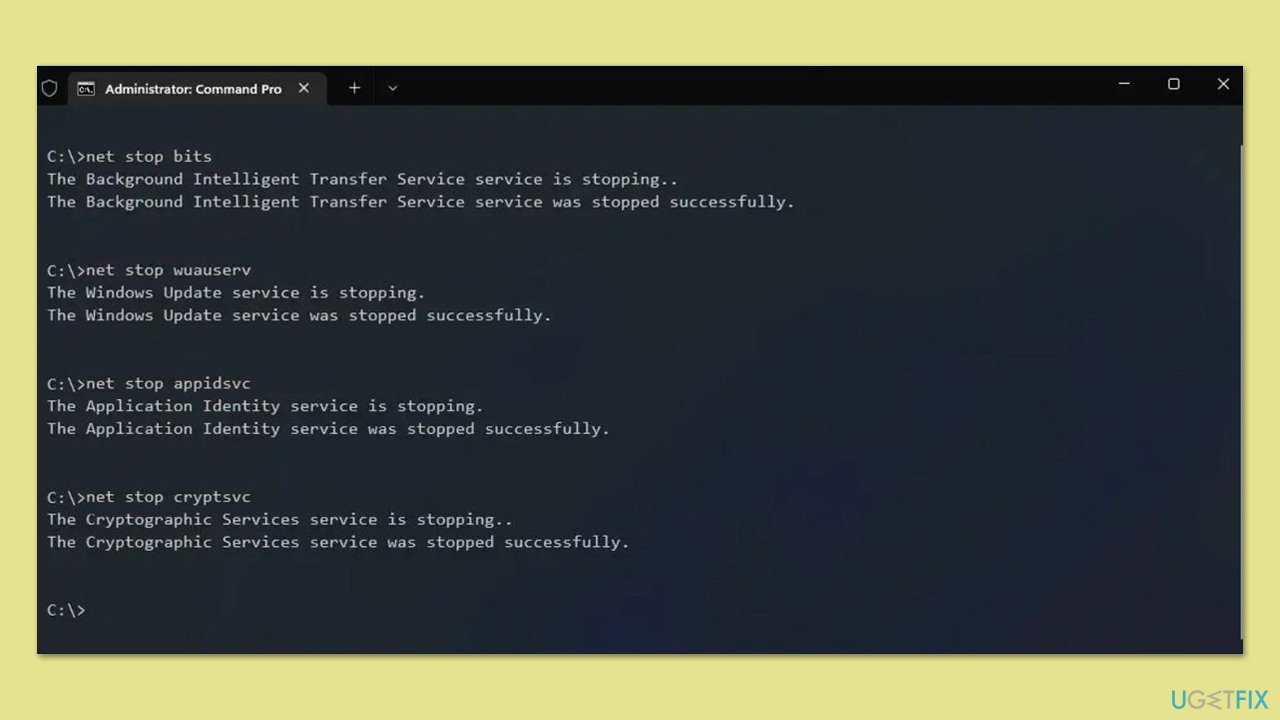
Resetting Windows Update components can fix update-related issues:
- Open Command Prompt as administrator.
- Paste in each of these commands, pressing Enter every time:
net stop bits
net stop wuauserv
net stop appidsvc
net stop cryptsvc
Del “%ALLUSERSPROFILE%\Application Data\Microsoft\Network\Downloader\*.*”
rmdir %systemroot%\SoftwareDistribution /S /Q
rmdir %systemroot%\system32\catroot2 /S /Q
regsvr32.exe /s atl.dll
regsvr32.exe /s urlmon.dll
regsvr32.exe /s mshtml.dll
netsh winsock reset
netsh winsock reset proxy
net start bits
net start wuauserv
net start appidsvc
net start cryptsvc - Reboot your system.
6. Install the update manually
If the automatic update fails, you can install it manually:
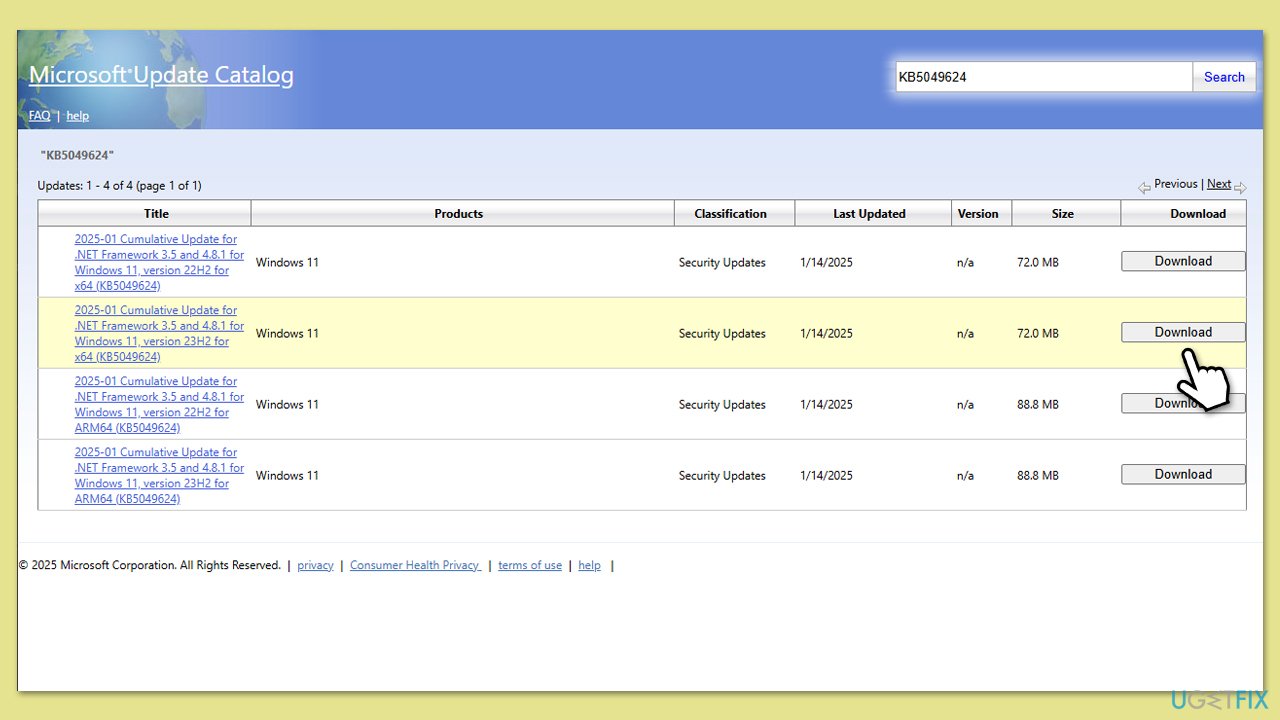
- Visit the Microsoft Update Catalog website.
- Search for the update KB5049624.
- Find the version of the update that matches your system type (22H2 or 23H2).
- Click the Download button next to the correct version.
- In the window that opens, click the link to start the download.
- Once downloaded, open the file and follow the on-screen instructions to install the update.
7. Run Clean Boot
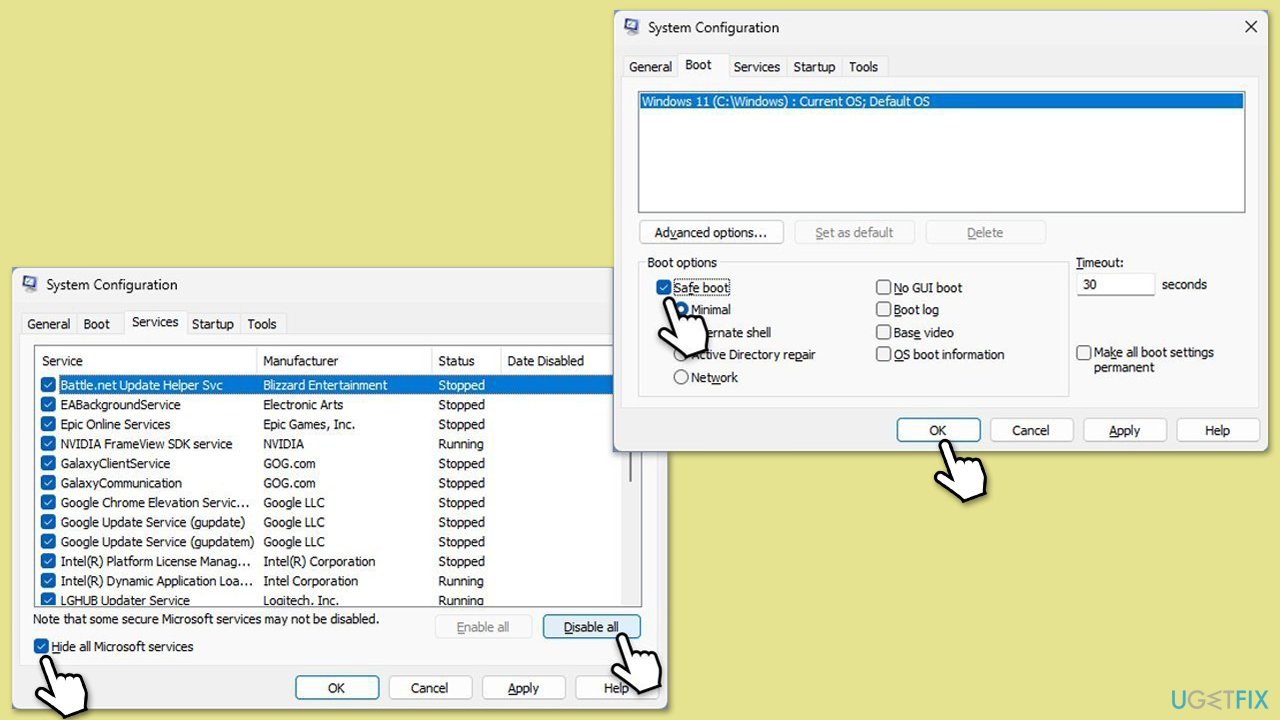
To avoid third-party software interference, perform a clean boot:
- Type msconfig in Windows search, then press Enter.
- Select the Services tab and tick the Hide all Microsoft services checkbox.
- Pick Disable all.
- Go to the Startup tab and click Open Task Manager.
- Here, right-click on each of the non-Windows entries and select Disable.
- Close down the Task Manager.
- Go to the Boot tab and tick the Safe boot option.
- Restart your computer.
- Try updating again.
Bottom line
To fix the KB5049624 installation failure, users can enable .NET Framework components, rename or delete the $WinREAgent folder, reset Windows update components, repair corrupted system files, or perform a Disk Cleanup. If these solutions do not resolve the issue, consider using a repair app to identify and fix underlying problems.
Frequently asked questions
Common reasons include insufficient disk space, corrupted system files, or conflicts with third-party software. Ensuring that your Windows 11 is up to date and performing a system scan can help resolve these issues.
You can manually download the update from the Microsoft Update Catalog website and install it by running the downloaded file. Make sure to restart your system after installation to apply the changes.
If KB5049624 continues to fail, consider performing a system restore to a previous point or using the Windows Update Troubleshooter to fix any underlying issues. Additionally, checking for any pending updates or resetting Windows Update components may help.




Report an issue
What's wrong with this guide? We review every report and update or remove content.
Report received — thank you. We'll review and fix it.
You need a free account to submit a report.
Be the first to comment