How to fix
KB5050094 fails to install
on Windows
Resolve the KB5050094 installation issue in Windows 11 effortlessly with our expert-guided solutions. Fix errors quickly and easily, tested by pros!

What causes How to fix KB5050094 fails to install in Windows 11?
- Corrupted Windows Update components
- Insufficient disk space
- Third-party antivirus software interference
- Network problems
- Corrupt system files
Repairs Windows system files, removes malware, and restores a clean OS state — without reinstalling.
Hello there, I was wondering if you could help me. Previous Windows update completely broken my audio, so I was waiting for new updates to fix this bug. However, now KB5050094 is failing to install for me - and this is the update that is suppose to fix my audio problems.
Windows updates are supposed to provide system stability, security, and performance, but sometimes they manage to mess up users' systems instead. The update KB5050094 was released for Windows 11 in January 2025 as a Preview update - a patch for the 24H2 update's problematic bugs. Unfortunately, KB5050094 fails to install for some people.
Windows 11 version 24H2 was a major update that introduced significant changes but also led to widespread issues, including persistent audio problems, wireless connectivity issues, network instability, and driver conflicts.
The KB5050094 update (OS Build 26100.3037 Preview) introduces several fixes and improvements:
- Fixed an issue where devices failed to recognize the camera as active after the January 2025 security update.
- Resolved a problem where cumulative updates might fail with error 0x800736b3 due to a feature-on-demand installation failure.
- Fixed sign-in issues and errors when connecting to Windows 11 workstations with enforced device redirection.
- Improved taskbar hover previews and enhanced their animations.
- Resolved a problem where screenshots appeared distorted when using multiple monitors with different display scaling settings.
Several factors could be responsible for the installation failure of KB5050094. In some cases, corrupted Windows Update components prevent the system from properly processing the update. Another common issue is insufficient disk space, which can disrupt the installation process if the system lacks enough free storage. Some users have also reported that third-party antivirus software interferes with updates, blocking certain files or causing conflicts.
Network problems can also play a role, especially if the update fails to download correctly due to an unstable or slow internet connection. Additionally, corrupt system files may contribute to the problem, affecting the overall integrity of the Windows update process and leading to installation errors.
For those who are facing KB5050094 installation failures, there are several troubleshooting methods available. All detailed instructions can be found below the article, though users struggling with Windows update issues may also benefit from using the [d1] automatic repair tool to diagnose and fix system problems efficiently.
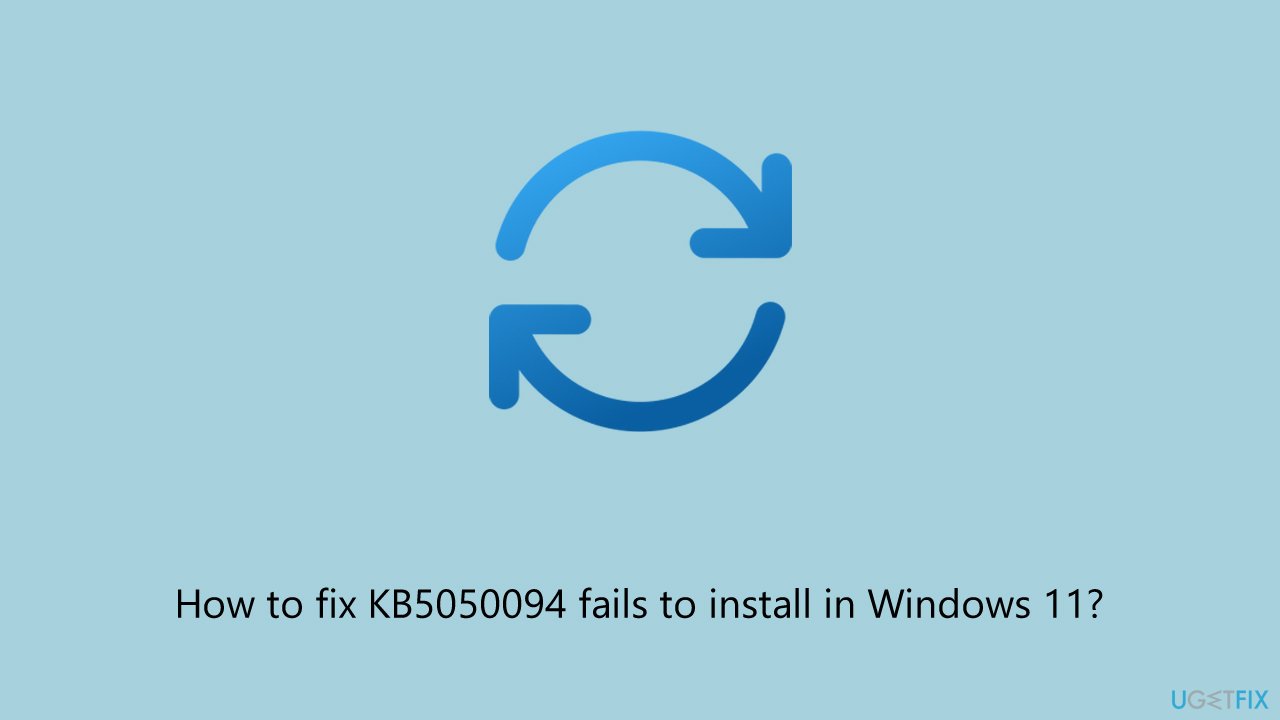
Fix 1. Run the troubleshooters
Windows includes a built-in troubleshooter designed to detect and resolve common update-related issues. Running this tool can help identify and fix problems preventing KB5050094 from installing.
- Type Troubleshoot in Windows search and press Enter.
- Go to Other troubleshooters.
- Find Windows Update from the list and click Run.
- The troubleshooter will automatically scan your system for potential problems and display any issues it finds.
- If the troubleshooter finds any issues, it will provide recommended solutions.
- Repeat this with Network troubleshooter.
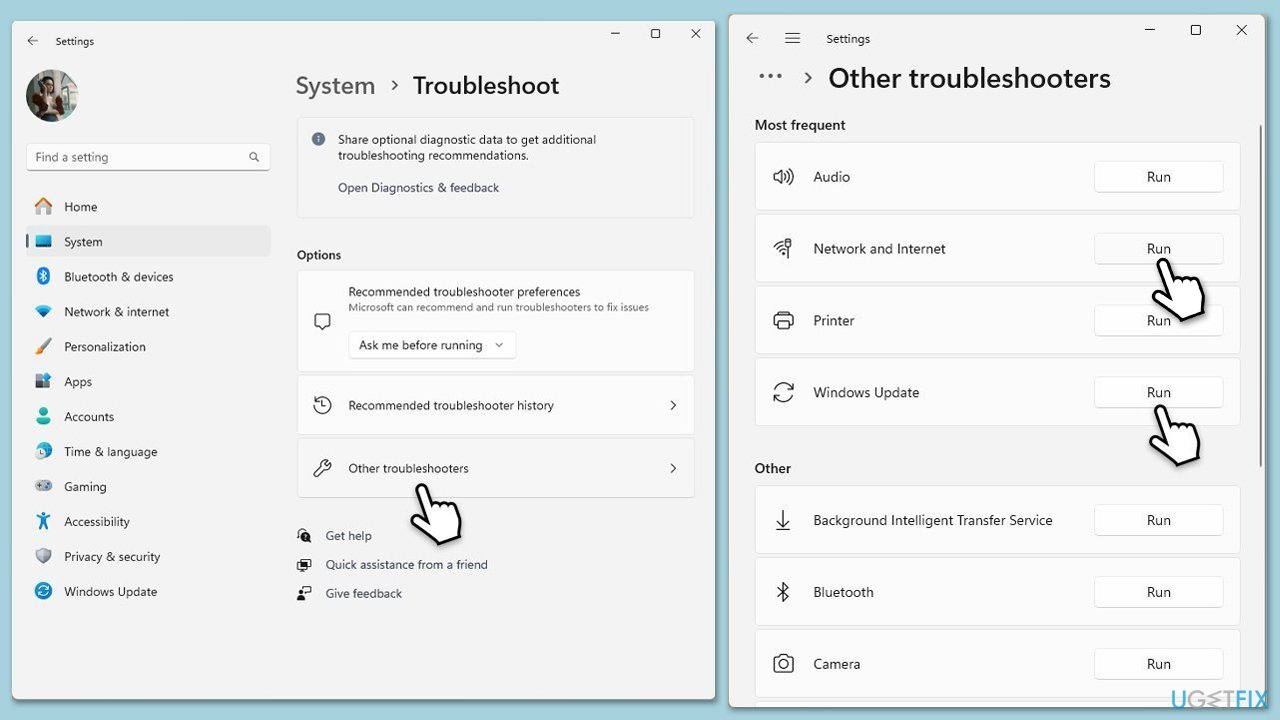
Fix 2. Free Up Disk Space
Lack of storage space can cause updates to fail. Ensuring you have enough free space may resolve the issue.
- Type Disk Cleanup in Windows search and hit Enter.
- If your Windows is installed on drive C, pick it from the list (it should be by default) and press OK.
- Click Clean up system files.
- Select your main disk again and click OK.
- Here, select the largest portions of the data used - these typically include Temporary Internet Files, Windows Update, Temporary Files, Recycle Bin, Delivery Optimization Files, and others.
- Click OK - the process should be finished shortly.
Fix 3. Address service issues
Certain services need to be running in order for the updates to be successful at installing automatically.
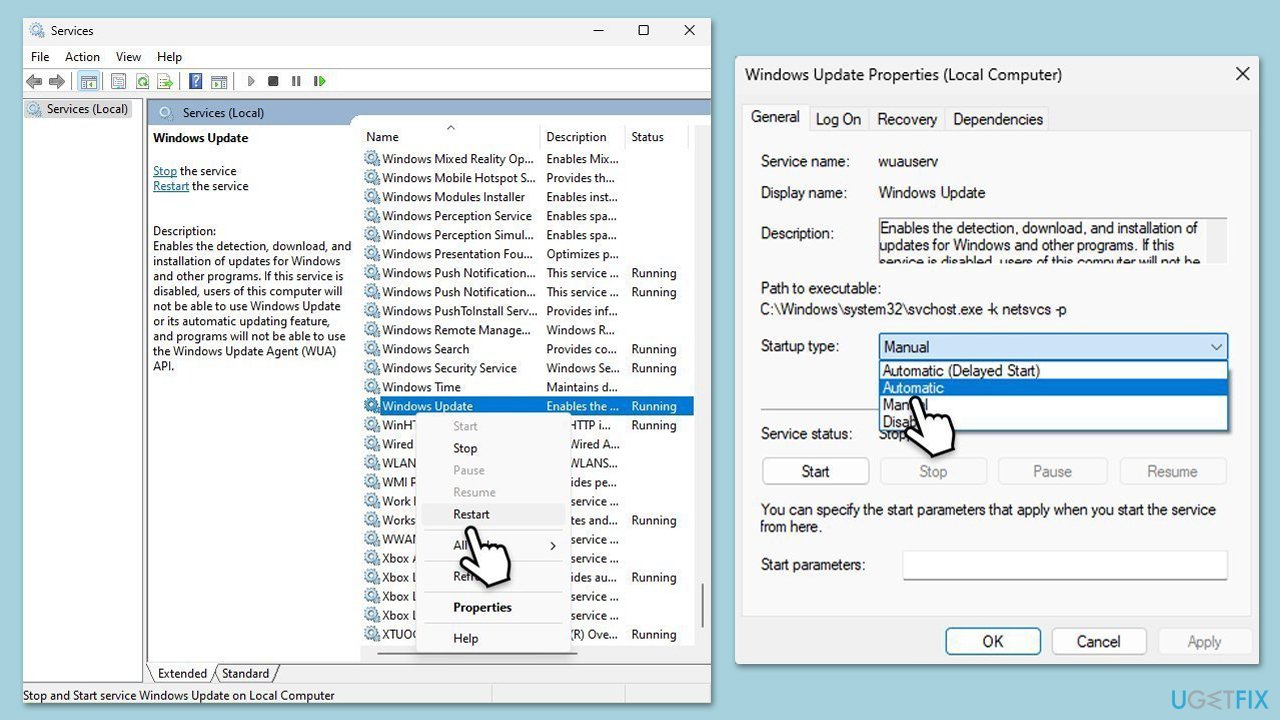
- Type Services in Windows search and press Enter.
- In the Services window, locate and double-click on the following services one by one (if these are already running, right-click and hit Restart):
- Windows Update
- Background Intelligent Transfer Service (BITS)
- Cryptographic Services
- For each service, ensure that the Startup type is set to Automatic. If it's not, select Automatic from the drop-down menu.
- Check the Service status. If the service is not running, click the Start button to start it.
- Click Apply and then OK for each service.
- Close the Services window and restart your computer.
Fix 6. Use the System File Checker and DISM tools
Corrupt system files can prevent updates from installing. Running these built-in repair tools may help.
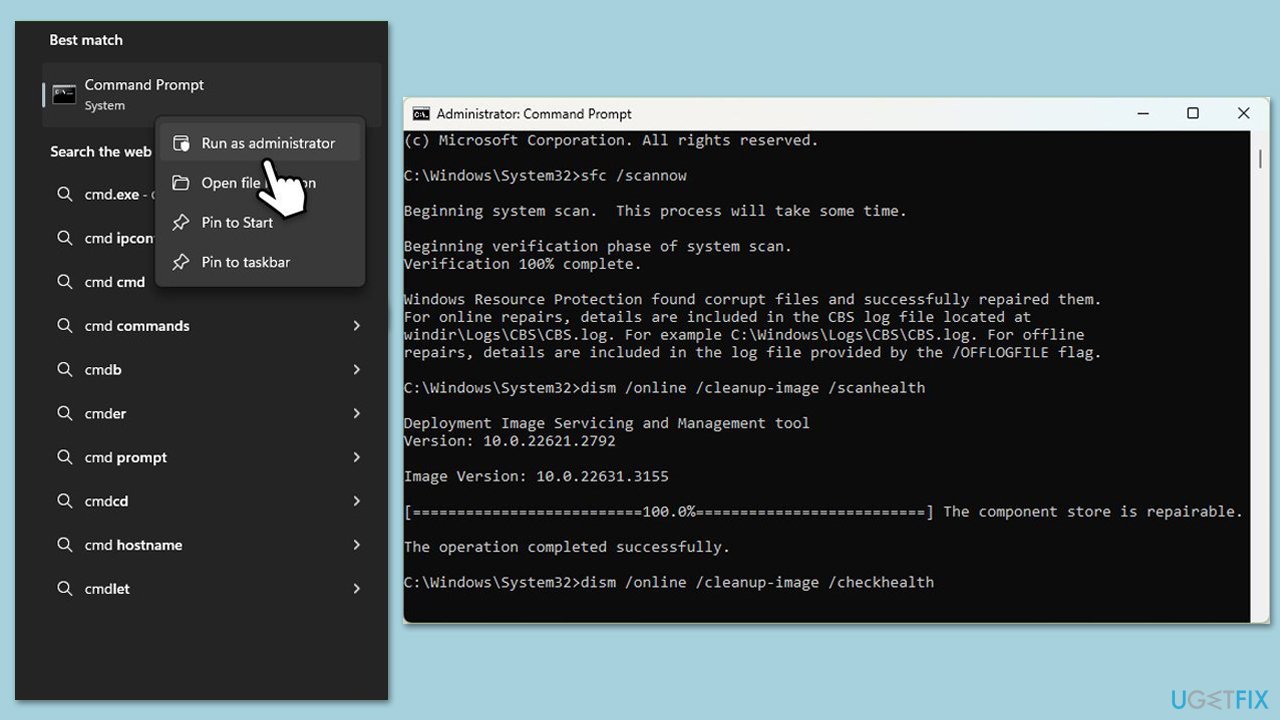
- Type cmd in Windows search.
- Right-click on Command Prompt and pick Run as administrator.
- User Account Control will ask whether you want to allow changes – click Yes.
- Copy and paste the following commands, pressing Enter after each:
- sfc /scannow
DISM /Online /Cleanup-Image /CheckHealth
DISM /Online /Cleanup-Image /ScanHealth
DISM /Online /Cleanup-Image /RestoreHealth
(Note: if you get an error executing the last command, add /Source:C:\RepairSource\Windows /LimitAccess to it and try again.) - Restart your computer.
Fix 5. Manually Download and Install KB5050094
If Windows Update fails, downloading and installing the update manually may work.
- Visit the Microsoft Update Catalog.
- Search for KB5050094.
- Download the version that matches your system architecture (x64 or ARM64).
- Open the downloaded file and follow the
- Restart your PC after the installation completes.installation instructions.

Fix 6. Reset Windows Update Components
Corrupt update components can prevent updates from installing. Resetting them can fix the problem.
- Open Command Prompt as Administrator.
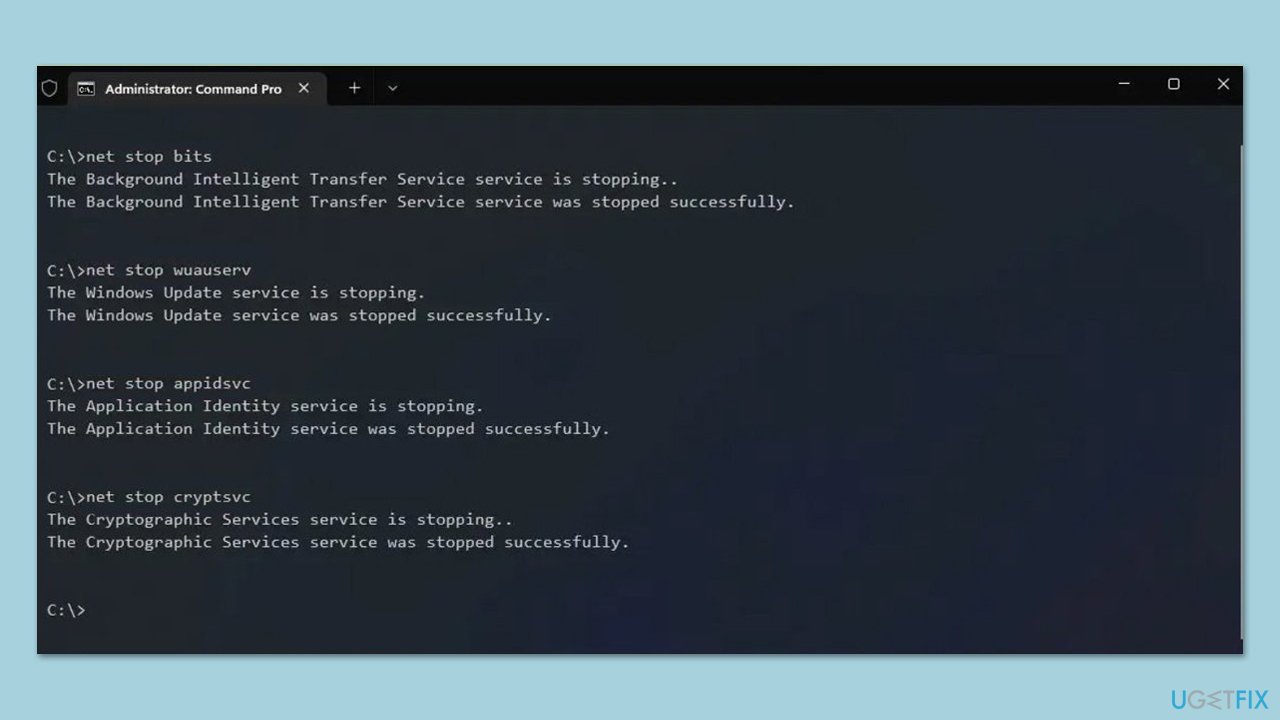
- Stop the Windows Update-related services by running the following commands one at a time, pressing Enter after each one:
net stop wuauserv
net stop cryptSvc
net stop bits
net stop msiserver - Rename the SoftwareDistribution and Catroot2 folders by running the following commands:
ren C:\Windows\SoftwareDistribution SoftwareDistribution.old
ren C:\Windows\System32\catroot2 Catroot2.old
Note: If your Windows installation is not on the C drive, replace "C" with the appropriate drive letter. - Restart the Windows Update-related services by running the following commands:
net start wuauserv
net start cryptSvc
net start bits
net start msiserver - Restart your computer.
Fix 7. Perform a Clean Boot and try again
Background applications and services may conflict with Windows updates. Performing a clean boot can eliminate interference.
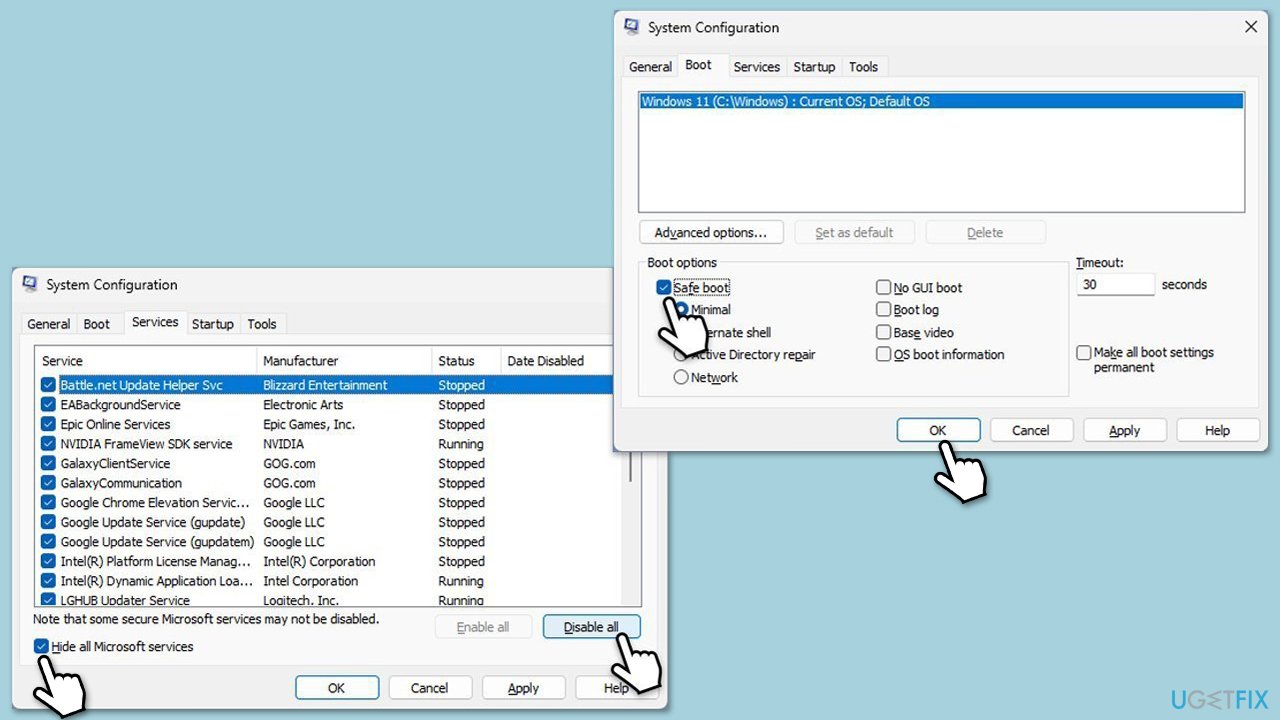
- Type msconfig in the Windows search box and press Enter.
- Pick the Services tab.
- Mark Hide all Microsoft services and select Disable all.
- Select the Startup tab and click Open Task Manager.
- In the Task Manager, right-click on each of the items and select Disable, then close the Task Manager.
- Go to the Boot tab, mark the Safe Boot option, then click Apply and OK.
- On the System Configuration window, click OK.
- If successful, re-enable services and startup programs afterward.
Related links:
- How to fix Windows 11 24H2 update fails to install?
- How to fix keyboard is not working after Windows 11 24H2 update?
- How to fix Realtek audio issues after Windows 11 24H2 update?
- How to fix Realtek audio issues after Windows 11 24H2 update?
- How to fix network and connection issues after installing 24H2 update?
Bottom line
To resolve the installation failure of KB5050094, users can try troubleshooting methods such as checking for corrupted Windows Update components, ensuring sufficient disk space, and disabling third-party antivirus software. If these fixes do not work, users should consider further diagnostics or seeking additional support.
Frequently asked questions
You can try running the Windows Update Troubleshooter to identify and fix any underlying issues preventing the installation of KB5050094.
Yes, you can manually download the update from the Microsoft Update Catalog and install it, which may resolve the failure issue.
Make sure your Windows 11 is fully up-to-date by checking for other pending updates and ensuring you have enough disk space before attempting to install KB5050094.




Report an issue
What's wrong with this guide? We review every report and update or remove content.
Report received — thank you. We'll review and fix it.
You need a free account to submit a report.
Be the first to comment