How to fix
KB5058379 fails to install
on Windows
Resolve the KB5058379 installation error in Windows 10 effortlessly. Gain quick insights and expert-tested solutions for a hassle-free experience. Fixed…

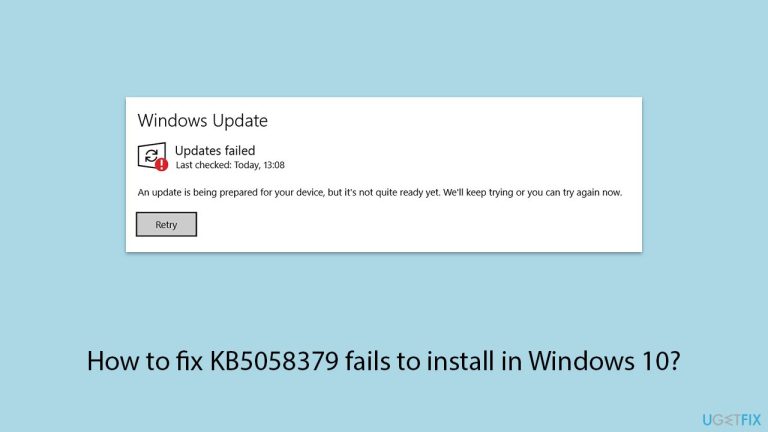
What causes How to fix KB5058379 fails to install in Windows 10?
- Damaged or missing system files
- Running out of disk space
- Background applications interfering
- Old data from previous updates
- Faulty Windows Update components
- Issues with BitLocker
Repairs Windows system files, removes malware, and restores a clean OS state — without reinstalling.
I can't install KB5058379, no matter how many times I try. This is the first time that I have to deal with something like that, so I am not sure what to do now. Maybe you could help me?
KB5058379 is an essential cumulative security update released on May 13, 2025, for Windows 10 version 22H2. It is part of Microsoft's regular Patch Tuesday series and includes major security fixes and performance improvements. Unlike optional or preview updates, this update is categorized as critical and is necessary for all supported systems to provide stability and protection against threats.
Irrespective of this, a few users indicated that KB5058379 will not install. In the majority of cases, the update will get stuck at one particular percentage, roll back to the previous changes after a restart, or vomit out error codes 0x800f0922 or 0x80073701. For some, the update seems to install but subsequently causes system instability later on. It can be frustrating, particularly when the update is installed automatically and keeps crashing repeatedly.
Why is KB5058379 failing to install
There are several reasons why KB5058379 might not be installing on your computer. One reason is that damaged or missing system files will prevent Windows Update from successfully installing. Another is that running out of disk space, especially if your system drive has close to no free space, will also prevent the update. There are also background applications, namely third-party antivirus programs, which will occasionally interfere with the process of updating.
In some cases, old data from previous updates or faulty Windows Update components may be the cause of problems. A few have experienced problems when BitLocker is enabled. BitLocker will prompt you for a recovery key unexpectedly after installing the update. Incomplete updates or pending updates from previous sessions may also interfere with this update.
What you can do about It
If KB5058379 won't install, there are a couple of things you can try. They are the built-in Windows Update Troubleshooter, disk cleanup, and disabling your antivirus temporarily. You can also reset the Windows Update components or manually install the update from the Microsoft Update Catalog. Power users can also check the system logs for more detailed error messages or install the update in Safe Mode.
If these fail, you can try running the [d1] PC repair tool, which will diagnose and fix the kind of underlying issues that generally cause updates like KB5058379 not to be installed correctly.
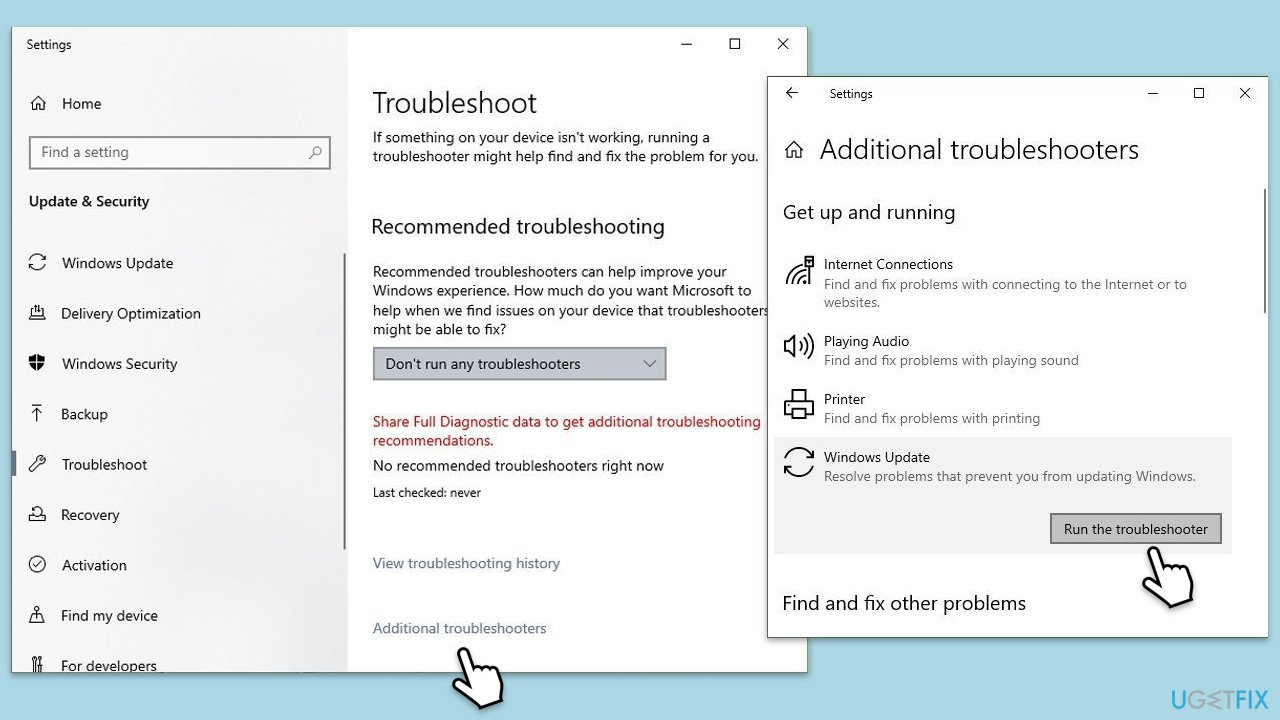
Fix 1. Run the Windows Update troubleshooter
Windows includes a built-in tool that can detect and fix common update issues automatically. It's often the first step to resolving update errors like KB5058379 failing to install.
- Type Troubleshoot into the Windows search bar and press Enter.
- Next, on the right side of the window, select Additional troubleshooters.
- Scroll down to locate the Windows update option and click on it.
- Click on Run the troubleshooter and allow the process to complete.
- Once it is finished, implement any recommended fixes and restart Windows.
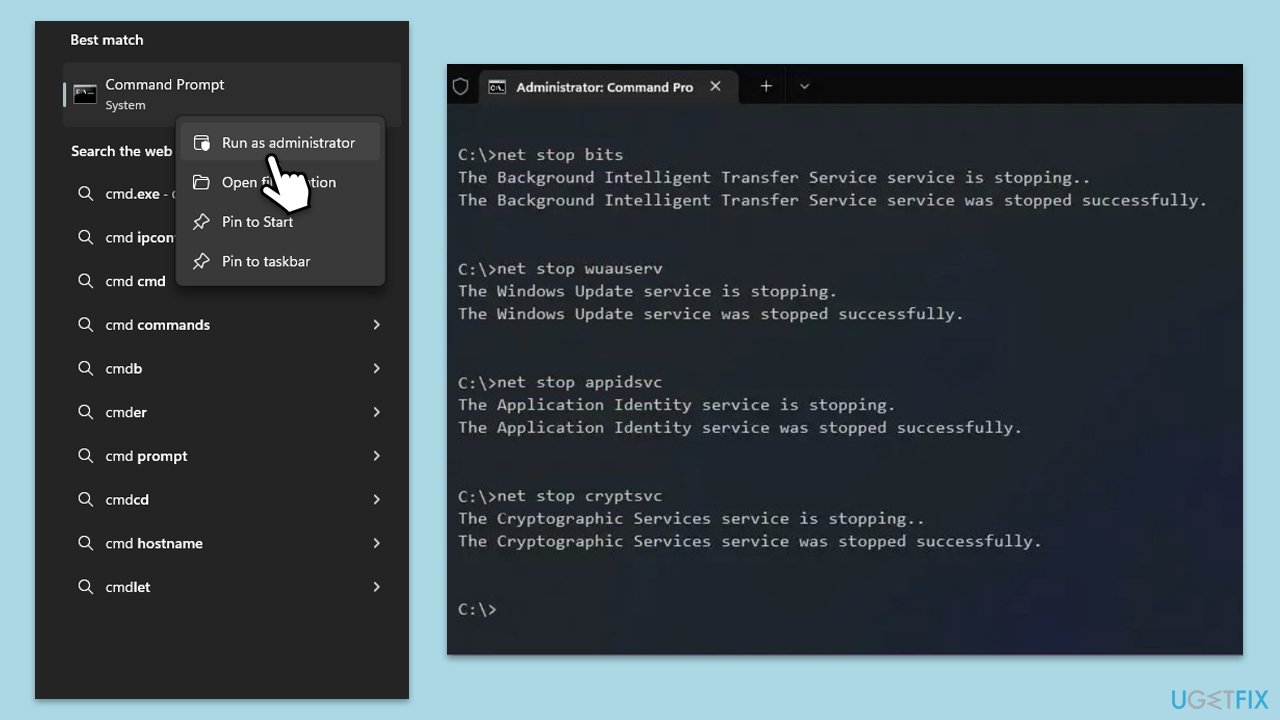
Fix 2. Reset Windows Update components
Broken or corrupted update components are a common cause for update failures. Resetting them can restore normal functionality.
- Type cmd in Windows search.
- Right-click on Command Prompt and pick Run as administrator.
- Accept the User Account Control prompt by pressing Yes.
- Stop the Windows Update-related services by running the following commands one at a time, pressing Enter after each one:
net stop wuauserv
net stop cryptSvc
net stop bits
net stop msiserver - Rename the SoftwareDistribution and Catroot2 folders by running the following commands:
ren C:\Windows\SoftwareDistribution SoftwareDistribution.old
ren C:\Windows\System32\catroot2 Catroot2.old
Note: If your Windows installation is not on the C drive, replace "C" with the appropriate drive letter. - Restart the Windows Update-related services by running the following commands:
net start wuauserv
net start cryptSvc
net start bits
net start msiserver - Restart your computer.
Fix 3. Free up system drive space
If your system partition is nearly full, the update may not complete due to a lack of available storage.
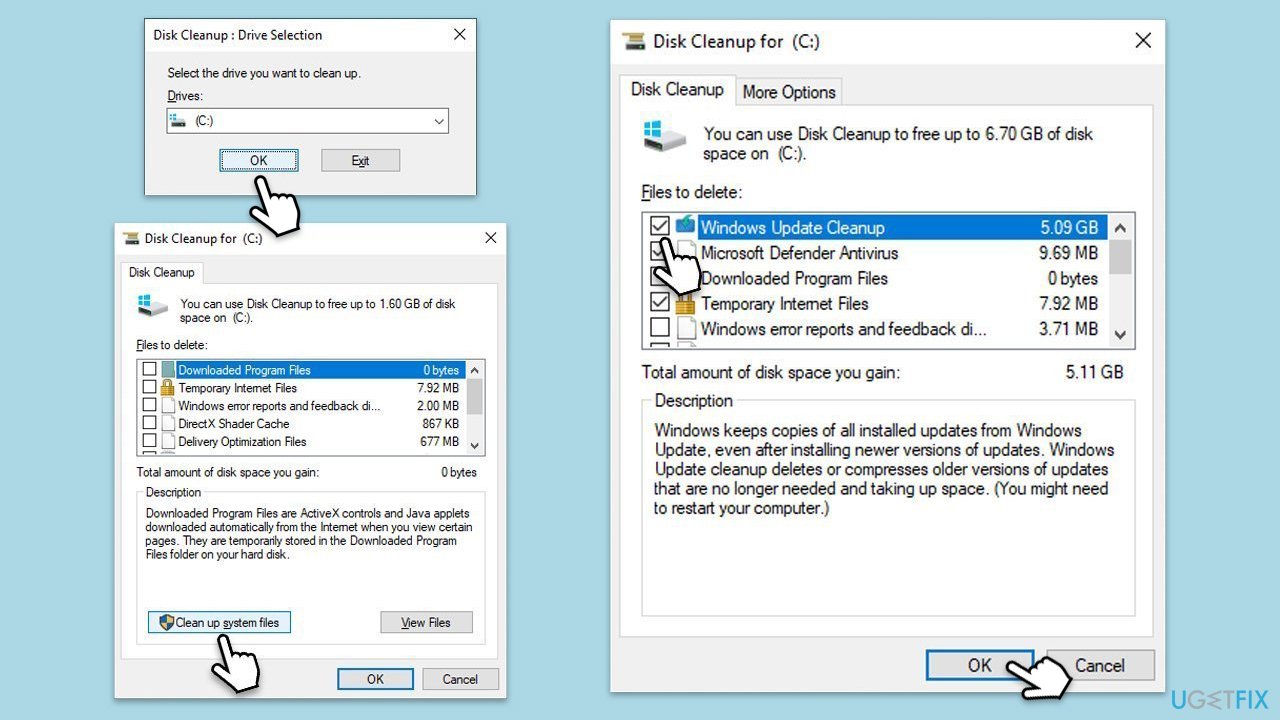
- Type Disk Cleanup in Windows search and hit Enter.
- If your Windows is installed on drive C, pick it from the list (it should be by default) and press OK.
- Click Clean up system files.
- Select your main disk again and click OK.
- Here, select the largest portions of the data used - these typically include Temporary Internet Files, Windows Update, Temporary Files, Recycle Bin, Delivery Optimization Files, and others.
- Click OK - the process should be finished shortly.
Fix 4. Temporarily disable third-party antivirus or run Clean Boot
Security or other third-party software may block or interfere with the installation of updates.
- Right-click the antivirus icon in the system tray and disable protection, then attempt to install updates.
- If not successful, enable Clean Boot instead:
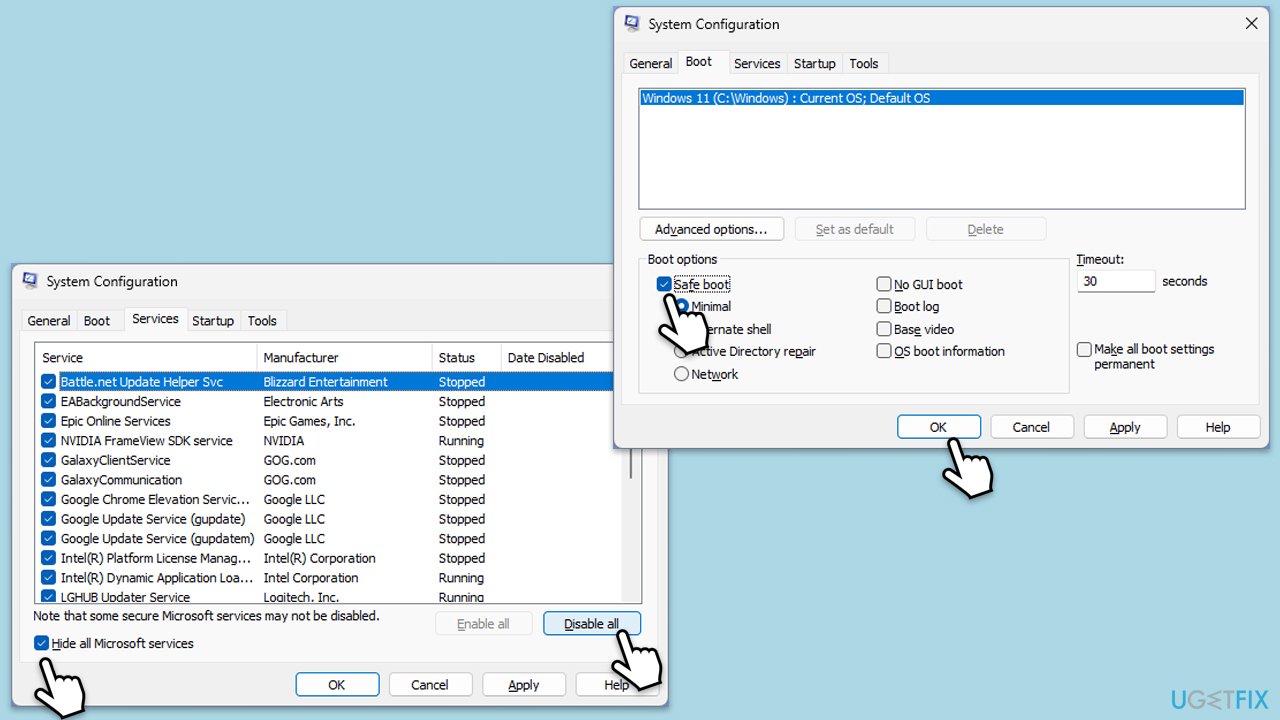
- Type msconfig in Windows Search and press Enter to open the System Configuration window.
- Click on the Services tab and check the Hide all Microsoft Services box.
- Click Disable all to disable non-Microsoft services, then click the Startup tab.
- Open the Task Manager, disable all startup items, and close the Task Manager.
- Go to the Boot tab and mark the Safe boot option.
- Click OK on the System Configuration window and restart your computer.
- Try updating Windows again.
Fix 5. Manually install the KB5058379 update
If automatic updates are failing, manual installation can help bypass system-level issues.
- Type in Updates in Windows search and press Enter.
- Select View update history.
- Find the update that failed with the error and copy its KB number.
- Open your browser and go to Microsoft Update Catalog.
- Within the search bar, type in the KB number and click Search.
- Find the correct version of the update for your operating system (to check this, right-click on Start and pick System. Under Device specifications and check the System type) and click Download.
- Use on-screen guidelines to finish the installation process and restart your system.

Fix 6. Check for BitLocker lockout issues
Some users report that the update triggers unexpected BitLocker prompts after installation.
- Press Win + R to open the Run dialog.
- Type control and press Enter.
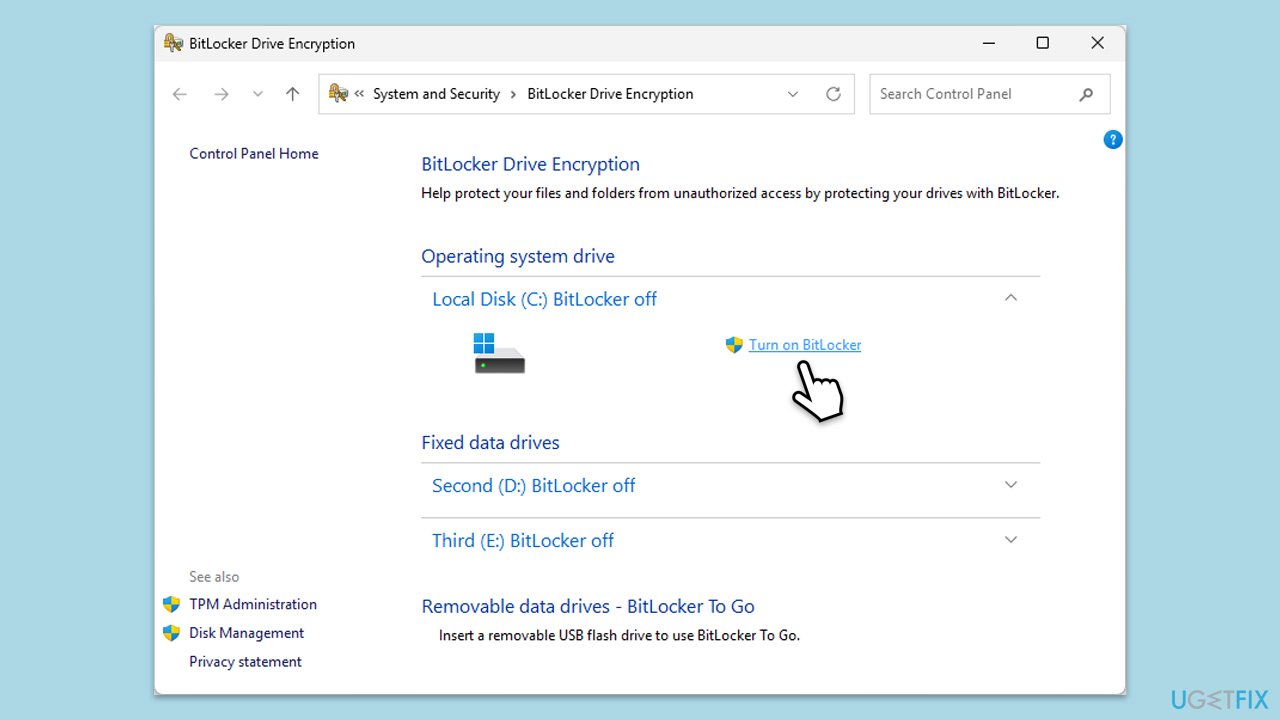
- Open BitLocker Drive Encryption.
- If BitLocker is on, back up your recovery key to a USB drive or Microsoft account.
- Suspend BitLocker protection before attempting to install the update.
- Resume protection after the update completes successfully.
Bottom line
If KB5058379 won't install, you can try using the built-in Windows Update Troubleshooter, performing a disk cleanup, and temporarily disabling your antivirus. Additionally, consider resetting the Windows Update components or manually installing the update. If none of these solutions work, further investigation may be needed.
Frequently asked questions
First, try running the Windows Update Troubleshooter to detect and fix any issues automatically. If that doesn't work, consider resetting the Windows Update components manually.
Yes, common error codes include 0x80070308 and 0x800F0922, which indicate problems with system files or connectivity issues.
You can check the update status by going to Settings > Update & Security > Windows Update, and then clicking on 'View update history' to see if KB5058379 is listed.




Report an issue
What's wrong with this guide? We review every report and update or remove content.
Report received — thank you. We'll review and fix it.
You need a free account to submit a report.
Be the first to comment