How to fix
Media Creation Tool error 0x80072ee2 – 0x20018
on Windows
Resolve Media Creation Tool error 0x80072ee2 - 0x20018 on Windows 10/11 quickly and effectively with expert-tested solutions. Fixed in minutes!

What causes How to fix Media Creation Tool error 0x80072ee2 – 0x20018 in Windows?
- Poor Internet connection
- Outdated network adapters
- Interruption during the update process
- Issues with the Media Creation Tool
- Corrupted system files
Repairs Windows system files, removes malware, and restores a clean OS state — without reinstalling.
Hello. When I try to use the Media Creation Tool to update Windows I receive the 0x80072ee2 - 0x20018 error. I cannot seem to find the issue, any tips would be appreciated.
The Media Creation Tool is a utility developed by Microsoft. Using it, people can upgrade their Windows machines to the latest version and create Windows installation USB drives to perform clean installations. Users can also use it to repair various errors and problems. However, what to do when the Media Creation Tool malfunctions?
Some users report receiving an 0x80072ee2 - 0x20018 error when they tried to update or clean install Windows with the Media Creation Tool. This can happen for various reasons, and it is no doubt that it is very annoying for many. The tool is often used as a last resort when trying to fix various Windows issues, so when that does not work, it can be very frustrating.
One of the reasons why users might get the Media Creation Tool error 0x80072ee2 - 0x20018, is because of poor Internet connection. Those who have encountered the issue should check if everything is fine with their connection as interruptions can cause such errors to appear and stop the process.
Users who have ethernet should try plugging in to the modem directly. Try turning off the modem and PC, wait 15 minutes, then turn the modem, and computer back on. The error could appear because of outdated network adapters[ref en-1] as well, so you should check if there are any updates available. You will find these and more steps in our detailed guide which should help you fix the Media Creation Tool error 0x80072ee2 - 0x20018 in Windows.
Troubleshooting may take a while, so you can use a maintenance tool like [d1] that can fix most system errors, corrupted files, registry[ref en-2] issues, even BSoDs.[ref en-3] It may also increase the performance of the machine by optimizing it.
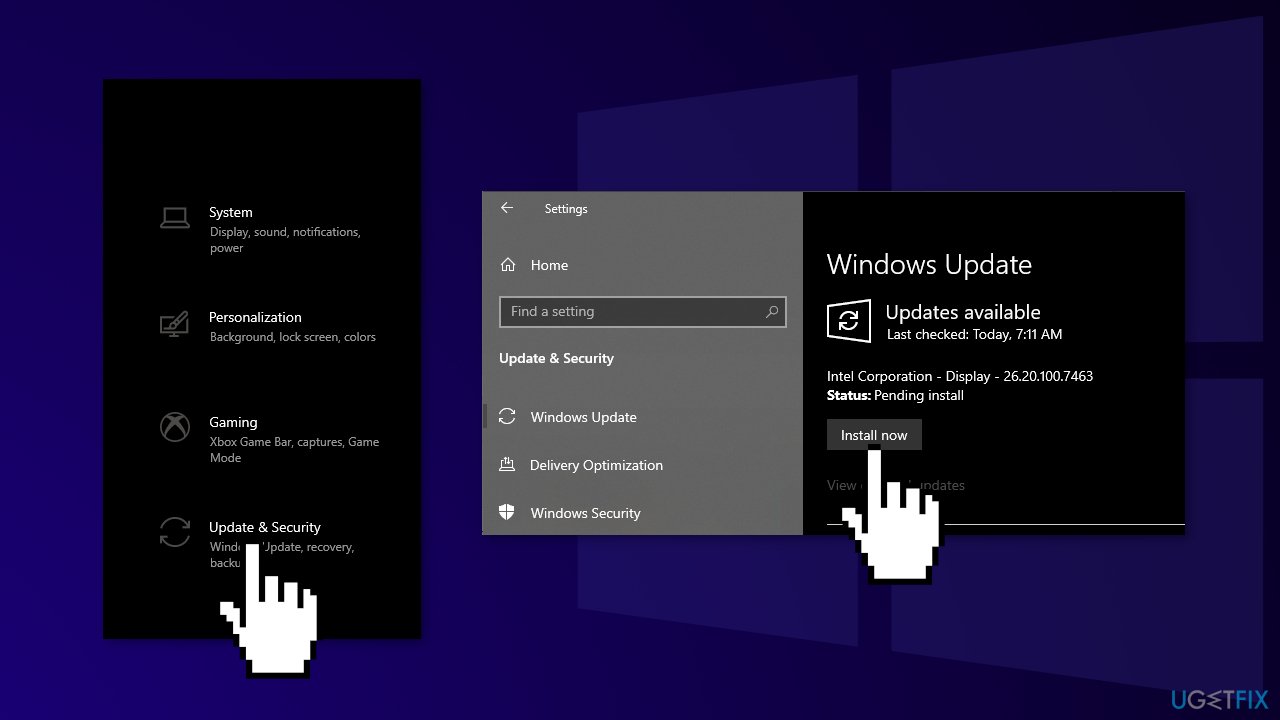
Method 1. Check for Updates
- Click Settings from your start menu and click Update & Security
- Choose Windows Upgrade from the left panel and click the Check for updates button, and then your computer will check for, download, and install any updates found
Method 2. Run SFC and DISM
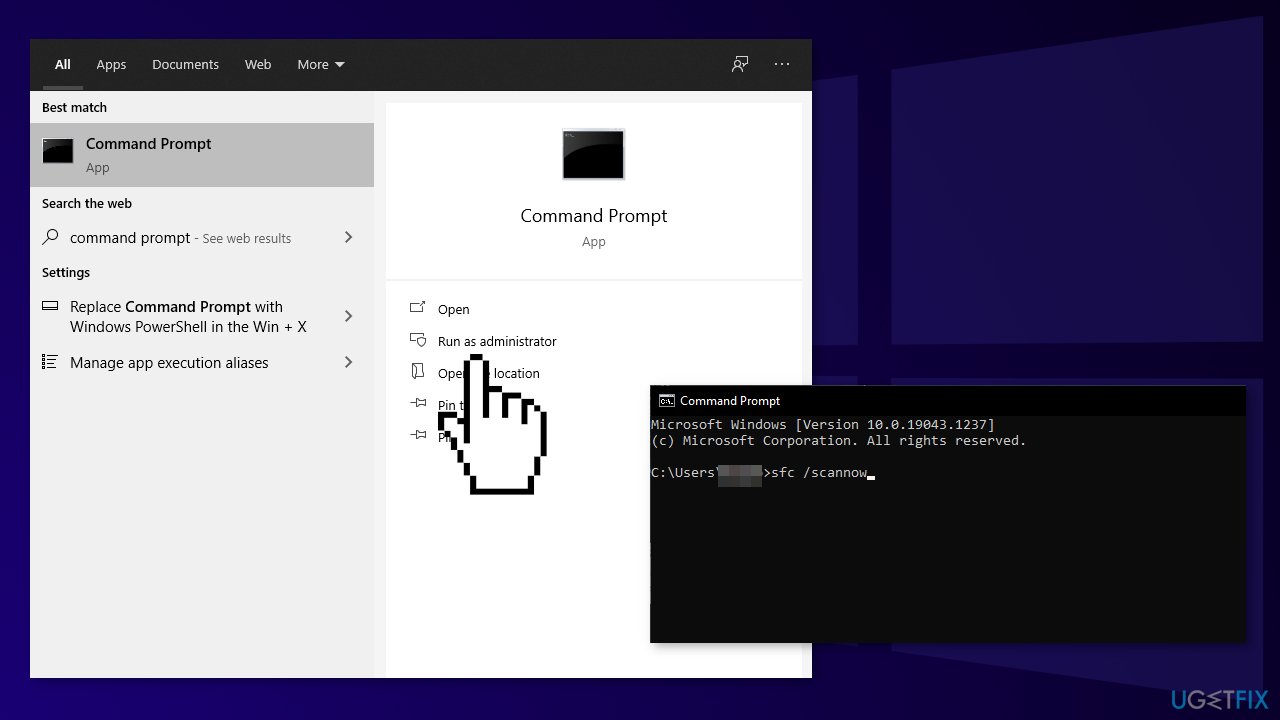
Use Command Prompt commands to repair system file corruption:
- Open Command Prompt as administrator
- Use the following command and press Enter:
sfc /scannow
- Reboot your system
- If SFC returned an error, then use the following command lines, pressing Enter after each:
DISM /Online /Cleanup-Image /CheckHealth
DISM /Online /Cleanup-Image /ScanHealth
DISM /Online /Cleanup-Image /RestoreHealth
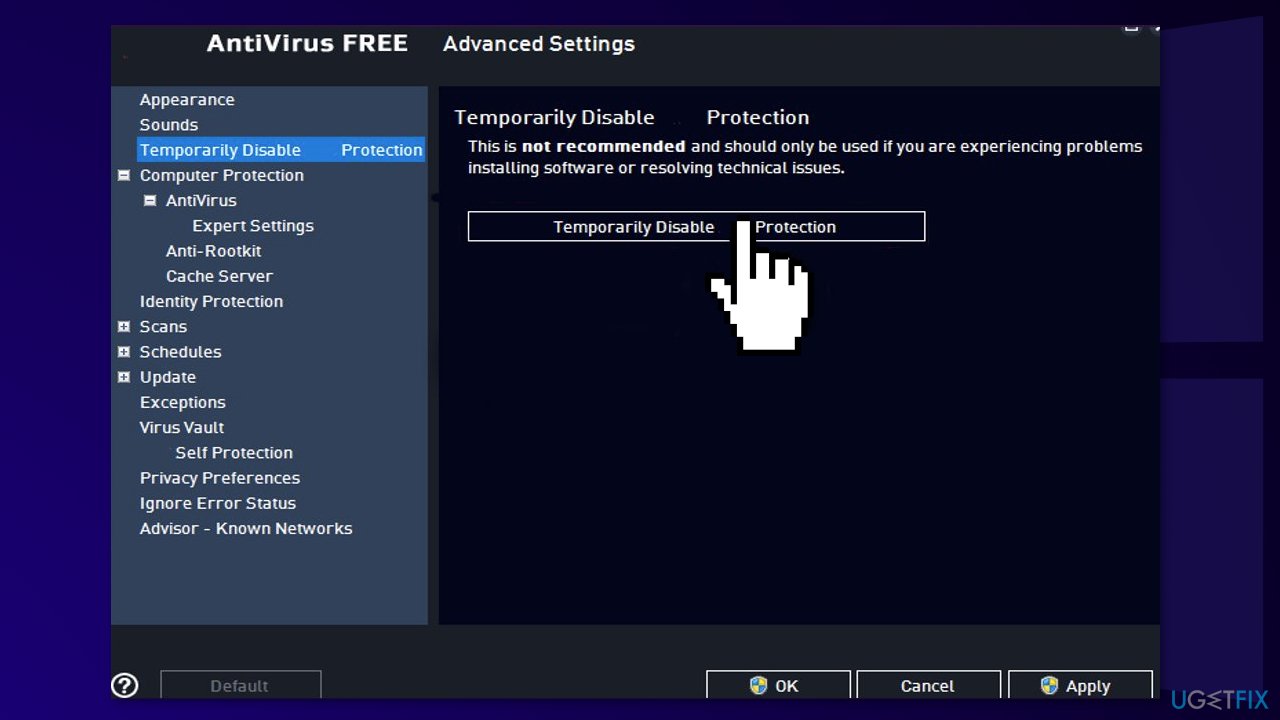
Method 3. Disable Third-Party Antivirus Software
Some security programs might be conflicting with Microsoft servers and data packages that they send during the update process, mistakenly perceiving these servers as insecure. Thus, it is known that removing AV software helped some users when trying to remove Windows update errors.
- Right-click the antivirus icon and select Disable
- You can also double-click the antivirus icon and look for a Disable option there
Method 4. Run Windows Media Creation tool as an Administrator
- Right-click the setup file and open Properties
- Under the Compatibility tab, choose Run this program in compatibility mode
- From the drop-down menu, choose your Windows version
- Check the Run this program as an administrator box
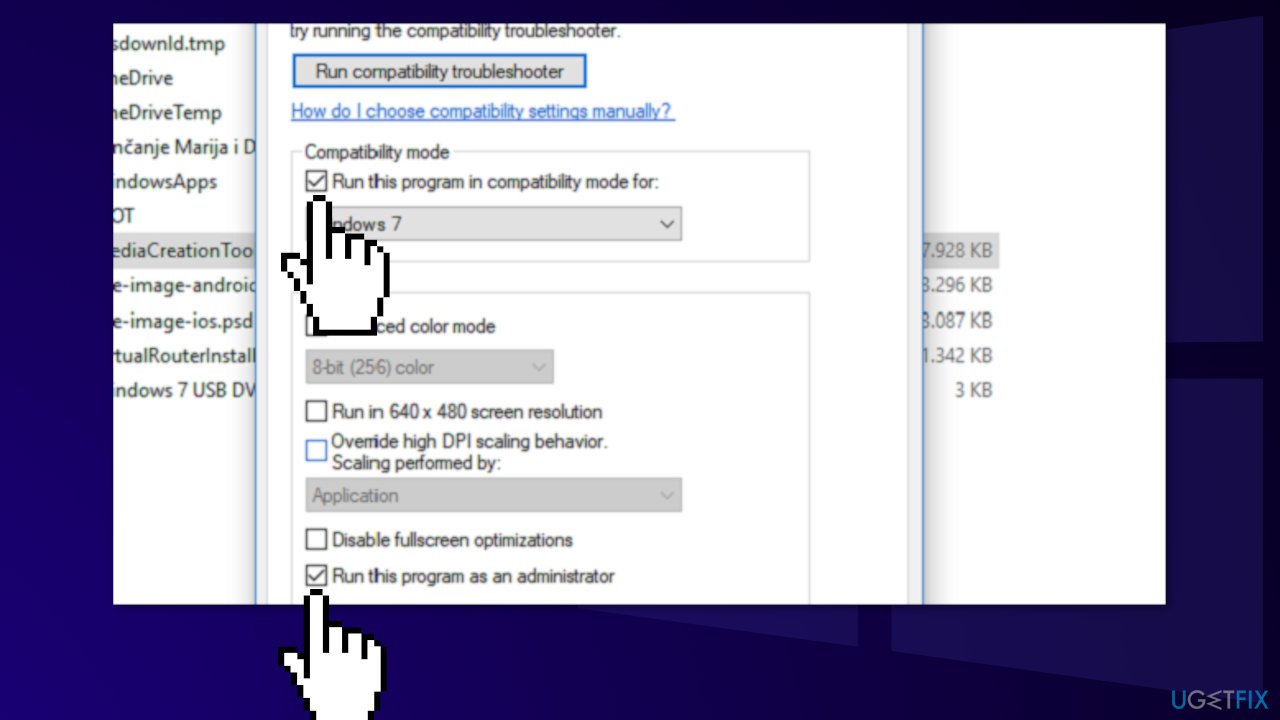
- Confirm changes and try to run Media Creation Tool again
Method 5. Update Network Adapter Drivers
- In the search box on the taskbar, enter device manager, then select Device Manager
- Select the Network adapters category to see names of devices, then right-click (or press and hold) the one you’d like to update
- Select Search automatically for drivers
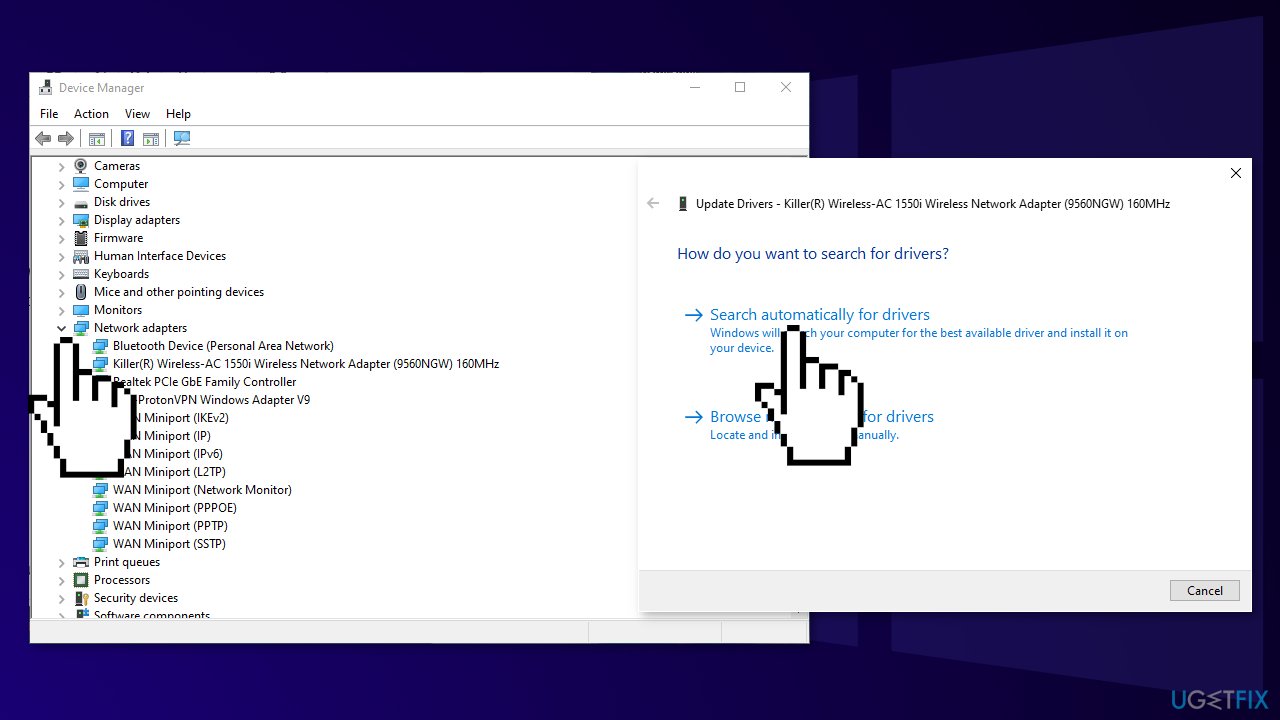
- Select Update Driver
- If Windows does not find a new driver, you can try using driver updating software [rev id="DriverFix"], which will ensure all your drivers are up to date and not malfunctioning
Method 6. Disable Energy Saving
If you are using wired ethernet and not Wi-Fi, try this method:
- Go to Device Manager then Network Adapters and select Ethernet adapter
- Go to the Power Management tab, and clear the check box Allow the computer to turn off the device to save energy
- Then on the Advanced tab, disable any energy-saving options
You might also be interested in:
Bottom line
To fix the Media Creation Tool error 0x80072ee2 - 0x20018, users should check their Internet connection, ensure network adapters are updated, and restart their modem and PC. If the issue persists, consider using a maintenance tool to repair system errors and optimize performance. If none of these solutions work, refer to a detailed guide for further troubleshooting steps.
Frequently asked questions
This error typically indicates a network connectivity issue or a problem with the Microsoft server while trying to download the Windows installation files.
To resolve this error, check your internet connection, temporarily disable your firewall or antivirus software, and try running the Media Creation Tool as an administrator.
Yes, ensure that your DNS settings are correctly configured by using a public DNS service like Google DNS (8.8.8.8) and check for any proxy settings that might be interfering with the connection.




Report an issue
What's wrong with this guide? We review every report and update or remove content.
Report received — thank you. We'll review and fix it.
You need a free account to submit a report.
Be the first to comment