How to fix
Microsoft Ergonomic Keyboard stopped working
on Windows
Resolve your Microsoft Ergonomic Keyboard issues on Windows 10 or 11 quickly and easily. Solutions guaranteed to work, expert-tested for your peace of m…


What causes How to fix Microsoft Ergonomic Keyboard stopped working?
- Windows update causing issues
- Keyboard becoming unresponsive temporarily
- System restart resolving temporary unresponsiveness
- General computer issues affecting keyboard functionality
Repairs Windows system files, removes malware, and restores a clean OS state — without reinstalling.
Hi, I'd like some help with the Microsoft Ergonomic keyboard - it simply stopped working one day. I had it for a few months prior to this and had no problems, or so I thought. I am now using my old keyboard, but I'd like to resolve issues with the new one. If there's something that can be done, please tell me.
Keyboards are basic but important input devices when using any kind of computer. Without them, it would be difficult to type. They can also be used for various shortcut combinations that allow users to control their computers better. That's why when a keyboard isn't working as intended, it becomes a huge problem.
An ergonomic keyboard is a device that has a special shape - the keys are split into two major parts, which allow wrist stress relief when used for long periods. That's why so many people who spend a lot of time using computers for work prefer these types of hardware. Unfortunately, just like any other component, this one may also fail, as many people reported Microsoft Ergonomic keyboard stopped working for them.
It seems like the Microsoft Ergonomic keyboard can stop working out of the blue, although this perception is wrong - there is always a cause for malfunctions. Some users claimed that they started experiencing issues after updating Windows, while others said the issue happened abruptly.
The way the Ergonomic keyboard stopped working was also different for different users. For example, some people claimed that it simply stopped responding altogether, while others said that it would become unresponsive temporarily several times a day, with the system restart resolving the situation.
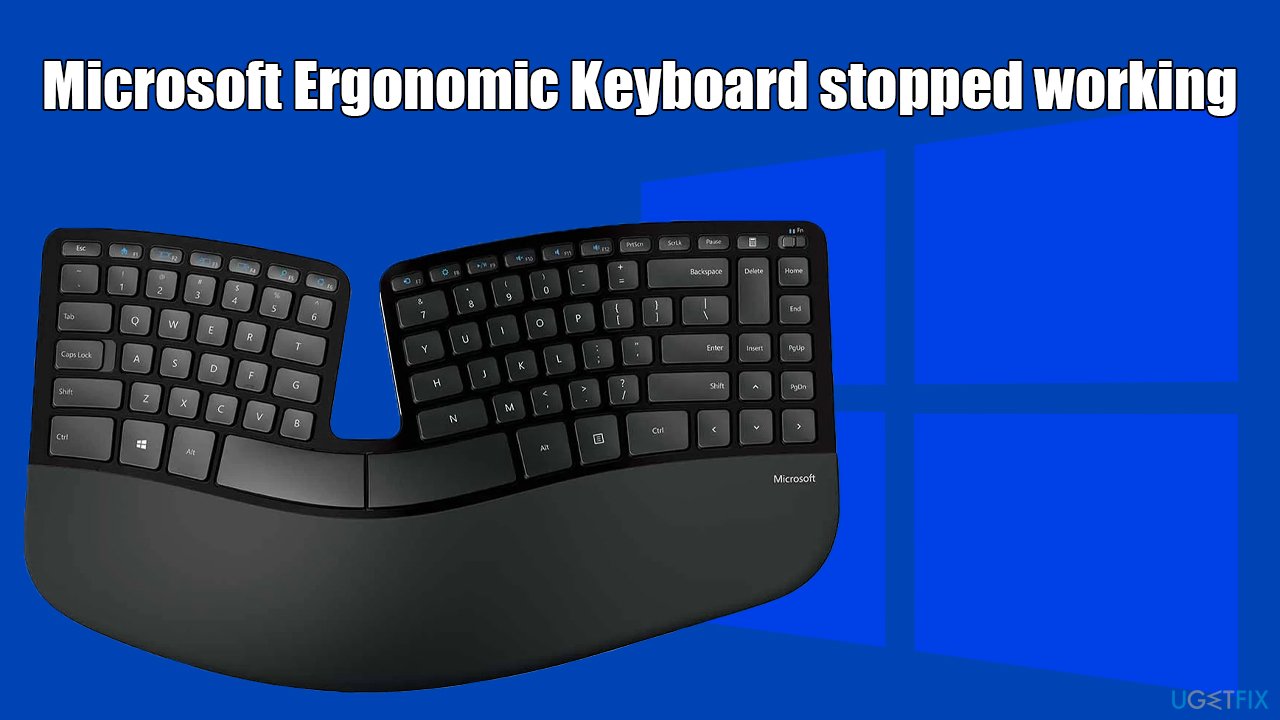
There are plenty of people who had the exact same problem and were understandably getting frustrated. A keyboard that was recently bought should not just randomly stop working. However, in order to get down to the root cause, quite a few troubleshooting steps should be done, and we provide several of them below.
Tip: if you are having general computer issues, such as the inability to install the newest Windows updates or your PC can't stop crashing, we recommend checking the system with powerful PC repair software [d1].
Solution 1. Make some basic checks
Sometimes the issues with the keyboard can be diagnosed and fixed by using general solutions. Here are a few basic tips that you may or may not have yet tried:
- If you are using a wireless keyboard, make sure you check the batteries are working - try replacing them;
- If your keyboard is old or only some keys aren't working, use special solutions with alcohol that are designed for cleaning keyboards. If keys get caught in the pressed position, it prevents the keyboard from working properly.
- With USB keyboards, try using a different USB port;
- Check if the keyboard works on a different PC. If it does, the problem can be fixed using troubleshooting steps.
Solution 2. Update drivers
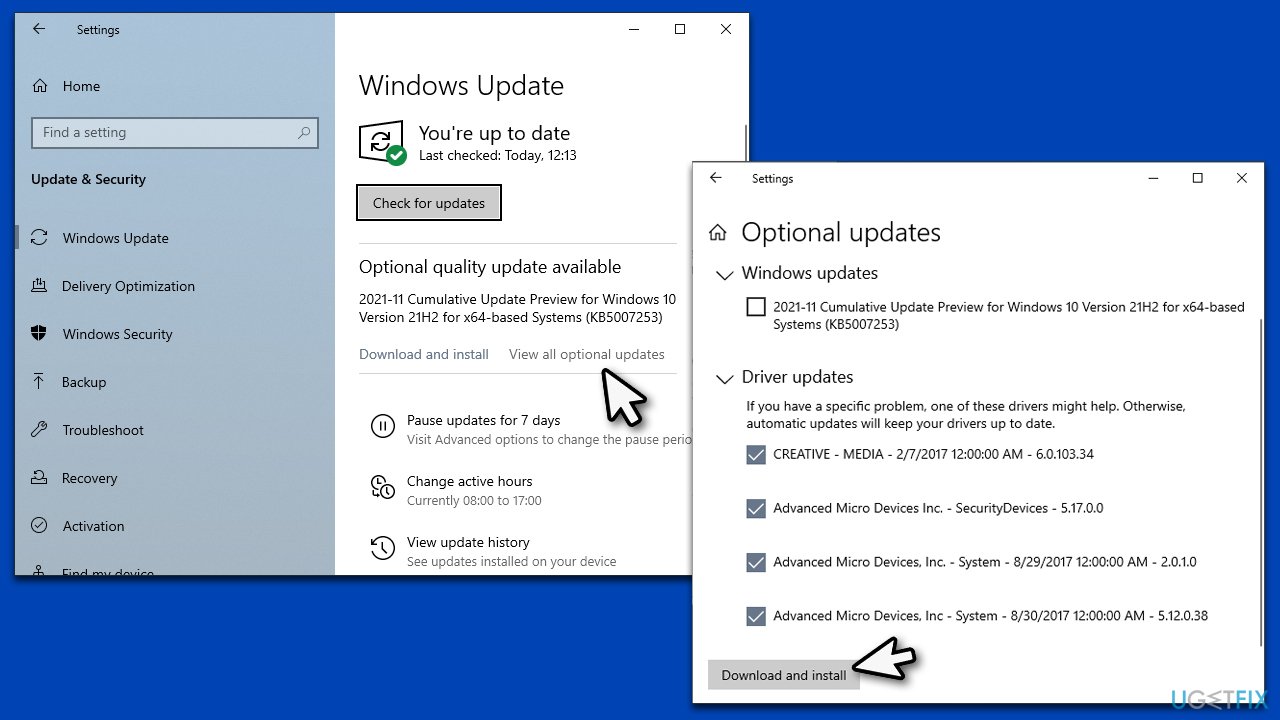
Your drivers might not be working correctly, so make sure they are up to date. For that, you can either use [rev id="DriverFix"] or use the Windows update feature (if you have recently updated Windows, skip this step).
- Type Update in Windows search and hit Enter
- Click Check for updates
- Click View optional updates
- Find the Driver Updates section, tick the checkboxes, and click Download and Install
- Restart the PC.
Solution 3. Reinstall drivers
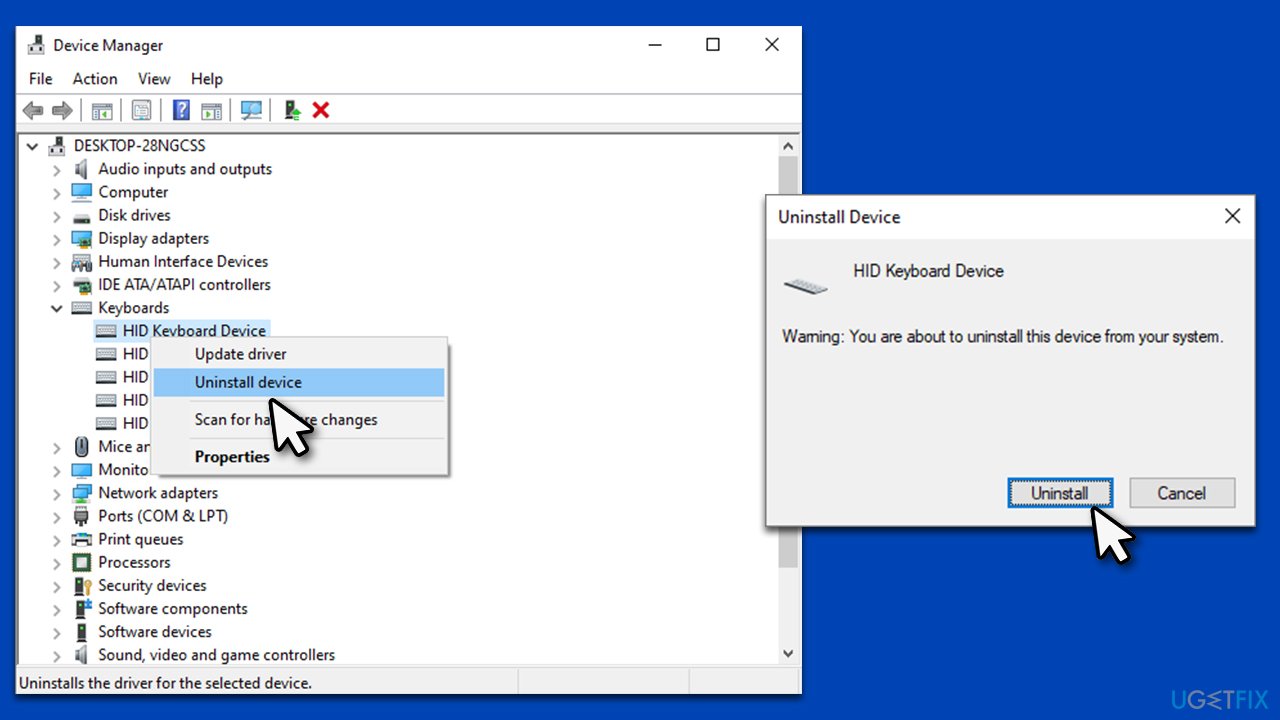
If updating drivers didn't help, try reinstalling them. Your first task is uninstalling the driver:
- Right-click on Start and pick Device Manager (or type Device Manager in Windows search and press Enter)
- Expand Keyboards section
- Right-click on your keyboard and select Uninstall device
- When the warning comes up, click Uninstall
- Reboot your system.
Drivers should install automatically after the system reboot. If not, you can initiate driver updates by using the solutions we explained prior.
Solution 4. Uninstall the most recent Windows update [workaround]
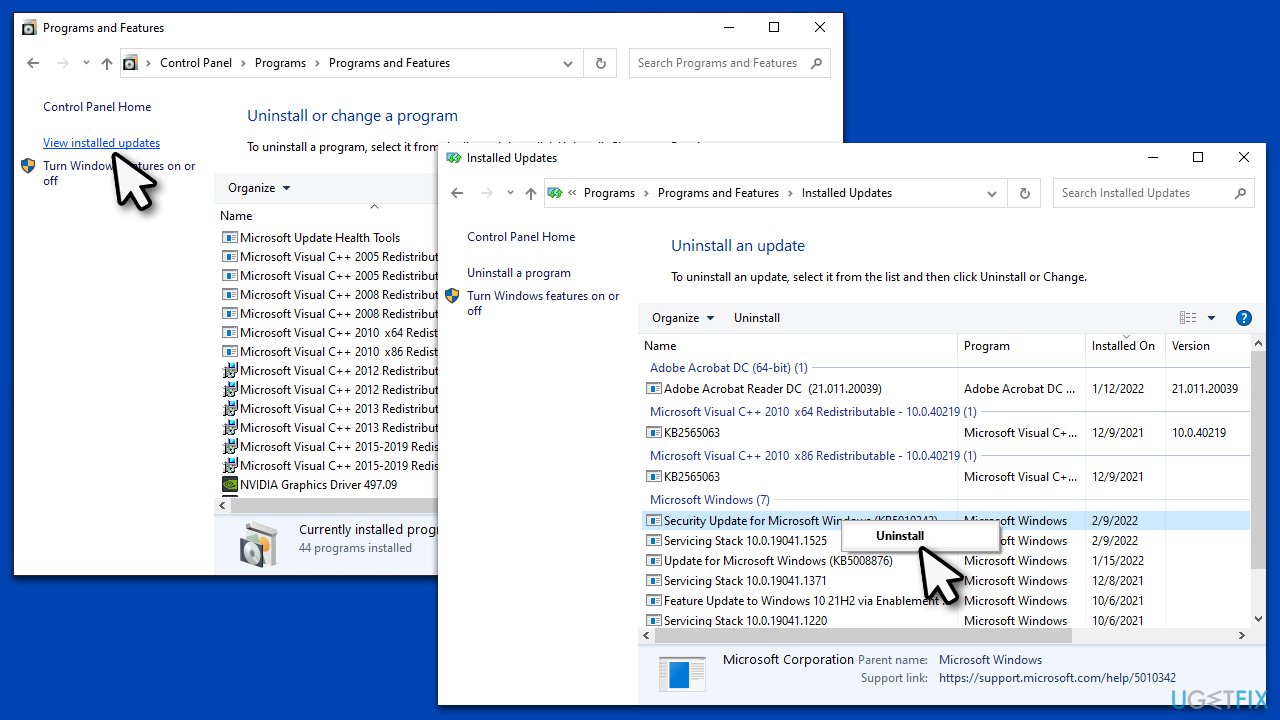
If Microsoft Ergonomic Keyboard stopped working after updating Windows, you could uninstall the most recent update.
- Type Control Panel in Windows search and press Enter
- Select Programs > Uninstall a program
- Click on View installed updates on the left side of the window
- Sort all the updates by date
- Right-click on the most recent update and select Uninstall
- Proceed with on-screen instructions and restart your PC.
Solution 5. Run the troubleshooter
- Type troubleshoot in Windows search and hit Enter
- Select Additional troubleshooters/Other troubleshooters
- Scroll down to find Keyboard
- Click on it once and run the troubleshooter
- Check the results and apply fixes.
Related:
Bottom line
To fix the Microsoft Ergonomic Keyboard, users can try troubleshooting steps such as checking connections, restarting the computer, or reinstalling drivers. If these solutions do not resolve the issue, further investigation into hardware problems may be necessary.
Frequently asked questions
Try unplugging the keyboard and reconnecting it to a different USB port. If that doesn't work, check for any pending Windows updates that may resolve the issue.
Ensure that the keyboard drivers are up to date by visiting Device Manager, right-clicking the keyboard, and selecting 'Update driver.' You can also try cleaning under the keys or testing the keyboard on another device.
Go to Settings > Devices > Typing and ensure that all related settings are enabled. You should also check the Ease of Access keyboard settings to make sure no accessibility features are interfering.




Report an issue
What's wrong with this guide? We review every report and update or remove content.
Report received — thank you. We'll review and fix it.
You need a free account to submit a report.
Be the first to comment